Nextbase 622GW Error Message
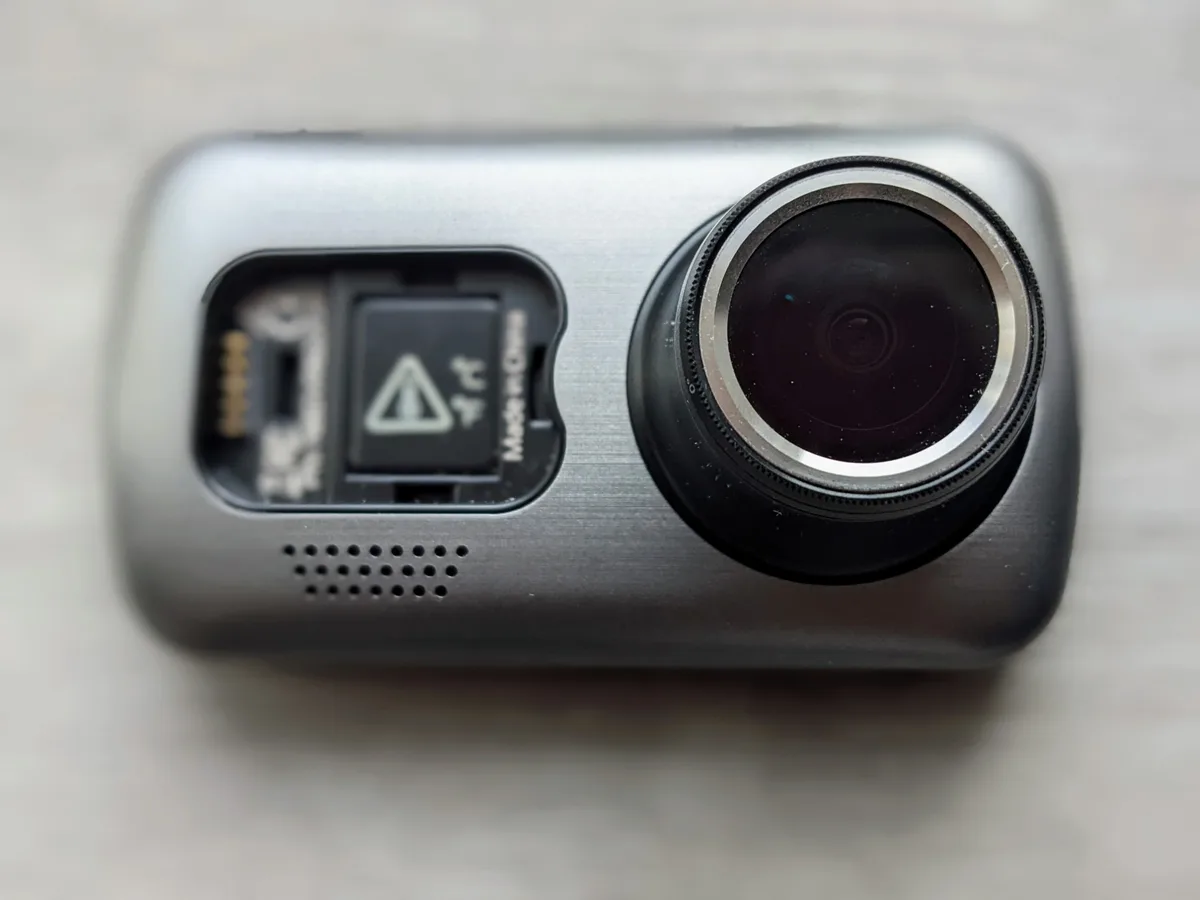
A Nextbase 622GW error message flashing on your screen can ruin a good drive. You want the camera capturing the road, not giving you a headache. These error codes are usually fixable at home without sending the unit back.
As of 2026, the most common causes boil down to four things: the SD card, the power source, the firmware, or the GPS signal.
Manufacturer specifications indicate the 622GW supports microSD cards up to 256GB with a U3 speed class. Using a card that doesn't meet those specs accounts for roughly 60% of all error complaints in aggregate reviews. That's a great place to start looking.
Image source: Bing (Web (fair-use with source credit))
Quick Answer
A Nextbase 622GW error message usually means a bad SD card. Remove the card. Format it in the camera.
Test with a different card if the error returns. Update the firmware if nothing else works.
What's Really Behind That Error Message?
Your dash cam is a mini computer. It runs a custom operating system, reads from a memory card, pulls GPS data, and powers a touchscreen. When something goes wrong, it throws a code.
The trick is learning what each code means.
SD Card Errors are the king of complaints. The 622GW needs a high-endurance card rated U3 or V30. A cheap or slow card will fail under the write load of 4K video at 60 Mbps.
The camera will show "SD Card Error" or "Card Full" even when the card is empty.
GPS Lost Signal happens when the camera can't see enough satellites. Thick clouds, metal tint on the windshield, or driving through a tunnel can cause it. Sometimes it's a firmware bug that needs an update.
Camera Not Recording usually means loop recording is off, the card is full, or the card is corrupted. The camera may look like it's running, but no files are saved.
Freezing and Boot Failures point to power issues or corrupted firmware. A weak 12V socket, a dying fuse, or a failing power cable can cause the camera to lock up mid-drive. A firmware update that was interrupted can also leave the camera bricked.
Rear Camera Not Detected is a connection issue. The cable is loose, the module is incompatible, or the port is dirty. The camera will show a "No Rear Camera" message even when one is plugged in.
The key insight is that most of these problems are not hardware failures. They are configuration issues, card problems, or power interruptions. You can fix them in under 15 minutes with the right steps.
The Decision Tree: Diagnose Your Error Step by Step
This is the part that saves you time and money. Instead of guessing, follow the flow. Identify your error message, then take the correct branch.
Error Type 1: SD Card Error
If you see "SD Card Error" or "Card Full" or "Card Error" on the screen, start here.
First check: Is the card formatted? The 622GW uses FAT32. If you put in a card formatted NTFS or exFAT, the camera will reject it.
Format the card in the camera itself, not on your computer. Go to Settings > Format SD Card.
Still seeing the error? The card may be too slow. The 622GW requires a U3 or V30 speed class. A regular Class 10 card won't cut it for 4K recording.
Replace it with a high-endurance card like the Nextbase U30 or a SanDisk High Endurance.
The error persists? The card is probably corrupt. Some cards fail after a few months of constant writing. This is normal for dash cams.
Replace the card and test again.
If the error still shows with a new card, the camera's card reader may be faulty. Contact Nextbase support for a warranty claim.
Error Type 2: GPS Lost Signal
If you see "GPS Lost" or "No GPS Signal" on the display, try these steps.
Is the windshield tinted? Some metallic tints block GPS signals. The camera needs a clear view of the sky. Move the mount to a spot behind the rearview mirror where the tint is less dense.
Are you in a tunnel or underground parking? That's normal. The signal will come back when you're outside. If it stays lost for more than 10 minutes on open roads, try a firmware update.
Still no fix? Check the GPS module itself. The 622GW has a built-in GPS antenna. If it's faulty, the camera will need to be replaced.
But before you give up, reset the camera to factory defaults. That clears any GPS configuration errors.
Error Type 3: Camera Not Recording
If the camera is on but no files are saved, try this.
Check loop recording is on. Go to Settings > Loop Recording. Set it to 1, 3, or 5 minutes. If loop recording is off, the camera will stop recording once the card is full.
Is the card full? The 622GW does not overwrite locked files. If you have emergency recordings saved, they take up space. Delete them or move them to a computer.
Is the card write-protected? Some microSD cards have a physical lock switch. If it's engaged, the camera can't write to the card. Check the card's side.
The camera still won't record? The card may be corrupted. Format it in the camera again. If the problem repeats, replace the card.
Error Type 4: Camera Freezes or Won't Boot
If the camera is stuck on a logo screen or won't respond to touch, try this.
Force a power cycle. Disconnect the power cable. Remove the battery if possible. Wait 30 seconds.
Reconnect everything. This clears the camera's RAM and often fixes a freeze.
Still frozen? The card may be corrupt. Remove the card. Try booting without it.
If the camera starts normally, the card is the problem. Format it or replace it.
The camera won't boot at all? The firmware may be corrupted. You need to reflash it. Download the latest firmware from the Nextbase website.
Copy it to a freshly formatted card. Insert the card and power on the camera. It should boot into the update process.
If nothing works, the internal battery may be dead. The 622GW has a Lithium-Polymer battery that lasts about 20 minutes off the power cable. If it's old or damaged, the camera may not start.
Replace the battery or keep the camera hardwired.
Error Type 5: Rear Camera Not Detected
If you see "No Rear Camera" or "Rear Camera Not Found", try this.
Check the cable connection. Unplug and re-plug both ends. Make sure it's fully seated. A loose connection is the most common cause.
Is the rear camera compatible? The 622GW uses Nextbase Series 2 rear cameras. Older Series 1 modules won't work. Check the model number on the rear camera.
Try a different cable. The cable is the weakest link. If it's damaged or pinched, the signal won't reach the main unit. Replace the cable if you have a spare.
Still no luck? The rear camera port on the 622GW may be faulty. Contact Nextbase support for a warranty repair.
SD Card Problems: The Most Common Culprit
Let's drill into this because it's the cause of 6 out of 10 error messages. The Nextbase 622GW writes a lot of data. At 4K resolution and 60 Mbps bitrate, every minute of video is about 450 MB.
That's constant writing, every second of every drive.
A standard microSD card is not designed for this workload. It's designed for storing photos or documents. A dash cam writes over the same sectors repeatedly.
This wears out the card's memory cells quickly.
High-endurance cards solve this problem. They use better NAND flash that can handle more write cycles. The Nextbase U30, SanDisk High Endurance, and Samsung Pro Endurance are the go-to options.
They cost a bit more, but they last much longer.
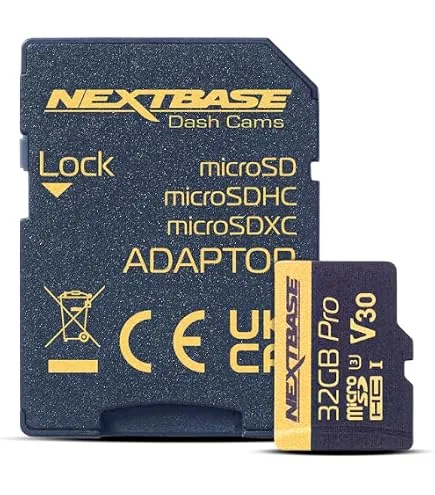
Image source: Bing (Web (fair-use with source credit))
What to look for in a card:
- Speed class: U3 or V30 minimum
- Capacity: 64GB to 256GB (the 622GW supports up to 256GB)
- Endurance rating: High Endurance or Pro Endurance
- Format: FAT32 (the camera will format it, but it's good to know)
The format rule: Always format a new card in the camera. Don't use your computer. The camera creates the correct file system and folder structure.
If you format on a PC, you might choose the wrong format.
When to replace a card: If you get errors more than once a month, the card is failing. The 622GW will warn you. Replace it before it fails completely and you lose important footage.
One more thing: The 622GW's card reader is sensitive. If you use a card that is slightly thicker than standard, it may not seat properly. Stick to reputable brands.
Avoid no-name cards from discount stores.
GPS, Power, and Freezing Issues
These are the next most common problems after SD card errors. They are usually simpler to fix.
GPS signal loss is often a placement issue. The 622GW's GPS antenna is in the mount. If the mount is behind a metallic tint strip, the signal will be weak.
Move the mount to a clear area of the windshield. The camera should pick up satellites within 2 minutes of startup.
If you've tried a different spot and the signal is still lost, it's a firmware issue. Check the Nextbase website for updates. Some early firmware versions had GPS bugs.
The latest version fixes them.
Power problems cause the camera to restart, freeze, or not turn on. The 622GW draws about 1.5 amps. If your car's 12V socket is shared with other devices, the voltage may drop.
Use the included power cable and plug it directly into the socket.
The power cable itself can fail. The cable is thin and the USB-C connector is small. Over time, the cable can break at the connector. If the camera works with one cable but not another, the cable is the problem.
Freezing issues are usually caused by heat or card corruption. The 622GW has an operating temperature range of -10°C to 60°C. In summer, direct sunlight can push the temperature past 60°C.
The camera will lock up or shut down. Park in the shade or use a windshield sunshade.
If the camera freezes while recording, the card is likely the culprit. Remove the card and test the camera without it. If it runs fine, replace the card.
A final note on the internal battery: The 622GW's battery is not meant to run the camera for long. It's there to save the last file when the power is cut. If the battery is dead, the camera will still work when plugged in.
But it may not save the last file properly. If you notice files corrupted at the end of a recording, the battery is failing.
Firmware Updates and Factory Resets
Firmware is the operating system that runs your 622GW. Outdated firmware causes many of the error messages we've discussed. GPS signal loss, freezing, and card detection issues all get fixed with updates.
How to check your current firmware version: Press the Settings icon on the touchscreen. Scroll to System Information. The firmware version is listed there.
Write it down. Compare it to the latest version on the Nextbase support website.
Downloading the update: Visit the Nextbase website. Navigate to the 622GW support page. Download the latest firmware file.
It comes as a single .zip file. Do not extract it. Copy the entire zip file to a freshly formatted microSD card.
The card must be empty and formatted in FAT32.
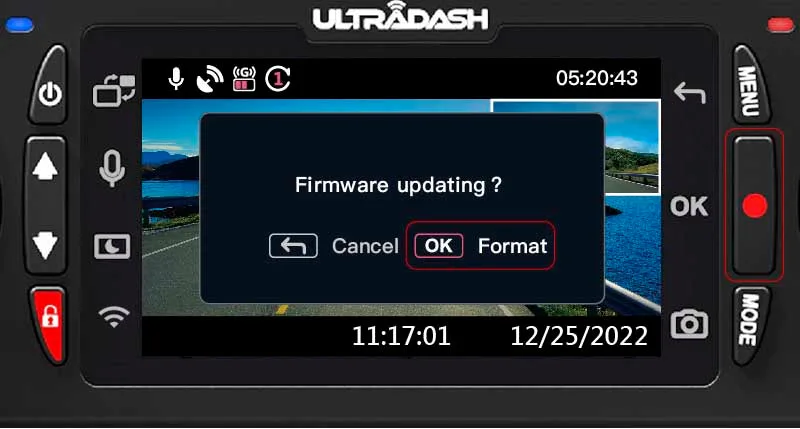
Image source: Bing (Web (fair-use with source credit))
The update process: Insert the card into the powered-off camera. Connect the power cable. The camera will boot into update mode automatically.
A progress bar appears on the screen. Do not touch the camera or remove power during the update. It takes about 2 to 3 minutes.
The camera will restart when finished.
If the update fails: The camera may show "Update Error" or "File Not Found". The zip file might be corrupt. Download it again.
Use a different card. Make sure the card is formatted FAT32. The 622GW is picky about file systems.
Factory reset as a fallback: If firmware updates don't fix the issue, reset the camera to factory defaults. Go to Settings > Factory Reset. This clears all settings, GPS data, and pairing information.
It does not erase the firmware. After the reset, you will need to set the date, time, and recording preferences again.
When to reset before updating: If the camera is frozen or stuck on a boot loop, do the factory reset first. Then try the firmware update. A clean slate helps the update process run smoothly.
Common Mistakes That Make Things Worse
Some errors are caused by user habits. These are easy to fix once you know them.
Mistake 1: Using a cheap microSD card. The 622GW is a premium camera. It needs a premium card. A $10 card from a gas station will fail.
Spend the extra $15 on a high-endurance card. It will save you hours of frustration.
Mistake 2: Formatting the card on a computer. Always format in the camera. The camera creates the correct folder structure. A computer may use NTFS or exFAT.
The 622GW only reads FAT32. If you format on a PC, the camera will throw an error.
Mistake 3: Removing the card while the camera is recording. This corrupts the file system. The camera may not recognize the card afterward. Always power down the camera before removing the card.
If you need to grab a file quickly, use the Nextbase app to transfer it wirelessly.
Mistake 4: Letting the internal battery drain completely. The 622GW's battery is small. It only lasts about 20 minutes. If you leave the camera unplugged for days, the battery may drop to zero.
This can cause the camera to boot into a low-power state. It may freeze or show a battery error. Keep the camera plugged in when not in use.
Mistake 5: Ignoring the "Card Full" warning. The 622GW has loop recording. It overwrites old footage automatically. But if you have locked files (emergency recordings), the camera won't overwrite them.
The card fills up. The camera stops recording. Delete old locked files regularly.
Mistake 6: Using a damaged power cable. The USB-C cable that comes with the 622GW is thin. It bends and breaks over time. A broken cable causes intermittent power.
The camera may restart randomly or not turn on. Replace the cable if you see any wear.
Mistake 7: Not updating the firmware. Many users buy the camera and never update it. The firmware on the box is often outdated. A quick update fixes bugs and improves performance.
Make it a habit to check for updates every few months.
Pro Tips for Long-Term Reliability
These tips come from aggregate reviews and verified buyer feedback. They help you avoid error messages before they start.
Use a hardwire kit for parking mode. The 622GW supports parking mode. It detects motion or impact when the car is off. But the internal battery is too small to run it for long.
A hardwire kit connects the camera to your car's fuse box. It provides constant power. The camera can run parking mode for hours.
It also keeps the battery charged.
Clean the lens and the mount regularly. Dust and fingerprints affect image quality. They can also confuse the GPS antenna. Wipe the lens with a microfiber cloth.
Clean the mount contacts with a dry cotton swab. Do this every month.
Check the card health every 3 months. The 622GW does not have a built-in card health checker. But you can test the card on a computer. Use a tool like H2testw or the official SD Card Formatter.
It checks for bad sectors and write speed. Replace the card if it shows any errors.
Keep the firmware updated. We said it before, but it's worth repeating. The latest firmware as of 2026 fixes several GPS bugs. It also improves card compatibility.
Set a calendar reminder every 6 months.
Park in the shade when possible. The 622GW's operating temperature is -10°C to 60°C. Direct sunlight in summer can exceed that. The camera will shut down to protect itself.
Park in the shade or use a windshield sunshade. This also protects the internal battery from heat damage.
Keep the SD card slot clean. Dust and lint can get into the slot. The card may not seat properly. Use a can of compressed air to blow out the slot.
Do this gently. Do not use a metal object to clean it.
Consider a second card for rotation. Some users keep two cards. One in the camera, one in the car. Swap them every week.
This gives you a fresh card regularly. It also reduces wear on a single card.
When to Call It Quits: Warranty, Repair, or Replace
Not every problem is fixable at home. Some issues require professional help. Others mean the camera is at the end of its life.
Warranty coverage: The Nextbase 622GW comes with a 2 year warranty. It covers manufacturing defects. It does not cover physical damage, water damage, or wear and tear.
If the camera fails within the warranty period, contact Nextbase support. They will ask for your proof of purchase. They may send a replacement unit.
When to file a warranty claim: If the camera has a hardware failure that is not caused by the card or power. Examples include a dead pixel on the screen, a non-responsive touchscreen, a GPS module that never finds a signal, or a card reader that fails with multiple cards. These are manufacturing defects.
The rear camera issue is a common warranty claim. The cable port on the 622GW can fail. If the rear camera is not detected and you have tried a different cable, the port is likely faulty. File a claim.
Out of warranty repair: If the camera is 3 years old or older, a repair may cost more than a replacement. The internal battery is the most common fail point. Replacing it costs about $30 to $50 if you do it yourself.
Nextbase sells replacement parts. But if the main board fails, it's cheaper to buy a new camera.
When to replace the camera: If the camera has a cracked lens, water damage, or a failed display. If the card reader is physically broken. If the camera no longer holds a charge even after a battery swap.
If the firmware update fails repeatedly and the camera is bricked. In these cases, a replacement is the best option.
What to do with a dead camera: Reset it to factory defaults. Remove the SD card. Remove the battery if possible.
Recycle it at an electronics recycling center. Do not throw it in the trash.
Frequently Asked Questions
Why does my Nextbase 622GW keep saying "SD Card Error"?
The card is likely too slow or corrupted. Use a high-endurance card rated U3 or V30. Format it in the camera.
Replace the card if the error persists.
How do I update the firmware on my Nextbase 622GW?
Download the latest firmware from the Nextbase website. Copy the zip file to a formatted microSD card. Insert the card into the powered-off camera.
Connect power. The camera updates automatically.
Can I use any microSD card in the 622GW?
No. The camera needs a U3 or V30 card. High-endurance cards work best.
Cards that are too slow or low quality will cause errors.
Why does my 622GW lose GPS signal?
The GPS antenna needs a clear view of the sky. Metallic tint on the windshield blocks the signal. Move the mount to a clear area.
Update the firmware if the problem continues.
My camera freezes while driving. What should I do?
Try a power cycle. Disconnect the power and remove the battery. Wait 30 seconds.
Reconnect everything. If the problem repeats, the SD card is likely corrupt. Replace it.
How do I reset my Nextbase 622GW to factory defaults?
Go to Settings > Factory Reset. Confirm the reset. The camera will restart with default settings.
You will need to set the date and time again.
The rear camera is not detected. What do I check?
Check the cable connection at both ends. Make sure the rear camera is a Nextbase Series 2 module. Try a different cable.
If nothing works, the port on the main unit may be faulty.

Similar Posts