How to Set Video Autofocus
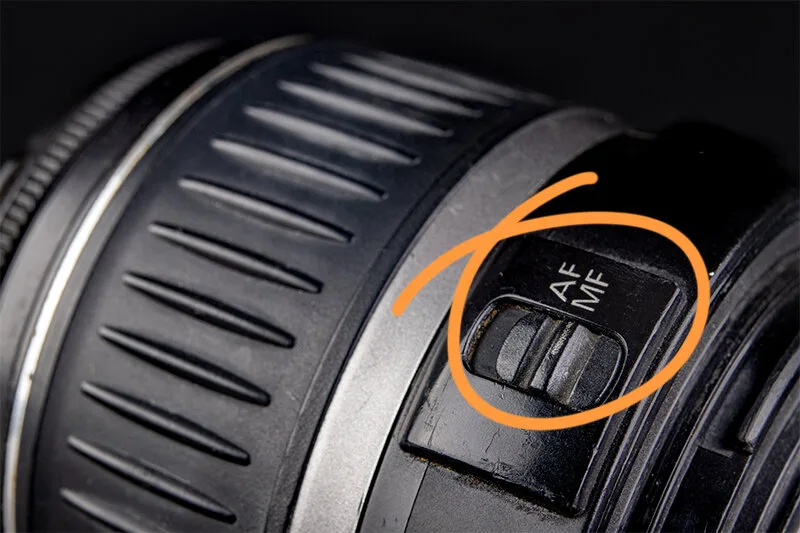
You've set up your shot, hit record, and your camera starts hunting for focus. It's frustrating, and it makes you look amateur. Learning how to set video autofocus properly is the fix that saves your footage and your sanity.
As of 2026, most modern mirrorless cameras with phase-detection autofocus can lock focus in under 0.05 seconds. But that speed means nothing if you're using the wrong mode or area. Let's walk through the settings that actually matter.
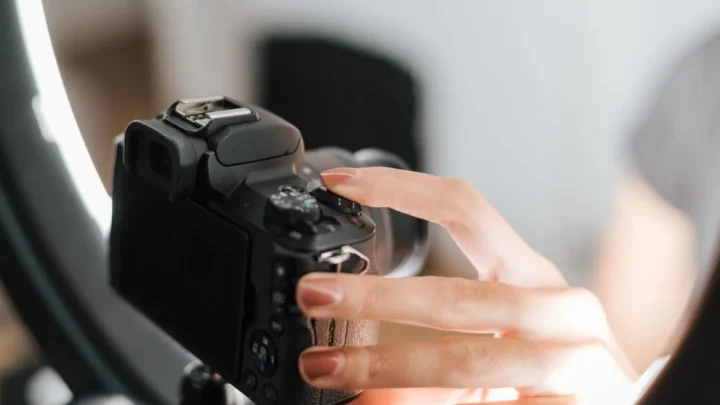
Image source: Bing (Web (fair-use with source credit))
Quick Answer
Set your camera to continuous autofocus (AF-C) mode. Enable subject detection for faces or eyes. Choose a wide tracking area.
Test the setup before recording. Adjust sensitivity if your camera offers it.
Why Your Video Autofocus Is Hunting (And How to Know If It's You or the Gear)
That pulsing, searching motion you see in your footage isn't always a gear problem. Nine times out of ten, it's a settings mismatch. Your camera is trying to do its job, but it doesn't know what you want it to focus on.
The most common cause is low contrast. If your subject is wearing a solid grey shirt against a grey wall, the camera has nothing to lock onto. The same goes for low light.
Most contrast-detection systems struggle below -2 EV. Phase-detection systems handle it better, but they still need some light.
Another culprit is the wrong focus area. A wide area mode works great for a person walking across the frame. But if you're shooting a static interview and leave it on wide, the camera will drift to the background every time you move.
Lens compatibility matters too. A fast native lens with a linear motor will track smoothly. An older adapted lens with a noisy screw-drive motor will hunt and pulse.
If you're using adapted glass, you might need to switch to manual focus entirely.
The key question is: does the camera hunt in the same scene every time? If yes, it's your settings. If it only hunts in specific conditions, that's a hardware limitation.
If you're still struggling, a general camera troubleshooting guide can help narrow down the issue.
The Autofocus Modes That Actually Matter for Video: AF-S, AF-C, and Tracking
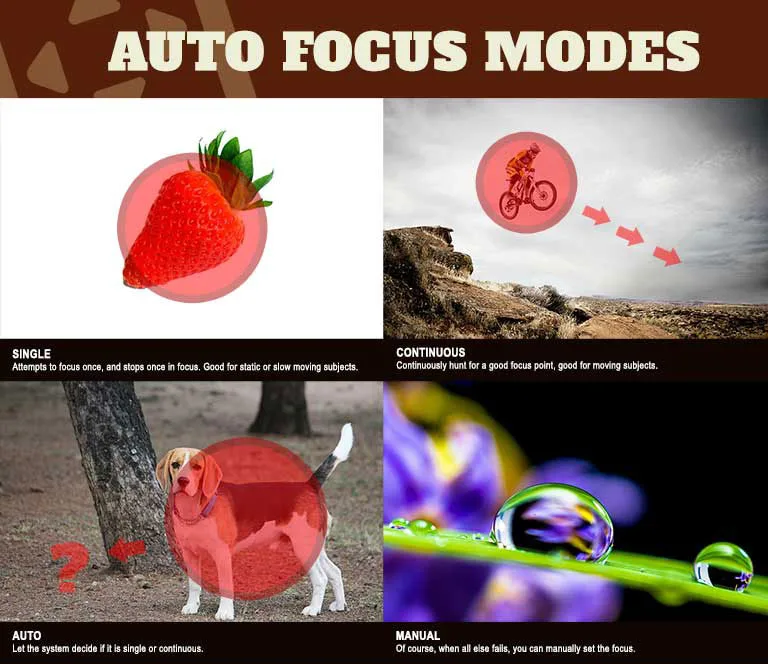
Image source: Web (Bing) / red-dot-geek.com (Web image (fair-use with source credit))
Most cameras have three autofocus modes for video. Only two of them are useful. Let's break them down.
AF-S (Single Autofocus) locks focus once and holds it. It's perfect for stills. For video, it's a bad idea.
If your subject moves even slightly, everything goes soft. You'd have to half-press the shutter again to re-lock. That's not practical during recording.
AF-C (Continuous Autofocus) is the workhorse for video. It constantly adjusts focus as the subject moves. The camera keeps tracking until you stop recording.
For most shooting scenarios, this is the mode you want.
Tracking is a sub-mode within AF-C. It lets you select a specific subject and tells the camera to follow that subject across the frame. It's different from just letting the camera decide what's important.
With tracking, you tell the camera who or what to follow.
| Mode | Best For | Avoid When |
|---|---|---|
| AF-S | Static tripod shots, product close-ups | Any moving subject |
| AF-C | Vlogging, events, run-and-gun | You want precise manual control |
| Tracking | Single person walking, sports, animals | Multiple subjects crossing paths |
Your camera might call these modes different names. Sony uses "Continuous AF" and "Tracking". Canon uses "Servo AF".
Nikon calls it "AF-F" for full-time. The logic is the same across brands.
One more thing: if you're shooting a sit-down interview where the subject barely moves, AF-C with tracking is still better than AF-S. The camera won't hunt unless it loses the face. And if it does, it snaps back faster than you can.
Your Autofocus Decision Tree: Matching Settings to Your Scene
Here's the decision tree that solves 90% of autofocus headaches. Ask yourself these questions in order.
Is your subject moving?
- Yes: Go to AF-C with tracking.
- No: You can use AF-S, but AF-C with a small zone is safer.
Is the subject a person?
- Yes: Enable face or eye detection. This is the single biggest improvement you can make.
- No: Disable face detection. Use animal detection if available, or switch to zone mode.
How many subjects are in the frame?
- One: Use tracking or a wide zone.
- Multiple: Use a small zone or spot. Track the specific person you want in focus.
Is the background busy or plain?
- Busy: Use a smaller focus area. The camera will get confused by passing cars or branches.
- Plain: Wide area is fine. The camera has nothing to grab onto except your subject.
Are you in low light?
- Yes: Enable AF assist if your camera has it. Stick to the center of the frame where AF points are most sensitive.
- No: Proceed normally.
Is your lens adapted?
- Yes: Expect slower performance. Use a single point or zone, not wide tracking.
- No: Use the full capabilities of your camera.
The decision tree isn't complicated. It's about knowing what question to ask yourself before you hit record. Most people skip this step and wonder why their footage looks like a soap opera.
How to Set It Up: Step-by-Step for Vlogging, Events, and Controlled Shooting
The settings change depending on what you're shooting. Here's the setup for the three most common scenarios.
For vlogging (talking head, self-recording):
- Set AF mode to AF-C (continuous).
- Enable face and eye detection.
- Select a wide tracking area.
- If your camera has a touchscreen, touch your face to lock tracking.
- Set tracking sensitivity to "sticky" or "locked on" if available.
- Record a test clip. Move your head side to side. If the camera pulls focus to the background, reduce the tracking area.
For events (weddings, conferences, run-and-gun):
- Set AF mode to AF-C.
- Enable subject detection for the type of subject (human, animal, vehicle).
- Use a zone area, not wide. Zone gives you more control over where the camera looks.
- Set tracking sensitivity to "responsive" or "fast". You want the camera to react quickly to new subjects.
- If you're shooting multiple people, tap the person you want in focus on the touchscreen.
- Keep your shutter speed at least 1/60th to avoid motion blur that confuses the AF.
For controlled shooting (interviews, product demos, scripted scenes):
- Consider manual focus. Seriously. If the subject stays in one spot, manual is smoother and more reliable.
- If you must use autofocus, set AF-C with a single point or small zone.
- Turn off face detection unless you want the camera to keep the face sharp at all times.
- Set tracking sensitivity to "slow" or "delayed". This prevents the camera from reacting to every tiny movement.
- Use focus peaking as a backup. Even with autofocus, peaking shows you exactly what's sharp.
One common mistake: leaving the camera in its default autofocus settings and expecting it to work for every scene. It won't. The defaults are designed for general snapshots, not video.
If you're new to the camera entirely, a beginner's guide to camera controls can help you sort out the basics.
5 Mistakes That Will Make Your Autofocus Look Amateur
Mistake 1: Using AF-S for video. This is the biggest one. AF-S locks focus once and forgets. Your subject moves two inches and the whole clip is soft.
Always switch to AF-C for video.
Mistake 2: Leaving subject detection off. Many cameras default to "no detection" for video. You have to turn it on. Once you do, the camera prioritizes faces and eyes.
This is a night-and-day difference.
Mistake 3: Using a wide area when you should use a zone. Wide area works great for a single subject in a clean background. But in a busy scene, the camera grabs the wrong thing. A zone restricts the camera to a part of the frame.
Mistake 4: Not adjusting tracking sensitivity. Fast sensitivity means the camera switches focus instantly when something new enters the frame. That's great for sports. For interviews, it's a disaster.
Slow sensitivity keeps the camera locked on longer.
Mistake 5: Ignoring focus breathing. Some lenses change focal length slightly as they focus. This creates a distracting "zoom" effect in video. Not all cameras compensate for this.
If you notice it, switch to manual focus or use a lens with less breathing.
These mistakes are easy to fix. The hard part is knowing you're making them. Now that you know, you can avoid them and get cleaner footage.
If you're still having trouble, check your camera's basic setup. Sometimes the issue is something simpler, like a dirty lens contact or a setting you accidentally changed. A thorough camera troubleshooting guide can walk you through the common culprits.
Advanced Tweaks: Back-Button Focus, Sensitivity, and Subject Detection
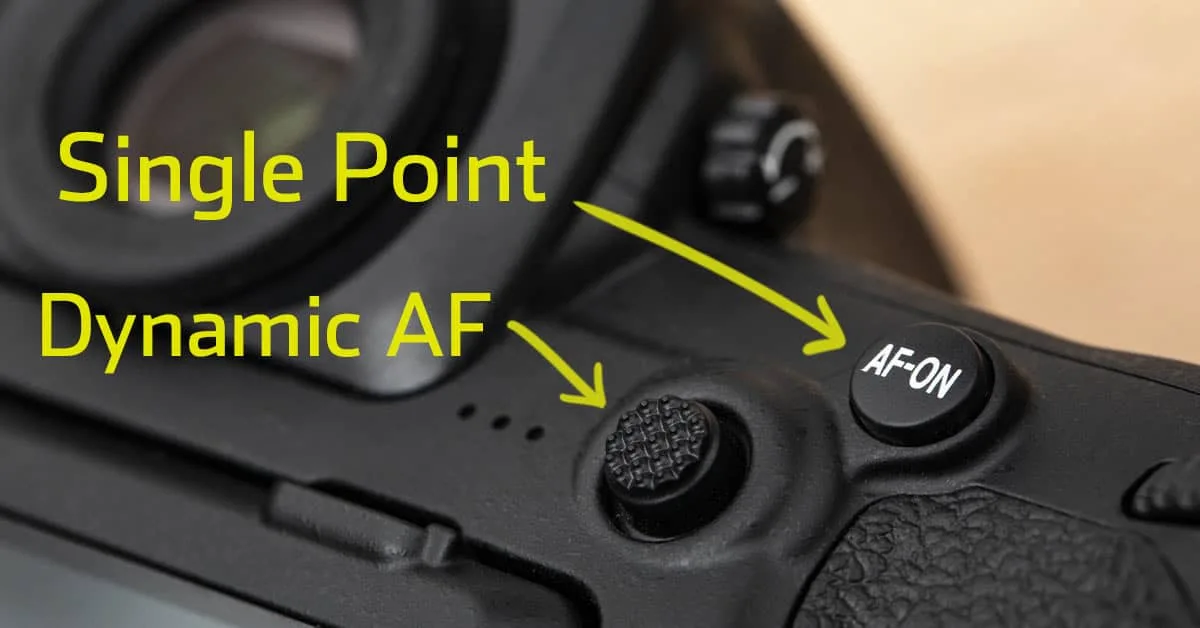
Image source: Web (Bing) / shuttermuse.com (Web image (fair-use with source credit))
Once you have the basics down, a few advanced settings can take your video autofocus from good to great. These tweaks give you more control over when and how the camera focuses.
Back-button autofocus separates the focus function from the shutter button. You assign autofocus to a dedicated button on the back of the camera. This means you can start and stop focusing independently of recording.
It's a game-changer for video. You can lock focus on a subject, then let go of the button. The camera stays locked until you press the button again.
This prevents accidental refocusing when you're framing a shot.
To set it up, dig into your camera's custom button menu. Look for "AF-ON" or "AF Lock" and assign it to a button you can reach easily. The rear thumb button is the most common choice.
Once it's set, you can focus with your thumb and use your index finger for the shutter or record button.
Sensitivity controls how quickly the camera reacts to a new subject entering the frame. Most cameras have a setting for this, often called "AF Tracking Sensitivity" or "AF Response Speed." For fast action like sports, set it to fast or responsive. For interviews or controlled scenes, set it to slow or locked on.
The slow setting prevents the camera from jumping to a passing hand or a moving object in the background.
Subject detection is the smartest feature in modern cameras. It tells the camera what to look for. Human detection tracks faces and eyes.
Animal detection works for dogs, cats, and birds. Vehicle detection follows cars, trains, and planes. Enable the right one for your shoot.
If you're filming a person, turn on human detection. If you're filming a dog, switch to animal. Leaving it on the wrong type can confuse the camera.
If you're not sure about the different focus area options, a guide on selecting focus points can help you understand the trade-offs. That knowledge pairs well with these advanced tweaks.
Frequently Asked Questions
Why does my autofocus keep hunting in video?
Hunting usually means the camera can't find enough contrast. Switch to a smaller focus area. Enable face detection if you're shooting a person.
Move to a brighter location if possible. If the problem persists, check your lens contacts for dirt.
What's the best autofocus mode for video?
Continuous autofocus (AF-C or Servo AF) is the best choice for video. It keeps adjusting focus as the subject moves. Single autofocus (AF-S) locks focus once and holds it, which is not useful for video.
Always use AF-C when recording.
How do I stop my camera from refocusing during recording?
Use back-button autofocus. Focus once with the dedicated button, then release it. The camera will stay locked on that distance.
You can also lower the tracking sensitivity or use a single point focus area to prevent accidental refocusing.
Should I use back-button focus for video?
Yes, it's highly recommended for controlled shooting. It gives you manual control over when the camera refocuses. For run-and-gun shooting, you might prefer continuous autofocus with tracking.
Test both methods to see which fits your style.
Does autofocus work with adapted lenses?
It depends on the lens and adapter. Many adapted lenses work, but they are slower and less reliable than native lenses. Expect hunting and pulsing.
For critical video work, use a native lens. If you're adapting a lens, consider using manual focus instead.
How do I fix focus breathing in video?
Focus breathing is a lens characteristic, not a camera setting. Some cameras have a "Focus Breathing Compensation" feature that crops the image slightly to hide it. If your camera doesn't have this, switch to manual focus or use a lens that has minimal breathing.

Similar Posts