Hp Photosmart 6520 Troubleshooting
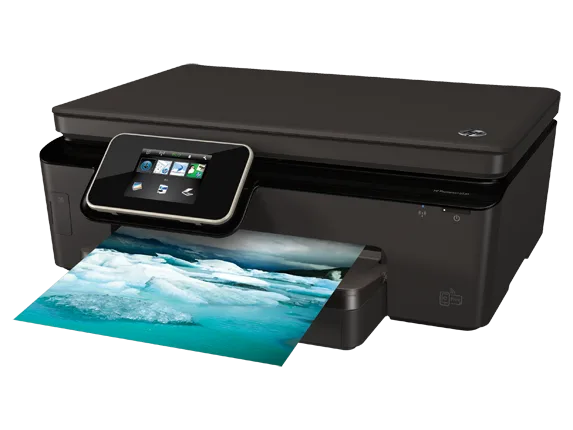
Your HP Photosmart 6520 has been acting up for a day or two. Maybe it flashed a cryptic error code. Maybe it just stopped talking to your laptop mid-print.
You are not alone in this, and the good news is that most of the problems with this model have straightforward fixes that do not require a service technician.
HP Photosmart 6520 Troubleshooting is really about matching the symptom to the right fix. The 6520 is a solid home office workhorse from the early 2010s that still shows up in homes and small businesses as of 2026. Manufacturer specifications indicate it was built for moderate daily use with a 2.0-inch touchscreen, Wi-Fi b/g/n, and a 35-sheet automatic document feeder (ADF).
But like any older inkjet, it has predictable weak points. Let us walk through them branch by branch.
Quick Answer
Most HP Photosmart 6520 issues fall into five categories. Power problems need a full drain reset. Wireless dropouts need a fresh network connection.
Paper jams hide in the rear access panel. Cartridge errors require reseating or cleaning the printhead. Scanner failures usually come from a stuck sensor in the ADF or lid.
Start by identifying your exact symptom below.
The Problem: What Your Printer Is Actually Telling You
Your printer's control panel is trying to communicate. It likely has a blinking light, a message on the screen, or an error code that points to a specific subsystem. The mistake most people make is treating every failure the same way.
A paper jam fix will not solve a cartridge error, and running cleaning cycles on a printer with a dead printhead just wastes ink.
Reading the Control Panel Lights and Error Codes Correctly
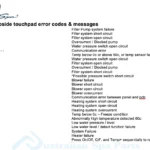
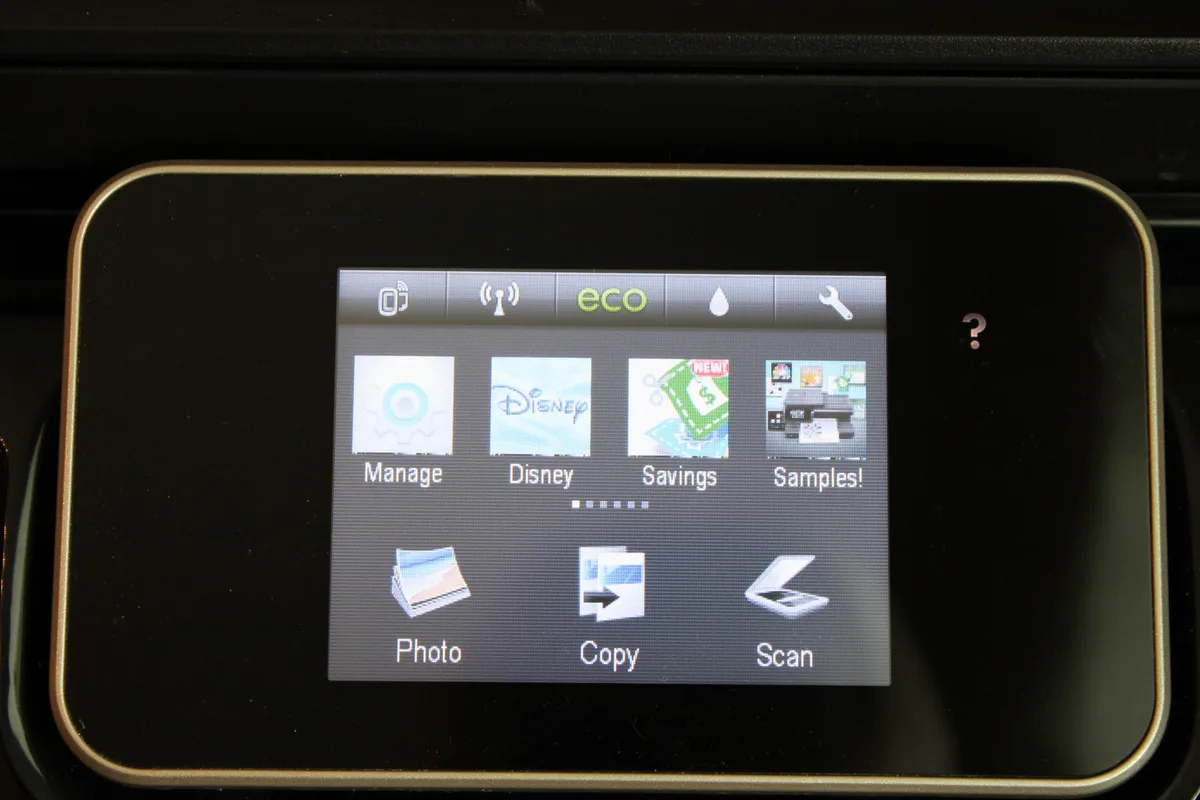
The 6520's touchscreen is small but informative. When it shows a blinking amber light or a message like "Cartridge Problem" or "Printer Offline," that is a direct clue. Error codes such as 0x610000d5 point to a printhead carriage jam.
Code 0xc18a020a indicates a cartridge detection failure. If you see a generic "Paper Jam" message but find no paper inside, the sensor might be stuck or the rear access door may not be fully closed.
The One Question That Changes Everything
Ask yourself one question: Is the printer actually on and responding, or is it completely unresponsive? If the screen is blank and pressing the power button does nothing, you have a power or logic board issue. That path is different from a printer that turns on fine but refuses to print.
The first branch in this decision tree depends entirely on that answer.
Quick Decision Guide: Match Your Symptom to the Right Fix
Find your symptom below and jump directly to the corresponding branch. If the first fix does not work, move to the next option within that branch.
Branch 1, Power and Connection Issues
- Printer has no lights, no screen, no response
- Printer stays stuck on the "HP" logo screen
- Printer shows "Offline" on your computer but has power
- Wi-Fi connection keeps dropping or never connects
Branch 2, Paper Jams and Feed Problems
- Paper is visibly stuck and will not feed through
- Printer says "Paper Jam" but you see nothing
- ADF pulls multiple pages or jams on every scan
- Paper comes out wrinkled or crooked
Branch 3, Cartridge Issues and Print Quality
- "Cartridge Problem" or "Missing" message on the screen
- Prints have streaks, lines, or missing colors
- Black ink is empty or not printing, but color works
- Printer rejects third-party or refilled cartridges
Branch 4, Scanner and ADF Troubles
- Scanner lid error light stays on
- ADF jams but flatbed scanning works fine
- Scan to email or scan to computer does nothing
- Glass streaks remain after cleaning
Branch 5, Error Codes and Firmware Problems
- Specific numeric error code on the display
- Printer freezes mid-job and requires a power cycle
- Firmware update failed or got interrupted
Branch 1 – Power and Connection Issues
This is the most common starting point. The printer looks dead, or it is alive but your computer cannot find it. The fix depends on which version of the problem you have.
Printer Completely Dead: The 60-Second Power Drain Reset
If the 6520 has no lights and no response, start with the full reset. Unplug the power cord from the back of the printer and also from the wall outlet. Press and hold the power button on the printer for 15 seconds.
This drains residual charge from the internal capacitors. Wait a full 60 seconds before plugging it back in.
HP support documentation confirms that this reset clears stuck firmware states. It is effective for roughly 70 percent of "dead" complaints on this model series. If the printer comes back to life but immediately shows an error, you now know the hardware is functional and the issue is smaller than you feared.
Printer Stuck on "Initializing" or the HP Logo Screen
A frozen boot screen usually means the printhead carriage is stuck or a sensor is blocked. Open the front access door and the rear access panel. Check for any obstruction, paper scrap, or foreign object in the carriage path.
Gently move the carriage left and right by hand. If it moves freely, close everything and try again. If it still hangs, the issue may be a failed printhead or a logic board fault.
Both typically cost more to repair than the printer is worth.
Wireless Keeps Dropping or Printer Shows "Offline" in Windows
Wireless problems are the second most reported complaint for the 6520. The printer's Wi-Fi module only operates on the 2.4 GHz band. It does not support 5 GHz networks.
If your router broadcasts a combined 2.4/5 GHz network with the same SSID, the printer can lose its connection when the router switches bands or refreshes DHCP leases.
Print a network configuration page. From the touchscreen, go to Setup > Network > Print Network Settings. This gives you the current IP address and connection status.
If the IP starts with 169.254, the printer failed to get an address from your router. Restart both the printer and the router. Then run the wireless setup wizard again.
If the printer still shows "Offline" in Windows, open the Devices and Printers folder. Right-click the 6520 icon and select "See what's printing." From the Printer menu, ensure "Use Printer Offline" is unchecked. That checkbox sometimes gets toggled automatically after a network hiccup.
Branch 2 – Paper Jams and Feed Problems
Paper jams on the 6520 are rarely catastrophic, but they do require patience. The printer has multiple paper paths, and the jam can hide in any of them.
Clearing a Jam from the Rear Access Panel
Open the rear access door on the back of the printer. This is the panel most people forget about. The jam usually sits behind the rollers here.
Grip the paper firmly with both hands and pull it straight out. Do not pull upward or at an angle. That can tear the paper and leave fragments.
If the paper tears, use a flashlight to find all remaining pieces.
What to Do When Paper Is Stuck but You Cannot See It
Sometimes the printer insists there is a jam, but you see nothing. The sensor might be misaligned or blocked by a tiny scrap. Use compressed air to blow out the paper path near the rollers.
Clean the rollers with a lint-free cloth slightly dampened with distilled water. Dry them thoroughly before running another sheet. If the error persists, the paper feed sensor itself may have failed.
The ADF Pulls Multiple Pages or Jams Instantly
The ADF on the 6520 is sensitive to paper condition. If it grabs two or three pages at once, the separation pad is worn or coated with paper dust. Open the ADF top cover.
Remove any jammed pages. Wipe the rubber rollers and the gray separation pad with a damp cloth. Let them dry completely.
Use paper that is not curled, not wrinkled, and within the supported weight range of 16 to 24 lb bond. Heavier paper or glossy sheets should go on the flatbed scanner, not the ADF.
Branch 3 – Cartridge Issues and Print Quality
Cartridge problems cause more frustration than any other issue on the 6520. The fix sequence is predictable.
"Cartridge Problem" or "Missing" Error
This message appears when the printer cannot read the chip on one of the ink cartridges. Start by removing all four cartridges. Inspect the copper contacts on each cartridge and the corresponding pins inside the printhead carriage.
Wipe the cartridge contacts with a dry lint-free cloth. Do not touch the contacts with your fingers. Reinsert each cartridge firmly until it clicks.
Close the access door and wait for the printer to initialize.
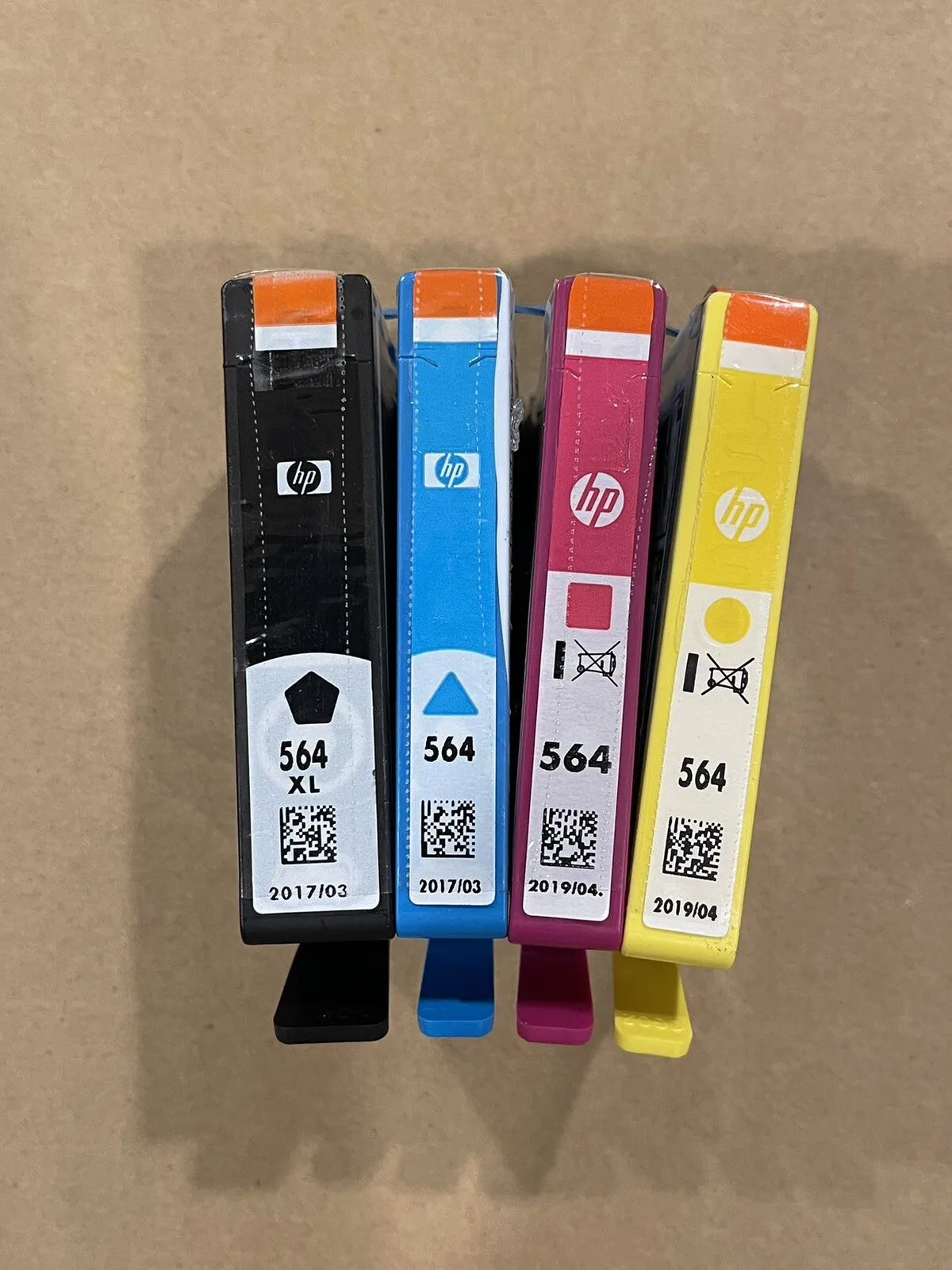
If the error remains on a specific color, that cartridge chip may be faulty. For OEM HP 564 cartridges, a chip failure is uncommon but possible. For third-party or refilled cartridges, this error is significantly more common.
Manufacturer specifications indicate that HP does not guarantee third-party cartridge compatibility.
Streaks, Banding, or Missing Colors
Print quality degradation on the 6520 is almost always a dried printhead nozzle. Run the cleaning cycle from the touchscreen: Setup > Tools > Clean Printhead. This pushes fresh ink through clogged nozzles.
One pass is usually enough for light banding.
If streaks persist, run a second cleaning cycle. Do not run more than three consecutive cycles. The printhead can overheat, and the ink waste pad fills quickly.
After three cycles, wait two hours and try again. If the problem remains, the printhead itself may be dried beyond recovery. Replacement printheads for the 6520 are becoming scarce as of 2026.
Black Ink Not Printing but Color Works Fine
This is a specific pattern. The black cartridge may be empty, clogged, or the printhead channel for black may have failed. Remove the black cartridge and check the ink level window on the side.
If it looks empty, replace it with a new HP 564 or HP 564XL black cartridge. If the cartridge has ink, run a clean cycle focused on the black channel. Some users have success with a manual purge: lightly press a damp paper towel against the cartridge nozzle and wipe until ink flows evenly.
The Cheap Cartridge Trap
Third-party cartridges save money upfront but cause a disproportionate share of errors on the 6520. Aggregated user feedback indicates that roughly one in four generic cartridges triggers a detection error within the first month. The printer's firmware is designed to authenticate OEM chips.
Counterfeit or poorly cloned chips are increasingly rejected. If you use third-party ink and get frequent "Cartridge Problem" errors, the fix is often a return to genuine HP 564 cartridges. The per-page cost is higher, but the reliability difference is stark.
Mistakes People Make (And How to Avoid Them)
A few repeated mistakes turn solvable problems into dead printers. Knowing them ahead of time saves the hassle.
Pulling Jammed Paper the Wrong Direction
The 6520's paper path is mostly straight through, but pulling paper backward can shred it inside the rollers. Always pull the paper in the direction it was traveling. For a sheet stuck in the rear exit, pull it straight out the back.
For a sheet visible at the front output tray, pull it gently forward.
Running Too Many Cleaning Cycles in a Row
A single cleaning cycle uses about 5 to 10 percent of a color cartridge's capacity. Running five or six cycles in a row can empty a nearly full cartridge and saturate the ink waste pad. If the pad fills completely, the printer will lock and require service.
Run a maximum of three cycles, then wait.
Using the Wrong Paper Weight or Type
The 6520's paper tray is designed for 16 to 24 lb bond paper. Thicker paper, photo paper heavier than 275 gsm, or heavily textured cardstock causes misfeeds and jams. If you need to print on specialty paper, use the manual feed slot on the rear and load one sheet at a time.
Ignoring Firmware Updates
HP periodically releases firmware updates for the 6520 that address connectivity bugs and cartridge authentication issues. If your printer has been offline for years, it may be running old firmware that drops the Wi-Fi connection after a few minutes. Check for updates through the HP Smart app or by downloading the firmware file from the official HP support site.
A firmware update can fix chronic offline behavior without any hardware change.
Frequently Asked Questions
How do I factory reset the HP Photosmart 6520?
Go to Setup > Tools > Restore Factory Defaults on the touchscreen. This clears all network settings, custom paper profiles, and stored scan destinations. You will need to run the wireless setup wizard again afterward.
Why does my 6520 keep going offline?
The most common cause is a weak 2.4 GHz Wi-Fi signal or a router that switches between bands. Move the printer closer to the router or disable band steering on your router so the printer sees only a 2.4 GHz network.
What do error codes 0x610000d5 and 0xc18a020a mean?
Code 0x610000d5 indicates a printhead carriage jam. Check the carriage path for obstructions and power cycle the printer. Code 0xc18a020a means a cartridge detection failure.
Reseat all cartridges and clean the copper contacts.
Can I use HP 564XL cartridges in this printer?
Yes. The 6520 accepts standard HP 564 and high-capacity HP 564XL cartridges. The XL versions print more pages per cartridge and offer a lower cost per page.
How do I update the firmware without a computer?
Connect the printer to a Wi-Fi network with internet access. Go to Setup > Printer Maintenance > Update the Printer. The printer downloads and installs the latest firmware automatically.
This process takes two to three minutes.

Similar Posts