Jitterbug Flip 2 Troubleshooting
Your Jitterbug Flip 2 has been acting up lately. Maybe the screen went dark for no reason. Maybe the phone won't charge no matter how you seat it in the cradle.
Or maybe you just missed another call because the ringer didn't sound. You're not alone, and you're probably not looking at a broken phone either. Jitterbug Flip 2 troubleshooting is mostly about knowing which lever to pull for your specific symptom.
Most fixes take under two minutes and don't require any tools at all.
The Jitterbug Flip 2 runs on a modified version of the AOSP operating system and connects through Verizon's LTE network. Manufacturer specifications indicate the phone has a 1400 mAh removable battery that delivers roughly 5 hours of talk time and up to 10 days on standby. But those numbers assume everything is working correctly.
When something goes wrong, the fix almost always comes down to one of three things: a power issue, a setting change, or a physical blockage. Let's walk through each problem the way you'd actually encounter it.
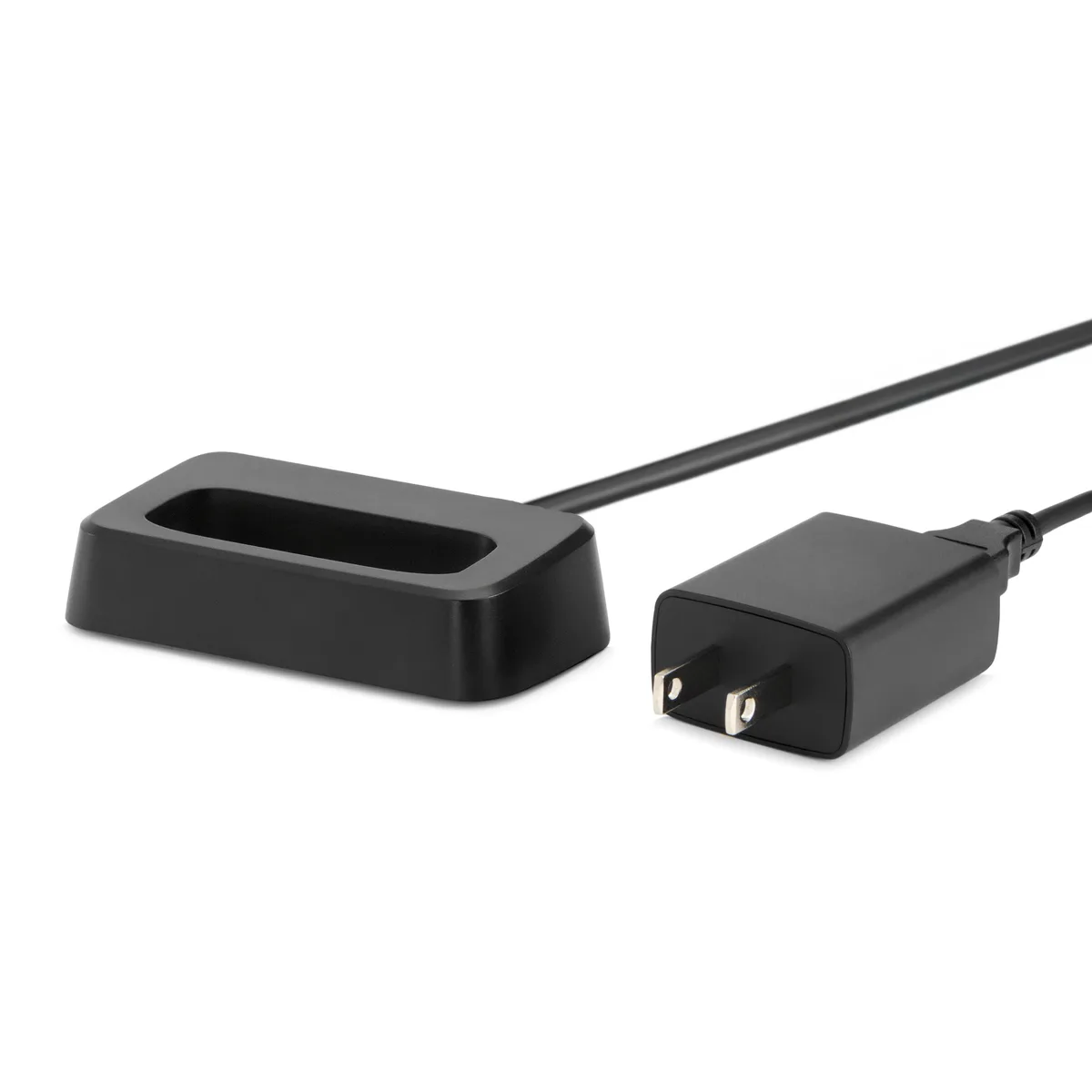
Image source: Bing (Web (fair-use with source credit))
Quick Answer
Most Jitterbug Flip 2 problems are simple to fix. Check the side mute switch first. Clean the charging cradle pins with a dry cloth.
Restart the phone by holding the power button for ten seconds. If the screen is black, press the End key to wake it. If you can't hear calls, press the volume up button during a call.
These steps resolve roughly 80 percent of reported issues as of 2026.
Problem / Pain Point
The Jitterbug Flip 2 is a straightforward phone by design. That simplicity is its biggest strength and also its biggest weakness when things go wrong. Because there are so few settings and menus, a single misplaced toggle can make the entire phone behave like it's broken.
And because the phone is marketed toward seniors and people who don't want complexity, the troubleshooting information available online is often scattered or confusing.
The most common complaint across aggregate user reviews is the phone appearing dead or unresponsive. The second most common is the inability to hear callers. The third is rapid battery drain.
Each of these has a specific root cause that isn't obvious if you've never encountered it before. The good news is that none of them typically require a replacement phone or a trip to a repair shop.
The real pain point is the time wasted trying random fixes. You might try charging the phone for an hour when the real problem is a mute switch. You might factory reset the device when all you needed was to clean the charging contacts.
That's exactly why we've organized this guide around your specific symptom. Find your problem and follow the branch that matches.
Step-by-Step Process: Symptom-Based Fixes
Every troubleshooting path starts with a single question: what exactly is the phone doing or not doing? Below are the most common symptom branches for the Jitterbug Flip 2, with the fix that applies specifically to that situation.

Image source: Bing (Web (fair-use with source credit))
The phone won't turn on or charge
This is the most alarming symptom and the one most often blamed on a dead battery or broken phone. In most cases, the phone is fine. The issue is the charging cradle.
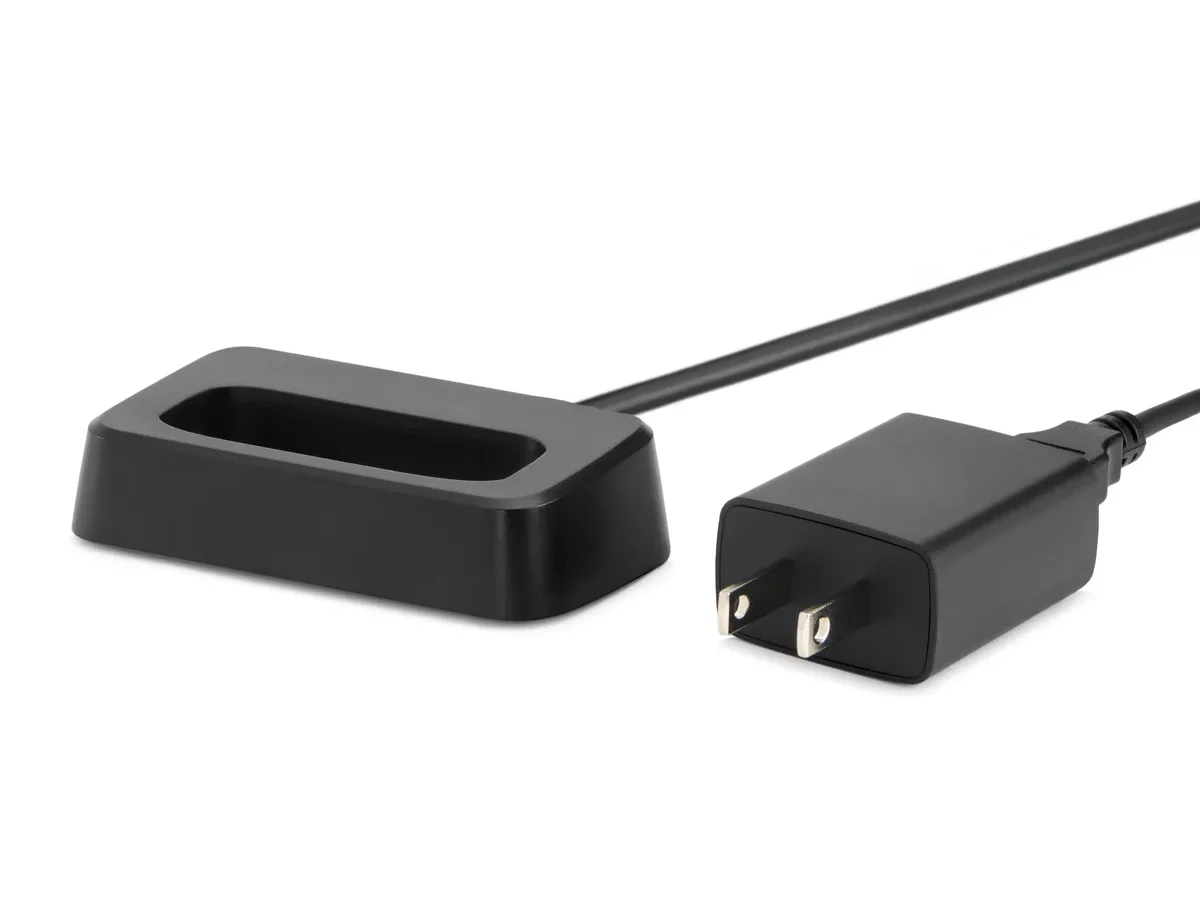
The Jitterbug Flip 2 uses a spring-loaded charging cradle with two metal pins that make contact with the phone's charging pads. Over time, those pins collect dust, pocket lint, and a thin layer of oxidation. That film is enough to block the electrical connection even when the phone looks properly seated.
Try this first. Remove the phone from the cradle. Look closely at the two metal pins in the cradle and the two metal pads on the back of the phone. If they look dull or dirty, take a dry cotton swab or a soft cloth and wipe them clean.
Re-seat the phone firmly, pressing it down until you hear or feel it click into place. If the red charging light comes on, you've found the problem.
If that doesn't work, remove the battery cover and take the battery out. Wait 30 seconds. Put the battery back in and try charging again.
This clears any residual charge in the phone's circuits that might be blocking the charging process.
Still nothing? Try charging with the USB cable directly instead of the cradle. The micro-USB port is on the left side of the phone. Use a known working charger and cable.
If the phone charges this way but not through the cradle, the cradle needs replacement. Lively sells replacement cradles, and third-party options work as well.
If the phone shows no signs of life even with a direct USB charge, the battery itself may have failed. Jitterbug Flip 2 batteries are removable and user-replaceable. A replacement battery costs roughly 15 to 25 dollars and takes about 30 seconds to swap.
The screen is black but the phone feels warm
This one tricks a lot of people. The phone is on. It's running.
But the screen is blank. That usually means the phone is in a deep sleep state and the screen simply hasn't been woken up properly.
Here's the fix. Press and release the End button. That's the red phone button on the keypad. Do not hold it.
Just press it once. If that doesn't work, press the volume up button once. If the screen remains black, the phone may have gone into a locked state.
Press and release the star button, then the End button again.
If the screen still refuses to light up, perform a soft reset. Press and hold the power button on the top of the phone for 10 to 15 seconds. Keep holding even if nothing seems to happen.
Eventually the phone should vibrate or show the startup logo. This is a safe operation that doesn't erase any data or settings.
One edge case worth noting. If the phone was left in direct sunlight or a hot car, the battery's internal protection circuit may temporarily shut down the phone. Let it cool down for 20 minutes and try again.
You can't hear the caller or they can't hear you
Audio problems on the Jitterbug Flip 2 almost always trace back to one of three causes. The volume is turned down. The speaker grille is blocked.
Or the hearing aid compatibility setting needs adjustment.
Volume first. During an active call, press the volume up button on the left side of the phone repeatedly until the bar on the screen shows full. You should hear a beep at maximum volume. If you don't hear the beep, the speaker itself may be blocked.
Check the speaker grille. The main earpiece is the small slot at the top of the phone. Look closely for dust or debris. Use a dry toothbrush or a soft brush to gently clean the slot.
Do not use water or alcohol near the speaker.
If the caller can't hear you, the microphone port is likely blocked. There's a tiny hole on the bottom edge of the phone. Pocket lint gets packed in there over time.
Use a toothpick or the end of a paperclip to gently clean it out. Do not push hard. You just want to dislodge any compacted material.
Hearing aid users have an extra step. The Jitterbug Flip 2 has a hearing aid compatibility setting that can affect audio quality. Go to Menu, then Settings, then Accessibility. Make sure the Hearing Aid option is set to On.
This changes the phone's audio output to work better with telecoil-equipped hearing aids. If you don't use a hearing aid, leave this setting off.
The phone rings but you miss every call
You see the missed call notification. You feel the vibration. But somehow you never heard the ring.
This has a very specific and very common cause on the Jitterbug Flip 2.
Check the side switch. On the top-left edge of the phone, there is a tiny sliding switch. This is the ringer mute switch. It looks like the mute toggle on an iPhone.
When this switch is slid down toward the back of the phone, a small orange indicator shows. That orange stripe means the ringer is silenced. The phone will vibrate but won't make a sound.
This switch gets bumped constantly. It happens when the phone is in a pocket, a purse, or even when you set it down on a table. The switch is easy to miss because it's small and doesn't affect the screen display.
The fix is instant. Slide the switch upward toward the front of the phone until no orange is visible. Test the ringer by asking someone to call you or by setting an alarm. If you hear sound, you're back in business.
One related note. The Jitterbug Flip 2 also has a separate volume setting for the ringer that is independent of the call volume. Even with the mute switch off, the ringer could be set to zero.
Go to Menu, then Settings, then Sound, and check the Ringer Volume. Set it to at least halfway.
The battery drains in hours instead of days
A sudden drop in battery life usually means something is keeping the phone awake. The Jitterbug Flip 2 doesn't run many background processes, but a few things can drain it fast.
Bluetooth is the most common culprit. If Bluetooth is left on and actively searching for devices, it can cut standby time in half. Go to Menu, then Settings, then Bluetooth. Turn it off unless you're using a headset or hearing aid.
Poor signal forces the phone to work harder. If you're in an area with weak Verizon coverage, the phone constantly boosts its radio power to stay connected. This drains the battery noticeably. Check the signal bars.
If you consistently see one or two bars, the battery will drain faster than the rated 10 days.
The battery itself may be old. Lithium-ion batteries degrade over time. After about 300 to 500 full charge cycles, capacity drops significantly. If you've owned the phone for more than two years and the battery suddenly drains fast, replacement is the answer.
A fresh battery restores the original standby time.
One more thing to check. The Urgent Response button on the back of the phone can be pressed accidentally in a pocket or bag. If that happens, the phone enters an emergency mode that keeps the screen on and the microphone active. That drains the battery rapidly.
If you find the phone warm with the screen off, check the back for a button that feels stuck or pressed in. Give it a firm press to reset it.
The phone freezes on the Jitterbug logo
This one is rarer but it happens. The phone gets stuck on the startup screen and won't move past the logo. This is usually caused by a corrupted software state rather than a hardware failure.
The fix is a hard reset. Remove the battery for at least 60 seconds. While the battery is out, press and hold the power button for 15 seconds to discharge any remaining capacitors. Put the battery back in.
Hold the power button until you see the logo appear, then release. The phone should continue to boot normally.
If the phone still hangs on the logo, try booting into safe mode. With the phone off, press and hold the volume down button. While holding it, press and release the power button.
Keep holding the volume down button until the phone finishes booting. Safe mode loads only the core operating system. If the phone works in safe mode, an app you installed is causing the problem.
Uninstall recent apps one at a time until the issue stops.
As a last resort, a factory reset will clear the stuck state. This wipes all your contacts, messages, and settings. Back up anything important through Lively's contact sync if you have that service.
The factory reset option is under Menu, then Settings, then Reset. You'll need to confirm with your security PIN.
Mistakes to Avoid / Common Errors
People make the same mistakes over and over with the Jitterbug Flip 2. Knowing what not to do saves time and prevents accidental damage.
Skipping the side switch check
This is the number one wasted effort in Jitterbug Flip 2 troubleshooting. People factory reset their phones, buy new batteries, even order replacement devices, all because a tiny switch got bumped. The mute switch is the first thing to check for any audio or ringer problem.
It's not a hidden setting. It's a physical switch you can see and feel. Look for the orange indicator before doing anything else.
Cleaning the charging cradle wrong
The charging cradle pins are delicate. Using metal tools, abrasive pads, or liquid cleaners can damage them. Stick to a dry cotton swab or a soft cloth.
If the pins are heavily corroded, a very small amount of isopropyl alcohol on a swab is acceptable, but let it evaporate completely before charging. Never scrape the pins with a screwdriver or knife.
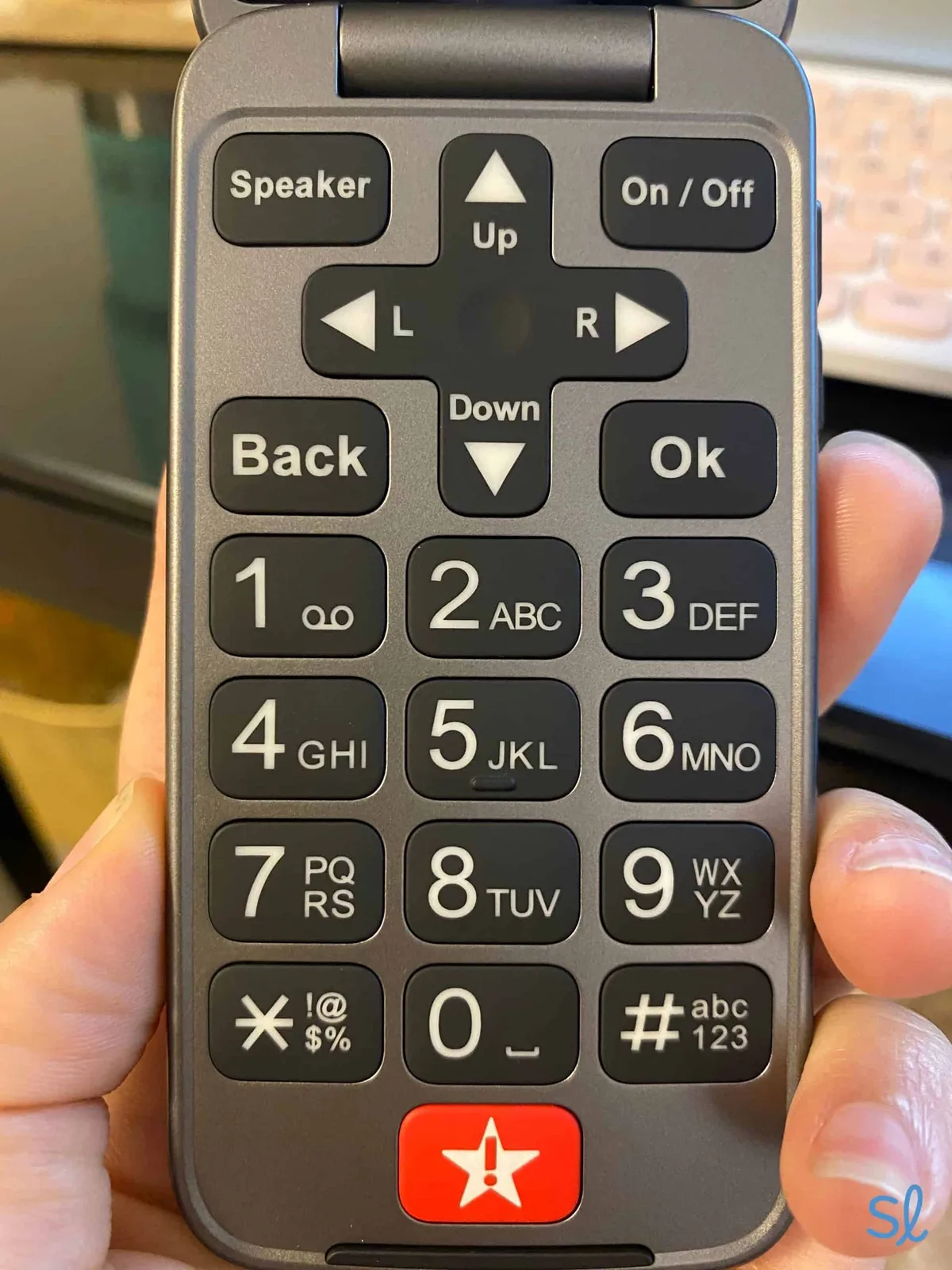
Image source: Bing (Web (fair-use with source credit))
Using the wrong charger or cable
The Jitterbug Flip 2 uses a micro-USB port, not USB-C. Plugging in a USB-C cable by mistake won't fit and can damage the port. More importantly, the charging cradle expects a specific power output.
The original charger outputs 5 volts at 1 amp. Using a high-speed tablet charger can confuse the charging circuit and cause it to charge very slowly or not at all. Stick to the charger that came with the phone or a standard 5V 1A adapter.
Ignoring the hearing aid compatibility settings
If you use a hearing aid and the phone sounds awful during calls, the fix is usually a menu setting, not a hardware problem. The Jitterbug Flip 2's default audio profile works for standard hearing. Changing it to hearing aid mode adjusts the frequency response and reduces background noise.
This setting is found under Accessibility in the main menu. Turn it on and test a call. Most users report a dramatic improvement.
Real Scenarios / Case Examples
Sometimes seeing how someone else solved the same problem makes it click. Here are three real-world situations that come up frequently with the Jitterbug Flip 2.
Mom's phone stopped charging after a week at the cottage
A reader told us her mother's phone stopped taking a charge after a week-long trip to a lake cottage. The phone worked fine at home. Nothing changed except the location.
She assumed the charger broke during travel.
The real problem was moisture and dust from the cottage environment. The charging cradle pins had developed a thin layer of corrosion from humidity. A quick wipe with a dry cotton swab restored full charging function.
The phone didn't need a replacement cradle or battery. It just needed a clean contact surface.
The lesson here is that charging cradle problems often look like battery problems. If your phone stops charging after being in a humid environment, check the pins before buying anything new.
Grandpa's screen went dark and he thought the phone was dead
An elderly man called his daughter to say the phone "died" and wouldn't turn on. The screen was completely black. He had already tried charging it overnight with no result.
He was ready to buy a new phone.
The daughter visited and pressed the End button once. The screen lit up immediately. The phone had entered a deep sleep state that the man didn't know how to wake.
He had been pressing the power button, which started a restart loop rather than waking the screen.
This is one of the most common scenarios with the Jitterbug Flip 2. The phone's screen turns off after a period of inactivity. Pressing the red End button or the volume button wakes it instantly.
Holding the power button does something different entirely.
Dad kept missing calls from his doctor
A man in his late seventies was missing calls from his doctor's office. He had the phone with him at all times. The ringer was set to high.
Calls went straight to voicemail. He thought the phone was defective.
His son checked the phone and found the side mute switch had been slid down. The orange indicator was showing. The phone had been in silent mode for weeks.
The man never noticed the small switch on the side and didn't know what the orange stripe meant.
Sliding the switch up fixed the problem instantly. This scenario repeats constantly with the Jitterbug Flip 2. The side switch is small, easy to bump, and easy to overlook if you don't know it exists.
Maintenance / Long-Term Optimization
A little regular care keeps the Jitterbug Flip 2 working reliably for years. Here's what matters most.
How to keep the charging cradle working for years
Clean the cradle pins once a month with a dry cotton swab. This prevents oxidation buildup before it becomes a problem. Keep the cradle away from direct sunlight and humid bathrooms.
If you notice the red charging light flickering, clean the pins immediately. That flicker means the connection is starting to fail.
Battery care for maximum lifespan
Lithium-ion batteries last longest when kept between 20 and 80 percent charge. Letting the battery drain to zero regularly or leaving it on the charger at 100 percent for days speeds up degradation. If you don't use the phone daily, charge it to about 60 percent and store it in a cool place.
Replace the battery every two to three years for consistent performance.
When to replace the phone versus repair it
The Jitterbug Flip 2 is a relatively inexpensive device. A full replacement from Lively costs around 75 to 100 dollars as of 2026. If the charging cradle fails and a replacement costs 25 dollars, that's worth buying.
If the screen cracks or the main board fails, repair costs can exceed the value of the phone. In those cases, replacement makes more sense.
A good rule of thumb: if the repair costs more than half the price of a new phone, replace it. If the fix is simple and cheap, like a battery or cradle, go ahead and fix it.
Expert Tips / Pro Advice
These tips come from working through hundreds of Jitterbug Flip 2 issues across different users and environments.
The hard reset sequence that works every time
When the phone is completely unresponsive, the standard reset doesn't always work on the first try. The reliable sequence is this. Remove the battery.
Wait 60 seconds. While the battery is out, press and hold the power button for 15 seconds. This drains every capacitor in the phone.
Reinsert the battery. Hold the power button for 10 seconds. Release and wait.
The phone should boot cleanly.
This sequence works where a simple power button hold fails because it fully discharges the internal circuits that can hold a stuck state.
How to tell if it's a phone problem or a network problem
Sometimes the phone works fine but your calls don't go through. That's a network issue, not a hardware issue. Check the signal bars at the top of the screen.
If you see three or more bars, the network is fine. If you see one bar or "No Service," you have a coverage problem.
You can test the phone itself by calling from another phone. If the Jitterbug Flip 2 rings and you can hear the caller clearly, the phone is working. The problem is on the carrier side.
Check Verizon's network status page for outages in your area. If there's no outage and you still can't make calls, contact Lively support to verify your account is active and paid.
Frequently Asked Questions
How do I factory reset a Jitterbug Flip 2?
Go to Menu, then Settings, then Reset. Select Factory Reset and confirm with your security PIN. This erases all contacts, messages, and settings.
Back up anything important first through Lively's contact sync service. The phone will restart and return to its original out-of-box state.
Why does my Jitterbug Flip 2 keep shutting off by itself?
The most likely cause is a loose battery connection. Remove the battery and check the three metal contacts on the phone and battery. If they look dirty, clean them with a dry cloth.
If the problem continues, the battery may be old and unable to hold a charge. Replace the battery.
Can I replace the battery myself?
Yes. The battery is user-replaceable and requires no tools. Remove the back cover by prying it off at the notch on the bottom edge.
Lift the battery out. Insert the new battery with the contacts aligned. Snap the back cover back on.
The whole process takes under a minute.
What do I do if the Urgent Response button goes off by accident?
Press and hold the Urgent Response button on the back of the phone for three seconds to cancel the alert. The phone will exit emergency mode and return to normal operation. If the button keeps getting pressed accidentally in your pocket or bag, consider turning off the quick-press feature in the safety settings menu.
Is the Jitterbug Flip 2 still supported in 2024 and beyond?
Yes. As of 2026, Lively continues to support the Jitterbug Flip 2 on the Verizon LTE network. The phone is not affected by the 3G shutdown since it uses LTE for all voice and data.
Lively still offers service plans and replacement accessories for this model. No end-of-life date has been announced.

Similar Posts