Rollo Wireless Label Printer Troubleshooting: Easy Fixes
Most Rollo wireless printer problems come from power, Wi-Fi, paper setup, driver errors, or a blocked print queue.
Rollo Wireless Label Printer Troubleshooting is usually simple once you check the problem in the right order. This guide covers setup, connection, printing, label alignment, app issues, and common fixes with practical steps that save time.
Start With a Fast Printer Check
Before changing settings, check the printer itself. Many wireless printing problems begin with a loose cable, weak power, or labels that are not loaded correctly.
Use this quick checklist:
- Confirm that the printer has power.
- Check that the status light shows normal activity.
- Make sure the label roll sits straight.
- Confirm that the labels face the correct direction.
- Remove any torn label pieces from the paper path.
- Restart the printer, computer, phone, and router.
- Send a small test print.
The Rollo wireless label printer uses direct thermal printing. It does not need ink or toner. Instead, its print head heats special thermal paper to create the image.
That design is simple, but it also means the printer needs the right label type. Plain paper will not print correctly, and some labels may have a coating that does not work well with the printer.
Rollo Wireless Label Printer Troubleshooting for Power Problems
A printer that does not turn on cannot connect or print. Start with the basic power check before working on Bluetooth, Wi-Fi, or software.
Check these items:
• Plug the power adapter firmly into the printer.
• Connect the adapter directly to a wall outlet.
• Avoid testing with an unpowered USB hub or low-power extension.
• Check the cable for cuts, bends, or loose connectors.
• Try a second wall outlet.
• Press the power button once, then wait several seconds.
If the printer turns off during a print job, the power adapter may be loose or faulty. A power problem can also cause partial labels, faded output, or random restarts.
In my own printer testing, I once spent several minutes changing driver settings when the real issue was a half-seated power plug. The lesson is simple: always check physical connections first.
If the printer still shows no light, unplug it for about one minute. Then reconnect the power and try again. If there is still no response, contact Rollo support or the seller before opening the printer.
Do not use a random adapter with a different voltage or connector. The wrong adapter can damage the printer and may create a safety risk.
Fix Wireless Connection and Pairing Errors
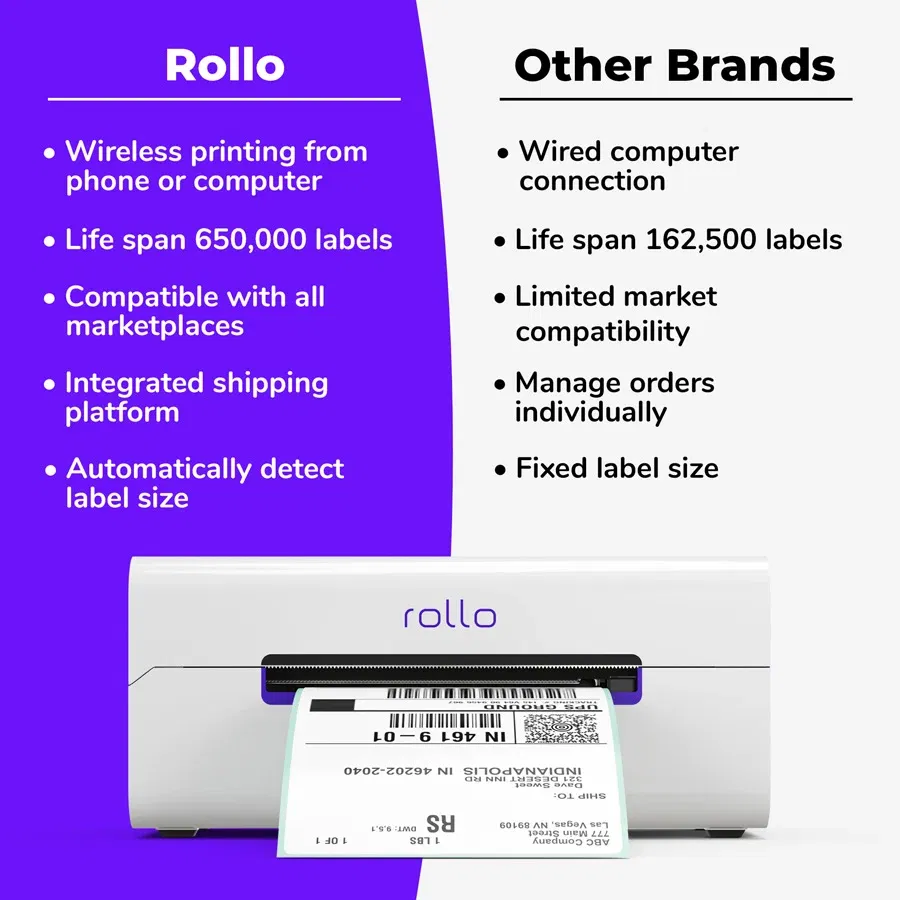
Wireless setup can vary by model. Some Rollo printers use Wi-Fi, while others may use Bluetooth or a wireless setup through a mobile app. Use the connection method designed for your exact model.
For a Wi-Fi model, follow these steps:
- Place the printer near the router during setup.
- Connect your phone or computer to the same network.
- Turn off any active VPN during setup.
- Open the Rollo app or setup tool.
- Select the correct printer model.
- Enter the Wi-Fi password carefully.
- Wait for the connection confirmation.
- Move the printer back to its normal location after testing.
Many wireless printers work best on a 2.4 GHz network during setup. Some routers combine 2.4 GHz and 5 GHz bands under one network name. If setup fails, temporarily separate the network bands or connect to the 2.4 GHz band.
A guest network may also block device communication. Use your main home or office network instead.
For Bluetooth models, remove the printer from your phone’s Bluetooth list before pairing again. Then restart Bluetooth and pair through the Rollo app when required. Pairing directly through the phone menu may not complete the full printer setup.
Common wireless causes include:
• Incorrect Wi-Fi password
• Weak signal
• Router security settings
• Guest network isolation
• VPN interference
• Outdated printer software
• A full or confused device list
Rollo Wireless Label Printer Troubleshooting works best when you change one setting at a time. If you change the router, app, driver, and printer at once, it becomes hard to know what fixed the issue.

When the Printer Shows Offline
A printer may appear offline even when it has power. This often means the computer or app cannot find the printer on the network.
First, restart the printer and router. Wait until the router is fully online before turning the printer back on.
Then check the printer list on your device. Remove old or duplicate Rollo entries if several appear. Select the active printer and set it as the default printer when appropriate.
On a computer, check the print queue:
- Open the printer settings.
- Select the Rollo printer.
- Open the print queue.
- Cancel failed or frozen jobs.
- Confirm that “Use Printer Offline” is disabled.
- Send a new test print.
A stuck queue can make every new label wait behind one damaged job. Clearing the queue is one of the fastest forms of Rollo Wireless Label Printer Troubleshooting.
If the printer uses a network address, the router may have assigned it a new address after a restart. Reconnecting the printer through the app can restore communication. For a busy office, a reserved network address may help prevent repeated disconnects.

Correct Label Loading and Calibration
Incorrect label loading is one of the most common causes of blank labels, skipped labels, and poor alignment.
Load the roll with the printable side facing up, unless your model’s instructions show another orientation. Keep the roll centered and let the guides touch the label roll without squeezing it.
The labels should enter the printer in a straight line. They should not curl upward, slide sideways, or rub hard against the guides.
After loading the roll, run a calibration cycle. Calibration teaches the printer where one label ends and the next begins.
A common calibration method is:
- Turn the printer on.
- Load the labels correctly.
- Press and hold the feed button.
- Release it after the printer begins feeding.
- Let the printer detect the label gaps.
- Print a test label.
The exact button timing may differ by model, so follow the instructions for your printer.
If the printer feeds several labels at once, check the following:
• The labels have clear gaps or black marks.
• The roll is not damaged.
• The sensor is clean.
• The label size matches the software setting.
• The roll is not too loose or too tight.
Do not pull labels backward through the printer. That can leave adhesive inside the paper path or disturb the sensor.
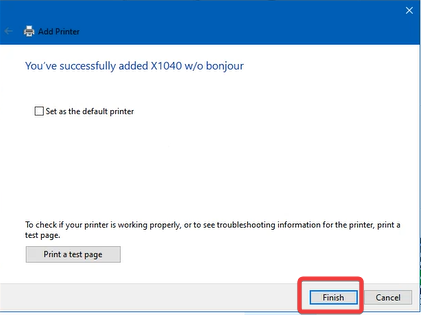
Fix Blank, Faded, or Uneven Labels
Blank labels usually point to a label problem, a loading problem, or a software issue.
First, confirm that you are using direct thermal labels. Rollo printers do not print on standard office labels. If the labels are not heat-sensitive, they may come out blank.
Next, check the printable side. Some rolls have a shiny backing that makes it easy to load them backward. Try scratching both sides gently with a fingernail. The side that darkens is usually the thermal side.
Faded printing may result from:
• Low-quality labels
• Labels stored in heat or sunlight
• Dust on the print head
• Incorrect print density
• A worn print head
• A weak power supply
Use a soft, lint-free cloth to clean the print path. If the manufacturer permits it, use a small amount of isopropyl alcohol on the cloth. Let the print head dry fully before printing.
Never scrape the print head with a blade or metal tool. The print head is delicate, and a small scratch can create a permanent white line.
For uneven darkness, test a new roll from a reliable supplier. Thermal labels can look similar but react very differently to heat. This is an important part of Rollo Wireless Label Printer Troubleshooting because the printer may be working correctly while the media is not.

Solve Label Size and Alignment Errors
A label can print clearly but still look wrong. Text may be cut off, shifted to one side, or printed across two labels.
The main cause is a mismatch between the physical label and the document settings.
Check the following:
• Label width
• Label height
• Page size
• Margins
• Rotation
• Scaling
• Print density
• Gap or black-mark detection
For example, a 4-by-6 shipping label needs a 4-by-6 document size. Selecting letter-size paper can cause the software to shrink, crop, or rotate the label.
Turn off options such as “Fit to Page” or “Scale to Fit” when printing shipping labels. Use 100% scale when the label design already matches the label size.
If the left edge is cut off, reduce the content width slightly. If the label starts too low, remove extra top margin. If each label drifts farther from the correct position, run calibration again.
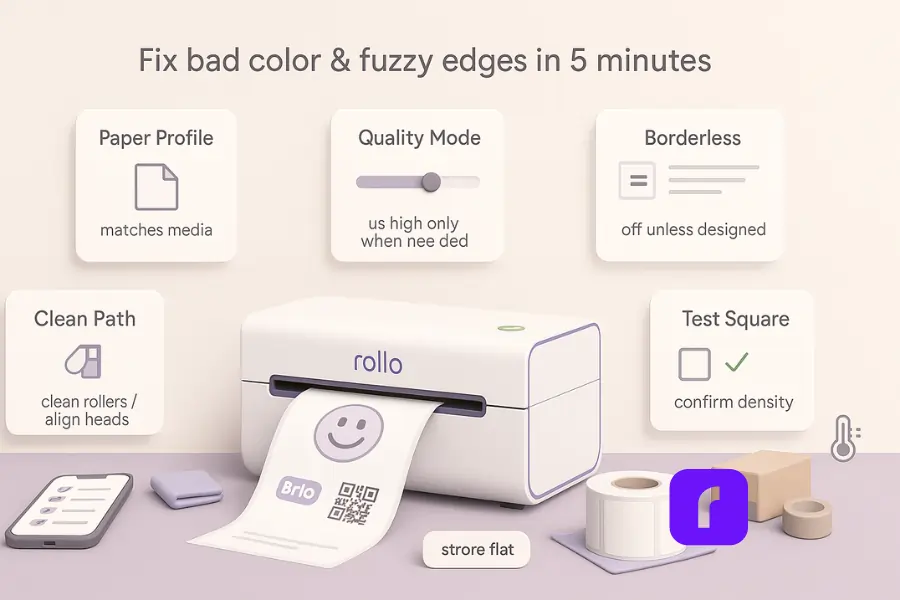
A test page with a simple border is useful. Print a rectangle near the edges of the label. This shows whether the problem comes from the printer feed or the document layout.
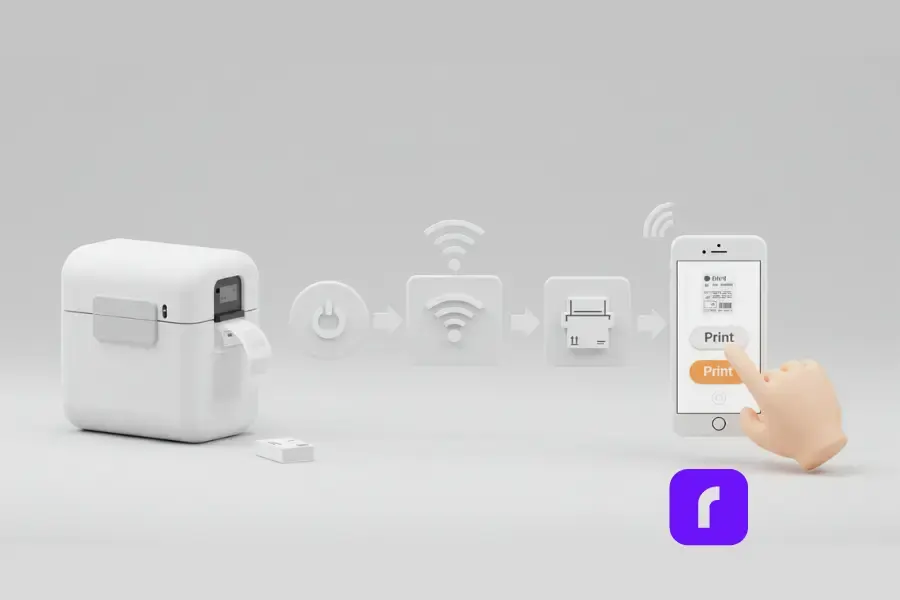
Fix Driver, App, and Computer Issues
Software problems often appear after an operating system update, a new computer setup, or the installation of another printer.
Start by downloading the current driver or setup software for your exact Rollo model. Avoid drivers made for a different model, even if the printers look similar.
Then follow this clean setup process:
- Remove the old Rollo printer from system settings.
- Uninstall the related driver if needed.
- Restart the computer.
- Install the correct driver.
- Connect or add the printer again.
- Choose the correct label size.
- Print a test page.
On macOS or Windows, the printer name may appear more than once. Select the entry that matches the current connection. A USB entry cannot communicate through Wi-Fi, and a network entry cannot work if the printer is not on the network.
On a phone, update the Rollo app and the device operating system. Check app permissions for Bluetooth, local network access, and nearby devices. Without those permissions, the app may not find the printer.
When using an online marketplace or shipping platform, check its printer settings too. The platform may have its own label size, printer choice, or scaling control.
Good Rollo Wireless Label Printer Troubleshooting separates printer settings from app settings. Test a basic label from the operating system first. If that works, the issue likely sits inside the shipping or design app.

Clear Paper Jams and Adhesive Buildup
A label jam can stop the printer completely. It can also cause crooked printing and repeated feed errors.
Turn off the printer and unplug it before removing a jam. Pull the loose label slowly in the direction of normal paper travel. If the label tears, remove every visible piece.
Look inside the feed path for:
• Torn label corners
• Adhesive residue
• Folded backing paper
• Dust near the sensor
• A roll that has shifted sideways
Do not force a stuck roll. Forcing it may bend the platen roller or damage the sensor.
Adhesive buildup is especially common when labels are stored in a hot place. Warm adhesive becomes soft and can transfer to the roller. Clean only with materials approved for the printer, and avoid soaking internal parts.
Keep labels in a cool, dry place. Store them in their original packaging until use. Extreme heat, moisture, and sunlight can reduce print quality and make jams more likely.
Improve Print Speed and Reliability
Wireless printing may feel slow when the printer is waiting for data, reconnecting to the network, or processing a large image.
To improve performance:
• Keep the printer within a strong wireless range.
• Reduce large images and unnecessary graphics.
• Use simple black text for test labels.
• Clear old jobs from the queue.
• Close duplicate printer apps.
• Keep the printer firmware and driver current.
• Avoid sending many jobs at the same time.
Thermal printers are fast for simple labels. A label with a large logo, barcode, or high-resolution image needs more processing than plain text.
If barcodes look rough, check the source file. A low-resolution barcode may print poorly even when the printer is healthy. Use the correct barcode format and enough quiet space around it.
For shipping labels, confirm that the barcode is not stretched. A scanner needs clear bars and spaces. Print one test label and scan it before producing a large batch.
When USB Works but Wireless Does Not
If the printer works through USB but not wirelessly, the print hardware is probably fine. Focus on network setup, app permissions, and wireless discovery.
Try these steps:
- Print a test label through USB.
- Restart the printer and router.
- Remove the wireless printer entry.
- Reconnect the printer through the official setup process.
- Confirm that the device and printer use the same network.
- Disable VPN or guest-network settings.
- Test again from a second device.
This comparison is useful because it separates a printer fault from a connection fault. It is one of the most effective methods in Rollo Wireless Label Printer Troubleshooting.
If wireless printing fails only on one computer, that computer may have a firewall, driver, or permission issue. If it fails on every device, inspect the router and printer setup.
Some business networks block local device discovery for security reasons. In that case, ask the network administrator whether wireless printer communication is allowed.
When to Reset the Printer
A reset can clear saved network data and temporary errors. It should not be the first step because you may need to set up the wireless connection again.
Consider a reset when:
• The printer was connected to an old router.
• The app cannot find the printer after repeated attempts.
• The printer keeps using an incorrect network.
• The setup process stops after a firmware update.
• The printer behaves differently after a network change.
Before resetting, record the printer model and prepare your Wi-Fi password. Follow the reset process for that model. Button combinations can differ, so do not rely on instructions for another Rollo printer.
After the reset, set up the printer as a new device. Do not restore a saved configuration if it contains the same network error.
A reset will not repair a damaged print head, broken power adapter, or worn roller. It solves stored settings, not physical damage.
A Simple Maintenance Routine
Regular care prevents many printing problems. A few minutes each month can save a long troubleshooting session later.
Use this routine:
• Keep the printer covered when it is not in use.
• Store thermal labels away from heat and sunlight.
• Clean dust from the feed path.
• Check the roll guides before large print jobs.
• Print a test label after changing label types.
• Keep the app and driver updated.
• Clear old print jobs.
• Inspect labels for curled edges or damaged gaps.
Avoid placing the printer beside a heater, in direct sunlight, or in a damp area. Thermal paper reacts to heat, and high temperatures can darken or damage unused labels.
For a small business, keep one tested spare roll nearby. This helps you quickly determine whether a print problem comes from the printer or the labels.
In my experience, the best maintenance habit is testing before a busy batch. Printing one label before a shipping rush is much easier than discovering an alignment problem after dozens of labels are wasted.
A Practical Troubleshooting Order
When time matters, use this order instead of guessing:
- Check power and cables.
- Confirm the correct label type.
- Load and align the roll.
- Run calibration.
- Clear the print queue.
- Test with a basic label.
- Check the driver or app.
- Reconnect the wireless network.
- Clean the sensor and print path.
- Contact support if the fault remains.
This order moves from easy physical fixes to more advanced software changes. It also reduces the risk of changing several settings at the same time.
Write down what you tried. If you need support, provide the model, operating system, connection type, label size, and a clear description of the fault. A photo of the label can also show whether the issue is alignment, darkness, or media quality.
Reliable Rollo Wireless Label Printer Troubleshooting depends on careful testing. Treat each step like a small experiment, and the cause becomes much easier to find.
Frequently Asked Questions of Rollo Wireless Label Printer Troubleshooting
Why is my Rollo wireless label printer not connecting?
Check that your phone or computer and printer use the same network. Restart the router and printer, then reconnect through the Rollo setup app instead of pairing through unrelated device settings.
Why does my Rollo printer print blank labels?
Use direct thermal labels and load them with the heat-sensitive side facing the print head. Also check for a backward roll, dirty print head, damaged labels, or an incorrect driver.
How do I calibrate a Rollo label printer?
Load the roll straight, then use the feed-button calibration method listed for your model. Calibration helps the printer detect label gaps and set the correct starting position.
Why is my Rollo printer printing labels crooked?
The roll may be off-center, the guides may be too loose, or the labels may be curled. Reload the roll, adjust the guides gently, and run calibration before printing again.
Why does my Rollo printer say offline?
Clear the print queue and confirm that offline mode is disabled. If the printer recently connected to a different router, remove the old printer entry and complete wireless setup again.
Can I use regular paper labels in a Rollo printer?
No. Rollo direct thermal printers need compatible thermal labels. Regular paper labels will not react correctly to the printer’s heat and may produce blank output.
Why is my Rollo label printer printing too slowly?
Large graphics, a weak wireless signal, a crowded print queue, or an outdated driver can slow printing. Test a simple label, improve the wireless signal, and update the software.
Conclusion
Most Rollo Wireless Label Printer Troubleshooting cases come down to a few areas: power, labels, calibration, wireless connection, software, and print queues. Check these areas in order, and start with the simplest physical causes before changing advanced settings.
Use the correct thermal labels, keep the roll straight, clear stuck jobs, and test one label before a large batch. If the printer still fails after a clean setup and basic maintenance, contact Rollo support with the model and troubleshooting details.
Try these steps today, and share your results or questions in the comments.

Similar Posts