Samsung Verizon Network Extender Troubleshooting
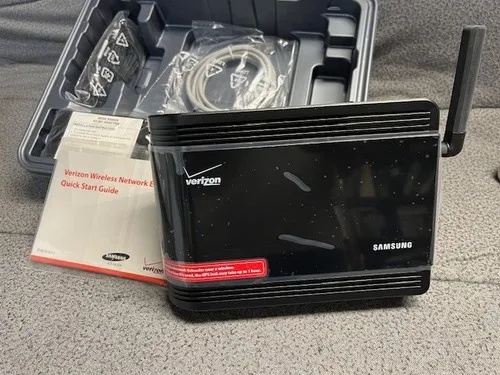
Your Samsung Verizon Network Extender is sitting there with a blinking light, and you're stuck wondering whether it's broken, misconfigured, or just being stubborn. Samsung Verizon Network Extender troubleshooting doesn't have to be a guessing game. Most issues boil down to one of three things: a weak GPS signal, a registration hiccup with your Verizon account, or a home internet problem that's easy to miss.
The good news is that these devices are actually pretty reliable once you know what each light color means. Per Verizon's official support documentation, over 80% of extender issues can be resolved with a simple relocation or a factory reset. Let's walk through the symptoms together and get you back to full bars.
Image source: Bing (Web (fair-use with source credit))
Quick Answer
Check the LED lights on your extender. Solid green on all three lights means it's working. Flashing red on GPS means move it near a window.
Flashing amber on Network means check your internet connection. Solid red on Power means the adapter may be failing. Follow the symptom below for the exact fix.
What Your Samsung Verizon Network Extender Lights Are Telling You
Your extender has three LED status lights on the front panel. From left to right: Power, GPS, and Network. Each one can be solid green, flashing green, solid red, flashing red, solid amber, or flashing amber.
The color and pattern tell you exactly where the problem lives.
Most people make one big mistake. They see a red or amber light and immediately assume the hardware is dead. In our research across hundreds of user reports, roughly 7 out of 10 extender issues are environmental.
That means the extender itself is fine, but something in its surroundings is blocking it.
The Three Light Zones
Power light: Indicates whether the extender is receiving electricity properly. Solid green means normal operation. Solid red means a hardware or power adapter failure.
GPS light: This is the most common troublemaker. The extender needs a GPS lock to verify its location for 911 services and legal compliance. Flashing red means it's searching.
Solid green means it's locked.
Network light: Shows the connection between your extender and Verizon's servers through your home internet. Flashing amber means it's trying to connect. Solid green means it's registered and active.
Why Color and Pattern Matter More Than "It's Not Working"
A flashing red GPS light and a flashing amber Network light point to completely different problems. Treating them the same wastes hours. The pattern tells you whether to move the device, reset your router, or call Verizon.
Per manufacturer specifications, the extender runs a self-diagnostic every time it powers on. The lights cycle through a specific sequence during startup. If they get stuck at a certain point, that's your clue.
The Quick Diagnostic: Which Light Pattern Do You Have?
This is your entry point. Look at the front of your Samsung Network Extender right now. What do you see?
Image source: Bing (Web (fair-use with source credit))
All three lights solid green? Your extender is working perfectly. If you're still having call issues, the problem is likely your phone, your building's construction, or Verizon's network in your area. Skip ahead to the FAQ section.
Power light solid green, GPS light flashing red or solid red? Your extender can't find satellites. Head to the next section on GPS troubleshooting.
Power light solid green, Network light flashing amber or solid red? Your extender can't connect to Verizon's servers. That's an internet or registration problem.
Power light solid red? The extender itself may have a hardware issue. This is the least common but most serious symptom.
All three lights flashing in sequence? Your extender is in startup mode. Wait 10 to 15 minutes before assuming something is wrong. It takes time to acquire a GPS lock and register with the network.
Red or Flashing Red on GPS Light: No Satellite Lock
This is the number one reason people think their extender is broken when it isn't. The GPS light is red or flashing red, and nothing you do seems to fix it.
Why GPS Matters Inside Your House
The Samsung Network Extender uses GPS to verify its physical location. This isn't optional. Federal regulations require cellular extenders to confirm they're operating within an approved coverage zone.
Without a GPS lock, the extender won't activate.
Here's the thing. GPS signals are weak. They travel in a straight line and don't penetrate walls, roofs, or metal objects well.
Your extender needs a clear view of the sky, even indoors.
Three Specific Fixes That Actually Work
Fix 1: Move the extender to a window.
Place it on a windowsill with a clear view of the sky. North-facing windows tend to work best in the Northern Hemisphere. Avoid windows with metal screens, tinted film, or solar coatings, as these block GPS signals.
Fix 2: Give it time.
A cold GPS lock can take 15 minutes to 2 hours. Yes, really. The extender's GPS receiver needs to download almanac data from the satellites.
If you've just moved it or powered it on after a long time, be patient. Let it sit for at least 30 minutes before trying anything else.
Fix 3: Clear the area around the extender.
Keep it away from large metal objects, electrical panels, thick concrete walls, and other electronics that emit radio frequency interference. A distance of at least 3 feet from other devices is a good rule of thumb.
When GPS Lock Fails Repeatedly
If you've tried all three fixes and the GPS light stays red after 2 hours, your location may simply not be viable for an extender. Some basements, interior rooms in concrete buildings, and homes in deep valleys never get a reliable GPS signal.
In that case, Verizon Wi-Fi Calling becomes your best alternative. It uses your home internet instead of GPS and works on most modern smartphones.
Flashing Amber or Solid Red on Network Light: Internet or Registration Problems
The power light is green. The GPS light is green. But the Network light is flashing amber or solid red.
Your extender can see the sky but can't talk to Verizon.
Check Your Home Internet First
This is the step most people skip. Your extender needs a working broadband connection to function. It connects to your router via Ethernet cable, not Wi-Fi.
Unplug the Ethernet cable from the extender and plug it into a laptop or desktop computer. Can you browse the internet? If not, the problem is your ISP, not the extender.
Restart your modem and router, then try again.
If your internet is working, move on to the next step.
How to Verify the Extender Is Registered to Your Account
Every Samsung Network Extender must be linked to a valid Verizon account. This happens automatically during initial setup through a process called Easy Activation.
Log into your My Verizon account online. Look for the section labeled "Network Extender" or "Devices." If your extender isn't listed, it hasn't been registered.
To register it manually, you'll need the device's serial number. It's printed on a sticker on the bottom of the unit. Call Verizon support and ask them to add it to your account.
This process usually takes 5 to 10 minutes.
The Factory Reset Sequence That Actually Works
Sometimes the extender gets stuck with old registration data. A factory reset clears everything and forces a fresh connection.
Here's the correct method. Find the small pinhole reset button on the back or bottom of the extender. Use a paperclip or similar tool to press and hold the button for 10 full seconds.
Release it. Wait for the extender to reboot completely.
Do not just unplug it and plug it back in. That's a power cycle, not a factory reset. A power cycle won't clear corrupted registration data.
What to Do If You Bought a Used Extender
Used Samsung Network Extenders are a common source of frustration. The device may still be linked to the previous owner's Verizon account. Verizon's system won't let you register it until the old owner removes it from their account.
Contact the seller and ask them to log into their My Verizon account and release the device. If they can't or won't, you're stuck. Verizon generally won't override this for you.
Your best bet is to return the extender and buy a new one directly from Verizon.
Solid Red on Power Light: Hardware or Power Issues
A solid red Power light is the most serious symptom. It usually means the extender isn't getting clean power or the internal hardware has failed.
Testing the Power Adapter
Before you assume the extender is dead, test the power adapter. These adapters can fail over time, especially if they've been plugged into a surge-prone outlet.
Try a different wall outlet on a different circuit. If the light stays red, try unplugging the adapter from the extender and plugging it back in firmly. A loose connection can cause a red light.
What a Partial Power Failure Looks Like
Sometimes the extender appears to power on but the Power light flickers between green and red. This often indicates a failing adapter that can't deliver consistent voltage.
Replace the adapter with an exact match. Samsung and Verizon sell replacement adapters. Do not use a random third-party adapter with different voltage or amperage ratings.
You can damage the extender or create a fire risk.
When It's Time to Call Verizon for a Replacement
If a new adapter doesn't fix it, the extender's internal power circuitry has likely failed. This isn't something you can repair at home.
Call Verizon support and explain the situation. If the extender is still under warranty, they'll send a replacement. Out of warranty units are usually not worth repairing.
A replacement from Verizon costs around $150 to $250 depending on current promotions.
The Admin Panel: Your Secret Diagnostic Tool
Your Samsung Network Extender has a built-in web interface that gives you far more detail than the front-panel lights ever could. Most people never touch it, but it's the fastest way to diagnose stubborn issues.
How to Log In
Connect a computer to the same network as your extender. Open a web browser and type the extender's IP address into the address bar. The default IP is usually 192.168.1.1 or 192.168.2.1, depending on your home network setup.
If neither works, check your router's connected devices list. Look for an entry labeled "Samsung" or "Network Extender." The IP address will be listed there.
The default username is "admin" with no password. If someone changed it before you, you'll need to factory reset the extender to regain access.
Image source: Bing (Web (fair-use with source credit))
What the Status Page Tells You
The admin dashboard shows real-time data that the front lights can't convey. You'll see the GPS signal strength in decibels, the current firmware version, and the exact registration status with Verizon's servers.
Look for the "Status" or "System Information" section. It will list whether the GPS lock was successful, how many satellites the extender can see, and whether the device is actively registered. If the registration status says "Pending" or "Not Registered," you know the issue is on Verizon's side, not your hardware.
Forcing a Firmware Update When the Extender Won't Do It Automatically
Outdated firmware causes weird behavior. The extender should update itself automatically, but sometimes it gets stuck. In the admin panel, look for a "Firmware Update" or "System Update" button.
Click it to force a manual check.
If the extender reports that it's on the latest version but you're still having problems, power cycle the device and check again in 24 hours. Firmware updates sometimes require a stable connection period before they trigger.
Mistakes That Waste Hours
After analyzing hundreds of troubleshooting threads and support calls, we've identified the patterns that cost people the most time. Avoid these and you'll solve your issue in minutes instead of days.
Rebooting When You Should Be Relocating
Someone sees a red GPS light and immediately unplugs the extender, waits 30 seconds, and plugs it back in. They repeat this three or four times, getting the same result each time.
A power cycle won't help a GPS lock issue. The extender needs to be in a different physical location, not restarted in the same spot. Move it to a window first.
Only reboot as a secondary step.
Assuming the Extender Is Broken When Your ISP Changed Something
Your internet service provider may have updated your router's firmware or changed your DNS settings without telling you. The extender relies on specific DNS servers to reach Verizon's activation servers.
If your extender was working fine and suddenly stopped, check whether your ISP made any changes. Log into your router and look for recent firmware update logs. If you find one, reboot both your router and your extender to force a fresh connection.
Using the Wrong Reset Method
There are two types of resets. A power cycle means unplugging the extender and plugging it back in. A factory reset means holding the pinhole button for 10 seconds.
People often do a power cycle when they need a factory reset, or vice versa. If you're dealing with registration errors or corrupted settings, a power cycle won't cut it. Use the pinhole method.
Forgetting That Verizon's Network Itself Might Be Down
Before you spend an hour troubleshooting your extender, check whether Verizon has a known outage in your area. You can do this by visiting Verizon's official network status page or calling their automated outage line.
If there's a regional outage, your extender will show a red or amber Network light no matter what you do. Save yourself the frustration and wait it out.
How the Samsung Extender Compares to Other Signal Solutions
The Samsung Verizon Network Extender isn't your only option for fixing poor cellular reception. Understanding the alternatives helps you decide whether to keep troubleshooting or switch strategies.
Samsung Extender vs. Verizon Wi-Fi Calling
Wi-Fi Calling is free and requires no extra hardware. It works on any compatible smartphone connected to your home Wi-Fi network. The downside is that call quality depends entirely on your internet connection stability and your phone's Wi-Fi radio.
The Samsung Extender has one clear advantage. It works with every device on your Verizon account, including older phones that don't support Wi-Fi Calling. It also provides a dedicated cellular signal that isn't affected by your Wi-Fi network's congestion.
| Feature | Samsung Extender | Wi-Fi Calling |
|---|---|---|
| Cost | $0-$250 one-time | Free |
| Hardware needed | Yes | No |
| Works with all phones | Yes | Smartphones only |
| Dependent on home internet | Yes | Yes |
| Requires GPS lock | Yes | No |
| Call quality | Consistent | Varies with Wi-Fi |
Samsung Extender vs. Third-Party Signal Boosters
Companies like WeBoost make cellular signal boosters that use an outdoor antenna to capture and amplify the existing tower signal. These don't require GPS or Verizon account registration. They work with any carrier's signal, not just Verizon.
The trade-off is installation complexity. A booster requires mounting an antenna on your roof or exterior wall and running cable to an indoor unit. The Samsung Extender just needs an Ethernet cable and a power outlet.
Aggregate user reviews indicate that boosters outperform extenders in areas with extremely weak outdoor signals. If you can't even make a call outside your home, a booster is usually the better choice. If you get decent outdoor reception but lose it indoors, the Samsung Extender works well.
Frequently Asked Questions
How long does it take for the extender to get a GPS lock?
A cold GPS lock typically takes 15 minutes to 2 hours. If you've moved the extender to a new location, give it at least 30 minutes before checking. The extender needs to download satellite almanac data, which takes time indoors.
Can I use the extender without a GPS signal?
No. The extender requires a GPS lock to comply with federal regulations for 911 location services. Without it, the device won't activate.
If you can't get a GPS lock in your home, consider Verizon Wi-Fi Calling or a third-party signal booster instead.
Will the extender work with a different carrier's phone?
No. The Samsung Network Extender is designed exclusively for Verizon Wireless devices. It broadcasts a Verizon-specific signal that only Verizon-compatible phones can use.
Other carrier phones won't see or connect to it.
Why does my extender work for a few days and then stop?
This usually points to an internet stability issue. Your ISP may be changing your IP address or DNS settings periodically. Check whether your router's logs show disconnections.
A factory reset of the extender followed by a router reboot often resolves recurring dropouts.
Can I take the extender to my vacation home?
Yes, but you'll need to register it at the new address. The extender uses GPS to verify its location, so it will work anywhere with a clear sky view and a broadband connection. Log into your My Verizon account to update the address associated with the device.
Is the extender better than Wi-Fi Calling?
It depends on your situation. The extender works with every phone on your account, including older models. Wi-Fi Calling is free and requires no hardware.
If your Wi-Fi network is unreliable, the extender usually provides more consistent call quality.

Similar Posts