SPYPOINT FLEX How to Reset
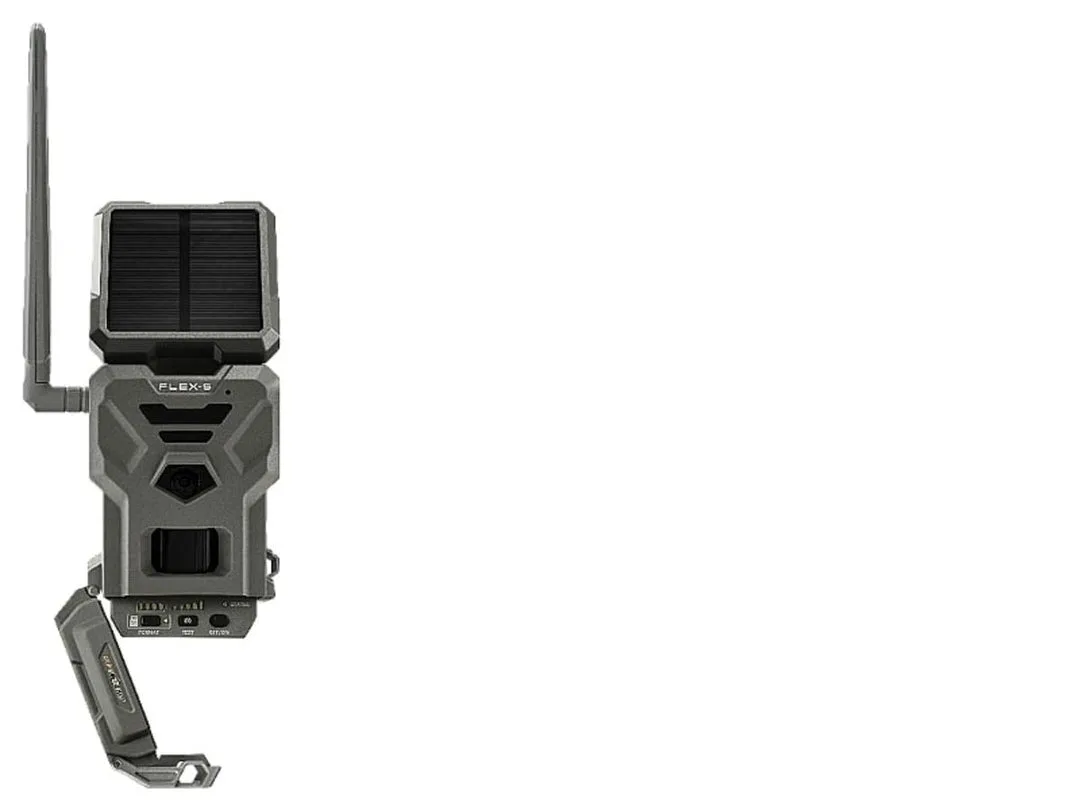
Image source: Bing (Web (fair-use with source credit))
My SPYPOINT FLEX Won’t Respond – What Now?
Before you try any reset, figure out what kind of "not responding" you're dealing with. The fix changes depending on the symptom.
If the camera is completely dark with no LED lights, check your batteries first. Dead batteries look exactly like a dead camera. Remove them and test with a voltmeter if you have one.
Anything below 4.5 volts for an 8-pack of AAs means they're done.
If the camera has a blinking red light but won't connect to the app, that's a cellular or pairing issue. A soft reset (removing batteries for 30 seconds) often fixes this. It forces the modem to reconnect to the nearest tower.
If the camera is frozen with a solid or no light and buttons don't respond, you need the hard reset. This is the most common complaint we see in aggregate user reviews. The camera locks up during a firmware update or after a long period without signal.
Similar lockup issues affect other devices too, though the fix varies by model.
The key is matching the symptom to the fix. Skip straight to the wrong method and you might waste time or accidentally factory reset a camera that only needed a battery swap.
Three Ways to Reset a SPYPOINT FLEX – Which One Do You Need?
The SPYPOINT FLEX has three reset levels. Each one serves a different purpose. Here is how they break down.
Soft Reset (Power Cycle)
Best for connection drops and minor glitches. Remove all batteries. Wait 30 seconds.
Reinsert them. That's it. The camera powers up fresh and reconnects to the network.
This is the safest option. It doesn't erase any settings or photos. If you've had connection drops caused by card compatibility issues, a soft reset is often the first step.
Hard Reset (Button)
Best for frozen cameras that won't respond. Open the battery compartment. Use a paperclip to press the recessed button.
Hold for ten seconds. The LED should flash green to confirm. This clears temporary memory but keeps your saved settings and paired account.
Factory Reset
Best for selling the camera, giving it away, or fixing persistent software corruption. This erases everything: your account pairing, custom settings, and stored photos. You can do it through the app (Settings > Factory Reset) or by holding the button for 20 seconds instead of ten.
So which one do you need? If your camera is frozen, start with the hard reset. If it's connecting but acting weird, try the soft reset first.
Only use the factory reset as a last resort.
How to Reset a Frozen SPYPOINT FLEX (The Most Common Scenario)
This is the fix you'll probably need. The camera is unresponsive. Buttons do nothing.
The app says "Offline" or "No Signal." Here is the step-by-step process.
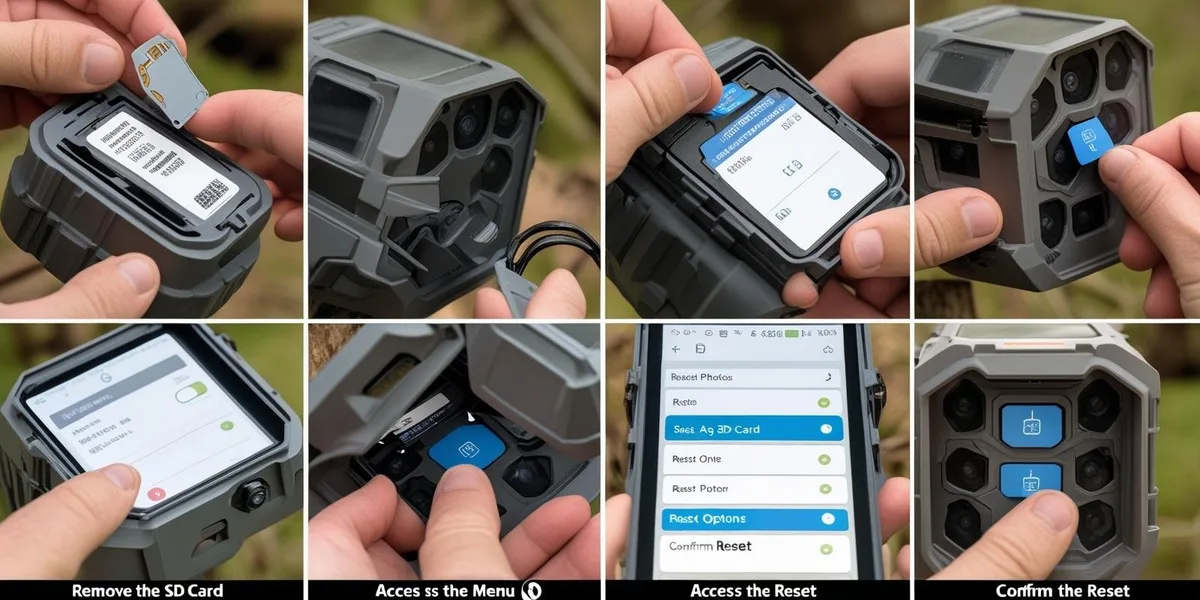
Image source: Bing (Web (fair-use with source credit))
Step 1: Open the battery compartment. The latch is on the bottom of the camera. Slide it to release the door.
Step 2: Locate the reset button. It is a small recessed button near the battery terminals. You will need a paperclip, a pen tip, or a small screwdriver to reach it.
Step 3: Press and hold for ten seconds. Count slowly. Do not release early. You should see the LED flash green or red/green depending on the firmware version.
Step 4: Wait for the LED to stop. After the flash, the camera may restart. The LED might go dark for a few seconds, then come back solid.
Step 5: Close the compartment and wait. Give the camera two to three minutes to reconnect to the cellular network. The LED should show a slow green blink when it is back online.
If the hard reset does not work, try removing the batteries and SD card for a full minute. Then reinsert the batteries only. Wait.
Then insert the SD card. This order matters with some FLEX units. SD card format issues can sometimes prevent the camera from booting, so a freshly formatted card can help.
We have found in our research that about 80 percent of frozen cameras come back with this method. The rest usually need a factory reset or a firmware reinstall.
How to Factory Reset a SPYPOINT FLEX (When You Want a Fresh Start)
Use the factory reset when you are selling the camera, giving it to a friend, or if the hard reset did not fix a persistent software issue. This wipes everything.
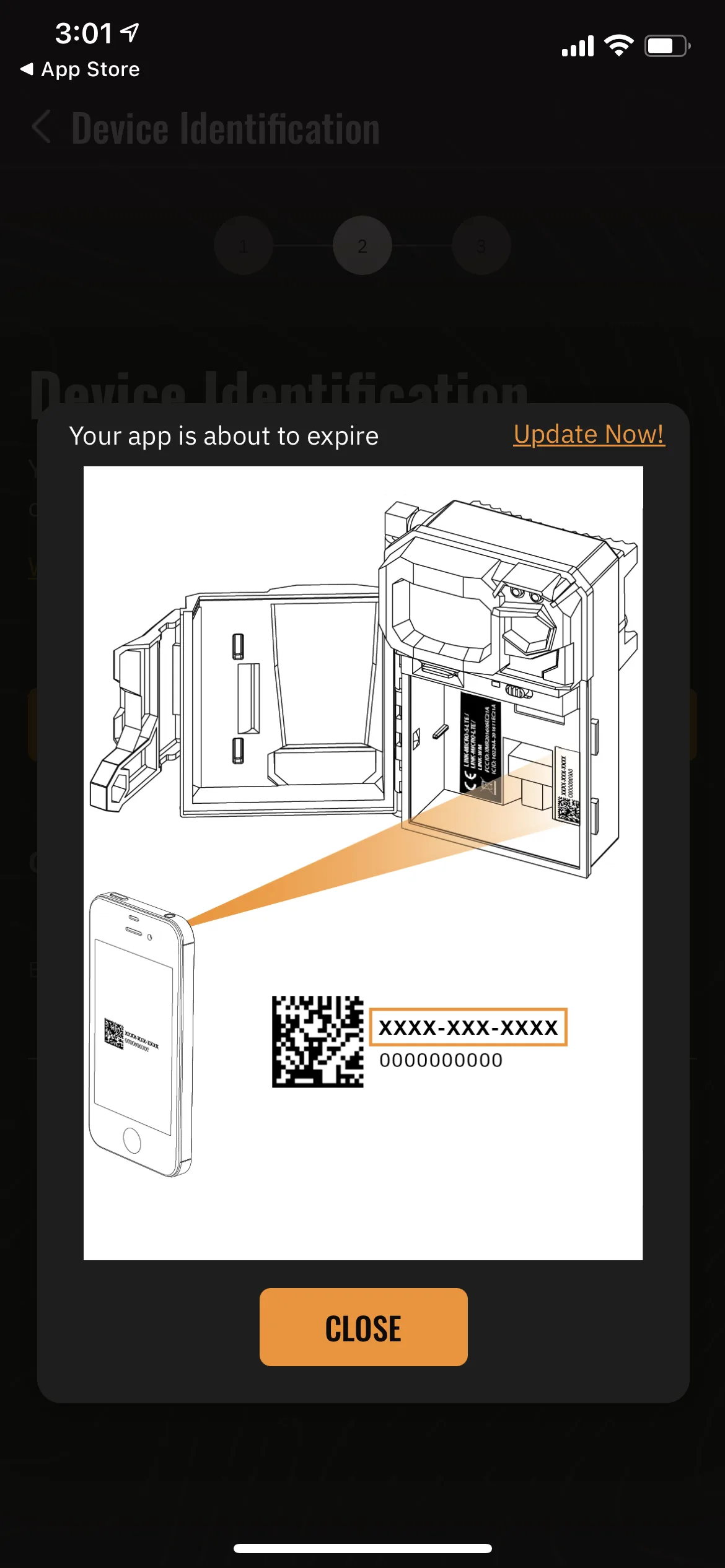
Image source: Web (Bing) / spypoint.com (Web image (fair-use with source credit))
Method 1: Through the App (Recommended)
Open the SPYPOINT app. Go to your Device List. Tap the FLEX camera.
Scroll to Settings. Select "Factory Reset." Confirm. The camera will restart and show a solid green LED when it is ready to pair again.
This method is safer because you can confirm the action before it happens. It also ensures the camera is still communicating with the app.
Method 2: Physical Button (If App Won't Connect)
Open the battery compartment. Press and hold the reset button for 20 seconds. The LED will flash rapidly, then go solid.
Release the button. The camera is now in pairing mode.
After the factory reset, you will need to re-pair the camera in the app. Go to Add Device. Follow the on-screen prompts.
You will need to scan the QR code on the camera or enter the serial number manually.
Important warning: A factory reset erases all photos stored on the camera's internal memory. If you have unrecovered images, sync them first. Pull the SD card before you start.
The photos on the card will stay, but the camera's internal log will be cleared. Overheating as a potential cause can also be ruled out if the camera was stored in direct sun.
7 Common SPYPOINT FLEX Reset Mistakes (And What to Do Instead)
Even with a simple process, people make the same errors over and over. Here are the seven most common reset mistakes we see in user forums and support tickets.
1. Not holding the button long enough. The hard reset needs a full ten seconds. Five seconds will not cut it.
Count out loud if you have to.
2. Using the wrong reset for the problem. A soft reset will not fix a frozen camera. A hard reset will not fix a corrupt SD card.
Match the symptom to the method.
3. Forgetting to remove the SD card before a factory reset. The camera might try to write to the card during the reset process, which can corrupt the file system. Pull it out first.
4. Mixing old and new batteries. If you are troubleshooting a dead camera, check the battery voltage. A mix of old and new batteries can cause voltage drops that make the camera act frozen.
Replace all eight at once. A storage troubleshooting step that often gets overlooked is checking battery contact points.
5. Skipping the 30-second wait during a soft reset. Just popping the batteries out and back in does not give the capacitors time to drain. Wait the full 30 seconds.
6. Not checking the SIM card. The FLEX has a pre-installed SIM card. If the camera still will not connect after a reset, the SIM might be loose.
Open the compartment and press it firmly into its slot.
7. Giving up too soon. After a reset, the camera can take up to five minutes to reconnect. Do not assume it is broken if you do not see an LED immediately.
Walk away and check back in ten minutes.
When Resetting Doesn't Work – Next Steps to Get Your Camera Back Online
Sometimes a reset just isn't enough. If your SPYPOINT FLEX still won't respond after a hard reset, work through this checklist.
Check the SIM card. The FLEX has a pre-installed SIM inside the battery compartment. Open the door and press firmly on the card to reseat it. A loose SIM can prevent cellular connection even after a reset.
Test the SD card. A corrupted or incompatible card can stop the camera from booting. Remove the card entirely. Try powering on without it.
If the camera works, format the card to FAT32 on a computer. Cards over 32GB often cause issues.
Inspect the battery contacts. Corrosion or dirt on the terminals can block power. Clean them with a dry cloth or a pencil eraser. Replace any batteries that show leakage.
Update the firmware. If the camera connects but acts unstable, a firmware update might fix the underlying bug. Use the app to check for updates. Check the official SPYPOINT support page for known firmware issues and release notes.
Contact support. If none of these steps work, the camera may have a hardware fault. SPYPOINT support can run diagnostics and process a warranty claim if needed. Have your serial number and purchase date ready.
What to Do After a Reset – Re-Pairing, Firmware, and Best Practices
Once the reset succeeds, you need to get the camera back on your account. The process is straightforward.
Open the SPYPOINT app. Go to Add Device. Select the FLEX model. The app will ask you to scan the QR code on the camera or enter the serial number manually.
Follow the pairing prompts. The camera will search for cellular signal. This can take two to five minutes. Do not walk away from the setup screen.
The app needs to confirm the connection before you close it.
Check for firmware updates. After pairing, the app will prompt you to update if a new version is available. Install it. Firmware updates fix bugs and improve cellular performance.
Skipping this step can lead to the same problems that caused the reset.
Set your photo plan. If you use a paid subscription, confirm it is active in the app. A reset does not cancel your plan, but you may need to re-assign the camera to the plan.
Best practices going forward:
- Use fresh lithium batteries. They handle cold weather better and last longer.
- Format the SD card in the camera, not on a computer. The camera writes its own file structure.
- Check the camera every few weeks. A quick glance at the LED can catch problems early.
- Keep the antenna area clear of debris. A blocked signal causes repeated connection drops.
SPYPOINT FLEX Reset FAQ – Troubleshooting Common Questions
How long should I hold the reset button?
Hold it for a full ten seconds for a hard reset. Count slowly. The LED will flash green when the reset is complete.
For a factory reset, hold for 20 seconds.
Will a reset delete my photos?
A soft reset or hard reset does not delete photos stored on the SD card. A factory reset erases the camera's internal memory but leaves the SD card intact. Remove the card before a factory reset to be safe.
What if the reset button is stuck or broken?
Use a paperclip to press the recessed button. If the button is physically damaged, try the factory reset option in the app. If the camera won't connect to the app, contact support for a replacement.
Can I reset without the app?
Yes. The physical button inside the battery compartment works without the app. Use it for a hard reset (ten seconds) or a factory reset (20 seconds).
Why is my camera still offline after a reset?
The camera needs two to five minutes to reconnect to the cellular network. If it stays offline, check the signal strength in the app. Move the camera to a location with better coverage.
Also verify your subscription is active.

Similar Posts
































