Aluratek Digital Photo Frame Troubleshooting
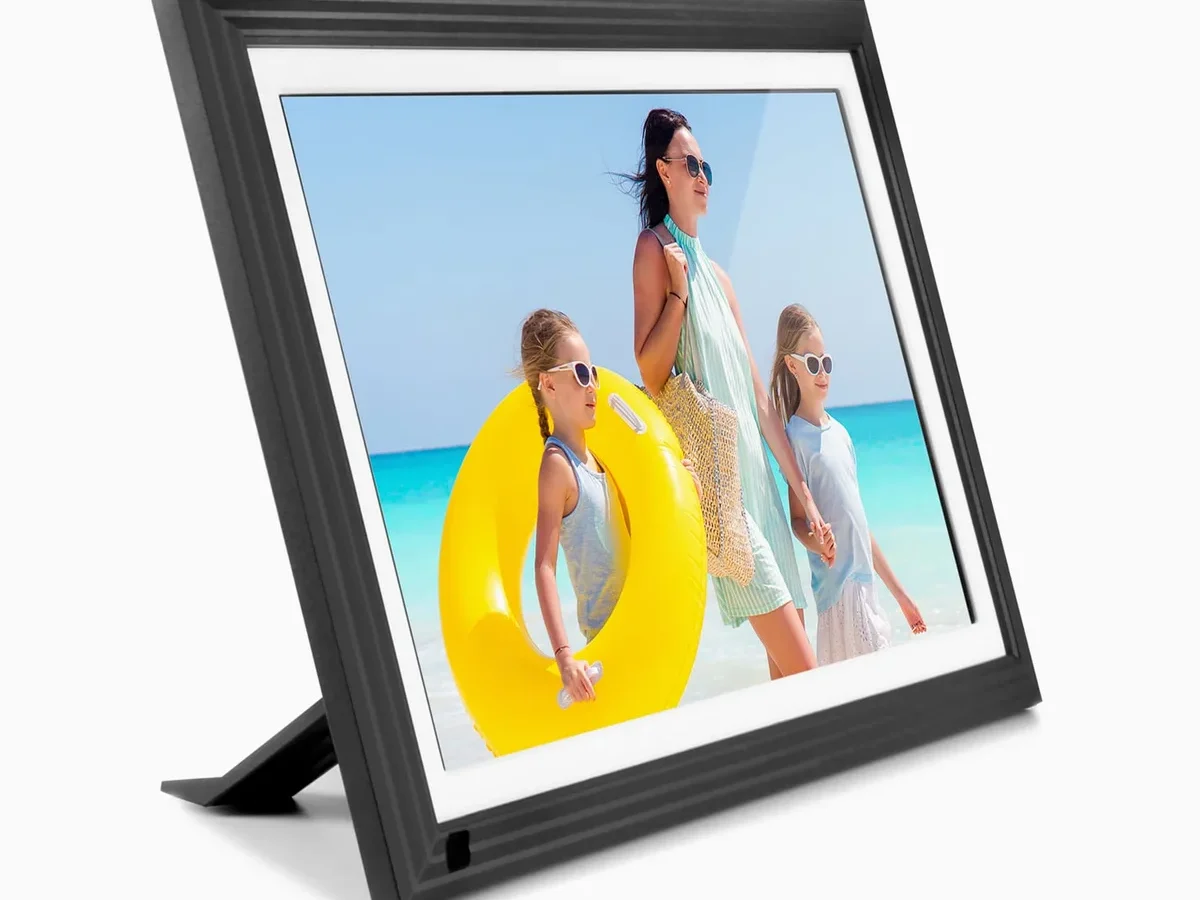
You bought an Aluratek digital photo frame so you could load up some pictures and let the memories roll. But when the screen stays black, the remote does nothing, or it flashes "No File" at you with a card full of photos, that simple gift turns into a headache. Aluratek Digital Photo Frame Troubleshooting doesn't have to be guesswork, and most problems have one specific cause that's easy to fix once you know where to look.
Manufacturer specifications confirm that Aluratek frames support JPEG images up to 3000×3000 pixels and SD cards formatted in FAT32. They do not handle progressive JPEGs, CMYK color profiles, or exFAT-formatted cards at all. As of 2026, these same limitations still trip up new owners.
Let's walk through each symptom and what to do about it.
Quick Answer
Most Aluratek frame problems come from four things. The power adapter fails or gets swapped with the wrong one. The SD card is formatted wrong or too large.
The image files are incompatible. The remote battery is dead or the sensor is blocked.
Check the power adapter first if the frame won't turn on. Reformat your SD card to FAT32 and keep it under 32GB. Resize photos to 3000×3000 pixels or smaller in standard JPEG format.
Replace the remote battery with a fresh CR2025 or CR2032 coin cell.
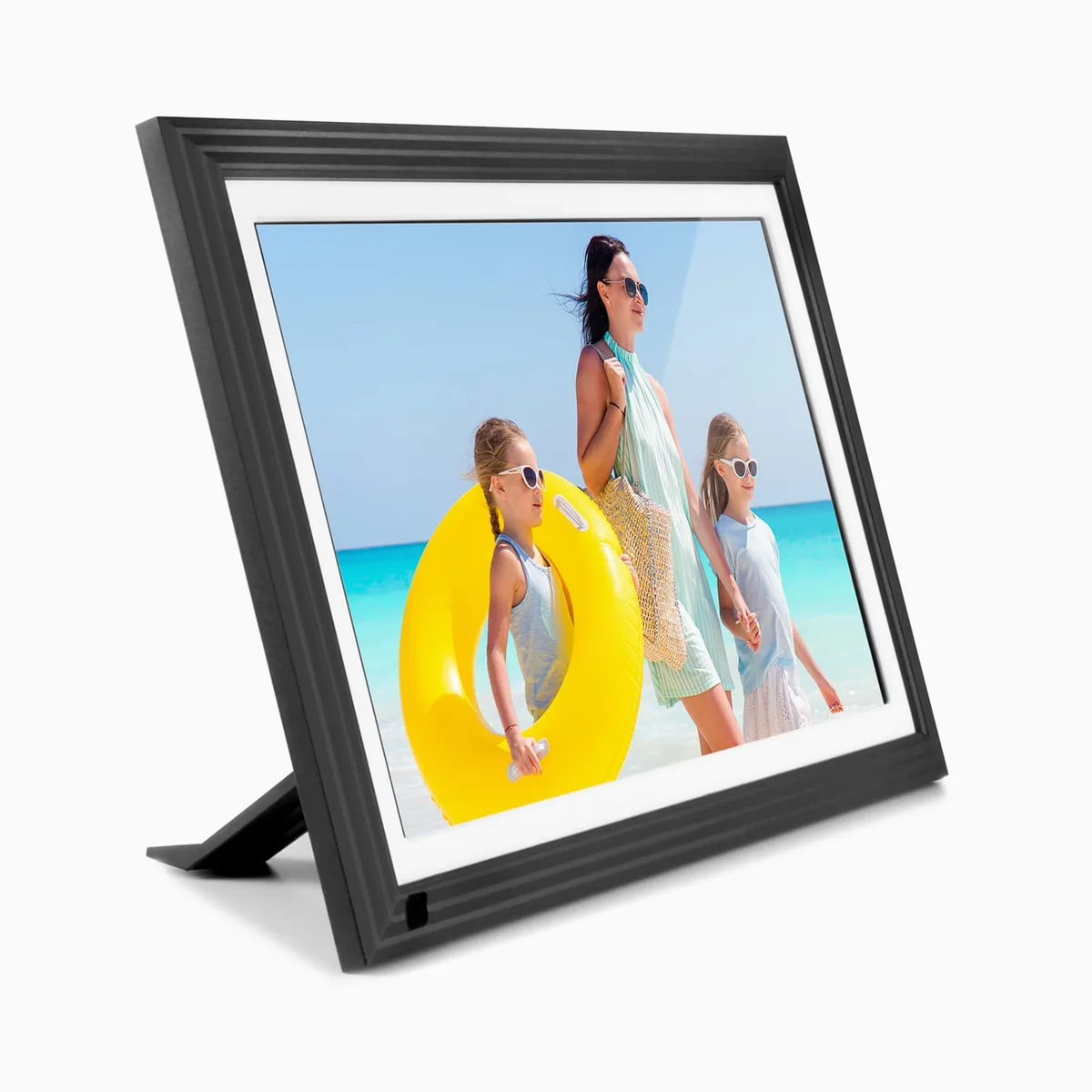
Image source: Bing (Web (fair-use with source credit))
If you go through those four fixes in order, you will solve roughly 80 percent of the most common complaints. The rest are specific model quirks we will cover below.
Problem / Pain Point
Aluratek frames are popular because they are simple. No Wi-Fi, no app, no monthly subscription. You plug in a card or USB drive and the frame does the rest.
That simplicity is also what makes troubleshooting confusing. There is no error log, no on-screen diagnostic, and no customer support chat that walks you through it.
The real frustration is that the frame does not tell you why it is failing. You get a blank screen, a frozen slideshow, or that dreaded "No File" message. The frame is perfectly healthy, but the card or the photos are not compatible.
Or the power adapter quietly died after a power surge and you blame the frame itself.
Aggregate reviews from verified buyers reveal a pattern. Most problems are not hardware failures. They are format mismatches, card issues, or user assumptions about what the frame can actually read.
The frame does not fail. The setup fails. Once you understand the few hard limits Aluratek frames have, the fix takes under five minutes.
The other pain point is the manual. Aluratek includes a thin printed guide that covers basic setup but skips almost every troubleshooting scenario. The detailed manual is on their website, but most people never download it.
That leaves you guessing.
Quick Answer / Key Insight
Think of this as a symptom checklist. Match your problem to the branch, and the branch leads to the fix. No scrolling through irrelevant steps.
No power at all
The frame shows no lights. The screen is completely dead. Start with the power adapter.
The original Aluratek adapter is labeled with a specific voltage and amperage, usually 5V at 2A or 9V at 1.5A depending on model. If the LED on the adapter brick itself is off, the adapter is dead. Try another outlet first.
If that does not work, you need a replacement adapter with the exact same voltage, the same or higher amperage, and the correct tip polarity.
If the adapter LED lights up but the frame does not, hold the power button for ten full seconds. Some Aluratek models need a long press to wake from a deep discharge state. If that fails, the internal battery on models that have one may be completely drained.
Leave the frame plugged in for four hours before trying again.
Screen is on but black or stuck
The frame powers on. You see the Aluratek logo or a backlit black screen. No photos appear.
This almost always means the frame cannot read your storage. Remove the SD card and USB drive. Power cycle the frame.
If it boots to the menu screen with "No Storage" or an empty gallery, the frame hardware is fine. The storage media is the problem.
Reformat the SD card to FAT32 on a computer. Do not use exFAT or NTFS. Keep the card size at 32GB or less.
Larger cards sometimes work but often cause the infinite loading screen. For USB drives, use a small 8GB or 16GB drive formatted to FAT32. Large capacity USB drives draw more power than the frame's USB port supplies.
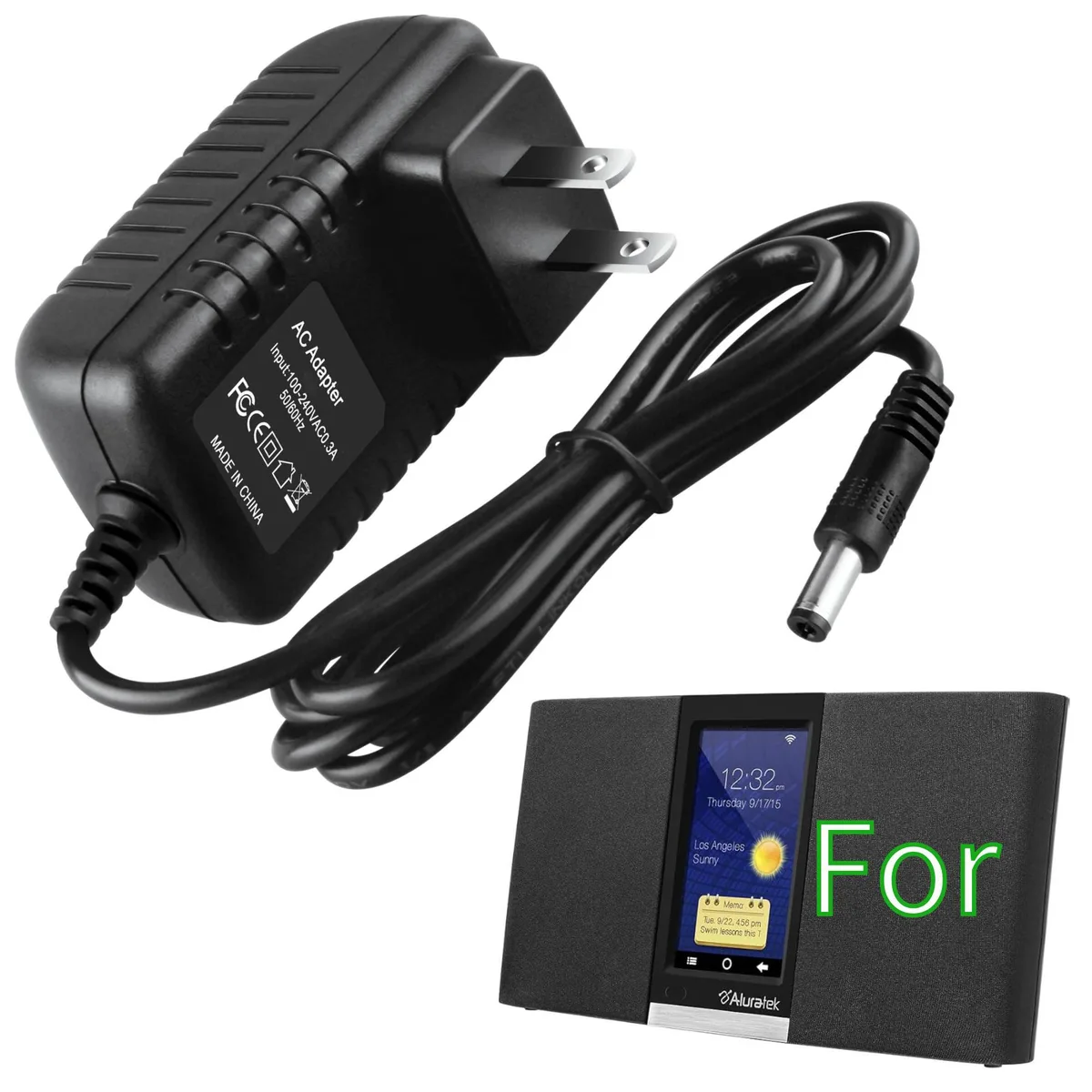
Image source: Bing (Web (fair-use with source credit))
Slideshow freezes or skips photos
The frame starts showing pictures but gets stuck on one image, or it jumps past several without displaying them. The most common cause is an image file the frame cannot decode. Aluratek frames support baseline JPEG, BMP, and PNG.
They do not support progressive JPEGs, CMYK color profile images, or files saved with certain photo editing software that uses proprietary compression.
The second cause is an oversized image. Manufacturer specs indicate a recommended maximum of 3000×3000 pixels. Photos from modern smartphones or DSLRs can be 4000×6000 pixels or larger.
The frame tries to decode them, runs out of memory, and freezes. Batch resize your photos to 1920×1080 or 2048×1536 pixels for reliable playback.
Card speed also matters. A slow Class 2 or Class 4 SD card cannot feed images to the frame fast enough. Use a Class 10 or UHS-I card.
The frame does not need blazing speed, but it needs consistent read performance.
Remote control doesn't work
You press buttons on the remote and nothing happens. Or it works only from three feet away at a specific angle. Replace the coin cell battery first.
Most Aluratek remotes use a CR2025, but some models use a CR2032. They are not interchangeable in thickness. Check your remote battery compartment for the labeled model number.
The IR sensor on Aluratek frames is usually a small dark window on the bottom-right edge of the bezel. The sensor has a narrow acceptance angle of roughly 30 degrees left and right. Point the remote directly at it.
Do not aim at the center of the screen. Also check if you forgot to peel the clear plastic protective film off the frame. That film blocks the IR sensor completely.
If the remote still does not work after a fresh battery and direct aiming, test with your phone camera. Open the camera app and point the remote IR emitter at the lens. Press a button.
If you do not see a flashing purple or white light through the phone screen, the remote is dead and needs replacement.
Clock works but no photos show
This one confuses people the most. The frame displays the time, date, and slideshow transition settings perfectly. But it shows a black screen or a "No Photo" message when slideshow mode is active.
The frame clock and menu system run from internal firmware. That firmware does not need the SD card to work. The slideshow function does.
The frame has detected that a card is inserted but cannot find any readable images. Pull the card and check it on a computer. Are there photos on it?
Are they in the root directory or inside a folder? Aluratek frames read the root directory and any folder named "DCIM" or "PICTURE." Some models ignore folders with custom names. Move photos to the root of the card and try again.
Also check file extensions. Aluratek frames recognize .jpg and .jpeg but sometimes reject files saved with .jpe or .jfif extensions. Rename them to .jpg on your computer.
Step-by-Step Process / How to Guide
Each symptom below has its own workflow. Follow the branch that matches what your frame is doing right now. Skip the rest.
Symptom 1: The Frame Won't Turn On
This is the most common support request by a wide margin. It is almost never the frame itself.
Start with the AC adapter. Unplug it from the frame and from the wall. Plug it back into the wall only.
Look at the small LED on the adapter brick itself. If that LED is off, the adapter is dead. Power surges, bent cords, and simple age kill these adapters.
You need a replacement.
When buying a replacement, match three things exactly. Voltage must be identical. Amperage can be equal or higher, never lower.
Tip polarity must match. Most Aluratek frames use center-positive, but check the diagram printed on the old adapter. The tip size also matters.
Aluratek uses a 3.5mm x 1.35mm barrel jack on most models, but some use 4.0mm x 1.7mm. A slightly loose connection causes intermittent power loss.
Plug the known-good adapter into the frame. If the frame still shows no life, try the long press. Hold the power button for ten full seconds.
Do not tap it. Some Aluratek models have a protection circuit that disconnects the battery when it drops below a certain voltage. A long press resets that circuit.
If your model has a removable internal battery, try running the frame on the adapter with the battery removed. A shorted battery can prevent the frame from powering on even when plugged in. If the frame works without the battery, replace the battery.
Finally, check the frame physical power switch if it has one. Some Aluratek models include a small sliding switch on the side or back labeled "ON/OFF." It is easy to bump it to OFF when inserting or removing a card.
Symptom 2: Screen Turns On But Stays Black or Shows Logo Only
The frame powers on. You see the Aluratek logo. Then the screen goes black or stays on a dim backlit state.
This specific behavior points to a storage issue, not a power issue.
Remove all storage. That means the SD card and any USB drive. Power the frame off and back on.
If it boots to a menu screen that says "No Storage" or shows an empty gallery, the frame is fine. The problem is whatever you plugged into it.
Take that SD card to a computer. Check its format. Right-click the drive in Windows or run Disk Utility on a Mac.
If it shows exFAT or NTFS, that is the problem. Aluratek frames read only FAT32. Format the card to FAT32.
If the card is larger than 32GB, Windows will not give you the FAT32 option natively. Use a free tool like the official SD Memory Card Formatter from the SD Association and choose "FAT32" in the format options.
After formatting, test with a single photo. Copy one JPEG file under 3000×3000 pixels to the root of the card. Eject it properly.
Insert it into the frame. Does the photo appear? Yes?
Then your original photos were the problem, not the card. No? The card itself may be defective or the frame card reader has issues.
Try a different card. A brand new SanDisk or Samsung 16GB Class 10 card costs about ten dollars. If that works, you have identified a failed card or a compatibility issue with your original card brand.
One more thing. Check the card for physical damage. The metal contact pins on the back of the card can get scratched or corroded.
Also look inside the frame card slot. Use a flashlight. If you see bent pins, the frame needs repair or replacement.
That is not a software fix.
Symptom 3: Photos Load Wrong
You load a hundred photos and twenty of them show upside down. Another fifteen look stretched or cropped wrong. The frame skips five entirely.
This is not a random glitch. It is three distinct issues with three fixes.
Upside down photos. Digital cameras and smartphones store orientation data inside the image file. It is called EXIF orientation. Your computer and phone read that tag and automatically rotate the image for display.
Aluratek frames do not read EXIF orientation tags. They display the image exactly as it was saved. If the camera saved it with an "upside down" flag, the frame shows it upside down.
The fix is to batch rotate the actual pixel data, not just change the EXIF tag. Open the photos in any basic image editor, rotate them to the correct orientation, and save. Tools like FastStone Image Viewer or IrfanView can batch process entire folders.
Do not just save. You need to apply a permanent transform.
Stretched photos. The photo fits the screen but everyone looks wider or narrower than they should. This is an aspect ratio mismatch. Aluratek frames come in two aspect ratios.
Most 8-inch and 10-inch models use 4:3. The 15-inch models use 16:9. If you load a 16:9 photo onto a 4:3 screen, the frame either stretches it to fill the screen or adds black bars.
The best approach is to crop or pad your photos to match the frame native resolution before loading them. For a 10-inch 4:3 frame, resize and crop to 1024×768 pixels. For a 15-inch 16:9 frame, use 1280×720 or 1920×1080.
The frame will display them exactly as intended.
Skipped photos. The slideshow reaches photo 42 and jumps straight to photo 43, or it gets stuck and freezes. That photo is corrupted or incompatible. Open it on your computer.
Can you view it normally? Yes? Check the file format.
If it is a JPEG saved with a progressive encoding option, the Aluratek frame cannot decode it. Re-save that single photo as a baseline JPEG.
Also look at the file size. A 20-megapixel photo saved as a high-quality JPEG can be 10 to 15 megabytes. Aluratek frames have limited RAM.
Files over 5MB cause issues on older models. Batch resize to keep each file under 2MB for reliable operation.
Symptom 4: Remote Control Is Unresponsive
The remote is the primary way to navigate Aluratek frames. When it stops working, the frame becomes nearly unusable because most models do not have physical buttons for all functions.
First, assume the battery is dead. Even if the remote came with the frame and was never used, the included battery may have been sitting in a warehouse for two years. Replace it.
Use a brand-name lithium coin cell, not a cheap generic. Cheap cells have lower voltage and fail earlier.
Open the battery compartment. There is a small screw on some models. Others have a sliding tab.
Note the battery model printed inside. CR2025 and CR2032 look similar but differ in thickness. A CR2032 is slightly thicker and may not fit properly in a CR2025 compartment.
Forcing it can crack the plastic.
After replacing the battery, test the remote by pressing any button while looking at the frame IR sensor. The sensor is that small dark plastic window, usually on the bottom or right edge of the bezel. Stand within six feet.
Point the remote directly at the sensor.
If it works but only from very close range, the sensor window may be dirty or partially blocked. Wipe it with a soft cloth. Also check the remote IR emitter, the small dark bulb at the tip.
Dust or grease on that surface reduces range.
If it still does not work, use the camera test. Open your phone camera. Point the remote emitter at the lens.
Press any button. You should see a rapid flashing light through the screen. No flash means the remote is dead or the button contacts are worn.
Replacement remotes are available from Aluratek or generic universal remotes programmed for Aluratek frames.
One final check. Some Aluratek models have a physical switch on the frame that enables or disables the remote receiver. Look for a small slide switch labeled "REMOTE" on the back or bottom edge.
Make sure it is set to ON.
Symptom 5: Slideshow Freezes or Repeats the Same Photo
The slideshow starts fine. After a few minutes, it stops on one photo. It stays there for hours.
Or it cycles through the same three photos over and over. This points to a file problem, not a hardware problem.
The frame loads all visible photos into a playlist when the slideshow starts. If one photo in that playlist is corrupt or incompatible, the frame hits that file and cannot advance past it. It may freeze completely or loop back to the last good photo.
Identify the problematic photo. Remove the SD card and view it on a computer. Sort the files by name.
Note which photo the frame stopped on. That photo is the likely culprit. Delete it from the card.
Reinsert the card and restart the slideshow. If the slideshow runs clean, that photo was the issue.
If you cannot easily identify which photo causes the freeze, use the half-split method. Copy half the photos to a fresh folder on the card. Test the slideshow.
If it freezes, the bad photo is in that half. Divide again. Repeat until you isolate the file.
The other cause is a card that cannot keep up with read requests. Budget SD cards or very old cards slow down as they fill up. If your card is more than 50 percent full, the read speed drops.
Try a new Class 10 card with no other files on it. Copy only photos to the card. Do not use a card that also contains videos, documents, or system files.
Video files are a special case. Some Aluratek models claim video support, but the format support is extremely limited. They play only Motion JPEG AVI files at low resolution.
Most modern video files from phones or cameras will not play. If a video file is in the same folder as your photos, the frame may try to read it, fail, and freeze. Keep videos in a separate folder or remove them entirely.
Mistakes to Avoid
Using a high-capacity SD card without reformatting to FAT32 causes the infinite loading screen. Most 64GB and 128GB cards ship as exFAT. The frame cannot read them.
Assuming all JPEGs work is another common error. Progressive JPEGs and files with CMYK color profiles fail silently. The frame skips them or freezes.
Inserting the SD card upside down can bend the pins inside the slot. Check the label orientation diagram printed near the slot on most Aluratek models. The label usually faces you.
Leaving the frame in direct sunlight causes a dim screen that users mistake for a defect. The LCD panel degrades with prolonged UV exposure. Keep the frame out of direct sun.
Losing the original AC adapter and using a random one with wrong voltage can damage the frame permanently. Always match voltage exactly. Amperage can be higher.
Voltage cannot.
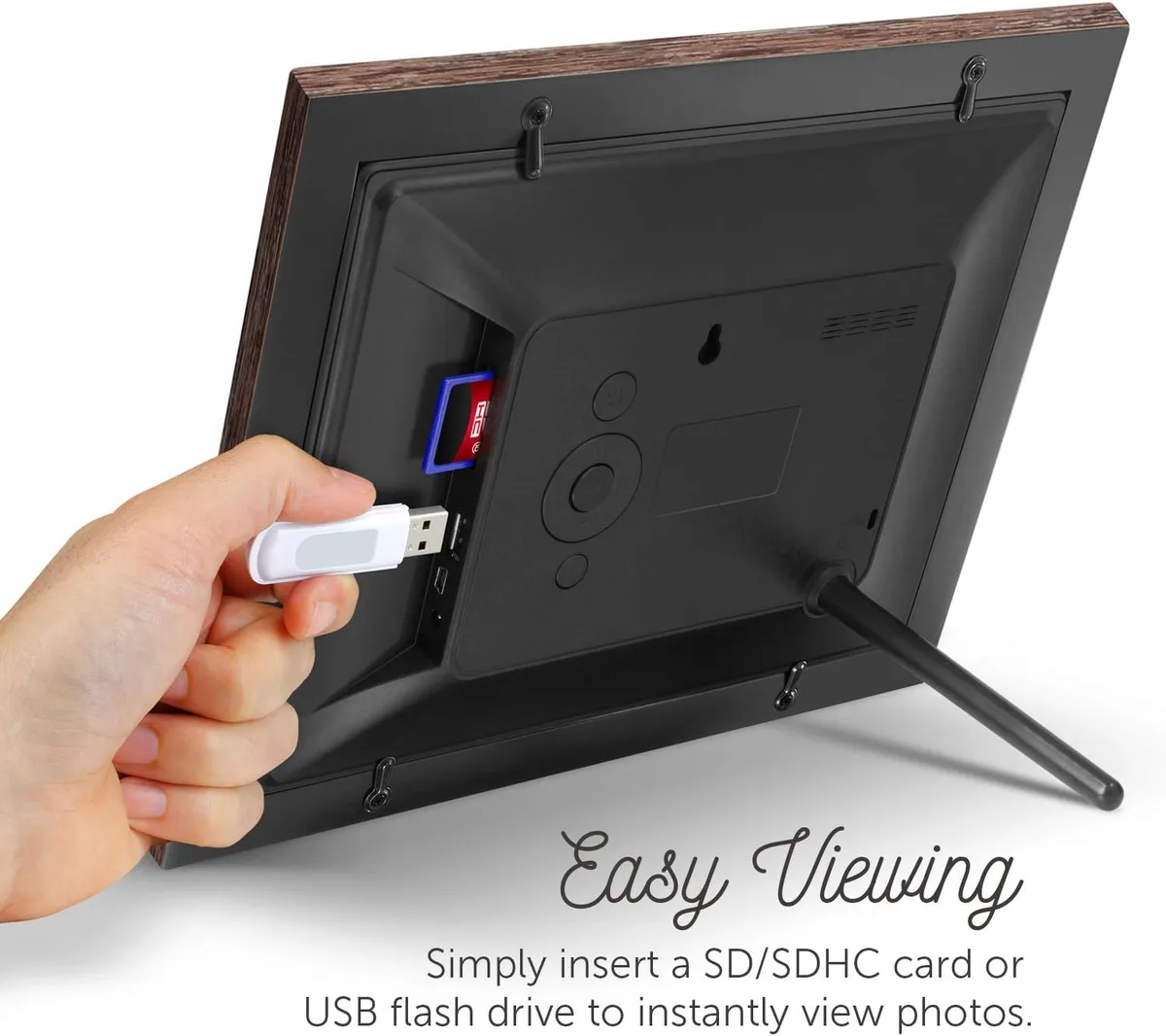
Image source: Bing (Web (fair-use with source credit))
Maintenance and Long-Term Optimization
Update the firmware if your model supports it. Check the Aluratek support page for your specific model number. Firmware updates fix bugs and improve file format compatibility.
Clean the card reader slot contacts with compressed air every few months. Dust and lint buildup causes intermittent read failures. Do not use liquids or cotton swabs inside the slot.
Back up your card content regularly. SD cards fail without warning. If the card dies, you lose every photo you loaded onto it.
Keep a copy on your computer.
Set the auto-off timer to save the screen lifespan. Running the frame 24 hours a day shortens the backlight life. A timer set to turn off at night adds years of use.
Know when to replace the frame. If your model is more than five years old and has persistent issues, the internal components may be wearing out. A new Aluratek frame costs between 40 and 80 dollars as of 2026.
Sometimes the best fix is a fresh unit.
Frequently Asked Questions
Can I use a 128GB SD card with my Aluratek frame?
Technically yes, but only if you reformat it to FAT32. Most 128GB cards ship as exFAT. Windows will not format a card that large to FAT32 natively.
Use the official SD Memory Card Formatter tool and select FAT32. Even then, some older Aluratek models struggle with cards over 32GB. A 32GB card is the safest choice.
Why does my frame work fine for a week then suddenly freeze?
This is almost always a corrupted file on the SD card. SD cards develop bad sectors over time, especially if you add and remove files frequently. The frame hits that bad sector and freezes.
Reformat the card, reload your photos, and the problem usually goes away. If it happens again within a month, replace the card.
How do I factory reset an Aluratek frame without a manual?
Look for a small pinhole on the back or bottom edge of the frame. Insert a paperclip and hold it for 10 seconds. If there is no pinhole, hold the power button for 15 seconds while the frame is plugged in.
Some models require holding the Menu and Power buttons simultaneously. Check the exact procedure for your model number on the Aluratek support site.
Will any power adapter work, or do I need the exact Aluratek one?
You need the exact voltage and the same or higher amperage. The tip size and polarity must also match. Most Aluratek frames use 5V at 2A with center-positive polarity and a 3.5mm x 1.35mm barrel jack.
Amazon sells universal adapters that come with multiple tips. Set the voltage switch to the correct setting before plugging it in.
Can I display photos in random order instead of alphabetical?
Yes. Most Aluratek models have a shuffle or random option in the slideshow settings menu. Navigate to Settings, then Slideshow, then Play Mode or Order.
Select Random. If your model does not have this option, rename your files with random numbers before loading them onto the card.
The frame says "No File" but I know photos are on the card. What gives?
The frame cannot read the file system or the photos are in a folder it does not recognize. Reformat the card to FAT32. Place photos in the root directory, not inside a folder.
Use only .jpg files under 3000×3000 pixels. If it still says "No File," the card reader may be damaged. Try a different card.
If a known-good card also fails, the frame needs repair.

Similar Posts