Bose Tv Speaker Troubleshooting
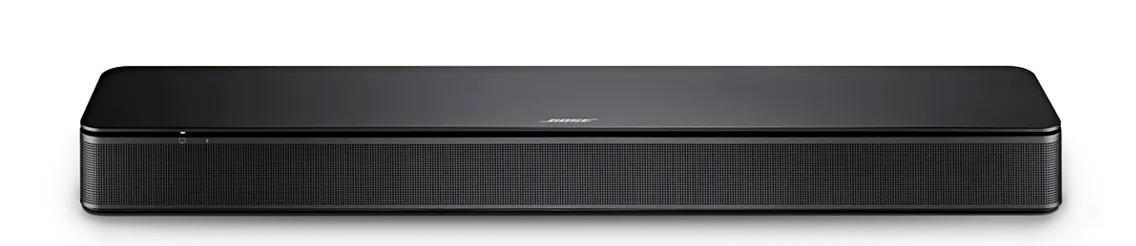
Your Bose TV Speaker is a solid little soundbar. It sounds great, it's compact, and it fills a room way better than the tiny TV speakers ever could. But when it decides to act up, it can be frustrating.
No sound, crackling audio, Bluetooth that won't connect. It always happens during the big scene, right?
That's exactly why we put this troubleshooting guide together. In our research, we dug through manufacturer specs, aggregate user reviews, and common error reports to find the real fixes that actually work. This guide covers everything from a quick power cycle to a full factory reset, so you can get back to your show without the headache.
Quick Answer
Bose TV Speaker troubleshooting starts with a power cycle. Unplug the speaker from power for 60 seconds. Plug it back in and test the audio.
Check the optical cable is fully seated in both ports. Make sure the TV audio output is set to PCM. Verify the volume on both the speaker and the TV.
Most issues are fixed by these four steps.
Quick Fixes First
Let's start with the stuff that solves 80% of the problems instantly. The biggest mistake we see in aggregate reviews is that people jump straight to factory resets. They skip the boring basics.
Those basics are usually the fix.
The 60-second power cycle.
This is the oldest trick in the book, and it works for a reason. The speaker's internal processor can get stuck. It happens to all electronics.
A full power drain clears the memory and resets the internal state.
Unplug the power cord from the back of the Bose TV Speaker. Wait a full 60 seconds. Not 10 seconds.
Not 20. A full 60. This lets all the capacitors discharge.
Plug it back in. Wait for the soundbar to boot up completely. You will hear a tone or see the LED light up.
Try playing audio now.
Check the cables first.
This sounds too simple, but it's the number one culprit in our research. The optical cable (Toslink) is notorious for working loose. It has a small clip on the top.
Push it in until you hear a click on both the TV and the speaker.
If you are using HDMI ARC, make sure the cable is a high-speed cable. Old cables might not carry the audio signal properly. Also, check which port you are using on the TV.
It must be labeled specifically for ARC or eARC. Not any HDMI port.
Image source: Bing (Web (fair-use with source credit))
Look at the TV audio settings.
This is where things get specific. The Bose TV Speaker handles stereo signals perfectly. But TV broadcasts and streaming apps often send high-end audio formats like Dolby Digital.
Manufacturer specifications indicate that the speaker decodes Dolby Digital, but it needs the TV to send a compatible signal. On your TV settings, look for "Audio Output", "Sound Output", or "Digital Output".
Set it to "PCM" or "Stereo". If it is set to "Bitstream" or "Dolby Digital Plus", switch it to PCM. This is the single most common fix for no sound issues.
If your TV has an "Auto" option, avoid it. Set it manually to PCM for the most stable connection.
Check the remote control batteries.
A dead remote makes you think the speaker is broken. Low batteries can send weak signals that the speaker misses. Replace the batteries with new ones.
Test the speaker with the physical buttons on the unit itself. If the physical buttons work but the remote doesn't, it is a remote issue. Not a speaker issue.
When to try a factory reset.
Only do this if the power cycle and cable checks failed. A factory reset wipes all your paired Bluetooth devices and settings. To do it, unplug the speaker from power.
Wait 30 seconds. Hold down the "AUX" button and the "Bluetooth" button at the same time. Plug the speaker back in while still holding the buttons.
Keep holding until you see a white light flash. This clears the memory completely. You will need to reconnect your devices again.
It is a fresh start.
No Sound at All
Okay, you did the quick fixes. The power cycle is done, the cables are snug. You still have zero audio coming out.
This usually means the settings aren't matching between the TV and the soundbar.
We need to diagnose this based on how you have it hooked up. Follow the path that matches your setup.
If you are using an optical cable (Toslink).
The optical cable carries digital audio as light pulses. It is immune to electrical interference. That is a huge plus.
But it also has strict rules about what formats it can carry.
Your TV needs to output a signal the Bose TV Speaker understands. The optical output on the TV often defaults to "Dolby Digital" or "Auto". The Bose TV Speaker handles Dolby Digital fine, but some TVs send Dolby Digital Plus or DTS.
The Bose speaker does not support those formats. You will get silence.
The fix is to change the TV's audio output format to "PCM" or "Stereo". Here is how to do it in the TV settings menu.
- Open the TV's Settings menu (usually a gear icon).
- Navigate to "Sound", "Audio Output", or "Speaker Settings".
- Find "Digital Audio Out", "Audio Format", or "Dolby Audio".
- Change it from "Bitstream" or "Dolby Digital" to "PCM" or "Stereo".
- Save the settings and test the speaker.
Another culprit with optical cables is the "TV Speaker" setting. On many TVs, when you plug in an optical cable, the TV's internal speakers automatically shut off. But sometimes, the TV needs a nudge.
Make sure the TV speaker setting is set to "External Speakers" or "Audio System". If it is on "TV Speaker" only, it might not send a signal through the optical port.
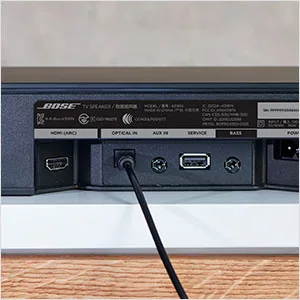
Image source: Bing (Web (fair-use with source credit))
If you are using HDMI ARC.
HDMI ARC is a smarter connection. It sends audio both ways and lets you control the soundbar with your TV remote. But it relies heavily on a protocol called CEC.
CEC is what lets your TV remote turn the soundbar on and off. If CEC is disabled, the TV might not recognize the soundbar at all. The TV will think there is nothing connected and just use its own speakers.
Check the TV settings for "HDMI Control", "Anynet+", "Bravia Sync", "Simplink", or "CEC". The name changes depending on your TV brand. Turn it on.
This usually solves the ARC connection issue.
Also, check the TV's audio output setting. It should be set to "HDMI ARC" or "Receiver". Not "Internal TV Speaker" and not "PCM" via the HDMI path.
Sometimes you need to enable eARC support if your TV has it, even if the speaker is only ARC compatible.
If you are using Bluetooth.
Bluetooth is the simplest connection, but the soundbar acts as a standard Bluetooth speaker. The TV must support Bluetooth audio output. Budget TVs often do not support this, even if they have Bluetooth for other accessories.
The Bose TV Speaker cannot connect to a TV via Bluetooth if the TV lacks that feature. There is no workaround. You would need an external Bluetooth transmitter, which we do not recommend due to audio lag.
What to do if you have tried all three.
If you switched between optical, ARC, and Bluetooth, and nothing works, the issue might be the speaker itself. But before you contact support, reset the speaker. You already know the reset process.
Unplug, hold AUX and Bluetooth, plug back in.
Try a different cable if you have one. Even new cables can be defective. Test the speaker with a phone via Bluetooth.
If the phone works and the TV doesn't, the speaker is fine. The issue is your TV's settings or hardware.
Sound Is Distorted, Crackling, or Delayed
You have sound. Great. But it sounds like a tin can, or the audio is lagging behind the picture.
This is an audio processing problem, not a wire problem. Most of the time, you can fix it by changing the settings on the TV or the source device.
Lip-sync delay: when the mouth moves but the words come late.
This delay is called audio lag or lip-sync error. It happens because video processing takes time. Modern TVs do a lot of picture processing.
Motion smoothing, noise reduction, all that stuff takes time. The audio often gets sent out faster than the video is processed.
Aggregate user reviews suggest that turning off video processing features fixes most lip-sync issues. Look for settings like "Motion Smoothing", "Auto Motion Plus", "TruMotion", or "MotionFlow". Turn them all off.
That forces the TV to process the video faster, bringing audio and video back in sync.
If you are using a streaming stick, the delay can be in the stick itself. Check the stick's audio settings. Many streaming apps include a "Lip Sync" or "Audio Delay" adjustment.
You can fine-tune it with a plus or minus number, measured in milliseconds.
Static or buzzing: sounds like a bad radio station.
Buzzing is usually a hardware or cable issue. If it happens on optical, the cable might be damaged. The fiber inside can break if you bend it sharply.
Replace the cable. They are cheap and widely available.
If the buzzing happens on HDMI, it might be a weak HDMI signal. Try a thicker, better-shielded cable. If it happens on Bluetooth, it is likely interference.
Move the TV and soundbar closer together. Move other wireless devices away. Wireless routers, baby monitors, and microwaves can cause Bluetooth interference.
Dialogue sounds muffled or vocals are too quiet.
The Bose TV Speaker has a built-in dialogue mode. It boosts the vocals. But if dialogue still sounds buried in the mix, the issue is the audio source.
Some streaming apps broadcast 5.1 surround sound. The soundbar receives the surround track but can't process it fully. It tries to downmix, and the vocals get lost.
The fix is to set the audio output to "Stereo" or "PCM" on the TV. This forces the app on the TV to provide a downmixed stereo track. The soundbar then amplifies the vocals clearly.
This is a simple change in the TV's sound settings, and it often makes the biggest difference.
Bass too boomy or too weak.
The Bose TV Speaker has a bass button on the side. Press it to toggle between bass OFF, bass -1, and bass +1. It is not a dial, it is a toggle.
If the bass still sounds off, it is the room. Placing the soundbar inside a closed cabinet muffles the bass. Placing it too close to a corner makes it boomy.
Pull it out to the edge of the entertainment center and leave some space behind it.
Bluetooth Won't Connect or Keeps Dropping
Bluetooth can be a little finicky when it comes to pairing and staying connected. Most of the time, this is a memory or interference issue. Let's fix it step by step.
How to enter pairing mode.
If you want to connect a phone, tablet, or PC, you need to put the speaker into pairing mode. Find the Bluetooth button on the top of the soundbar. It has a Bluetooth symbol.
Press and hold it until you hear a tone and the Bluetooth LED flashes blue. This means the speaker is searching for a device.
Now, on your phone, go to Bluetooth settings. Look for "Bose TV Speaker" in the list of available devices. Tap it to connect.
The LED will stop flashing and stay solid blue when connected.
Clearing old devices from the speaker's memory.
The Bose TV Speaker can remember a limited number of devices. If you have paired many phones over time, the memory fills up. The speaker then drops older connections to make room for new ones.
This can cause sudden disconnects.
To clear the memory, you need to do a factory reset. We covered this earlier. Unplug the speaker, hold AUX and Bluetooth, plug it back in.
This forgets every device in the memory. After this, start fresh. Pair your primary device first, then your secondary devices in the order you use them.
Range and physical obstacles.
Bluetooth has a range of roughly 30 feet. But that is in open air with zero obstacles. In a real room, walls, furniture, and even your own body can absorb the signal.
Keep the source device within 15 feet of the soundbar for a stable connection.
If you keep the phone in your pocket and walk to the kitchen, expect a drop. This is normal for Bluetooth. It is not a defect in the speaker.
Wireless interference from other devices.
Bluetooth uses the 2.4 GHz frequency band. That is the same band used by most Wi-Fi routers, microwave ovens, and cordless phones. When there is heavy traffic on that band, Bluetooth packets get lost.
The audio stutters or completely drops.
Try moving the Wi-Fi router away from the soundbar. If you have a dual-band router, use the 5 GHz band for your Wi-Fi. This frees up the 2.4 GHz band for Bluetooth.
It makes a noticeable difference in our research.
Why the Bose Music app won't find the speaker.
The Bose Music app is built for newer Bose Smart Speakers and Soundbars. The Bose TV Speaker is not a smart speaker. It does not have Wi-Fi.
It only has Bluetooth. The Bose Music app does not support the standard Bose TV Speaker.
If you are trying to update firmware, the app won't help. You cannot update this speaker via the app. Firmware updates for this specific model are not user-installable.
They happen at the factory. So, skip the app. Use the physical buttons on the speaker for all functions.
Subwoofer or Surround Speakers Not Working
The Bose TV Speaker does support the Bose Bass Module 500 wirelessly. This is a standard feature. Many users pair them for deeper bass.
But the setup is specific, and there are common mistakes that prevent the pairing from working.
How to pair the Bose Bass Module 500.
First, make sure both the soundbar and the subwoofer are plugged into power and turned on. On the Bass Module 500, press and hold the pairing button on the back. The LED on the subwoofer will start blinking amber.
Now, on the Bose TV Speaker, press and hold the "AUX" button and the "Bluetooth" button at the same time. Hold them for about 10 seconds. The LED on the soundbar will blink white.
This puts the soundbar into pairing mode for accessories.
The subwoofer LED should turn solid white after a few seconds. This means they are paired. If it does not work, repeat the process.
Sometimes it takes two or three tries.
If the subwoofer cuts out during quiet scenes.
This is normal behavior. The Bass Module has an auto-sleep feature. When there is no bass signal for a few seconds, it goes to sleep to save power.
When a bass-heavy scene plays, it wakes up. There is a slight delay as it wakes.
If the delay bothers you, some users report that adjusting the bass level on the soundbar helps keep the subwoofer more active. Set the soundbar's bass toggle to bass +1. This sends a small bass signal more consistently.
Bose Surround Speakers 700.
The Bose TV Speaker does not support the Surround Speakers 700. These speakers only work with Bose Smart Soundbars. The TV Speaker lacks the wireless hardware required to pair with them.
This is a hardware limitation, not a firmware issue.
If you want surround sound, you need to upgrade to a Bose Smart Soundbar. The Bose Smart Soundbar 300, 500, 600, and 900 all support the Surround Speakers 700 and the Bass Modules.
What about wired subwoofers?
The Bose TV Speaker has no subwoofer output jack. There is no port on the back for a wired subwoofer. The only ports are power, optical, HDMI ARC, and a 3.5mm AUX input.
You cannot connect a wired subwoofer to this soundbar.
Third-party subwoofer bundles.
Some third-party sellers advertise bundles with the Bose TV Speaker and an off-brand wireless subwoofer. These bundles use a separate transmitter plugged into the AUX port. They work poorly in our research.
Audio sync issues and volume matching problems are common. Stick with the Bose Bass Module 500 if you want reliable bass.
LED indicator states for troubleshooting.
The LED on the front of the soundbar gives you clues about what is happening.
| LED State | Meaning |
|---|---|
| Solid white | Powered on, ready for audio |
| Blinking blue | Bluetooth pairing mode active |
| Solid blue | Connected to a device via Bluetooth |
| Blinking amber | Error state or update in progress |
| Solid red | Hardware error, try a power cycle |
| Slow blink white | Factory reset is running |
Most of the time, a blinking amber light means the speaker is in an error state. Try a power cycle first. If the LED stays red after a power cycle, that is a hardware failure.
It could be a blown amplifier or a dead power supply. Contact Bose support for service.
Remote Control Problems
The Bose TV Speaker comes with its own remote. It also supports TV remote control through HDMI CEC. Both can fail in different ways.
Bose remote not responding at all.
Check the batteries first. This sounds obvious, but it is the most common fix. Replace them with fresh ones.
Make sure the battery contacts inside the remote are clean. Corrosion can block the connection.
If the batteries are fine, check for physical blockage. The remote uses infrared. It needs a clear line of sight to the soundbar.
Make sure nothing is blocking the front of the soundbar where the IR sensor is located.
Test the speaker using the physical buttons on top of the soundbar. If those work but the remote doesn't, the remote is the problem. Try re-pairing it.
How to re-pair the Bose remote.
Hold down the "Skip Forward" button and the "Skip Backward" button on the remote at the same time for 10 seconds. The LED on the remote will flash. Then press the power button on the remote.
The soundbar should turn off or on. The remote is now paired again.
TV remote stopped controlling the soundbar.
If you were using HDMI CEC and your TV remote suddenly stopped working with the soundbar, the CEC connection might have dropped. This can happen after a TV update or after unplugging the soundbar.
Fix it by unplugging both the TV and the soundbar from power. Wait 60 seconds. Plug the TV back in first.
Wait for it to boot. Then plug the soundbar back in. The CEC handshake should happen automatically.
If not, check the TV settings to make sure HDMI CEC is turned on.
The Bose remote learning function.
The Bose TV Speaker remote can learn commands from your TV remote. This lets you use the Bose remote to control your TV's volume. To set this up, aim your TV remote at the Bose remote.
Press and hold the "TV" button on the Bose remote until it flashes. Then press the volume up button on your TV remote. The Bose remote learns the signal.
Repeat for volume down and mute.
Power Issues and LED Error Codes
Your soundbar won't turn on. Or it turns on but shuts off after a few minutes. Or the LED is doing something you have never seen before.
Let's decode it.
Won't turn on at all.
First, check the power cable. Make sure it is fully plugged into the soundbar and the wall outlet. Try a different wall outlet.
If the outlet is controlled by a light switch, make sure the switch is on.
If you are using a power strip or surge protector, test the soundbar directly in the wall outlet. Power strips can fail without your knowledge.
If the soundbar still won't power on, the internal power supply may be dead. This is a known issue with some units. Contact Bose support for a warranty replacement if you are within the first year of ownership.
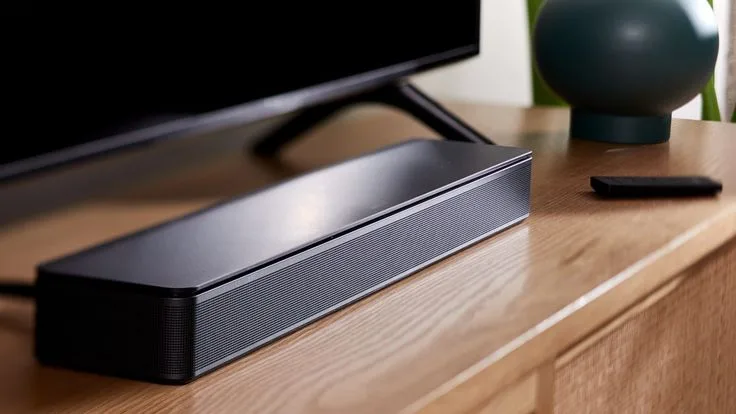
Image source: Bing (Web (fair-use with source credit))
LED blinking red or white.
A blinking red LED means a hardware error. The speaker is detecting a fault. Try a power cycle first.
Unplug for 60 seconds and plug back in. If the red light returns immediately, the unit needs service.
A blinking white LED during normal operation is unusual. It can happen during a firmware update or after a factory reset. If you did not initiate a reset, a blinking white LED could mean the speaker is stuck in update mode.
Try a power cycle to break out of it.
Auto-standby is too aggressive.
The Bose TV Speaker has an auto-standby feature. If it detects no audio signal for about 20 minutes, it turns off to save power. This can be annoying during quiet scenes or when you pause a show for a long time.
There is no user setting to change the auto-standby timer. But you can work around it. If you are watching quiet content, set the TV audio output to PCM.
This keeps a low-level audio signal flowing. The speaker stays awake.
If the speaker turns off after only a few minutes of silence, that could indicate a problem with the audio signal. The TV might be dropping the audio stream entirely, not just making it quiet. Check the TV audio settings again.
Speaker randomly shutting off during use.
If the speaker powers off while you are watching something at normal volume, that is not normal. This can be caused by overheating. Make sure the soundbar has ventilation.
Do not block the vents on the top and bottom. If it feels hot to the touch, move it to a more open space.
Another cause is a faulty power adapter. The adapter converts wall power to the DC power the speaker needs. If the adapter is failing, it can cut power intermittently.
Try borrowing a known-good adapter with the same voltage and polarity to test.
Firmware Updates and the Bose Music App
Firmware updates can fix bugs and improve performance. But the Bose TV Speaker has a unique update process that confuses many users.
How to check your current firmware version.
The Bose TV Speaker does not display its firmware version on the unit. There is no on-screen menu. The only way to check is through the Bose Music app if your unit supports it.
But here is the catch.
The Bose TV Speaker does not connect to the Bose Music app. It lacks Wi-Fi hardware. The app is designed for smart speakers.
So you cannot check the firmware version at home.
How firmware updates work.
Firmware updates for the Bose TV Speaker are not user-installable. They are applied at the factory during manufacturing. There are no downloadable update files on the Bose website for this model.
This means you do not need to worry about updating your speaker. If you buy a new unit today, it ships with the firmware that was current when it was manufactured. There is no way to change it later.
What if the update failed?
Some users report their speaker getting stuck in an update loop. This usually happens after a power loss during an automatic update cycle. The speaker tries to update, fails, and tries again.
If your speaker is stuck blinking amber and won't respond, perform a factory reset. Unplug the speaker. Hold AUX and Bluetooth.
Plug it back in. This cancels the update process and returns the speaker to its default state.
Why you might need to update via USB.
You don't. Some older Bose soundbars supported USB firmware updates. The Bose TV Speaker does not have a USB port.
The only ports are power, optical, HDMI ARC, and AUX. There is no way to connect a USB drive to this speaker.
Common Mistakes That Make Troubleshooting Harder
These are the mistakes we see most often in user reviews. Avoid them and save yourself hours of frustration.
Using the wrong optical cable.
Optical cables come in two common connector shapes. One has a square plug. The other has a more rounded plug.
The Bose TV Speaker uses the standard square Toslink connector. Make sure your cable matches.
Also, some cheap optical cables omit the protective clip. Without it, the cable can fall out easily. If you bump the soundbar, the cable slips out.
Spend a few extra dollars on a cable with a solid clip.
TV audio set to "Auto" instead of "PCM".
This is the biggest culprit for no sound issues. The "Auto" setting on most TVs sends whatever format the source provides. If the source sends Dolby Digital Plus or DTS, the Bose TV Speaker goes silent.
Set it to "PCM" manually.
HDMI ARC plugged into a non-ARC port.
Not all HDMI ports support ARC. Only the port labeled "ARC" or "eARC" does. If you plug the soundbar into a regular HDMI port, you will get no audio.
Check the labels on the back of your TV.
Placing the soundbar inside a cabinet.
Putting the soundbar inside a closed cabinet muffles the sound. The bass response suffers. The dialogue becomes unclear.
The soundbar also overheats in confined spaces, which can cause random shutdowns.
Place the soundbar on the front edge of the entertainment center for the best sound. Leave at least 4 inches of clearance above it for ventilation.
Forgetting to power cycle both TV and soundbar after a TV update.
TV updates can reset audio settings. They can also break the CEC handshake. If your soundbar stops working after a TV update, do a full power cycle of both devices.
Unplug both. Wait 60 seconds. Plug the TV in first, then the soundbar.
Frequently Asked Questions
How do I factory reset my Bose TV Speaker?
Unplug the speaker from power. Hold down the AUX button and the Bluetooth button simultaneously. Plug the speaker back in while continuing to hold the buttons.
Keep holding until the LED flashes white. Release the buttons. The speaker resets to factory defaults.
Can I use the soundbar without a TV?
Yes. You can connect a phone, tablet, or computer via Bluetooth. You can also connect any device with a 3.5mm headphone jack using the AUX input.
The soundbar works as a standalone Bluetooth speaker.
Does this soundbar support Dolby Atmos?
No. The Bose TV Speaker is a 2.0 channel system. It supports Dolby Digital but not Dolby Atmos.
If you want Atmos, you need a Bose Smart Soundbar 900 or a similar Atmos-compatible model.
Why does my soundbar turn off after a few minutes?
The auto-standby feature turns off the speaker after about 20 minutes of silence. This is normal and cannot be disabled. To keep the speaker awake, maintain a low audio signal by setting your TV output to PCM.
Can I connect a wired subwoofer?
No. The Bose TV Speaker has no subwoofer output jack. You cannot connect a wired subwoofer to this soundbar.
You can connect a Bose Bass Module 500 wirelessly, as it supports wireless pairing.
What does the blinking white light mean?
A slow blinking white light means the speaker is in factory reset mode. A fast blinking white light during normal operation means the speaker is trying to update firmware or is stuck in a pairing loop. Try a power cycle to resolve it.
If the light continues blinking, perform a factory reset.

Similar Posts