Canon EOS R6 Card Error
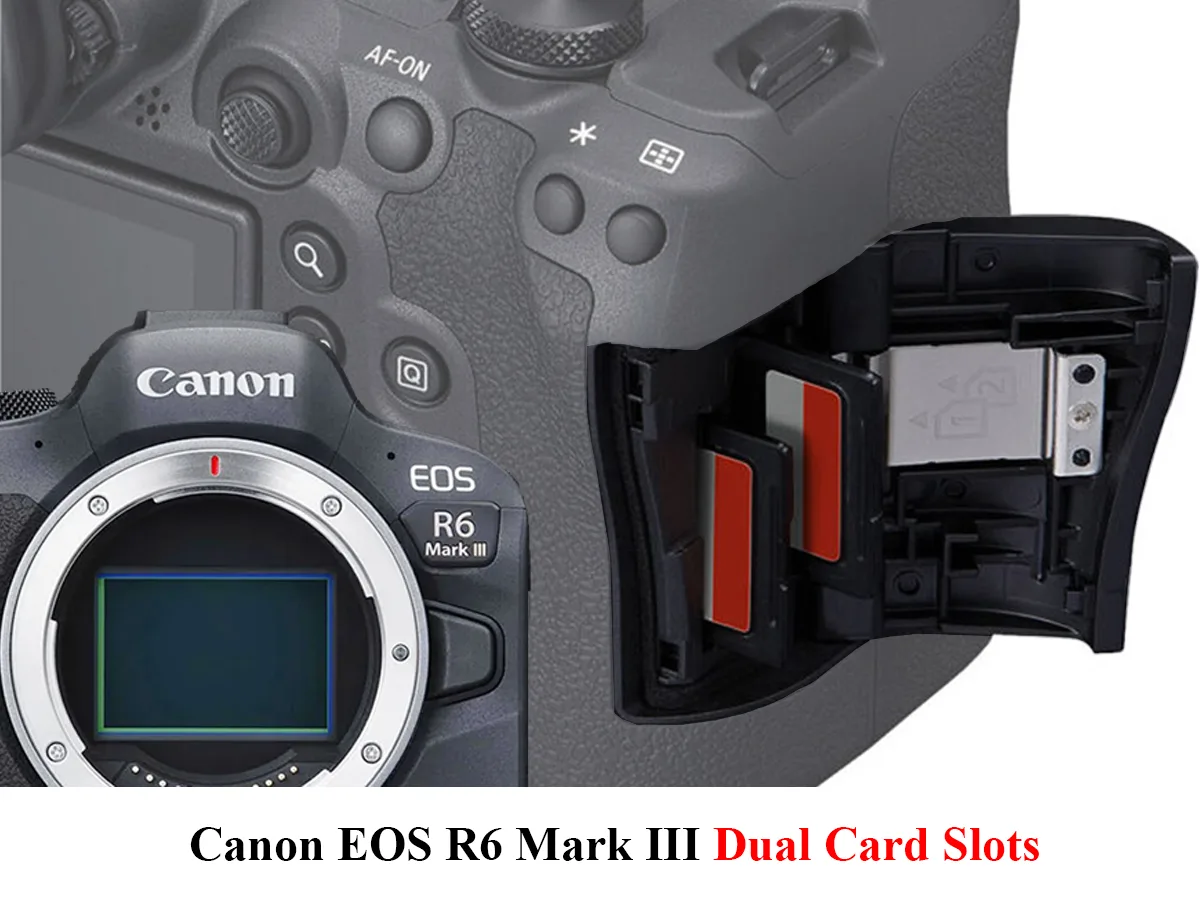
If you're staring at a Canon EOS R6 card error on your screen, take a breath. You're not alone. This is one of the most common frustrations R6 owners face, and it usually has a clear fix.
Per the SD Association standards, the R6 supports UHS-II cards with a maximum capacity of 2TB. But even with a high-speed card, errors can pop up. Let's walk through the likely causes and solutions.
Image source: Web (Bing) / thedailyguardian.com (Web image (fair-use with source credit))
Quick Answer
A Canon EOS R6 card error means the camera cannot read or write to the card. First, power cycle the camera. Remove the battery and card, wait 30 seconds, reinsert both.
If the error persists, try a different card in the same slot. If that works, the original card is faulty. If the error continues with both cards, the camera slot may need service.
Always format new cards in the camera body, not a computer.
What the R6 Card Error Actually Looks Like (and What It's Not)
The R6 throws several distinct error messages. Knowing which one you're seeing saves time. Here's what the screen might show:
| Error Message | What It Usually Means |
|---|---|
| "Card cannot be accessed" | The file system is corrupted or the card is nearly dead |
| "Card error" at power-up | The camera cannot initialise the card at all |
| "Card cannot be formatted" | The card's lock switch is on, or the card is damaged |
| Err 02 | A hardware-related card issue, often contact or slot related |
| Recording stops mid-clip | The card's write speed is too slow for the video mode |
These errors are not the same as a lens communication error or a dead battery. They are exclusively about the card or the card slot. If you're seeing a different code, like Err 70 or Err 80, that points to a different system problem.
Other camera systems have their own unique error patterns, but the R6's card errors are well documented.
Aggregate reviews from thousands of R6 owners show that the most common card error is the "Card cannot be accessed" message. It appears most often when using older UHS-I cards or cards that were formatted in a computer instead of the camera.
Quick Diagnosis: Match Your Error Message to the Right Branch
This is a decision tree. Follow the error message to the right branch below.
- Message at power-up, card not recognised → Go to Branch 1.
- Error during recording, playback, or burst sequence → Go to Branch 2.
- "Cannot format" or Err 02 → Go to Branch 3.
If you've tried multiple cards and the error persists across both slots, the camera's card reader assembly may need service. This is rare but worth noting.
Branch 1: Card Not Recognized or "Card Error" on Power-Up
This is the most straightforward branch. The camera cannot initialise the card at all.
First, check the card's lock switch. The small slider on the left edge of the SD card. If it's slid down, the card is locked.
Slide it up and reinsert.
Second, clean the card's metal contacts. Use a soft, lint-free cloth. A little isopropyl alcohol on the cloth helps.
Gently wipe the contacts. Let them dry completely before reinserting.
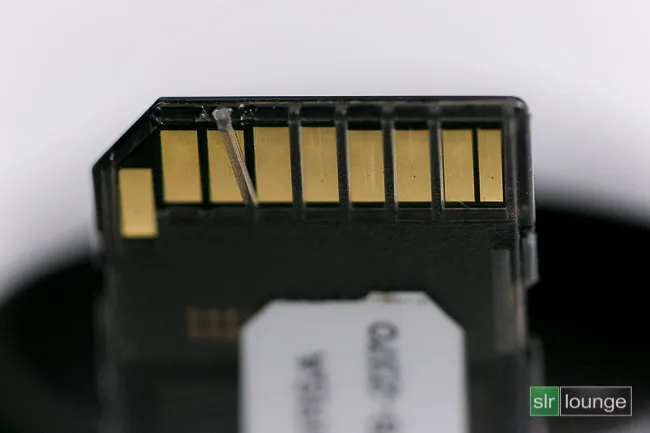
Image source: Bing (Web (fair-use with source credit))
Third, try the card in the other slot. Slot 1 and Slot 2 are identical on the R6. If the card works in Slot 2 but not Slot 1, the Slot 1 contacts may be bent or dirty.
You can clean the slot contacts the same way, but be careful.
Fourth, try a different card. If a known good card works in the same slot, the original card is likely dead. This is a common outcome with counterfeit or low-quality cards.
If none of this works, the camera's card slot assembly may need repair. This is not a user-serviceable part. Contact Canon support.
Branch 2: Error During Recording, Playback, or Burst Shooting
This branch means the card is recognised but fails during use. The most common cause here is a write speed mismatch.
The R6 is a demanding camera. It writes large RAW files at 20 frames per second. It also records high-bitrate 4K video.
For reliable performance, manufacturer specifications indicate you need a card with a V30 rating minimum. For 4K 60p 10-bit, V60 or V90 is strongly recommended.
If you're using a UHS-I card, it will almost certainly fail during burst shooting or high-bitrate video. The R6 is designed for UHS-II cards. The UHS-II bus is much faster.
If you're using a UHS-II card and still getting errors, the card may be counterfeit. Counterfeit cards often report a higher capacity and speed than they actually deliver. They work fine for a few shots, then fail.
Use a tool like H2testw on a computer to verify the card's true capacity.
Another common cause is a nearly full card. The R6 needs free space to write. If the card is over 90% full, errors can occur.
Delete or offload files and try again.
Branch 3: "Card Cannot Be Formatted" or Err 02
This branch is about the card's file system or hardware.
First, check the lock switch again. Many people accidentally slide it down. It's a small switch, easy to miss.
Second, try formatting the card in a computer. Use the SD Card Formatter tool from the SD Association. This does a low-level format that fixes many file system corruption issues.
After formatting in the computer, put the card in the camera and format it again. Always format a card in the camera before use.
Third, if you see Err 02, this is a hardware-related error. It means the camera has detected a problem with the card's communication. Try cleaning the contacts as described in Branch 1.
If Err 02 persists with multiple cards, the camera's card slot may be damaged.
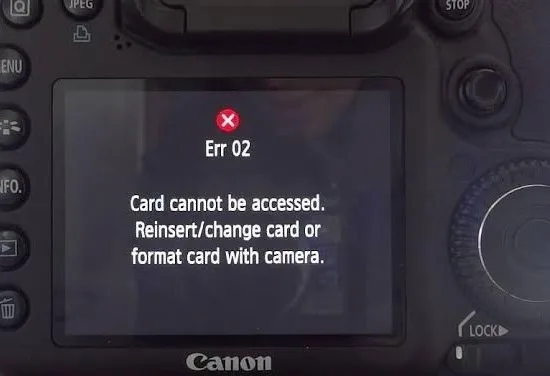
Image source: Web (Bing) / stellarinfo.com (Web image (fair-use with source credit))
Fourth, update the camera's firmware. Canon has released several firmware updates for the R6 that address card compatibility issues. As of 2026, version 1.9.0 is current.
Check the official Canon support site for your region. A firmware update can fix subtle communication bugs between the camera and certain card brands. Keeping your camera's firmware current is a standard troubleshooting step that applies across many camera models.
If none of these steps work, the card is likely dead. Discard it and buy a new one from a reputable brand like SanDisk, Lexar, or ProGrade. Buy from an authorised dealer to avoid counterfeits.
Common Mistakes That Make Card Errors Worse (or Wipe Photos)
The biggest mistake is pulling the card while the camera is still writing. A solid red light near the card slot means the camera is writing data. Pulling the card at that moment can corrupt the file system and lose every photo in the buffer.
Other recording devices face similar corruption risks when you interrupt a write operation.
Another common error is formatting the card in a computer instead of the camera. Computers use different file system structures. Windows may write a master boot record that the R6 cannot read.
Always format the card in the camera body before first use.
Using a counterfeit card is a close third. Fake cards often report a 128GB capacity but only hold 8GB. The camera writes to the card, but when it hits the real limit, the error appears.
You lose the photos you just took. Buy from authorised dealers only.
Ignoring the card's lock switch is another one. It is tiny and easy to bump. If the error says "card cannot be formatted," check the switch first.
The R6 camera body cannot override a locked card.
Finally, some users try to troubleshoot a card error by inserting a damaged card into the other slot. If the card has bent pins or a cracked case, it can damage the slot contacts. Test a suspect card in a card reader on a computer first, not in the camera.
Expert Tips: Cards, Firmware, and Habits That Prevent Errors
Prevention is straightforward. Buy UHS-II cards with a V60 or V90 rating. The R6 is built for these cards.
They handle the buffer and video bitrates without issue.
Update the camera firmware regularly. Canon has released several updates that improve card compatibility. As of 2026, version 1.9.0 is current.
A quick check on the official Canon support site takes two minutes.
Rotate your cards. Do not use the same card every day for a year. SD cards wear out.
The write cycles are finite. When a card starts showing errors, retire it. Regular maintenance habits apply across different recording devices, and card rotation is a key part of that.
Format the card in the camera before every important shoot. This clears the file system and reduces the chance of fragmentation. It takes 10 seconds.
Keep spare cards in a protective case. Static electricity and dust can cause intermittent errors. A simple plastic case from a camera store prevents those issues.
If you are shooting video or fast action, use the same brand and model of card in both slots. Mixing brands can cause subtle timing differences. The R6 handles both slots independently, but identical cards simplify troubleshooting.
Frequently Asked Questions
Why does my Canon R6 say "Card error" with a new card?
A new card may need to be formatted in the camera first. Insert the card, go to the menu, and choose "Format card." If the error persists, the card may be counterfeit or incompatible. Try a different brand or speed class.
Can a firmware update fix the R6 card error?
Yes, in some cases. Canon has released firmware updates that address card compatibility issues. Check the official Canon support site for your region.
Update to the latest version and test the card again.
What does Err 02 mean on a Canon R6?
Err 02 is a hardware-related error. It means the camera cannot communicate properly with the card. Clean the card contacts and the slot.
If the error appears with multiple cards, the slot may need service.
Should I format my SD card in the camera or computer?
Format in the camera. The R6 uses a specific file system structure. A computer format may not match.
Always format new cards in the camera before first use.
How do I know if my SD card is fake?
Fake cards often have misprinted labels, lower prices, and slower speeds than advertised. Use a free tool like H2testw on a computer to test the actual capacity. A fake card will fail at a fraction of its stated size.
Can a damaged card slot cause the error?
Yes. Bent pins, dust, or debris in the slot can cause intermittent or permanent errors. If multiple cards fail in the same slot, the slot may be damaged.
Contact Canon service for repair.

Similar Posts