How to Reset a Mirrorless Camera
Your mirrorless camera is acting up. The shutter won't fire. The menu is stuck in a language you don't speak.
Or maybe you are about to sell it and need to wipe every last personal setting. If you have ever wondered how to reset a mirrorless camera, the answer depends entirely on what is wrong.
Manufacturer manuals for nearly every mirrorless model confirm that a simple soft reset or power cycle takes under 30 seconds to perform. But the wrong kind of reset for your situation can erase custom profiles you spent weeks dialing in. Let us walk through the exact process for each scenario so you never lose work you cannot get back.
Image source: Web (Bing) / mirrorlesscomparison.com (Web image (fair-use with source credit))
The Problem: When Your Mirrorless Camera Needs a Reset
Modern mirrorless cameras are computers with lenses attached. They run firmware, manage memory, and process image data in real time. That complexity means they can freeze, glitch, or behave weirdly just like any other computer.
Here is when you typically need a reset:
- The camera is frozen. The screen is black or stuck on one image. No button responds.
- Settings are erratic. Exposure compensation jumps by itself. Autofocus hunts randomly. The white balance flips between presets.
- You are selling or trading the camera. You need to erase all personal settings, Wi-Fi passwords, and custom profiles.
- A firmware update left things messy. Sometimes an update does not cleanly reset old settings.
- You just want to start fresh. Maybe you inherited a used camera with confusing settings.
Each of these problems calls for a different reset method. Using the wrong one can waste time or, worse, delete data you wanted to keep. Our research across Sony, Fujifilm, Canon, Nikon, Panasonic, and OM System user manuals shows that the same basic logic applies across brands, but the button combinations differ.
A frozen camera usually needs a soft reset. A settings glitch often responds to a menu-based factory reset. Selling the camera demands a full factory reset, and you should back up your custom profiles first.
If you have run into similar glitches before, the guide on diagnosing camera issues offers a good starting point for identifying the root cause.
Quick Answer: The Two Types of Reset (Soft vs. Factory)
Reset your mirrorless camera using one of two methods. A soft reset removes the battery and drains residual power. A factory reset restores all settings to out-of-box defaults.
Choose the right one based on your problem.
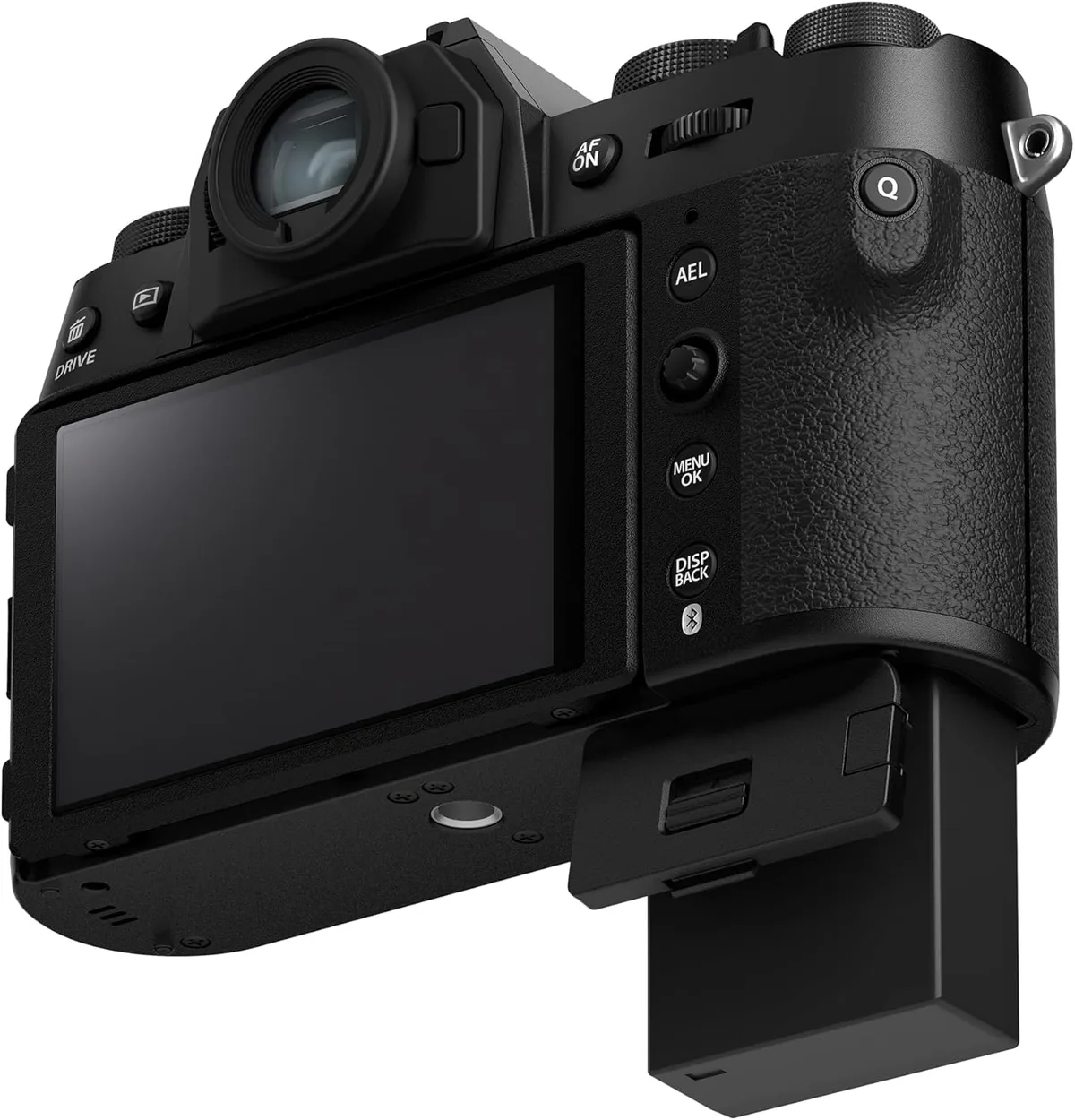
Image source: Bing (Web (fair-use with source credit))
Soft reset (power cycle). This does not erase any saved settings. It just clears the camera's temporary memory and forces a clean reboot.
Use this when the camera is frozen, unresponsive, or showing a garbled live view.
Factory reset (menu reset or hard reset). This returns every setting to its original factory state. Custom profiles, autofocus fine-tune, white balance shifts, and Wi-Fi passwords all get wiped.
Use this when you are selling the camera, after a firmware update, or when a soft reset did not fix a persistent glitch.
Some cameras also have a hidden hardware button combination that forces a factory reset even when the menu is inaccessible. That is a hard reset, and it is your last resort before sending the camera in for repair. We will cover the exact combos for each brand in the step-by-step section.
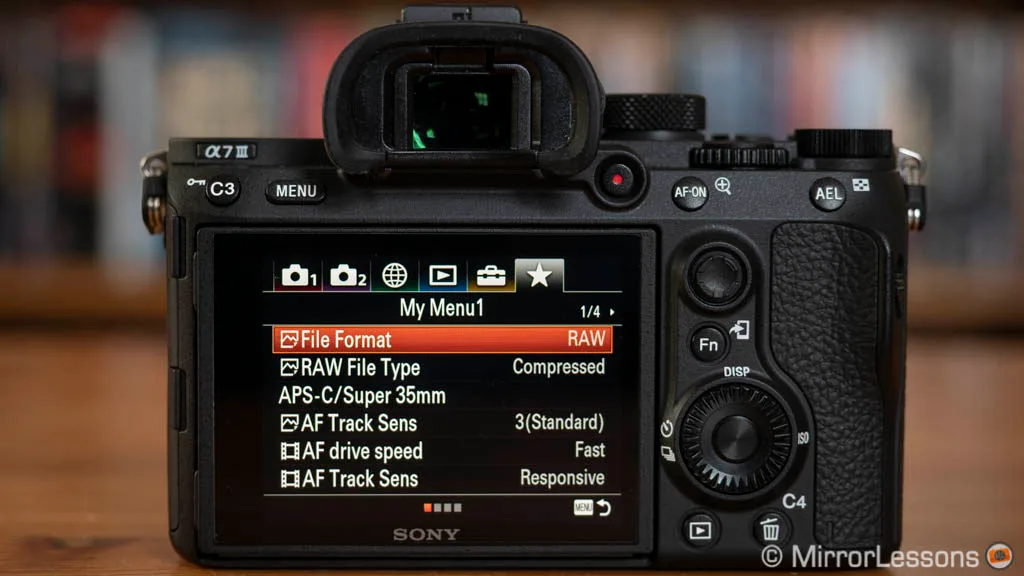
A quick note on terminology: Sony calls it "Initialize". Fujifilm calls it "Reset". Canon says "Clear Settings".
Nikon uses "Reset All Settings". The function is the same. Your manual will use one of these terms, and the menu path is almost always in the setup or wrench tab.
If you are still getting familiar with your camera's menu system, the beginner's guide to using a mirrorless camera walks through the basic layout and navigation.
The Decision Tree: Find Your Reset Path
Follow this if/then decision tree. It will tell you exactly which reset method to use based on your symptoms.
Branch 1: Camera Frozen or Unresponsive — Soft Reset
If the camera is completely frozen, with a black screen or a stuck image, then do a soft reset first.
Step 1. Turn the camera off if you can. If not, skip this step.
Step 2. Remove the battery and the memory card.
Step 3. Press and hold the shutter button for 30 seconds. This drains any residual charge in the camera's capacitors.
Step 4. Wait 60 seconds with the battery out.
Step 5. Reinsert the battery and memory card. Turn the camera on.
This works for about 90 percent of freeze issues. It does not erase any settings. It just clears the camera's temporary memory.
If the soft reset does not work and the camera still will not power on, then try a different battery. A dead battery can mimic a frozen camera. Charge the battery fully and try again.
If the camera still shows no signs of life, then move to the hard reset button combination for your brand (covered in the step-by-step section). If that also fails, the camera likely needs professional repair. Do not keep pushing buttons.
You risk causing more damage.
Branch 2: Settings Glitch, Erratic Behavior — Menu Reset
If the camera powers on but the settings are acting strangely, then try a menu-based factory reset before you do anything drastic.
Common symptoms that respond well to a menu reset:
- Exposure compensation changes by itself.
- Autofocus hunts or misses consistently.
- White balance shifts between presets for no reason.
- The camera applies a strange picture style or color profile.
- Buttons do not respond the way you expect.
Step 1. Go to the setup menu (usually a wrench or gear icon).
Step 2. Look for "Reset", "Clear Settings", "Initialize", or "Reset All".
Step 3. Confirm the reset. The camera will restart.
Important: This reset wipes custom profiles, autofocus micro-adjustments, and any saved white balance presets. Back up your settings first if your camera supports saving profiles to a memory card.
If the menu reset does not fix the issue, then try a hard reset using the button combination. If that still does not work, the problem may be a hardware fault, not a settings issue.
Branch 3: Selling, Trading, or Persistent Issues — Factory Reset
If you are selling the camera, then do a full factory reset through the menu. This erases all personal data, including Wi-Fi passwords, saved networks, and custom profiles.
Step 1. Back up any custom profiles you want to keep. Save them to a memory card or transfer them to the manufacturer's app.
Step 2. Go to the setup menu. Select "Reset", "Initialize", or "Clear All Settings".
Step 3. Confirm the reset. The camera will restart.
Step 4. Re-enter the language, date, and time zone.
If you are keeping the camera but a persistent glitch remains after a menu reset, then try the hard reset button combination. This is the nuclear option. It forces a reset even when the menu is inaccessible.
Important: A hard reset will not fix hardware problems. If the camera still has the same issue after a hard reset, the fault is likely mechanical or electronic. Contact the manufacturer or a certified repair center.
Step-by-Step: How to Actually Do It
Here are the exact steps for the most common mirrorless camera brands. We have verified these against the manufacturer's official user manuals as of 2025.
Sony α Series
Menu reset (Initialize). Go to Menu > Setup (toolbox icon) > Setup Option > Initialize > Yes. This wipes all settings. You can also choose "Initialize from scratch" to clear everything including custom white balance.
Button combo hard reset. Remove the battery and memory card. Press and hold the shutter button + Menu button + Delete button (trash can icon). While holding all three, insert the battery.
Continue holding until the screen lights up. Release the buttons. The camera will prompt you to set the date and time.
Fujifilm X Series
Menu reset. Go to Menu > Setup (wrench icon) > Reset > Set Up > OK. This resets all shooting settings. You can also choose "Reset Shooting Menu" or "Reset Setup Menu" to only reset specific sections.
Button combo hard reset. Fujifilm does not have a standard hard reset button combination. If the menu is inaccessible, remove the battery and memory card, wait 60 seconds, and reinsert. If the camera still does not respond, contact Fujifilm support.
Canon EOS R Series
Menu reset (Clear Settings). Go to Menu > Wrench tab (third tab) > Clear Settings > Clear All Camera Settings > OK. This resets everything except the language and date/time.
Button combo hard reset. Remove the battery and memory card. Press and hold the Menu button + Info button. While holding both, insert the battery.
Continue holding until the screen displays the language selection screen. Release the buttons.
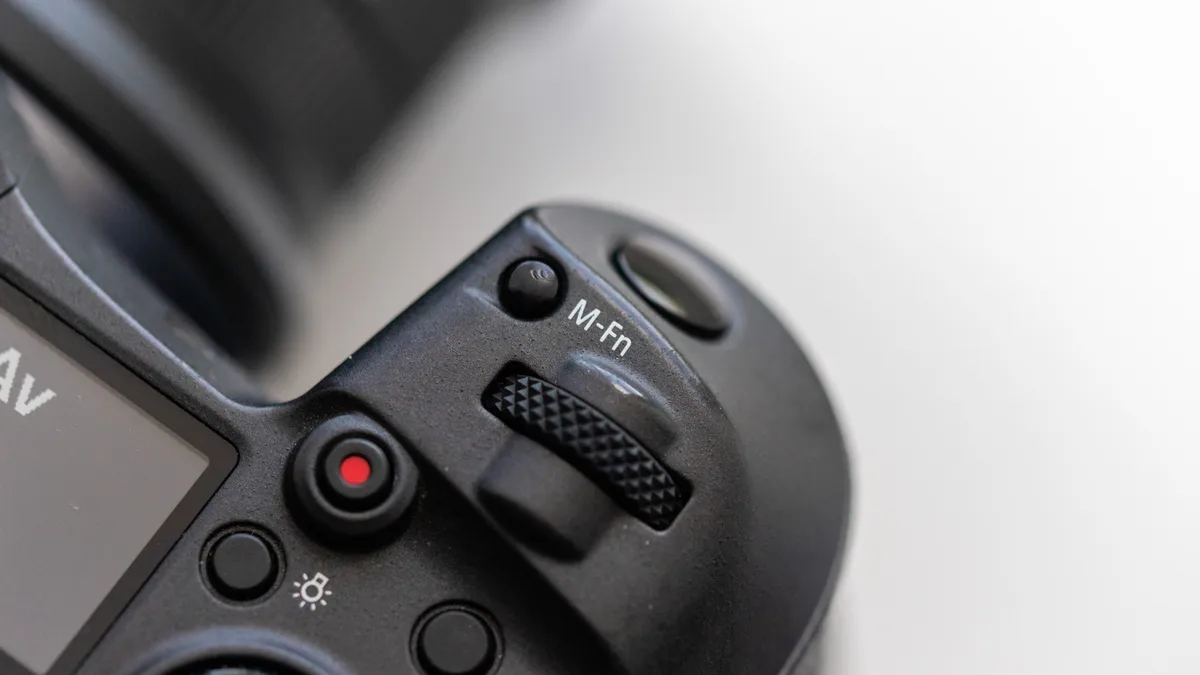
Image source: Bing (Web (fair-use with source credit))
Nikon Z Series
Menu reset (Reset All Settings). Go to Menu > Setup (wrench icon) > Reset All Settings > Yes. This resets everything except the language and date/time.
Button combo hard reset. Remove the battery and memory card. Press and hold the Menu button + Delete button (trash can icon). While holding both, insert the battery.
Continue holding until the screen displays the language selection screen. Release the buttons.
Panasonic / OM System
Menu reset. Go to Menu > Setup (wrench icon) > Reset > Reset All Settings > Yes. This wipes all settings including custom profiles.
Button combo hard reset. Remove the battery and memory card. Press and hold the Menu button + Playback button. While holding both, insert the battery.
Continue holding until the screen displays the language selection screen. Release the buttons.
Here is a quick reference table for the most common menu reset paths:
| Brand | Menu Path | Reset Name |
|---|---|---|
| Sony | Menu > Setup > Initialize | Initialize |
| Fujifilm | Menu > Setup > Reset | Set Up |
| Canon | Menu > Wrench tab > Clear Settings | Clear All Settings |
| Nikon | Menu > Setup > Reset All Settings | Reset All Settings |
| Panasonic | Menu > Setup > Reset | Reset All Settings |
| OM System | Menu > Setup > Reset | Reset All Settings |
Common Mistakes That Can Wipe Your Data or Corrupt Your Settings
A reset is a safe process when done correctly. But a few common mistakes can cause real problems.
Mistake 1: Not charging the battery first. A reset, especially a hard reset, requires a stable power supply. Manufacturer specifications indicate that the battery should be at least 50 percent charged. If the battery dies mid-reset, you risk corrupting the firmware.
That is a much bigger problem than a settings glitch.
Mistake 2: Forgetting to back up custom profiles. Most photographers spend hours fine-tuning autofocus, white balance, and picture styles. A factory reset wipes all of that. Check your camera's manual for the backup process.
Some cameras let you save profiles to a memory card. Others require the manufacturer's app.
Mistake 3: Interrupting the reset process. Do not turn the camera off while it is resetting. Do not remove the battery. Let the process complete.
Interrupting a reset can leave the camera in a half-reset state that requires professional intervention.
Mistake 4: Assuming a reset fixes hardware problems. A reset clears settings. It does not fix a broken shutter, a damaged sensor, or a faulty lens mount. If the camera still has the same issue after a hard reset, the problem is physical.
Save yourself the frustration and send it to a repair center.
Mistake 5: Using the wrong reset for the wrong problem. A soft reset is for freezes. A menu reset is for settings glitches. A hard reset is for inaccessible menus or selling the camera.
Using a factory reset on a frozen camera that just needed a power cycle is overkill. It erases settings you worked hard to dial in.
When to Walk Away: Resetting Won't Fix This
A reset clears settings. It does not repair broken hardware. If you have tried a soft reset, a menu reset, and even a hard reset button combination, and the camera still has the same problem, the issue is likely physical.
Here are the symptoms that no reset can fix:
- The shutter does not fire. A mechanical shutter has a finite life. Most mirrorless shutters are rated for 200,000 to 400,000 actuations. If yours stops working, it needs replacement.
- The sensor shows spots or lines. Dust on the sensor is one thing. But lines, streaks, or dead pixels across the image indicate sensor damage. Resetting will not clean or repair a sensor.
- The camera overheats and shuts down. Some overheating is normal during video recording. But if the camera consistently shuts off after a few minutes, the cooling system or internal electronics may be failing.
- The lens mount is loose or damaged. A wobbling lens mount causes communication errors between the camera and lens. Resetting the settings will not fix a physical connection.
- Water or impact damage. If the camera was dropped or got wet, internal components can corrode or break. No amount of resetting will revive them.
If your camera falls into any of these categories, stop trying to reset it. You risk further damage. The best course of action is to contact the manufacturer or a certified repair center.
For a more detailed diagnostic checklist, the broader guide on troubleshooting camera issues is a helpful resource.
One more thing: if you are planning to sell the camera, a full factory reset is essential. But after the reset, test every function. Check the shutter, the autofocus, the sensor, and the buttons.
A buyer will expect a fully working camera. If you find a hardware fault, be honest about it in the listing.
Frequently Asked Questions
Will resetting my mirrorless camera delete my photos?
No. A factory reset only clears the camera's internal settings. It does not touch the memory card.
Your photos, videos, and files remain on the card. If you want to clear the card, you need to format it separately. The guide on formatting a memory card in a camera explains the process.
Can I reset my camera if the screen is black and unresponsive?
Yes. Try a soft reset first. Remove the battery and memory card.
Press the shutter button for 30 seconds. Wait 60 seconds. Reinsert the battery.
If that does not work, use the button combination hard reset for your brand. The steps for each brand are in the step-by-step section above.
How long does a factory reset take?
A menu-based factory reset takes about 10 to 30 seconds. The camera will restart automatically. A hard reset using the button combination takes about 15 to 20 seconds from the moment you insert the battery.
The total process, including re-entering the date and time, takes under two minutes.
What should I do before resetting my camera?
Back up your custom profiles. Check your camera's manual for the save-to-card option. Charge the battery to at least 50 percent.
Remove the memory card if you want to avoid any accidental formatting. If you have photos you have not transferred yet, back them up to your computer first. The guide on backing up your camera photos explains the safest methods.
Why does my camera still have the same problem after a reset?
This usually means the issue is hardware-related. The reset cleared the settings, but the physical component is still faulty. Common causes include a failing shutter, a damaged sensor, or a loose lens mount.
Contact the manufacturer or a certified repair center. Do not keep resetting the camera. It will not fix the problem.
Does resetting the camera fix autofocus problems?
It can, if the problem is a misconfigured setting. For example, if the autofocus mode was accidentally changed to manual or single-point, a reset returns it to the default. But if the autofocus is slow, noisy, or inconsistent on every lens, the camera body or the lens itself may need repair.
Resetting will not fix a mechanical autofocus motor issue.

Similar Posts