Canon SELPHY Square QX10 Troubleshooting: Easy Fixes

Most QX10 problems come from power, paper loading, app pairing, Wi-Fi, or a dirty print path.
Canon SELPHY Square QX10 Troubleshooting is usually simple when you check the printer in the right order. This guide covers the most common errors, from a QX10 that will not turn on to prints that look pale, streaky, or stuck. The steps follow practical printer care, Canon’s user guidance, and real-world checks that help avoid wasted paper and ink.
Start with the Basic Canon SELPHY Square QX10 Troubleshooting Checks
Before changing app settings or opening the paper cover, check the simple causes first. Small portable printers often fail because of a weak battery, a loose cover, or paper placed in the wrong direction.
Use this quick check:
- Turn the QX10 off.
- Remove the paper cassette.
- Check that the printer has charge.
- Confirm that the Canon SELPHY Photo Layout app is installed.
- Make sure Bluetooth and Wi-Fi are enabled on your phone.
- Restart both the printer and phone.
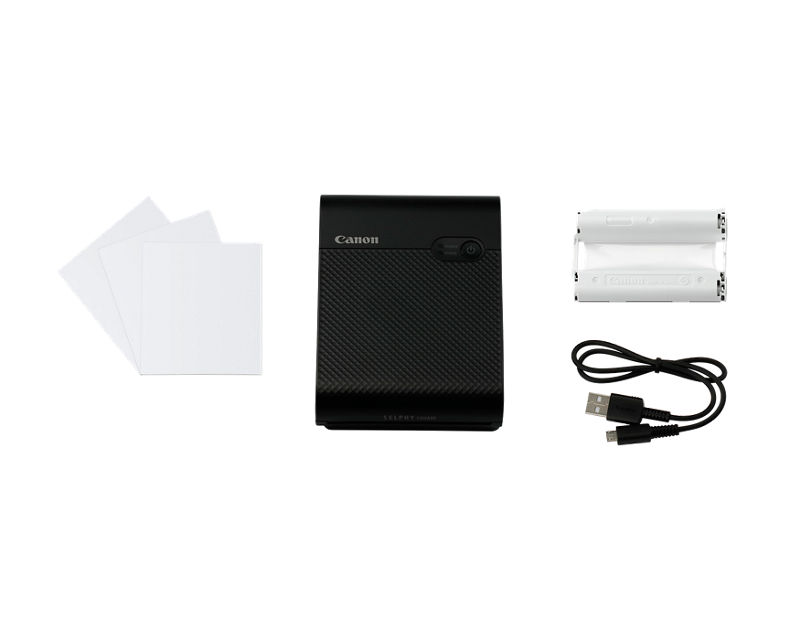
- Reload the paper cassette with the correct Canon XS-20L or compatible paper set.
- Try one small test image.
The QX10 uses a special paper and ink cassette system. The paper and ink must match. Regular photo paper, plain paper, or a different SELPHY cartridge will not work correctly.
The QX10 also needs room to move air through the printer. Keep the side and rear vents clear. Avoid using it on a soft bed, thick blanket, or crowded shelf.
Canon SELPHY Square QX10 Will Not Turn On
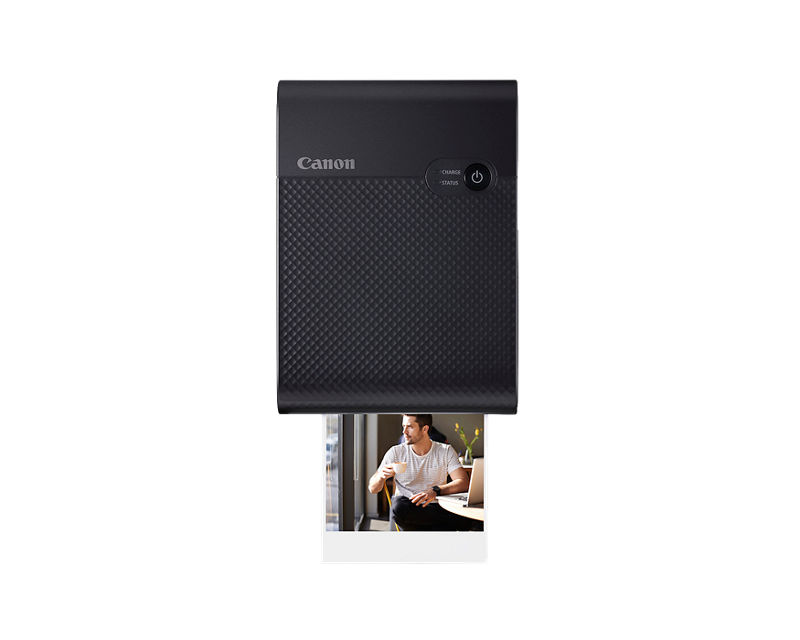
A QX10 that does not power on may have a low battery, a charging issue, or a control problem. The printer does not use a normal removable battery, so it needs time to charge through its USB connection.
Try these steps:
• Connect the QX10 to a reliable USB power source with the included or suitable cable.
• Leave it charging for at least 30 minutes before testing it again.
• Try another USB power adapter or USB port.
• Check the cable for cuts, bent ends, or a loose connection.
• Press the power button firmly for about one second.
• Look for a light or status response from the printer.
A laptop USB port may not always provide the best charging result. A wall adapter with a stable USB output is often a better test. Do not use a damaged cable or force the connector into the port.
If the printer becomes very hot, smells unusual, or shows signs of damage, stop using it. Let it cool and contact Canon support or an authorized service provider.
In my own portable printer checks, charging is the first issue I test because users often try to pair the device while its battery is nearly empty. A low charge can make the printer look like it has a Bluetooth or app fault.

Canon SELPHY Square QX10 Troubleshooting for App and Phone Pairing
The QX10 works with Canon’s SELPHY Photo Layout app. A failed connection may come from Bluetooth permissions, an old app version, or a pairing record that became stuck.
Follow this order:
- Turn on the QX10.
- Open the phone’s Bluetooth settings.
- Remove or forget any old QX10 entry if one appears.
- Close the SELPHY Photo Layout app.
- Restart the phone.
- Turn Bluetooth back on.
- Open the app and add the printer from inside the app.
- Follow the on-screen pairing instructions.
Do not pair the printer only through the phone’s Bluetooth menu and then assume the setup is complete. The app may need to manage the connection itself.
On an iPhone, check Bluetooth access under the app’s privacy settings. On Android, allow nearby-device access when requested. Depending on the phone and operating system, location permission may also be needed for device discovery.
Keep the phone close to the printer during setup. Turn off other nearby Bluetooth devices if the phone keeps selecting the wrong accessory. Also install app updates from the official app store, since older app versions may not work well after a phone system update.
Canon SELPHY Square QX10 Troubleshooting becomes much easier when you change one setting at a time. If you reset Bluetooth, update the app, and change network settings together, it becomes hard to know which step fixed the problem.

The QX10 Appears Offline or Cannot Find the Printer
The QX10 does not work like a standard office printer on a home network. It creates a direct wireless connection with your mobile device through the SELPHY Photo Layout app.
If the app says the printer is offline, try the following:
• Move the phone within a few feet of the QX10.
• Turn off a VPN temporarily.
• Disable battery-saving mode for the app.
• Close apps that may control Bluetooth or nearby devices.
• Restart the QX10.
• Restart the phone.
• Check that the printer is not already connected to another phone.
Only one phone should normally control the printer at a time. If a family member used it earlier, ask that person to close the app and disconnect. This simple step often solves connection problems at parties and family events.
Avoid pressing the phone’s back button repeatedly during setup. The pairing process may need several seconds to complete. Wait for the app to show that the printer is ready before selecting a photo.
If the printer works with one phone but not another, the QX10 is probably fine. The issue may involve permissions, operating system compatibility, app data, or Bluetooth settings on the second phone.

Canon SELPHY Square QX10 Troubleshooting for Paper Feed Errors
Paper feed problems are among the most common QX10 complaints. The paper cassette must be loaded evenly, and the glossy side must face the correct direction shown in the cassette guide.
For a clean reload:
- Turn the printer off.
- Remove the cassette.
- Take out the paper.
- Check for bent corners, moisture, dust, or fingerprints.
- Confirm that the paper count does not exceed the cassette limit.
- Fan the stack gently.
- Load the paper with the printed marks and glossy side placed as shown in the manual.
- Close the cassette cover fully.
- Reinsert the cassette until it is seated.
Do not touch the image surface more than needed. Oil from your fingers can affect print quality and may leave marks during the printing cycle.
Use only the correct paper pack for the ink cassette. Dye-sublimation systems use a matched set. Mixing paper from one pack with an ink cassette from another pack may cause feeding or color problems.
Never pull paper out with force while the printer is working. If paper stops partway through, turn the printer off, wait briefly, and inspect the visible path. If the sheet does not release easily, contact Canon support rather than damaging the rollers.
One lesson I have learned from compact photo printers is that overloading the cassette creates more trouble than it saves time. A smaller, flat stack feeds more reliably than a tightly packed tray.

Prints Are Blank, Pale, or the Wrong Color
The QX10 uses dye-sublimation printing. It applies color in several passes and then adds a clear protective layer. Because of this process, a print may move in and out of the printer more than once. That movement is normal.
If the final photo is blank or very pale, check these points:
• Confirm that the ink cassette is installed.
• Make sure the cassette still has unused film.
• Check that the correct paper pack is being used.
• Look for a protective strip or packing material left inside the cassette area.
• Confirm that the paper is loaded in the correct direction.
• Print a different photo to rule out an image file problem.
A color problem in one image may come from the original photo. Very dark images, low-resolution pictures, and photos with strong screen filters can print differently from what you see on a phone.
Phone screens are bright and backlit. Printed photos reflect room light, so they may look less bright. For better results, increase shadow detail slightly before printing and avoid extreme filters.
Do not clean the ink film with a cloth. Do not touch or cut it. The ink cassette contains a delicate film that must stay aligned with the printer.
If every print has the same strong color cast, lines, or missing areas, replace the matched paper and ink set. If the issue remains with a fresh set, the printer may need service.
Prints Have Lines, Spots, or Smudges
Lines and marks can result from dust, fingerprints, damaged paper, or a dirty print path. The QX10’s protective coating helps the finished image, but it cannot hide every problem caused during feeding.
Start with these safe actions:
- Turn the printer off and let it cool.
- Remove the paper cassette.
- Inspect the paper for dust or moisture.
- Check the cassette for scraps.
- Wipe the outside of the printer with a soft, dry cloth.
- Reload fresh paper.
- Print a test photo.
Keep the QX10 away from kitchen steam, drinks, direct sunlight, and dusty bags. Store unused paper in its sealed package. Humidity can cause sheets to stick or feed unevenly.
Do not spray cleaner into the printer. Do not insert cotton swabs, metal tools, or folded paper into the paper path. These actions can push dust deeper into the mechanism.
A print that looks wet or soft right after it comes out may simply need a moment to settle. Handle it by the edges and keep it flat. Avoid stacking fresh prints face to face until they feel dry and stable.
Canon SELPHY Square QX10 Troubleshooting should always begin with the paper and cassette before you assume the print head or electronics have failed. In many cases, a fresh, dry pack fixes the issue.
The Printer Stops During a Print
The QX10 may pause as it moves the sheet through its color passes. A pause does not always mean an error. Do not remove the paper until the app reports that printing has finished.
If the printer stops for a long time:
• Check the status message in the app.
• Confirm that the battery has enough charge.
• Make sure the paper cassette is fully inserted.
• Check for a paper jam.
• Move the printer away from heat.
• Wait several minutes before restarting it.
Portable printers can pause when they become warm. Place the QX10 on a hard, flat surface with open space around it. Avoid printing many photos in direct sun or inside a hot vehicle.
If the printer stops after each color pass, check the ink cassette and paper set first. A mismatched or empty cassette can interrupt the process.
When you restart after a jam, the printer may not resume the unfinished photo. The paper may also be unusable. This is frustrating, but forcing the sheet back into the cassette can cause a larger jam.
Canon SELPHY Square QX10 Troubleshooting for Slow Printing
The QX10 is designed for small, portable photo prints, not high-volume office work. Print time can vary with the image, connection quality, battery level, and printer temperature.
To improve performance:
• Keep the phone close to the printer.
• Use the current version of SELPHY Photo Layout.
• Print one image at a time.
• Avoid switching between several apps during printing.
• Charge the QX10 before a long print session.
• Let the printer cool between large batches.
Large photo files may take longer to transfer. A weak wireless connection can also make the app appear frozen even though the printer is still working.
Do not repeatedly tap Print because the first request seems slow. This can create duplicate jobs or confuse the app. Wait for a clear status message before trying again.
Resetting the QX10 and Updating the App
A reset can clear a temporary connection or control error, but it should not be the first step for every problem. Begin with a restart, then remove the old Bluetooth connection, and only reset settings if the app or manual provides that option for your model.
A safe restart looks like this:
- Cancel the print job in the app.
- Turn off the printer.
- Close the app completely.
- Wait about 30 seconds.
- Turn the printer on again.
- Open the app and reconnect.
Keep the printer’s firmware and the SELPHY Photo Layout app current when updates are offered through official Canon channels. Software updates can improve compatibility, but update steps may differ by phone and region.
Avoid unofficial firmware files or random reset tools. They can damage the device or create security risks. If the printer shows a code that is not explained in the user guide, record the code and contact Canon support.
When Canon Support Is the Best Option
Home troubleshooting has limits. Stop and seek service when the QX10 has physical damage, repeated paper jams, a burning smell, liquid exposure, or a battery that swells.
Contact support if:
• The printer will not charge with more than one known-good cable and adapter.
• The same error returns after a restart and fresh paper set.
• The printer makes grinding or clicking sounds.
• Prints remain damaged with a new matched cassette and paper pack.
• The device shuts down during every print.
• The USB port feels loose or damaged.
Have these details ready:
• Printer model and serial information
• Phone model and operating system
• SELPHY Photo Layout app version
• Paper and ink cassette type
• Exact error message
• Steps that caused the problem
Clear details help support staff identify whether the issue involves the phone, app, paper, wireless link, or printer hardware. Do not disassemble the QX10. Opening the case can create safety risks and may affect warranty service.
How to Prevent Future QX10 Problems
Good storage prevents many faults before they begin. Treat the QX10 more like a small camera than a large office printer.
Use these habits:
• Store paper in its original sealed package.
• Keep the printer dry and away from heat.
• Carry it in a padded case.
• Charge it before important events.
• Keep the app updated.
• Do not overload the paper cassette.
• Hold finished photos by the edges.
• Keep food, drinks, and dust away from the print area.
• Let the printer cool during long sessions.
A useful test is to print one photo before a wedding, trip, classroom event, or craft project. This gives you time to replace a paper pack or solve a phone connection issue.
The biggest mistake is waiting until the moment you need dozens of prints. A two-minute test can prevent a great deal of stress.
Frequently Asked Questions About Canon SELPHY Square QX10 Troubleshooting
Why is my Canon SELPHY Square QX10 not connecting to my phone?
Make sure Bluetooth is enabled and that the SELPHY Photo Layout app has permission to access nearby devices. Forget the old QX10 connection, restart the phone and printer, then pair again from inside the app.
Why does the Canon SELPHY Square QX10 keep saying there is no paper?
The cassette may be empty, overloaded, inserted incorrectly, or loaded with the wrong paper direction. Remove the cassette, reload a fresh matched paper pack, and push the cassette fully into the printer.
Can I use regular photo paper in the QX10?
No. The QX10 requires its compatible square paper and matching ink cassette system. Regular photo paper will not work because the printer uses a specific dye-sublimation process.
Why are my QX10 photos darker than they look on my phone?
Phone screens produce their own light, while printed photos depend on room light. Edit very dark images before printing and reduce extreme filters to preserve detail in shadows.
Why does the QX10 pause during printing?
The printer may be applying one of its color layers or protective coating. If the pause lasts too long, check the battery, paper cassette, ink cassette, temperature, and app status before restarting.
How do I fix lines or spots on QX10 prints?
Use fresh, dry paper and inspect the cassette for dust or damage. Clean only the outside with a soft, dry cloth, and avoid inserting tools or liquid into the printer.
Should I reset the QX10 when it stops responding?
Try a normal restart first. If the issue continues, remove the old Bluetooth pairing and reconnect through the app; use a full reset only when the official instructions for your setup recommend it.
Conclusion
Canon SELPHY Square QX10 Troubleshooting usually starts with four areas: power, phone connection, paper loading, and the matched ink cassette. Restart the printer, use the correct paper, keep the app updated, and avoid forcing paper through the print path.
Clean storage and a short test print can prevent most problems before an important event. Work through the steps in order, and contact Canon support when the issue points to heat, damage, charging failure, or repeated mechanical errors.
Try these checks with your QX10 today, and share your results or questions in the comments.

Similar Posts