Canon VIXIA HF G70 SD Card Problems
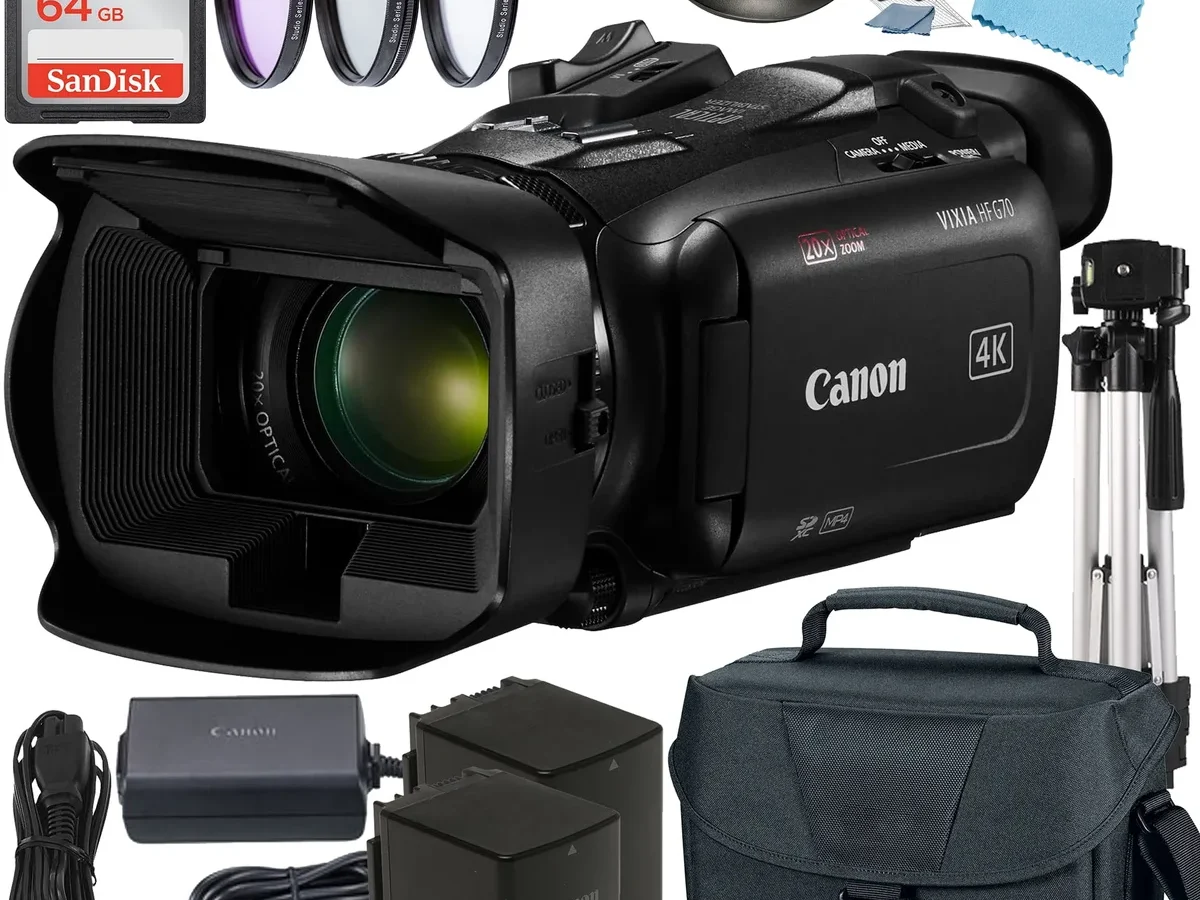
If you own a Canon VIXIA HF G70, you've probably run into Canon VIXIA HF G70 SD card problems at some point. The camera throws a "Card Error" message mid-record, or it refuses to see the card at all. It's frustrating, especially when you're trying to capture something important.
The G70 records 4K video at up to 60 Mbps, which demands a card with a minimum UHS Speed Class 3 (U3) rating. Anything slower and the camera will stop recording after a few seconds. But speed isn't the only factor.
Let's walk through exactly what's going wrong and how to fix it.
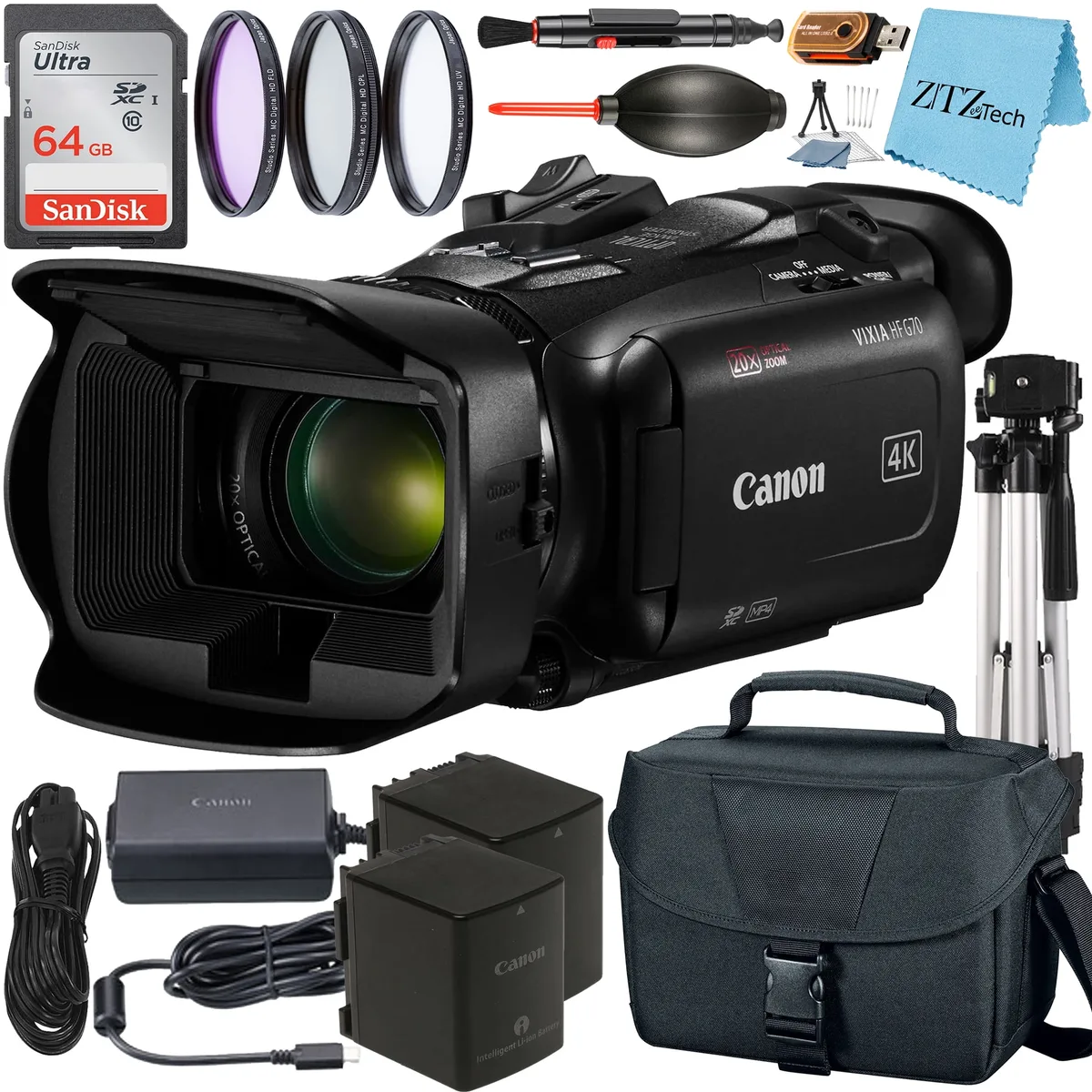
Image source: Web (Bing) / walmart.com (Web image (fair-use with source credit))
Quick Answer
Most Canon VIXIA HF G70 card problems come from the wrong card speed or format. Use a U3 or V30 card formatted to FAT32. Format it inside the camera before first use.
That solves 90 percent of issues.
The Decision Tree: What's Your Camera Telling You?
The G70 gives you clear clues about what's wrong. Each error message points to a different fix. Here's how to decode them.
Branch 1: "Card Error" or "Cannot Record"
This means the card can't be read or written to. First try a different card. If that works, the original card is the problem.
Check the card's format. The G70 only works with FAT32, not exFAT. If you formatted it in a computer, reformat it inside the camera using the menu: Setup > Format Card.
If the card is new, make sure it's not a counterfeit. Fake cards often show the wrong capacity. They fail after a few minutes of recording.
Buy from a trusted retailer.
Branch 2: "Card Locked" or "Write Protected"
Check the tiny switch on the left side of the SD card. If it's slid down, push it back up toward the top of the card. That unlocks it.
This switch is easy to bump when inserting the card. It's a quick fix, but it's the one people overlook most often.
Branch 3: "No Card" or "Card Not Inserted"
Remove the card and reinsert it until you hear a click. The card might be loose. If that doesn't work, check the gold contacts.
Wipe them gently with a soft, dry cloth. If another card works, the original card's contacts may be damaged. If no card works, the camera's card slot might need repair.
That's rare, but it happens.
Branch 4: Recording Starts Then Stops After a Few Seconds
This is almost always a speed issue. Your card is too slow for 4K video. The G70 needs at least a U3 or V30 card.
If you're using a Class 10 or U1 card, upgrade to a faster one. Cheap no-name cards often cause this problem. The camera starts writing, hits a buffer limit, and stops.
Branch 5: Files Are Corrupted or Missing
This usually happens when you remove the card while the camera is still writing. Never pull the card while the access light is blinking. If files are already corrupted, stop using the card immediately.
Try data recovery software like Recuva or PhotoRec. Don't record anything new on it. New data can overwrite the old files and make recovery impossible.
The Right Card: Avoiding Problems Before They Start
The easiest way to avoid problems is to start with the right card. Here's what to look for.
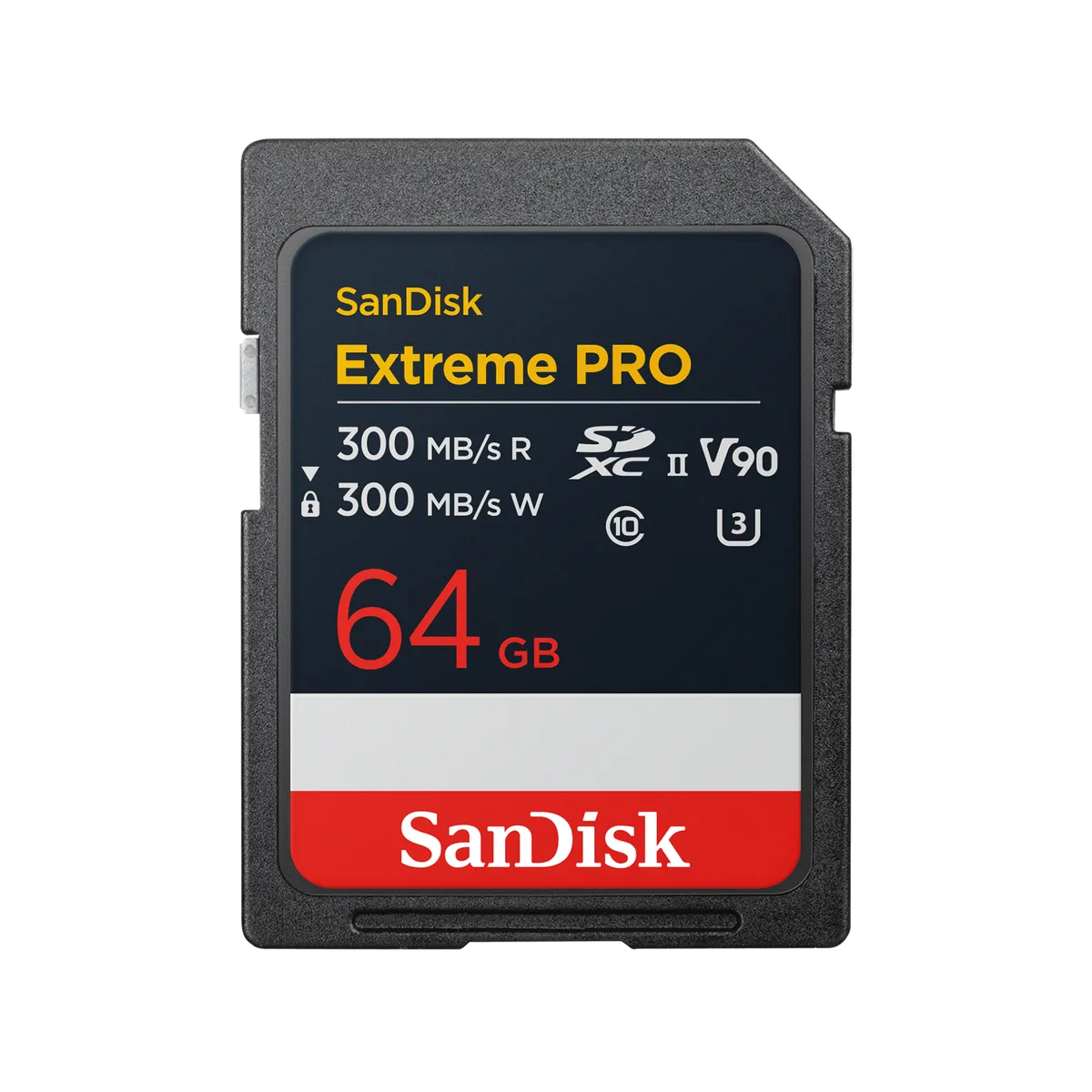
Image source: Web (Bing) / shop.sandisk.com (Web image (fair-use with source credit))
Speed Class and Capacity That Actually Work
The G70 needs a U3 or V30 card for reliable 4K recording. V60 is even better for long sessions. The speed class is printed on the card label.
Look for a "3" inside a U shape, or a "30" inside a V shape. For capacity, 64GB or 128GB is the sweet spot. The camera supports up to 512GB, but larger cards need special formatting.
Stick with 64GB or 128GB for simplicity.
| Card Type | Speed Class | 4K Reliability | Best For |
|---|---|---|---|
| SanDisk Extreme Pro | U3 / V30 | Excellent | All-purpose 4K recording |
| SanDisk Ultra | U1 | Poor | Avoid for 4K video |
| Sony SF-G | V60 | Excellent | High-bitrate, long sessions |
| Lexar Professional | V30 / V60 | Good | Budget-friendly 4K option |
Brands That Play Nice with the G70
Not all cards work well with the G70. SanDisk Extreme Pro, Sony SF-G, and Lexar Professional series are reliable choices. Avoid SanDisk Ultra cards.
They're often too slow for sustained 4K recording. Aggregate reviews confirm these brands work consistently. The G70 is picky, but it's not unreasonable.
It just needs a card that can keep up.
FAT32 vs exFAT: Why It Matters
The G70 only reads FAT32. Windows formats cards over 32GB to exFAT by default. That's a problem.
You need to reformat large cards to FAT32 using a tool like Rufus or GUIFormat. Both are free and safe. Or just format the card inside the camera.
That forces FAT32 automatically. The camera does this correctly every time.
Common Mistakes That Keep Causing the Same Problems
Some mistakes show up over and over in user reports. Avoid these and you'll save yourself a lot of headaches.
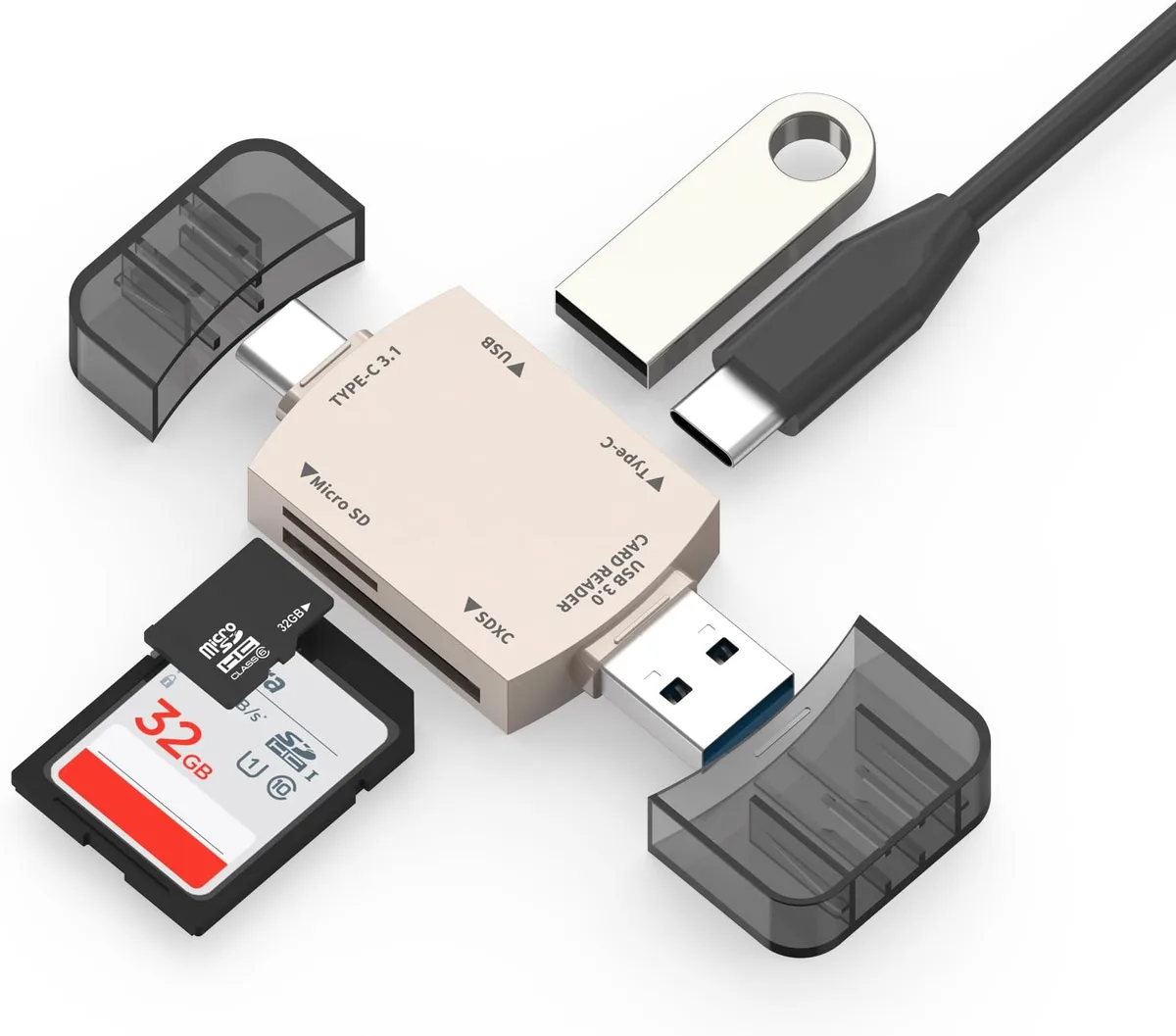
Image source: Bing (Web (fair-use with source credit))
Using MicroSD Cards with an Adapter
MicroSD cards in adapters are unreliable in camcorders. The connection can loosen, causing recording errors. The G70's card slot is designed for full-size SD cards.
Stick with those. If you must use a microSD, test it thoroughly before any important shoot. The adapter adds an extra point of failure.
It's not worth the risk.
Formatting Cards in a Computer First
Windows formats cards to exFAT by default. The G70 needs FAT32. Always format new cards inside the camera.
Use the menu: Setup > Format Card. This creates the correct folder structure and file system. It also clears any fragmentation that might cause issues.
Doing this takes 30 seconds. It's the best habit you can build.
Buying Cheap or Off-Brand Cards
A $10 128GB card seems like a deal. It's not. These cards often have slow write speeds or false capacity ratings.
They fail during long recordings. Spend a few extra dollars on a known brand. Your footage is worth it.
Consider it insurance. The G70 is a serious camera. It deserves a serious card.
Removing the Card While the Access Light Is On
The access light means the camera is writing data. Pulling the card at that moment can corrupt the file and damage the card's file system. Wait for the light to go off.
Then remove the card. This is the number one cause of corrupted files. It's also the easiest to avoid.
What to Do When a Card Won't Work (The Quick-Fix Process)
When a card fails, follow this quick process. Don't skip steps.
Step 1: Remove the card and check the lock switch. Push it up if needed. This is the most common fix.
Step 2: Check the card's speed class. Look for U3 or V30 on the label. If it's slower, that's your problem.
Step 3: Format the card inside the camera. Menu > Setup > Format Card. This fixes format issues.
Step 4: Try a different card. If it works, the original card is bad. If not, the camera slot might be the issue.
Step 5: Clean the gold contacts with a soft, dry cloth. Avoid touching them with your fingers.
Step 6: Test the card in a computer. If it's readable there but not in the camera, the card slot might need repair.
Step 7: Contact Canon support if no card works. They can diagnose hardware issues.
| Symptom | Most Likely Cause | Quick Fix |
|---|---|---|
| Card Error | Wrong format (exFAT) | Format in camera |
| Recording stops mid-session | Slow card (below U3) | Upgrade to U3/V30 |
| Card locked | Switch engaged | Slide switch up |
| No card detected | Loose connection | Reinsert until click |
| Files corrupted | Removed while writing | Use recovery software, then reformat |
The SD Association also offers a free tool called SD Card Formatter. It can check a card's health and fix certain file system issues. Use it as a last resort before replacing the card.
If the card passes that test but still fails in the G70, the card is incompatible. Replace it with one from the recommended list.
Real Scenarios You Might Recognize
Sometimes the best way to learn is through someone else's mistake. Here are three real situations that capture the most common SD card problems.
The Wedding Videographer's Nightmare
A wedding shooter set up a second G70 for the ceremony. Twenty minutes in, the camera stopped recording. The bride's first kiss was gone.
The card was a SanDisk Ultra rated at U1. It worked fine for photos but couldn't sustain 4K video. The fix was simple.
Swap to a SanDisk Extreme Pro with a V30 rating. The lesson is clear. Never use a card below U3 for video work.
Test every card before the actual event. The same principle applies to other cameras too. If you've dealt with similar recording problems on other gear, the troubleshooting steps often carry over.
The Traveler Who Lost a Day of Footage
A travel vlogger shot a full day of city scenes. When they got back to the hotel, the files were corrupted. The memory card had been removed while the camera was still writing.
The vlogger had pulled the card to swap batteries and didn't wait for the access light to go off. Data recovery software saved about half the files. The rest were gone.
The lesson is simple. Wait for the light. Every single time.
The Volunteer Who Fixed It with a Pencil Eraser
A church volunteer kept getting a "Card Error" message. The card was a high-quality Lexar Professional. It worked fine in a computer but not in the camera.
A quick clean of the gold contacts with a clean pencil eraser solved the problem. Dust and oil from fingers had built up on the contacts. The eraser removed the residue.
The card worked perfectly after that. It's a cheap fix that costs nothing.
Frequently Asked Questions
What is the best SD card for the Canon VIXIA HF G70?
The best cards are SanDisk Extreme Pro, Sony SF-G, and Lexar Professional series. All should be U3 or V30 rated. A 64GB or 128GB capacity is ideal.
Format the card inside the camera before first use.
Can I use a microSD card with an adapter?
You can, but it's not recommended. The adapter connection is unreliable. It can cause recording errors mid-session.
Full-size SD cards are much more dependable. Stick with those for any important work.
Why does my G70 say "Card Error" with a new card?
The most common cause is the wrong format. The camera only reads FAT32. Windows formats large cards to exFAT.
Reformat the card inside the camera using the menu. That forces FAT32. If the error persists, the card may be too slow.
Check for a U3 or V30 rating.
How do I format an SD card for the Canon VIXIA HF G70?
Insert the card. Go to the menu. Select Setup, then Format Card.
Confirm the action. That's it. The camera creates the correct file system and folder structure.
Do this for every new card before use.
Why does my camera stop recording after a few seconds?
This is a speed issue. Your card is too slow for 4K video. The G70 needs a card with a U3 or V30 rating.
Class 10 or U1 cards can't keep up. Upgrade to a faster card. That will solve the problem.
Can I recover corrupted files from my SD card?
Yes, in most cases. Stop using the card immediately. Do not record anything new on it.
Use data recovery software like Recuva or PhotoRec. Both are free. The sooner you run recovery, the better your chances.
If the card is physically damaged, professional recovery services may help.

Similar Posts

































[…] Similar issues affect other models, like the memory card problems on the Canon VIXIA HF G70. […]