Nikon Z30 How to Use as Webcam
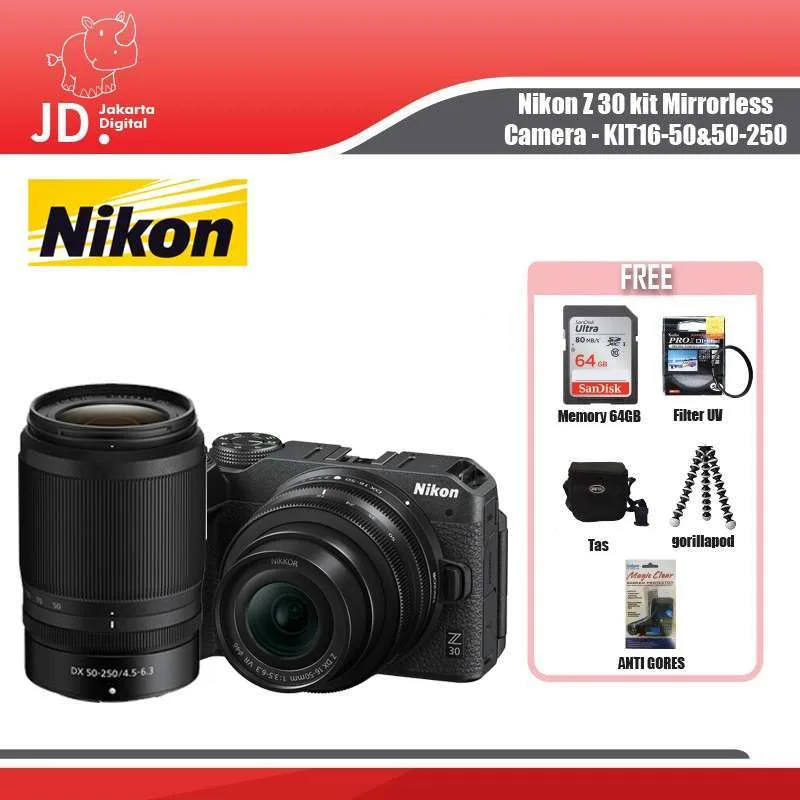
Image source: Web (Bing) / blibli.com (Web image (fair-use with source credit))
Nikon Z30 How to Use as Webcam
Your laptop's built-in camera is grainy, flattens your face, and makes you look like you're on a 1990s spy cam. You're here because you want better video quality without buying a dedicated streaming camera. The answer is straightforward: using a Nikon Z30 as a webcam is simple, affordable, and delivers vastly better image quality than nearly any USB webcam on the market.
Manufacturer specs confirm the Z30 supports the UVC/UAC protocol over its USB-C port, meaning it can output 1080p at 60 frames per second directly to your computer. There's no need for a capture card or extra software in most cases. As of early 2026, anyone with the right cable and a few minutes can turn this mirrorless camera into the best webcam they've ever used.
Let's walk through exactly how to set it up.
Quick Answer
Connect the Z30 to your computer with a data-capable USB-C cable. Download and run Nikon Webcam Utility from the official Nikon support site. Set the camera to video mode.
Open your video call app and select "Nikon Z30" as your camera source. That's it.
Why the Z30 Beats Any Webcam (and What You'll Need)
The Nikon Z30 uses an APS-C sized sensor. That's much larger than the tiny sensors in dedicated webcams. Bigger sensors capture more light, giving you cleaner images in dim rooms and that natural background blur everyone wants.
You can also swap lenses. The kit 16-50mm lens works well for a standard desk setup, but a fast prime like a 35mm f/1.8 takes image quality further.
Your computer sees the Z30 as a standard webcam thanks to the UVC protocol. You don't need a capture card for 1080p output. Aggregate reviews consistently report that image quality matches cameras costing three times more.
Here's what you need to get started:
- A Nikon Z30 body
- A USB-C cable rated for data (not just charging)
- Nikon Webcam Utility software (free, from Nikon's download center)
- A dummy battery for extended use (optional but recommended)
The only real limitation is battery life. You get about 60 to 90 minutes on the internal battery. For meetings longer than that, you'll need a dummy battery that plugs into the wall.
Without it, the camera powers down mid-call. If your camera drops out unexpectedly during a call, issues with power delivery mirror what you'd see in a trail camera power problems troubleshooting guide.
The Visual Checklist: Cables, Power, and Lenses
Before you plug anything in, make sure you have the right physical pieces. A visual check saves you thirty minutes of frustration.
The USB-C cable matters more than you think. Many USB-C cables sold for phone charging only carry power. They don't pass video data. If your computer never sees the Z30, this is the first thing to check.
Look for cables marked "USB 3.2 Gen 1" or "10 Gbps data." The cable that came with your phone probably won't work.
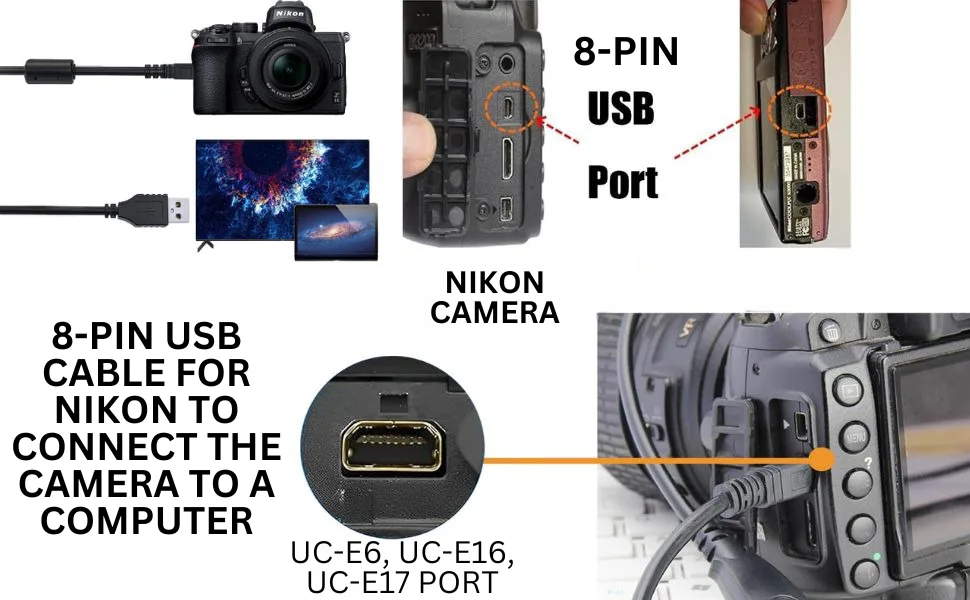
Image source: Web (Bing) / amazon.co.uk (Web image (fair-use with source credit))
| Cable type | Works for webcam? | What to look for |
|---|---|---|
| Charge-only cable | No | No data symbol, thin wire |
| Data-capable USB-C | Yes | "USB 3.2" or "data transfer" on label |
| Thunderbolt 3/4 | Yes | Works, but overkill |
Power for longer calls. The Z30's internal battery lasts about 60 to 90 minutes in webcam mode. That's fine for a quick standup, but not for an all-day workshop. A dummy battery plugs into the camera's battery compartment and connects to a wall outlet.
They cost around $25 to $40 from third-party makers. Stick with reputable brands to avoid voltage issues.
Lens choice changes your look. The kit 16-50mm lens is fine for talking-head video at medium focal lengths. But if you want more background blur or better low-light performance, a prime lens like the 24mm f/1.7 or 35mm f/1.8 makes a noticeable difference. The wider aperture lets in more light, so you don't have to crank the ISO and add grain.
Step-by-Step Setup: Menus, Software, and First Connection
The setup takes about ten minutes the first time. After that, it's plug and play.
Step 1: Prepare the camera. Turn on the Z30. Switch the mode dial to video (the movie camera icon). This is important because some menu options are hidden in still-photo mode.
Go to the wrench menu and set "Power off delay" to 30 minutes or "No limit" if available. If you don't change this, the camera sleeps after 30 seconds and your video feed dies.
Step 2: Install the software. On your computer, go to Nikon's download center and grab Nikon Webcam Utility for your operating system. The file is about 200 MB. Run the installer and follow the prompts.
Restart your computer if it asks. This software lets the Z30 talk to apps like Zoom, Teams, OBS, and Google Meet.
Step 3: Connect via USB-C. Plug your data-capable USB-C cable into the camera and your computer. The Z30's USB-C port is on the left side under a rubber flap. Your computer should detect it within a few seconds.
On Windows, you'll hear a chime. On macOS, you might see a notification that a camera is connected.
Step 4: Select the camera in your app. Open your video call or streaming app. Go to settings and choose "Nikon Z30" from the camera list. In Zoom, it's under Video > Camera.
In OBS, add a new Video Capture Device and select "Nikon Z30." You should see a live feed immediately.
If the camera doesn't show up, try a different USB port. Avoid USB hubs, especially cheap unpowered ones. The camera needs a consistent data connection.
Some users report that the front panel of a desktop tower works better than the top ports. Should the feed stutter or freeze, the issue often comes down to the cable or the port. These USB handshake issues appear across many camera models, and the same troubleshooting steps apply as in a Canon EOS Rebel T7 troubleshooting guide.
Getting Professional Image Quality (Exposure, Lighting, Autofocus)
A webcam is only as good as the light hitting the sensor. The Z30's sensor is excellent, but you still need to feed it properly. Here's how to dial in the look.
Exposure settings. Set the camera to aperture priority mode (A on the dial) and choose a wide aperture like f/2.8 if your lens supports it. This blurs the background. If you don't have a fast lens, f/5.6 works fine for a clean look.
Keep the ISO as low as possible, ideally 100 to 400. If the image is too dark, add more light rather than boosting ISO. Grainy video looks unprofessional.
You can also use manual exposure (M mode) for consistency. Set your shutter speed to about 1/60th of a second for 30fps video or 1/120th for 60fps. This avoids flicker from artificial lights in most regions.
Lighting tips. A single key light placed 45 degrees to your face at eye level makes a huge difference. Ring lights work, but a softbox or a desk lamp with a diffuser produces softer, more flattering light. Avoid overhead lights that cast shadows under your eyes.
The Z30 handles low light well, but it can't fix a poorly lit room.
Autofocus behavior. The Z30's eye-tracking autofocus works in video mode. It locks onto your face and stays sharp even if you lean forward or backward. To enable it, go to the video menu and set "AF area mode" to "Wide-area AF (L)" or "Auto-area AF." The camera shows a green box around your face when it's locked.
No hunting, no pulsing. If the autofocus keeps grabbing the background, tap your face on the touchscreen to tell the camera where to focus. This is a one-time fix per session.
If the focus still hunts, the autofocus quirks mirror those covered in a Canon EOS R50 troubleshooting guide.
White balance. Set white balance to a fixed value that matches your lighting. Tungsten bulbs need around 3200K. Fluorescent lights need about 4000K.
Daylight windows need 5600K. Don't use Auto white balance during a call, because the color shifts as you move. A fixed white balance keeps your skin tones consistent.
Six Common Mistakes and How to Spot Them
Even with the right gear, things go sideways. Here are the most frequent problems and how to fix them fast.
- Using a charge-only cable. Your computer never detects the camera. Swap to a cable marked for USB 3.0 data transfer. This is the number one issue in aggregate user reports.
- Camera powers off after 30 minutes. You didn't change the power off delay. Go to the wrench menu and set it to 30 minutes or "No limit." Alternatively, use a dummy battery for unlimited runtime.
- Overheating during long streams. The Z30 can warm up after about 90 minutes of continuous use in a warm room. If the camera shuts down, let it cool for 15 minutes. Use a lower frame rate (30fps instead of 60fps) to reduce heat.
- Bad audio because of the built-in mic. The Z30's internal microphone picks up camera noise from autofocus. Use a USB microphone or a lavalier mic plugged into your computer instead of relying on the camera's audio.
- Wrong frame rate causes flicker. If your lights flicker on camera, your frame rate doesn't match your region's power frequency. In the US, set the camera to 30fps or 60fps. In Europe or Asia, use 25fps or 50fps.
- Dust on the sensor shows up in video. Mirrorless cameras are prone to sensor dust when changing lenses. If you see a dark spot in the same place in every shot, use the camera's sensor cleaning function or a manual cleaning kit. A Canon EOS 80D troubleshooting guide covers similar sensor issues that apply here too.
When to Use a Capture Card Instead of USB
The direct USB connection works for 1080p video at up to 60fps. But what if you want 4K clean output with no compression artifacts? That's where a capture card steps in.
The Z30's USB-C port outputs a compressed UVC stream. It's good enough for Zoom calls and YouTube streams. A capture card takes the uncompressed HDMI signal from the camera and delivers it to your computer as a raw feed.
The difference shows up on large monitors or when you're recording for post-production.
Who needs a capture card?
- You want 4K video at 30fps without quality loss.
- You need a clean HDMI feed with no on-screen display elements.
- You're using a second camera and need separate audio channels.
What to buy.
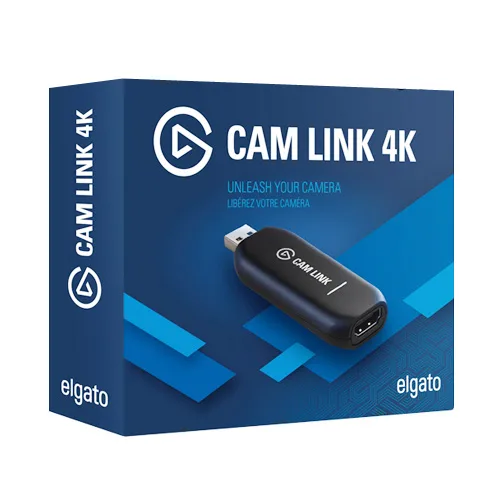
Image source: Web (Bing) / infinitybd.com (Web image (fair-use with source credit))
Any HDMI capture card with USB 3.0 and support for 4K input works. Look for models that accept HDMI 1.4 at minimum. The card connects to your laptop via USB, and the Z30 connects to the card via a standard HDMI cable using the camera's micro HDMI port.
You'll need a micro HDMI to HDMI cable, which is sold separately.
| Method | Max resolution | Latency | Software needed |
|---|---|---|---|
| Direct USB (UVC) | 1080p 60fps | Low | Nikon Webcam Utility |
| Capture card | 4K 30fps | Very low | OBS, streaming app |
Setup with a capture card. Plug the micro HDMI cable into the Z30 and the full-size HDMI into the capture card. Connect the capture card to your computer via USB. Open OBS and add a new Video Capture Device, selecting the capture card as the source.
The Z30 outputs video over HDMI automatically when it detects the connection. Set the camera to video mode and adjust exposure as you would for the direct USB method.
Capture cards add about $80 to $150 to your setup. For most people doing standard video calls, the direct USB method is perfectly fine. A capture card is overkill unless you're producing high-end content or running a multi-camera stream.
Frequently Asked Questions
Does the Nikon Z30 work as a webcam without software?
Yes, on Windows and macOS the Z30 appears as a standard UVC device once connected. You still need Nikon Webcam Utility for the best stability and feature support. Without it, some apps may not recognize the camera correctly.
How long can the Z30 run as a webcam?
About 60 to 90 minutes on the internal battery. With a dummy battery connected to wall power, the camera can run indefinitely. Set the power off delay to 30 minutes or "No limit" to prevent automatic shutdown.
Can I use the Z30's microphone for video calls?
Technically yes, but the built-in mic picks up autofocus motor noise and room echo. A separate USB microphone or lavalier mic plugged into your computer delivers much clearer audio. Most users find the camera mic acceptable only in quiet environments.
Why does my computer not detect the Z30?
The most common cause is a charge-only USB-C cable. Replace it with a cable marked for USB 3.0 data transfer. Also try a different USB port on your computer.
Avoid using unpowered USB hubs.
What frame rate should I use for video calls?
Use 30fps for a smooth, natural look that works well in low light. Use 60fps if you move around a lot or want extra fluid motion, but you need more light and the video file is larger. Match your region's power frequency to avoid flicker.
Do I need a dummy battery for long meetings?
Strongly recommended for anything over one hour. The internal battery drains steadily in webcam mode. A dummy battery plugs into the wall and keeps the camera powered indefinitely.
Third-party options cost $25 to $40 and are widely available online.

Similar Posts