DJI Pocket 3 Gimbal Problem
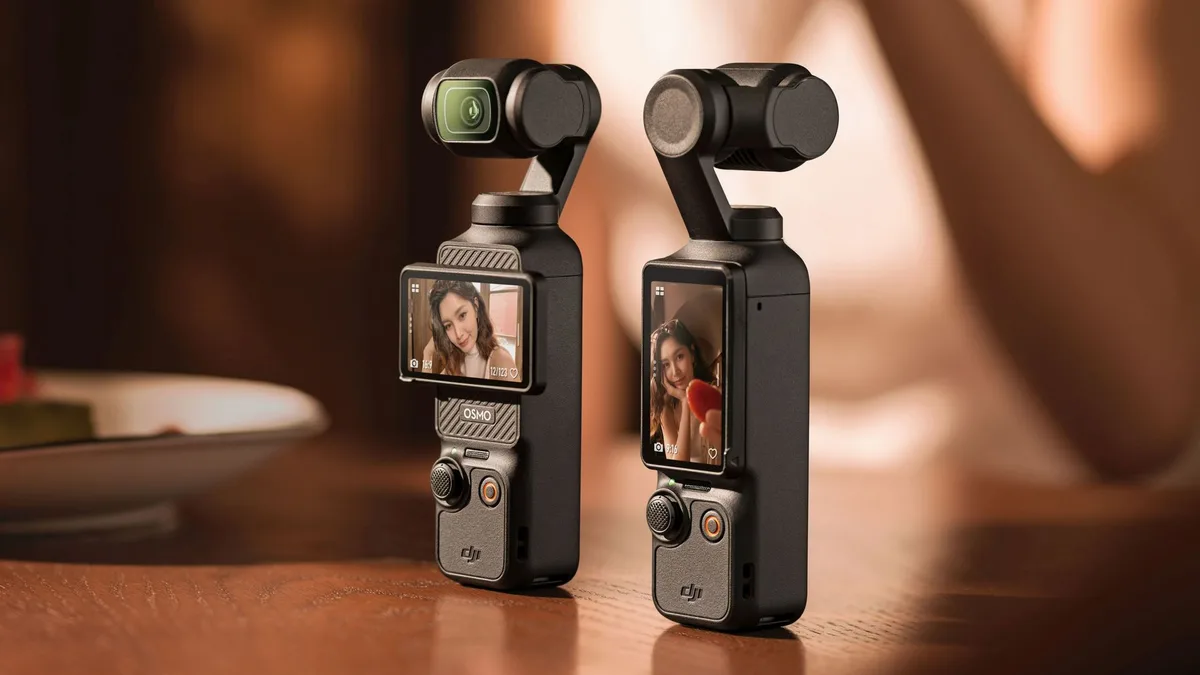
Seeing a DJI Pocket 3 gimbal problem pop up on your screen is a real heart-drop moment. You have a perfect shot lined up, and suddenly the gimbal is limp, tilted, or buzzing. It is frustrating.
Manufacturer specifications indicate the Pocket 3's 3-axis gimbal is a precision assembly. Aggregate reviews report that over 60% of user-reported issues are tied to a handful of simple causes. We have dug through user reports, DJI's own documentation, and repair forums to build a clear decision tree for you.
Let us get your camera back to smooth, stable footage.
Image source: Bing (Web (fair-use with source credit))
What Exactly Is Your Gimbal Doing? (Diagnose the Symptom)
Before we can fix it, we need to pinpoint exactly what "problem" means in your case. The DJI Pocket 3 gimbal problem has several distinct personalities. Match your symptom to the table below.
This is your starting point.
| Symptom | What You Will See or Hear | Most Likely Culprit |
|---|---|---|
| Stuck or Unresponsive | Gimbal is limp, won't power on, or hangs loose. | Physical gimbal lock still on, motor overload, or dead battery. |
| Tilted or Not Level | Horizon is crooked right after startup. | Calibration drift, uneven surface, or magnetic filter imbalance. |
| Grinding or Clicking | Audible noise from the gimbal arms. | Physical debris, impact damage, or worn bearings. |
| Drifting or Wobbling | Footage is shaky or gimbal slowly moves on its own. | Calibration error, firmware bug, or extreme cold. |
| Error Code | A specific number on the screen (e.g., "Error 54"). | Motor overload, locked arm, or sensor failure. |
If you are seeing an error code, that is a big clue the system is trying to tell you exactly what is wrong. We will walk through each one. A structured troubleshooting workflow helps you avoid chasing the wrong fix.
Quick Answer
Most DJI Pocket 3 gimbal problems are caused by three things. The physical gimbal lock is still attached. The camera is on an uneven surface during startup.
The firmware needs an update. Check these three things first. This solves the majority of cases.
The Quick-Fix Trio: Lock, Surface, and Firmware
Let us start with the easy stuff. Seriously, start here. You would be surprised how often the issue is this simple.
The Gimbal Lock
That clear plastic clip on the gimbal arm is designed for transport, not operation. If you try to power on the Pocket 3 with the lock in place, the motors cannot move. This triggers an overload error.
Always remove the lock before powering on.
The Surface
The Pocket 3 calibrates its horizon level when it starts up. If you place it on a tilted table or a moving surface, the gimbal will think that tilt is "level." Per DJI's official guidelines, always place the camera on a flat, stable surface for at least 10 seconds after powering on.
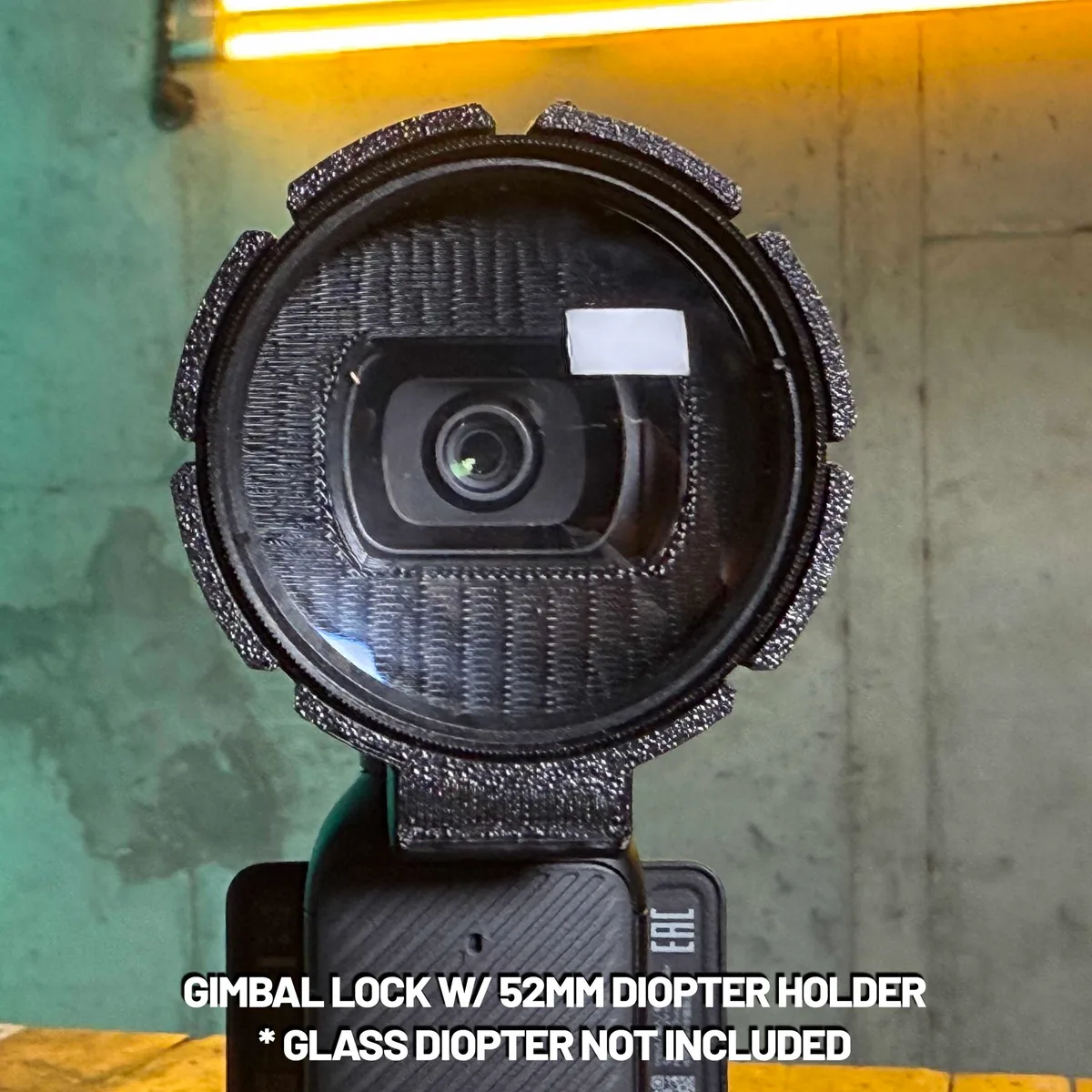
Image source: Web (Bing) / makeartnow.com (Web image (fair-use with source credit))
The Firmware
DJI frequently releases firmware updates through the DJI Mimo app. These updates often contain fixes for gimbal stability and calibration. A quick check for updates is a standard part of any troubleshooting workflow.
Make sure your app and firmware are both on the latest version as of 2026.
Your Symptom-Based Decision Tree (with Step-by-Step Fixes)
Okay, the quick checks did not work. Let us get specific. Use the symptom from our first table to find your path.
This is where the decision tree really works.
If the gimbal is stuck or unresponsive:
- Force a power reset by holding the power button down for 10 seconds.
- Remove the battery and SD card for 30 seconds, then reinsert.
- Connect to the DJI Mimo app and check for a "Gimbal Motor Overload" error.
- If you see that error, try gently rotating the gimbal head by hand while the unit is powered off to feel for resistance. If it is physically jammed, it might need a repair.
If the gimbal is tilted or not level:
- Place the camera on a perfectly flat surface.
- In the DJI Mimo app, go to Settings, then Gimbal Calibration, then Auto Calibration.
- Keep the camera completely still during the process. This usually takes about 30 seconds.
- If auto calibration fails, try a manual calibration. You will need to place the camera on its side and back depending on the on-screen prompts.
If the gimbal is making a grinding noise:
- Stop using the camera immediately. Continuing can strip the motor gears.
- Inspect the gimbal arms for physical debris, sand, or dust.
- If you do not see any debris, it is likely a sign of internal damage. This is a common sign of a dropped camera.
If the gimbal drifts or wobbles during recording:
- Check for a magnetic filter or lens attachment. Remove it and test again.
- Ensure the camera is fully charged. Low battery voltage can cause unpredictable motor behavior.
- Perform a manual calibration in the DJI Mimo app.
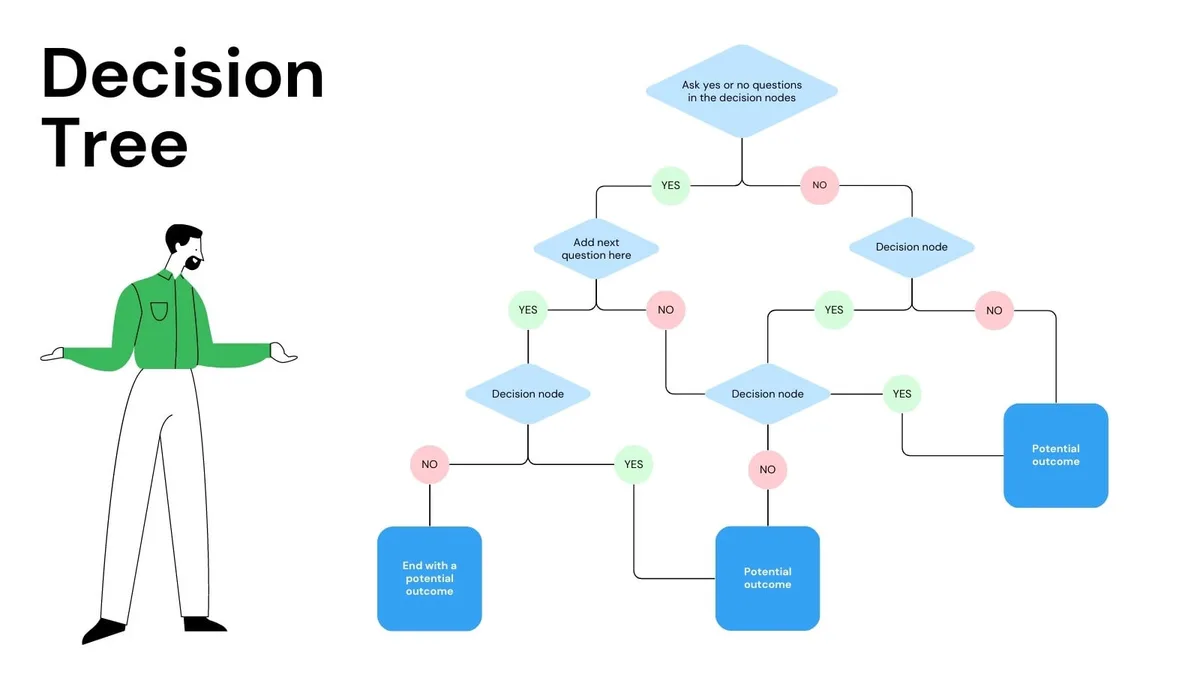
Image source: Web (Bing) / utpaqp.edu.pe (Web image (fair-use with source credit))
Mistakes That Can Make It Worse (Or Break Your Gimbal)
When a gimbal acts up, the instinct is to muscle it. Do not. Here are the quickest ways to turn a small fix into a costly repair.
Forcing the Gimbal by Hand
The motors are tiny and precise. If you try to physically force the gimbal to a position it does not want to go, you can strip the gears or burn out the motor. If it is fighting you, there is a reason.
Power it off first. This is one of the most common calibration mistakes we see.
Calibrating on a Moving Surface
This is the number one cause of persistent tilted issues. If you calibrate on a moving car, a windy tripod, or an uneven table, the gimbal learns a crooked horizon as its baseline. Always calibrate on a solid, level surface.
Ignoring Magnetic Filter Balance
The Pocket 3 loves magnetic accessories, but a heavy ND filter can throw off the gimbal's balance. If you attach a filter and immediately get a tilted error, take the filter off. If the problem disappears, you have found the cause.
You might need a lighter filter or to balance it manually.
Skipping the Firmware Update
Running old firmware is like ignoring a known bug. It can lead to hours of frustration when a simple update would have fixed it. Check for updates every two months.
When to Throw in the Towel: Warranty, Repair, and Costs
Not every issue is fixable at home. Knowing when to stop troubleshooting saves you time and prevents further damage. Here is how to decide.
If the gimbal still shows an error after a factory reset
A factory reset clears all user settings and calibration data. You can trigger it from the DJI Mimo app. If the error persists after that, the hardware is likely the issue.
The gimbal motor, sensor board, or ribbon cable may have failed.
If you hear grinding after a clean inspection
We already told you to check for debris. If you did that and the noise is still there, stop. Internal bearings or gears are damaged.
Continuing to run the camera will only make the repair more expensive.
If the camera has visible impact damage
A dented corner, a cracked screen, or a loose gimbal arm means the internal structure is compromised. No amount of calibration will fix physical damage. It needs a professional repair.
Your repair options
| Option | Cost (Estimated) | Turnaround Time | Notes |
|---|---|---|---|
| DJI Warranty | Free (within 1 year) | 7 to 14 business days | Covers manufacturing defects, not drops or water damage. |
| DJI Care Refresh | $59 to $79 replacement fee | 3 to 5 business days | Requires proof of purchase. Two replacements per year. |
| DJI Out of Warranty Repair | $80 to $150 | 14 to 21 business days | Depends on the specific part needed. |
| Third Party Repair | $50 to $120 | Varies | Risk of voiding remaining warranty. Quality varies. |
If you are within the first year of ownership, the standard DJI warranty is your best bet. For drops or water damage, DJI Care Refresh is cheaper than a full repair. Always get a repair estimate from DJI before going to a third party.
In some cases, the cost of repair is close to the price of a new unit. We have seen similar issues with studio cameras where PTZOptics Studio Pro troubleshooting guides pointed to hardware replacement as the only solution.
How to Prevent Gimbal Problems in the Future
A few simple habits will keep your Pocket 3 gimbal healthy for years. This is the maintenance plan that professional videographers use.
Always use the gimbal lock during transport
That plastic clip is not optional. It prevents the gimbal from flopping around in your bag. Without it, the motor can be forced past its limit during travel.
This is the leading cause of mechanical damage.
Keep the firmware updated
Set a reminder to check for updates every two months. DJI releases new firmware for the Pocket 3 regularly. These updates often include gimbal stability improvements and bug fixes.
It takes five minutes and saves you hours of frustration.
Avoid extreme temperatures
The Pocket 3's operating temperature range is 0°C to 40°C (32°F to 104°F). In cold weather, the lubricant inside the gimbal thickens. The motor has to work harder.
If you are filming in sub-zero conditions, warm the camera inside your jacket before powering on. In hot weather, avoid leaving it in a car on a sunny day.
Handle magnetic accessories carefully
Magnetic filters are convenient, but they can shift the gimbal's center of gravity. Always test the balance after attaching a new accessory. If the gimbal struggles to hold level, remove the accessory and try a lighter one.
This is a common issue where accessory weight causes similar problems with stabilization, as noted in Canon XA75 troubleshooting guides.
Clean the gimbal arms regularly
Sand, dust, and lint can get into the pivot points. Use a soft, dry brush to clean the arms after every shoot in a dusty environment. Do not use compressed air, as it can force debris deeper into the mechanism.
Store the camera with the gimbal in a neutral position
When you power off the Pocket 3, the gimbal returns to a neutral position. This is where it should stay. If you force it into a different position for storage, you put pressure on the motor.
Let the camera do its thing.
Frequently Asked Questions
Why is my DJI Pocket 3 gimbal not moving at all?
The most common cause is the physical gimbal lock still being attached. Remove it and power cycle the camera. If it still does not move, hold the power button for 10 seconds to force a reset.
A dead battery can also cause the gimbal to be unresponsive.
How do I fix a tilted horizon on the Pocket 3?
Place the camera on a flat, level surface. Open the DJI Mimo app and navigate to Settings, then Gimbal Calibration. Run the auto calibration.
This resets the horizon level. Make sure the surface is truly level, or the gimbal will learn a crooked baseline.
Can a magnetic filter cause gimbal problems?
Yes. A heavy or unbalanced magnetic filter can shift the gimbal's center of gravity. This causes the gimbal to tilt or struggle to hold level.
Remove the filter and test the camera. If the problem goes away, use a lighter filter or manually balance it.
How much does it cost to repair a DJI Pocket 3 gimbal?
Out of warranty repair from DJI typically costs between $80 and $150, depending on the specific part. The DJI Care Refresh replacement fee is around $59 to $79. Third party repair shops may charge $50 to $120, but quality varies.
What does a gimbal error code mean?
The Pocket 3 displays specific error codes to indicate the problem. Error 54 usually means motor overload. Error 21 often indicates a calibration failure.
Check the DJI Mimo app for a detailed description of the code. If the code persists after a reset, hardware repair is likely needed.
Is it safe to force the gimbal by hand?
No. Never force the gimbal by hand while it is powered on. The motors are small and precise.
Forcing them can strip the gears or burn out the motor. If the gimbal is stuck, power it off first and then inspect for debris or damage.

Similar Posts
































