SPYPOINT FLEX SD Card Problem
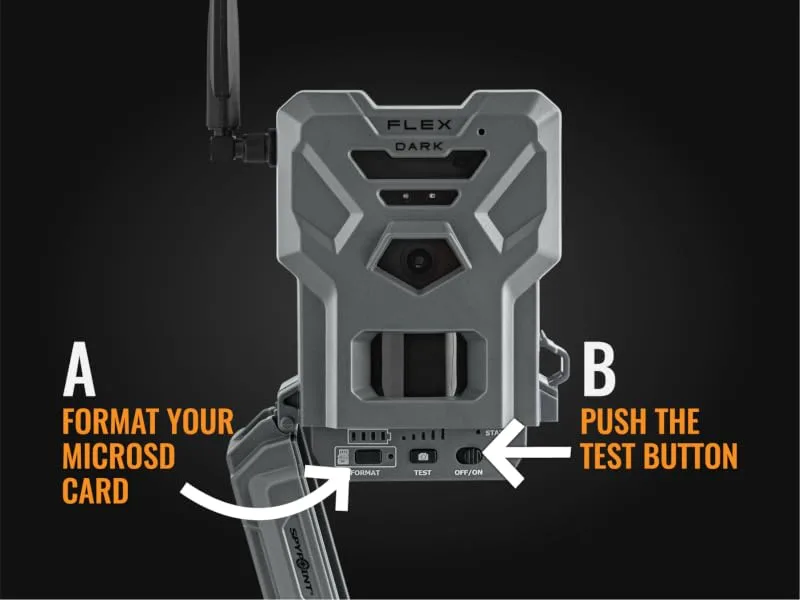
When your Spypoint Flex starts flashing "Card Error" or "No Card" on the display, it's frustrating. You've set up the camera, left it in the field, and now it's not saving photos. That's the SPYPOINT FLEX SD card problem, and it's one of the most common issues owners run into.
Manufacturer specifications indicate the Flex supports microSD cards up to 32GB formatted in FAT32. As of 2026, many users still hit this wall because they grab a larger, faster card without checking compatibility. Let's narrow down what's actually going wrong.
Quick Answer
The SPYPOINT FLEX SD card problem usually comes from three causes. The card is too large, too slow, or formatted incorrectly. Format the card in the camera itself, not a computer.
Use a 32GB or smaller microSD card rated Class 10 or UHS-I. If the card still won't work, try a different brand.
Image source: Web (Bing) / amazon.com (Web image (fair-use with source credit))
When Your Spypoint Flex Shows "Card Error" or "No Card"
You're not alone if you've seen "Card Error" pop up on the Flex screen. It happens often, and it's usually not a sign of a broken camera. The message just means the camera can't read the card properly.
The most common causes are straightforward. The card might be formatted with the wrong file system. The camera expects FAT32, but many computers default to exFAT or NTFS for larger cards.
Another possibility is the card is simply too big. Spypoint's official specs say 32GB max, though some users report success with 64GB cards. If yours is 128GB or 256GB, that's likely the problem.
There's also a chance the card is corrupted. This can happen if the camera lost power while writing, or if you removed the card without safely ejecting it. A corrupted card will show up as unreadable in both the camera and your computer.
The Quick Format Fix That Works on Most Spypoint Flex Models
Before you buy a new card, try formatting the one you have. The trick is to format it inside the camera, not on your computer. Here's how that works.
Insert the card into the Flex. Go to the Settings menu. Find the "Format" option and select it.
The camera will wipe the card and set it up in the exact file system it expects. That's the first thing to try.
If the camera won't format the card, or if the format fails, pull the card out and use a computer. You'll need a card reader. Plug it in, open your file manager, and right-click the card.
Choose "Format" and set the file system to FAT32. For cards under 32GB, this is straightforward. For cards over 32GB, Windows may not offer FAT32 as an option.
You'll need a third-party tool for that.
| Step | Action | Notes |
|---|---|---|
| 1 | Insert card into Flex | Power off first |
| 2 | Go to Settings > Format | Wipes card clean |
| 3 | If that fails, use computer | FAT32 required |
| 4 | Reinsert and test | Check for error message |
Is Your SD Card Too Big, Too Slow, or Corrupted? A Decision Tree
Now let's figure out which problem you're dealing with. Answer these questions to narrow it down.
Is the card larger than 32GB? If yes, that's likely the issue. The Spypoint Flex doesn't officially support cards over 32GB. Even if a 64GB card works initially, it can cause intermittent errors.
Get a 32GB card instead.
Is the card speed rated below Class 10? If you're using an old card marked Class 2, 4, or 6, it's too slow for the Flex. The camera needs a minimum write speed to save photos reliably. Per SD Association standards, a Class 10 or UHS-I card is the safe bet.
Does the card work in your computer? Plug it into a card reader. If the computer can't read it, the card is corrupted or dead. Try formatting it on the computer.
If that fails, the card is toast.
Image source: Web (Bing) / ai.kleidkunst.de (Web image (fair-use with source credit))
Here's a simple decision guide:
- Card too large (over 32GB) → Replace with 32GB or smaller
- Card too slow (below Class 10) → Replace with Class 10 or UHS-I
- Card corrupt (computer can't read) → Format or replace
- Card works in computer but not camera → Format in camera
- Card works in camera but not computer → Camera may have written in proprietary format, that's normal
How to Fix Each SD Card Problem Step by Step
Let's walk through the fixes for each scenario. Follow these steps in order.
If the card is too large: Swap it for a 32GB microSD card. That's the maximum the Flex officially supports. Some users get away with 64GB, but it's not guaranteed.
For reliability, stick with 32GB.
If the card is too slow: Buy a new card rated Class 10 or UHS-I. Speed class matters. Slower cards can cause the camera to miss photos or corrupt files.
A good 32GB Class 10 card costs very little and eliminates this variable.
If the card is corrupted: Try formatting it on your computer using the FAT32 file system. If the format succeeds, reinsert the card into the Flex and format it again from the camera's menu. If the format fails, the card is physically damaged.
Replace it.
If the card works in the computer but not the camera: The camera is picky about file systems. Pop the card back into the Flex and use the in-camera format option. That's the only way to guarantee compatibility.
If the card works in the camera but not the computer: Don't panic. The Flex may write files in a format your computer doesn't recognize. That's normal.
The card is fine. You can still view photos through the Spypoint app.
5 Mistakes That Make Spypoint Card Issues Worse
Some common habits actually make the problem worse. Avoid these five mistakes.
Using a card reader to format the card. Your computer formats cards differently than the Flex expects. Always format the card inside the camera for the best compatibility. Computer formatting is a temporary fix at best.
Buying the cheapest card you can find. Budget cards often have slower write speeds and higher failure rates. A no-name 32GB card for five dollars is not a bargain when it fails in the field. Stick with reputable brands and verified sellers.
Removing the card while the camera is writing. Powering down the Flex or pulling the card mid-write corrupts the file system. Always wait for the camera to finish saving before you remove anything. If you're unsure, power off the camera first.
Ignoring firmware updates. Spypoint releases firmware updates that fix SD card compatibility issues. Check the app or the Spypoint website for updates. An outdated firmware can cause problems that a new card won't solve.
Assuming the card slot is the problem. The Flex's card reader can fail, but it's rare. Before you send the camera back, test a different card. If three different cards all fail, the slot might be the issue.
If only one card fails, the card is the problem.
Pro Tips: Choosing and Maintaining SD Cards for the Flex
Picking the right card from the start saves you headaches. Here's what to look for.
Capacity: Stick with 32GB. It's the official maximum, and it's plenty for a trail camera. A 32GB card holds thousands of photos.
You'll have time to check the camera before it fills up.
Speed class: Get a Class 10 or UHS-I card. The speed rating is usually printed on the card itself. Look for the number 10 inside a circle, or the Roman numeral I.
Faster cards handle burst photos and video without errors.
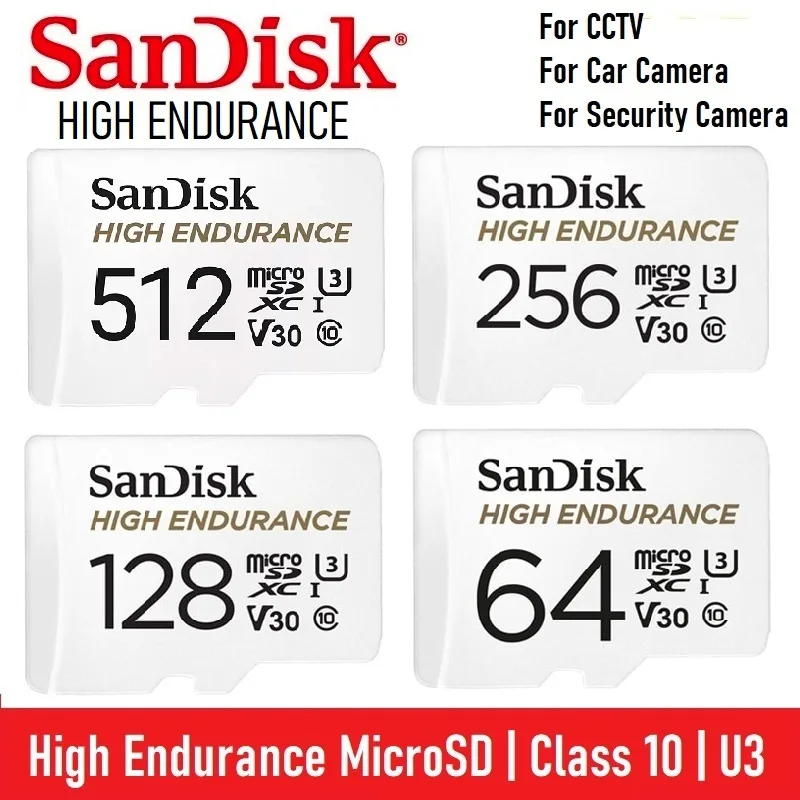
Image source: Web (Bing) / shopee.sg (Web image (fair-use with source credit))
Brand: SanDisk, Kingston, and Samsung are reliable choices. Avoid generic or unbranded cards. Counterfeit cards are common online, so buy from a trusted retailer.
Endurance: Trail cameras write data constantly in the field. Standard SD cards can wear out after a few months of heavy use. Consider a high-endurance card designed for security cameras.
They last longer and handle repeated writes better.
Maintenance: Format the card in the camera every time you swap it. This clears old file fragments and resets the file system. Do it once a month or every time you check the camera.
It takes ten seconds and prevents most card issues.
Frequently Asked Questions
Why does my Spypoint Flex say "Card Error" even with a new card?
New cards are often formatted in exFAT or NTFS by default. The Flex requires FAT32. Format the card inside the camera using the Settings menu.
If the error persists, the card may be too large or too slow for the camera.
Can I use a 64GB or 128GB card in the Spypoint Flex?
The official spec says 32GB maximum. Some users report that 64GB cards work after formatting, but it's not guaranteed. Cards over 64GB almost always fail.
For reliability, stick with a 32GB card.
How do I format my SD card for the Spypoint Flex?
Insert the card into the camera. Go to the Settings menu and select Format. The camera handles the file system automatically.
If the camera won't format the card, use a computer to format it to FAT32, then try again in the camera.
Why won't my computer read the SD card from my Spypoint Flex?
The Flex may write photos in a proprietary format that your computer doesn't recognize. The card is not damaged. Pull the card, reinsert it into the camera, and use the Spypoint app to view your photos.
You can also try a different card reader.
How often should I format my SD card in the Flex?
Format the card every time you swap it or check the camera. Monthly formatting prevents file system corruption and keeps the card running smoothly. If you notice errors, format immediately.
What is the best SD card for the Spypoint Flex?
A 32GB Class 10 or UHS-I microSD card from a reputable brand is the best choice. SanDisk and Kingston are commonly recommended. Avoid cards rated below Class 10, and avoid cards larger than 32GB for guaranteed compatibility.

Similar Posts
































