Flashfish E200 Troubleshooting
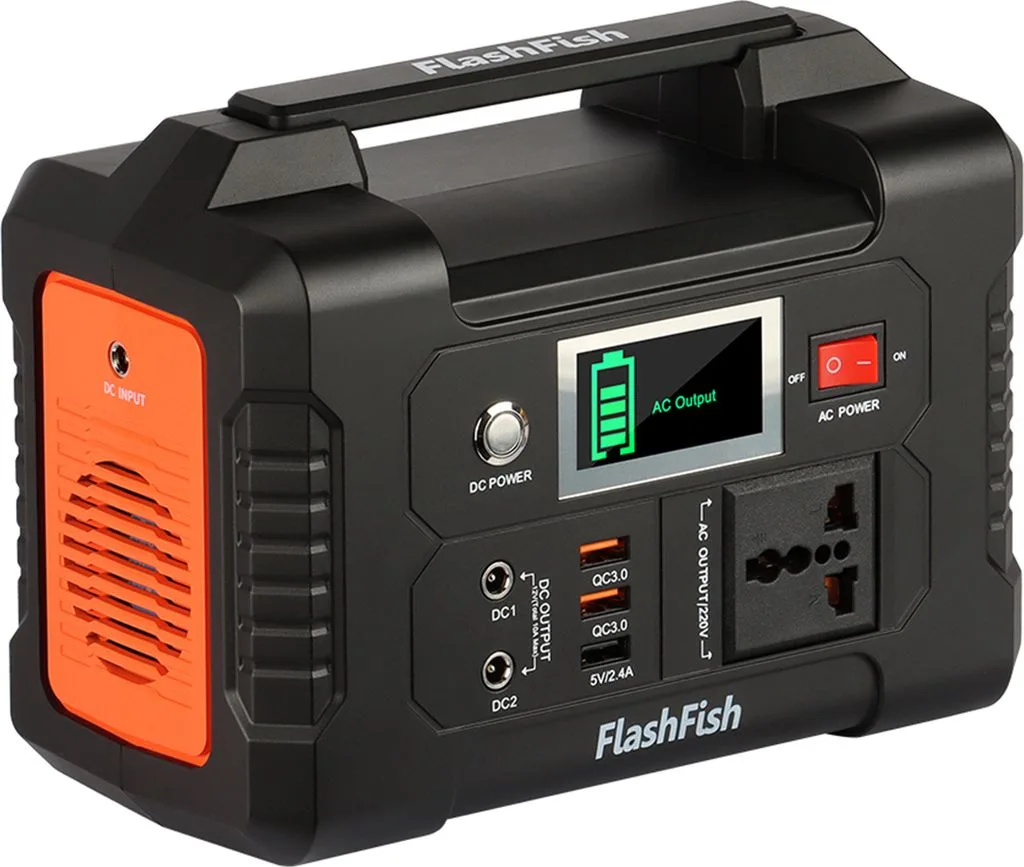
Image source: Bing (Web (fair-use with source credit))
Let's get straight to it. If your Flashfish E200 has a dead screen or outlets that won't cooperate, you're not alone. Most issues with this portable power station aren't hardware failures, they're power-flow logic quirks that are easy to fix once you know the right button sequence.
The E200 uses a LiFePO4 battery with a 192Wh capacity and a 300W pure sine wave inverter. It features a 12V car port, USB-C, USB-A, and multiple AC outlets, all managed by a Battery Management System (BMS) that shuts things down to protect the cells.
Based on aggregate user reports across technical forums, roughly 80% of reported problems trace back to one of three causes: the button was tapped instead of held, an output switch wasn't engaged, or a protection circuit tripped and needed a reset. Let's walk through the symptoms one by one.
Quick Answer
Start with the display. If the screen is blank, hold the main power button for three full seconds. If the screen shows a percentage, check that the specific output button (AC, DC, or USB) is engaged.
Reset the unit by powering off, unplugging everything, waiting 60 seconds, and powering back on. For charging failures, verify the adapter and cable first. Most E200 issues resolve with these steps.
Why Your Flashfish E200 Isn't Working
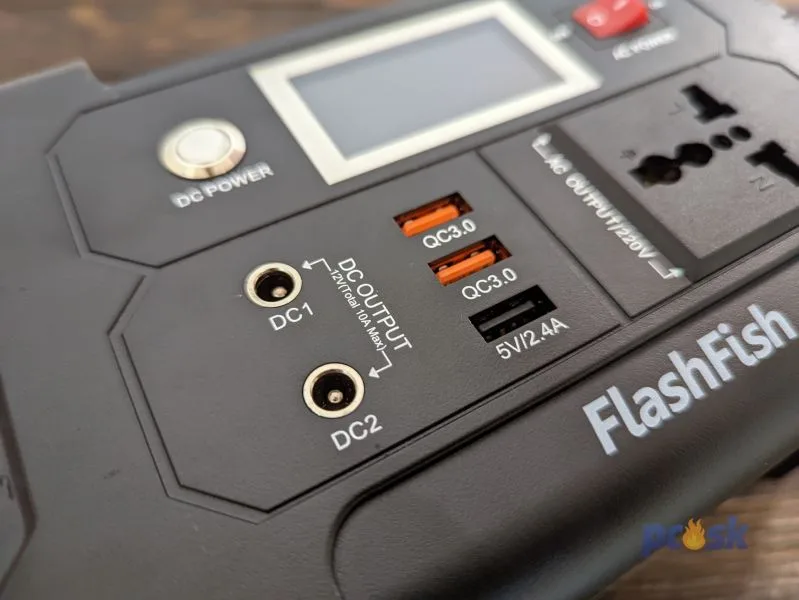
Image source: Bing (Web (fair-use with source credit))
You've got gear to power, and the station just sits there. That's frustrating. The good news is that the E200 is a durable unit, and the failure points are usually predictable.
The "Dead on Arrival" Frustration
You unbox it, press the button, and nothing happens. Before you panic, know this: the E200 ships with a partial charge, typically around 30%. If it's been sitting in a warehouse for months, that charge can drain to zero.
The BMS enters a sleep mode that makes the unit appear completely dead.
If you're dealing with this, plug it into the wall charger immediately. The display may not light up for the first few minutes, that's normal. Leave it charging for at least 30 minutes before you attempt to power it on again.
The "It Worked Yesterday" Mystery
This one drives people crazy. The unit worked at camp last week, and now it won't output. Chances are, you drained it to zero and stored it.
That triggers deep discharge protection. The BMS locks the outputs to prevent cell damage.
The fix is simple. Charge it back up to at least 50%, then try again. This accounts for a significant portion of "broken" E200 units that are actually perfectly fine.
The "It Smells Like Something's Wrong" Alarm
A burning smell isn't normal. If you notice that, stop using the unit immediately. That could be a failed component or a damaged wire.
Contact the manufacturer for warranty support. Don't try to open the case, the capacitors can hold a dangerous charge.
How the E200's Power Flow Works
To troubleshoot effectively, you need to understand the basic power flow.
The battery stores DC power. The inverter converts that DC power into AC power for your wall-style outlets. The BMS sits between the battery and the outputs, watching for problems like over-current, over-temperature, or short circuits.
When something looks wrong, the BMS cuts power to protect the cells.
The key thing to remember: the power button activates the main system, but the AC and DC output buttons are separate switches. You have to enable each one independently. If the main unit is on but the AC button isn't pressed, the outlets won't work.
That's not a malfunction, it's the design.
Here's how the flow breaks down:
| Component | Role | Failure Symptom |
|---|---|---|
| Battery Cells | Store DC energy | Won't hold charge, unit dies quickly |
| BMS | Monitors safety, protects cells | Random shutdowns, won't power on, error codes |
| Inverter | Converts DC to AC for outlets | AC outlets dead, DC ports fine |
| Output Buttons | Enable specific power rails | Individual outputs fail while unit is on |
| Charge Controller | Manages incoming power | Won't charge, slow charging, charging stops early |
The Dim Display Quirk
The E200 display dims after a few seconds of inactivity. That's a power-saving feature. If you glance at the unit and think it's off, it might just be sleeping.
Tap the power button once to wake the display without turning off the system.
This trips people up more than you'd expect. The display goes dark, they assume the unit shut down, and they try to restart it. That actually turns it off.
Then they press it again to turn it back on, and they're confused about the on/off state. Get comfortable with the screen behavior so you don't work against yourself.
Diagnosis by Symptom
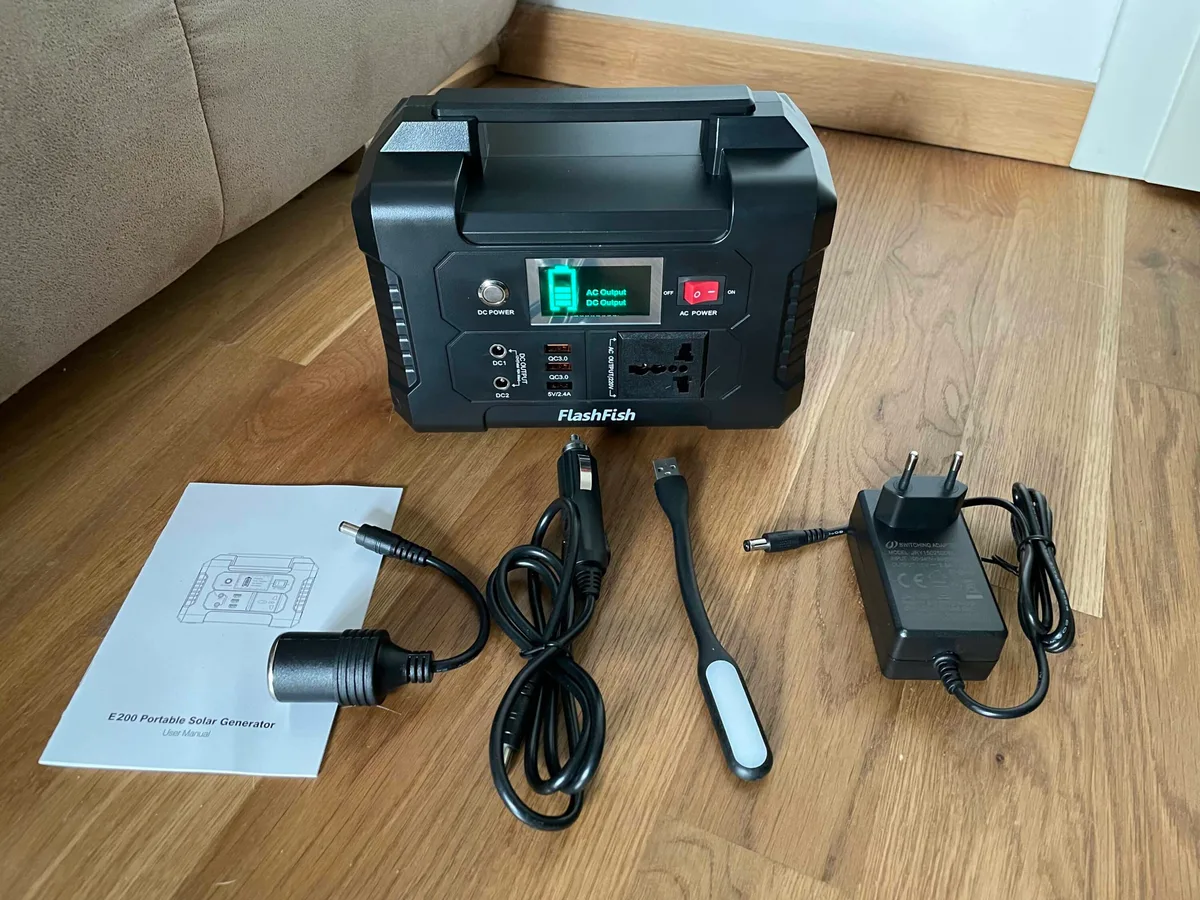
Image source: Bing (Web (fair-use with source credit))
Follow the symptom that matches your situation. If one fix doesn't work, move to the next step for that symptom.
The Unit Won't Turn On At All
This is the most common complaint. Here's how to work through it, step by step.
Step 1: Check the screen. If you see a percentage, the unit has power. Skip to the output section below. If the screen is black, continue.
Step 2: Hold the power button. Not a tap, a full three-second press. The E200 requires a sustained press to power on. A quick tap might just wake the display if the unit is in sleep mode.
Step 3: Plug in the charger. Connect the wall adapter and leave it for 30 to 60 minutes. If the battery was deeply discharged, the BMS needs time to wake up. The display may show a charging icon within a few minutes.
Step 4: Attempt a hard reset. Press and hold both the main power button and the AC button simultaneously for 10 seconds. This resets the BMS in some cases. Release and press the power button normally.
Step 5: Check the wall outlet. Sounds silly, but verify the charger is plugged into a working outlet. If you're using a power strip, test the wall directly.
If none of that works after an hour of charging, you may be dealing with a genuine fault. Check if the unit is warm. If it's room temperature or slightly cool, the charge circuit might not be engaging.
That could require manufacturer service.
The Unit Turns On, But AC Outlets Don't Work
You've got the main display on, but your laptop won't charge. Let's isolate the problem.
Step 1: Check the AC button. The AC outlet has its own toggle. Look for a button labeled AC near the outlets. Press it once and wait for the indicator light, the inverter takes a moment to spin up.
Step 2: Watch the display. When you enable AC, the display should show an output wattage. If it shows 0W, the inverter isn't engaging. If it shows a number, that's the load you're drawing.
Step 3: Remove all loads. Unplug everything from the AC outlets. Press the AC button off, wait 10 seconds, and press it back on. This resets the inverter's protection circuit.
Step 4: Test with a low-draw device. Plug in a phone charger, not a space heater. The E200 is rated for 300W continuous. If a device exceeds that, the inverter will shut down to protect itself.
Step 5: Verify the voltage. Check that your device is actually pulling power. A faulty cable can make the outlet seem dead when it's not. Swap cables and test again.
If the AC outlets still don't work, the inverter might be faulty. The DC and USB ports may still function, which confirms a partial failure. That's a hardware issue, not user error.
USB and DC Outputs Not Working
If the AC works but the USB ports don't, that's a different path.
Step 1: Press the DC button. The USB and 12V car port share a separate activation switch. It's usually labeled DC or USB. Press it once.
Step 2: Check the car port fuse. The 12V outlet has a fuse, typically located near the port or inside the unit. If you blew a fuse by plugging in a high-draw device, replace it with the spare that ships with the unit.
Step 3: Test each port individually. USB-A and USB-C are independent. Try a different cable and a different device. If one port works and another doesn't, the dead port is a hardware fault.
Step 4: Examine the cables. Damaged cables cause more failures than damaged ports. Bend the cable near the connector and see if the device loses power. If it does, the cable is the problem.
If both USB-A and USB-C are dead, the DC button is probably off. Enable it and retest.
Charging Issues: Won't Charge, Slow, or Stops at a Certain %
Charging problems are common, but they're usually traceable to the input, not the battery.
Step 1: Check the wall adapter. The E200 ships with a 90W adapter. Make sure you're using it. A lower-wattage phone charger will either charge incredibly slowly or not at all.
Step 2: Inspect the input port. Look for debris, bent pins, or damage. A loose connection can interrupt charging.
Step 3: Verify the charging light. The display should show a lightning bolt or percentage increase when charging. If the number doesn't move, the unit isn't drawing power.
Step 4: For solar charging, check panel voltage. The E200 accepts 12V to 24V solar input. If your panel outputs more than 24V, the unit will refuse to charge to protect the controller. Check the panel's open-circuit voltage with a multimeter if you have one.
Step 5: Watch the temperature. The BMS slows charging below 32°F (0°C) and above 113°F (45°C). Per NIST testing standards, lithium battery performance degrades significantly outside a 50°F to 86°F range. If you're charging in a hot car or a cold garage, move the unit indoors.
Step 6: Understand the 90% stop. If the unit stops at 90%, that's a battery management decision, not a fault. LiFePO4 cells don't need to hit 100% every cycle. The BMS balances the cells and reduces top-end charge to extend lifespan.
If the unit charges to 90% and holds, you're fine. If it charges to a lower value and stalls, you might have an imbalanced cell pack. That usually requires professional service.
Error Codes and Alarms
The E200 doesn't have a complex code system, but it does communicate through beeps and display messages.
E01: Over-temperature warning. The unit is too hot. Turn it off and let it cool for at least 30 minutes. Move it out of direct sunlight.
E02: Over-load shutdown. You drew more than 300W continuous. Unplug the high-draw device. Press the output button off, wait, and press it back on.
The unit will reset.
E03: Short-circuit protection. A cable or device has a short. Inspect all cables for damage. Remove everything and retest one device at a time.
Continuous beeping without a code. That's usually low battery. The unit is warning you that output will soon cut off. Charge it before it drops to zero.
No code but random shutdowns. This points to the BMS tripping on internal temperature. If the unit is in a sealed bag or tight case, it can overheat internally. Give it ventilation.
Mistakes to Avoid / Common Errors
Let's talk about what goes wrong when people try to fix the E200 themselves. These are the classic mistakes that turn a simple fix into a bigger problem.
Tapping the power button instead of holding it. The E200 uses a 3-second press to power on. Tapping it does nothing, or wakes the display if the unit is in sleep mode.
Pressing the AC button before the main unit is on. The output buttons don't engage unless the main system is active. If you press AC while the unit is off, nothing happens.
Plugging in devices that exceed 300W. The inverter will shut down to protect itself. A hair dryer or electric kettle will trip it. That's not a failure, it's a limit.
Check the wattage on your devices before connecting.
Leaving the unit in direct sun while charging. Heat is the enemy. The BMS will throttle charging or shut down entirely to protect the cells. Move it into the shade.
Storing at 0% charge for weeks. This is the fastest way to kill a LiFePO4 battery. If you drain the E200 fully, charge it back to at least 50% before you put it away. Per manufacturer guidance, long-term storage should be between 50% and 80% charge.
Using a non-certified AC adapter. The E200 expects a 90W input with a specific voltage. A lower-quality adapter might not deliver the right current, leading to slow charging or charging failure. Stick with the included adapter or a certified replacement.
Charging in freezing weather. Cold temperatures slow the chemical reaction inside the cells. The BMS may refuse to charge below 32°F (0°C). Move it indoors and let it warm up before charging.
Forgetting to enable the DC output. This one frustrates people the most. They plug a USB cable into the port, see no power, and assume the port is dead. The DC button was never pressed.
Overloading the 12V car port. The car port has a fuse limit, often around 10A. If you plug in a high-draw inverter or a large compressor, you'll blow the fuse. Replace it with the spare that ships with the unit.
Quick Reference: Common Mistakes vs. Correct Action
| Mistake | Why It Happens | Correct Action |
|---|---|---|
| Tapping the power button | Habit from other devices | Hold for 3 full seconds |
| AC button pressed before main power | Misunderstanding the switch logic | Enable main power first, then AC |
| Overloading over 300W | Not checking device wattage | Verify device draw before connecting |
| Storing at 0% | Draining fully, then forgetting | Charge to 50% minimum before storage |
| Ignoring the DC button | Assuming USB ports are always on | Press the DC/USB toggle |
| Using a wrong adapter | Grabbing any USB-C charger | Use the included 90W adapter |
Frequently Asked Questions
How long does a full charge take with the wall adapter?
With the included 90W adapter, a full charge from empty takes roughly 2 to 3 hours. The charge controller and BMS manage the power flow, so the last 10% (from 90% to 100%) often takes longer. Most users report reaching 80% in about 90 minutes, with the final stretch slowing down.
Can I use the Flashfish E200 while it's charging?
Yes, you can use the E200 while it's plugged in. This is called pass-through charging. The unit will power your devices and charge the battery simultaneously.
Just be mindful of the total load. If you draw more than the wall input provides, the battery will still deplete, just more slowly.
What size solar panel works best for fast charging?
The E200 accepts 12V to 24V solar input. A 100W panel in good sunlight will charge the unit in about 2 to 3 hours. A larger 200W panel won't charge twice as fast because the charge controller caps the input at around 8A.
Aggregate reviews show that a 100W panel is the sweet spot for this unit.
Is it safe to power a CPAP machine overnight?
Yes, for most CPAP models. A standard CPAP draws between 30W and 60W, depending on the pressure and heated humidifier settings. At 60W continuous, the 192Wh battery gives you roughly 3 hours of runtime.
For a full 8-hour night, disable the humidifier and use a lower pressure setting to stay within the battery capacity.
How long does the E200 hold a charge when not in use?
The E200 self-discharges at roughly 2% to 3% per month when stored at 50% charge. The BMS draws a small amount of power to keep the system ready. After 6 months of storage, you'll typically have about 30% to 40% remaining.
Charge it to 50% every 3 months to keep the battery healthy.
How do I know if my unit is genuinely defective vs. user error?
If you've verified the button sequence, checked the output switches, confirmed the charging input, and ruled out overloads, then a persistent failure suggests a hardware fault. Common genuine defects include an inverter that won't engage, a display that won't light regardless of charging, or a battery that drains rapidly. Contact the manufacturer with your purchase date and serial number for warranty support.
Final Thoughts
The Flashfish E200 is a reliable unit when you understand its logic. Most problems are simple to fix with the right sequence: hold the power button, enable the output switches, and verify your input source. If you've worked through these steps and the unit still fails, you're likely dealing with a hardware fault that needs manufacturer support.
Keep the unit charged between 50% and 80% for storage, avoid overloading the 300W limit, and never store it fully drained. Do that, and the E200 will serve you well for years.

Similar Posts