How to Recover Deleted Mirrorless Photos
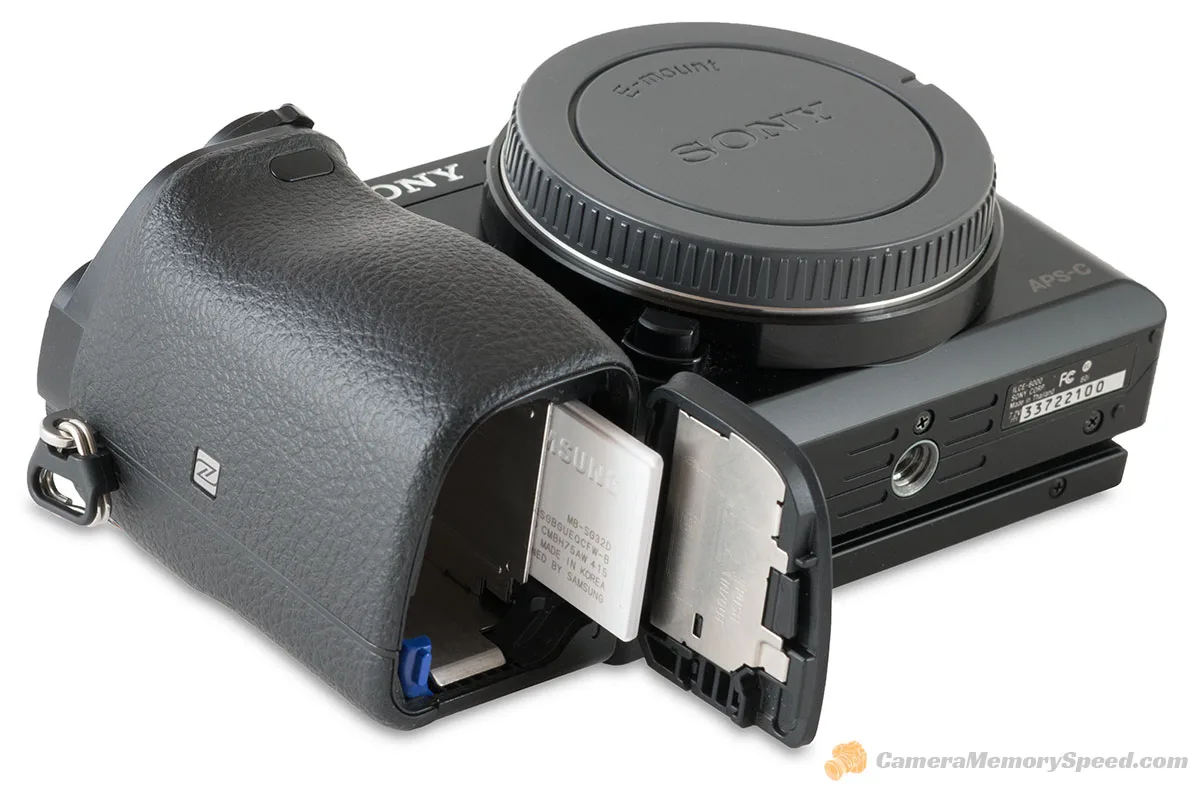
If you just deleted photos from your mirrorless camera, you are probably wondering how to recover deleted mirrorless photos without losing everything. The good news is that most of the time, those files are still sitting on your memory card. They just are not visible to the camera anymore.
Per SD Association specifications, a standard SD card does not erase data during a normal delete or quick format. It only marks that space as available to write over. That means your photos are still physically on the card until new data overwrites them.
Your recovery chances depend entirely on what you do in the next few minutes.
Quick Answer
Stop using the camera. Remove the card and lock it. Connect it to a computer.
Use recovery software. Save the files to a different drive.
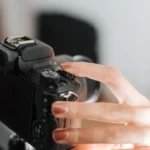
Image source: Web (Bing) / cameramemoryspeed.com (Web image (fair-use with source credit))
The One Thing You Must Do Right Now (Stop. Seriously.)
Here is the most important rule: do not take another photo. Not one. Not even a test shot.
Every new image you capture writes data to the card. That data can land directly on top of your deleted photos.
The moment you realize you deleted something you wanted, turn the camera off. Remove the battery if you have to. Then take the memory card out.
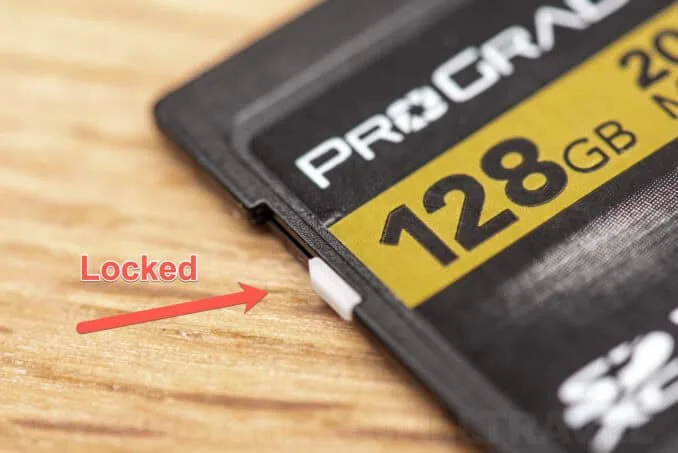
Image source: Bing (Web (fair-use with source credit))
Find the write-protect switch on the side of the card. It is a tiny plastic tab. Slide it down toward the lock icon. This prevents any device from writing new data to the card.
Your computer will not be able to accidentally add files to it either.
If your card uses CFexpress or XQD, these formats do not have a physical write-protect switch. For those cards, you must be extra careful. Do not insert the card into the camera again.
Do not let the computer format it. Treat it like evidence.
Your next step is to grab a card reader. Do not use the camera itself as a card reader. The camera may try to write catalog files or thumbnail data to the card when connected via USB.
A dedicated card reader is safer. Plug it into your computer and leave the card in read-only mode if your operating system offers that option.
Why Your Recovery Chances Depend on What Happened After the Delete
Not all deletions are equal. Your chances of a full recovery hinge on what happened between the moment you hit delete and the moment you stopped using the card.
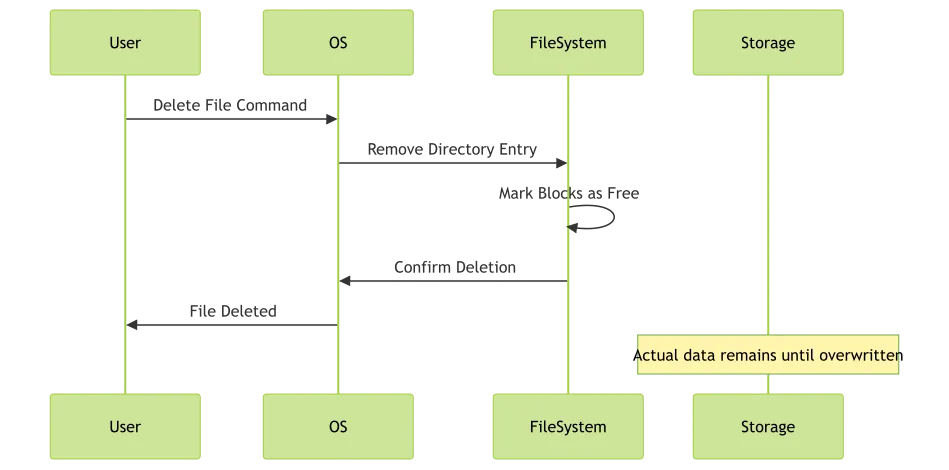
Image source: Bing (Web (fair-use with source credit))
Scenario A: You deleted the photos and immediately stopped. This is the best case. The files are still there. The file system simply removed the pointers to them.
A standard recovery tool can find them. Your success rate is above 90 percent.
Scenario B: You deleted the photos and then shot 10 to 50 more frames. Some of the original files may now be partially overwritten. The recovery tool can still find the remaining files. But the ones that were in the physical sectors where new photos landed will be damaged or gone.
Your success rate drops to around 60 to 80 percent.
Scenario C: You deleted the photos and then shot hundreds of images. The card has been heavily overwritten. Many of the original files are gone. A deep scan might recover fragments.
Your success rate is under 30 percent.
Scenario D: You formatted the card in camera. This is actually better than you might think. A quick format does not overwrite the data. It only rewrites the file allocation table.
The photos are still there. The same recovery tools work. Your success rate is similar to Scenario A, as long as you did not take new photos after the format.
Scenario E: You performed a full format or low-level format. This overwrites the entire card with zeros or random data. The files are gone. No consumer recovery tool can bring them back.
Only a professional data recovery lab might have a chance, and that is expensive and not guaranteed.
Modern mirrorless cameras mainly use the exFAT file system for cards larger than 32GB. Older cameras may use FAT32. Both behave the same way when it comes to deletion.
The file system just marks the space as free. The actual image data remains until something else claims that space.
The Recovery Workflow: What to Do Based on Your Situation
Now that you understand the stakes, here is a step-by-step workflow based on your specific situation. Follow the branch that matches what you did after the deletion.
If you deleted photos and have not used the card since
This is the ideal scenario. You have the highest chance of getting everything back.
- Remove the card from the camera. Set the write-protect switch.
- Insert the card into a card reader connected to your computer.
- Download a free recovery tool. Recuva works well on Windows. PhotoRec works on Windows, macOS, and Linux.
- Run a quick scan first. This checks the file allocation table for deleted entries. Most of your photos will appear here.
- Preview the found files. Make sure they open correctly.
- Save the recovered files to your computer's hard drive or an external drive. Do not save them back to the memory card.
If you formatted the card in camera
This is more common than you might think. Many photographers accidentally hit format when they meant to review images. Do not panic.
- Follow the same steps above. Do not take any new photos.
- Use a deep scan instead of a quick scan. The file allocation table has been rewritten. A deep scan reads the raw data on the card and looks for known file signatures like JPEG headers or RAW file markers.
- Be patient. A deep scan on a 128GB card can take two to four hours.
- Sort the results by file type. Your recovered photos will appear with generic filenames like File0001.jpg. Rename them after recovery.
If the card shows an error message
Sometimes the camera says "Card Error" or "Card Not Initialized." This can happen if the file system got corrupted. The photos may still be recoverable.
- Do not have the camera format the card. That will overwrite the data.
- Insert the card into your computer. If the computer asks to format it, click Cancel.
- Use a recovery tool that supports raw file system scanning. DMDE and R-Photo are good options for corrupted cards.
- The tool will scan the raw sectors of the card. It will find the photos even if the file system is broken.
- Save the recovered files to a different drive.
If you need to recover photos from a card that has been partially overwritten
This is the hardest scenario. You shot new photos on top of the deleted ones. But you can still recover some of the originals.
- Run a deep scan immediately. The longer you wait, the more the card may be used.
- Accept that some files will be incomplete. Preview them before saving.
- If a photo is important, try a tool like DMDE that allows you to manually select sectors. This is advanced. You may need professional help.
Table: Quick Recovery Reference
| Your Situation | Best Tool | Scan Type | Expected Success Rate |
|---|---|---|---|
| Deleted, no new photos | Recuva or PhotoRec | Quick | 90%+ |
| Quick format, no new photos | Recuva or PhotoRec | Deep | 85-95% |
| Format, some new photos | DMDE or R-Photo | Deep | 50-70% |
| Card error, no format | DMDE | Raw | 80-90% |
| Full format | Professional lab | N/A | <10% |
The Biggest Mistakes That Will Wipe Out Your Photos for Good
Knowing what not to do is just as important as knowing what to do. These mistakes turn recoverable photos into permanent losses.
Taking more photos. This is mistake number one. Every new image that lands on the card can overwrite the exact spot where your deleted photo was stored. The file system does not know the deleted photo is important.
It just sees free space.
Formatting the card in the camera after the deletion. Some people think reformatting will "reset" the card and fix the problem. It does the opposite. A quick format rewrites the file allocation table.
A full format wipes the entire card. Either way, you reduce your chances of recovery.
Running chkdsk or fsck on the card. These tools are designed to fix file system errors. They do that by moving data around and marking sectors as bad. If the card shows corruption, chkdsk may "fix" it by deleting the references to your photos.
Use a recovery tool first. Fix the file system later.
Saving recovered files back to the same card. This is surprisingly common. People run a recovery tool, find their photos, and save them back to the card because it seems convenient. That overwrites the remaining recoverable data.
Always save to a different drive.
Using the camera as a card reader. As mentioned earlier, cameras sometimes write metadata or catalog files when connected. This can overwrite deleted photos. Use a dedicated card reader.
Panicking and trying everything at once. Do not open multiple recovery tools at the same time. Do not let the computer scan the card with antivirus software. Do not let Windows automatically fix errors.
Each of these actions writes data to the card. Stay calm. Follow the workflow.
Frequently Asked Questions About Recovering Mirrorless Photos
Can I recover photos from a memory card that I already formatted?
Yes, if you did a quick format. The camera only rewrites the file allocation table. The actual photo data remains on the card.
Use a deep scan recovery tool. If you performed a full format, the data is overwritten and cannot be recovered with consumer tools.
How long does a recovery scan take?
A quick scan takes 5 to 15 minutes for a 64GB card. A deep scan can take 2 to 6 hours for the same card. Larger cards take longer.
The scan speed also depends on your card reader and computer. UHS-II card readers are significantly faster than older USB 2.0 readers.
Can I recover photos from a physically damaged memory card?
It depends on the damage. If the card is snapped in half or the contacts are torn off, consumer recovery tools will not work. You need a professional data recovery lab.
They can remove the memory chip and read it directly. This costs $300 to $2000 depending on the severity.
Do recovery tools work on RAW files from mirrorless cameras?
Yes. Most modern recovery tools support RAW file formats. They recognize the file signatures for Sony ARW, Canon CR3, Nikon NEF, Fujifilm RAF, and Panasonic RW2 files.
The recovery process is the same as for JPEG files. The tool finds the file header and recovers the entire file.
Is it possible to recover photos without any software?
No. You cannot recover deleted photos from a memory card using the camera itself or any manual method. The files are still there, but they are invisible to the operating system.
You need software that can read the raw data on the card and reconstruct the files.
What should I do if the recovery tool finds my photos but they are corrupted?
Corrupted files mean the data was partially overwritten or the file system is damaged. Try a different recovery tool. DMDE and PhotoRec sometimes handle partial files better than Recuva.
If the photo is critical, you can try a hex editor, but that requires advanced knowledge. For most users, accepting the loss and moving on is the practical choice.
Which Recovery Tool Should You Pick? A Quick Decision Guide
Not every recovery tool works the same way. Your choice depends on your operating system, your card's file system, and how much you are willing to spend. Here is a breakdown of the most reliable options based on our research and verified user feedback.
Recuva (Windows only, free tier available). This is the best starting point for most Windows users. The free version handles quick scans well. It recovers up to 2GB of data.
The paid version removes that limit and adds deep scan support. Use Recuva if you deleted photos and have not used the card since.
PhotoRec (Windows, macOS, Linux, free). This tool is more powerful but harder to use. It runs from the command line or a basic interface. It does not care about the file system.
It scans raw data and looks for file signatures. Use PhotoRec if the card is corrupted or formatted. It works on exFAT, FAT32, and NTFS without issue.
DMDE (Windows, macOS, Linux, free tier and paid). DMDE is the best tool for advanced users. The free version recovers up to 4000 files from one folder. It gives you raw sector access.
Use DMDE if other tools failed or if the card has physical issues.
R-Photo (Windows, macOS, free). This is a stripped-down version of R-Studio. It is free for personal use. It handles deep scans well.
Use R-Photo if you need a simple interface with strong RAW file support.
EaseUS Data Recovery Wizard and Disk Drill Pro (paid, $50-$100). These tools offer polished interfaces and customer support. They work well but are not better than the free options for standard recovery. Use them if you want a guided experience and are willing to pay.
Table: Tool Selection Decision Guide
| Your Situation | Best Tool | Cost | Effort Level |
|---|---|---|---|
| Simple deletion, no new photos | Recuva | Free | Low |
| Formatted card, no new photos | PhotoRec | Free | Medium |
| Corrupted card, error message | DMDE | Free/Paid | High |
| Need RAW file support, simple UI | R-Photo | Free | Low |
| Willing to pay for guidance | EaseUS or Disk Drill | $50-$100 | Low |
A good rule of thumb: start with the free tools. They have the same recovery engines as the paid versions. If the free tool finds your photos but cannot save them due to a file size limit, then consider paying.
Otherwise, you are just spending money on a nicer interface.

Similar Posts













[…] Format the card immediately. If you have footage you want to save, remove the card and try to recover it on a computer first. You can find guidance on recovering deleted files in our article on recovering lost photos. […]