How to Format Action Camera SD Card
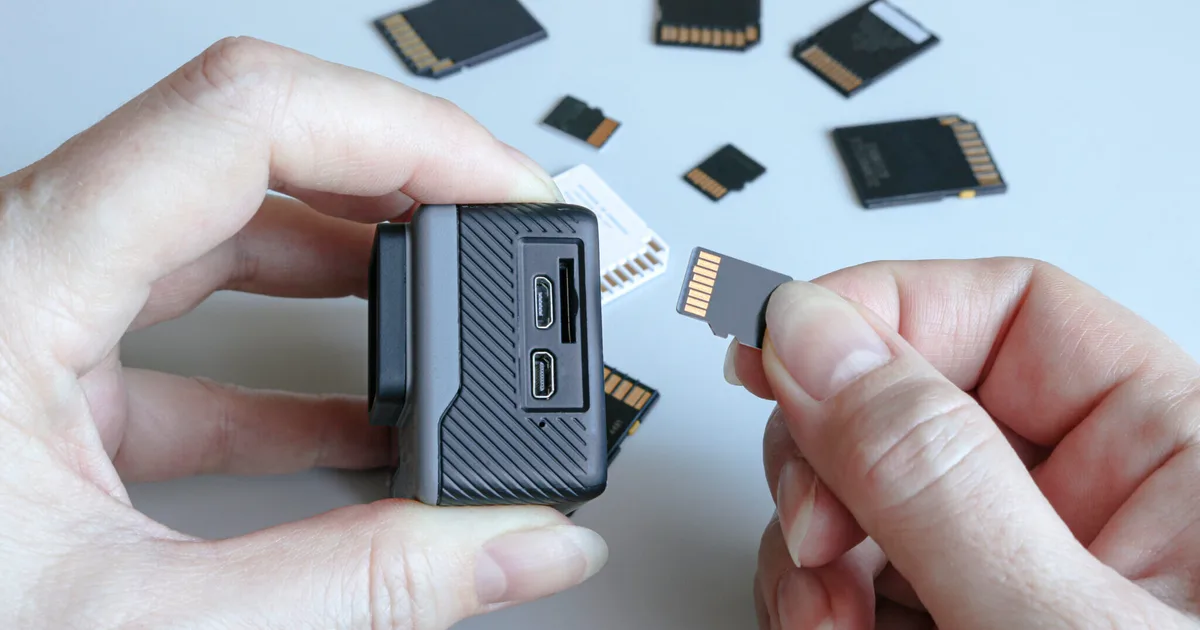
Your action camera is giving you a "card error" message, and you're right to be frustrated. Knowing how to format action camera SD card is often the first fix you should try, and it's simpler than you think. A quick format clears the card's file system and resets it for reliable recording.
It can save you from buying a new card or losing footage.
Manufacturer specifications indicate that most action cameras as of 2026 support SD cards up to 512GB, but using the wrong file system is a common cause of compatibility issues. The SD Association's Universal Standard defines FAT32 and exFAT as the primary file systems for removable media. Let's break down exactly when and how to format your card correctly.
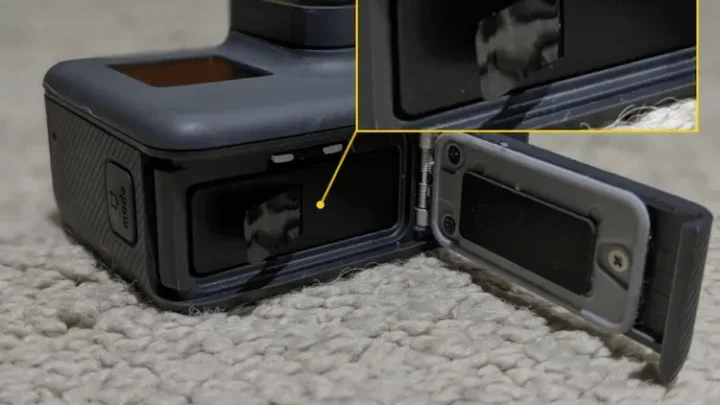
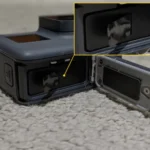
Image source: Web (Bing) / robots.net (Web image (fair-use with source credit))
Quick Answer
Format your card in the camera itself. Go to the settings menu, find the format option, and confirm. Use exFAT for cards 64GB and larger.
Use FAT32 for cards 32GB and smaller. Always back up footage before formatting.
Does Your Action Camera SD Card Need Formatting?
Not every card needs formatting right away, but there are some clear signs. If you're using a brand-new card, format it before your first recording. Cards come pre-formatted for general use, not for your specific camera.
If your camera shows a "Card Error" or "Format Card?" message, you definitely need to format. Same goes for cards that stop recording mid-clip or cause the camera to freeze. A full format can also fix cards that have become slow or corrupted.
You don't need to format every time you clear footage. Simply deleting files is fine for most users. But if you're swapping cards between different cameras, formatting each time prevents file system conflicts.
On the other hand, if your card is working fine, you don't need to format at all. Only format when you see problems or when you're using a new card. Over-formatting can actually shorten the card's lifespan.
The Simple Rule: Format in Camera, Not on Your Computer
Here's the golden rule for action camera SD cards: format inside the camera itself. This is the most reliable method for ensuring compatibility. Your camera knows exactly what file system and allocation unit size it needs.
A computer format might set the wrong parameters.
When you format in the camera, it writes a fresh file system that matches the camera's firmware. This eliminates most compatibility issues. It also marks bad sectors and resets the card's internal table.
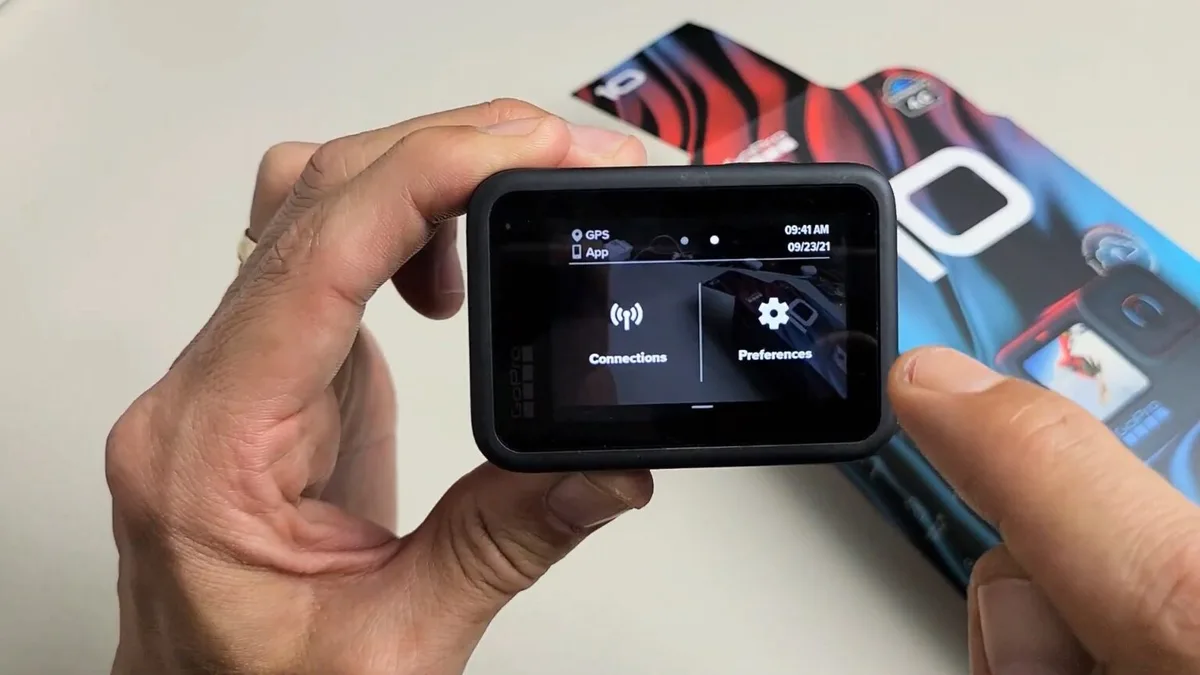
Image source: Web (Bing) / blog.7datarecovery.com (Web image (fair-use with source credit))
If you must format on a computer, use the official SD Memory Card Formatter tool from the SD Association. This tool is designed specifically for SD cards and follows the industry standard. Built-in Windows or Mac format tools sometimes use the wrong cluster size, which can cause recording errors.
Another reason to format in the camera: it's faster. Most cameras complete a quick format in under 10 seconds. A computer full format can take several minutes for a large card.
Why File Systems Matter: FAT32 vs. exFAT for Action Cameras
The file system is the structure that your camera uses to read and write data. Two main options exist for action cameras: FAT32 and exFAT. Choosing the wrong one is the most common reason a card doesn't work.
Here's a quick comparison table that shows the key differences.
| Feature | FAT32 | exFAT |
|---|---|---|
| Maximum file size | 4 GB | 16 exabytes (effectively unlimited) |
| Recommended card size | 32 GB and smaller | 64 GB and larger |
| Camera compatibility | Older cameras, some 4K modes | Most modern action cameras |
| Recording limit | Splits long clips at 4 GB | No practical file size limit |
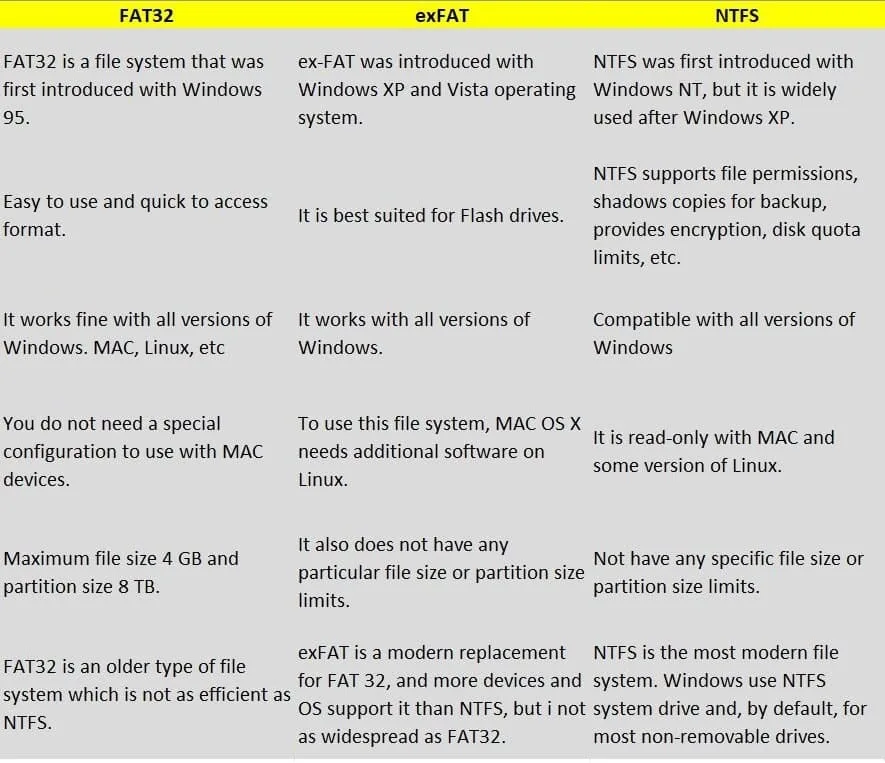
Image source: Web (Bing) / kjnqz.wir-sind-was-wir-sind.de (Web image (fair-use with source credit))
Most action cameras as of 2026 automatically format to exFAT for cards 64 GB and up. But some older models only support FAT32. Check your camera's manual or support page for the exact recommendation.
If you use a 128 GB card formatted to FAT32, you'll hit the 4 GB file limit quickly. Your camera will split the video into multiple files, which can cause playback issues. exFAT avoids this entirely.
The SD Association's official specification recommends exFAT for cards 64 GB and larger. Follow that standard, and you'll avoid most file system headaches.
How to Format Your SD Card Step by Step (Three Methods)
Here are three reliable methods for formatting your action camera SD card. Choose the one that fits your situation best.
Method 1: Format in the Camera
This is the easiest and most reliable method. Turn on your camera and navigate to the settings menu. Look for "Format" or "Format SD Card" in the setup or storage section.
Select the format option and confirm when prompted. The camera will warn you that all data will be erased. Make sure you've backed up any footage you want to keep.
The process takes about 5 to 10 seconds. Once it's done, the card is ready to use. No need to change any settings.
Method 2: Format on Windows
If you don't have access to your camera, you can format on a Windows computer. Insert the card into a card reader or the computer's built-in slot.
Open File Explorer, right-click the SD card drive, and select "Format." Choose "FAT32" for cards 32 GB and smaller. Choose "exFAT" for cards 64 GB and larger.
Leave the allocation unit size at "Default." Uncheck "Quick Format" only if you want a full format, which takes longer but checks for bad sectors. Click "Start" and wait for the process to finish.
Method 3: Format on Mac
On a Mac, open Disk Utility from the Applications folder or Spotlight search. Select your SD card from the sidebar. Click "Erase" at the top.
For the format, choose "MS-DOS (FAT)" for FAT32 or "exFAT" for larger cards. Leave the scheme as "Master Boot Record." Click "Erase" and wait for the process to complete.
A quicker alternative is to use the official SD Memory Card Formatter tool, which works on both Windows and Mac. This tool follows the SD Association's standard and is the most reliable computer-based option.
5 Common Mistakes That Ruin Action Camera SD Cards
Even experienced users make these mistakes. Here are the most common ones and how to avoid them.
Using the Wrong File System
This is the number one cause of "card error" messages. A 128 GB card formatted to FAT32 will work, but your camera will split every video at 4 GB. This creates multiple files and can cause recording gaps.
Stick with exFAT for any card 64 GB or larger. Your camera's manual will confirm this. If you've already formatted to FAT32, just reformat using the correct file system.
Removing the Card While Recording
Pulling the card while the camera is writing data can corrupt the file system. This is the fastest way to ruin a card. Always power off the camera first, then wait a few seconds before removing the card.
The same rule applies to your computer. Always eject the card safely before unplugging it. A corrupted card often needs a full format to recover, and sometimes it's beyond repair.
Using a Counterfeit or Low-Quality Card
Fake cards are a huge problem in the action camera world. They report a higher capacity than they actually have. A 128 GB fake card might only hold 16 GB of real storage.
Buy from trusted retailers only. Stick with brands like SanDisk, Samsung, Lexar, or Kingston. Check the card's speed class rating.
A V30 or U3 rating is the minimum for 4K video recording.
Formatting Too Often
Formatting is safe, but doing it every day wears out the card faster. Each format writes to the card's memory cells. Over time, this reduces the card's lifespan.
Only format when you need to. If you're just clearing footage, delete files instead. Reserve formatting for new cards, error messages, or switching between cameras.
Ignoring the Camera's Format Warning
When your camera says "Format Card?" it's not a suggestion. It's a warning that the card's file system is corrupted or incompatible. Ignoring it and trying to record will likely cause more corruption.
Format the card immediately. If you have footage you want to save, remove the card and try to recover it on a computer first. You can find guidance on recovering deleted files in our article on recovering lost photos.
Then format the card in the camera.
Pro Tips for Long-Term SD Card Health
A little care goes a long way. Follow these tips to keep your cards working reliably for years.
Keep Your Cards Clean and Dry
SD cards are tough, but they're not waterproof. Moisture can short-circuit the internal components. Keep your cards in a waterproof case or a dry bag when you're out in the field.
Dust and dirt can also cause problems. Before inserting a card, check the metal contacts are clean. A quick wipe with a soft, dry cloth is usually enough.
Label Your Cards
If you use multiple cards, label them. A simple sticker with a number or date helps you track which cards are working well. It also helps you avoid using a card that's showing errors.
Rotate Your Cards
Don't use the same card every day. Rotate between two or three cards to spread out the wear. This gives each card time to rest between uses, which can help maintain performance.
Check for Firmware Updates
Camera manufacturers occasionally release firmware updates that improve SD card compatibility. Check your camera manufacturer's support page every few months. A simple update can fix card recognition issues without needing to buy a new card.
Format After Every Major Trip
After you've backed up all your footage, format the card in the camera. This gives you a fresh start for the next adventure. It also ensures the card's file system is clean and free of hidden errors.
Frequently Asked Questions
How often should I format my action camera SD card?
Format your card when you first get it, when you see an error message, or after backing up footage from a major trip. For regular use, deleting files between sessions is fine. Formatting once every few weeks is plenty for most users.
Will formatting fix a corrupted SD card?
Yes, in most cases. A full format overwrites the file system and marks bad sectors. This can resolve corruption issues and make the card usable again.
If the card has physical damage, formatting won't help.
Does formatting erase all data on the card?
Yes, formatting permanently erases all files and folders on the card. Always back up your footage to a computer or external drive before formatting. After formatting, the data is gone and cannot be recovered easily.
Can I use a microSD card with an adapter in my action camera?
Yes, most action cameras work fine with microSD cards inserted into a full-size SD adapter. Just make sure the adapter has no physical lock switch engaged. Format the card in the camera after inserting it.
Why does my camera say "Card Error" after formatting?
This usually means the file system is wrong. Try reformatting in the camera itself. If the error persists, the card may be damaged or counterfeit.
Test the card with a computer and replace it if needed.
What speed class do I need for 4K video?
For 4K video recording, use a card rated V30 or U3 as a minimum. These cards guarantee a sustained write speed of at least 30 MB per second. Slower cards can cause dropped frames or recording interruptions.

Similar Posts