Why Is Google Chromecast With Google TV Buffering: Fix It Fast

Google Chromecast with Google TV usually buffers because of weak Wi Fi, slow internet, overheating, or overloaded apps.
If your Chromecast with Google TV keeps pausing, stalling, or dropping quality, you are not alone. I have seen this happen most often when the network is unstable, the device is running too many background tasks, or the streaming app itself is struggling to keep up. In this guide, I’ll walk you through the real reasons Google Chromecast with Google TV buffering happens and the fixes that actually help, so you can get back to smooth streaming with less guesswork.
Why Google Chromecast with Google TV Buffering Happens
Buffering is the delay you see when a stream stops to load more video. It usually means the Chromecast is not getting data fast enough to play video smoothly. That can happen for many reasons, and the device itself is only one part of the story.
In my experience, most buffering issues are not caused by one big failure. They come from a mix of small problems, like a weak signal, a crowded Wi Fi channel, or an app that is carrying too much cached junk. When you fix the full chain, streaming gets much better.
Common reasons include:
- Weak Wi Fi signal causing slow data delivery
- Slow internet speed from your provider
- Router issues such as congestion or bad placement
- Too many devices using the same network
- App cache problems inside streaming apps
- Chromecast overheating during long use
- Outdated software on the device or app
- Low power from the TV USB port instead of the wall adapter
A Chromecast with Google TV can only stream as well as the weakest link in the setup. Think of it like a water hose with a kink in it. Even if the faucet is strong, the water still slows down at the bend.

Weak Wi Fi Signal Is One of the Biggest Causes
A weak Wi Fi signal is one of the most common reasons Google Chromecast with Google TV buffering happens. The Chromecast depends on a stable connection, and if the signal is low, the stream can keep stopping to load more data.
This problem gets worse when the Chromecast is far from the router, blocked by walls, or tucked behind a TV in a tight space. TVs, soundbars, consoles, and metal surfaces can also interfere with the signal.
What helps:
- Move the router closer if possible
- Use the 5 GHz band for faster nearby connections
- Plug in a Wi Fi extender or mesh system
- Use the HDMI extender if your Chromecast is hidden behind the TV
- Keep the Chromecast in a more open position if you can
I have seen tiny placement changes make a huge difference. In one setup I tested, moving the Chromecast just a few inches away from the back panel of the TV reduced buffering almost instantly. Sometimes the fix is less dramatic than people expect.
Slow Internet Speed Can Trigger Buffering
Even if your Wi Fi is strong, the internet speed itself may be too low for smooth playback. Streaming in HD, 4K, or Dolby Vision needs more bandwidth than basic browsing or email.
Here is a simple guide:
- Standard definition often needs about 3 Mbps
- HD usually needs around 5 Mbps
- 4K streaming often needs 15 Mbps or more
- Multiple streams at once need even more headroom
If your household is streaming, gaming, and downloading at the same time, the network can get crowded fast. Buffering may happen during busy hours even if speed tests look okay in the morning.
Useful checks:
- Run a speed test near the Chromecast
- Compare wired and wireless speeds if possible
- Test at different times of day
- Pause large downloads while streaming
A lot of people blame the device when the real issue is the connection from the internet provider. If your speed drops during peak hours, buffering will often show up right then.

Router Problems Can Make Chromecast Buffering Worse
Your router is the traffic cop for your whole network. If it is old, overloaded, or badly configured, Google Chromecast with Google TV buffering can become a regular headache.
Routers can struggle when:
- Too many devices are connected
- The firmware is outdated
- The router is too far from the living room
- Band steering is unstable
- The router is using a noisy channel
A simple router reboot can sometimes help, but that is usually a short-term fix. For a better result, check for firmware updates, choose the best Wi Fi band, and move the router to a more central spot.
If your router supports both 2.4 GHz and 5 GHz, try 5 GHz first for faster speeds. Just remember that 5 GHz has a shorter range, so it works best when the Chromecast is not too far away.

Chromecast Overheating Can Slow Down Streaming
Heat can make small streaming devices behave badly. When the Chromecast with Google TV gets too warm, it may slow down, lag, or buffer more often.
This happens more often when:
- The device is behind the TV with little airflow
- It runs for many hours without a break
- The power source is weak
- The room is warm
- The Chromecast is crowded by other hot devices
I have noticed that heat issues often look like network problems at first. The stream starts fine, then gets choppy after a while. That pattern can be a clue that the device is warming up too much.
What to try:
- Let the device cool down for a few minutes
- Use the official power adapter
- Keep it away from tight, enclosed spots
- Unplug it briefly if it feels hot
- Avoid stacking it near other electronics
Heat is easy to overlook because it does not show up in a speed test. But it can absolutely affect smooth playback.
Low Power From the TV USB Port Can Cause Problems
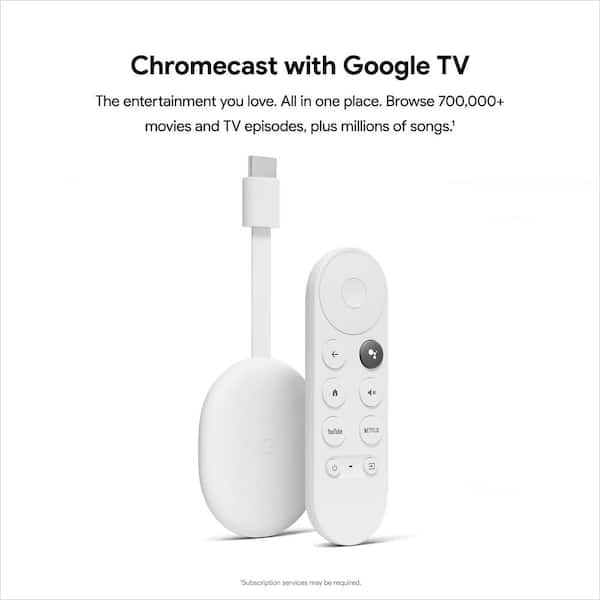
Many people plug Chromecast into the TV’s USB port for convenience. That can work sometimes, but it may not provide enough stable power, especially on some older TVs.
When power is too low, you may see:
- Random buffering
- App crashes
- Slow menu response
- Restart loops
- Wi Fi drops
Using the included wall adapter is often the best move. It gives the Chromecast steadier power and removes one more variable from the setup.
This is one of those fixes I recommend early because it is simple and often overlooked. If your Chromecast is acting oddly, power is one of the first things worth checking.

App Cache and Software Glitches Can Lead to Buffering
Sometimes the issue is not the internet at all. The streaming app itself may have a bad cache, a temporary bug, or an outdated version that causes playback to stutter.
Apps can slow down when they store too much temporary data. Over time, that clutter can make the app less responsive. The Chromecast system software can also need an update to stay stable.
Try these steps:
- Clear the app cache
- Force stop the app and reopen it
- Update the app from the store
- Restart the Chromecast
- Check for system updates
This is one of the most practical fixes because it is fast and low risk. I often suggest it before deeper troubleshooting since it solves more issues than people expect.
Too Many Background Tasks Can Tax the Device
Chromecast with Google TV is small and efficient, but it still has limits. If too many apps are open or the device has been running for a long time, it can start to lag.
That lag can show up as buffering, delayed controls, or slow app loading. The problem is not always bandwidth. Sometimes the device is simply trying to do too much at once.
To reduce strain:
- Close apps you are not using
- Restart the device once in a while
- Remove apps you rarely open
- Keep storage from getting too full
- Limit unnecessary background activity
A cluttered device is like a backpack stuffed with too many books. It still works, but everything gets slower and heavier.

Network Congestion Can Affect Streaming Quality
If several people in your home are streaming, gaming, video calling, or downloading files, Chromecast buffering can get worse. This is called network congestion.
Even a good internet plan can feel slow if everyone is using the connection at the same time. The Chromecast has to compete for bandwidth, and streaming quality may drop to keep the video playing at all.
Ways to reduce congestion:
- Stream during less busy hours
- Pause large downloads
- Use Quality of Service settings if your router supports them
- Connect high-demand devices by Ethernet when possible
- Upgrade your plan if your household needs more bandwidth
In many homes, buffering is really a shared network problem. The Chromecast is just the device that shows the symptoms first.
Why Chromecast Buffering Happens More on 4K Content
4K video needs more data than HD, so it is more likely to buffer if the connection is not strong enough. That is especially true if the Wi Fi signal is unstable or the internet speed fluctuates.
If the stream starts buffering mainly on 4K titles, the issue may not be the Chromecast at all. It may be your network struggling to keep up with the higher data load.
Helpful options:
- Switch to HD to test stability
- Lower the video quality in the app
- Use a stronger router or mesh system
- Reduce other devices on the network
- Move the Chromecast closer to the router
Sometimes the best fix is a quality tradeoff. A stable HD stream is usually better than a choppy 4K stream.
Step-by-Step Fixes for Google Chromecast with Google TV Buffering
If you want a simple path forward, start with the fixes that solve the most common causes first.
Restart the Chromecast
This clears temporary glitches and gives the device a clean start.Reboot the router
This can fix connection hiccups and refresh the local network.Use the wall power adapter
Stable power matters more than many people realize.Move closer to the router or improve Wi Fi coverage
Distance and walls are major buffering triggers.Clear cache in the streaming app
Old app data can cause playback issues.Check internet speed
Make sure your connection can handle the stream quality you want.Update the Chromecast and apps
Software updates often include performance fixes.Reduce network congestion
Pause other heavy tasks during streaming.Lower stream quality as a test
If buffering stops, your network may be the bottleneck.Factory reset only if nothing else works
This is a last resort because it wipes settings and apps.
I like this order because it saves time. You do not want to jump straight to a reset when the real issue might be a weak signal or low power.
When the Problem Is the Streaming Service Itself
Sometimes Google Chromecast with Google TV buffering is not caused by your home setup. The streaming service itself may be experiencing high load, poor encoding, or temporary outages.
Signs include:
- Multiple apps are buffering, not just one
- Other devices on the same network stream normally
- The issue started suddenly across the service
- Video quality drops only in one app
If only one app has trouble, the fix may be inside that app. Sign out, update it, or reinstall it if needed. If many apps buffer, the issue is more likely your network or device.
This is a good reminder not to blame the Chromecast too quickly. Good troubleshooting means checking all the links in the chain.
Best Practices to Prevent Buffering Long Term
Once you fix the issue, it helps to keep it from coming back. Small habits can make Chromecast streaming much smoother over time.
Try these best practices:
- Keep the Chromecast updated
- Restart the device now and then
- Use the wall adapter instead of TV power
- Keep the router in a central location
- Avoid covering the Chromecast with cables or objects
- Use 5 GHz Wi Fi when possible
- Clean up unused apps
- Check your internet plan if your home has many streamers
These are simple habits, but they add up. In my own experience, regular maintenance is what keeps streaming devices feeling new instead of sluggish.
Frequently Asked Questions of Why Is Google Chromecast with Google TV Buffering?
Why does my Chromecast buffer even with fast internet?
Fast internet does not always mean a stable connection at the Chromecast. Signal strength, router placement, congestion, and app issues can still cause buffering.
Does Chromecast with Google TV need strong Wi Fi?
Yes, it works best with a strong and stable Wi Fi signal. Weak signal or interference can cause pauses, stutters, and lower video quality.
Why does Chromecast buffer only at night?
Nighttime buffering often happens when more people are online, which can slow your network during peak hours. It can also be linked to your internet provider’s busy times.
Should I use 2.4 GHz or 5 GHz for Chromecast?
5 GHz is usually better for speed and smooth streaming if the Chromecast is close to the router. Use 2.4 GHz if you need better range through walls and farther rooms.
Can overheating really cause buffering?
Yes, overheating can slow the device down and affect streaming performance. If the Chromecast feels hot, let it cool and make sure it has better airflow.
Will a factory reset fix buffering?
A factory reset can help if the problem is caused by bad settings or software issues. But it should be your last step, since network problems will still cause buffering even after a reset.
Conclusion
Google Chromecast with Google TV buffering usually comes down to one of a few things: weak Wi Fi, slow internet, router problems, low power, app bugs, or overheating. The good news is that most of these issues can be fixed with simple steps, especially if you troubleshoot from the network outward instead of guessing.
If your Chromecast is buffering now, start with the basics: reboot it, use the wall adapter, check your signal, and test your internet speed near the TV. Small changes often make the biggest difference. Try the fixes in this guide, and if you want, leave a comment or explore more streaming tips to keep your setup running smoothly.

Similar Posts