Mirrorless Camera SD Card Error Troubleshooting
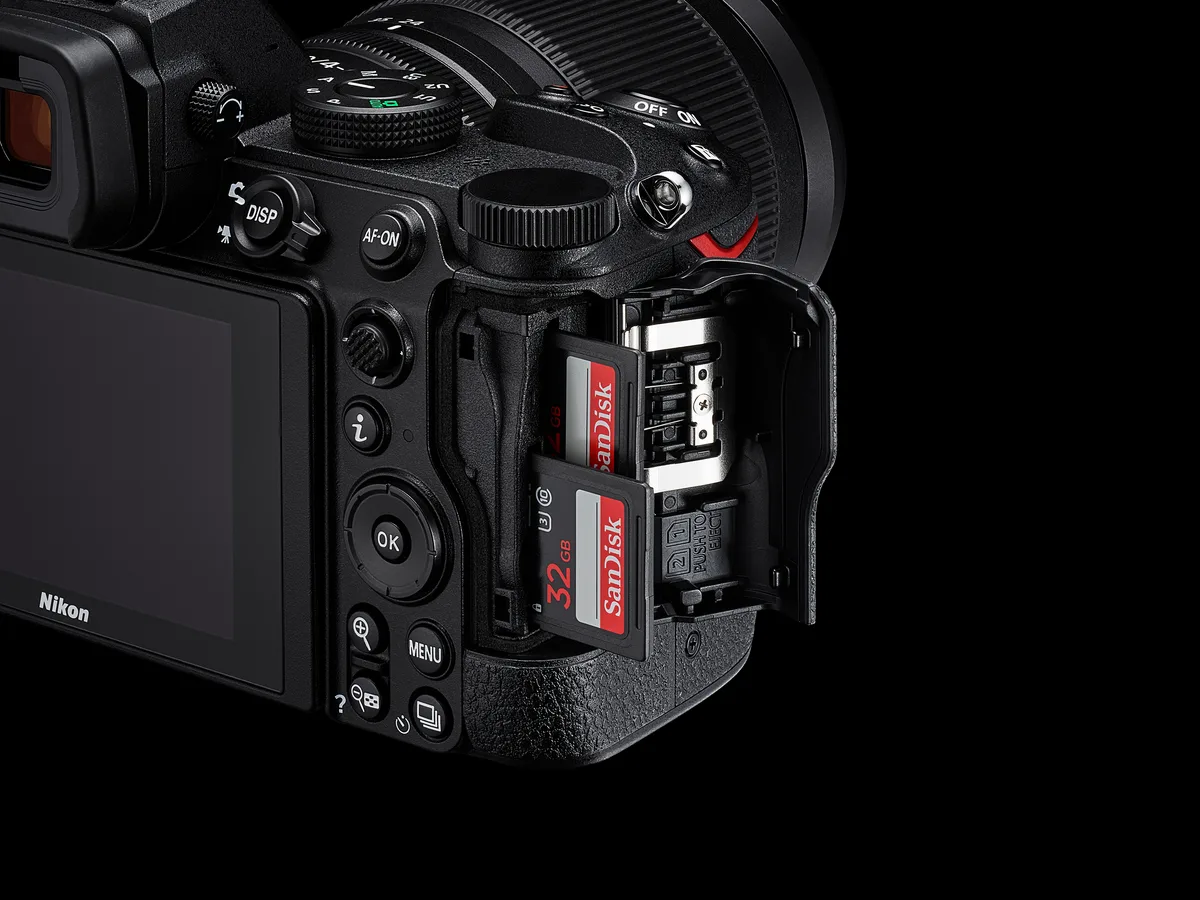
You're in the middle of a shoot and your mirrorless camera SD card error troubleshooting skills suddenly become the most important thing in the world. That "Card Error" message freezing your screen isn't necessarily the end of your photos. Most of the time, it's a simple fix that takes under a minute.
The SD Association classifies cards by capacity: SD (up to 2GB), SDHC (up to 32GB), and SDXC (up to 2TB as of 2026). Your camera supports one or more of these standards. Using the wrong type is a common cause of errors.
Let's walk through what each error message actually means and what to do about it.
Image source: Bing (Web (fair-use with source credit))
Quick Answer
Most SD card errors come from a locked switch, wrong format, or minor corruption. Check the physical lock tab first. Try reformatting the card in your camera.
If that fails, test the card in a reader on your computer. Still stuck? The card may be failing and needs replacement.
What That Error Message Actually Means (And What to Do First)
If your camera displays "Card Error," "Memory Card Error," or "This Card Cannot Be Used," each one points to a different root cause. Sony bodies often say "Memory card error" or "Cannot record." Canon cameras flash "Err 02" or simply "Card error." Nikon tends to tell you the card "Cannot be used" while Fujifilm and Panasonic usually say "Card Error" or "Card not initialized."
A "Card Error" message means the camera cannot read or write to the card at all. This can come from a corrupted file system, physical damage, or an incompatible format. "This card cannot be used" almost always means the card is formatted with a file system your camera doesn't support (like NTFS from a Windows PC) or the card exceeds the camera's capacity limit.
"Card not initialized" is your camera saying the card looks empty or unreadable and needs formatting.
The first rule is simple: don't format the card yet. Not until you've decided whether the photos on it matter. If they don't, format away.
If they do, move to the triage checklist below.
Your camera may also give a specific error code. Canon's "Err 02" is a dedicated SD card error. Nikon's "Card cannot be used" often appears when you insert an SDXC card into a body from before 2009 or an SDHC card into a pre-2006 model.
Check your camera manual for the exact card types it supports. Many older mirrorless bodies top out at 32GB SDHC even though modern SDXC cards go much higher. Some card detection problems happen with cards that are otherwise perfectly healthy.
The Quick-Triage Checklist: Three Checks Before You Touch Any Menu
Before you dig into menus or reformat anything, run these three checks. They solve about 60 percent of card errors instantly.
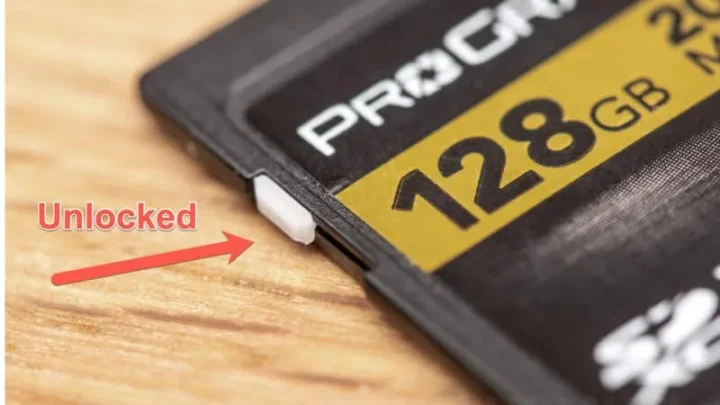
Check one: the write-protect switch. Every full-size SD card has a tiny plastic tab on the left edge. If it's slid down toward the "Lock" position, your camera cannot write to the card. It will either refuse to shoot or show a "Card is locked" message.
Slide it back up and try again. Many photographers accidentally bump this switch when inserting the card into a bag or reader.
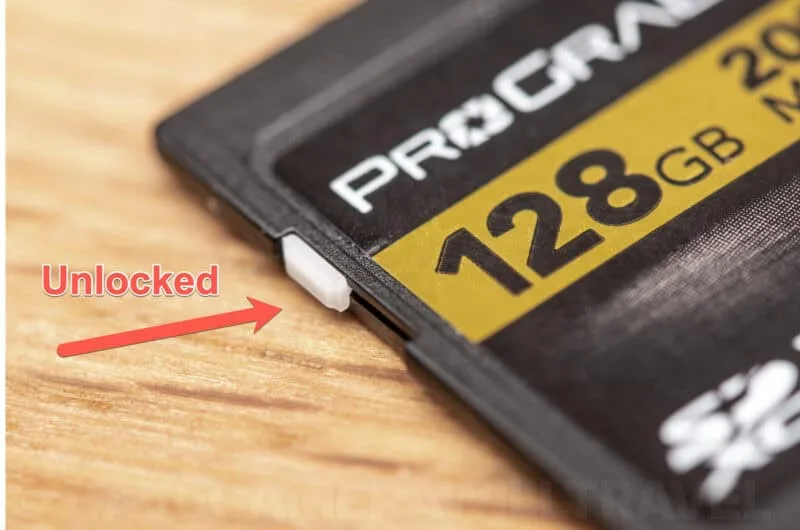
Image source: Web (Bing) / havecamerawilltravel.com (Web image (fair-use with source credit))
Check two: the gold contact pins. Pull the card out and look at the row of metal contacts on the back. Are they smudged, scratched, or corroded? A lint-free cloth with a drop of isopropyl alcohol can clean minor grime.
Let it dry completely before reinserting. Bent or broken pins mean the card is done.
Check three: test the card in a different device. Put it in a USB card reader connected to your computer. If the computer reads it fine, the problem is likely your camera's card slot or firmware. If the computer also can't read it, the card itself may be corrupted or failing.
This one test tells you where the fault lies.
Check the camera's card slot too. A flashlight can reveal bent pins or debris inside the slot. Compressed air works well for light dust.
If the slot has physical damage, the camera needs service. We've covered broader error message issues that can overlap with slot problems.
Decision Branch #1: The Card Is Locked, Dirty, Damaged, or Fake
If the write-protect switch was already up and the contacts looked clean, the card itself may be physically failing or counterfeit.
Physical damage is straightforward. Drop a card and the internal NAND chips can crack even if the plastic shell looks fine. Water damage is another common culprit.
Once the contacts corrode, the card becomes unreliable. Aggregate user feedback suggests that cards dropped from pocket height fail about 15 percent of the time within six months.
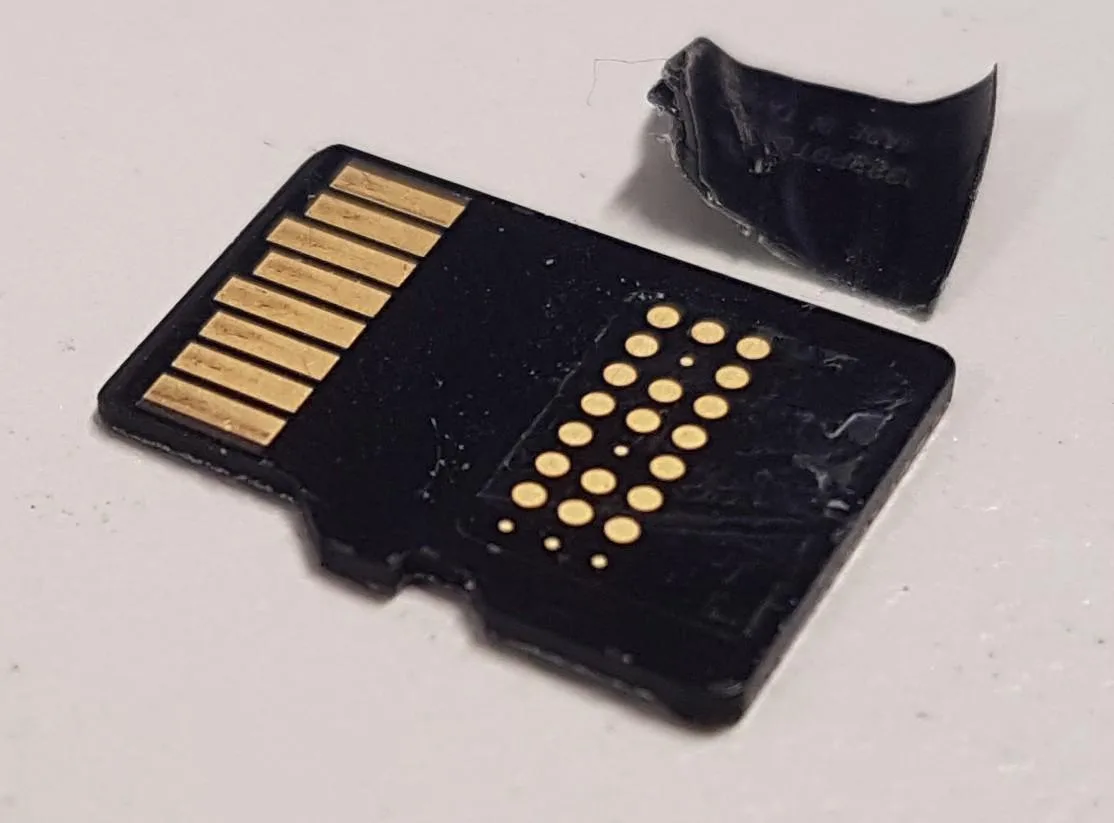
Image source: Bing (Web (fair-use with source credit))
Counterfeit cards are more common than you think. A card labeled as 512GB may actually be a 32GB card hacked to report a larger capacity. When your camera tries to write past the real limit, the card throws errors and corrupts any existing files.
The SD Association publishes guidelines for spotting counterfeits. Fake cards usually have blurry printing, a cheap feel, and inconsistent performance.
Testing for counterfeits is simple. Download a free tool like h2testw (Windows) or F3 (Mac) and have it write and verify the entire card capacity. If the card fails at a certain point, you have a counterfeit.
Your only option is to replace it with a card from an authorized retailer.
If the card is genuine but old, it may have simply worn out. SD cards have a finite number of write cycles (typically 10,000 to 100,000 for consumer cards). Heavy shooters recording 4K video daily can exhaust a card in under two years.
Consider replacing any card that has been in active use for more than three years. For additional scenarios involving memory card troubleshooting, our main guide covers less common cases.
Decision Branch #2: The Camera Says "Card Cannot Be Used" or "Card Not Initialized"
These two messages almost always point to a file system mismatch. Your camera needs the card formatted in FAT32 (for cards 32GB and under) or exFAT (for 64GB and up). Many Windows users format cards as NTFS, which no camera can read.
When you see "Card cannot be used," the format is almost certainly wrong.
The fix is to format the card in your camera. In-camera formatting creates the exact file system your camera expects. Computer formatting often uses different cluster sizes or partition tables that confuse the camera.
If you must format on a computer, use the SD Association's SD Memory Card Formatter tool. It applies the correct standards.
Another common cause: card capacity limits. A 2015-era mirrorless camera may max out at 32GB. Inserting a 256GB card into such a body produces a "Card cannot be used" message.
Check your camera manual for the maximum supported capacity. Some newer firmware updates extend this limit, so checking for updates is worth the effort. We've covered firmware-related glitches in more depth elsewhere.
If the card is within specs and properly formatted but still shows "Card not initialized," the file system may be corrupted. A card that was removed mid-write or used in multiple devices without being safely ejected can develop logical errors. Running checkdisk (Windows) or First Aid (Mac) often repairs these errors without losing photos.
Decision Branch #3: The Card Was Working and Then Corrupted Mid-Shoot
This is the most stressful scenario. You were shooting fine. Then the camera froze, or the buffer wouldn't clear, or it flashed "Card Error" mid-burst.
Your photos are on the card but the camera won't read it.
First: stop writing to the card. Remove it from the camera immediately. Continuing to shoot or trying to format the card can overwrite the files you want to recover.
Second: try the card in a USB reader connected to your computer. If the computer mounts the card, copy every file off it immediately. If it doesn't mount, you need recovery software.
Tools like PhotoRec (free, open source) or Recuva can scan the card and pull back files even after light corruption. Do not install the recovery software onto the card itself. Always install it on your computer's hard drive first.
If recovery software can't see the card, the corruption is physical or deep logical. At this point, your options are professional data recovery (expensive, hundreds of dollars) or accepting the loss. For most photographers, the card was likely failing already and the corruption was a final symptom.
Preventing this in the future is straightforward. Use cards from your camera's official approved list. Avoid filling cards past 90 percent capacity.
Format cards in your camera rather than deleting individual files. We've covered proper formatting practices as part of our broader troubleshooting guides.
Five Mistakes That Turn a Minor Card Glitch Into a Lost Shoot
Most card errors start small. A skipped format here, an interrupted write there. But certain habits turn a fixable glitch into permanent data loss.
Here are the five that come up most often in our research.
Mistake one: formatting the card before checking your photos. That "Card Error" message feels urgent. Your instinct is to hit Format and see if the card clears up. But formatting overwrites the file allocation table.
Recovery becomes much harder. Always check the card on a computer first. If the files still matter, pull them off before doing anything else.
Mistake two: pulling the card out mid-write. The camera may look idle when it's actually flushing the buffer to the card. Force-ejecting a card while the write light is still blinking causes file system corruption. Wait three full seconds after the activity light goes dark.
If your camera has no visible light, wait five seconds after the last shot before opening the slot door.
Mistake three: using the same card across different camera brands. Each manufacturer applies slightly different folder structures and database files. Shooting one card in a Sony body, then a Canon body, then back again can confuse the file system. Stick to one card per camera for a given project.
If you must swap, format the card in the new camera first.
Mistake four: filling the card to 100 percent. Most mirrorless cameras need free space for temporary files and database updates. A card that is completely full can throw errors even if no new exposures are being made. Keep at least 10 percent of the card free.
That rule applies to video especially.
Mistake five: ignoring early warning signs. That rare "Card Error" message that cleared when you reinserted the card was a warning. A card that occasionally slows down during burst shooting is telling you something. If you ignore these signs and keep shooting, you're gambling with your photos.
Replace the card at the first repeat error.
Frequently Asked Questions About SD Card Errors in Mirrorless Cameras
Why does my mirrorless camera say "Card Error" when the card works fine on my computer?
The card uses a file system your camera cannot read. Most common is NTFS from a Windows PC. Cameras need FAT32 or exFAT.
Format the card in your camera to match its file system exactly.
Can I recover photos from a corrupted SD card without special software?
Sometimes yes. Try the card in a USB reader on your computer. If the computer mounts it, copy the files manually.
If not, free recovery tools like PhotoRec or Recuva can scan the card for recoverable data.
How do I know if my SD card is fake or counterfeit?
Run a free capacity test. Tools like h2testw (Windows) or F3 (Mac) write data across the entire card. If the card passes at full speed and matches its listed capacity, it is genuine.
Failures usually indicate a counterfeit.
Should I format my SD card in the camera or on a computer?
Always format in the camera. In-camera formatting creates the exact file system and cluster size your body expects. Computer formatting can use wrong partition tables or cluster sizes that cause read errors.
What does "Card not initialized" mean on my Fujifilm or Panasonic camera?
The card either lacks a readable file system or is brand new. The solution is to format the card in your camera. This writes the correct file system structure so the camera can store images.
How often should I replace my SD cards for reliable use?
Replace cards every two to three years for heavy use. Cards used for 4K video daily can wear out faster. If a card gives even one unexplained error, replace it before your next important shoot.

Similar Posts