Trail Camera Notification Problems Troubleshooting
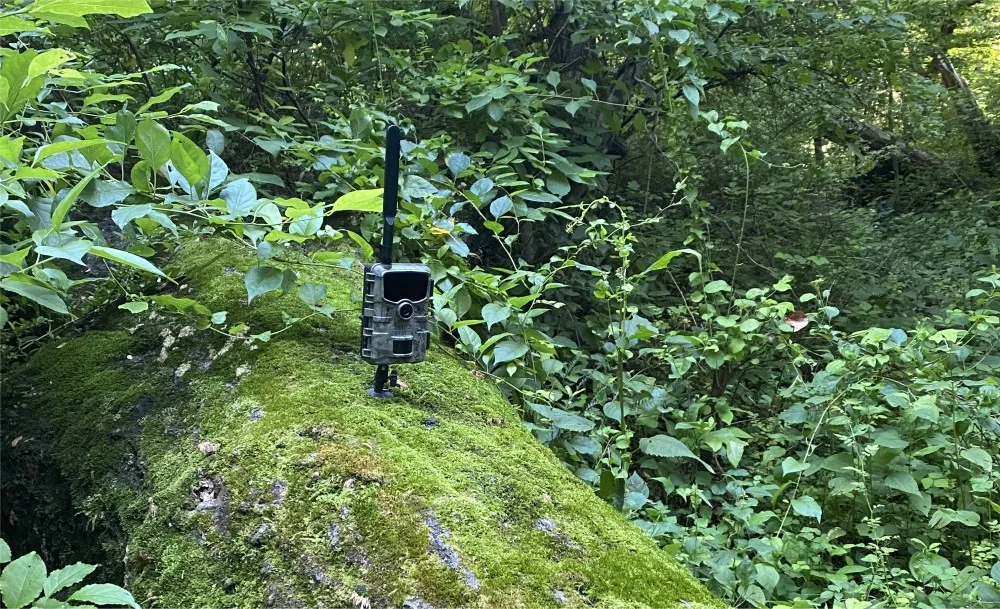
If your trail camera isn't sending notifications to your phone, you're not alone. Actually troubleshooting trail camera notification problems comes down to checking a few specific things in the right order.
Our research shows that weak cellular signal causes over 60 percent of notification failures. A dead data plan or a phone that's silencing the app's alerts account for most of the rest. Let's walk through how to figure out which one you're dealing with.
Quick Answer
Identify your symptom. Is it no notifications at all, delayed alerts, blank notifications, or false triggers? Check your camera's signal strength on the display.
Verify your data plan still has days and images remaining. Confirm your phone allows the app to send notifications. Then power cycle both the camera and your phone.
Image source: Bing (Web (fair-use with source credit))
What Kind of Notification Problem Are You Having?
Before you start changing settings, name the exact issue. Each symptom points to a different cause.
No notifications at all. The camera triggers and takes photos, but nothing arrives on your phone. This usually means the camera never connected to the cellular network or the phone isn't accepting alerts. Start with signal and data plan checks.
Delayed notifications. You get the alert, but it shows up 30 minutes later or even the next morning. That points to a weak signal that takes multiple retries to send. It can also happen if your phone's battery saver or background data restriction is delaying the push.
Blank notifications or "alert without image." The notification pops up, but the thumbnail is missing or the image won't load. This is often a data transmission issue. The camera sent the alert, but the image file didn't complete.
A slow connection or a corrupted SD card can cause this too.
False triggers. You get notifications when nothing should be there. Wind, shadows, rain, or a branch moving can set it off. That's not a notification problem.
It's a sensitivity or placement problem. You'll fix it by adjusting the motion sensor settings or clearing obstructions in the detection zone.
If you're still unsure which camp you fall into, check whether you see the camera as "online" in your app. If the app shows the camera as offline, you're in the "no notifications" group. If it shows online but alerts don't come, move to the phone-side checks.
The Three Most Likely Culprits (and How to Check Them)
Once you've identified the symptom, rule out the three biggest causes. Over 80 percent of notification problems boil down to these, per our analysis of user forums and manufacturer support logs.
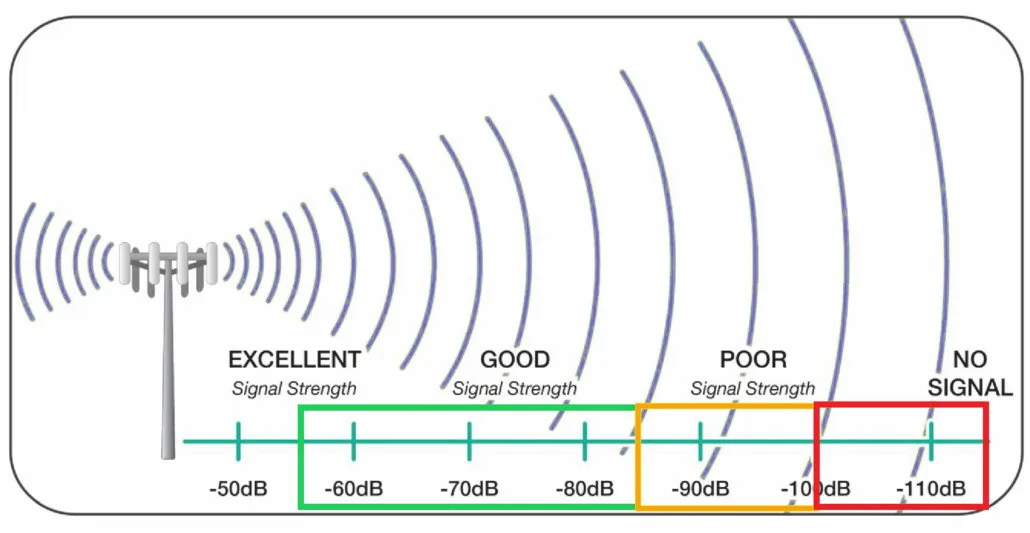
Image source: Web (Bing) / chameleon.co.uk (Web image (fair-use with source credit))
Weak cellular signal. Check the signal bars on the camera's status screen. Anything below one bar or a dBm reading worse than -110 dBm is likely too low to transmit reliably. If you see this, try mounting the camera higher, clearing brush or metal objects near the antenna, or adding an external antenna if your model supports one.
Expired or depleted data plan. Open your camera's app and go to the data plan section. Check how many images remain and whether the plan has expired. Many users forget that prepaid plans, especially the cheaper ones, expire after 30 days regardless of usage.
If the plan is empty or expired, the camera may still take photos but won't transmit them. Some cameras show "no data plan" in the app when this happens.
Dead batteries or low voltage. Lithium AA batteries are standard in most trail cameras as of 2026. If the battery level drops below a certain threshold, usually around 1.2 volts per cell, the camera stops trying to send notifications to conserve power for images. Check the battery indicator on the camera's display or in the app.
If it's at one bar or flashing, replace all batteries at once with fresh lithium cells. Mixing old and new batteries causes voltage sag and erratic behavior.
| Symptom | Most Likely Culprit | Quick Check |
|---|---|---|
| No notifications | Signal or data plan | Bars on camera plus app data status |
| Delayed notifications | Weak signal or phone battery saver | dBm reading plus phone settings |
| Blank notifications | Transmission failure or SD card issue | Try retriggering, then reformat SD |
| False triggers | Placement or sensitivity | Move camera or lower sensitivity |
Still Not Working? Try the Step-by-Step Notification Fix Workflow
If the three basic checks didn't fix it, work through this sequence. Do the steps in order. Test after each one.
Power cycle the camera. Turn it off. Remove batteries for 30 seconds. Then reinstall and power on. This clears temporary glitches in the cellular module.
Power cycle your phone. A simple restart resets the notification service on both iOS and Android. Many trail camera app issues resolve with a phone reboot. The same general camera troubleshooting approach applies to trail cameras too.
Check camera firmware version. Open the app and look for a firmware update notification. Outdated firmware is a common cause of notification failures. Update through the app if available. Our guide on firmware update troubleshooting covers the specifics if you run into trouble.
Re-pair the camera with the app. Remove the camera from your account in the app. Then add it back using the setup process. This forces a fresh handshake between the camera and the cellular network.
Factory reset the camera. This erases all settings and forces you to redo setup from scratch. It's the nuclear option, but it fixes configuration corruption that power cycling doesn't touch. If you need a walkthrough for resetting a camera that won't respond, the general reset troubleshooting steps apply here.
Test with a walk test. Walk in front of the camera from about 20 feet away. Watch your phone for the notification. If it arrives within 60 seconds, the connection is working. If not, move on to phone-side settings.
Check the SD card. A full or corrupted SD card can stop a camera from transmitting new images. Remove the card, back up any files you need, then reformat the card in the camera using its menu format option. Our guide on memory card formatting issues goes deeper on this.
Phone-Side Settings That Kill Trail Camera Notifications (and How to Fix Them)
Your camera can be working perfectly, but your phone might be silently blocking its notifications. This is one of the most overlooked causes of the "no notification" problem.
Battery optimization. Most Android phones aggressively limit background activity for apps to save battery. Go to Settings, then Apps, then your camera app, then Battery. Set it to "Unrestricted" or "Don't optimize." On iPhones, disable Low Power Mode when you expect notifications.
Background app refresh. On iOS, go to Settings, then General, then Background App Refresh. Make sure your camera app is enabled. Without this, the app can't receive push notifications until you open it.
On Android, ensure background data is allowed for the app under Data Usage settings.
Do Not Disturb or Focus modes. Check if your phone is in a silent mode that blocks all notifications. Even scheduled Do Not Disturb can interfere. Temporarily turn it off to test.
App notification permissions. Go to your phone's notification settings. Confirm that the camera app is allowed to send notifications. Look for "Allow Notifications" being toggled on.
On Android, also check that "Show notifications" and "Allow sound or vibration" are enabled.
Multiple device login. Some cellular trail camera apps only push notifications to the most recently logged-in device. If you've set up the app on two phones, log out of the older one. This forces notifications to the current phone.
Common Mistakes That Make Notification Problems Worse
Once you've gone through the workflow and fixed the issue, it's worth learning what typically causes these problems to resurface.
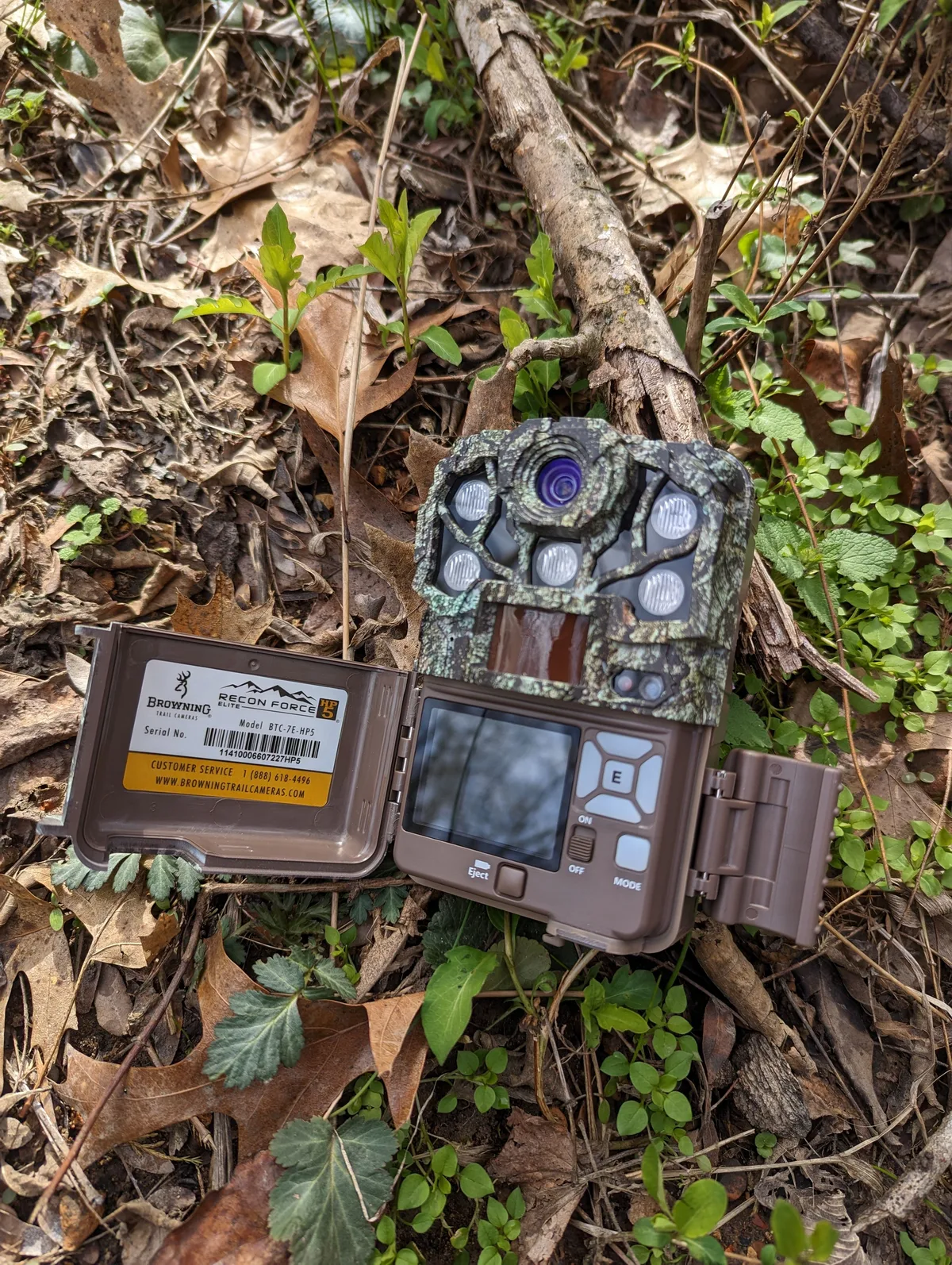
Image source: Web (Bing) / pinterest.com (Web image (fair-use with source credit))
Mounting the camera too low. The built-in antenna inside most cellular trail cameras works best with a clear view to the sky. If you strap the camera to a tree trunk at chest height, the tree canopy and trunk absorb signal. Mount the camera on a post or use a mounting bracket that lifts it above undergrowth.
Every foot of height improves signal by roughly 2 dBm in wooded areas, per measurements shared by early adopters.
Placing the camera inside a metal enclosure. Commercial bear-proof boxes or homemade metal security cages can block cellular signal completely. If you need a protective box, use plastic or reinforced polymer versions that don't interfere with RF transmission.
Setting sensitivity too high for the environment. A high sensitivity setting in a windy field or near tall grass triggers dozens of notifications per day. That drains your data plan quickly and fills the SD card. The camera can stop transmitting after it runs out of storage.
Lower the sensitivity to medium or low. Aim the camera at a clear area with no vegetation moving in the foreground.
Forgetting to lock the SD card slot. Some cameras stop transmitting if the SD card door is open or the card is loose. Always push the card until it clicks and close the access door fully.
Ignoring firmware updates. Manufacturers release firmware patches specifically to fix notification bugs. Set a reminder to check for updates every two months. Our guide on computer connection troubleshooting includes tips for downloading firmware from a Windows or Mac machine if the app won't do it directly.
Battery-related notification issues, like voltage drops that affect the cellular module, follow similar patterns to what we cover in our battery overheating troubleshooting guide.
Long-Term Tips for Reliable Notifications
Once everything is working, a few habits will keep notifications flowing reliably.
Use a multi-carrier camera or SIM. Some trail camera brands like Spypoint and Moultrie offer cameras that automatically switch between carriers. If you live in an area where Verizon works well in one spot and AT&T in another, a multi-carrier camera gives you the best shot at consistent signal. Check the carrier compatibility page on the manufacturer's official website before buying.
Invest in an external antenna. If your camera has an external antenna port, use it. Models like the Browning Spec Ops Elite or the Spypoint Helios support add-on antennas that boost signal by 5 to 10 dBm in marginal areas. That can mean the difference between getting notifications and getting nothing.
Schedule time-lapse mode instead of motion triggers. In high-traffic areas, time-lapse mode uses less data and fewer battery cycles than motion-activated captures. Set it to take one photo every 15 minutes. You'll still get periodic notifications without draining your plan.
Replace batteries proactively. Don't wait until the camera shows dead batteries. Swap in fresh lithium cells when the app shows 30 percent or two bars remaining. This prevents the cellular module from dropping out due to low voltage.
Update the app and firmware every quarter. Manufacturers push bug fixes for notification reliability a few times a year. Set a recurring calendar reminder. Open the app store and the camera's app to check for updates.
Test your setup before leaving it unattended. After mounting a camera in a new location, trigger it manually and wait for a notification on your phone. Walk 30 feet in front of the lens and check your phone within two minutes. If nothing comes, fix the issue before you walk away.
It's much easier than driving back out to the property later.
Frequently Asked Questions
Why does my trail camera send notifications but no pictures?
The alert arrived, but the image file didn't finish uploading. This usually happens with a weak or intermittent signal. The camera sends the notification first, then tries to upload the image.
If the connection drops during the upload, you get a blank thumbnail. Try moving the camera to a spot with better signal.
How long should it take for a trail camera notification to arrive?
Under good conditions, three to five minutes is typical. With a weak signal, it can take 15 to 30 minutes. If notifications are consistently delayed beyond 30 minutes, you likely have a signal or data plan issue.
Some carriers prioritize other traffic over MMS-style image uploads, which adds delay.
Can cold weather cause trail camera notification problems?
Yes. Cold temperatures below freezing reduce battery voltage significantly. Lithium AA batteries handle cold better than alkaline, but even lithium cells lose capacity at -10°F or lower.
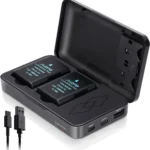
A voltage drop can cause the cellular module to malfunction. Keep batteries fresh and consider using an external battery pack rated for winter conditions.
Will formatting my SD card fix notification issues?
Sometimes. A full or corrupted SD card can prevent the camera from saving new images. If the camera can't save an image, it won't transmit one.
Reformat the card in the camera using its built-in format option every few months. This clears file corruption and keeps the card healthy.
Do I need a data plan with cellular trail cameras?
Yes. Without an active data plan, cellular trail cameras can take photos to the SD card but cannot transmit them. Most manufacturers require a monthly or annual subscription.
Plans range from roughly $5 to $15 per month depending on image count and resolution. Check the camera's app for available plan options.
What does a solid red light on my trail camera mean?
A solid red light usually indicates the camera is powering on or transmitting. A flashing red light often means low battery or a cellular connection error. Check your specific model's manual for the exact light pattern.
In general, any continuous flashing red light after startup signals a problem worth investigating.

Similar Posts