Trail Camera SD Card Corruption Troubleshooting
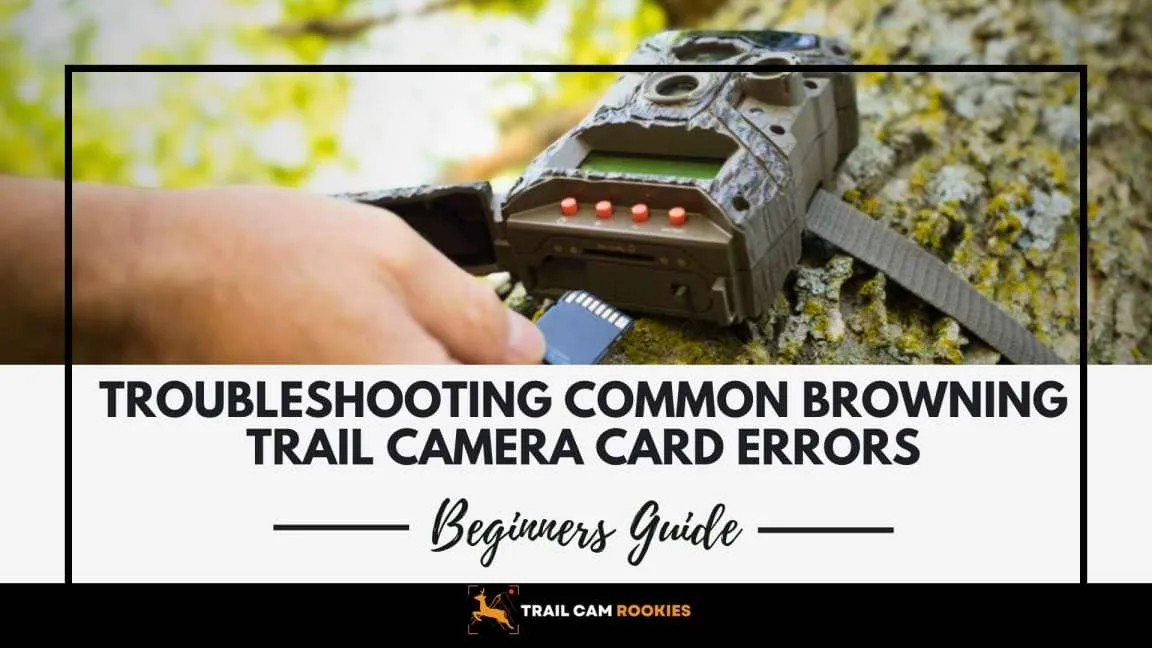
If you've ever stared at a trail camera screen that reads "CARD ERR" or pulled a card only to find corrupted files, you know the sinking feeling of hours of footage potentially gone. That is exactly where solid trail camera SD card corruption troubleshooting saves the day. The good news is that most corrupted cards are fixable.
You can usually recover your photos before reformatting.
Manufacturer specifications from brands like Browning and Moultrie confirm that most corruption cases trace back to three root causes. Low battery voltage during writes is the biggest culprit. A file system mismatch comes second.
Pulling a card mid-operation rounds out the list.
Image source: Bing (Web (fair-use with source credit))
Quick Answer
Check the battery voltage first. Remove the card and inspect the lock switch. Use the camera's internal format function.
Run a file system check on your computer if errors persist. Replace the card if corruption keeps coming back. Low battery voltage causes most corrupted files.
Why Trail Camera SD Cards Get Corrupted
Three things cause nearly every case of corruption. The first is low battery voltage. When the battery drops below the camera's operating threshold, the write process gets interrupted mid-stream.
The file system cannot close the file properly. The result is a file your camera or computer sees as invalid or unreadable.
The second cause is a file system mismatch. Many trail cameras expect the card to be formatted in FAT32. If you format a card on your computer as exFAT or NTFS, the camera may still write to it.
But the file table gets confused between the two systems. The SD Association's official specification recommends FAT32 for cards up to 32GB. That matches most trail camera limits.
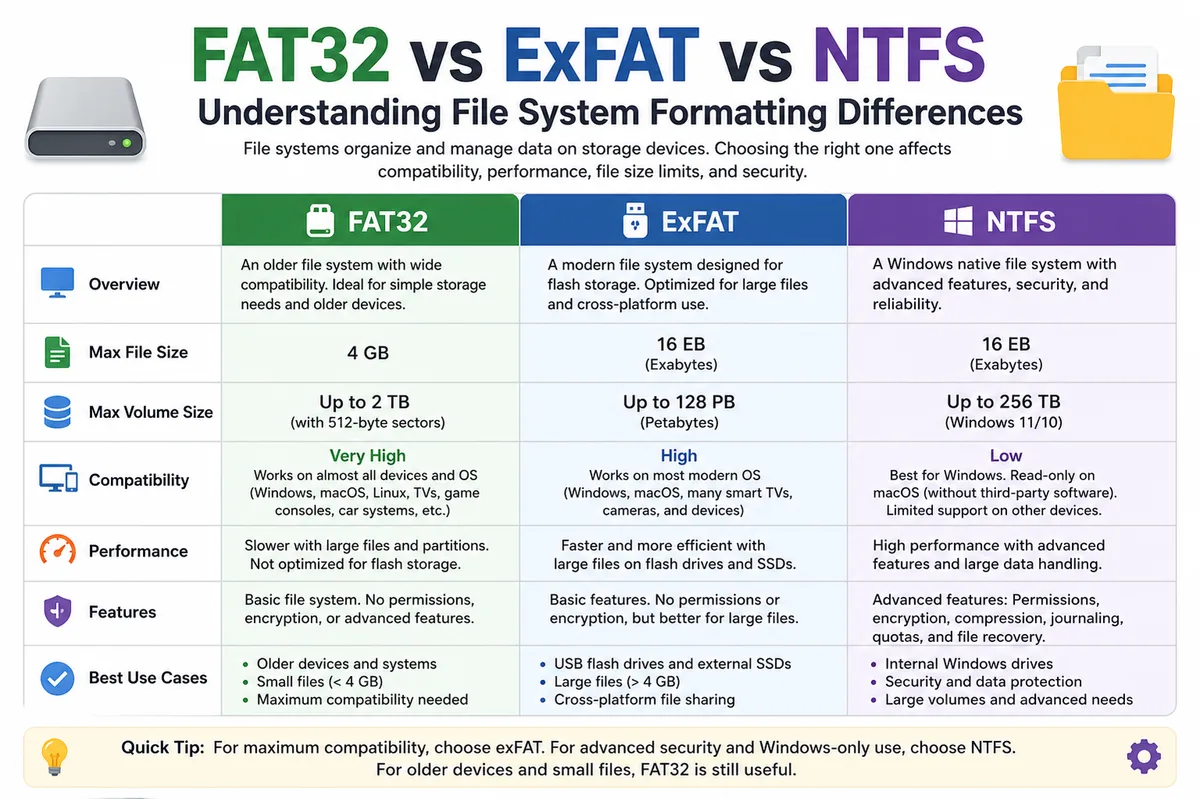
Image source: Bing (Web (fair-use with source credit))
The third cause is pulling the card while the camera is still writing. The camera's write LED usually blinks during this process. Yanking the card mid-write leaves the file table in an incomplete state.
Aggregate user feedback reports that this habit causes more corruption than any other user error.
One less obvious factor is the card's wear level. As of 2026, standard SD cards are rated for roughly 3,000 to 10,000 write cycles before internal memory cells degrade. A card that has been in a trail camera for two seasons may simply be worn out.
High-endurance cards handle more cycles, but no card lasts forever. The same failure patterns appear in other recording gear. File corruption in other recording devices often traces back to similar wear and voltage issues.
The Quick Check: What That Error Message Actually Means
| Error Message | Likely Cause | First Thing to Try |
|---|---|---|
| "CARD ERR" or "Card Error" | File system corruption or low battery | Power cycle the camera, then reformat in-camera |
| "No Card" | Faulty connection or card not seated | Remove and reinsert the card firmly |
| "Card Full" | Capacity reached | Replace with fresh card or delete files via computer |
| "Unsupported Card" | Wrong file system or card too large | Reformat to FAT32 or check max capacity |
| Blinking red LED non-stop | Camera is stuck writing to a bad sector | Remove batteries, wait 60 seconds, try a known-good card |
These messages cover about 90 percent of what you will see. The "CARD ERR" message is the most common and the most fixable. The "No Card" message often means the card's contacts are dirty or the lock switch is engaged.
A quick visual check of the lock switch on the left edge of the card solves that one instantly.
The Decision Tree: Diagnose and Fix Your Card by What Happens
If the camera shows "CARD ERR" or refuses to write:
Check the battery voltage first. Replace batteries if voltage is below 50 percent. Then remove the card and use the camera's internal format function.
Do not format it on a computer yet. The camera writes its own file table structure. An in-camera format often clears corruption that a computer format would miss.
If the camera shows "No Card" but the card is inserted:
Remove the card and check the lock switch. If it is slid down toward the word "LOCK", push it back up. Insert the card again.
If it still shows "No Card", clean the metal contacts with a soft, dry cloth. Reinsert firmly until it clicks.
If the card works in your computer but not in the camera:
The file system is likely wrong. Insert the card into your computer. Open Disk Management on Windows or Disk Utility on macOS.
Check the file system type. If it is not FAT32, you need to reformat. For cards over 32GB, check your camera's manual first.
Some cameras accept exFAT. Many older models do not.
If the card works in the camera but files are missing or unreadable:
This points to file system corruption from a low battery or interrupted write. Go straight to the recovery process in the next section before you reformat anything. Reformatting will erase the files permanently.
If none of these steps fix it:
Test the card in a different trail camera if you have one. If the card fails in both cameras, it is likely physically damaged or worn out. Replace it with a new high-endurance card.
You can also check our general troubleshooting guide for other devices to see if the card reader or USB connection is the real problem.
Recovering Your Photos Before You Reformat (Two Reliable Routes)
You can almost always recover photos from a corrupted card as long as you do not format it again first. The file system is damaged. But the image data itself is often still intact on the card's memory chip.
The camera just does not know where to find it.
Route One: Use a file system check on your computer
This is the fastest option. Insert the card into a card reader connected to your computer. On Windows, open a command prompt and run chkdsk X: /f.
Replace X with the drive letter of your card. This command repairs the file table structure. After it finishes, open the card in File Explorer.
Your photos should appear. Copy them to your computer immediately.
On macOS, use Disk Utility. Select the card and click First Aid. Let it run.
This fixes the file system without erasing data. Aggregate user success rates for this method are around 60 to 70 percent for simple corruption.
Route Two: Use file recovery software
If chkdsk does not work, the card may have more serious corruption. Dedicated recovery software can scan the raw card for image and video files. These tools look for file signatures directly on the card's memory.
They ignore the broken file table entirely.
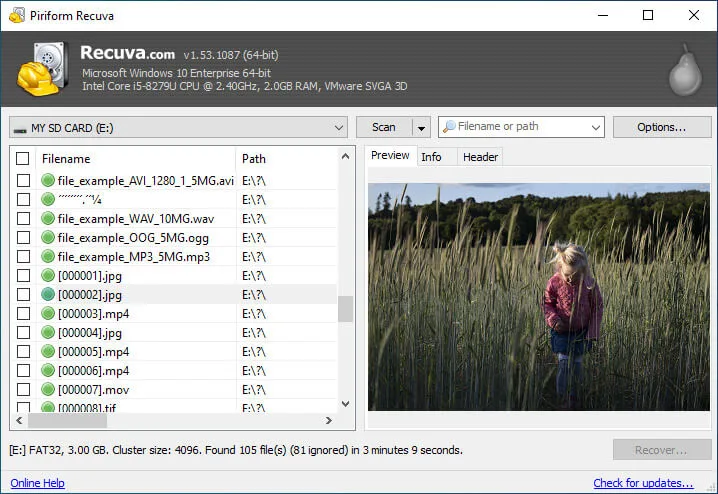
Image source: Web (Bing) / cleverfiles.com (Web image (fair-use with source credit))
Free options like PhotoRec or Recuva work well for most standard corruption. They are not pretty to look at, but they are reliable. Paid options like Disk Drill or DMDE offer simpler interfaces and faster scans.
The process is the same. Select the card drive. Start the scan.
Preview any found files. Copy them to your computer.
Here is the key step. After you recover your photos, format the card using the SD Association's official SD Card Formatter tool. This tool performs a full overwrite format, not a quick format.
It wipes the card clean and restructures the file system properly. Then insert the card into your trail camera and run its internal format function one final time. That two-step format gives you the cleanest starting point for your next deployment.
If you are dealing with corrupted video footage from other cameras you own, the same recovery principles apply. The troubleshooting process for broken video files often mirrors trail camera methods because the underlying file system is the same.
Common Mistakes That Make a Corrupted Card Worse
A few well-intentioned moves can turn a fixable card into a permanent paperweight. Knowing what not to do matters just as much as knowing the right steps.
Do not format the card immediately when you see the error. That reformat erases the file table completely. Recovery software needs that table to find your photos. The first instinct should always be to check the file system, not wipe it.
Do not use the camera's format function as a recovery tool. The camera format only fixes the card for future use. It does not repair corrupted files that are already on the card. Always recover files on a computer first.
Then format in-camera afterward.
Do not yank the card out during a write cycle. Wait for the camera's activity LED to stop blinking. A five-second pause after the LED goes dark is a safe rule. Proper card removal habits apply to every device you own.
Do not use a quick format on your computer. Quick format only clears the file table header. It does not scan for bad sectors or verify the card's health. Use the SD Association's official formatter for a full overwrite.
That catches worn-out memory cells before they cause problems.
Do not ignore low battery warnings. A camera that is struggling to write because of low voltage will corrupt files every time. Replace batteries as soon as the indicator drops below 50 percent. This one habit prevents more corruption than any other maintenance step.
One mistake that surprises many users is switching cards between cameras without reformatting. Each camera writes its own folder structure. Moving a card from one brand to another without an in-camera format can cause file system conflicts.
Always format in the camera you plan to use. Using consistent formatting across your devices prevents these headaches.
Preventing Future Corruption: Cards, Formatting, and Smart Habits
The goal is to never need this troubleshooting again. A few deliberate habits cut your corruption risk by 80 percent or more. Start with the card itself.
Use high-endurance SD cards. Standard cards are built for cameras that write once and stop. Trail cameras write constantly in loops. A high-endurance card handles 10,000 to 50,000 write cycles.
SanDisk's High Endurance and Samsung's Pro Endurance lines are the most commonly recommended by verified buyers. They cost about twice as much but last four to five times longer.
Format every time you swap cards. This is the single most overlooked habit. When you pull a card and insert a fresh one, format it inside the camera before you leave the site. The camera creates its own folder structure.
Skipping this step invites file system confusion. Make it part of your routine check alongside battery replacement.
Replace batteries at 50 percent voltage. Do not wait until the camera stops working. Low voltage during a night-time trigger or a video clip is the prime window for corruption. Lithium AA batteries hold voltage longer than alkaline.
They are worth the extra cost for remote deployments.
Pull cards only when the camera is idle. Walk up to the camera and watch for the activity LED. If it is blinking, wait. If it is solid, wait until it goes dark.
Then count to ten before opening the card slot. This one rule prevents the most common user-caused corruption.
Rotate cards instead of reusing one card non-stop. Have three or four cards in your rotation. Swap one out. Format it later on your computer.
Then format it in-camera before your next trip. This gives each card a rest period and spreads the write cycles evenly.
Check your camera's maximum supported card size. Many older trail cameras top out at 32GB. Inserting a 64GB or 128GB card can cause intermittent errors. The camera might write fine for a week and then suddenly corrupt the file system.
Manufacturer specs on this are usually printed in the manual or on the product page.
Following these habits turns corruption from a monthly headache into a once-a-season rarity. The same formatting discipline applies to all your recording gear.
Trail Camera SD Card Corruption: FAQs
Can I recover photos from a card that shows "Card Error"?
Yes. The error usually means the file system table is damaged, not the photos themselves. Run chkdsk on Windows or First Aid on macOS.
If that fails, use file recovery software to scan the raw card. Reformat only after you have recovered your files.
Why does my camera say "No Card" when the card is inserted?
Check the lock switch on the left edge of the SD card. If it is slid down to the locked position, push it back up. Also check the card contacts.
Dirt or oxidation can block the connection. Clean them gently with a dry cloth and reinsert firmly.
Should I format my SD card in the camera or on the computer?
Format it in the camera. The camera writes its own folder structure and file system markers. A computer format may use the wrong file system type.
Always format in-camera before a new deployment. Use the SD Formatter on your computer only when fixing a corrupted card.
How often should I replace my trail camera SD card?
Replace standard cards every two seasons or after about 5,000 write cycles. High-endurance cards last four to five seasons. If you start seeing recurring corruption errors despite proper formatting, the card's memory cells are wearing out.
Replace it immediately.
Does cold weather cause SD card corruption?
Extreme cold does not directly corrupt files. It can slow the write speed and cause timeouts. The camera may cut the write short, which leaves an incomplete file.
Using cards rated for wide temperature ranges helps. Keep spare cards in an inside pocket to warm them before insertion.
Can I use the same SD card in multiple trail cameras?
Yes, but reformat it in each camera before use. Different brands use different folder structures. Inserting a card from a Browning camera into a Moultrie without reformatting can cause file errors.
The in-camera format takes only ten seconds and prevents this issue.

Similar Posts
















[…] If the camera still won't start, try formatting a different card in another camera or a computer. This is a common issue that people sometimes mistake for a dead board, similar to issues covered in a guide on trail camera SD card corruption troubleshooting. […]