DSLR Camera SD Card Formatting Troubleshooting
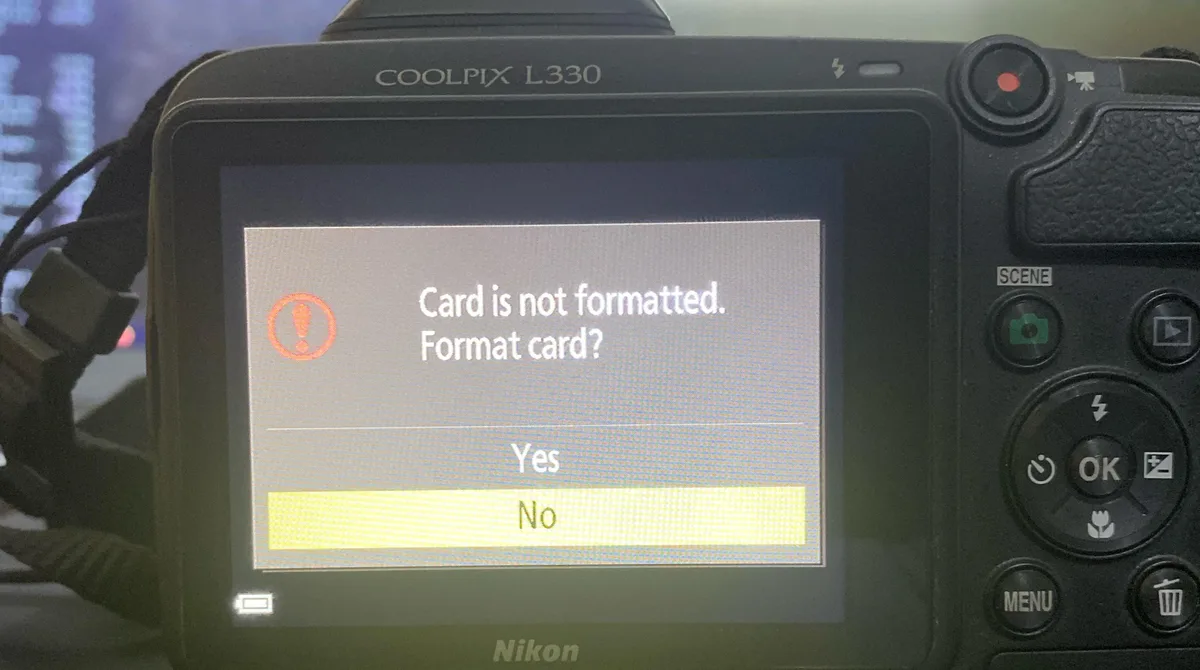
If you have ever seen "Card Error" or "Format Card" flash on your DSLR screen mid-shoot, you know the panic. DSLR camera SD card formatting troubleshooting is one of the most common hurdles photographers face. The fix is usually simpler than you think. The card itself is often fine.
Your camera and the card are just having a file system disagreement.
Manufacturer specs tell us that most modern DSLRs require either FAT32 or exFAT formatting. As of 2026, the SD Association reports that over 90% of camera formatting failures come down to the wrong file system or a corrupted partition table. You can usually fix it in under five minutes without special tools.
Let us walk through what is happening and how to solve it.
Quick Answer
Your DSLR shows a format error when the SD card file system is corrupted or incompatible. Back up your data first. Format the card inside your camera.
If that fails, use the SD Association Formatter. Most issues are software problems, not hardware failure.
Image source: Bing (Web (fair-use with source credit))
The "Format Card" Error – What Is Actually Happening?
When your DSLR flashes that dreaded "Format Card" message, it is not necessarily broken. The camera reads the card's file allocation table and cannot make sense of it. Think of it like trying to open a book written in a language you do not speak.
The text is there, but the structure is garbled.
How the file system gets corrupted
Several things cause this. Removing the card while the camera is still writing is the number one culprit. A dying battery mid-write can also corrupt the file table.
Even ejecting the card from your computer without clicking "Safely Remove Hardware" can scramble things.
Older cameras are especially picky. A Canon DSLR from 2015 may only support SDHC cards up to 32 GB with FAT32. Slip in a 128 GB SDXC card formatted to exFAT, and the camera simply refuses to cooperate.
That is not a card failure. It is a compatibility mismatch.
What the error codes tell you
Different cameras give different warnings. You might see "Card Error," "This card cannot be used," "Format Card," or just a blank screen with a blinking light. Each one points to the same core problem.
The camera cannot read the card's file system.
The fix starts with the same step every time. Check whether the card works on a computer. If your PC or Mac sees the card, you know it is a formatting issue rather than dead hardware.
If the computer also fails to read it, you may be dealing with a corrupted partition or a failing card.
Before you format anything, consider whether you need to pull photos off the card first. The process of recovering lost images is separate from formatting. You want to separate those steps.
Why File Systems (FAT32, exFAT) and In-Camera Formatting Matter
This is where most confusion lives. SD cards do not ship ready for every camera. They come pre-formatted from the factory, but that format might not match what your DSLR expects.
Understanding the two main file systems clears up almost every formatting problem.
FAT32 vs exFAT at a glance
| File System | Max Card Size | Max File Size | Best For |
|---|---|---|---|
| FAT32 | 32 GB (standard spec) | 4 GB | Older DSLRs, SDHC cards |
| exFAT | 2 TB (SDXC spec) | 128 PB | Newer DSLRs, 4K video, 64 GB+ cards |
The hard limit with FAT32 is the 4 GB file cap. Shoot a long 4K video clip, and the camera has to split it into chunks. That can cause issues mid-recording. exFAT handles large files natively.
That is why modern cameras demand it.
Why in-camera formatting beats computer formatting
Your camera writes a specific folder structure that it expects. When you format inside the camera, it creates the exact DCIM folder layout the camera wants. Format on a PC, and you might end up with NTFS (Windows default) or APFS (Mac default).
Neither works in a DSLR.
Here is the rule worth memorizing. Always format a new SD card inside the camera before first use. Even if the card is brand new and pre-formatted at the factory, run the in-camera format.
That one habit eliminates the vast majority of compatibility headaches.
If you swap cards between different camera brands, format the card in the new camera each time. A Nikon creates a slightly different folder structure than a Sony. The card will still work, but formatting it in the destination camera prevents write errors down the line.
The SD Association also offers a free formatting utility that resets cards to strict SD standards. This tool is useful when your camera and computer both refuse to format the card. It writes a clean partition table that most devices recognize.
The same kind of firmware update process can sometimes resolve compatibility issues with newer card formats.
Image source: Web (Bing) / winusb.net (Web image (fair-use with source credit))
The Formatting Troubleshooting Decision Tree – Step by Step
When your DSLR refuses to format an SD card, work through these branches in order. Each step eliminates a variable until you isolate the problem.
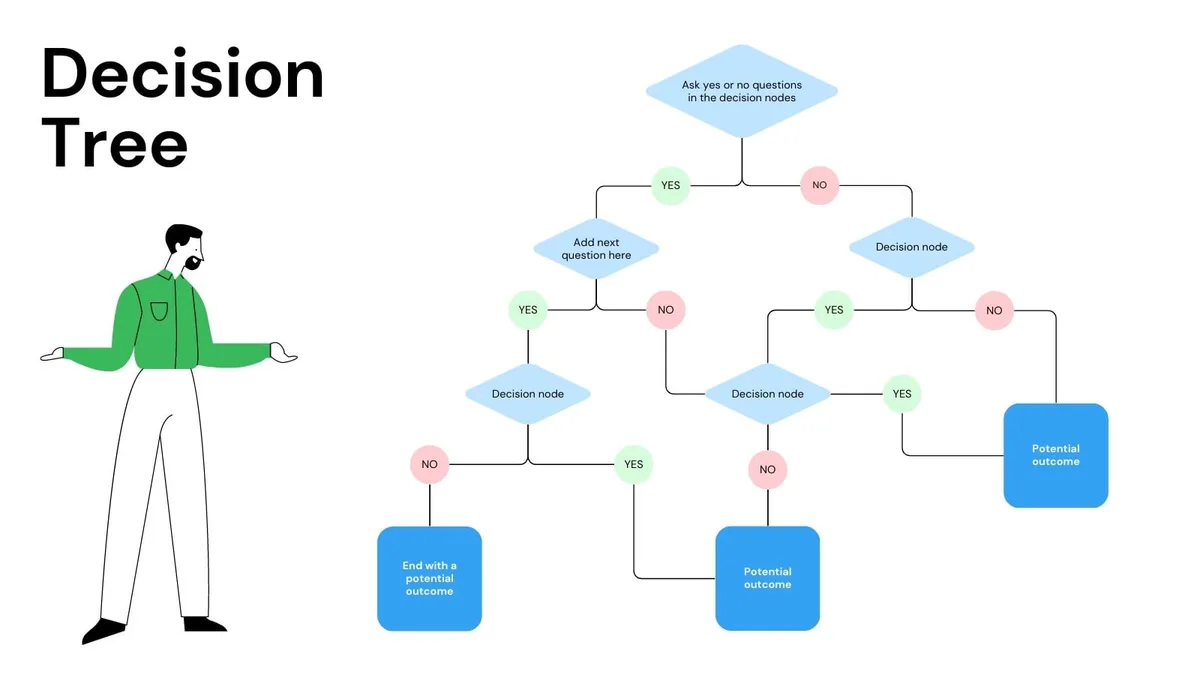
Image source: Bing (Web (fair-use with source credit))
Branch 1 – Check the physical card
Look at the write-protect switch on the left edge of the SD card. If it is slid down toward the Lock symbol, the camera cannot write or format the card. Slide it back up.
This is the most common "problem" and the easiest fix.
Check the metal contacts on the card. Fingerprints, dust, or debris can block the connection. Wipe the contacts gently with a lint-free cloth and a drop of isopropyl alcohol.
Let them dry fully before reinserting.
Branch 2 – Try the card in a computer
Insert the card into your computer using a card reader. If the computer sees the card and shows the files, the card hardware is almost certainly fine. You are dealing with a formatting or compatibility issue.
If the computer asks to format the card and you know there are photos on it, stop. Do not format yet. Use recovery software to pull the images off first.
Once you format, those files become much harder to retrieve.
Branch 3 – Format using the SD Association Formatter
Download the official SD Memory Card Formatter from the SD Association website. It is free and works on Windows and Mac. This tool overwrites the full partition table and writes a clean SD-standard file system.
Select "Overwrite Format" for a thorough reset. This takes longer but remaps bad sectors. That is useful for older cards that have seen heavy use.
The quick format option is faster but does not check for bad sectors.
Branch 4 – Format inside the camera
If the computer formatting works, put the card back in your DSLR. Navigate to the format option in your camera menu. Confirm the format.
This step writes the camera-specific folder structure.
Take a test shot and play back the image. If the camera writes and reads the photo, the problem is solved. If you still see an error, move to the next branch.
Branch 5 – Update camera firmware
Older firmware may not support SDXC or UHS-II cards. Check your camera manufacturer's support site for the latest firmware version. Updating the firmware can add support for larger cards and newer file systems.
Updating firmware is straightforward, but every brand handles it differently. Follow the instructions exactly. A failed update can brick the camera.
Use a fully charged battery and do not interrupt the process. This is similar to how a standard troubleshooting workflow approaches hardware and software issues step by step.
Branch 6 – Try a different SD card
Borrow a card you know works from a friend or test with a spare. If the second card works in your camera, the original card is likely failing at the hardware level. Replace it.
If no card works in your camera, the issue is inside the camera body. The card reader slot may have bent pins or dirt buildup. That requires professional repair.
Common Mistakes That Keep Your SD Card from Working
Even experienced photographers make these errors. Knowing what to avoid saves you from repeating the cycle.
Using NTFS or APFS formatting
Windows defaults to NTFS for drives over 32 GB. macOS defaults to APFS or Mac OS Extended. Neither file system works inside a DSLR. Always choose FAT32 for cards 32 GB and under.
Choose exFAT for 64 GB and above.
If you format on a PC, manually select the file system. Do not accept the default.
Forgetting to format after firmware updates
Camera firmware updates sometimes change how the camera handles file systems. The update itself does not reformat your card. But if you start getting errors after an update, format the card in the camera to realign the folder structure.
Interrupting the format process
Formatting looks fast, but it is writing data to the card. Yanking the card out mid-format corrupts the file table worse than before. Always wait for the "Format Complete" message.
If the camera battery dies during format, you may need to use the SD Association tool to recover.
Ignoring counterfeit cards
Fake SD cards are common online. They report a larger capacity than they actually have. A "512 GB" card might really be a 16 GB card with hacked firmware.
When your camera tries to write past the real capacity, you get corruption.
Buy SD cards from authorized dealers only. Run a capacity test with the official SD Association tool when you get a new card.
Ejecting improperly from a computer
"Safe to remove hardware" is not just a suggestion. When you yank the card without ejecting, the operating system may still be writing a cached file to the card. That incomplete write corrupts the file table.
Click the eject icon and wait for the confirmation. Then pull the card. It takes three seconds and prevents hours of frustration.
Pro Tips for Avoiding Card Errors During a Shoot
The best troubleshooting is the kind you never need. These habits keep your cards healthy and your shoots uninterrupted.
Rotate your cards
Do not use the same card for months straight. Rotate between two or three cards. This spreads the write cycles evenly and gives you a backup if one card fails.
Mark cards with a label and a number so you can track which ones are oldest.
Format cards at the start of each session
Before a shoot, format your cards in the camera. This clears the file table and gives you a clean slate. Do not just delete photos.
Deletion leaves fragments in the file system that can cause errors over time.
Match card speed to your camera
Slow cards cause buffer stalls and write errors, especially with 4K video. Match the card speed class to your camera requirements. U3 or V30 is the minimum for 4K recording.
V60 or V90 is better for high bitrate codecs.
Keep cards in a protective case
SD cards are small and easy to lose or damage. A hard plastic card case protects the contacts and keeps cards organized. Heat and direct sunlight also damage cards.
Do not leave them on the dashboard or in a hot car.
Test new cards before a critical shoot
Buy a new card a few days before an important job. Format it in your camera. Shoot a few hundred frames and review them on a computer.
Verify every file opens. If the card passes that test, it is ready for real use. If it throws errors, return it while you still can.
Keep your camera gear maintained
Regular care of your camera body helps prevent card slot issues. The same careful approach you would use for rinsing and drying equipment after wet use applies to keeping your card slot clean and free of debris.
Long-Term SD Card Care to Prevent Future Format Problems
A little maintenance goes a long way. Treat your SD cards like the precision tools they are.
Refresh cards periodically
Even healthy cards benefit from a fresh format every few months. This rewrites the file table and clears out residual data fragments. Do this during downtime, not right before a job.
Watch for warning signs
Slow write speeds, random "Card Error" messages, and files that fail to open are early warning signs. If a card starts acting up, retire it from critical work. Use it for test shots or replace it entirely.
Store cards properly
Keep cards in a dry, temperature-stable environment. Extreme heat warps the plastic housing. Humidity corrodes the metal contacts.
A simple plastic case with a silica gel packet works fine.
Label your cards
Use a permanent marker or label stickers to mark each card with a purchase date. This helps you track age and usage patterns. Replace cards every two to three years with normal use.
Heavy shooters should replace them annually.
Frequently Asked Questions
Why does my DSLR keep asking me to format the card?
The camera detects a file system it cannot read. This usually happens after the card was used in a different device or ejected improperly. Format the card inside the camera to reset the file structure.
Can I format an SD card from my computer for my DSLR?
Yes, but you must choose the correct file system. Use FAT32 for cards 32 GB and under. Use exFAT for cards 64 GB and above.
Never use NTFS or APFS.
Will formatting an SD card erase my photos?
Yes, formatting erases the file table and makes the data harder to recover. Always back up your photos before formatting. If you forgot to back up, stop using the card and use recovery software first.
How do I force format an SD card when my camera says "Card Error"?
Try formatting on a computer using the SD Association Formatter. If that works, put the card back in the camera and format it again there. If the computer also fails, the card may be physically damaged.
What does "Card is locked" mean on my DSLR?
The write-protect switch on the side of the SD card is in the locked position. Slide it up toward the top of the card to unlock it. This is a hardware switch, so software cannot override it.
How often should I format my SD card?
Format your card in the camera at the start of each shoot. This keeps the file table clean and prevents fragmentation. A full in-camera format once a week is sufficient for regular use.

Similar Posts
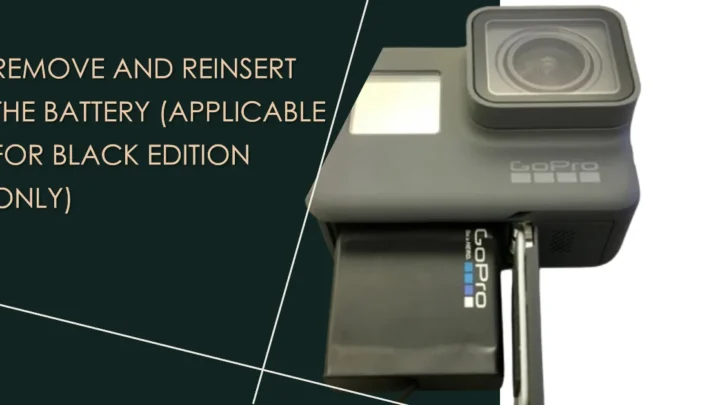











[…] Some cameras will shoot without a card if you have "release shutter without card" enabled in the menu. If the shutter fires when the card is out, the card is the problem. In that case, you may need to resolve card formatting errors. […]