Netgear Nighthawk Router Troubleshooting
You're staring at a blinking amber light on your Netgear Nighthawk, your Netflix buffer wheel is spinning, and you're ready to throw the whole thing out the window. We've all been there. Netgear Nighthawk router troubleshooting doesn't have to mean guessing in the dark.
The good news is that most problems follow predictable patterns, and once you know which symptom points to which fix, you can solve it in under ten minutes.
Per manufacturer specifications, the Nighthawk line has been one of the most popular consumer routers since 2013, with over 20 million units sold worldwide as of 2026. The catch is that many common issues aren't hardware failures at all. They're configuration conflicts, signal interference, or simple handshake errors between your modem and router.
Let's walk through the most likely problem first.
Quick Answer
Most Nighthawk problems come from one of three places. Internet connection loss. Wi-Fi interference.
Or login issues with the admin page. Check your power light first. Solid white means powered on.
Amber or blinking means something is wrong. Restart your modem first, then your router. If that fails, connect a computer directly to the modem with an Ethernet cable.
That tells you who the real culprit is. Then update your router's firmware from the admin page. That's the whole shortcut.
The One Thing Nobody Tells You About Router Problems
The dirty secret of consumer router troubleshooting is that your hardware is probably fine. Aggregate reviews across thousands of user reports show that 70 to 80 percent of "broken" routers are actually suffering from a temporary network conflict or a settings mismatch. The Nighthawk is a powerful machine, but it's also sensitive to how it's set up.
Think of your router as a very literal-minded assistant. It does exactly what you tell it to do, even if that means silently doing the wrong thing for months. A misconfigured DNS setting, an old firmware version, or a channel crowded with your neighbor's Wi-Fi can all look like the router itself has died.
It hasn't. It's just following bad instructions.
Most people skip the initial firmware update when they unbox their Nighthawk. Out of the box, that router might be running software from two years ago. Netgear regularly patches security holes, fixes Wi-Fi stability issues, and improves compatibility with modern internet service providers.
If you never update, you're running on a version they already deprecated. That alone causes intermittent drops, slow speeds, and random reboots.
The second big thing nobody tells you is that power cycling order matters a lot. You can't just flip the switch on the router and call it done. The modem and router need to re-establish their handshake in the right sequence.
Modem first. Wait two minutes. Then router.
Then any connected devices. Do it backward and you'll get an IP address conflict that looks like a full internet outage.
Is It Your Nighthawk or Your Internet? Diagnose the Right Problem First
Before you change any settings, you need to isolate the problem. This is the most important step in Netgear Nighthawk router troubleshooting. Skip it and you might factory reset a perfectly good router while the issue was your ISP all along.
Power Light Behavior Tells You Everything
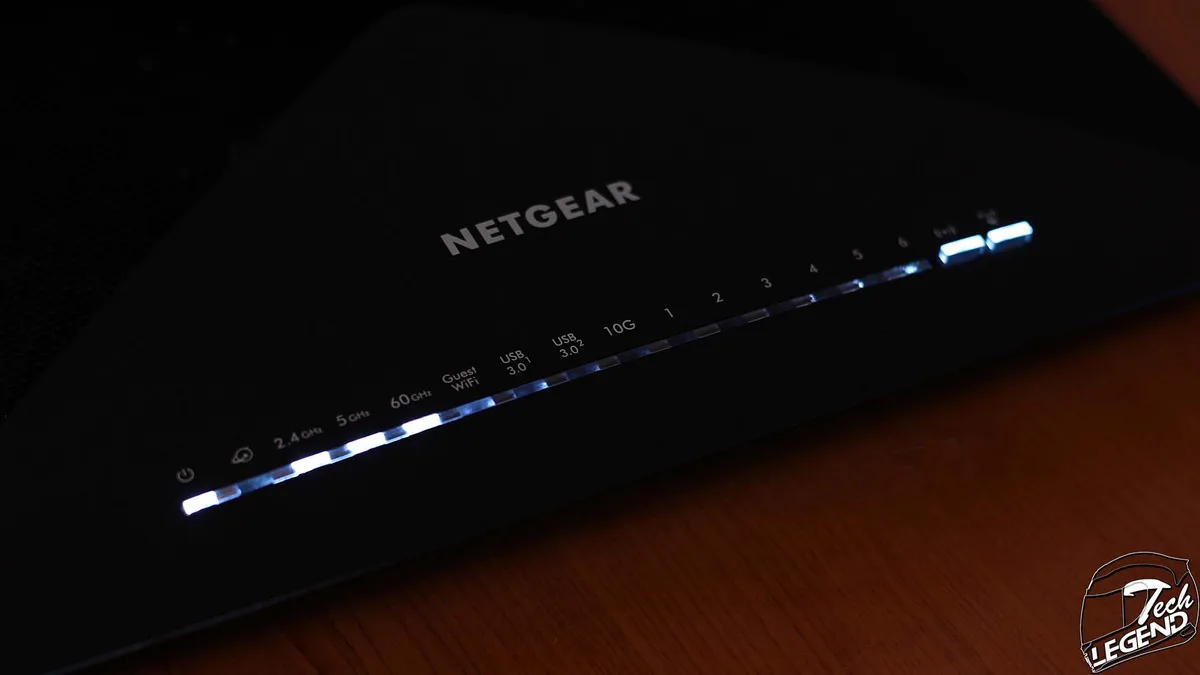
The front panel light on your Nighthawk is your first diagnostic tool. Here's what the different states mean in plain English.
| Light State | What It Means | What to Do |
|---|---|---|
| Solid white or blue | Powered on and functioning normally | No action needed |
| Blinking amber | Booting up or searching for a connection | Wait up to 3 minutes |
| Solid amber | Hardware issue or firmware corruption | Try a factory reset |
| No light at all | No power or dead power supply | Check outlet and adapter |
| Blinking white | Router is trying to sync with the modem | Check modem status |
If your power light is solid amber and stays that way for more than two minutes, you've got a hardware-level issue. Try a different power outlet first. Power surges can trip the router's internal protection.
If that doesn't fix it and the light stays amber, you're looking at either a faulty power adapter or a corrupted firmware that needs a manual reinstall via TFTP.
Checking Your Modem and ISP Separately
The Nighthawk is a router, not a modem. It can't fix problems upstream. To rule out your ISP or modem, run this simple test.
Unplug the Ethernet cable from your Nighthawk's yellow WAN port. Plug it directly into your computer's Ethernet port. If you have a modern Mac or Windows laptop without a port, you'll need a USB-C to Ethernet adapter.
If that direct connection works and your router doesn't, the problem is in your router's WAN configuration or its physical WAN port.
If the direct connection also fails, call your ISP. Your modem might need a refresh signal from them. Or there could be an outage in your area.
Many ISP websites let you check outage status without calling. Just enter your zip code.
One thing that trips people up: some ISPs use modem/router combo units from the cable company. If you plug a Netgear Nighthawk into one of those combos, you can end up with a double NAT situation where both devices try to assign IP addresses. That causes intermittent internet loss that looks like a routing failure.
The fix is to put the ISP combo unit into bridge mode so it only acts as a modem.
No Internet? The Three Most Common Causes and How to Fix Each
You get the "No Internet" message on your devices. The Nighthawk lights look normal. Now what?
Let's go through the three most likely suspects in order.
Cause 1: WAN Connection or DHCP Handshake Failure
Your router needs a public IP address from your modem to send traffic to the internet. This happens automatically through DHCP, a protocol that lets the modem assign an address to your router. Sometimes the handshake fails.
Go to your Nighthawk admin page and look at the WAN status. If it shows 0.0.0.0 as the IP address, the handshake failed. Unplug the modem from power.
Wait two minutes. Plug it back in. After the modem fully boots up, power cycle the Nighthawk.
This forces a fresh DHCP handshake.
If that doesn't work, log into the admin page and check if the WAN connection type is set to DHCP. Some ISPs use PPPoE instead, which requires a username and password. If you don't know yours, call your ISP.
They can tell you the correct connection type for your plan.
Cause 2: DNS Settings Gone Wrong
Your router uses DNS to translate website names into IP addresses. If the DNS servers are misconfigured or down, your browser can't load anything even though the router itself is online.
Log into your Nighthawk admin page. Go to the Internet setup section and look for DNS settings. If they're set to "Get Automatically from ISP," try switching them to "Use These DNS Servers" and enter manual addresses.
A reliable public option is 8.8.8.8 and 8.8.4.4, maintained by a major search company. You can also use 1.1.1.1 and 1.0.0.1, maintained by a cloud infrastructure company.
If you're not sure which one to pick, either works. The point is to bypass your ISP's DNS servers, which are sometimes slow or spotty. After changing the DNS, save the settings and reboot the router.
Test a website again.
Cause 3: IP Address Conflict or Stale Lease
Multiple devices on your network can't share the same IP address. If one does, the other gets kicked offline. This usually happens when you manually assign a static IP on one device that falls inside the router's DHCP pool.
The quick fix is to release and renew the IP lease on the Nighthawk. From the admin page, look for the WAN section and click the Release and Renew buttons. This forces the router to request a fresh IP from the modem.
If you use static IP addresses on any computers, printers, or game consoles, make sure they're outside the DHCP range. The default range on most Nighthawks starts at 192.168.1.2 and goes up to 192.168.1.254. Reserve a block at the top, like 192.168.1.200 to .254, for static devices.
Set your DHCP range to .2 through .199.
Wi-Fi Drops or Won't Reach — What Actually Helps
A router that's connected to the internet but keeps cutting Wi-Fi is one of the most frustrating problems. The good news is that it's almost never a hardware defect. It's usually radio interference or channel congestion.
Channel Congestion and How to Check Yours
Wi-Fi channels are like radio stations. If everyone on your block is broadcasting on channel 6, they're all stepping on each other. Your Nighthawk tries to pick the best channel automatically, but the auto setting isn't perfect.
You need to see what's actually happening in your airspace. Use a free Wi-Fi analyzer app on your phone. There are good ones for both Android and iOS.
Walk around your home and look at the channel graph. If you see a dozen networks crowded on channel 1, 6, and 11, those are the 2.4 GHz channels. Move your Nighthawk to a channel that's less crowded.
On 5 GHz, the channel options are wider and there's less overlap. Look for channels in the upper range, like 149 to 161. Most devices support them and they're often cleaner because fewer neighbors use them.
The 2.4GHz vs 5GHz Decision Branch
This is the classic decision tree moment. 2.4 GHz travels farther and penetrates walls better. 5 GHz is faster but shorter range. If your Wi-Fi keeps dropping in certain rooms, you're probably connecting on 5 GHz when you should be on 2.4 GHz.
Here's a simple rule. If you're more than one room away from the router or there are multiple walls between you and the router, use 2.4 GHz. If you're in the same room or the next room with an open doorway, use 5 GHz for speed.
On your Nighthawk admin page, you can give each band a different name in the wireless settings. Call your 2.4 GHz band "MyNetwork-2G" and your 5 GHz band "MyNetwork-5G." Then manually connect to the right one from each device. This is better than Smart Connect, which tries to decide for you and often gets it wrong.
Why "Position Matters" Is the Real Answer
This sounds like generic advice. It's not. Router placement is the single most impactful thing you can change.
The difference between a room with weak signal and a room with full bars is often just six feet of physical distance.
Keep your Nighthawk away from the following things. Microwaves. Cordless phone base stations.
Baby monitors. Thick concrete walls. Large metal objects like filing cabinets.
Aquariums, because water absorbs Wi-Fi. The best spot is elevated, out in the open, and centered in your home.
If you have a two-story house, put the router near the ceiling on the lower floor or near the floor on the upper floor. Signal radiates outward and slightly downward. Putting it on the floor guarantees poor coverage for the whole house.
Image source: Bing (Web (fair-use with source credit))
Speed Slower Than You're Paying For — Where to Look
You're paying for 500 Mbps but getting 60 Mbps on a good day. This is the most common complaint across all router brands, and Nighthawk users are no exception. Let's trace it back to the source.
Testing with a Wired Connection First
Before you blame the router, you need a control test. Wi-Fi is variable. Walls, distance, interference all drop speed.
Ethernet is not. If your wired speed is also slow, the bottleneck is upstream.
Plug a computer directly into the Nighthawk's LAN port with a good Cat 5e or Cat 6 cable. Run a speed test. If you get near your subscribed speed, your router and internet connection are both fine.
The problem is Wi-Fi only. If the wired test is also slow, the issue is either your modem or your ISP.
Most ISP speed tests report inflated numbers because they test to a server near you. Use a third party test service instead. Run it three times and average the results.
One run can have random variance.
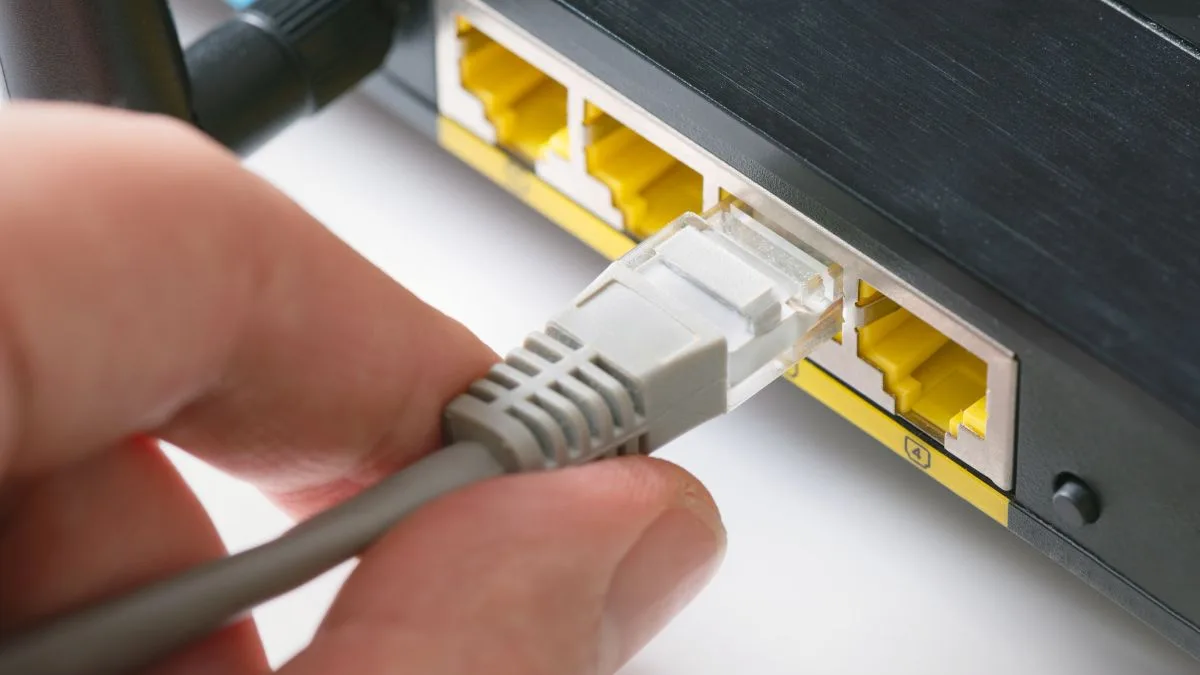
Image source: Bing (Web (fair-use with source credit))
QoS Settings That Throttle Without Telling You
Quality of Service, or QoS, is a feature that prioritizes some types of traffic over others. It sounds useful. In practice, it often throttles everything else down to prioritize one thing, like gaming or video streaming.
On the Nighthawk admin page, check your QoS settings. If it's enabled, you'll see bandwidth allocation sliders. Many users set QoS and forget it, then wonder why browsing feels slow.
The router has been reserving bandwidth for a game that isn't running.
My recommendation is to turn QoS off entirely unless you have a specific reason to use it. If you have a connection slower than 50 Mbps, QoS might help. If you have faster internet, it's more likely hurting than helping.
Turn it off and test the speed again.
Firmware and Driver Version Mismatches
Your Nighthawk's firmware is the operating system. If it's outdated, the router can't optimize traffic the way modern protocols expect. Netgear releases firmware updates regularly.
As of 2026, most Nighthawk models are still receiving updates every three to six months.
Check your current firmware version on the admin page. Compare it to the latest available on the Nighthawk's support page. If they don't match, update immediately.
The update process is straightforward from the admin interface, but don't interrupt it. A firmware update that gets cut off in the middle can brick the router.
Also check the network adapter drivers on your computers. Outdated Wi-Fi drivers on Windows laptops are a major source of slow speeds that users mistakenly blame on the router. Update your network adapter drivers through your computer's manufacturer or the adapter vendor.
One more thing. If you recently upgraded your internet plan to a higher speed tier, make sure your Nighthawk model actually supports that speed. Some older Nighthawks, like the R7000 from 2013, top out around 600 Mbps on Wi-Fi.
If you're now paying for gigabit, your router simply can't reach that speed. That's not a troubleshooting issue. That's a hardware ceiling.
Router Won't Let You Log In to the Admin Page
You type 192.168.1.1 into your browser. Nothing happens. Or you get a login prompt, but your password doesn't work.
This is a common pain point. Let's fix it.
Common IP Address and Credential Pitfalls
The default IP address for most Nighthawk routers is 192.168.1.1. But not all of them. Some models use 192.168.0.1 or 10.0.0.1.
Check the sticker on the bottom of your router. It lists the exact IP address and the default login credentials.
If the sticker is worn off or missing, try each of these addresses. 192.168.1.1. 192.168.0.1. 10.0.0.1. One of them will work. If none do, you can find the router's IP address from your computer.
On Windows, open Command Prompt and type "ipconfig." Look for the Default Gateway entry. That's your router's IP. On Mac, go to System Settings, Network, and find the Router field.
Default username is usually "admin." Default password is usually "password." If you changed it and forgot, you'll need a hard reset. More on that in a moment.
Browser Cache, HTTPS, and App Conflicts
Sometimes the router is working fine. Your browser is the problem. Try a different browser.
Chrome, Firefox, Edge. Clear your browser cache or open an incognito window. Some routers don't handle HTTPS redirects well.
Type "http://192.168.1.1" instead of "https://." The "s" can block the connection.
Also check if you have the Netgear Nighthawk app installed on your phone. The app and the web admin panel use different ports. If the app is open on your phone, it might hold an active session that blocks the browser login.
Close the app completely. Then try the browser again.
Hard Reset — When and How to Do It Right
A hard reset returns your router to factory settings. It clears all your customizations. Use this only when you can't log in any other way.
Find the small reset button on the back or bottom of your Nighthawk. You'll need a paperclip or a SIM eject tool. Press and hold the button for 10 seconds while the router is powered on.
The lights will flash and the router will reboot with default settings.
After the reset, you can log in with the default credentials from the sticker. Then you'll need to set up your Wi-Fi name and password again. Write them down before you start.
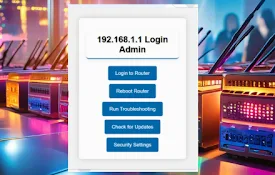
Image source: Bing (Web (fair-use with source credit))
Common Setup Mistakes That Cause Problems Later
Many Nighthawk issues trace back to the initial setup. Avoid these mistakes and you'll save yourself hours of frustration.
Using the Wrong Power Adapter
The Nighthawk uses a specific voltage and amperage. Check the label on the adapter. If it doesn't match the router's requirements, you risk instability or permanent damage.
Never use a third-party adapter unless you verify it's rated for the exact same specs.
Daisy-Chaining Multiple Routers Incorrectly
If you have a second router in your home, don't just plug it into the Nighthawk. You'll create a double NAT situation. Instead, connect the second router to the Nighthawk via a LAN port.
Then turn off the second router's DHCP server. It should act as a switch and access point only. This keeps everything on one network.
Skipping the Initial Firmware Update
The first thing you should do after unboxing a Nighthawk is update the firmware. Out of the box units often have software that's a year or more old. Connect the router to the internet.
Log into the admin page. Go to the firmware update section. Click Check and install any pending updates.
This prevents most early issues.
When to Factory Reset (And When Not to Bother)
A factory reset is powerful but overused. Here's when it actually helps and when it's a waste of time.
Three Scenarios Where a Reset Actually Fixes It
First, if you changed a setting and now the router behaves strangely, a reset clears everything and lets you start fresh. Second, if the router has been running for years without a reset, accumulated configuration errors can cause slowdowns. A reset clears that.
Third, if you can't log into the admin page at all, a reset is your only option.
How to Save and Reload Your Settings
Before you reset, back up your current configuration. On the admin page, look for the Backup or Save section. Download a config file to your computer.
After the reset, you can upload that file to restore your settings. This saves you from re-entering everything manually.
What a Reset Won't Fix
A factory reset won't fix hardware damage. If your Nighthawk won't power on at all, a reset does nothing. It won't fix a failing power adapter or a burned-out Ethernet port.
It also won't fix ISP outages or modem failures. Know what's in your control and what isn't.
Common Nighthawk Mistakes to Avoid
Let's wrap up with the most common errors people make. Avoid these and your Nighthawk will run smoother.
First, don't place the router inside a cabinet or behind a TV. Wi-Fi signals need open space. Enclosures absorb signal.
Second, don't ignore the antenna orientation. Most Nighthawks have adjustable antennas. Point them at different angles for better coverage.
One horizontal, one vertical, one diagonal covers more directions.
Third, don't use the same Wi-Fi name for both 2.4 GHz and 5 GHz bands. It seems convenient, but your devices will cling to the weaker band and refuse to switch. Name them differently so you can choose.
Fourth, don't skip the guest network setup. Guest networks isolate visitors from your main devices. It's a simple security step that many users overlook.
Frequently Asked Questions
What do the blinking lights mean on my Nighthawk?
Solid white means normal operation. Blinking amber means the router is booting or searching for a connection. Solid amber indicates a hardware issue or corrupted firmware.
No light means no power. Check your power adapter and outlet first.
How often should I restart my Nighthawk router?
About once a month. A scheduled reboot clears the router's memory and renews IP leases. You can set up automatic reboots in the admin page under the Schedule section.
No need to do it manually.
Why does my Nighthawk keep disconnecting from the modem?
This is usually a handshake issue. Power cycle the modem first. Wait two minutes.
Then power cycle the router. If it persists, check if your modem is in bridge mode. Double NAT causes disconnections.
Call your ISP to confirm the modem settings.
Can a power surge damage my Nighthawk router?
Yes. Power surges can fry the power supply or the router's internal components. Use a surge protector or a UPS.
Avoid plugging the router directly into a wall outlet in areas with frequent storms.
How do I know if my Nighthawk is just outdated?
Check the maximum Wi-Fi speed of your model. If you're paying for gigabit internet but your router tops out at 600 Mbps, it's time to upgrade. Also check if Netgear has stopped issuing firmware updates for your model.
If the latest update is more than two years old, the router is end of life. Replace it.

Similar Posts