Xfinity Cable Box Troubleshooting
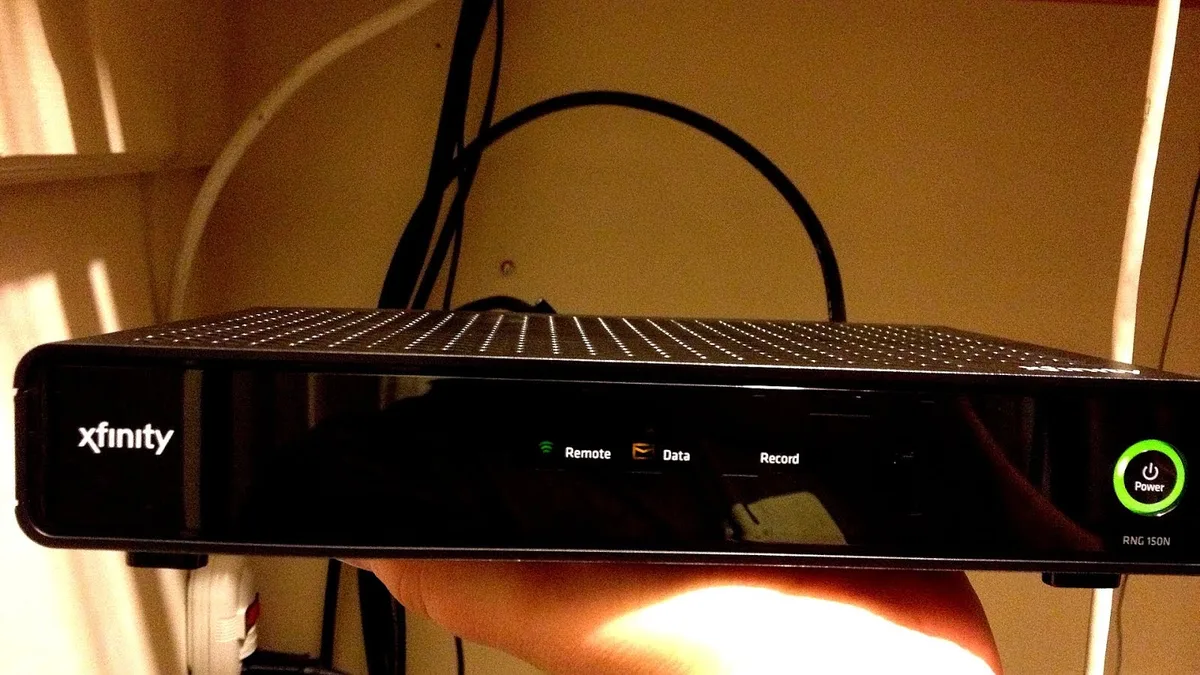
Your Xfinity cable box is frozen on the loading screen, or maybe your TV just went dark with a "No Signal" error. It's frustrating, and your first instinct is to call Xfinity and sit on hold. But Xfinity Cable Box Troubleshooting is mostly a process of elimination.
Most fixes take under five minutes, and you can do them without a technician. The trick is matching the correct fix to your specific symptom.
Here's a data point that should give you hope: a huge share of cable box complaints are resolved by a single, correctly executed power cycle. Comcast's official documentation points to a full 30-to-60-second reboot as the primary remedy for frozen guides, black screens, and error codes. As of 2026, the X1 and Flex platforms handle most issues on their own, but they still depend on clean power and a solid signal.
So let's walk through the diagnostic flow, step by step, starting with what your box is telling you.
Image source: Bing (Web (fair-use with source credit))
Quick Answer
Start with a full power cycle. Unplug the box for 60 seconds. Then plug it back in.
Most errors disappear. If not, check the app for outages. Then inspect the coax and HDMI cables.
If the screen is black, check the input. For error codes, run a refresh signal from the Xfinity app.
Before You Unplug Anything: What Your Box Is Actually Telling You
Look at the front panel light before you touch anything. It gives you a clear diagnostic cue. A solid white or green light means the box is powered on.
A slow blinking light means it's booting up or updating. Leave it alone for 3 to 5 minutes. A fast blinking light suggests a boot loop, which is a software or hardware failure.
A red or amber light means overheating or hardware trouble. Unplug the box immediately and let it cool for 30 minutes. No light at all means no power.
Check the outlet and the power cord.
Error codes are your next clue. You'll likely see one of three common codes. Here's what they mean at a glance.
| Error Code | Meaning | Likely Fix |
|---|---|---|
| E-96 | Channel not authorized | Refresh signal from the Xfinity app |
| RDK-03007 | Firmware or hardware failure | Factory reset or box replacement |
| S0A-12004 | Signal or entitlement issue | Check coax, then run a refresh |
The Xfinity app is your best first move. Open it, tap "Troubleshoot," and check the TV tile. The app can send a refresh signal to your box instantly.
It also shows known outages in your area. If your whole neighborhood is down, no amount of unplugging will help. The app saves you time and effort.
Per the official Xfinity support page, this is the recommended starting point for most service issues.
The Power Cycle That Actually Works
A power cycle clears the box's memory and forces a fresh connection to Comcast's servers. It's the most effective fix you can try. But the way you do it matters.
A soft reboot, done through the menu or the app, handles minor glitches. A cold reboot, where you pull the power cord, handles frozen screens and signal errors. Don't confuse the two.
Here's the exact sequence.
- Unplug the power cord from the back of the box.
- Wait 60 seconds. Use a timer.
- Plug the power cord back in firmly.
- Watch the front light. It will blink for a few minutes.
- When the light turns solid, check your TV.
Why 60 seconds? The extra time lets the capacitors fully discharge. That gives the box a clean slate.
If you only wait 5 seconds, the box restores the same corrupted memory. It's a simple step, but it's the difference between a fix and a wasted effort. Do it right the first time.
Black Screen, No Signal: The Decision Tree
A black screen is the most common cable box failure. It's rarely a dead box. Work through this checklist in order.
Is the box powered on?
If the front light is off, the box has no power. Test the outlet with another device. Test the power cord.
If the light is on, move to the next step.
Is the TV on the right input?
Press the Input or Source button on your TV remote. Cycle through HDMI 1, HDMI 2, and other options. If the Xfinity interface appears, your TV was set to the wrong input.
This happens more than you'd think.
Is the HDMI cable loose or damaged?
Push the HDMI cable gently into the back of the box and the TV. Check the connector for bent pins or cracks. If it looks worn, try a different cable.
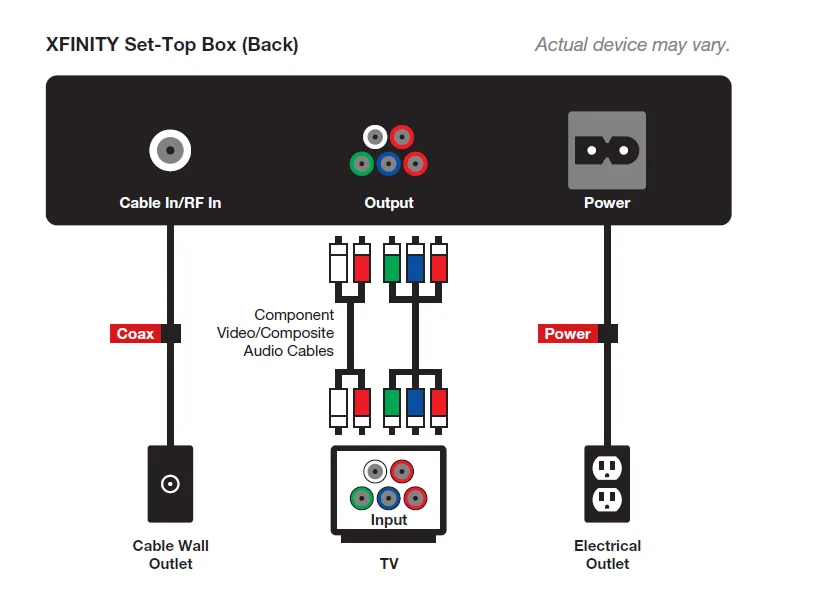
Image source: Bing (Web (fair-use with source credit))
When to try a different HDMI port or cable
Try a different HDMI port first. It's free. If that fails, swap in a different HDMI cable.
A spare one from a game console works fine. If the screen stays black, the box likely has a dead HDMI output. That means a replacement box.
Before you book a technician, try a factory reset. If the picture doesn't come back, the box is done.
Pixelated Picture or Freezing Video: Coax or Wi-Fi?
Pixelation and freezing point to a signal problem. Either the coax cable isn't delivering a clean signal, or the Wi-Fi is too weak. Here's how to tell the difference.
Rule out a bad coaxial connection first
Tighten the coax connections by hand. Loose connections cause most signal issues. Then inspect the center pin on the connector.
If it's bent or broken, replace the cable. Use a new RG-6 coax cable, which is the standard for modern cable. It's a cheap fix that solves a lot of headaches.
Splitters and signal strength
Every splitter weakens your signal. A 2-way splitter reduces strength by roughly half for each port. A 4-way splitter cuts it even further.
If your internet and TV share a line, a cheap splitter often causes pixelation. Here's a simple test: connect the main coax line directly to your cable box. If the picture clears up, the splitter is the culprit.
Replace it with a higher-quality one or consider a distribution amplifier.
Weather-related interference vs. equipment failure
Take note of when the problem shows up. If pixelation happens during heavy rain or wind, the issue is outside your home. The cabling from the street to your house is likely damaged.
If it happens constantly, the problem is inside. Look for a bad splitter, cable, or connector. This one observation tells you whether to call a technician or fix it yourself.
How to run a signal diagnostic from your account
Your box knows its signal strength. You just need to ask it. Open the Xfinity app and tap "Troubleshoot." Find the signal diagnostic test.
A healthy downstream signal sits between -10 dBmV and +10 dBmV, with a signal-to-noise ratio above 35 dB. If the app detects a problem, it sends a refresh signal to your box. Per the FCC, your cable provider is responsible for the signal up to the side of your house.
If the app shows a weak signal, that information supports your case for a technician visit.
Remote Not Responding: Don't Throw It Yet
A dead remote is annoying, but it's rarely broken for good. Most failures come down to a pairing issue or dead batteries. The fix takes about 30 seconds.
Line-of-sight vs. RF models
Older remotes use infrared, or IR. They need a clear line of sight to the box. If yours doesn't work from across the room, point it directly at the box.
Clear any obstacles. Newer remotes, like the XR15 and XR16, use RF. They work from another room.
If an RF remote fails, the issue is pairing.
The re-pairing sequence that actually works
Use this exact sequence for the XR15 and XR16.
- Unplug the cable box.
- Wait 10 seconds and plug it back in.
- Wait for the box to finish booting. That takes 2 to 3 minutes.
- Hold the "Setup" button until the red light at the top turns solid.
- Press the "Xfinity" button. The red light will blink.
- When the light turns solid, the remote is paired.
The timing matters. Press the Xfinity button too early and it fails. Wait for the blinking to stop.
This sequence fixes the vast majority of dead remote complaints.
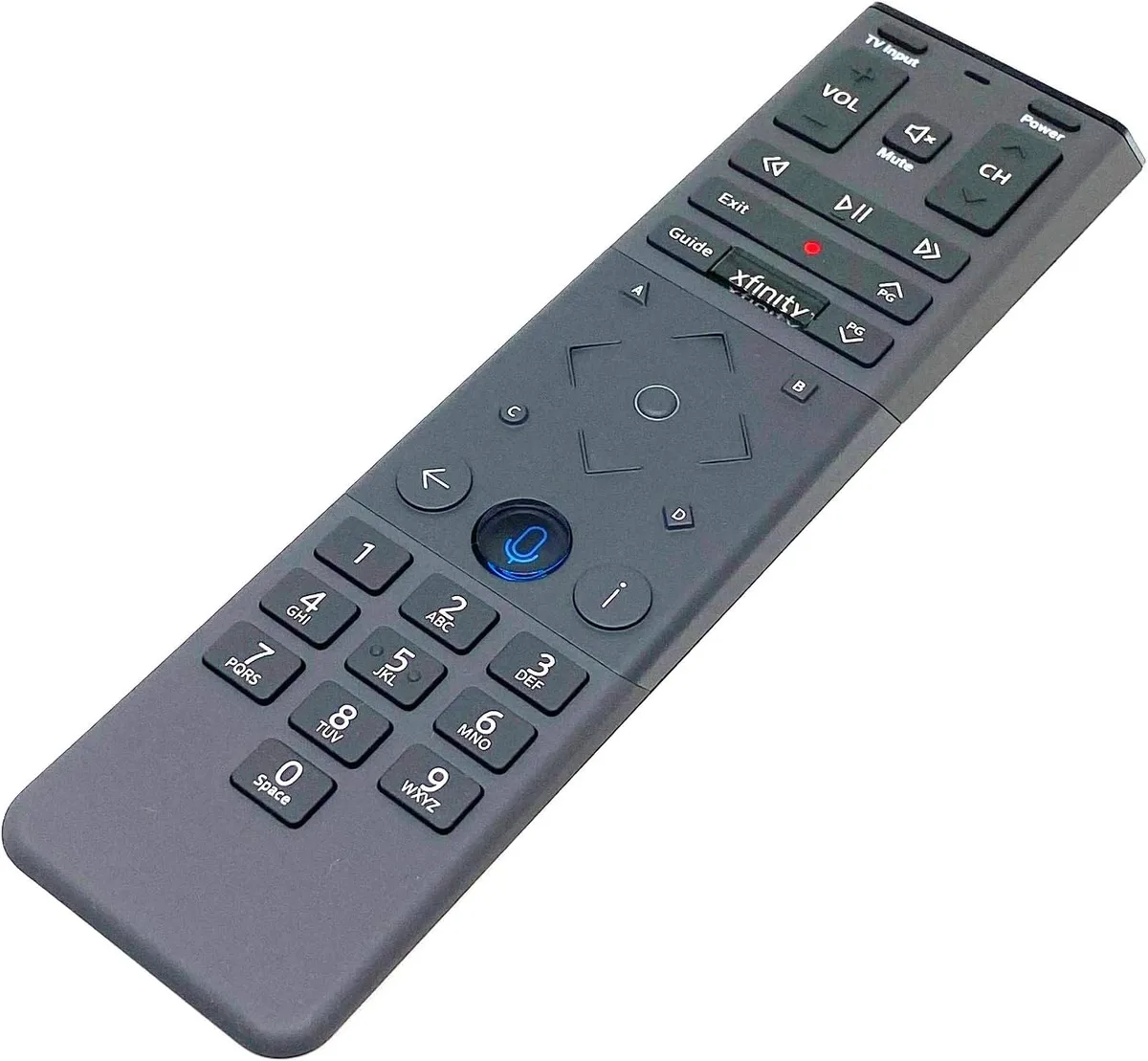
Image source: Bing (Web (fair-use with source credit))
Bluetooth interference from other devices
The XR15 and XR16 use Bluetooth for voice search. Other Bluetooth devices can interfere. If you have a soundbar, game controller, or wireless headphones near the box, turn them off.
Then try the remote again. Moving a pair of headphones a few feet away can solve the problem instantly.
When the remote is fine but the box's IR receiver is dead
Try the Xfinity app as a remote. If the app controls the box, the box is fine. If the app also fails, the box is ignoring all inputs.
This points to a software failure. A factory reset might fix it. If not, you need a replacement box.
Error Codes Cheat Sheet: E-96, RDK-03007, S0A-12004
Error codes are specific. They tell you exactly what's wrong. Here's a closer look at the three you'll see most often.
E-96 means the channel is not authorized. Your box can see the channel, but your account doesn't have permission to tune it. This often happens after a billing change or a signal refresh.
Open the Xfinity app and send a refresh signal. That usually fixes it. If not, restart the box.
In rare cases, a technician needs to re-provision the box.
RDK-03007 is a firmware or hardware failure. The box's operating system crashed or the hard drive is failing. A factory reset is worth trying.
If the code returns after reset, the box needs replacement. This isn't a DIY fix.
S0A-12004 indicates a signal or entitlement issue. The box can't validate your subscription or lock onto the signal. Start with the physical connections.
Tighten the coax and check for damage. Then run a refresh from the app. If the code persists, call support.
These codes are your friends. They give you a clear path forward. Spend a minute looking them up before you call for help.
When to Factory Reset (And When Not To)
A factory reset wipes your box clean. It returns everything to the original settings. Use it only when other fixes fail.
And understand what you'll lose before you start.
What a factory reset actually wipes
It removes saved channels, custom settings, and app preferences. It also unlinks your DVR recordings in most cases. Your cloud recordings are safe, but anything stored locally gets deleted.
Parental controls and PINs are also erased. Write down any important settings before you reset.
The exact reset sequence for X1 and Flex boxes
On most X1 boxes, hold the power button on the front for 10 seconds. Wait for the lights to blink and the box to restart. For a full factory reset, you may need to access the diagnostic menu.
Press "Exit" on your remote, then press "Back" quickly. The menu will give you a reset option.
On Flex boxes, the process is simpler. Go to Settings, then Device Settings, and choose Factory Reset. Confirm when prompted.
When it's worth trying vs. when it's a waste of time
A factory reset is worth trying when your box is stuck on a boot loop, showing RDK-03007, or behaving erratically. It's a waste of time if your hardware is physically broken. A box that won't power on or has a dead HDMI port won't be saved by a reset.
If you hear clicking sounds from the hard drive, skip the reset and order a replacement.
Common Mistakes That Make Things Worse
Some troubleshooting moves backfire. Avoid these common errors.
Using a power strip. A cheap power strip can interrupt the boot sequence when other devices draw too much power. Plug your cable box directly into the wall outlet. This is the single most underrated fix.
It costs nothing and solves a surprising number of issues.
Tightening coax with tools. Wrenches and pliers are too much. They can crush the connector and damage the outlet. Hand-tightening is exactly right.
The connector needs to be snug, not torqued.
Ignoring ventilation. Cable boxes generate heat. When you stuff them in a crowded cabinet, they overheat. That leads to frozen screens and random reboots.
Give the box a few inches of space on all sides. Keep the vents clear.
Calling support before running the app diagnostic. The app can fix most issues without a phone call. It takes two minutes. Support will make you do it anyway.
Save yourself the hold time.
Skipping the 60-second reboot. As we covered, a quick unplug doesn't clear the memory. Give it the full minute. Rushing this step just wastes more time later.
Frequently Asked Questions
How long does a full reboot take?
A full cold reboot takes about 5 minutes from start to finish. The 60-second unplug is the hard part. After that, the box takes 2 to 3 minutes to boot up.
Then it needs another minute or two to reconnect to the network. Patience is part of the process.
Why does my X1 box keep restarting on its own?
This is usually a heat issue or a failing power adapter. Check the box's ventilation first. If it's in a closed cabinet, move it to an open space.
Then check the power adapter. If it feels warm to the touch, replace it. A boot loop can also point to a failing hard drive.
Can I use any coaxial cable, or does it need to be Xfinity-branded?
You can use any RG-6 coaxial cable. The brand doesn't matter. What matters is the quality of the connector and the shielding.
A generic cable works perfectly. Just avoid adapters that run outdoors, since they can weaken the signal.
Does a factory reset remove my DVR recordings?
It depends on where they're stored. Cloud DVR recordings are tied to your account and will remain available. Local recordings stored on the box's hard drive will be erased.
Double-check before you reset. If you have something important saved, set the DVR to back it up to the cloud first.
How do I know if I need a technician visit?
You need a technician if the box won't power on after a fresh outlet test. You also need one if you've exhausted the resets and error codes persist. If the app shows a weak signal at your wall connection, the problem is outside.
That's on your provider to fix. Call support and tell them what the diagnostic shows.

Similar Posts