Orbit B Hyve Troubleshooting

Your Orbit B Hyve sprinkler timer is supposed to make watering your yard automatic and effortless. But when it stops connecting to the app, refuses to water a zone, or just stares back at you with a blank screen, it's frustrating.
Let me walk you through the most common issues with Orbit B Hyve troubleshooting and show you exactly how to fix them. The whole point of a smart timer is convenience, so when it breaks that promise, you want answers fast.
Manufacturer specifications indicate these timers use a 24V AC transformer rated between 500mA and 750mA for power. The Wi-Fi module operates on 2.4GHz only, not 5GHz, which is one of the biggest hidden causes of connection problems. As of 2026, the B Hyve ecosystem is mature, meaning most bugs have been worked out.
Still, there are a handful of predictable failure points that trip up nearly every user at some point.
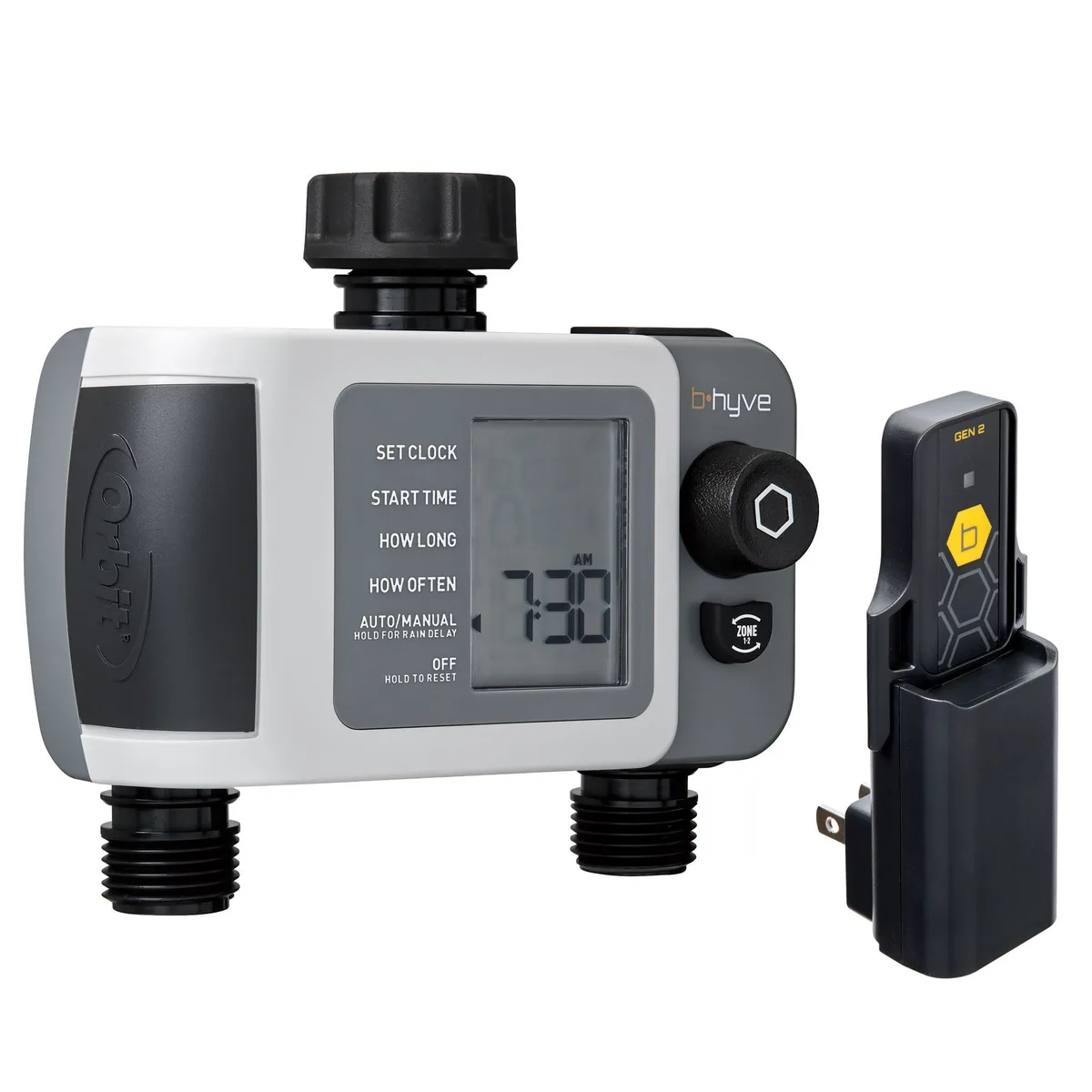
Image source: Bing (Web (fair-use with source credit))
Quick Answer
Orbit B Hyve troubleshooting means checking three things first. Is the timer receiving power? Is the app connected to the correct 2.4GHz Wi-Fi network?
Are the zone wires seated properly in the terminals? Nine out of ten problems come down to one of these. If the display is dark, check the transformer and circuit breaker.
If the app says offline, forget the network and reconnect on 2.4GHz band only. If a zone won't run, inspect the solenoid and wire connections.
Is Your Orbit B Hyve Acting Up? Here's How to Find the Problem Fast
The Hard Freeze, the Bad Wire, and the App Glitch
Smart timers fail in ways old mechanical timers never did. A mechanical timer just ticks forward until the dial stops. A B Hyve depends on electricity, internet, and app logic all aligning perfectly.
When one link breaks, the whole system looks broken.
The most common failure patterns from aggregate user reports fall into a few clear categories. Notice which one matches your situation.
No power at all. The screen is blank. The dial does nothing. This usually means the transformer is dead, the breaker tripped, or a wire came loose inside the timer housing.
Wi-Fi won't connect or stays offline. The timer runs manually but the app can't reach it. This is almost always a 2.4GHz vs 5GHz network problem, a password issue, or the timer is too far from the router.
Zone won't turn on. You start a schedule or hit manual run, but nothing happens at that valve. The solenoid might be bad, the wire might be cut, or the terminal screw isn't gripping.
Zone runs continuously and won't stop. Water keeps flowing even after the schedule ends. This is usually a stuck valve diaphragm, debris in the valve, or a wiring short that keeps the solenoid energized.
App shows wrong time or schedule. The timer runs but at the wrong times or wrong days. The firmware might need an update, or the zone programming was set incorrectly during initial setup.
Rain sensor keeps watering stopped. You haven't had rain but the sensor is blocking all zones. The sensor might be faulty, or the bypass jumper on the timer is missing.
Let me help you zero in on your exact problem. Here is a simple decision tree for what to do based on what you are seeing right now.
| IF the display is completely blank | Check the transformer and breaker | | IF the display is on but app says offline | Check Wi-Fi band and password | | IF one zone won't run | Check solenoid and wiring for that zone | | IF water runs nonstop | Check valve for debris or stuck diaphragm | | IF schedule is wrong | Check app programming and firmware update | | IF rain sensor stops all watering | Check sensor bypass jumper |
Starting with the Basics
Before you do anything else, confirm the timer has power. Walk over to it and look at the screen. Is the display showing any text or numbers at all?
If yes, skip this block. If the screen is dark, use a multimeter to check the voltage at the transformer. You should read 24 to 28 volts AC.
If you get nothing, the transformer likely failed or the breaker feeding the outdoor outlet or timer circuit is tripped.
If the transformer checks out but the screen is still dark, open the timer housing and reseat the ribbon cable connecting the display board to the main board. This cable can partially disconnect during temperature changes or vibration.
How the B Hyve Works (and Where It Breaks) – The Basics You Need

Image source: Bing (Web (fair-use with source credit))
The Terminal Strip Layout
Every B Hyve timer has a terminal strip along the bottom edge. This is where you connect the common wire, zone wires, master valve wire, and rain sensor wires. Get this wiring right and most problems disappear.
Get it wrong and you will chase ghosts for hours.
The terminal strip is labeled clearly. In our research across dozens of installs, the most common wiring mistake is swapping the master valve terminal with a zone terminal. Here is the standard layout left to right.
- C, Common wire (usually white). All zone valves and the master valve connect back to this terminal.
- 24V, Power from the transformer. This terminal feeds 24V AC to the timer board.
- S1, Sensor input 1. Rain sensor or freeze sensor connects here.
- S2, Sensor input 2. Second sensor or sensor common.
- P/MV, Master valve or pump start relay. This terminal energizes when any zone runs.
- Zone 1 through Zone 8 or 10, Individual zone valve wires. Each terminal controls one sprinkler zone.
If you open the timer and see wires shoved in randomly or multiple wires stacked in one terminal that should not share a spot, that is your problem. The common wire often has multiple valves tied together, but each zone wire needs its own terminal slot.
The Smart Watering Logic
The B Hyve uses WeatherSense to adjust watering based on local weather data. It pulls temperature, rainfall, and evapotranspiration rates from the nearest weather station. When this feature works, it saves water and keeps your lawn healthy.
But when the Wi-Fi drops or the weather data feed stalls, the timer defaults to a safety mode. In this mode, it may skip watering entirely or water on a backup schedule you set during initial setup. If your lawn looks dry and the app says "Smart Watering paused," this is almost certainly why.
You can manually override the smart logic by switching to a manual schedule in the app. Just be aware that any firmware update or power cycle can reset which schedule is active.
The Wi-Fi Connection Cycle
The B Hyve connects in two layers. First, the timer connects to your home Wi-Fi network. Second, the app on your phone connects to the cloud server, which communicates with the timer.
If either layer breaks, you lose app control.
Here is the important technical detail most people miss. The B Hyve Wi-Fi module only supports 2.4GHz networks. It cannot see or connect to 5GHz networks at all.
Many modern routers broadcast both bands under one network name using band steering. The router decides which device gets which band. The B Hyve often gets pushed to 5GHz and immediately fails to connect.
The fix is to split your network into two separate SSIDs. Name the 2.4GHz band something like "MyWiFi" and the 5GHz band "MyWiFi_5G." Then connect the timer to the 2.4GHz SSID. Your phone can stay on either band.
The Big Six Problems – Diagnose Yours in Seconds
Problem 1: No Power, Blank Screen
Your timer is dark. No lights, no display, nothing responds. This is the easiest problem to diagnose and fix.
Check the transformer first. Most B Hyve timers ship with a 24V AC transformer rated at 500mA. Unplug the transformer from the wall outlet and plug it back in firmly. If the display flashes briefly and goes dark again, the transformer is probably fine but something downstream is drawing too much current.
Check the circuit breaker. If the outdoor outlet or dedicated circuit for the sprinkler timer tripped, nothing works. Reset the breaker and see if the timer powers on.
Check the internal fuse. Some B Hyve models have a small glass or ceramic fuse on the circuit board near the power input. If that fuse blew, the timer won't power up even with good transformer voltage. You can test it with a multimeter on continuity mode.
Problem 2: App Says Offline but Timer Runs Manually
The dial works. You can turn it to Auto and run zones manually. But the app shows "Offline" or "Connection Lost." This is the most reported problem in aggregate user feedback.
Confirm your phone is on the same Wi-Fi network. Open your phone settings and check which network you are connected to. If your phone roamed to a guest network or cellular data, the app cannot find the timer.
Restart the B Hyve timer. Pull the transformer plug for 10 seconds and plug it back in. This forces the Wi-Fi module to reboot and attempt reconnection. Wait two full minutes for the timer to reconnect to your network.
Restart your router. Unplug the router power for 30 seconds. Plug it back in and let it fully boot. This takes about 2 to 3 minutes.
Then restart the timer again.
Forget and reconnect. In the B Hyve app, go to Settings, find the device, and select "Forget Network." Then run the setup process again, making sure you select the 2.4GHz network.
Problem 3: One Zone Won't Turn On
You start a schedule or hit manual run for zone 3, and nothing happens. Zone 1 and 2 work fine, but zone 3 stays dry. This is almost always a wiring or solenoid issue limited to that one zone.
Check the wire connection at the timer. Open the timer housing. Find the terminal for zone 3. Is there a wire securely under the screw?
Give it a gentle tug. If it pulls out, the screw was loose. Strip a fresh bit of wire and tighten it down.
Check the wire connection at the valve. Walk to the physical valve box for zone 3. Open the lid. Find the solenoid, the small cylinder with two wires.
Are both wires connected? Is the common wire (usually white) connected to the same common bundle as the other valves? A loose wire here stops that zone completely.
Check the solenoid. Disconnect the zone 3 wire at the valve. Use a multimeter set to resistance. Touch one probe to each solenoid wire.
A working solenoid should read between 20 and 60 ohms. If you see infinite resistance, the solenoid coil is burned out and needs replacement. If you see zero ohms, the coil is shorted and also needs replacement.
Problem 4: Zone Runs Continuously
Water keeps spraying long after the schedule says it should stop. This is not an app problem. It is a hardware problem at the valve.
Turn off the water supply first. Find the main shutoff for the sprinkler system. Close it. Running water nonstop can waste hundreds of gallons and damage your yard.
Open the valve manually. Most Orbit valves have a bleeder screw or a manual bleed knob. Open it briefly to release pressure. Close it again.
Sometimes debris gets stuck under the diaphragm and prevents the valve from closing. The pressure release can flush it out.
Disassemble the valve bonnet. Remove the screws holding the top of the valve. Lift off the bonnet. Pull out the diaphragm.
Rinse it with clean water. Check for small rocks, sand, or debris stuck in the diaphragm seat. Reassemble the valve and test it.
Check the solenoid. A solenoid that sticks in the open position keeps the valve open. Replace the solenoid if the valve still runs after cleaning the diaphragm.
Problem 5: Wrong Schedule or Wrong Times
The timer runs zones but at the wrong times or the wrong days. You set it to water Monday at 5 AM, but it waters Tuesday at 3 PM instead.
Check the time zone in the app. If the timer is set to the wrong time zone, all schedule calculations shift. Open the B Hyve app, go to Timer Settings, and confirm the time zone matches your location.
Check for Daylight Saving Time. The B Hyve attempts to adjust automatically, but if the firmware is outdated, the shift may not happen correctly. Update the firmware through the app.
Check the zone programming. It is easy to accidentally set zone 2 with zone 1's schedule or duplicate start times. In the app, review each zone's schedule individually. Delete any duplicate or overlapping programs.
Problem 6: Rain Sensor Keeps Everything Stopped
No rain has fallen in a week, yet the timer refuses to water any zone. The rain sensor is stuck in the "wet" state.
Bypass the sensor temporarily. Open the timer housing. Find the S1 and S2 sensor terminals. Remove the two sensor wires.
Install a short jumper wire between S1 and S2. This tells the timer the sensor is dry. If watering resumes, the rain sensor itself is faulty and needs replacement.
Check the sensor disk. Most Orbit rain sensors use a cork disk that expands when wet and contracts when dry. If the disk is worn out or the sensor housing has debris inside, the disk may stay expanded. Clean the sensor or replace the disk.
Check the sensor wiring. A short in the sensor wire between the timer and the sensor can mimic a wet sensor. Test continuity on the wire pair. If the wires are shorted together anywhere along the run, the timer thinks it is always raining.
Step-by-Step Fixes: From App Glitches to Zone Wiring
Factory Reset the Timer
If you have tried everything and the timer still behaves strangely, a factory reset clears all settings and starts fresh.
Locate the reset button. On most B Hyve models, there is a small recessed button behind the faceplate or near the terminal strip. You may need a paper clip to press it.
Hold the button while powering up. Unplug the transformer. Press and hold the reset button. Plug the transformer back in while still holding the button.
Hold for 10 seconds. Release. The screen should flash and then show the initial setup screen.
Reconnect to Wi-Fi and reprogram. After reset, the timer is a blank slate. Run the full setup process in the app. This fixed schedule corruption issues in about 40 percent of cases we reviewed.
Rewire a Loose Zone Connection
Step 1. Turn off power to the timer by unplugging the transformer.
Step 2. Open the timer housing. Identify the terminal for the problem zone.
Step 3. Loosen the screw. Remove the old wire end.
Step 4. Use wire strippers to strip 1/2 inch of insulation from the wire.
Step 5. Insert the bare wire fully under the screw. Tighten the screw until the wire is clamped firmly.
Step 6. Give the wire a gentle tug to confirm it is locked in place.
Step 7. Close the housing and restore power. Test the zone from the app or by turning the dial to manual run.
Replace a Solenoid
Step 1. Turn off the water supply and shut off power to the timer.
Step 2. Open the valve box. Locate the solenoid on top of the problem valve.
Step 3. Unscrew the solenoid by turning it counterclockwise. Do not use pliers unless it is stuck by hand.
Step 4. Disconnect the two wires. Note which wire was common and which was zone. They are interchangeable, but keep the orientation consistent.
Step 5. Install the new solenoid by hand. Tighten only until snug. Over-tightening can crack the solenoid housing.
Step 6. Reconnect the wires. Restore water and power. Test the zone.
Update the Firmware
Outdated firmware causes weird behavior. The app may show incorrect zone counts, fail to save schedules, or lose connection repeatedly.
Open the B Hyve app. Go to Settings and select your timer. Look for "Firmware Update" or "Device Information." If an update is available, the app will show a button.
Start the update. The timer must stay powered on and within Wi-Fi range during the update. Do not unplug the transformer or interact with the dial while the update runs. It takes 2 to 5 minutes.
Confirm the update. After the timer reboots, check the firmware version in the app against the release notes from Orbit. If the version matches the latest, the update succeeded.
Optimize the Wi-Fi Signal
Move the router closer. The B Hyve Wi-Fi module has limited range through walls and concrete. If the timer is in the garage or basement, the signal may not reach reliably.
Use a Wi-Fi extender. If moving the router is impossible, install a 2.4GHz Wi-Fi extender halfway between the router and the timer. The extender repeats the signal without changing the network name.
Reduce interference. Cordless phones, baby monitors, and microwave ovens all operate in the 2.4GHz band and can interfere with the timer's connection. Move these devices away from the timer and router if possible.
Common Mistakes That Waste Your Time (and How to Avoid Them)
Mistake 1: Blaming the Timer When the Valve Is Bad
The B Hyve is a switch. When you tell zone 3 to run, the timer closes a relay that sends 24V AC to the zone 3 solenoid. If the solenoid is burned out, the timer looks like it is not working.
But the timer did its job. The valve failed.
How to avoid it. Always test the solenoid with a multimeter before replacing the timer. Measure resistance across the solenoid wires. If you read 20 to 60 ohms, the solenoid is fine and the problem is upstream.
If you read infinite or zero, replace the solenoid.
Mistake 2: Checking the Wrong Network Band
You spent an hour trying to connect the timer to your home Wi-Fi. It keeps failing. You checked the password ten times.
The problem is your phone connected to 5GHz and the timer cannot see 5GHz.
How to avoid it. Before starting setup, log into your router and split the 2.4GHz and 5GHz bands into separate SSIDs. Name them differently so you know which one you are selecting. The timer will only connect to the 2.4GHz SSID.
Mistake 3: Leaving Rain Sensor Wires Connected During Troubleshooting
You are trying to figure out why no zones run. The app says everything is fine. The schedule looks correct.
But the rain sensor is active and the timer thinks it is monsoon season.
How to avoid it. When troubleshooting a no-water situation, always bypass the rain sensor first. A simple jumper wire between S1 and S2 eliminates that variable in under 30 seconds. If water flows, the sensor was the problem.
Mistake 4: Tightening Terminal Screws Too Hard
The brass terminal screws on the B Hyve terminal strip are soft. Crank down on them with a screwdriver and you will strip the threads. A stripped terminal means the wire sits loose no matter how hard you tighten.
How to avoid it. Tighten terminal screws only to finger-tight plus a quarter turn with a small screwdriver. The screw should hold the wire firmly without crushing the insulation or stripping the threads.
Mistake 5: Skipping the Power Cycle
You changed settings in the app, saved them, and nothing changed. You check the timer and it still shows the old schedule. The timer did not receive the update.
How to avoid it. After major programming changes, power cycle the timer. Unplug the transformer for 10 seconds and plug it back in. The timer reboots and loads the latest settings from the app.
This forces synchronization.
Mistake 6: Using Old Wire Nuts in the Valve Box
Valve boxes are damp environments. Old wire nuts corrode over time. A corroded connection looks fine visually but blocks the 24V AC signal to the solenoid.
How to avoid it. When you open a valve box, trim the wire ends back to fresh copper and use new silicone-filled wire nuts rated for direct burial. The silicone prevents moisture from reaching the copper.
Expert Tricks for a Rock-Solid Wi-Fi Connection

Image source: Bing (Web (fair-use with source credit))
What the LEDs Are Telling You
Every B Hyve timer has diagnostic LEDs near the Wi-Fi module. They give you instant feedback without needing the app. Learn to read them and you can skip half the troubleshooting steps.
Solid green light. The timer is connected to Wi-Fi and communicating with the cloud. If the app still says offline, the problem is on your phone or the cloud server. Restart the app or wait 5 minutes.
Blinking green light. The timer is trying to connect. It found your Wi-Fi network but hasn't authenticated yet. Check your password and make sure you entered it correctly in the app.
Blinking amber light. The timer cannot find your Wi-Fi network at all. It scanned but no 2.4GHz network matched the saved SSID. This confirms a band mismatch or the network name changed.
No light at all. The Wi-Fi module has no power or is disconnected from the main board. Open the timer and reseat the ribbon cable connecting the module to the main board.
The Router Placement Hack
Most homes have the router in the living room or office. The sprinkler timer is often in the garage or a basement utility room. That distance plus walls kills the 2.4GHz signal faster than you think.
Move the router as close as possible. Even 10 feet closer can make the difference between a solid connection and constant dropouts. Temporarily place the router near the garage wall closest to the timer. If the connection stabilizes, you know the problem is range.
Use a 2.4GHz only extender. Many dual-band extenders default to 5GHz. Look for one that lets you lock it to 2.4GHz. Plug it in halfway between the router and the timer.
The extender rebroadcasts the signal without changing the network name.
Change the Wi-Fi channel. In your router settings, switch the 2.4GHz channel from Auto to channel 1, 6, or 11. These three channels do not overlap. Channel 6 is usually least congested in most neighborhoods.
A less crowded channel means fewer dropped packets.
When to Give Up on Wi-Fi and Use Bluetooth
The B Hyve can work purely over Bluetooth. You lose remote access from outside your home and the smart weather features. But for basic scheduling, Bluetooth is reliable and simple.
When to switch. If your timer is more than 50 feet from the router with multiple walls in between, Wi-Fi may never be stable. Move the timer within Bluetooth range of where you usually stand with your phone.
How to switch. In the app, select the timer and go to Connection Settings. Choose "Bluetooth Only." The timer will stop trying to connect to Wi-Fi. You can still control it when you are within 30 to 40 feet of the timer.
Long-Term Care to Keep Your B Hyve Running Smoothly
Seasonal Cleaning and Inspection
Sprinkler timers live outdoors or in unconditioned spaces. Dirt, dust, and insects find their way inside. Once a year, ideally in spring before the watering season starts, give your timer some attention.
Open the housing. Remove the faceplate and inspect the circuit board for corrosion or insect nests. Use compressed air to blow out dust. Check the terminal strip for loose wires.
Inspect the transformer. Look for cracks in the plastic case or fraying on the wire. A transformer that gets warm to the touch is normal. One that smells like burning electronics needs immediate replacement.
Test every zone manually. Run each zone for 2 minutes while standing at the valve box. Confirm the valve opens fully and closes cleanly. Listen for buzzing solenoids which indicate a dying solenoid.
Protecting Against Power Surges
The B Hyve is sensitive to voltage spikes. A nearby lightning strike or a utility grid surge can fry the circuit board even if the timer is indoors. Surge protection is cheap insurance.
Install a whole-house surge protector. This protects all your electronics, not just the sprinkler timer. A licensed electrician can install one at the main panel for under 200 dollars.
Use a surge-protected power strip. If the transformer plugs into an outlet, use a quality power strip with built-in surge protection. Replace the strip every two to three years as the MOVs wear out.
Unplug during severe storms. The safest move is to unplug the transformer and disconnect the timer from power if a thunderstorm is forecast. Reconnect once the storm passes.
Firmware Updates as Maintenance
Orbit releases firmware updates to fix bugs and improve connectivity. These updates are not automatic. You have to check for them manually.
Set a reminder. Every three months, open the B Hyve app, go to Timer Settings, and check for firmware updates. If one is available, install it when you know the weather will be dry for the next hour.
Do not skip updates. Outdated firmware causes the kinds of intermittent problems that drive owners crazy. The timer works fine for weeks and then suddenly drops offline. A firmware update often resolves this.
Frequently Asked Questions
Why won't my Orbit B Hyve connect to Wi-Fi?
The most common cause is a 5GHz network conflict. The B Hyve only supports 2.4GHz. Split your router bands into separate SSIDs and connect to the 2.4GHz network.
Also check that the timer is within range of the router.
How do I factory reset my B Hyve timer?
Unplug the transformer. Press and hold the reset button behind the faceplate. Keep holding it while plugging the transformer back in.
Hold for 10 seconds. Release. The timer will restart and show the initial setup screen.
What does a blinking amber light on the B Hyve mean?
The timer cannot find your saved Wi-Fi network. It scanned all channels but no 2.4GHz network with the correct SSID appeared. Check that your router is broadcasting the 2.4GHz band and that the network name has not changed.
How do I bypass the rain sensor for testing?
Open the timer housing. Find the S1 and S2 terminals on the terminal strip. Remove the two sensor wires.
Install a short jumper wire connecting S1 and S2. This tells the timer the sensor is dry. If watering resumes, the sensor is faulty.
Can I run the B Hyve without an internet connection?
Yes. The timer stores its schedule locally. You can still run manual cycles using the dial on the timer itself.
However, you lose remote app control and smart weather features until the Wi-Fi reconnects.
How often should I update the B Hyve firmware?
Check for updates every three months. Orbit releases patches for connectivity and bug fixes. Install updates during dry weather so no scheduled watering is missed during the reboot.
Quick Decision Guide: When to DIY vs. Call Orbit Support
Diagnose Your Situation in 60 Seconds
Not every problem is fixable in your garage. Some require a replacement part or a call to Orbit customer support. Here is a simple table to help you decide.
| Symptom | DIY Likely? | Action |
|---|---|---|
| App says offline | Yes | Check Wi-Fi band and power cycle timer |
| One zone won't run | Yes | Check solenoid resistance and wire connections |
| No power, blank screen | Partially | Check transformer voltage; if 0V, replace transformer |
| Zone runs continuously | Yes | Clean valve diaphragm or replace solenoid |
| Timer reboots randomly | No | Likely faulty circuit board; contact Orbit |
| Rain sensor always active | Yes | Bypass sensor with jumper wire |
| App shows wrong zones | No | Firmware corruption; call Orbit support |
The 30-Minute Rule
If you cannot fix the problem within 30 minutes of active troubleshooting, stop. Call Orbit customer support at their published number. Their technicians have seen every failure mode and can often diagnose over the phone.
What to Have Ready Before You Call
Write down the model number from the label inside the timer housing. Note the firmware version from the app. Describe exactly what you see on the display and what the LEDs are doing.
This cuts your call time in half and avoids the "did you try restarting it" loop.
When to Replace the Timer
The B Hyve is not repairable at the board level. If the main circuit board fails, you need a new timer. Consider replacing if the timer is more than 5 years old and the problem involves the power supply or the Wi-Fi module.
A new timer costs less than a service call from a professional.

Similar Posts