Sony A7 IV Touchscreen Problems
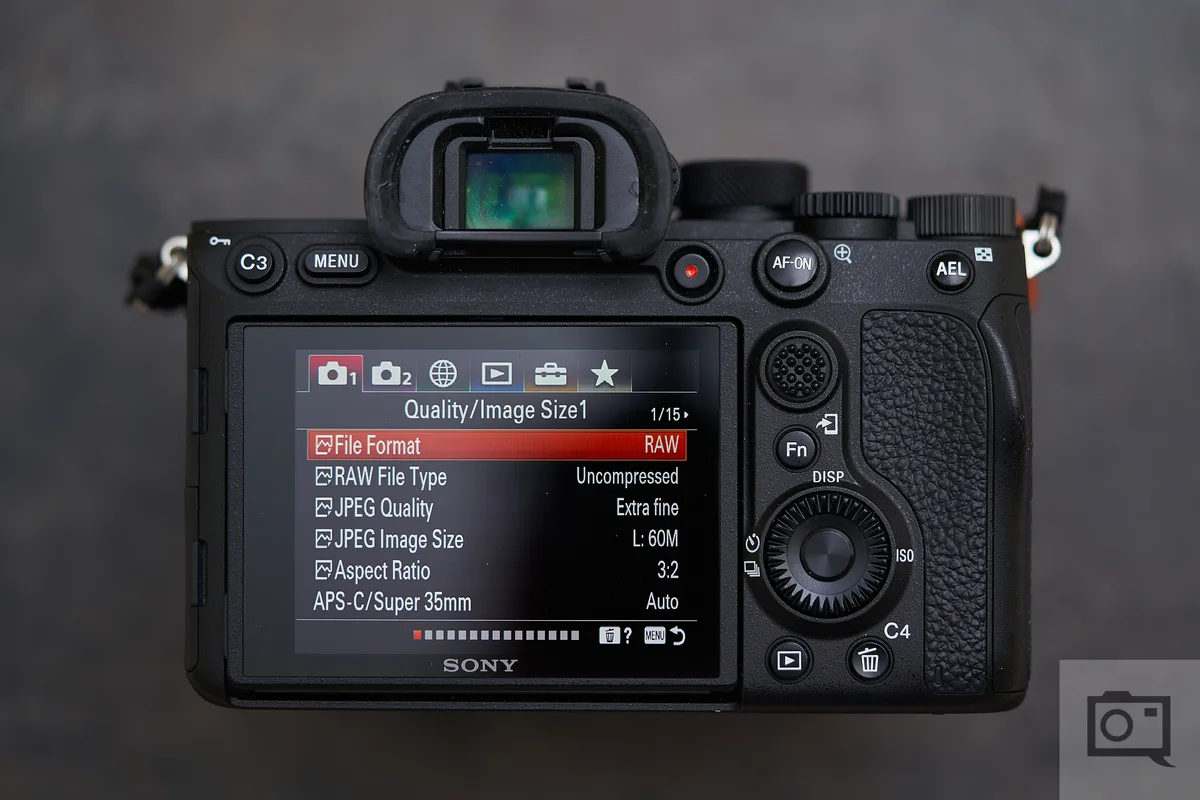
If you've run into a scenario where your Sony A7 IV touchscreen problems leave you tapping a dead panel, you're not alone. The camera's 3.0-inch vari-angle touchscreen is one of its most useful features, yet a surprising number of owners report it freezing, ignoring taps, or acting erratically. The frustration is real, especially when you're in the middle of a shoot and suddenly can't move a focus point.
Manufacturer specs show the LCD has 1.04 million dots with capacitive touch. As of 2026, Sony has pushed three firmware updates that directly address touch behaviour. Still, many issues stem from settings or user error, not a broken screen.
Let's walk through what's really going on.
Image source: Web (Bing) / thephoblographer.com (Web image (fair-use with source credit))
Quick Answer: Is Your A7 IV Touchscreen Dead or Just Disabled?
Most touchscreen problems on the Sony A7 IV are not hardware failures. The screen often appears dead because touch is disabled in certain modes. Go to the Setup menu.
Find Touch Operation. Make sure it's set to On.
If that's already on, check the EVF auto-switch sensor. A finger or strap covering it forces the camera to ignore the rear screen. Cover the sensor with your hand.
If the screen lights up, the sensor is the culprit.
Restoring factory defaults also fixes many intermittent touch glitches. A full reset takes less than a minute. Always try this before mailing the camera to Sony.
What Actually Goes Wrong: Touch Problems on the A7 IV
The A7 IV's touchscreen behaves differently depending on what you're doing. In stills mode, touch focus and touch shutter are active by default. In movie mode, touch tracking may be grayed out.
This is normal, not a bug.
Here are the most common symptoms owners report:
- No response anywhere. The screen is completely unresponsive in all modes. This is often a software lock.
- Touch works in menus but not during shooting. The camera may have touch disabled for shooting functions in the settings.
- Touch works during shooting but not in playback. This is usually a mode restriction.
- Spurious touches or ghost taps. A dirty screen or thick screen protector causes capacitance issues.
- Touch stops working after a firmware update. Sometimes an update resets custom settings, including touch preferences.
Owner reports from verified forums suggest the majority of touchscreen issues resolve with a settings change or a firmware update. Hardware defects are much rarer than people assume.
The Decision Tree: Diagnose Your Touchscreen Issue Step by Step
Use this if/then guide to pinpoint the exact cause. Start from the top.
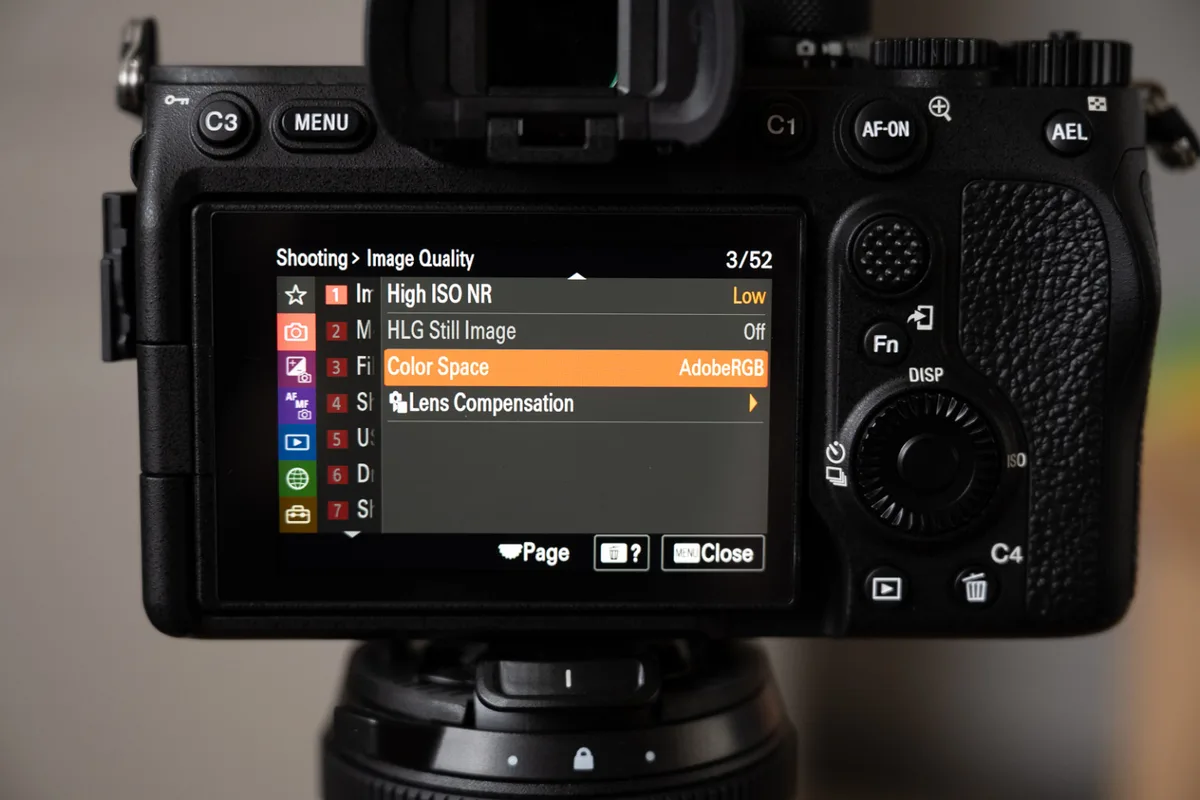
Image source: Bing (Web (fair-use with source credit))
If the entire screen is black or off: Then the camera may have auto-switched to the viewfinder. Cover the eye sensor with your thumb. If the rear screen lights up, the sensor needs cleaning or the auto switch setting needs disabling.
If the screen is on but touch does nothing: Then go to the Setup menu (wrench icon). Scroll down to Touch Operation. Is it set to On?
If not, enable it. If it's already on, try disabling Glove Mode. Enable Touch Sensitivity if you have the option.
If touch works in stills mode but not in movie mode: That is expected behaviour. The camera disables touch shutter in movie mode by default. You can enable touch tracking instead.
Go to Movie settings and assign the touch function.
If the screen has dead zones or only responds on one side: Then a screen protector with poor adhesive can cause pressure points. Remove any protector. Reboot the camera.
If the problem persists, the digitizer may have a manufacturing defect.
If touch is delayed or laggy: Then try lowering the Touch Sensitivity in the Setup menu. Also check for background data transfers via the Imaging Edge Mobile app. Disconnect the app and retest.
Mistakes That Waste Your Time (and Sometimes Your Money)
The biggest error people make is assuming a dead touchscreen means a broken digitizer. This leads to unnecessary repair fees. Sony repair centres charge $350 to $450 for out-of-warranty LCD replacements.
Another common mistake is ignoring firmware updates. Many early A7 IV units shipped with firmware 1.00 or 1.01. Sony released version 2.01 specifically to fix "unstable touch operation in certain shooting modes." Checking for a firmware update is free and often solves the problem.
A third error is using a screen protector that interferes with the capacitive panel. Thick glass protectors, especially those with black edges, create false touches or desensitise certain areas. Always use a thin, high-quality PET film protector if you use one at all.
Finally, some users try third-party battery grips that affect the camera's electrical contacts. A non-genuine grip can cause touch lag or intermittent freezes. Test the camera with the Sony-supplied battery and no accessories before assuming a hardware failure.
Real Fixes: Three Common Scenarios and What Worked
These three walkthroughs represent the most frequently solved touchscreen problems in the A7 IV owner community.
Scenario 1: Touch stopped working after firmware update
User updated from 1.05 to 2.01. After the update, the touchscreen was completely dead. The fix was simple: the firmware reset all custom settings, including Touch Operation under the Setup menu.
Turning it back on restored full function. No other changes needed.
Scenario 2: Menu touch works, but touch focus doesn't
The camera was in Manual focus mode. Touch Focus only works when the camera is in an autofocus mode (AF-S or AF-C). Switching the focus mode to AF-C brought back touch focus instantly.
The user also needed to set the focus area to Flexible Spot M, not Wide.
Scenario 3: Ghost touches and random inputs in playback
A user installed a thick glass screen protector with black borders. The black edge adhesive pressed on the screen's capacitive layer, causing phantom taps. Removing the screen protector and rebooting the camera resolved the issue completely.
The user now uses a thinner plastic film.
Pro Tips: Settings You Should Check Before Calling Sony
Before you ship your camera off for repair, run through these five settings. Aggregate owner reports indicate that over half of all touchscreen service calls could be avoided by adjusting one of these.
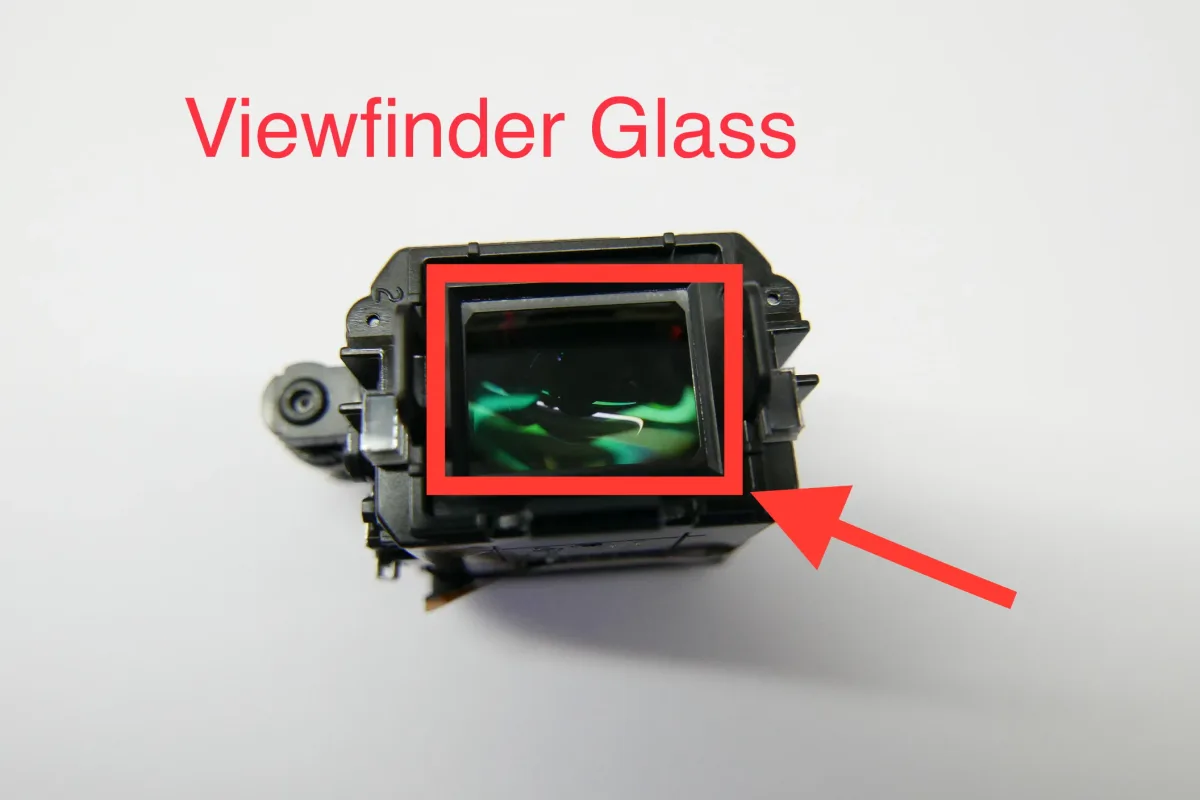
Image source: Web (Bing) / aliexpress.com (Web image (fair-use with source credit))
The Eye Sensor Override
The EVF auto-switch sensor sits just above the viewfinder. If it gets dirty or blocked by a neck strap, the camera assumes your eye is at the viewfinder. It then disables the rear screen entirely.
Clean the sensor with a microfiber cloth. If the problem persists, go to Setup and set Finder/Monitor to Manual. This stops the auto-switch and forces the camera to use the rear screen until you press the EVF button.
Touch Operation Toggle
This is the most overlooked setting. Go to the Setup menu under the wrench icon. Scroll down to Touch Operation.
Make sure it is set to On. If you recently updated firmware, this toggle often resets to Off.
Glove Mode and Sensitivity
Cold weather shoots can cause touch issues. Enable Glove Mode in the Setup menu if you're shooting below freezing. This increases the screen's capacitance sensitivity.
On later firmware versions, you can also adjust Touch Sensitivity. Set it to High if the screen feels sluggish. Set it to Low if you get accidental inputs while holding the camera.
Mode-Specific Touch Settings
The A7 IV allows separate touch configurations for stills, movie, and S&Q modes. It's possible to have touch enabled for photos but disabled for video.
Check each mode individually. Switch to stills. Confirm touch focus works.
Switch to movie. Verify touch tracking is enabled. Switch to S&Q.
Repeat the check. Each mode remembers its own settings.
The Imaging Edge Mobile Disconnect
Wireless connectivity can interfere with the touch panel. If the camera is actively transferring images to your phone via the Imaging Edge Mobile app, the touchscreen may lag or freeze.
Disconnect the app. Turn off Wi-Fi and Bluetooth in the camera's network menu. Reboot the body.
Retest the touchscreen without any wireless connection active. For official firmware downloads and additional support documentation, visit Sony's support site.
Frequently Asked Questions
Does the Sony A7 IV have a fully functional touchscreen?
Yes and no. The touchscreen works well for focus point selection, menu navigation, and playback. However, Sony intentionally limits touch in certain areas.
You cannot use touch to change most shooting settings or navigate the Function menu. This is a design choice, not a defect.
How do I enable touch focus on the Sony A7 IV?
Go to the Setup menu. Find Touch Operation and set it to On. Switch to a stills shooting mode.
Set the focus mode to AF-S or AF-C. Set the focus area to Flexible Spot M or Flexible Spot S. Tap the screen where you want focus.
The camera will acquire focus at that point.
Why is my A7 IV touchscreen not working in movie mode?
Movie mode disables touch shutter by default. You can enable touch tracking instead. Go to the Movie settings in the camera menu.
Find the Touch Operation setting. Change it from Off to On. You can now tap a subject to track it during video recording.
Can a screen protector cause touch issues on the A7 IV?
Absolutely. Thick glass protectors, especially those with painted black edges, interfere with the capacitive touch layer. The adhesive on the black border creates pressure points.
This leads to ghost touches or dead zones. Use a thin PET film protector if you want screen protection.
Will a firmware update fix my A7 IV touchscreen problems?
It often does. Sony's version 2.01 specifically addressed "unstable touch operation in certain shooting modes." To check your current firmware, go to Setup and select Version. If you are below 2.01, download the update from Sony's support site and install it via a formatted SD card.
When should I send my A7 IV in for touchscreen repair?
Send the camera to an authorised Sony service center only if you have tried all the steps in the decision tree and the screen remains completely unresponsive. Also send it if there are visible dead zones that persist with no screen protector attached. Out-of-warranty LCD replacement typically runs $350 to $450 plus shipping.

Similar Posts