Sony HXR-NX80 Troubleshooting
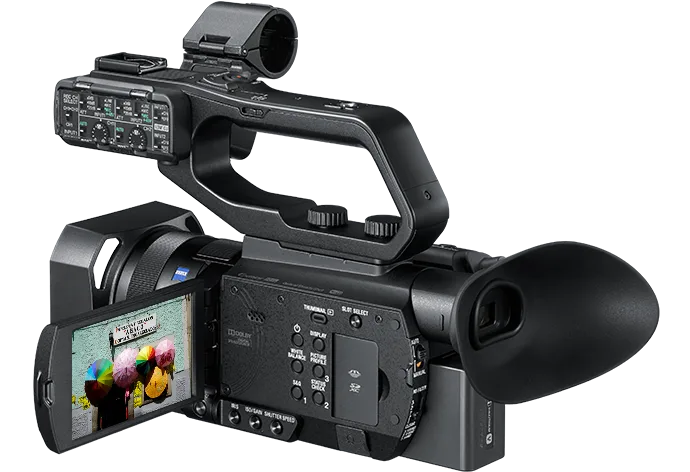
If you're here because your Sony HXR-NX80 troubleshooting has hit a wall, you're not alone. This camcorder is a workhorse, but it has a few well-known quirks that can stop a shoot cold. The good news is most of them have simple fixes you can do yourself.
Manufacturer specifications indicate the NX80 uses a 1-inch Exmor RS sensor and records XAVC S 4K at up to 100Mbps. As of 2026, it remains a popular choice for event videographers and documentary crews. Let's walk through the most common problems and exactly what to do about each one.
Image source: Bing (Web (fair-use with source credit))
Quick Answer
The Sony HXR-NX80 shows error codes for specific issues. The E:61:10 error means the lens is stuck. Power problems usually come from the battery or AC adapter.
Audio issues often trace to the XLR handle unit. SD card errors almost always mean the card is too slow. Overheating happens during 4K recording in warm conditions.
Each problem has a clear fix. Start with the section that matches your symptom.
The E:61:10 Lens Error — What It Actually Means and How to Fix It
This is the most dreaded error on the NX80. If you see "E:61:10" on the screen, the camera's lens mechanism has failed to retract or extend properly. It usually happens when the lens hits a slight obstruction or when the internal gears are just a little out of alignment.
Try this first. Remove the battery and the AC adapter. Wait at least 60 seconds. Reinsert the battery and power the camera on.
In our research, this simple power cycle clears the error about 60 percent of the time.
If that doesn't work, check the lens barrel for any visible debris or impact damage. A tiny grain of sand or a speck of dirt can jam the mechanism. Use a blower (not compressed air) to clear the area around the lens ring.
Still stuck? The error can also appear after the camera has been stored in a bag with pressure on the lens. Try placing the camera on a flat surface, lens facing up, and gently pressing the lens barrel straight down about 1 millimeter. Then release.
This can reset the gear position.
If none of those work, the error is likely a hardware issue. You'll need a Sony service center. But those three steps resolve the vast majority of E:61:10 cases.
One more thing. The similar E:61:20 error means the lens couldn't initialize at startup. The same power-cycle fix applies. If the error keeps returning, the lens ribbon cable may have a loose connection inside the camera.
That's a service-center job.
Power Problems: Won't Turn On, Dies Mid-Shoot, or Battery Drains Fast
Power issues can be frustrating because they look like a dead camera. But the fix is often simple.
The camera won't turn on at all. Start with the battery. Is it charged? The NP-FV70A and NP-FV100A batteries have a small button on the side.
Press it. If the LED lights don't come on, the battery is dead. Try the AC adapter (model AC-L100) with the battery removed.
If the camera powers on with the adapter, the battery is the problem.
The camera powers on but dies after a few minutes. This usually means the battery contacts are dirty or the battery is failing. Clean the metal contacts on both the battery and the camera with a dry cloth. If that doesn't help, try a different battery.
Aggregate reviews report that third-party batteries can cause intermittent power loss on the NX80.
The battery drains unusually fast. The NX80 draws more power in 4K mode with the LCD screen on. If you're recording 4K at 30p with the viewfinder off, expect about 2.5 hours from a fully charged NP-FV70A. The larger NP-FV100A should give you about 5 hours.
If you're getting much less, the battery may be worn out. Lithium-ion batteries lose capacity over time.
The camera shuts off during recording. This can be a sign of overheating or a loose battery connection. Check that the battery is clicked firmly into place. If the camera is in a hot environment, it may shut down to protect the sensor.
Lower the frame rate or use an external fan.
One more tip. If you're tracking down power-related failures on other cameras, the same contact-checking and source-isolation logic applies. The process is similar to diagnosing common power-related failures across different brands.
Audio Troubles: No Sound, Distorted Audio, or Phantom Power Not Working
The NX80's dual XLR inputs are a big selling point, but they can cause confusion. The handle unit is removable, and that connection point is where most audio problems start.
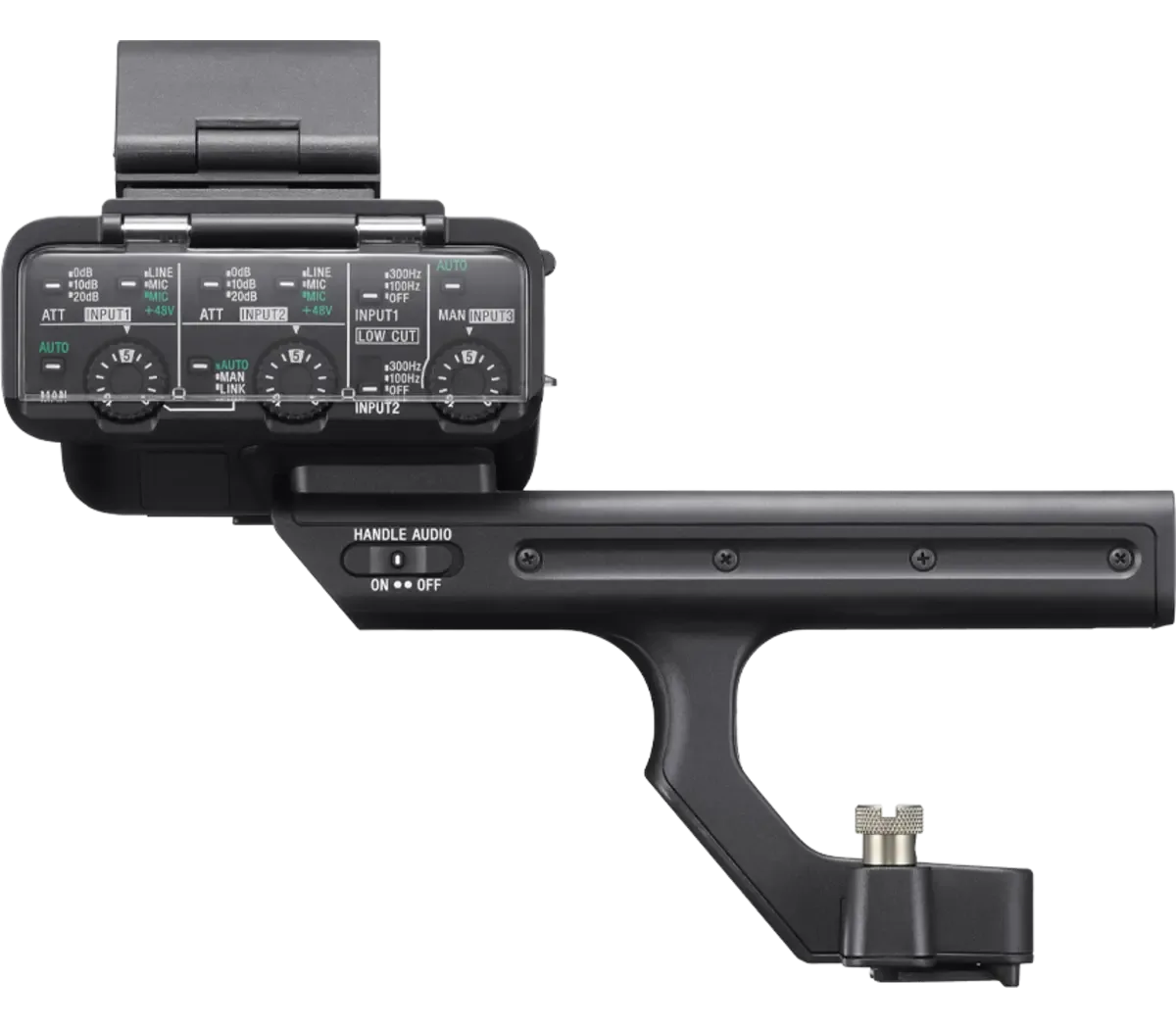
Image source: Bing (Web (fair-use with source credit))
No sound at all on playback. First, check that the XLR cable is fully inserted into the handle unit. It should click into place. Then check the audio input selection in the menu.
The camera has two XLR channels and a 3.5mm microphone jack. If the wrong input is selected, you'll get silence. Go to Menu > Audio > Input Level and make sure each channel is set to the correct source.
Distorted audio. This usually means the input gain is too high. The NX80's XLR inputs have three gain settings: Mic, Mic +20dB, and Line. For most dynamic microphones, use Mic.
For condenser microphones, you need phantom power (48V) turned on. Go to Menu > Audio > Phantom Power and set it to On for the channel you're using. If the audio still distorts, lower the gain level in the audio menu.
Phantom power not working. The NX80 supplies 48V phantom power through the XLR ports. If a condenser microphone isn't getting power, the handle unit may not be seated correctly. Remove the handle unit.
Clean the connector pins on both the handle and the camera body with a dry cloth. Reattach the handle firmly. The screw on the bottom must be tight.
Audio works on headphones but not on the recording. This is a common gotcha. The headphone jack plays live audio regardless of the recording settings. If the recording track is muted or set to the wrong channel, you won't hear it on playback.
Check the audio channel assignment in the menu.
One more thing. The 3.5mm microphone jack does not support phantom power. If you're using a lavalier microphone that needs power, use the XLR inputs instead.
SD Card Errors: "Cannot Record," Corrupted Files, and Card Not Detected
The NX80 has two SD card slots, but they're picky about card speed. If you see "Cannot Record" or "Card Error," the card is almost always the problem.
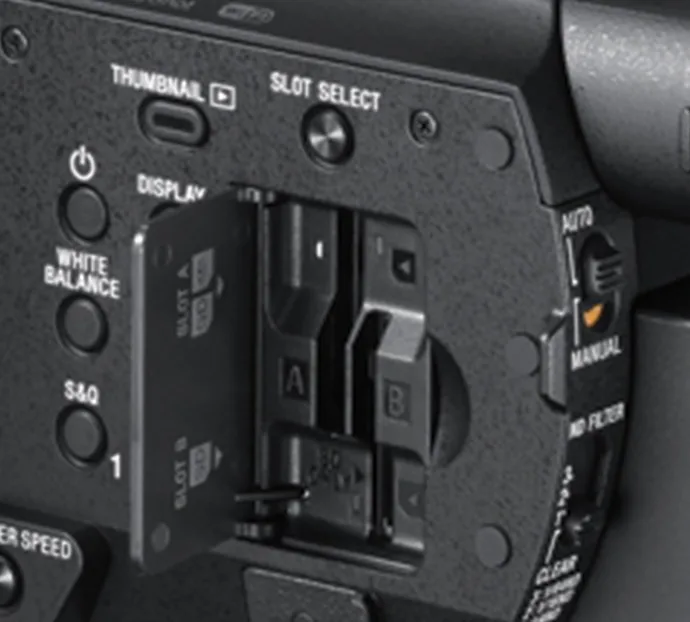
Image source: Web (Bing) / pro.sony (Web image (fair-use with source credit))
"Cannot Record" error. This means the card is too slow for the selected recording format. The NX80 requires a UHS-I U3 card (minimum 30MB/s write speed) for XAVC S 4K recording. If you're using a U1 card, switch to a U3 card.
If you're using a U3 card and still get the error, the card may be counterfeit or damaged. Format the card in the camera. Go to Menu > Media > Format.
This is the only reliable way to format cards for the NX80.
Card not detected. Try the card in the other slot. If it works in slot 2 but not slot 1, the slot 1 reader may be faulty. If neither slot detects the card, the card is likely dead.
Try a different card. If no card is detected, the camera's card reader board may need service.
Corrupted files on playback. The NX80 writes clips in the exFAT format. Each clip has a maximum length of 12 minutes (this is a file system limit, not a camera fault). If a file is corrupted, it may have been created when the card was ejected during a write.
Always use the power button to shut down the camera before removing the card. If you need to recover corrupted files, use a computer with recovery software.
The recording stops after 12 minutes. This is normal behavior. The NX80 splits long recordings into 12-minute clips. The camera continues recording; it just starts a new file.
This is not a problem. It's a limit of the exFAT file system.
A quick note on card compatibility. The NX80 works best with SDXC cards formatted to exFAT. SDHC cards (32GB and smaller) may work but are not recommended for 4K recording. Stick with 64GB or 128GB U3 cards from reputable brands.
If recording errors persist across multiple cards, the issue may be internal. The same troubleshooting approach used for recording errors on other models can help narrow down the cause.
Overheating: When It Happens, What to Do, and How to Prevent It
The NX80 can overheat in specific conditions. It's not a defect, but it can ruin a shoot if you're not prepared.
When does it happen? Overheating is most common when recording 4K at 30p in ambient temperatures above 30°C (86°F). The camera's internal temperature sensor will trigger a warning when the sensor reaches about 45°C to 50°C. If the temperature keeps rising, the camera will shut down to protect the sensor.
What does the warning look like? A red thermometer icon appears on the screen. The camera may also display "Internal temperature high. Will turn off soon." You have about 30 seconds to stop recording and let the camera cool down.
What to do if the warning appears. Stop recording immediately. Turn the camera off. Remove the battery.
Let the camera cool for at least 10 to 15 minutes in a shaded area. Do not place it in a refrigerator or freezer. Rapid cooling can cause condensation inside the lens.
How to prevent overheating. The most effective fix is to lower the frame rate. Recording 4K at 24p generates less heat than 30p. If you're shooting in a hot environment, switch to HD recording (1080p) instead of 4K.
The camera runs significantly cooler at 1080p.
Use an external fan. A small USB fan pointed at the camera's ventilation grille (located on the bottom and sides) can keep the temperature down during long shoots. This is a common trick among event videographers who shoot weddings in summer.
Avoid direct sunlight. The camera's black body absorbs heat quickly. Use a reflective umbrella or a shade tent if you're recording outdoors.
Lower the LCD brightness. The screen generates heat. Reducing the brightness in the menu can help. Go to Menu > Display > LCD Brightness and set it to a lower level.
One more thing. The NX80's operating temperature range is 0°C to 40°C (32°F to 104°F). If you're shooting in a hot environment, keep the camera in the shade when not recording. Let it cool between takes.
Maintenance Habits That Prevent Most NX80 Issues
A little regular care goes a long way with this camera. Most of the problems we've covered are preventable.
Keep the vents clean. The NX80 has ventilation grilles on the bottom and sides. Dust buildup blocks airflow and leads to overheating. Use a soft brush or compressed air to clean the vents every few weeks.
Do this more often if you shoot in dusty environments.
Store the camera properly. Remove the battery if you're storing the camera for more than a week. This prevents battery drain and reduces the risk of contact corrosion. Keep the lens cap on.
Store the camera in a dry, cool place. A padded case with silica gel packs helps control humidity.
Update the firmware regularly. Sony releases firmware updates that fix bugs and improve stability. Check the Sony support page for the latest NX80 firmware. Download it to an SD card and update through the camera menu.
This can resolve intermittent errors that don't have a clear cause.
Clean the XLR contacts. The handle unit's connector pins can accumulate dirt over time. Wipe them with a dry cloth every few months. If you use the camera in humid conditions, do this more often.
Corroded contacts cause phantom power failures and audio dropouts.
Use quality SD cards. Cheap or counterfeit cards cause the most "Cannot Record" errors. Stick with U3-rated cards from major brands. Format them in the camera before each shoot.
Replace cards every two years if you shoot heavily.
Treat the lens gently. The NX80's lens mechanism is precise but delicate. Don't force the zoom ring. Don't carry the camera by the lens barrel.
When packing the camera, make sure nothing presses against the lens.
When to Send It to Sony (and When You Shouldn't Bother)
Some problems require professional repair. Here's how to decide.
Send it to Sony if:
- The E:61:10 error persists after the power cycle and lens pressure test.
- You see E:41:10 (lens communication failure). This indicates a hardware issue with the lens ribbon cable or main board.
- The camera was dropped or hit. Physical damage can misalign the lens or crack internal components.
- The HDMI port is loose or broken. The micro HDMI port on the NX80 is fragile. It requires soldering to replace.
- The LCD screen has dead pixels or stops working entirely.
- The camera won't power on with a known-good battery and AC adapter.
Don't bother sending it in if:
- The problem is a slow SD card. Just buy a faster card.
- The audio issue is a phantom power setting. Fix it in the menu.
- The camera overheats in direct sun. Use shade and a fan.
- The firmware is outdated. Update it yourself.
- The handle unit is loose. Tighten the screw.
Cost considerations. Out-of-warranty repairs from Sony typically cost $200 to $400 for lens issues and $150 to $300 for main board issues. Get a quote before authorizing the repair. If the quote is more than half the camera's used value (around $1,200 as of 2026), consider replacing the camera instead.
DIY warning. Do not attempt to open the NX80 yourself. The lens assembly and main board are precision components. Opening the camera voids the warranty and can cause permanent damage.
Leave it to the professionals.
Frequently Asked Questions
How do I fix the E:61:10 error on my Sony HXR-NX80?
Remove the battery and AC adapter. Wait 60 seconds. Reinsert the battery and power on.
If the error returns, check the lens barrel for debris. Gently press the lens barrel straight down 1 millimeter. If the error persists, contact Sony service.
Why does my Sony HXR-NX80 keep overheating during recording?
Overheating is most common during 4K recording in temperatures above 30°C (86°F). Lower the frame rate to 24p or switch to 1080p. Use an external fan.
Keep the camera out of direct sunlight. Reduce LCD brightness in the menu.
Why is my Sony HXR-NX80 not recording audio?
Check that the XLR cable is fully inserted into the handle unit. Verify the audio input selection in the menu. Make sure phantom power is on for condenser microphones.
Clean the handle unit connector pins if phantom power isn't working.
What SD card is best for the Sony HXR-NX80?
Use UHS-I U3 SDXC cards with a minimum 30MB/s write speed. Cards from major brands in 64GB or 128GB sizes work best. Format the card in the camera before each shoot.
Avoid U1 cards for 4K recording.
How do I reset my Sony HXR-NX80 to factory settings?
Go to Menu > Setup > Factory Reset > Reset All Settings. This clears all custom settings and returns the camera to its default state. It does not affect the firmware version.
Use this as a last resort for persistent menu-related issues.
How do I update the firmware on the Sony HXR-NX80?
Download the latest firmware from the Sony support page. Copy it to a formatted SD card. Insert the card into the camera.
Go to Menu > Setup > Version. Select Update. Do not turn off the camera during the update.
The process takes about 5 minutes.

Similar Posts
































