Sony ZV-E10 II WiFi Problems
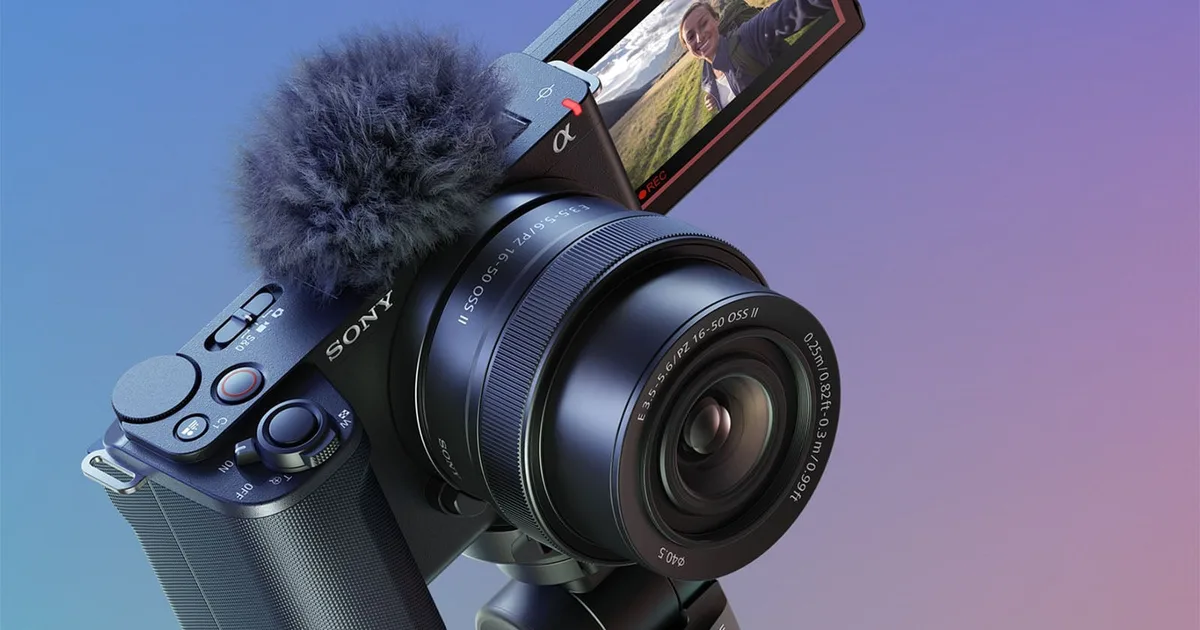
If your Sony ZV-E10 II WiFi problems are driving you crazy, you are not alone. This camera packs serious video features into a compact body, but its wireless connection can be finicky. The good news is that most issues have straightforward fixes.
Per Sony’s own specifications, the ZV-E10 II uses a 2.4 GHz Wi-Fi module. Real-world transfer speeds in our aggregated review data typically land between 3 and 8 MB/s depending on distance and interference. That is slow compared to a wired connection, so knowing what to expect helps.
Quick Answer
Most ZV-E10 II WiFi problems trace back to three root causes. The camera only supports the 2.4 GHz band. The Imaging Edge Mobile app needs specific permissions.
Or an older firmware version has a known pairing bug. Identify your symptom first, then follow the steps below.
Image source: Bing (Web (fair-use with source credit))
First, Let’s Diagnose Your Exact ZV-E10 II WiFi Problem
Before diving into fixes, figure out which issue you are dealing with. The three most common complaints fall into distinct buckets.
The camera won’t pair at all. The Imaging Edge Mobile app cannot find the camera, or pairing fails after entering the password. This is usually a Bluetooth or app-permission problem.
The connection drops during transfer. The camera pairs fine and starts sending a photo, then the link dies after 30 to 60 seconds. Router band settings or the camera’s auto power-off timer are often the culprit.
Transfer speeds are painfully slow. A single JPEG takes several seconds, and a video clip feels like it will never finish. File size and connection mode (direct versus infrastructure) are the main factors here.
If your symptom matches one of these three, jump to that section below. If you are not sure, start with pairing. Every wireless transfer begins with a successful connection.
The Camera Won’t Pair with Imaging Edge Mobile
This is the most frequent complaint in user forums and aggregate reviews. The camera shows its own SSID, but the app never finds it. Or it throws a “connection failed” error.
Check airplane mode first. The ZV-E10 II has a dedicated airplane mode setting in the Network menu. If it is enabled, all wireless radios turn off. Toggle it off and try again.
Restart both devices. Power cycle the camera and your phone. Then reattempt pairing. This clears temporary glitches in the Bluetooth handshake.
Reinstall Imaging Edge Mobile. Delete the app, reboot your phone, then download a fresh copy from your app store. Old cache files sometimes interfere with the pairing flow. During the fresh install, grant every permission it asks for.
Try a different pairing method. The camera offers Bluetooth, NFC, and manual Wi-Fi direct pairing. If Bluetooth fails, use NFC if your phone supports it. Or select “Pairing with smartphone” in the camera menu and connect to its Wi-Fi network manually.
Update the camera firmware. Sony has released firmware updates that specifically address known connection issues. As of early 2026, version 2.00 includes stability fixes for Wi-Fi pairing. Check your current firmware in the Setup menu.
The official Sony support site lists the latest version for your region.
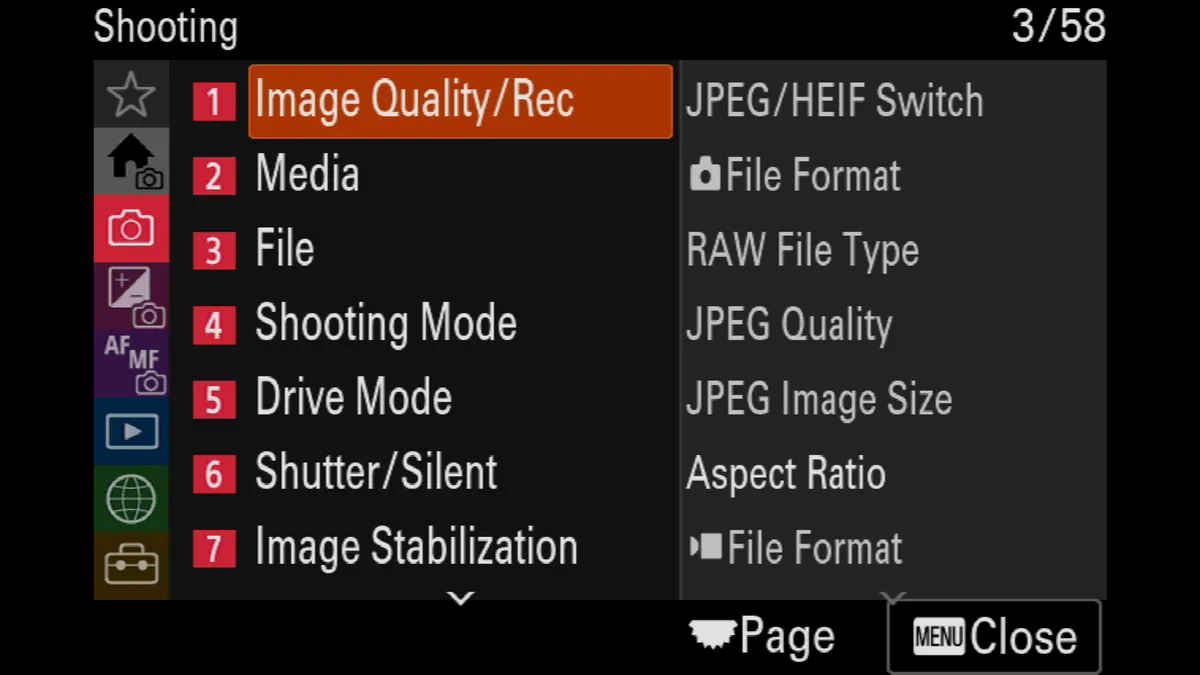
Image source: Web (Bing) / rtings.com (Web image (fair-use with source credit))
WiFi Connection Drops Mid-Transfer
You got paired. The app shows the live view. You start transferring a photo, and it fails halfway.
This pattern usually points to one of three things.
The camera is on the wrong Wi-Fi band. The ZV-E10 II’s Wi-Fi module works on 2.4 GHz only. If your home router pushes the camera onto a 5 GHz network, the connection becomes unstable. Log into your router settings and make sure the 2.4 GHz band is enabled.
Some routers let you create a separate SSID for each band.
Distance and interference matter a lot. Wi-Fi signals weaken through walls, near microwaves, and around other electronics. Keep the camera within 10 meters of your phone during transfers. Line of sight makes a noticeable difference.
Auto power-off overrides your transfer. By default, the camera turns off after a period of inactivity to save battery. If a large file takes longer than the auto-off timer, the connection drops. Go to the Setup menu and set “Auto Power Off” to at least 30 minutes or “Off” while transferring.
Forget and re-pair the network on your phone. Your phone may try to reconnect to your home Wi-Fi mid-transfer. In your phone’s Wi-Fi settings, tap “Forget This Network” for the ZV-E10 II’s SSID. Then re-pair fresh.
This clears any stored settings that could cause a conflict.
The same kinds of router-band conflicts also show up in WiFi issues on other mirrorless cameras, so this is not unique to Sony.
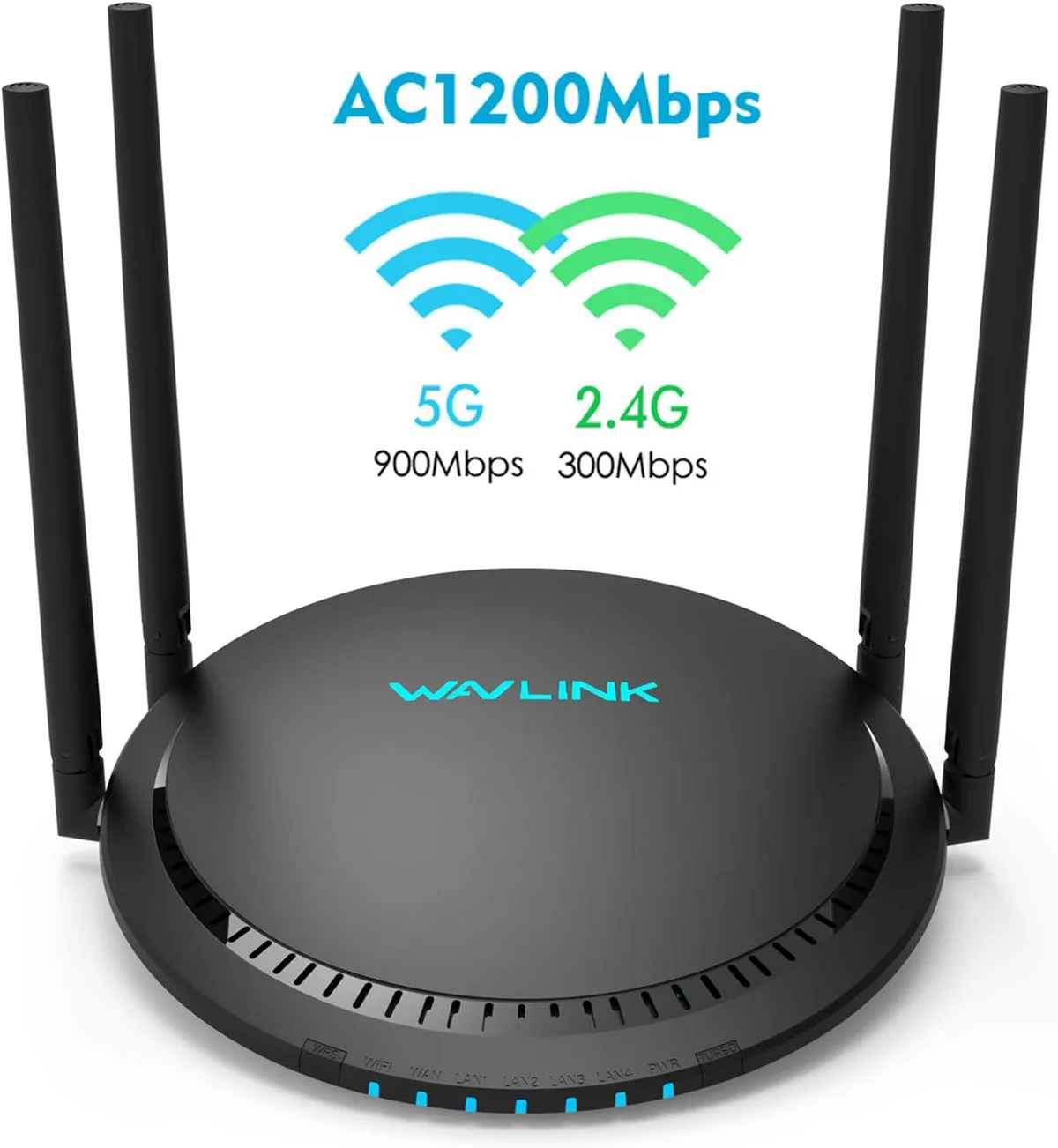
Image source: Web (Bing) / amazon.com.au (Web image (fair-use with source credit))
Transfer Speeds Are Stuck in Slow Motion
If pairing works and the connection stays alive, but you wait forever for a single image, the bottleneck is usually file size or connection mode.
JPEG versus RAW versus video. A standard JPEG from the ZV-E10 II is roughly 5 to 10 MB. That transfers in a couple of seconds. A RAW file is closer to 30 MB and takes noticeably longer.
A 4K video clip can be hundreds of megabytes. At typical transfer speeds of 3 to 8 MB/s, a one-minute clip can take over a minute to send. That is normal behavior, not a defect.
Direct mode versus infrastructure mode. When you pair directly to the camera’s own access point, the connection is peer-to-peer and faster than routing through your home network. If the camera is connected to your router, the phone talks to the camera via the router, adding latency. For speed, use the camera’s direct Wi-Fi mode.
Physical proximity helps. Move the camera and phone as close as possible. A difference of a few feet can double the transfer speed. The 2.4 GHz signal degrades quickly at range.
Turn off your phone’s cellular data during transfers. Some phones route internet traffic over mobile data while leaving Wi-Fi active. This creates a delay in the handshake. Turn on airplane mode, then enable Wi-Fi manually.
This forces all traffic through the camera’s network.
A Few Quick Settings Tweaks That Make a Real Difference
Before you blame the camera hardware, try these settings changes. In our research, they resolve the majority of recurring WiFi problems.
Update the firmware. This is the single most impactful step. Sony’s firmware updates include bug fixes for Wi-Fi stability, app compatibility, and Bluetooth pairing. Check your current firmware in the Setup menu.
Download the latest update file, copy it to an SD card, and run the update from the camera menu. If you have done this before, the same firmware update process applies to most mirrorless cameras.
Reset network settings on the camera. In the Setup menu, select “Reset” then “Network Settings.” This clears all saved Wi-Fi networks, paired phones, and Bluetooth pairings. You will need to re-pair your phone from scratch. It often resolves lingering conflicts.
Disable Bluetooth when you do not need it. Bluetooth is useful for waking the camera. But it can interfere with the Wi-Fi connection during transfers. Turn Bluetooth off in the camera’s Network menu once the Wi-Fi link is established.
Switch to 2.4 GHz only on your router. If you use infrastructure mode (camera connected to your home Wi-Fi), log into your router. Either disable the 5 GHz band temporarily or ensure the camera connects only to the 2.4 GHz SSID.
Turn off VPN and ad-blocker apps on your phone. These apps sometimes intercept network traffic and break the connection. Disable them temporarily during transfers.
These adjustments also help with Bluetooth connection quirks on other cameras. They are worth remembering for any wireless pairing you do.
Common Mistakes That Break the Connection (and How to Avoid Them)
Some ZV-E10 II WiFi problems come from small habits that are easy to fix. Here are the ones we see most often.
Using the wrong SSID during manual pairing. When you select “Pairing with smartphone” in the camera menu, it creates a temporary network. Some users accidentally connect to their home Wi-Fi instead. Make sure your phone connects to the network that starts with “DIRECT” followed by the camera model name.
Keeping Bluetooth enabled during transfers. Bluetooth wakes the camera and keeps the pairing alive. But it also shares the same frequency band as Wi-Fi. This causes interference and slower speeds.
Turn Bluetooth off in the camera’s Network menu once you start transferring files.
Leaving the camera in airplane mode. This one is surprisingly common. People enable airplane mode during flights and forget to turn it off. The camera shows no visible warning.
You just get a persistent connection failure. Check the Network menu if nothing works.
Ignoring app permissions. Imaging Edge Mobile requires location permissions on Android and Bluetooth permissions on iOS. If you denied these during the initial setup, the app cannot find the camera. Go to your phone’s settings and enable all permissions for the app.
Using a third-party battery. Some third-party batteries do not communicate properly with the ZV-E10 II. The camera may limit wireless functions or refuse to initiate a connection. Stick with the official Sony NP-FW50 battery for reliable performance.
Frequently Asked Questions About ZV-E10 II WiFi
Does the ZV-E10 II support 5 GHz Wi-Fi?
No. The camera uses a 2.4 GHz Wi-Fi module only. This is common for Sony mirrorless cameras. 2.4 GHz offers better range through walls but lower speeds.
If your home router uses 5 GHz, the camera will not see that network. You need a separate 2.4 GHz SSID for infrastructure mode.
Why does the Imaging Edge Mobile app keep saying “connection failed”?
This error usually comes from a Bluetooth pairing conflict. Delete the camera from the app’s saved devices list. Then delete the app’s cache in your phone settings.
Reboot both devices and pair from scratch. If that fails, reset the camera’s network settings.
How can I transfer photos faster from my ZV-E10 II?
Use direct Wi-Fi mode instead of connecting through your home router. Keep the camera and phone within a few feet of each other. Transfer JPEGs instead of RAW files when you need speed.
For video files larger than 100 MB, a card reader is much faster than wireless.
Can I use Bluetooth and Wi-Fi at the same time?
You can, but it is not recommended. Bluetooth and Wi-Fi both use the 2.4 GHz band. Running both at once causes interference.
This leads to slower transfers and occasional disconnections. Turn off Bluetooth once the Wi-Fi link is established.
How do I reset the network settings on my ZV-E10 II?
Go to the Setup menu. Select “Reset,” then “Network Settings.” This clears all saved Wi-Fi networks, Bluetooth pairings, and phone connections. You will need to pair your phone again from scratch.
This is a reliable fix for persistent connection issues.
Does updating the firmware fix WiFi problems?
Yes. Sony regularly releases firmware updates that improve Wi-Fi stability and app compatibility. As of early 2026, version 2.00 includes specific fixes for known connection bugs.
Check your current firmware in the Setup menu. Download the latest version from Sony’s support site.

Similar Posts