Nikon Z6 II How to Update Firmware
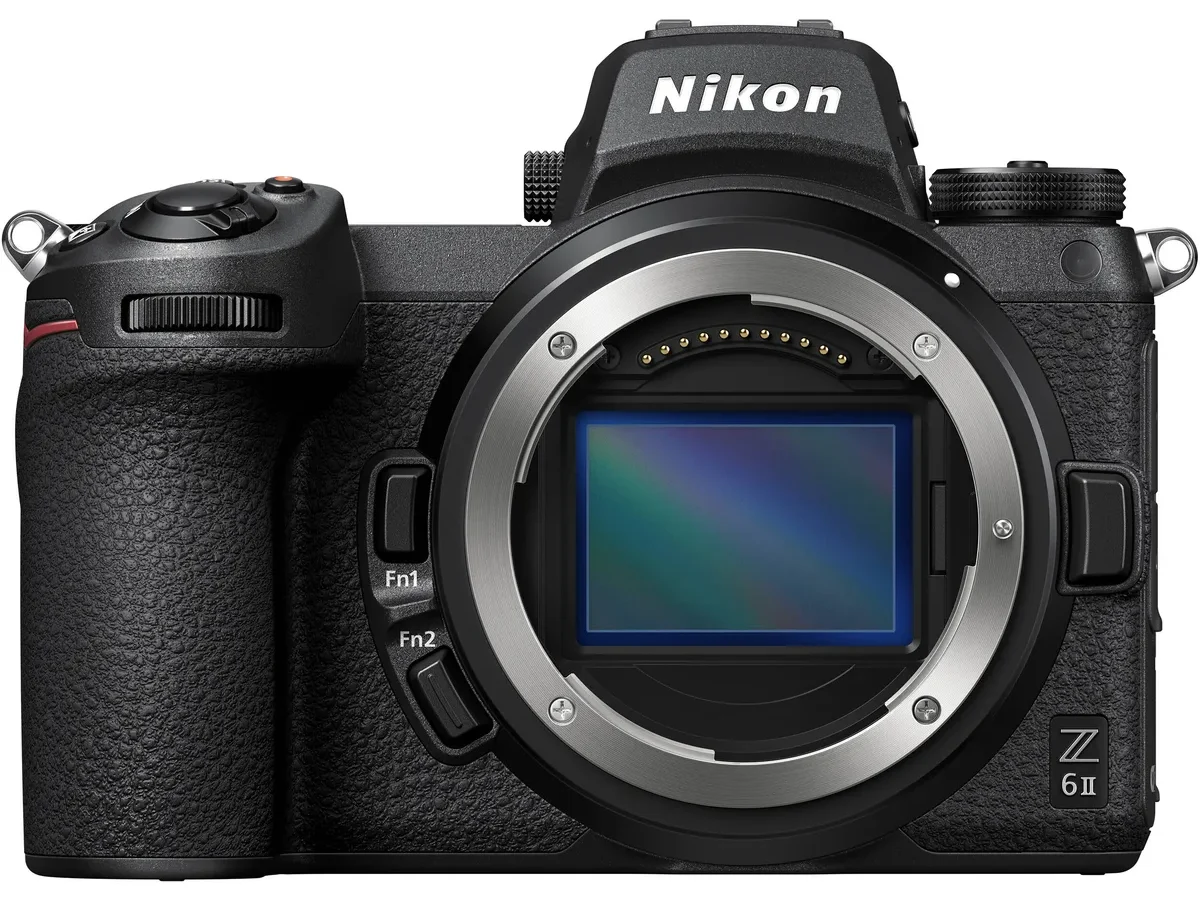
You've heard the horror stories. Someone downloads a firmware file, copies it over, and suddenly their camera won't boot. That black screen panic is real.
If you're searching for Nikon Z6 II how to update firmware, you want to get this right the first time. The process itself is straightforward. The danger lives entirely in the prep work.
As of 2026, Nikon has released several firmware updates for the Z6 II. File sizes typically land between 50 and 90 MB. Each update brings real improvements.
Sharper autofocus tracking. Better lens compatibility. Fixes for annoying glitches.
The problem isn't the update. The problem is using the wrong file, rushing the steps, or ignoring basic warnings.
Quick Answer
Download the correct .bin file from the Nikon Download Center. Copy it to the root of a formatted memory card. Insert the card in Slot 1.
Navigate to Setup Menu > Firmware Version > Update. Confirm and wait. Do not touch the camera for 5 to 10 minutes.
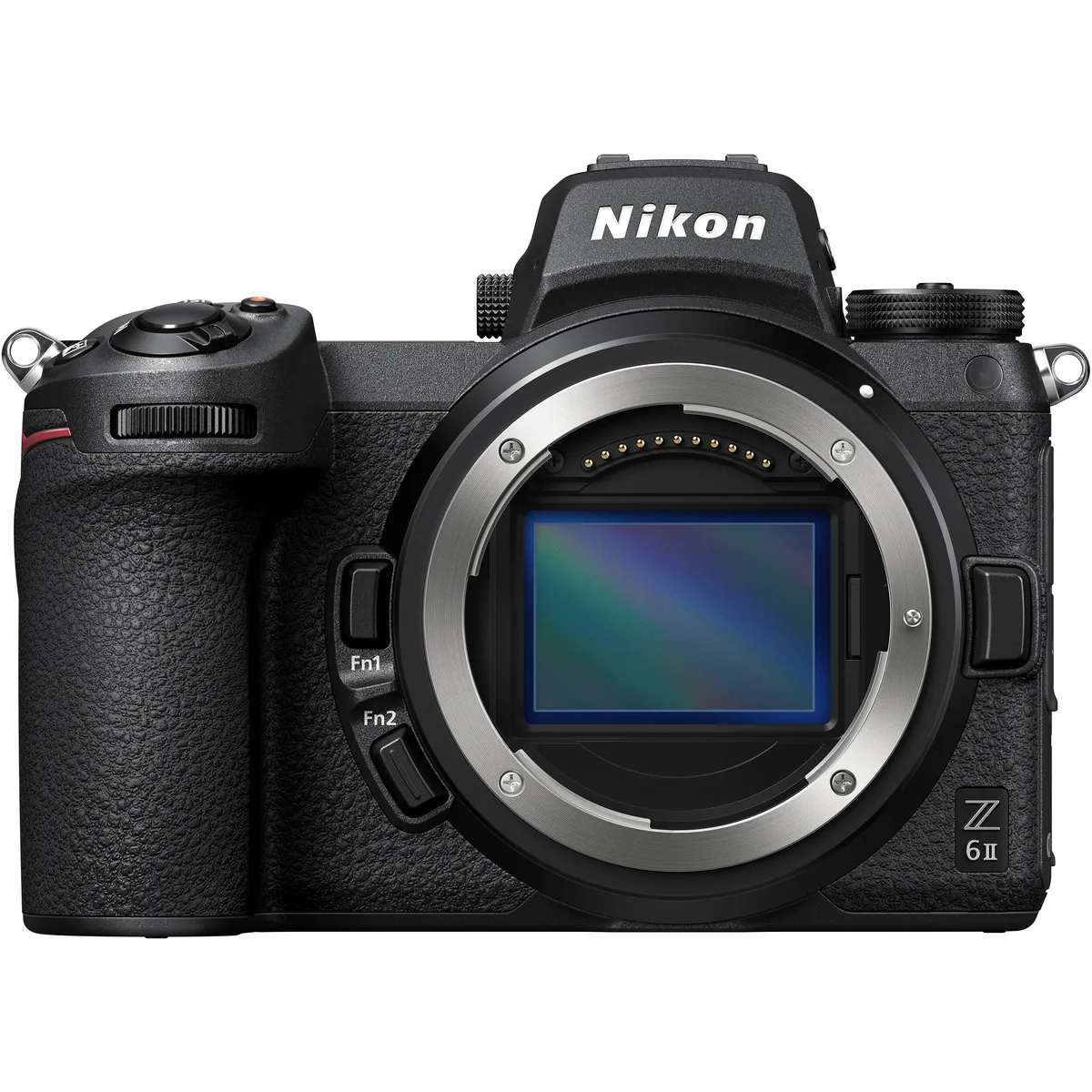
Image source: Web (Bing) / dancamera.vn (Web image (fair-use with source credit))
Why Getting the Right Firmware File Matters (The Big Risk)
Nikon sells two very similar cameras. The Z6 and the Z6 II. They share the same lens mount and a lot of the same DNA.
But their firmware files are completely different. Drop a Z6 firmware file into a Z6 II, and you are looking at a bricked camera. The camera will refuse to boot.
The fix requires a trip to an authorized service center.
The file name is your first clue. Nikon uses a naming pattern like Z6IIUpdateV160.bin. The "II" in that name is non-negotiable.
If you see Z6UpdateVxxx.bin without the II, stop. You have the wrong file.
Image source: Web (Bing) / storage.googleapis.com (Web image (fair-use with source credit))
Always download directly from the Nikon Download Center. Avoid third-party mirror sites. Even if a site looks official, the file could be corrupted, outdated, or renamed to trick you.
Aggregate user feedback across photography forums consistently flags this as the number one cause of failed updates.
A secondary risk involves beta firmware. Nikon sometimes posts beta versions for testing. Unless you are actively participating in that program, stick to the latest stable release.
Setting Yourself Up for a Smooth Update: What You Need First
Before you touch the download button, gather everything. The update itself takes about 5 to 10 minutes. The prep work takes longer, but it saves you from headaches.
You need four things:
- A fully charged battery. Nikon recommends at least 50 percent charge. The safest bet is a freshly charged EN-EL15c battery. A dying battery mid-update is a guaranteed brick.
- A memory card. SD, XQD, or CFexpress all work. Format it inside the camera first. That removes any hidden files that could confuse the update process.
- A card reader or a direct USB connection. Most users find a card reader simpler. Nikon also supports updating via USB, but the card method is more reliable per user reports.
- A computer with internet access. Windows or Mac, either works.
One more thing. Check your current firmware version before you do anything else. Go to the Setup Menu, scroll to Firmware Version, and write down the number.
If you are already on the latest version, you are done.
Step-by-Step: How to Update the Nikon Z6 II Firmware
The actual process is a short list of steps. Each one matters. Skip one, and you risk a failed update or a dead camera.
| Step | Action | Critical Detail |
|---|---|---|
| 1 | Check current firmware version | Setup Menu > Firmware Version. Note the number. |
| 2 | Format your memory card in the camera | Use the Format option in the Setup Menu. Do not use your computer. |
| 3 | Download the correct .bin file | Only from the official Nikon Download Center. Verify "II" in the file name. |
| 4 | Copy the file to the card root | Do not place it inside any folder. It must sit at the top level. |
| 5 | Insert the card into Slot 1 | The camera reads updates only from Slot 1. It ignores Slot 2. |
| 6 | Navigate to the update menu | Setup Menu > Firmware Version > Update. The option only appears with the correct file. |
| 7 | Confirm the update | The screen will go black for several seconds. That is normal. |
| 8 | Wait for the completion message | The camera restarts automatically. It shows the new version number. |
| 9 | Format the card again | This removes the update file and frees the card for normal use. |
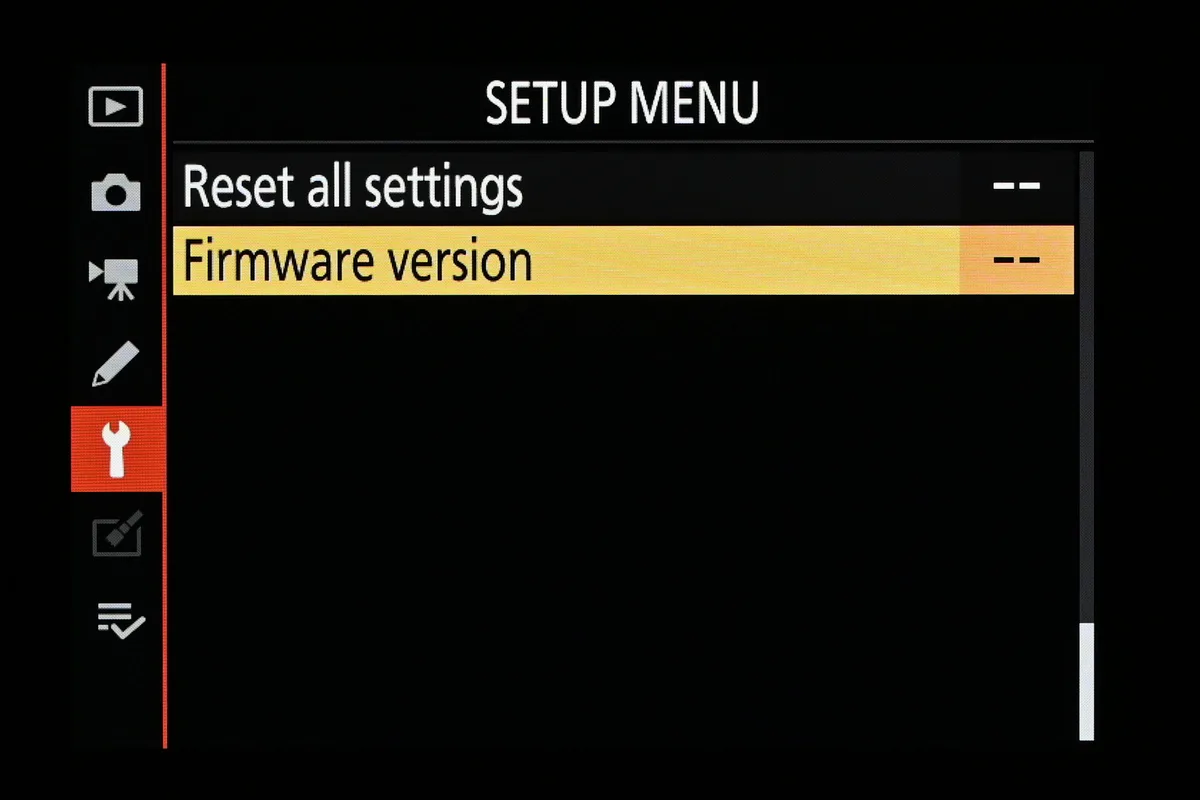
Image source: Web (Bing) / digitalcameraworld.com (Web image (fair-use with source credit))
The screen stays black for up to two minutes during the update. That is the scariest part, especially if you have never done it before. The camera is not frozen.
It is actively rewriting its internal memory. Let it finish.
If the update succeeds, the camera displays a message like "Update complete. Turn camera off." Power cycle the camera. Verify the new version number appears in the Firmware Version menu.
What to Do If the Update Fails
Failures happen. Most are recoverable. The key is knowing what went wrong.
Start by checking the file. Remove the card, insert it into your computer, and verify the .bin file is present at the root level. If the file is missing, your card may not have been seated properly.
Re-copy the file and try again.
If the file is present but the camera still refuses to update, the file might be corrupted. Delete it from the card. Re-download it from the Nikon Download Center.
Copy it again. Downloading on a shaky internet connection can introduce corruption.
Battery issues are another common cause. If the camera turns off mid-update, charge the battery fully and start over. The camera should be fine.
Nikon builds in safety checks that prevent the camera from booting with partial firmware. A failed update usually leaves you with a camera that says "No firmware" or refuses to turn on. That sounds terrifying, but it is recoverable with a fresh attempt and a fully charged battery.
If the camera is completely unresponsive after a failed update, remove the battery and the card. Wait 30 seconds. Reinsert the battery and a freshly prepared card with the correct firmware file.
Try again. This power cycle clears temporary glitches.
For situations where nothing works and the camera remains stuck, contact Nikon support. This is rare. The vast majority of failed updates are solved by a clean redownload and a fully charged battery.
Common Mistakes Even Pro Photographers Make
Experienced photographers make errors too. Usually because they rush.
The most frequent mistake is forgetting to format the card in the camera. A card formatted on a Mac contains hidden files like .DS_Store. A card formatted on Windows might have system files in its root directory.
The camera wants to see only the firmware file. Formatting in the camera guarantees a clean slate.
Another common error is placing the file in a folder. The camera only looks at the root directory. If you accidentally drag the file into a DCIM or NIKON folder, the camera will not see it.
The update option in the menu simply won't appear. Double-check the file location before inserting the card.
Using Slot 2 instead of Slot 1. The Z6 II has two card slots. Slot 1 is the primary slot.
The camera reads firmware updates only from Slot 1. Insert the card into Slot 2, and nothing happens.
Ignoring the battery warning. A battery at 40 percent might seem fine. But the update process draws power unevenly.
If the battery dips below the threshold mid-update, the camera shuts down. Always use a freshly charged battery.
Downloading the wrong firmware version. The Z6 and Z6 II share the same physical design. Their firmware files do not.
The Z6 II file always includes "II" in the name. Read the file name twice before copying it to the card.
Finally, interrupting the update. The screen goes black. The camera makes no noise.
It looks dead. That is when people panic and remove the battery. Wait.
Set a timer for 10 minutes and walk away if you need to. Interrupting the process is the surest way to turn a minor hiccup into a service center visit.
Frequently Asked Questions
Can I update the Z6 II firmware without a card reader?
Yes, you can. Connect the camera to your computer using a USB cable. The camera will appear as a removable drive.
Copy the firmware file to the root of the card that way. The card reader method is generally more reliable per aggregate user reports, but USB works fine.
How do I know I downloaded the right file?
Look at the file name before you copy it. It must contain "II" in the name. For example, Z6IIUpdateV160.bin is correct. Z6UpdateV160.bin is for the original Z6.
The file name is your final safety check.
Is it risky to update the firmware?
The risk is low if you follow the prep steps. The danger comes from a dead battery, the wrong file, or interrupting the process. A fully charged battery and the correct .bin file eliminate almost all the risk.
Thousands of users complete this update without issue.
How long does the Z6 II firmware update take?
The update process takes 5 to 10 minutes. The screen goes black for several seconds at a time during that window. That is normal.
The total time from download to completion is about 15 minutes if you have the file ready and the battery charged.
How do I check my current firmware version?
Go to the Setup Menu. Scroll down to Firmware Version. The camera displays the current version number on screen.
Do this before you download anything. You might already be on the latest version, and that saves you the whole process.

Similar Posts
















[…] your firmware version before setup can prevent headaches. The same principle applies when updating firmware on other camera models to ensure compatibility. Make sure your SD card is formatted and has enough space before you start, […]