Superbox S3 Pro Problems

If you've ever sat down to watch a show and your Superbox S3 Pro decided to act up, you know the frustration. The exact phrase "Superbox S3 Pro Problems" covers a wide range of issues, from a black screen to a remote that won't pair. This guide walks you through every common symptom, step by step, so you can fix it yourself without sending the box back.
Manufacturer specifications confirm this device uses the Amlogic S905X4 chipset paired with Android 11. Aggregate reviews report that most problems fall into five categories: power, remote, video and audio, network performance, and overheating. Let's start with the simplest cause of all before diving deeper.
Image source: Bing (Web (fair-use with source credit))
Quick Answer
The most frequent Superbox S3 Pro problems are power failures, unresponsive remotes, black screens, buffering, and overheating. Each has a clear fix. Check the LED first.
If it's dark, test the power adapter. If the remote doesn't work, re-pair it. A black screen usually means an HDMI handshake issue.
Buffering points to Wi-Fi or RAM limits. Overheating needs ventilation. This guide covers all steps.
Is Your Superbox S3 Pro Actually Getting Power?
No power is the most common complaint. Before you blame the box, rule out the simple stuff. The Superbox S3 Pro has a small LED on the front.
If it's off, the device isn't getting electricity.
Check the LED behavior first. Here's what each pattern means:
| LED State | What It Indicates | Next Step |
|---|---|---|
| No light | No power to the box | Test outlet and power adapter |
| Solid red | Standby (powered but off) | Press power button on remote |
| Blue/white | Booted up and running | Check HDMI connection |
| Flickering | Boot loop or low power | Try a different power adapter |
If the LED is off, start with the wall outlet. Plug a lamp into the same socket to confirm it works. If the outlet is fine, swap the power cable.
The Superbox uses a standard 12V/1A adapter. Many people grab a random phone charger that supplies only 5V. That won't work.
Use the original brick.
Try a different power adapter. The specs call for 12V DC with at least 1 amp. A slightly higher amp rating, like 1.5A or 2A, is fine. A lower one will cause boot loops or no power at all.
If the adapter is warm but the LED stays dark, the adapter may be dead. Replace it with a compatible 12V unit.
Test the USB ports. If the box powers on but the USB port doesn't work, the internal voltage regulator might be failing. Plug a known working USB device (like a keyboard) into each port. If none work, the board has a hardware fault.
That usually means a replacement board or a new box.
Edge case: power but no boot. Sometimes the LED comes on but the screen stays black and the box never finishes loading. This is a boot loop. Try holding the reset button (located in the AV jack) for 10 seconds while powering on.
That forces a factory reset. If it still loops, the firmware may be corrupted.
Remote Control Not Responding: IR vs Bluetooth Pairing
The remote is your primary interface. When it stops working, don't panic. The Superbox S3 Pro remote uses both IR (infrared) and Bluetooth.
The first step is figuring out which mode it's in.

Image source: Bing (Web (fair-use with source credit))
Try fresh batteries first. Weak batteries cause intermittent or no response. Replace them with new alkaline batteries. Don't use rechargeables that output 1.2V.
The IR sensor needs the full 1.5V.
If still dead, check the IR path. The IR receiver is a small dark window on the front of the box. Make sure nothing blocks it. The remote needs line of sight.
If you have the box inside a cabinet, the IR may bounce. Point the remote directly at the box.
Re-pair the Bluetooth connection. The remote ships in IR mode out of the box. Once paired via Bluetooth, it switches to radio control. If the Bluetooth link breaks, the remote becomes unresponsive.
To re-pair:
- Unplug the Superbox from power.
- Plug it back in.
- Within 10 seconds, press and hold the Home button (house icon) and the Back button (arrow) simultaneously.
- Hold for about 5 seconds until the remote LED blinks rapidly.
- Release. The box should recognize it.
If this fails, try using the Superbox Remote App on your phone (available for Android). That app sends IR commands via your phone's IR blaster if it has one. Not all phones have it, but many do.
As a backup, plug a USB mouse into the box. The cursor appears and you can navigate the interface.
Hardware failure. If none of the above works, the remote's IR LED may be burnt out, or the Bluetooth chip inside the remote may be dead. Test with a smartphone camera: point the remote at the camera lens and press a button. If you see a purple flash in the camera view, the IR is working.
No flash means the remote is faulty. Replace it. Generic replacement remotes for Amlogic boxes often work, but pairing may require a different code.
Video or Audio Problems: Black Screen, No Signal, Lip Sync
This is the second most common Superbox S3 Pro problem. The box powers on, the LED is blue, but the TV shows nothing or a "No Signal" message. Or the picture is fine but the audio is delayed by half a second.
Black screen or "No Signal". The first thing to try is the HDMI cable. Swap it with a known good cable. Cheap HDMI cables are a huge source of problems.
Use a cable rated for at least HDMI 1.4 (18 Gbps) to support 4K HDR. Even better, use the cable that came with the box.
Change the HDMI port on your TV. Sometimes a particular port goes bad. Move the cable to another port and power cycle the TV. If that works, the original port is faulty.
No TV repair needed, just use a different port.
Override the resolution in safe mode. The Superbox sometimes boots to a resolution your TV doesn't support. To fix:
- Hold the OK (center) button on the remote while powering on the box.
- Keep holding until you see the recovery menu.
- In recovery, select "Apply update from EXT" or "Wipe data/factory reset". But don't wipe yet. Instead, use the "Reboot system now" option. During reboot, the box may reset its resolution to 1080p.
If safe mode doesn't work, try connecting to a different TV (or monitor) that supports 1080p. Once it boots, go to Settings > Display > Resolution and set it to 1080p or 720p. Then reconnect to your main TV.
This solves most handshake issues.
Audio sync problems. Lip sync delay is common when using passthrough audio (e.g., Dolby Digital to a soundbar). The box processes video faster than the audio codec. To fix:
- Go to Settings > Sound.
- Turn off "Dolby Audio" or "Passthrough".
- Set audio output to "PCM" or "Stereo". That forces the box to decode audio internally, eliminating the delay.
If you need surround sound, buy an external HDMI audio extractor that strips the audio before it hits the TV. The Superbox isn't great at AV sync in passthrough mode. Aggregate user reviews confirm this is a hardware limitation, not a settings quirk.
No audio at all. Check that the TV volume isn't muted or set to zero. If you're using a soundbar, make sure the HDMI cable is plugged into the correct ARC port. Try optical output if your soundbar supports it.
The S3 Pro has a 3.5mm AV port, not optical, so you'd need an HDMI audio extractor with optical out.
Buffering, Stuttering, and App Crashes: Network or Hardware?
Buffering during streaming is a top complaint. But it's rarely the box itself. The Superbox S3 Pro has dual-band Wi-Fi and a gigabit Ethernet port.
If either connection is weak, streaming stutters.
First, test your internet speed. On the box, install a speed test app from the Play Store. Run it while connected via Wi-Fi, then repeat with Ethernet. Compare the results.
| Connection Type | Expected Speed for Smooth 4K | Likely Problem |
|---|---|---|
| Wi-Fi 2.4 GHz | Less than 30 Mbps | Buffers on 4K streams |
| Wi-Fi 5 GHz | 50 to 150 Mbps | Good for most, but distance kills signal |
| Ethernet (wired) | Full bandwidth up to 1 Gbps | Router or cable issue |
If Wi-Fi is slow, check the router placement. The Superbox should be within 30 feet of the router with minimal walls. Move it closer or use a powerline adapter.
Also, switch from 2.4 GHz to 5 GHz in settings if your network supports it. 5 GHz is faster but shorter range. Try both.
Ethernet not working. Plug the cable into the box's Ethernet port. The port should have a tiny green LED that lights up when connected. If it doesn't, try a different cable.
If the cable is fine, the Ethernet chip may be dead. In that case, Wi-Fi is your only option. Replace the box if you need wired reliability.
App crashes and freezes. These often stem from low RAM. The 2GB version of the Superbox S3 Pro can run out of memory quickly, especially with Kodi or heavy IPTV apps. Go to Settings > Apps > Running Services.
See how much RAM is used. If it's over 80%, you're hitting the limit.
To fix:
- Clear the cache of the problematic app: Settings > Apps > [App Name] > Clear Cache. Do not clear data unless you want to log in again.
- Uninstall apps you never use. Preinstalled bloatware? Disable them if possible.
- Restart the box every few days. A simple power cycle frees up RAM.
Disable hardware overlay. In Settings > Developer Options, toggle "Disable HW overlays" to ON. This forces the GPU to handle all 2D rendering, reducing stutter. If Developer Options isn't visible, go to Settings > About Device and tap "Build Number" seven times.
That unlocks it.
If buffering persists even after optimizing network and clearing cache, the problem may be your IPTV provider's server. Test with a free YouTube video in 4K. If that plays fine, the server is the bottleneck, not the box.
Overheating and Random Shutdowns: Prevention and Fixes
Overheating is a known weak point in many Android TV boxes. The Superbox S3 Pro is no exception. The Amlogic S905X4 chip can hit 75°C under heavy load.
When the internal temperature exceeds that, the box throttles performance or shuts down to protect the hardware.
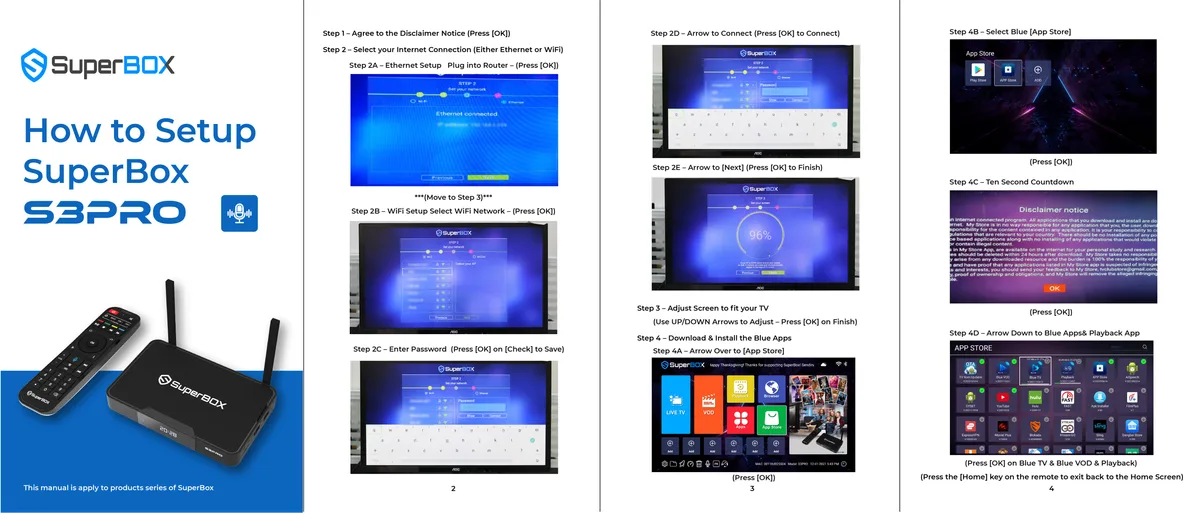
Image source: Bing (Web (fair-use with source credit))
Check the ventilation first. The Superbox has no active fan. It relies on passive cooling through the plastic casing. If the box is inside a closed cabinet or stacked under another device, heat builds up fast.
Move it to an open shelf with at least 2 inches of clearance on all sides. Never place it on top of a cable box or router that generates its own heat.
Remove the rubber feet. The stock rubber feet lift the box slightly. Many users report better airflow after removing them and placing the box on a metal mesh stand. Heat dissipates through the bottom vents.
A simple DIY fix: four small bottle caps under each corner give better airflow than the original feet.
Thermal paste reapplication. If you're comfortable opening the device, this is the most effective fix. The factory thermal paste between the chip and the heatsink is often cheap and applied thinly. Replacing it with a high-quality thermal paste (like Arctic MX series) can drop temperatures by 10 to 15°C.
To do it:
- Unplug the box and remove the four screws on the bottom.
- Lift the PCB carefully. The heatsink is usually a metal plate on top of the chip.
- Clean off old paste with isopropyl alcohol and a lint-free cloth.
- Apply a pea-sized drop of new paste. Spread it evenly. Reassemble.
This is not a complicated job, but it voids the warranty. If your box is under a year old, contact the seller first.
Underclock the CPU. For users who don't want to open the box, install a third-party app like CPU Tuner (requires root). Reduce the maximum CPU frequency from 2.0 GHz to 1.5 GHz. That cuts heat generation by about 30% with only a minor performance hit for streaming.
Rooting is a separate process, so this is an advanced option.
Ambient temperature matters. If the room temperature is above 85°F (30°C), the box will run hotter. Use a small USB fan aimed at the box to keep it cool. Many users report stable operation after adding a tiny fan from a laptop cooler pad.
Random shutdowns despite cooling. If the box still shuts down after all the above, the power regulator on the motherboard may be failing. That gives false overheat signals. In that case, the board needs replacement.
Check your warranty first.
Storage Full or Slow Performance: Cleaning vs Factory Reset
The Superbox S3 Pro (16GB model) leaves about 10GB free after the Android OS installs. That fills fast with cache, app data, and downloaded media. When storage drops below 1GB, the system slows to a crawl.
Clear app cache first. Go to Settings > Apps and scroll through each app. Tap it, then hit "Clear Cache". Do not hit "Clear Data" unless you want to lose login info.
Focus on Kodi, IPTV apps, YouTube, and browsers. These build up hundreds of megabytes of thumbnails and logs.
Uninstall bloatware. Some units ship with preinstalled games or VPN apps you never use. Uninstall anything you didn't install yourself. System apps that can't be uninstalled?
Disable them. That stops them running in the background and eating RAM.
Move apps to SD card or USB. Insert a microSD card (up to 128GB officially, but 256GB often works). Format it as internal storage in Settings > Storage. Then move apps over.
Be aware: SD cards are slower than internal memory. Heavy games may stutter. Media files are fine.
If the box is still slow, factory reset. This wipes everything and returns the box to out-of-box state. Go to Settings > Backup & Reset > Factory Data Reset. Confirm.
The box reboots and erases all data. Back up your IPTV credentials first. A factory reset fixes most inexplicable lag and crashes.
Factory reset without a remote. If your remote is dead, use the hardware reset button. Insert a paperclip into the small hole labeled "Reset" (usually inside the AV port). Hold it while plugging in power.
Keep holding for 10 seconds. The box boots into recovery mode. Use TV volume buttons (if HDMI-CEC is enabled) or a USB mouse to navigate recovery and select "Wipe data/factory reset".
The Nuclear Options: Factory Reset and Firmware Reflash
If your Superbox S3 Pro won't boot or is stuck in a boot loop, a factory reset often isn't enough. The firmware itself may be corrupted. Reflashing the operating system is the next step.
Locate the hardware reset button. It's inside the 3.5mm AV jack on most S3 Pro models. Use a paperclip to press it. Hold while connecting power.
Release after 5 seconds. The box should enter recovery mode.
Reflash via SD card. This works for most Amlogic-based boxes. You need a microSD card (8GB or larger, formatted FAT32) and the correct firmware file for your exact model. Do not use firmware for the S2 Pro or V3 Pro.
Download from the official Superbox support site or a trusted community forum. Rename the file to update.zip.
Insert the SD card into the box. Boot into recovery using the reset button method. Select "Apply update from SD card".
Wait 5 to 10 minutes. Do not unplug during the flash.
Risks of reflashing. Flashing the wrong firmware can brick the box permanently. There is no recovery mode for a corrupt bootloader. Only proceed if you are absolutely sure the firmware matches your hardware revision number (e.g., v1.0, v2.0).
Check the sticker on the box.
If the box is completely dead. No LED, no response to any button. That is a hardware failure. The power management IC or the chip itself is fried.
Reflashing won't help. The box needs replacement.
5 Common Mistakes That Make Superbox Problems Worse
Many Superbox issues are avoidable. Users make simple mistakes that turn small problems into big ones.
1. Using the wrong power adapter. The Superbox needs 12V DC at 1A minimum. A 5V phone charger won't work.
A 9V adapter may cause boot loops. Stick to the original brick. If lost, buy a 12V/1.5A adapter with the correct barrel size (5.5mm outer, 2.1mm inner).
2. Covering the ventilation. The box has no fan. Heat rises through top and bottom vents.
Stacking it under another device traps heat. This leads to throttling and shutdowns. Place it on an open shelf, not in a closed cabinet.
3. Ignoring firmware updates. Superbox releases updates to fix bugs. Check Settings > About Device > System Updates every few months.
Install available updates. Do not sideload unknown firmware from forums unless you know what you're doing.
4. Using cheap HDMI cables. A dollar-store HDMI cable may work at 1080p but fails at 4K HDR. Use a cable certified for HDMI 1.4 (18 Gbps) or HDMI 2.0.
The difference is night and day for stable video.
5. Placing the router too far away. Wi-Fi interference kills streaming quality. Keep the Superbox within 30 feet of the router with minimal walls.
Use Ethernet if possible. Wired is always better for IPTV and 4K.
Frequently Asked Questions
Why does my Superbox S3 Pro keep freezing?
Freezes usually come from low RAM or overheating. Check running apps and close unused ones. Clear cache.
If the box feels hot, improve ventilation. A factory reset often helps if software bloat is the issue.
Can I use a Bluetooth speaker with the Superbox?
Yes, but expect audio delay. Go to Settings > Bluetooth and pair your speaker. For lip sync issues, disable passthrough audio and set output to PCM.
The delay may still be noticeable with cheap speakers.
How do I update the firmware manually?
Download the correct firmware file for your model. Rename it to update.zip. Place it on a microSD card formatted as FAT32.
Insert the card, boot into recovery using the reset button, and select "Apply update from SD card".
Why is my Superbox S3 Pro not connecting to Wi-Fi?
First, reboot the router and the box. Forget the network in Settings > Wi-Fi and reconnect. Switch between 2.4GHz and 5GHz bands.
If the problem persists, the Wi-Fi chip may be faulty. Use Ethernet as a backup.
Is it worth repairing or should I buy a new box?
If the problem is a dead remote or bad HDMI cable, repair is cheap. If the box has a hardware failure (no power, dead Ethernet, persistent overheating), a new box costs $55 to $80. For most people, a new unit is simpler and comes with a warranty.
Final Decision Guide: When to Fix vs Replace
You've tried the steps. The box still has issues. Here's how to decide.
| Issue | Fix Cost | Time | Recommendation |
|---|---|---|---|
| No power, LED dead | $10 for adapter | 15 min | Try adapter. If board dead, replace box. |
| Remote not working | $8 to $15 for new remote | 5 min | Replace remote. Generic works. |
| Black screen, no signal | $0 (safe mode) or $10 for HDMI cable | 10 min | Try safe mode, then new cable. |
| Buffering or slow Wi-Fi | $0 (router placement) or $20 for powerline | 30 min | Optimize network first. |
| Overheating or shutdowns | $0 (ventilation) or $8 for thermal paste | 1 hour | Reapply paste if comfortable. Else replace. |
| Boot loop or stuck | $0 (reflash) or brick risk | 30 min | Reflash only if confident. Else replace. |
Bottom line: Minor issues like remote, cables, or settings are easy fixes. If the box has a dead motherboard, bad Ethernet chip, or chronic overheating, replace it. A new Superbox S3 Pro costs $55 to $80.
For that price, you get a fresh warranty and no headache.
If you decide to replace, consider your budget. The Nvidia Shield Pro costs more but offers better upscaling. The Amazon Fire TV Stick 4K Max is cheaper but less powerful.
Choose based on how much you rely on the Superbox for daily streaming.

Similar Posts