Thinkware U3000 Troubleshooting
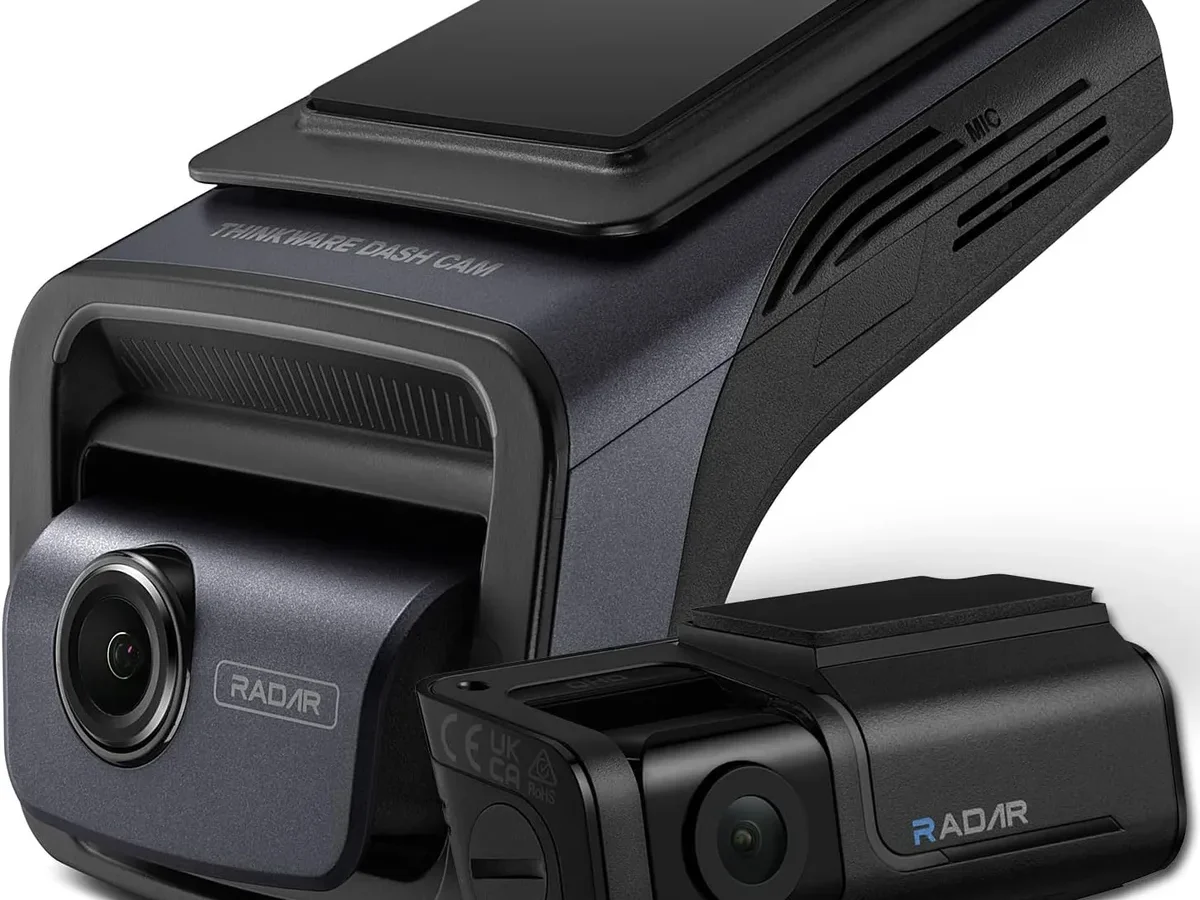
Your Thinkware U3000 goes silent, and you're staring at a blank screen. That's where Thinkware U3000 troubleshooting starts: with a real symptom, not a guess. This camera is packed with features, but it also has its own quirks.
Knowing which fix matches which problem saves you hours of frustration.
Manufacturer specs confirm the U3000 runs on a supercapacitor rated for -20°C to 70°C, not a lithium battery. That design choice affects everything from parking mode behavior to power cycling. Let's walk through the most common problems and the exact steps to solve them.
Quick Answer
Start with power. Check the 12V socket or hardwire kit. Test the SD card by formatting it inside the camera.
If the app fails, restart your phone. Factory reset the unit if nothing else works.
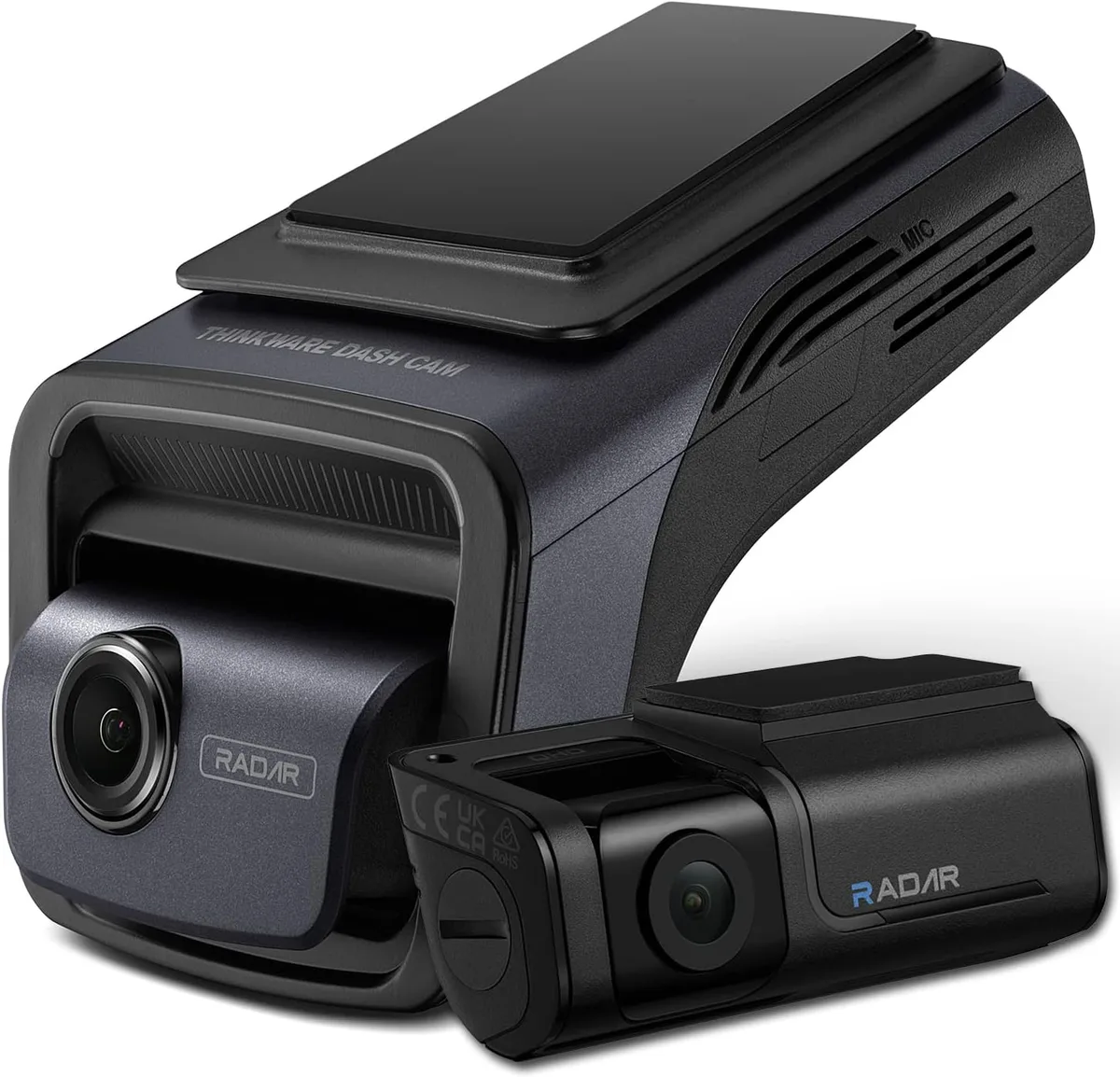
Image source: Web (Bing) / amazon.co.uk (Web image (fair-use with source credit))
Start Here: What's Actually Going Wrong?
Before you pull out tools or reset anything, identify your exact symptom. The U3000 has a handful of known failure points. The fix changes completely based on what you're seeing.
The camera is dead. No lights, no beeps, no response when you connect power. This points to the power source, the hardwire kit, or the supercapacitor.
The camera powers on but restarts in a loop. You see the boot screen, then it shuts down and tries again. This is almost always the SD card failing or a corrupt firmware file.
Parking mode doesn't activate. The camera records fine while driving, but it stays in continuous recording mode when you park. Wiring or voltage settings are the usual suspects.
The app can't find the camera. Wi-Fi pairing fails, or the connection drops after a few seconds. Phone settings and app permissions are the most common cause.
The rear camera shows "No Signal." The cable between the front and rear unit is loose, damaged, or improperly seated.
SD card errors pop up constantly. You see "Format Card" or "Card Error" messages. The card itself may be incompatible, too slow, or corrupted.
The camera overheats and shuts down. Direct sunlight on a hot day can push the supercapacitor past its limit. This is normal behavior, not a defect.
Write down which symptom you have. Then move to the section that matches it. If you're unsure, start with the power section.
That's the most common failure point.
Camera Won't Turn On or Keeps Power Cycling
This is the most frustrating issue because the camera gives you no feedback. Let's rule out the possibilities in order.
Check the power source first
Plug the U3000 into a known good 12V socket using the included cigarette lighter adapter. If it powers on, the problem is your hardwire installation, not the camera. If it stays dead, move to the next step.
Test the hardwire kit
The Thinkware hardwire kit has a voltage cutoff feature that protects your car battery. If the voltage drops below your set threshold, the camera shuts off completely. This is by design.
Your car battery may be low, or the cutoff setting is too high for your driving habits.
Use a multimeter to check the voltage at the hardwire kit's output. If it's below 12V, the kit is probably working fine. Your car battery needs charging.
If you're getting 12V or more and the camera still won't turn on, the hardwire kit itself may be faulty.
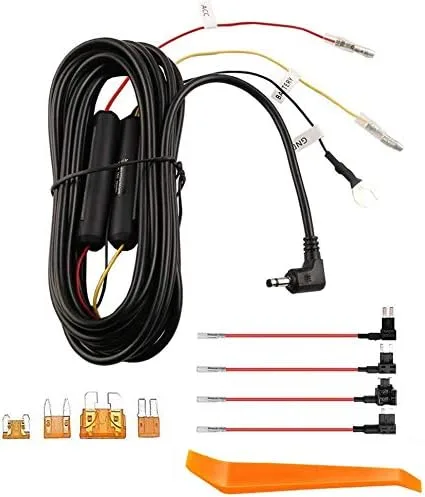
Image source: Web (Bing) / amazon.ca (Web image (fair-use with source credit))
The supercapacitor check
The U3000 uses a supercapacitor, not a battery. That means no explosion risk, but it also means no stored power. If the camera was left unplugged for weeks, the supercapacitor drains completely.
Plug it in and wait up to 60 seconds. Some units take that long to wake up from a full discharge.
If you hear a rapid clicking sound from the camera, the supercapacitor is likely dead. This is a known failure point on units from 2023 and earlier. Contact Thinkware support for a replacement.
The supercapacitor is soldered to the main board, so this isn't a DIY fix.
Power cycling loop
If the camera turns on, shows the boot logo, then shuts down and repeats, remove the SD card immediately. A corrupt card can cause the camera to crash during boot. If the camera stays on without the card, you've found the culprit.
Format the card inside the camera using the app or the menu button. If the loop continues, the firmware may be corrupt. Follow the firmware update process in the next section.
Parking Mode Not Working or Not Activating
Parking mode is the U3000's headline feature, but it's also the most finicky to set up. The camera uses motion detection, impact detection, or time-lapse recording when the car is off. If it's not working, one of three things is wrong.
Wiring type matters
The U3000 needs two power sources. It uses a constant power source and a switched power source. This helps it detect when the car is off.
If your hardwire kit is connected to a constant power source only, the camera never knows the car is parked. It runs in continuous recording mode forever.
Check your fuse tap connections. The yellow wire (constant) should go to a fuse that has power all the time, like the interior lights. The red wire (switched) should go to a fuse that only has power when the ignition is on, like the radio or cigarette lighter.
If they're swapped, the camera may behave unpredictably.
Voltage cutoff setting
The U3000 has five voltage cutoff levels. If you set it too high, the camera shuts off parking mode early to protect the battery. For most cars, 12.2V or 12.1V is a good balance.
You can also use an external battery pack like the iVOLT to avoid draining the car battery entirely.
Open the Thinkware app, go to Parking Mode settings, and check the voltage cutoff. If it's set to 12.4V, the camera may only record for a few minutes before shutting off. Drop it to 12.2V or 12.1V and test again.
Energy saving parking mode
The U3000 has an Energy Saving Parking Mode that draws very little power, around 0.5W. In this mode, the camera only records when the G-sensor detects an impact. If you're expecting motion detection recording, this mode won't work.
Switch to Time Lapse mode or Continuous Recording mode for full coverage.
Temperature triggers
The U3000 has a thermal protection feature. If the internal temperature exceeds 70°C, the camera shuts down parking mode entirely. This is not a defect.
On a hot summer day, the camera may stop recording after 10 to 15 minutes. Parking in the shade or using a sunshade helps. If you're in a hot climate, consider using a dash cam with a dedicated heat shield or a remote parking mode battery.
Wi-Fi Connection Drops or App Won't Find the Camera
The U3000's Wi-Fi is used for live view, file transfer, and settings changes. When it stops working, the camera feels like a brick. Let's separate first-time setup issues from recurring problems.
First-time setup
If you've never connected before, the camera creates its own Wi-Fi network. Go to your phone's Wi-Fi settings. Find the network named "Thinkware_U3000_xxxxxx" and connect to it.
The default password is printed on the camera's base or in the manual. Once connected, open the Thinkware app. The app should find the camera automatically.
If the network doesn't appear, the camera may not be in pairing mode. Press the Wi-Fi button on the camera until the LED blinks quickly. That puts it into discovery mode.
If it still doesn't appear, restart the camera and try again.
Recurring connection drops
If you've connected before but the connection keeps dropping, the issue is usually your phone's settings. Turn off mobile data while connected to the camera. Some phones automatically switch to mobile data when the Wi-Fi has no internet access.
This breaks the connection to the camera.
On Android, go to Wi-Fi settings. Tap the camera's network. Turn off "Switch to mobile data" or "Auto reconnect." On iPhone, turn on Airplane Mode.
Then manually connect to the camera's Wi-Fi. This prevents the phone from looking for an internet connection.
App permissions
The Thinkware app needs location permission on Android 10 and later. This is true even though it doesn't use GPS for this function. It's a Play Store requirement for apps that scan for Wi-Fi devices.
If you denied location permission, the app won't see the camera. Go to your phone's settings. Find the Thinkware app.
Enable "Allow all the time" or "While using the app" for location.
Firmware glitch
A small number of U3000 units have a firmware bug that causes Wi-Fi to drop after 30 seconds. The fix is to update to the latest firmware. Check the Thinkware app for updates.
If the app can't connect, download the firmware file from the official Thinkware support site. Copy it to the SD card and insert it into the camera. The camera will detect the file and prompt you to update.
If you're still having wireless connection dropouts, reset the camera's network settings through the app. Go to Settings, then Network, then Reset Network. This clears any corrupt pairing data.
SD Card Errors, Format Loops, or Corrupted Files
The U3000 is picky about SD cards. Using the wrong card causes errors that look like hardware failure. Let's fix that.
Card compatibility
The U3000 officially supports microSD cards up to 256GB. It needs a Class 10 or U3 speed rating. Cards with V30 or higher are ideal for 4K recording.
Brands like SanDisk, Samsung, and Lexar work well. But not all cards are equal. Some high-endurance cards designed for security cameras are actually slower than standard cards.
If you're using a card that's too slow, the camera may stop recording. It may show "Card Error" or corrupt files. The camera writes data at up to 60MB/s in 4K mode.
A card that can't sustain that speed will fail.
In-camera formatting is mandatory
Never format the card on your PC or Mac. The U3000 uses a specific file system structure that only the camera creates. If you format the card on a computer, the camera will prompt you to format it again.
This is not a bug. Insert the card into the camera. Go to Settings, then SD Card, then Format.
Confirm the action.

Image source: Web (Bing) / amazon.ca (Web image (fair-use with source credit))
Format loop fix
If the camera keeps asking you to format the card every time you turn it on, the card is likely corrupted. Try a different card. If the loop stops, the old card is dead.
If the loop continues with a new card, the camera's card reader may be faulty.
Protecting your files
Always eject the card properly through the app or by powering off the camera before removing it. Pulling the card while the camera is writing can corrupt the file system. If you have a corrupted file, connect the card to a computer and run a disk check utility.
But honestly, it's easier to just format the card and start fresh.
How often to format
Aggregate reviews report that formatting the card every 30 days prevents most errors. The camera writes small files constantly. Fragmentation builds up over time.
A monthly format clears that and keeps the camera stable. Make it a habit. The first of the month, format the card.
You'll save yourself a lot of headache.
If you're dealing with recording media failures, also check the card's lifespan. Most microSD cards are rated for 10,000 to 100,000 write cycles. In a dash cam that writes continuously, that's about 1 to 3 years.
Replace the card annually for best results.
Common Mistakes That Make Things Worse
Some issues are caused by the camera. Others are caused by what we do to it. Here are the most common mistakes and how to avoid them.
Using a PC to format the card
This is the number one mistake. Windows and Mac use different file systems than the U3000. Formatting on a computer creates a card the camera can't read properly.
Always format inside the camera. It takes 30 seconds and saves you hours of troubleshooting.
Wrong fuse tap position
The hardwire kit needs two fuse taps. One for constant power, one for switched power. If you connect both to constant power fuses, the camera never knows when the car is off.
Parking mode won't work. If you connect both to switched power fuses, the camera loses power when the car is off. No parking mode at all.
Ignoring the voltage cutoff
Setting the voltage cutoff too high means the camera shuts off after a few minutes of parking. Setting it too low means you risk a dead car battery. The sweet spot for most cars is 12.2V or 12.1V.
Test it for a few days. Adjust if needed.
Skipping firmware updates
Thinkware releases firmware updates to fix bugs and improve performance. If you're having issues, check for updates. The app handles this easily.
Leaving old firmware installed is like leaving a known problem unfixed.
Using cheap SD cards
Not all SD cards are the same. A bargain bin card will fail in a dash cam. The U3000 writes data constantly.
It needs a card that can handle that workload. Spend the extra few dollars on a high-endurance card from a trusted brand.
Maintenance Tips to Keep It Running Smoothly
The U3000 is a reliable camera, but it needs basic care. Follow these tips to keep it working for years.
Monthly card format
Set a reminder on your phone for the first of the month. When you get the reminder, format the SD card inside the camera. This clears fragmentation and prevents errors.
It takes less than a minute.
Lens cleaning
Dust and fingerprints on the lens ruin video quality. Clean the lens every two weeks with a microfiber cloth. Use a lens cleaning solution if needed.
Don't use paper towels or your shirt. They can scratch the lens.
Heat management
The U3000 handles heat better than most dash cams because of the supercapacitor. But it still has limits. If you park in direct sunlight, use a windshield sunshade.
This keeps the internal temperature lower and prevents thermal shutdowns.
Firmware update cadence
Check for firmware updates every three months. The Thinkware app makes this easy. Connect to the camera and check for updates.
If one is available, install it. This keeps the camera running with the latest bug fixes and improvements.
Cable inspection
The rear camera cable is the most vulnerable part of the system. Inspect it every few months. Look for kinks, cuts, or loose connections.
A damaged cable causes "No Signal" errors. Replace it if you see any damage.
Frequently Asked Questions
Why does my rear camera show "No Signal"?
The cable between the front and rear camera is loose or damaged. Unplug it from both ends and reseat it firmly. If the error persists, the cable may be pinched or cut.
Replace it with a genuine Thinkware cable.
Why is my GPS taking so long to get a signal?
The U3000's GPS module needs a clear view of the sky. Metal window tint or a thick metal roof blocks the signal. Move the camera closer to the windshield edge.
If you're in a parking garage, the GPS won't work until you drive outside.
How do I adjust the CPL filter properly?
The CPL filter rotates to reduce glare from the dashboard reflection. Point the camera at a bright scene. Rotate the filter until the glare disappears.
There's no wrong position. It's whatever looks best to you.
Why is there no audio in my recordings?
Check the microphone setting in the app. Go to Settings, then Recording, then Audio. Make sure it's not set to Off.
If it's on and you still have no audio, the microphone may be blocked by dust. Clean the small opening on the camera body.
My cloud connection keeps dropping. What's wrong?
The U3000 needs a stable Wi-Fi or cellular connection for cloud features. If you're using a mobile hotspot, the camera may lose connection when the hotspot goes to sleep. Try a dedicated in-car Wi-Fi hotspot.
Also check that the camera's firmware is up to date.
How do I factory reset the camera?
Locate the pinhole on the camera body. Insert a paperclip or SIM eject tool. Press and hold for 10 seconds.
The camera will reset to factory defaults. You'll need to set up Wi-Fi and parking mode again after the reset.

Similar Posts
































