BlackVue DR770X WiFi Problems
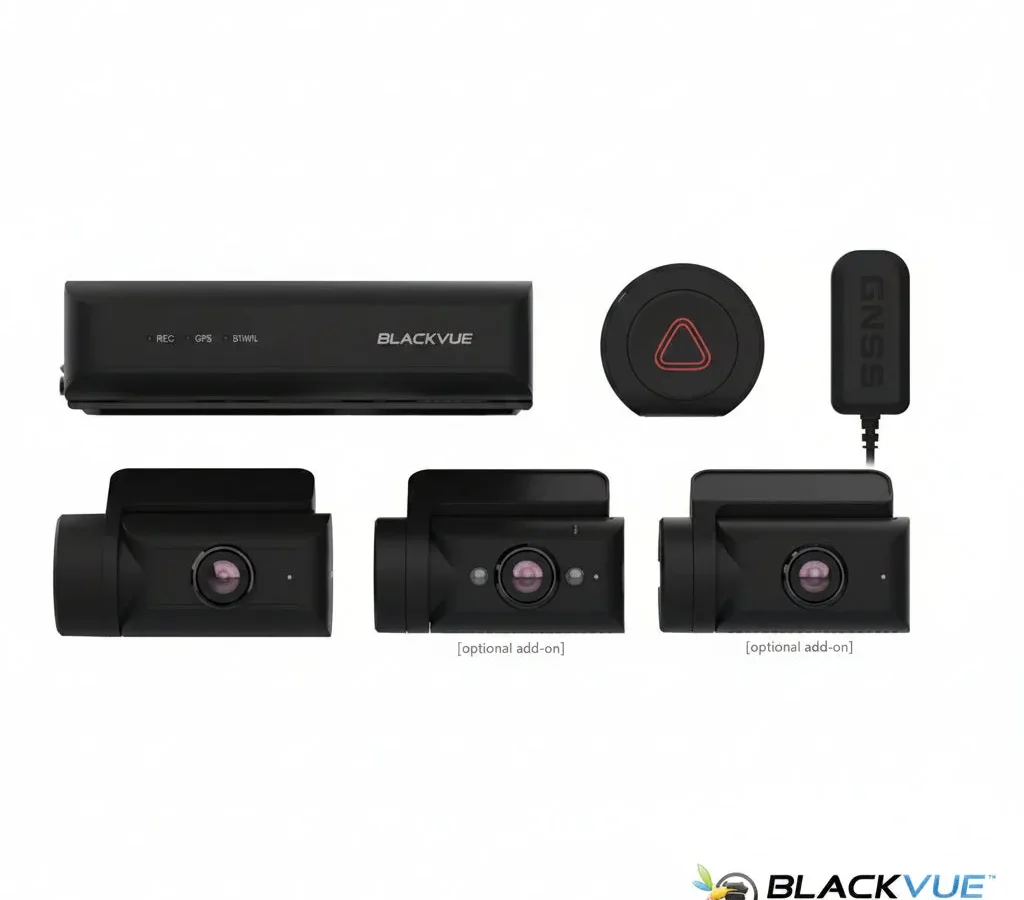
BlackVue DR770X WiFi problems can be incredibly frustrating. You've got a premium dash cam installed. But when you tap the app to pull up a clip, nothing happens.
The camera is recording away. Your phone just won't connect. It's one of the most common complaints about this otherwise excellent camera.
And it's almost always fixable without sending it back.
Per manufacturer specifications, the DR770X uses a 2.4GHz-only WiFi module with a maximum range of about 10 meters (30 feet). That's a key detail that trips up a lot of owners. Let's walk through the most common scenarios and what to do about each one.
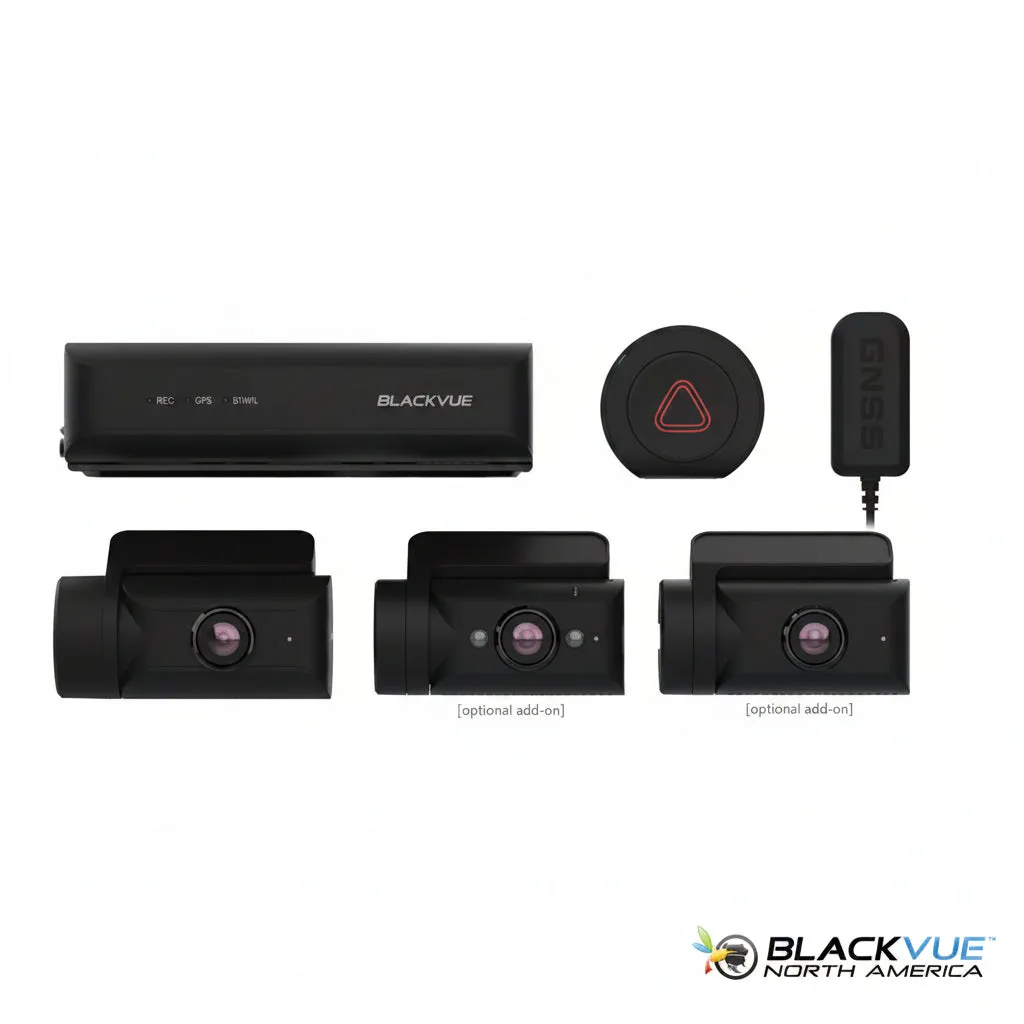
Image source: Bing (Web (fair-use with source credit))
Quick Answer
Most BlackVue DR770X WiFi problems come down to one of three things. The camera isn't in WiFi broadcast mode. The phone is trying to use a 5GHz connection.
Or the app is stuck on a stale connection. Press the WiFi button on the camera. Wait for the blue LED to go solid.
Go to your phone's WiFi settings and look for the network starting with "BlackVue_". Enter the password "blackvue" (all lowercase). Open the app.
Nine times out of ten, that's all it takes.
When Your BlackVue DR770X Won't Connect (The Real Problem)
The DR770X's WiFi wasn't designed for continuous streaming. It's a file-transfer and live-view tool. That's it.
The camera uses a low-power 2.4GHz chipset that prioritizes stability over speed. You can pull down a 30-second clip in about 30 seconds to a minute. That's normal.
When the connection simply won't happen, the culprit is almost always something simple. The camera is in parking mode and has turned off WiFi to save battery. The phone is trying to connect using 5GHz instead of 2.4GHz.
Or the app is holding onto a ghost connection from a previous session.
The DR770X does not support 5GHz at all. That's a hard technical limitation. If your phone is dual-band and you're in range of a 5GHz network, it may try that band instead of the 2.4GHz camera network.
You have to manually select the "BlackVue_XXXX" network in your phone's WiFi settings.
Another common issue: the camera's WiFi only broadcasts when it's in live recording mode. If the camera is in parking mode or has been idle for a few minutes, the WiFi module goes to sleep. You have to press the physical WiFi button on the camera to wake it up.
That button is on the side of the camera body, near the LED indicator.
The same kind of network hiccup can affect other devices too. Our guide to dealing with offline cameras covers similar root causes like network congestion and firmware glitches.
Start Here: The One Thing 90% of People Miss
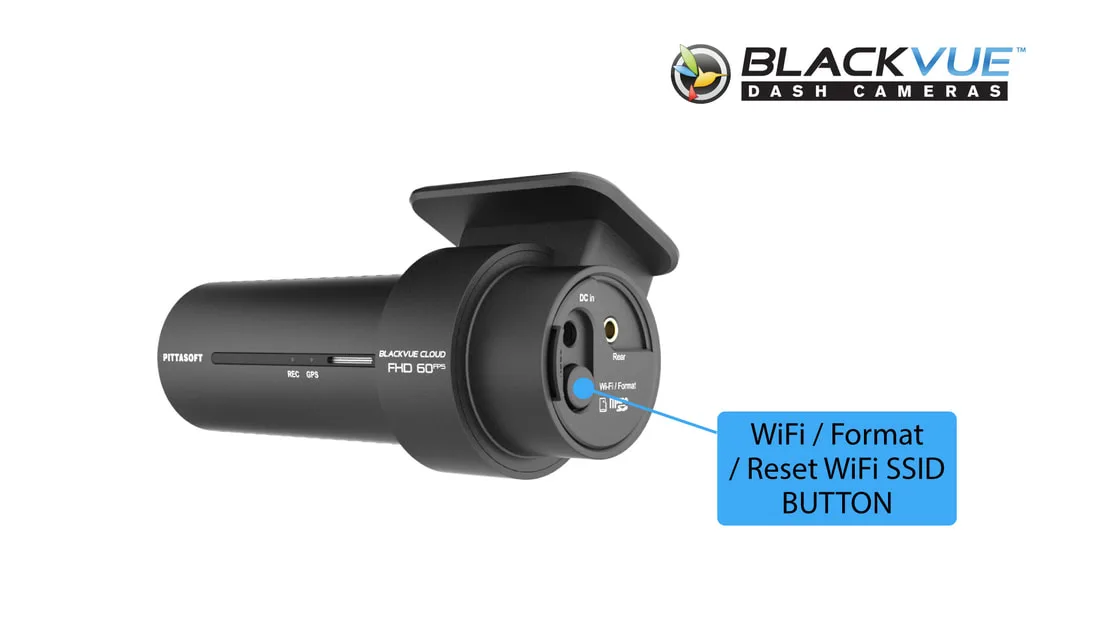
Image source: Web (Bing) / blackvue.com.sg (Web image (fair-use with source credit))
The WiFi button. That's the one thing. It's a small round button on the side of the camera.
You have to press it every time you want to connect. The camera does not remember to broadcast WiFi after it powers off or enters parking mode. It's a deliberate design choice to save power.
But it catches everyone off guard.
Here's how to use it correctly:
- Press the button once. You'll hear a short beep.
- Wait 5 to 10 seconds. The LED will start blinking blue.
- Once the LED is solid blue, the camera is broadcasting its WiFi network.
- Go to your phone's WiFi settings and select the "BlackVue_XXXX" network.
If the LED stays solid blue but the app still won't connect, move on to the next branch. If the LED never goes solid blue, the camera may need a reboot. Unplug it from power for 10 seconds.
Plug it back in. Try again.
This is the step that most online guides gloss over. They assume you know about the button. If you're new to BlackVue, it's not obvious.
The camera does not broadcast WiFi automatically after a power cycle. You have to tell it to. That's by design.
Decision Branch 1: The WiFi Light Is On But the App Won't Find It
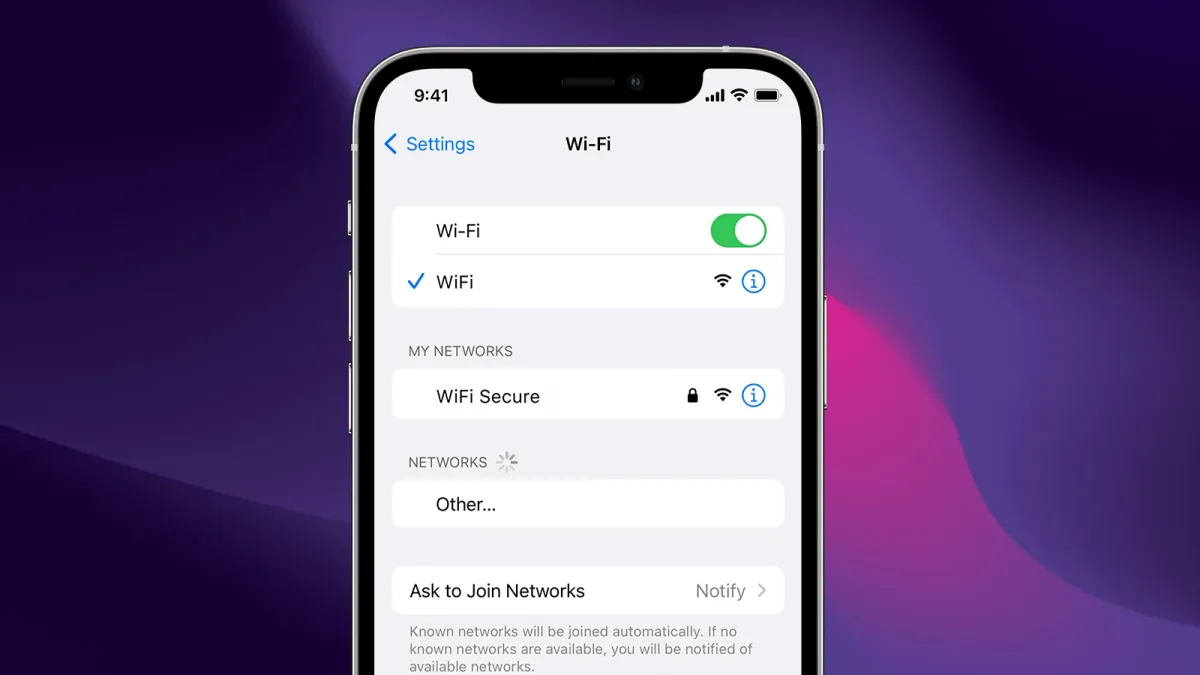
Image source: Web (Bing) / simplymac.com (Web image (fair-use with source credit))
So the blue LED is solid. You've pressed the button. Your phone sees the "BlackVue_XXXX" network in the WiFi list.
But when you open the BlackVue app, it says "No Camera" or just spins forever. This is the most common scenario after the button issue.
Here's the fix. It's almost always a phone-side problem.
Step 1: Forget the network on your phone. Go to Settings > WiFi. Tap the "i" or gear icon next to "BlackVue_XXXX". Select "Forget This Network".
Then reconnect. Enter the password "blackvue" (all lowercase, no spaces). This clears any cached credentials that might be wrong.
Step 2: Check for Private Address conflicts. iPhones and newer Android phones use a feature called Private Address (iOS) or Randomized MAC (Android). This changes your phone's MAC address for each network. The BlackVue camera expects a consistent MAC address.
Turn off Private Address for the "BlackVue_XXXX" network. On an iPhone, tap the "i" icon and toggle "Private Address" off. On Android, tap the network, then "Privacy" or "MAC address type", and select "Device MAC".
Step 3: Disable mobile data temporarily. Some phones route app traffic through mobile data even when connected to WiFi. Turn off mobile data in your phone's quick settings. Open the BlackVue app again.
If it connects, you found the issue.
Step 4: Check the app's camera list. Open the BlackVue app. Go to the camera list screen. Tap the "+" icon.
The app should detect the camera on the local network. If it doesn't, try entering the camera's IP address manually. The default is 192.168.8.1.
If none of these steps work, the camera may have a corrupt WiFi configuration. Reset the WiFi settings in the camera's menu. Go to Settings > WiFi > Reset WiFi Settings.
This clears the SSID and password back to defaults.
Decision Branch 2: The WiFi Drops Right After It Connects
You get connected. The app shows the live view for a few seconds. Then it disconnects.
Or the file transfer starts, gets to 10%, and fails. This is a different problem than the "won't connect" issue. It usually points to signal strength or interference.
Check the distance. The DR770X's WiFi range is about 10 meters (30 feet) in open air. In a car, that range drops significantly. The metal body of the car acts as a Faraday cage.
If you're standing outside the car, the signal has to penetrate glass and metal. Move your phone closer to the camera. Sit in the driver's seat with the phone near the windshield.
Check for interference. The 2.4GHz band is crowded. Your home WiFi, neighbors' WiFi, Bluetooth devices, microwave ovens, and some car electronics can interfere. If you're parked near a house with a strong WiFi signal, the camera's signal may compete.
Move the car away from other WiFi sources. Or turn off your home WiFi temporarily to test.
Check the SD card. A failing or corrupted SD card can cause the camera to freeze or reboot. That drops the WiFi connection. The DR770X is sensitive to card quality.
Use a high-endurance card designed for dash cams. Remove the card. Format it in the camera (Settings > Storage > Format).
Try again.
Check the firmware. As of 2026, BlackVue has released several firmware updates that address WiFi stability. Check your camera's firmware version. Go to Settings > System > Firmware.
Compare it to the latest version on the BlackVue support site. If you're behind, update via the app or by downloading the firmware to an SD card.
Check the power source. The camera needs stable power to maintain WiFi. If you're using a cheap USB cable or a weak 12V adapter, the voltage may drop when the WiFi module draws power. This can cause the camera to reboot.
Use the included power cable and a high-quality 12V adapter. Hardwiring to a fuse box is the most reliable option.
If you're still dropping connections after all this, the WiFi module itself may be faulty. That's rare, but it happens. Contact BlackVue support for a warranty replacement.
Decision Branch 3: The BlackVue App Keeps Spinning On "Connecting…"
This is the most frustrating scenario. The app opens. It says "Connecting…" with the spinning circle.
It never moves past it. The WiFi icon shows you're connected to the camera. But the app doesn't see it.
Step 1: Force close the app. On iPhone, swipe up from the bottom and swipe the BlackVue app off the screen. On Android, go to Settings > Apps > BlackVue > Force Stop. Then reopen.
This clears the app's connection cache.
Step 2: Check the app's local network permission. On iOS 14 and later, apps need explicit permission to find local devices. Go to Settings > Privacy > Local Network. Make sure BlackVue is toggled on.
If it's off, the app can't see the camera even if WiFi is connected.
Step 3: Reinstall the app. If permissions are correct and the app still spins, uninstall and reinstall from the App Store or Google Play. This resets any corrupt app data.
Step 4: Try a different phone. Borrow a friend's phone. Install the BlackVue app. Connect to the camera's WiFi.
If it works, the issue is with your phone. If it doesn't, the camera may need a factory reset.
Step 5: Factory reset the camera. Go to Settings > System > Factory Reset. This wipes all settings, including WiFi config. You'll need to set up the camera again.
But it often fixes persistent connection issues.
This same stuck-on-connecting problem can happen with other brands too. Our guide to fixing a camera that won't connect covers similar troubleshooting steps.
The One Mistake Everyone Makes With the DR770X WiFi
The WiFi password. It's "blackvue". All lowercase.
No capital B. No capital V. No special characters.
Just "blackvue".
Here's the catch: the DR770X does not show you the password field when you're connecting. The phone's WiFi settings show the network. You tap it.
It asks for the password. You type it wrong. The app fails to connect.
You blame the camera.
The second mistake is using the wrong WiFi mode. The camera has two modes: hotspot mode and infrastructure mode. Hotspot mode is the default.
The camera creates its own WiFi network. You connect your phone directly to it. Infrastructure mode makes the camera connect to your home WiFi router.
This is for Cloud access.
If you're trying to connect to the camera in your car, you need hotspot mode. Not infrastructure mode. The camera's manual shows how to switch between them.
Most people never change it.
The third mistake is expecting the WiFi to stay on. It doesn't. The camera's WiFi turns off after 5 minutes of inactivity.
It also turns off when the car turns off. You have to press the button again each time. This is normal.
This is how it works.
If you're running into network issues across multiple devices, our troubleshooting guide for security cameras covers wider connection problems that might help.
Quick Reference: Which Fix Should You Try First?
| Step | What to Do | Time Needed |
|---|---|---|
| 1 | Press the WiFi button on the camera | 5 seconds |
| 2 | Wait for solid blue LED | 10 seconds |
| 3 | Go to phone WiFi settings, select "BlackVue_XXXX" | 15 seconds |
| 4 | Enter password "blackvue" (all lowercase) | 5 seconds |
| 5 | Open the BlackVue app | 5 seconds |
| 6 | If no connection, forget the network and retry | 30 seconds |
| 7 | Turn off Private Address or Randomized MAC | 20 seconds |
| 8 | Reboot the camera (unplug power) | 30 seconds |
| 9 | Reset WiFi settings in camera menu | 1 minute |
| 10 | Factory reset the camera | 5 minutes |
Try steps 1 through 5 first. That works for most people. If it doesn't, move to steps 6 and 7.
Steps 8 through 10 are for persistent problems.
Frequently Asked Questions
Why won't my BlackVue DR770X connect to WiFi?
The most common reason is that the WiFi button hasn't been pressed. The camera does not broadcast WiFi automatically. Press the button on the side of the camera.
Wait for the blue LED to go solid. Then connect your phone to the "BlackVue_XXXX" network.
What is the default WiFi password for the BlackVue DR770X?
The default password is "blackvue" in all lowercase letters. No capitals. No spaces.
If you changed it and forgot it, reset the WiFi settings in the camera's menu. Go to Settings > WiFi > Reset WiFi Settings.
How do I know if my BlackVue DR770X WiFi is on?
Look at the LED on the side of the camera. A solid blue light means WiFi is broadcasting. A blinking blue light means it's trying to connect.
No blue light means WiFi is off. Press the WiFi button to turn it on.
Does the BlackVue DR770X support 5GHz WiFi?
No. The DR770X only supports 2.4GHz WiFi. Your phone must be on the 2.4GHz band to connect.
If your phone automatically switches to 5GHz, manually select the "BlackVue_XXXX" network in your phone's WiFi settings.
Why does my BlackVue DR770X keep disconnecting from WiFi?
The camera's WiFi has a range of about 10 meters (30 feet). Metal car bodies block the signal. Move your phone closer to the camera.
Also check for interference from other 2.4GHz devices. A failing SD card can also cause disconnections.
Can I connect my BlackVue DR770X to my home WiFi?
Yes, but only in infrastructure mode. Change the WiFi mode in the camera's settings. Then enter your home WiFi network name and password.
This enables Cloud access. You cannot use hotspot mode and infrastructure mode at the same time.
If you're still stuck after trying all these steps, it's worth checking whether your phone has known compatibility issues with the DR770X. Some users have reported success after checking our guide to similar connection problems for other cameras. The root cause is often the same, even if the brand is different.

Similar Posts
































