BlackVue DR770X Troubleshooting
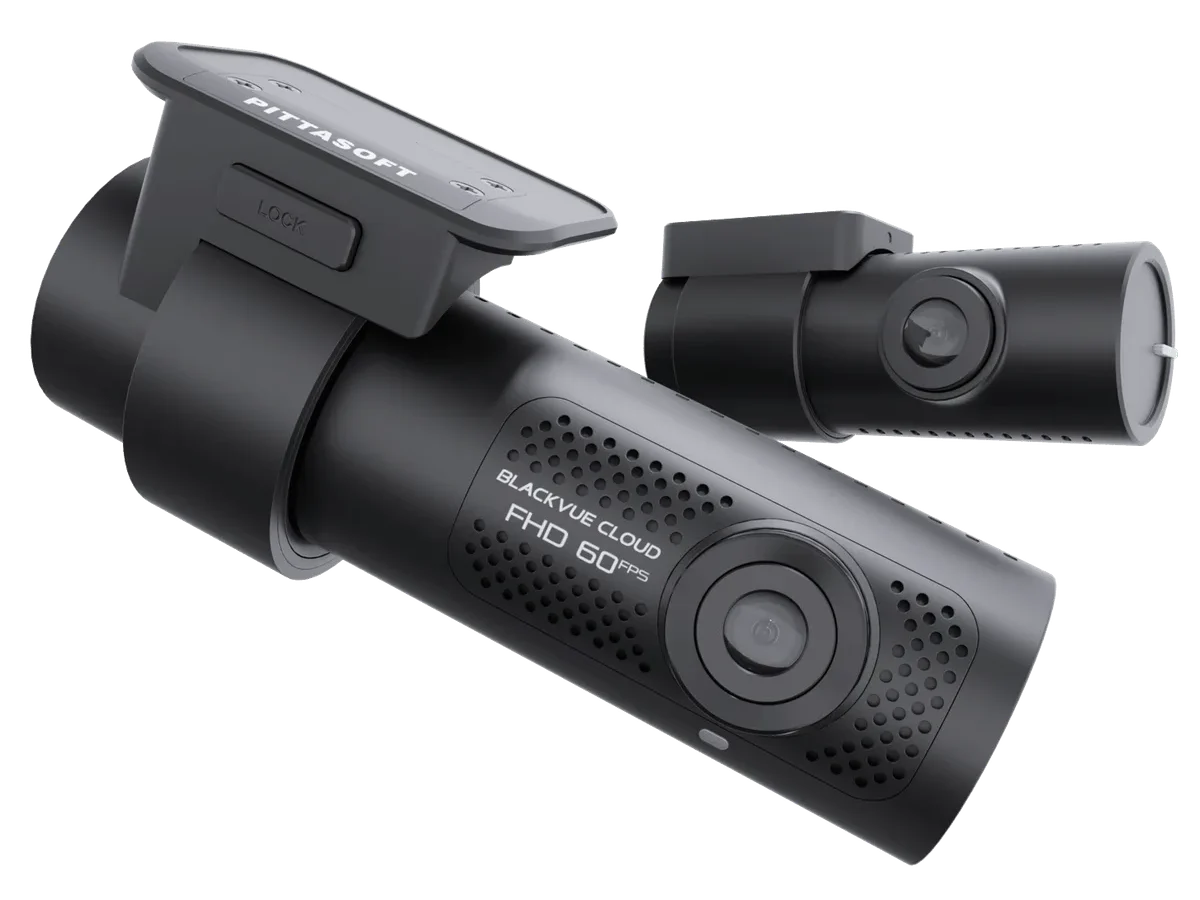
If your BlackVue DR770X has stopped recording, won't connect to Wi-Fi, or keeps throwing an SD card error, you're not alone. This guide walks you through the most common problems and exactly what to do about them.
The DR770X is a 2-channel dashcam that records 4K front and 1080p rear video. It relies on a microSD card rated for high-endurance use. As of 2026, the officially supported maximum capacity is 256 GB.
The camera uses a hardwiring kit or a 12V cigarette lighter adapter for power. Its built-in Wi-Fi connects to the BlackVue app for live view and settings. Understanding these basics sets the stage for diagnosing what's actually wrong.
Quick Answer
Start with a power cycle. Unplug the camera for 30 seconds. Plug it back in.
Check the LED color. Format the SD card inside the camera. Update the firmware.
If Wi-Fi fails, reset the network settings through the app. These steps fix roughly 90% of DR770X issues.
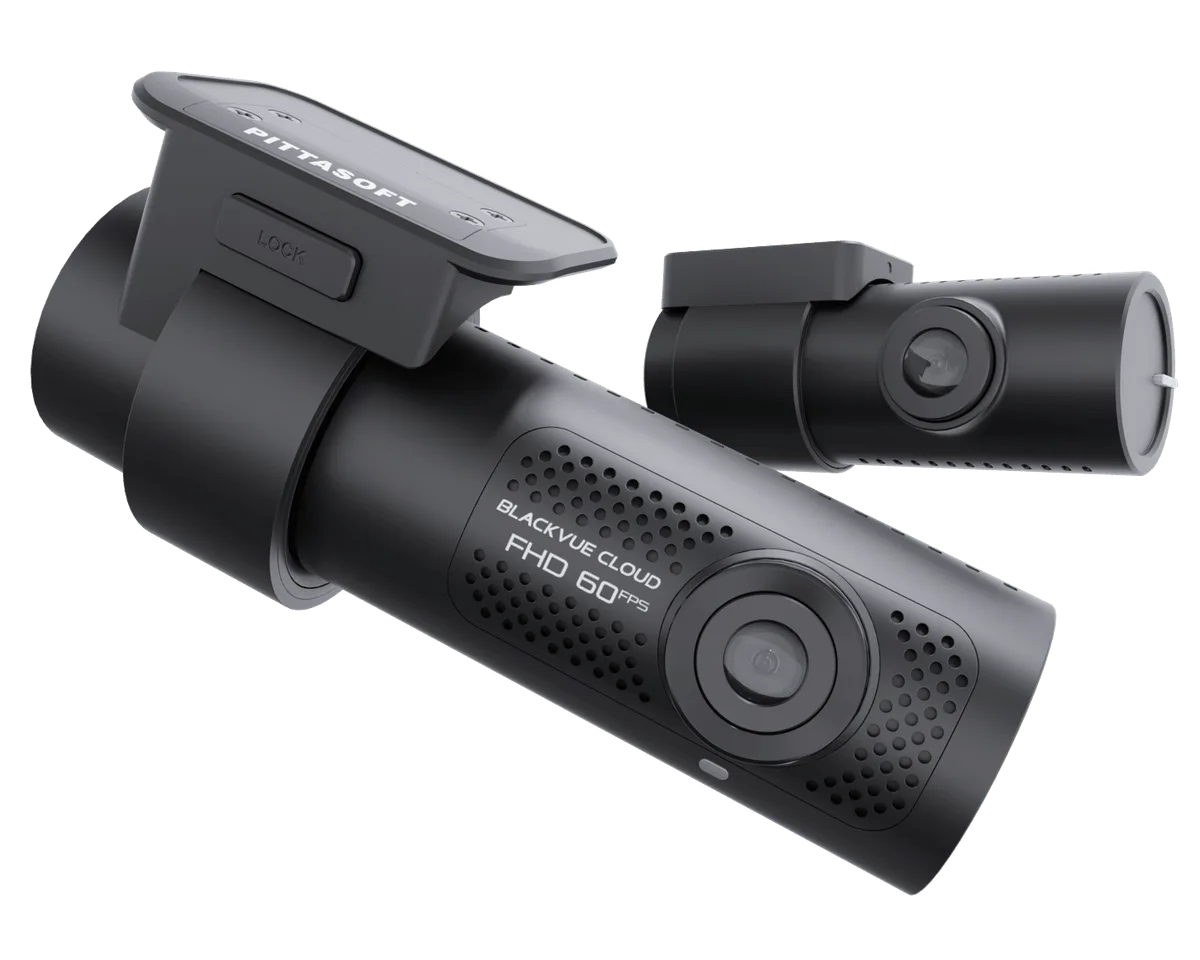
Image source: Web (Bing) / aps-supply.com (Web image (fair-use with source credit))
Before You Start: The Quick Fixes That Solve Most Problems
Most DR770X problems aren't hardware failures. They're software glitches, power hiccups, or SD card corruption. Start with the simplest fixes before you assume the camera is broken.
A power cycle clears the camera's temporary memory. Unplug the power cable from the camera body. Wait 30 seconds.
Plug it back in. The camera should boot up, chime, and start recording.
A soft reset keeps your settings intact but forces the Wi-Fi module to restart. Press and hold the Wi-Fi button on the camera body for about 5 seconds. The LED will blink rapidly.
Release the button. The camera will reboot and broadcast its Wi-Fi signal again. This often fixes app connection issues without a full factory reset.
The same reset approach works for other smart cameras in our troubleshooting guides.
Your DR770X's LED Lights: What They Mean and What to Do Next
The front of the camera has a single LED that tells you the current state. Learning to read it saves you a lot of guesswork.
| LED State | Meaning | Action |
|---|---|---|
| Solid green | Normal recording | No action needed |
| Blinking green | Boot-up or Wi-Fi pairing | Wait 30 seconds |
| Solid red | Error state | Check SD card or power |
| Blinking red | Recording stopped or no card | Format SD card in camera |
| No light | No power | Check power source and fuse |
If the LED is dark, the camera isn't getting power. Test the 12V socket with another device. If you're hardwired, check the fuse tap.
If the fuse is fine, the hardwiring kit itself may be faulty.
If the LED is solid red, try formatting the SD card in the camera. If that doesn't work, try a different card. If the LED is blinking red, the card is likely corrupted or missing.
If the LED is off, check the power cable and the voltage cutoff settings. The camera may be in parking mode and waiting for motion.
Power Problems: Why Your Camera Won't Turn On or Keeps Shutting Off
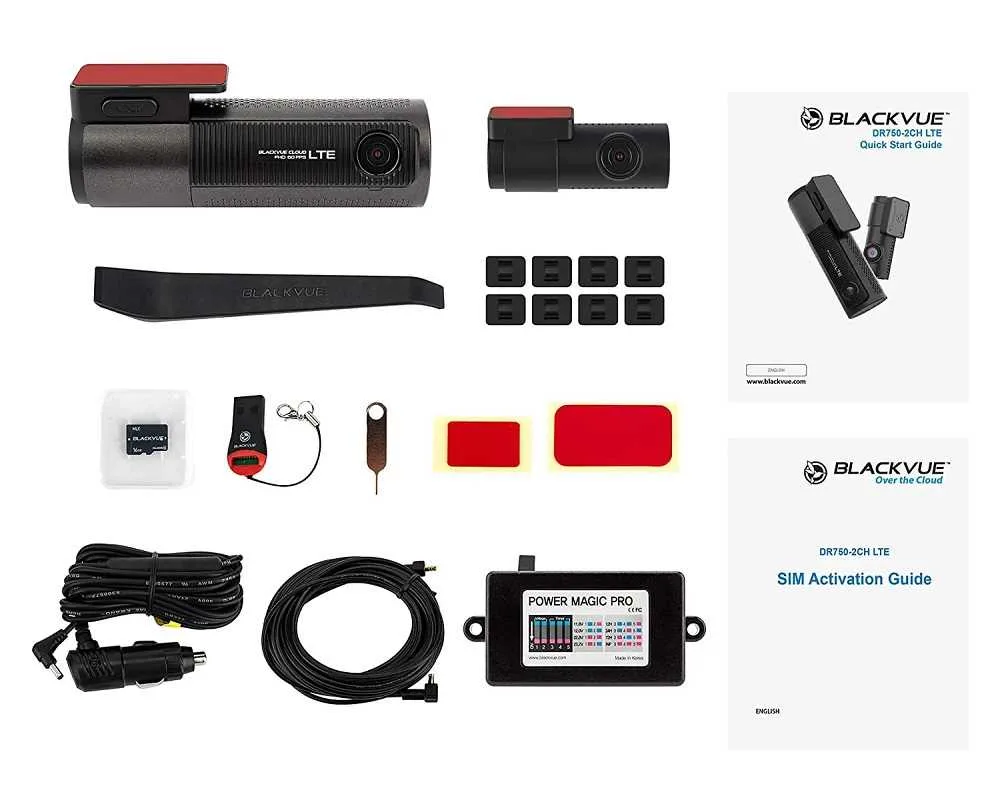
Image source: Bing (Web (fair-use with source credit))
The simplest test is plugging the camera into a known working 12V socket. If it works, your hardwiring setup is the issue. Check the fuse tap.
Make sure the fuse is rated for the correct amperage. If the fuse is blown, replace it with the same rating.
The DR770X has four voltage cutoff levels: 11.8V, 12.0V, 12.4V, and 12.6V. The lower the setting, the more parking mode time you get. But a lower setting also risks draining your battery.
For a healthy car battery, 12.0V is a good middle ground. For an older battery, use 12.4V to avoid a no-start situation.
Parking mode draws power continuously. If your battery is weak or old, even the 12.4V cutoff may not be enough. Check your battery's health with a multimeter.
If it's below 12.4V when the car is off, replace the battery. Make sure the hardwiring kit is connected to a constant power source, not an accessory socket.
The DR770X has a thermal shutdown feature. If the internal temperature exceeds about 70°C (158°F), the camera stops recording to protect itself. This is common on a hot dashboard in direct sunlight.
Use a sunshade. Park in the shade. If you live in a hot climate, consider a dashcam with a capacitor-based power supply instead of a battery.
For similar thermal issues, our guide on Reolink Argus 4 Troubleshooting covers overheating in outdoor cameras.
Wi-Fi and Cloud Connection Issues: Why Your Camera Won't Connect
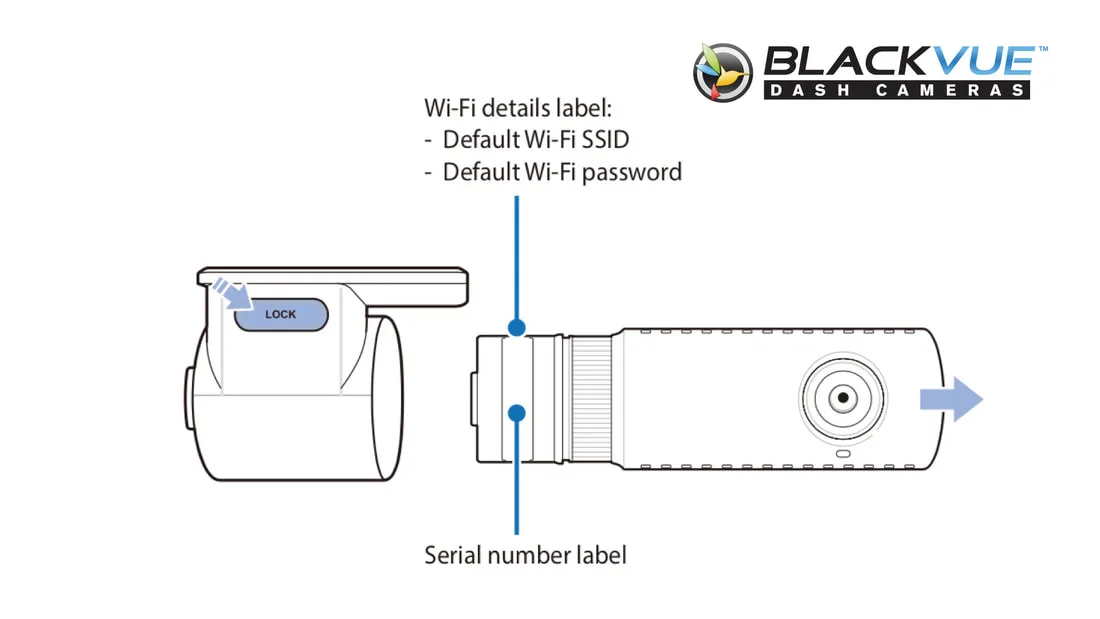
Image source: Web (Bing) / blackvue.com.sg (Web image (fair-use with source credit))
The DR770X broadcasts a Wi-Fi signal with the SSID "BlackVue_XXXX". The default password is "blackvue" (all lowercase, no spaces). If you changed it and forgot, you need to reset the Wi-Fi settings.
Hold the Wi-Fi button for 10 seconds until the LED blinks rapidly. The camera will reset to factory Wi-Fi settings.
Wi-Fi range is about 10 to 15 meters line of sight. If you're too far away, the signal drops. Move closer to the car.
If the signal is still weak, there may be interference from other devices. Try switching your phone to airplane mode and reconnecting. If you're still having issues, the same network glitches affect other devices.
You can find similar solutions in our TP-Link Tapo C120 Troubleshooting guide.
Cloud connectivity requires the camera to be connected to a Wi-Fi network that has internet access. If you're using the LTE module (CM100G), make sure it's paired correctly in the app. Check the data plan.
If the camera shows offline in the app, try power cycling the camera and the phone. If the LTE module isn't detected, remove it and reinsert it. For more on Cloud issues, review the official BlackVue support documentation (blackvue.com/support) for troubleshooting steps.
A Wi-Fi reset only clears the network settings. A full factory reset clears everything, including recordings, settings, and Cloud login. Start with a Wi-Fi reset.
If that doesn't work, proceed to a factory reset. A full factory reset is the last resort before contacting support.
Recording and Storage Problems: SD Card Errors, Missing Files, and Parking Mode
This is the most common DR770X error. It means the card is corrupted or improperly formatted. Do not format the card in a PC.
Always format it inside the camera. Go to the app: Settings > Storage > Format. Or press and hold the format button on the camera (if equipped).
This creates the correct file system structure. If the error persists, the card is likely dead. Replace it with a high-endurance card rated U3 or V30.
Loop recording overwrites the oldest files when the card is full. If it's not working, the card may be full of locked files. Locked files occur when the G-sensor triggers an event.
Check the event folder. If it's full, delete old events or adjust the G-sensor sensitivity. Also, check the bitrate setting.
Higher bitrates fill the card faster. For reference, a 256 GB card at max bitrate holds about 9 hours of 4K footage.
Parking mode requires the hardwiring kit to detect ignition off. If the camera is plugged into a 12V socket that remains on, parking mode won't activate. Check the wiring.
Also, check the voltage cutoff setting. If the battery drops below the cutoff, parking mode stops. For a deeper dive, our guide on Reolink Duo 3 Recording Problems covers similar recording issues with other cameras.
The rear camera connects via a single cable. If the cable is loose or damaged, the camera won't detect it. Check the connection at the rear camera and at the front camera.
If the cable is bent sharply, it may be broken internally. Try a different cable if available. If the rear camera still doesn't show, it may be faulty.
The G-sensor sensitivity goes from 1 (lowest) to 10 (highest). A setting of 3 or 4 is good for most driving. If you're getting false triggers from bumps or potholes, lower the sensitivity.
Go to the app: Settings > Event > G-sensor Sensitivity. Set it to 2 or 3. This reduces the number of locked files and keeps your loop recording working properly.
The Mistakes That Wreck Your DR770X (And How to Avoid Them)
The DR770X expects a specific file system structure. Formatting the card in a PC creates a generic layout that the camera may not recognize. Always format inside the camera.
Use only high-endurance cards rated U3 or V30. Consumer-grade cards fail faster and cause recording errors.
| Card Type | Reliability | Recommended |
|---|---|---|
| BlackVue branded | High | Yes |
| High-endurance U3/V30 | High | Yes |
| Consumer-grade U1 | Low | No |
| Generic no-name | Very low | No |
The DR770X runs on 12V DC input. Plugging it into a 24V system (common in trucks, buses, and some motorcycles) will damage the camera. Use a 24V to 12V converter if you need to install it in a vehicle with a 24V electrical system.
The hardwiring kit includes a fuse tap. The fuse rating matters. Too high a rating and the wiring can overheat before the fuse blows.
Too low and the fuse blows immediately. Check the vehicle's fuse box manual for the correct amperage. The BlackVue hardwiring kit typically uses a 2A or 3A fuse.
Firmware updates fix bugs and add features. Running outdated firmware is a common cause of glitches. Download the correct firmware file from the official BlackVue site.
The DR770X has a different firmware file than the DR900X or DR750X. Installing the wrong file can brick the camera. Always verify the model number before updating.
The DR770X has a thermal shutdown around 70°C. On a hot summer day, a dashboard in direct sun can easily exceed that temperature. Use a sunshade when parked.
If you park in the sun regularly, consider a dashcam with a capacitor-based power supply. The DR770X uses a capacitor, which is better than a battery, but it still has a thermal limit. For similar heat-related issues, our guide on Reolink RLC-811A Troubleshooting covers thermal management in outdoor cameras.
The Last Resort: Full Factory Reset and Firmware Reinstall
If the app won't connect, you can still reset the camera. Create a text file on your computer named config.txt. Inside the file, write reset=1.
Save the file to the root of a formatted SD card (FAT32). Insert the card into the camera. Power on the camera.
It will read the file and reset itself to factory defaults. The file is deleted after the reset. This method works even if the camera is stuck on a boot loop.
A bricked camera shows no response to any button or power cycle. To fix it, download the latest firmware from the official BlackVue website. Copy the firmware file to the root of a formatted SD card.
Insert the card. Power on the camera. The camera should detect the file and begin the update.
Do not remove the card or power off during the update. The process takes about 5 to 10 minutes. If the camera still doesn't boot, try a different SD card.
Contact support if the camera is unresponsive after a factory reset and firmware reinstall. Also contact support if the camera has physical damage, water damage, or a cracked lens. Before calling, have the serial number ready.
The serial number is on the bottom of the camera. Also note the firmware version and a description of the problem. The warranty covers manufacturing defects.
It does not cover damage from improper installation, physical impact, or water exposure. The standard warranty period is one year from the date of purchase.
Frequently Asked Questions About the BlackVue DR770X
Why does my camera keep restarting by itself?
The most common cause is a loose power connection. Check the 12V socket or hardwiring connection. The second most common cause is a faulty SD card.
Try a different card. If the problem persists, the power supply may be failing. Replace the hardwiring kit or the 12V adapter.
Can I use a bigger SD card than 256 GB?
The officially supported maximum is 256 GB. Some users report success with 512 GB cards, but performance is not guaranteed. The camera may not format the card correctly.
Stick with 256 GB or less for reliable operation. Always use a high-endurance card rated U3 or V30.
Does the DR770X work without a data plan?
Yes, the camera records locally to the SD card without any data plan or Cloud subscription. The Cloud features require an internet connection and a data plan. The free tier supports one camera with 1 GB of storage and 30-day retention.
You can use the camera indefinitely without ever activating the Cloud.
How do I know if my camera is still under warranty?
Check the serial number on the bottom of the camera. The warranty is one year from the date of purchase. If you registered the product on the BlackVue website, you can check the registration date.
Keep your purchase receipt as proof. The warranty covers manufacturing defects only.
Can I use any hardwiring kit or does it have to be BlackVue's?
You can use any hardwiring kit that provides 12V output and has a voltage cutoff feature. However, the BlackVue kit is designed to work with the camera's parking mode. Third-party kits may not trigger parking mode correctly.
For reliable parking mode, use the BlackVue Power Magic Pro or Power Magic EZ.

Similar Posts
































