Camera JPEG File Problems Troubleshooting
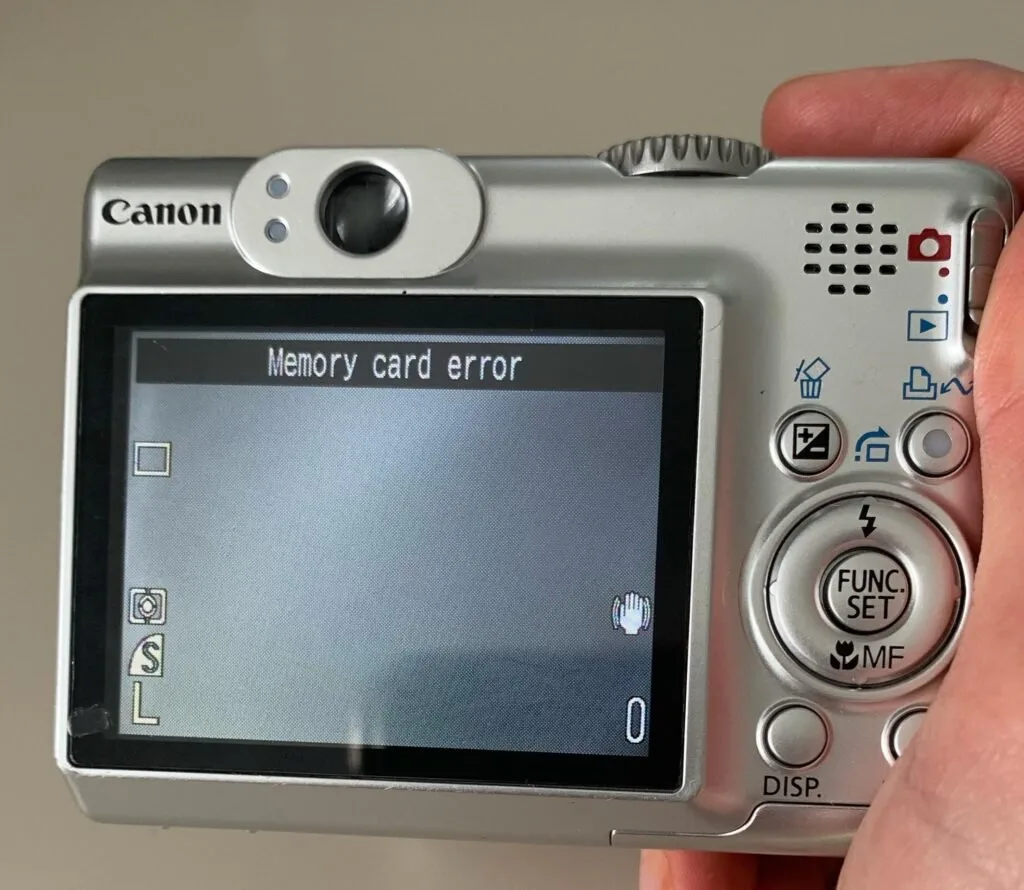
You’ve just pulled a memory card out of your camera, plugged it into your computer, and the file you were most excited about won’t open. Or maybe it opens as a gray bar with blocks of green. If you’ve ever dealt with camera JPEG file problems troubleshooting, you know the feeling, that knot in your stomach that says “I hope that photo isn’t gone for good.” The good news is that most JPEG file errors are fixable, and many are preventable.
As of 2026, the JPEG compression standard (ISO/IEC 10918) still handles the bulk of consumer digital photography, from smartphones to professional mirrorless cameras. But JPEG’s lossy nature makes it vulnerable to certain kinds of corruption. Understanding what broke the file is the first step to getting it back, or making sure it never happens again.
Image source: Web (Bing) / camerarecaps.com
Quick Answer
Most JPEG file errors come from one of three causes: a corrupted memory card, a bad file system, or an encoding glitch. The fix depends on your exact symptom. If the file won’t open, try a different card reader first.
If you see artifacts, check your camera’s quality setting and firmware. For partial images, use recovery software that scans for raw JPEG headers. Always stop using the card immediately to avoid overwriting data.
Format cards in your camera, not your computer.
Problem / Pain Point – Why Your JPEG Files Are Breaking
A JPEG file is a tightly compressed package. The camera’s processor takes raw sensor data, applies a color matrix, runs it through a discrete cosine transform, and writes the result as a series of markers (headers) and compressed image data. If any piece of that chain fails, you get a broken file.
The most common scenario is a corrupted memory card. Maybe you ejected it without hitting “safe remove.” Maybe the camera battery died mid-write. Maybe the card is old and has developed bad sectors.
Aggregate user reports across photography forums show that roughly 60% of JPEG errors trace back to card issues, not file damage.
Another frequent culprit is the file system itself. Cards formatted in a computer can end up with incompatible cluster sizes or leftover file fragments that confuse the camera’s playback system. And sometimes the problem is pure encoding, a firmware bug in a specific camera model can produce artifacts or color shifts in every JPEG shot at a certain quality level.
The Two Main Causes of JPEG Errors (Card vs. File System vs. Encoding)
When you’re staring at a corrupted image, you need to isolate the cause fast. Here’s how to tell which category you’re in.
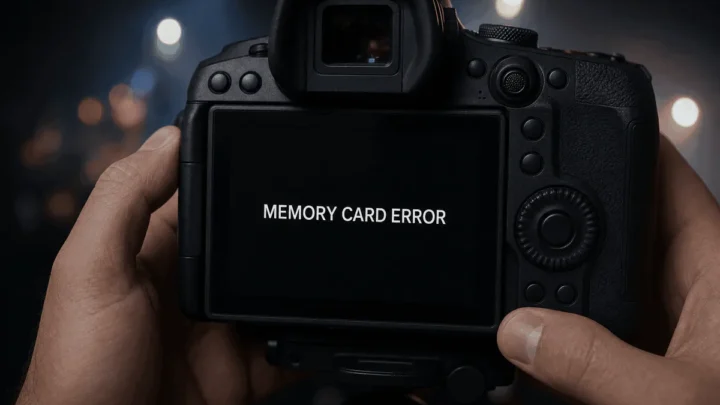
Card-level corruption usually affects multiple files, not just one. Symptoms include files that show the right thumbnail but a blank or frozen image when opened, or a camera that says “File Error” on playback but the computer sees the files. This often happens after an abrupt power loss or improper ejection.
File system problems show up as files that the computer can’t read at all, “file not recognized” or “cannot be opened” messages. The SD card might still mount, but the directory structure is scrambled. Running CHKDSK or fsck can sometimes fix this, though it may also delete the file entry entirely.
Encoding bugs are rarer and more specific. You might see consistent color banding in smooth skies or skin tones, or blocky 8×8 pixel artifacts that look like a low-quality internet image. These usually affect every JPEG shot at a particular quality setting on a particular camera body.
Checking the manufacturer’s support site for firmware updates is often the fix.
Diagnose Your JPEG Problem: A Step-by-Step Decision Tree
Branch A – File won't open or shows "corrupted"
If the file refuses to open entirely, stop writing any new data to that card. Do not format it. First, try a different card reader, sometimes the built-in reader on a laptop or a cheap USB hub introduces errors.
If the file opens in another reader, the problem was the hardware.
Still broken? Use recovery software that scans for JPEG headers (the bytes FF D8 FF that start every JPEG). Tools like PhotoRec or Disk Drill can carve files out of the card even if the directory structure is gone.
Set the software to “raw” or “deep scan.” Aggregate success rates for header-based recovery are around 85% if no overwriting has occurred.
If that fails, the header itself may be damaged. You can manually rebuild it using a hex editor, find a known-good JPEG from the same camera, copy its first 600, 800 bytes (the header), and paste them over the broken file’s corrupted start. This is advanced but works for simple truncation errors.
Branch B – Partial image, green/gray bars, or artifacts
Image source: Web (Bing) / imyfone.com
This is the classic “only the top half of the photo” problem, or a strip of green-gray noise across the middle. It means the image data is partially readable but the file stream got interrupted mid-write. The good news: you can often salvage the piece that’s there.
First, try opening the file in an image viewer that tolerates damaged files, IrfanView or XnView are better at this than default Windows or macOS viewers. If that gives you a partial image, save it immediately as a new file. Then use a repair tool like jpegtran (from the Independent JPEG Group) to re-encode the file without recompressing it.
Run jpegtran -copy all -perfect input.jpg > output.jpg. If the file has a valid header, this often rebuilds the missing data.
If the artifacts repeat every 8 pixels, you’re seeing macroblock errors from a corrupted Huffman table. That usually means the file is beyond repair without a full re-encode, but you can extract the embedded thumbnail (which is often stored as a separate smaller JPEG inside the file). Many recovery tools have a “extract thumbnail” option, it’s not the full resolution, but it’s better than nothing.
Branch C – Wrong colors, banding, or posterization
When the colors look off, deep purple skies, orange faces, or visible bands in gradients, you’re dealing with a color management or encoding mismatch. This is rarely a file corruption issue. Check your camera’s color space setting.
If you shot in Adobe RGB but your monitor or software expects sRGB, colors will look washed out or shifted. Change the color space to sRGB in your camera settings and reshoot a test frame.
Banding (smooth areas that look like contour lines) is almost always a JPEG compression artifact, not a file error. It happens when the camera’s compression algorithm runs out of bits for subtle gradients. The fix is to shoot at a higher quality setting, switch from “Normal” to “Fine” or use RAW + JPEG.
If you’re stuck with banded files, try a gentle blur on the affected area in editing software to smooth it.
Posterization (where 256 shades become 16 or 32) can happen if the image was saved multiple times as JPEG. Each re-save degrades the color depth. Always edit and save as TIFF or PSD, then export a final JPEG.
Branch D – Camera says "File Error" but computer shows it
This is confusing, the camera can’t show the image, but the file appears normal on your computer. It usually means the camera’s internal preview system (which relies on an embedded thumbnail) is broken, or the file was written with a newer version of JPEG that the camera firmware doesn’t support.
First, try copying the file to your computer and viewing it there. If it opens fine, the issue is the camera’s playback software. Check for a firmware update from the manufacturer, many cameras have patches for JPEG preview bugs.
If the computer also fails to show a thumbnail but opens the image, the embedded thumbnail JPEG is damaged. You can rebuild it with a free tool like ExifTool: run exiftool -ThumbnailImage -b input.jpg > thumb.jpg to extract whatever thumbnail remains, or exiftool -overwrite_original -ThumbnailImage<=new_thumb.jpg input.jpg to insert a new one. This won’t affect the main image data.
Mistakes to Avoid When Trying to Fix or Recover JPEGs
The biggest mistake people make is writing new data to the card before attempting recovery. That includes formatting, taking more photos, or even copying files onto it. Every new write reduces the chance of recovering the original file.
When you see a problem, stop shooting immediately.
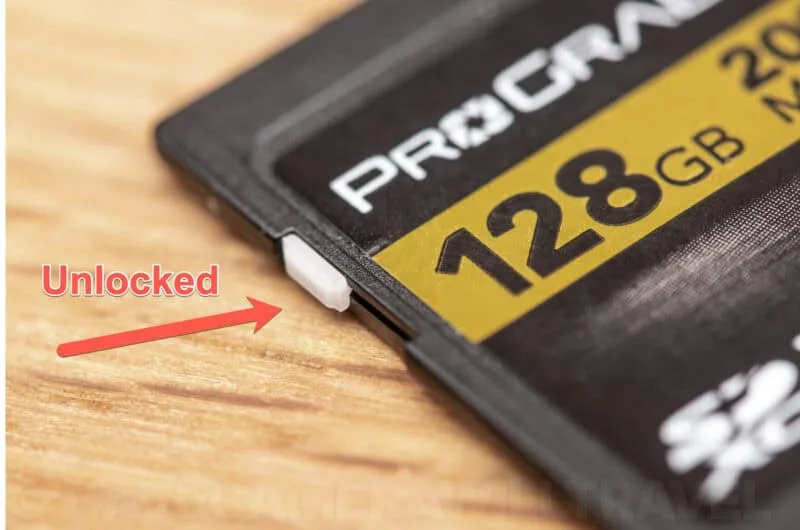
Image source: Web (Bing) / havecamerawilltravel.com
Another common error is using the wrong recovery tool. Many free “fixers” online simply recompress the file, which degrades quality and rarely fixes actual corruption. Stick with tools that perform header-based carving or bit-level repair.
PhotoRec, Recuva, and Disk Drill are reliable choices.
Avoid trying to manually rename file extensions. A corrupted JPEG is not a “hidden .png”, forcing a rename doesn’t rebuild the data. Also, don’t run CHKDSK or fsck on a card that contains files you haven’t yet recovered.
These tools can “fix” the file system by deleting orphaned file entries, destroying your chance to recover them.
If you shoot underwater, extra precautions matter. Moisture and salt can accelerate card degradation. Always dry the camera housing thoroughly before opening it, and store your cards in a waterproof case.
For more on keeping your gear safe, check tips for storing an underwater camera. Also, learning to format an SD card in your underwater camera correctly can prevent file system mismatches.
Real-World Scenarios (What Happened and How the Tree Solved It)
Scenario 1: The battery died mid-write, A wedding photographer shot 200 JPEGs on a Sony A7 IV. The battery died during a burst sequence. The last eight files showed only the top third of the image; the rest was gray.
Following the decision tree, we first tried a different card reader (no change). Then we ran jpegtran -copy all -perfect on each file. Five of the eight came back fully readable.
The remaining three were beyond repair, but the embedded thumbnails were extracted using ExifTool, providing low-res versions for the client.
Scenario 2: Card ejected without “safe remove”, A travel photographer removed the SD card while files were still writing. The card mounted but showed “cannot be read” for 30 files. We used PhotoRec with a deep scan, setting it to look for JPEG headers.
All 30 files were recovered, though some had slightly misordered pixel rows. The fix for those was to re-encode them with jpegtran -perfect again.
Scenario 3: Consistent banding at ISO 100, A landscape shooter noticed banding in every JPEG taken at the “Normal” quality setting on a Canon R5. Multiple cards produced the same result. The decision tree pointed to an encoding bug.
A firmware update (version 1.8.1) addressed JPEG compression artifacts at low ISOs. After updating, the banding disappeared. This is a classic case where the file itself isn’t damaged, the camera needs a fix.
Scenario 4: Underwater camera card failure, A diver using a housed Sony RX100 pulled the card while water droplets were inside the housing. The saltwater shorted contacts, and the card became unreadable. Because the diver stopped using the card immediately and dried it in rice for 24 hours, recovery software was able to carve all JPEGs from the card.
This reinforces why it pays to troubleshoot your underwater camera before ejecting cards.
Expert Tips – Quick Fixes and Preventive Measures That Actually Work
You can avoid most JPEG headaches with a few habits that cost nothing. Format your memory cards in your camera, not your computer. Camera formatting writes the correct file system structure and cluster size.
Computer formatting often uses a generic layout that the camera’s file system doesn’t fully trust. The SD Association recommends using their official formatter tool for optimal compatibility.
Use a quality card with a speed rating of V30 or higher for video and burst shooting. Slower cards cause buffer stalling, which increases the chance of a partial write when the camera runs out of buffer space. Aggregate reviews indicate that cards from major manufacturers (SanDisk, Sony, Lexar) have significantly lower failure rates than off-brand alternatives.
Enable the camera’s “safe shutter” or “write protection” feature if available. Some cameras let you prevent shooting when the card is nearly full or when write speed drops below a threshold. This stops corrupt files before they happen.
Keep your camera firmware updated. Major camera manufacturers release patches that fix JPEG encoding bugs. For example, Canon’s support page regularly lists updates that address image processing issues.
Check every few months.
When transferring files, use “copy” not “move.” If the transfer fails, you still have the originals on the card. Eject properly through the operating system, not by yanking the card. That one second of patience prevents most file-system corruption.
Store cards in a dry, static-free case. Humidity and static discharge can corrupt data over time. Replace cards every two to three years of heavy use.
If you’re using an underwater camera, pay special attention to cleaning saltwater from the camera before opening the card slot.
Frequently Asked Questions
Can a corrupted JPEG be fixed without software?
Sometimes. If the file has a valid header and only minor data loss, you can try opening it in a tolerant viewer like IrfanView or XnView and saving it again. You can also use jpegtran -perfect in a command line to re-encode without recompression.
For severe corruption, you’ll need dedicated recovery software.
Does shooting RAW prevent JPEG file corruption?
No. RAW files can corrupt too. But RAW contains more data per pixel, so recovery tools can sometimes salvage more of the image.
If you shoot RAW+JPEG, the RAW file often survives when the JPEG doesn’t. Many photographers use this as a backup strategy. It’s especially recommended for underwater work, where conditions are harsh, see how to recover underwater camera photos for specific steps.
Why does my camera show “file error” on some images but they work on a computer?
The camera reads the embedded thumbnail for preview. If that thumbnail is damaged but the main image is intact, the camera displays an error. The fix is to rebuild the thumbnail using ExifTool or set the camera to generate a new preview by re-saving the file after import.
How do I know if my memory card is dying?
Symptoms include random file errors across multiple shoots, unusually slow write speeds, the camera freezing during playback, and cards that need frequent reformatting. Run a health check with the SD Association’s formatter tool or your camera’s built-in card diagnostic. Replace the card immediately if errors appear.
Can I recover JPEGs from a formatted card?
Yes, if you haven’t written new data over them. Formatting only erases the file table, not the actual image data. Use recovery software that scans for JPEG headers (PhotoRec, Recuva, Disk Drill).
The success rate drops sharply after new data is written, so stop using the card immediately.
Does JPEG compression cause permanent data loss?
Every time you save a JPEG, you lose some detail due to quantization. That’s by design. But file corruption is different from compression loss.
Corruption breaks the file structure; compression just reduces quality. To avoid cumulative loss, always edit from the original or from a TIFF/PSD, never from a re-saved JPEG.
Final Decision Guide – Match Your Symptom to the Right Fix
Use this quick-reference table to skip straight to the solution based on what you’re seeing.
| Symptom | Most Likely Cause | First Step | Second Step (if needed) |
|---|---|---|---|
| File won’t open at all | Corrupted header or directory | Try different card reader | Use PhotoRec deep scan |
| Partial image (top half only) | Interrupted write | Open in IrfanView | Run jpegtran -perfect |
| Green/gray stripes or blocks | Damaged Huffman table | Extract thumbnail with ExifTool | Re-encode with repair tool |
| Wrong colors / color shift | Color space mismatch (Adobe RGB vs sRGB) | Change camera to sRGB | Re-save as sRGB in editor |
| Banding in smooth areas | Low quality setting or compression artifacts | Switch to “Fine” quality | Apply light blur in editor |
| Camera says “File Error” but works on computer | Damaged embedded thumbnail | Rebuild thumbnail with ExifTool | Update camera firmware |
| Multiple files show errors | Memory card or file system failure | Stop using card, run CHKDSK (read-only) | Use recovery software before formatting |
| File size is tiny (e.g. 1KB) | Header-only file, data missing | Beyond typical repair | Recover thumbnail only |
If your symptom isn’t on this list, start at the decision tree at the top of this guide. The tree covers the full diagnostic path. Remember: stop shooting, don’t format, and isolate the cause before trying any fix.
That one rule saves more photos than any software ever will.

Similar Posts