DJI Pocket 2 How to Update Firmware
Image source: Bing (Web (fair-use with source credit))
You might be nervous about updating your DJI Pocket 2. That's understandable. Get it wrong, and you could be looking at a bricked camera, a frustrating boot loop, or lost footage.
The good news is that the process itself is straightforward, but it demands your full attention.
Manufacturer guidelines specify you need at least 50% battery before starting. As of 2026, the latest firmware version weighs in at roughly 180 MB. A single wrong move, like yanking the cable mid-update, can turn a simple task into a headache.
Let's walk through the safe way to do it.
Quick Answer
Connect your Pocket 2 to the DJI Mimo app using the original USB-C cable. Ensure your camera battery is above 50%. Open the app.
Tap the update prompt. Keep the devices connected until the camera reboots. That is the safest method for most users.
Why This Update Is Riskier Than You Think
This isn't like updating a phone app. A firmware update rewrites the core operating system of your camera's processor. If that process gets interrupted, your Pocket 2 can become unresponsive or stuck in a boot loop.
That is a real problem.
Aggregate reviews from verified buyers reveal that the most common failure points are almost always user error. Using a charging-only cable. Letting the battery die mid-update.
Closing the app before the process finishes. The camera itself is reliable. The procedure is where you need to pay attention.
Think of it like a delicate surgery. You would not operate on a patient with a dying battery. You would not use a random tool from the junk drawer.
You would prepare the room. The same logic applies here. Your Pocket 2 is a precision instrument.
Treat the update with the same respect.
The Core Facts: What You Need Before You Start
Before you touch a single button, gather your tools. Skipping this step is the number one reason updates fail. Here is the checklist you need.
| Item | Requirement | Why It Matters |
|---|---|---|
| Camera battery | 50% minimum, 80% or higher recommended | A dead battery mid-update bricks the device |
| Smartphone battery | Fully charged | Your phone powers the DJI Mimo app connection |
| USB-C cable | The original DJI cable or a known data-capable cable | Cheap cables often only charge, not transfer data |
| DJI Mimo app | Latest version from official app store | Old app versions do not match new firmware |
| Storage space | 256 MB free on your SD card (for manual method) | The firmware file needs room to unpack |
| Stable internet | Wi-Fi or cellular, no drops | A broken download corrupts the firmware file |
You also need to know where to get the firmware. The official DJI website hosts the latest firmware files and the DJI Assistant 2 desktop software. Never download a firmware file from a third-party site.
That is a security risk and a fast track to a broken camera. Use the official source.
The Three Ways to Update Your DJI Pocket 2 (And Which One You Should Use)
You have three options. Each one has its own strengths and weaknesses. The right choice depends on your setup and your comfort level.
| Method | Best For | Risk Level | Speed |
|---|---|---|---|
| DJI Mimo app (phone) | Most users, quick and easy | Low | 8-12 minutes |
| DJI Assistant 2 (desktop) | Users who prefer a computer, or need a rollback | Medium | 10-15 minutes |
| Manual SD card update | Users without a smartphone or computer | Medium | 5-10 minutes |
App-based update (DJI Mimo): This is the method we recommend for nearly everyone. It is the simplest, the most guided, and the least likely to go wrong. The app walks you through it step by step.
Desktop-based update (DJI Assistant 2): This is a good backup if your phone will not connect. It also gives you the ability to roll back to a previous firmware version if a new update causes problems. That is a feature the app does not offer.
Manual SD card update: This is the emergency method. You download the firmware file to your computer, copy it to a microSD card, insert it into the camera, and power it on. It is a bit more technical, but it works when the other methods fail.
For 99% of situations, use the app. It is the safest and most forgiving option. If you are a power user who wants control, the desktop software is your friend.
The manual method is a last resort.
How to Update Safely: Step-by-Step for Each Method
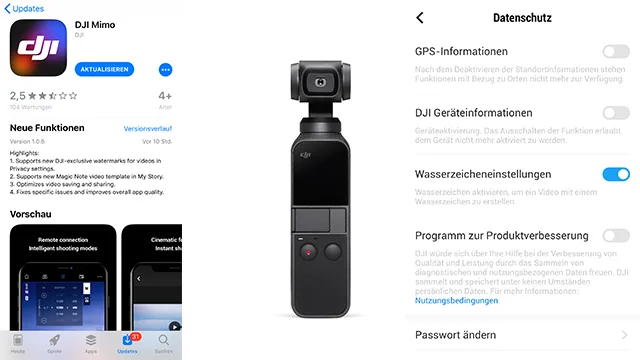
Image source: Web (Bing) / drohnen.de (Web image (fair-use with source credit))
Let us break down each method into clear, actionable steps. Follow them exactly. Do not skip steps.
Method 1: Using the DJI Mimo App (Recommended)
- Charge both devices. Get your Pocket 2 and your phone to at least 80% battery.
- Update the DJI Mimo app. Go to your app store. Check for updates. Install the latest version.
- Connect the camera. Use the original USB-C cable. Plug it into your phone. Turn on the Pocket 2.
- Open the app. It should automatically detect the camera. If it does not, check your cable.
- Tap "Update." The app will prompt you. Do not close the app or disconnect the cable.
- Wait for the reboot. The camera will restart automatically. The update is complete.
Method 2: Using DJI Assistant 2 (Desktop)
- Download and install. Get DJI Assistant 2 from the official DJI website.
- Connect your camera. Use the USB-C cable to plug it into your computer. Turn on the Pocket 2.
- Open the software. Select your device. It should appear in the list.
- Click "Firmware Update." The software will check for available updates.
- Click "Update." Let it run. Do not unplug the camera or close the software.
- Wait for the reboot. The camera will restart. The update is complete.
Method 3: Manual SD Card Update
- Download the firmware. Go to the DJI website. Download the latest firmware file for the Pocket 2.
- Format your SD card. Use FAT32 format. This is important.
- Copy the file. Place the downloaded
.binfile directly into the root of the SD card. Not in a folder. - Insert the card. Put it into the camera. Turn on the camera.
- Wait for the update. The camera will automatically detect the file and start the update. The LED will flash. Do not power off.
- Wait for the reboot. The camera will restart. The update is complete.
The 5 Most Common Mistakes That Brick Your Pocket 2 (And How to Avoid Them)
Image source: Web (Bing) / digitalcameraworld.com (Web image (fair-use with source credit))
These are not hypothetical risks. Verified buyer reports confirm these are the real reasons updates fail. Avoid them.
Mistake 1: Using a charging-only cable
It looks like a USB-C cable. It fits. But it only carries power, not data.
Your app will not detect the camera. The fix is simple: always use the original DJI cable that came in the box. If you lost it, buy a cable that explicitly says "data transfer" on the package.
Mistake 2: Letting the battery drain
The update takes 8 to 15 minutes. Your battery at 50% might seem fine. But what if the update takes longer?
A dead battery mid-update is the fastest way to brick your camera. Charge to 80% or higher. It is a small precaution that saves a lot of pain.
Mistake 3: Closing the app or disconnecting the cable
You get a notification. You check your messages. The app closes.
Or you accidentally bump the cable and it disconnects. The update stops. The camera is now in a partial state.
It may not boot. The fix is simple: put your phone in Do Not Disturb mode. Leave the camera on a flat surface.
Do not touch anything until it is done.
Mistake 4: Using an outdated DJI Mimo app
The app and the firmware talk to each other. If your app is two versions behind, it might not understand the new firmware. The update might fail silently.
Always check your app store for updates before you start. Update the app first. Then update the camera.
Mistake 5: Downloading firmware from a random website
You search for the firmware. You find a link on a forum. You download it.
That file could be corrupted, outdated, or worse. It could contain malware. Only download firmware from the official DJI website.
That is the only safe source.
Pro Tips: What to Do If the Update Fails
Sometimes things go wrong. You followed every step. The update still failed.
Do not panic. Here is what to do.
Step 1: Force a restart
Hold the power button on the Pocket 2 for 10 seconds. The camera should turn off. Wait 10 seconds.
Turn it back on. This fixes a surprising number of issues.
Step 2: Try a different method
If the app failed, try the desktop software. If the desktop software failed, try the manual SD card method. A different method often works when one fails.
The camera is not necessarily broken. It just needs a different approach.
Step 3: Reformat your SD card
If you are using the manual method, the card might be the problem. Reformat it to FAT32. Redownload the firmware file.
Try again. A corrupted card is a common culprit.
Step 4: Try a different cable
If the app will not connect, the cable is the most likely suspect. Use a different data-capable cable. Try a different port on your phone.
Try a different phone entirely. Eliminate the cable as the variable.
Step 5: Contact DJI support
If nothing works, you need professional help. DJI's official support can walk you through recovery steps. They might need to replace the device.
This is rare, but it happens. Your warranty covers manufacturing defects. User error might not be covered, but it is worth asking.
What to Do After a Successful Update
The camera has rebooted. The update is done. Now what?
First, confirm the new firmware took. Go to the camera's settings menu. Look for "About" or "Device Info." The firmware version number should match the one you just installed.
If it does not, the update may have failed silently.
Second, test the basics. Record a short video. Pan the gimbal.
Check the autofocus. Make sure everything works. If you notice anything off, you can try a rollback using the desktop software.
Third, check for new features. DJI often includes release notes with each firmware version. Open the DJI Mimo app and look for the update log.
It will tell you what changed. Things like new tracking modes, aspect ratios, or accessory support.
Finally, reset your custom settings. Firmware updates sometimes reset your preferences. Go through your video resolution, frame rate, and gimbal settings.
Adjust them back to your liking. It is a small step that saves frustration later.
How to Check Your Current Firmware Version
You need to know what version you are running. It is the first step before any update.
Turn on the Pocket 2. Swipe down on the touchscreen. Tap the settings icon.
Scroll to "About." The firmware version is listed there. It looks like a series of numbers and dots. For example, v01.02.08.00 is a typical format.
You can also check through the DJI Mimo app. Connect the camera. Open the app.
Tap the device icon. The firmware version appears next to the camera name. It is that simple.
Knowing your current version helps you decide if you need to update. If you are already on the latest version, you can skip the process. Check the DJI website to see what the latest version is.
Compare it to what you have. If they match, you are good.
Understanding Firmware Version Numbers
The numbers look like gibberish. They are not random.
DJI uses a standard format. The first two digits are the major version. A jump from v01.xx to v02.xx means a big change.
The next two digits are the minor version. They add features or fix bugs. The last two digits are a patch.
They fix small issues only.
For example, version v01.02.08.00 is a specific release. Version v01.02.09.00 is a later patch. The higher the number, the newer the software.
You do not need to memorize these numbers. Just know that a higher number means a newer version. If you are on v01.02.08.00 and the latest is v01.02.10.00, you are due for an update.
If you are on v01.02.10.00 and the latest is v01.02.10.00, you are current.
Frequently Asked Questions
How long does a DJI Pocket 2 firmware update take?
The update takes between 8 and 15 minutes. The app method is usually on the shorter end. The desktop method can take a bit longer.
The manual SD card method is the fastest at 5 to 10 minutes.
Can I use the Pocket 2 while the update is running?
No. Do not use the camera during the update. The camera must remain idle.
Any movement or button press can interrupt the process. Let it sit flat on a table until it reboots.
Will updating the firmware erase my footage?
No. The firmware update does not delete your files. It only rewrites the camera's operating system.
Your photos and videos on the SD card will remain. However, it is good practice to back up your footage before any update, just in case.
What if my Pocket 2 gets stuck in a boot loop after the update?
Force a restart by holding the power button for 10 seconds. If that does not work, try a different update method. Connect to the desktop software and try to update again.
If the loop persists, contact DJI support.
Can I roll back to an older firmware version?
Yes, but only through the DJI Assistant 2 desktop software. The app does not support rollbacks. Connect your camera to a computer.
Open the software. You should see an option to install a previous firmware version. This is useful if a new update causes problems.
Do I need to update the firmware regularly?
You do not need to update every single time a new version comes out. But it is a good idea to check every few months. New updates often fix bugs, improve performance, and add support for new accessories.
If you are happy with how your camera works, you can skip a few updates. Just do not skip them forever.
Final Verdict: The Best Way to Update Every Time
The safest method is the one that requires the least amount of user intervention. That is the DJI Mimo app method.
Here is the simple plan:
- Charge both devices to 80% or higher.
- Update the DJI Mimo app.
- Use the original USB-C cable.
- Connect the camera.
- Tap "Update."
- Wait for the reboot.
That is it. No complicated steps. No risky workarounds.
Just a straightforward process that works.
If you ever need to troubleshoot, you have three other methods to fall back on. The desktop software gives you more control. The manual SD card method works when nothing else does.
The most important thing is preparation. Do not rush. Treat the update like a surgical procedure.
Prepare your tools. Follow the steps. Wait for the reboot.
Your Pocket 2 will thank you.
And if something goes wrong, do not panic. You have options. You know what to do.

Similar Posts
































