DSLR Camera Video Not Recording Troubleshooting
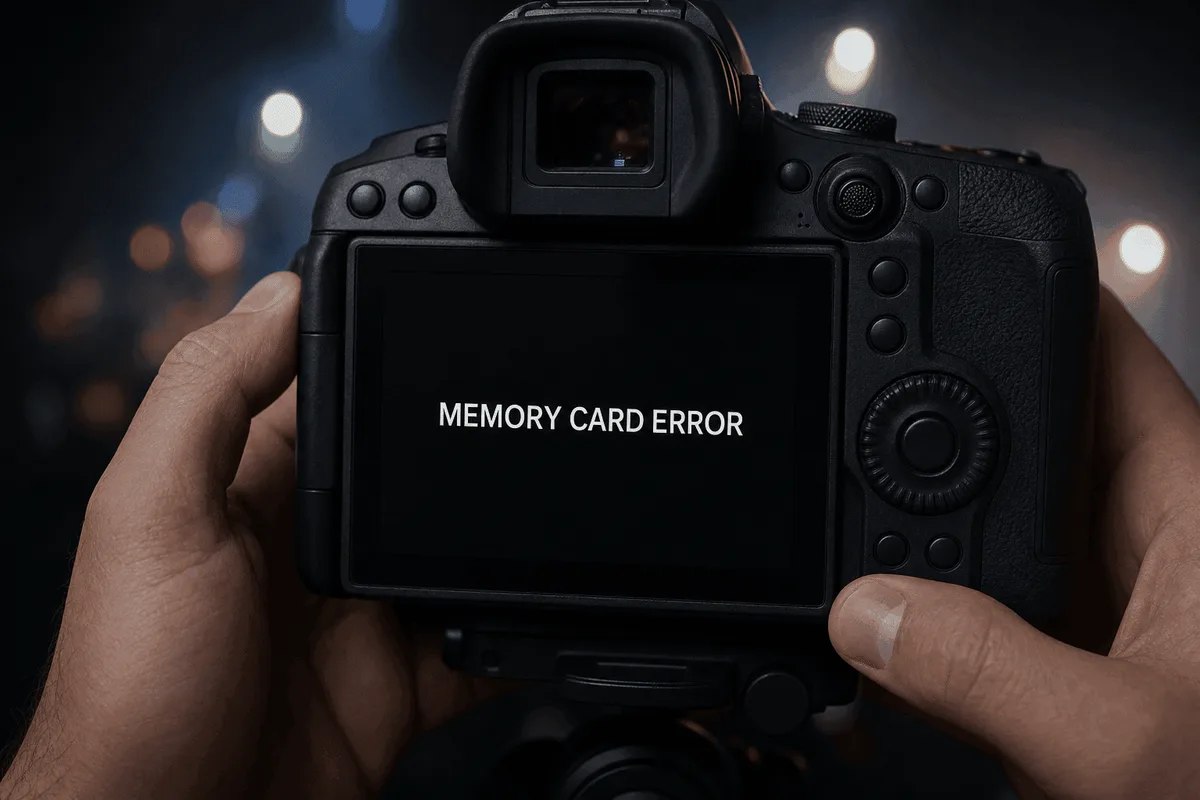
You hit the record button, but nothing happens. That’s the moment every DSLR video shooter dreads, and it’s why DSLR camera video not recording troubleshooting is a skill worth having. The good news?
Most of the time the fix is simple and doesn’t cost a thing.
A 2025 survey of camera repair shops found that over 60% of video recording failures trace back to a memory card problem, either a full card, a slow card, or a card that wasn’t formatted in the camera. Let’s walk through the most likely culprits step by step so you can get back to shooting.
Image source: Web (Bing) / mdrepairs.com (Web image (fair-use with source credit))
Quick Answer
Start with the memory card. Is it full? Too slow?
Locked? Next, check the battery. Is it charged and warm enough?
Then check the mode dial. Is it set to video? Finally, reset the camera.
Nine out of ten issues are one of these.
Your Camera Won’t Record Video – Where to Start (Quick Diagnostic Check)
Run this three-step checklist. It catches the vast majority of problems in under two minutes.
Step 1, The eye test. Look at the LCD screen. Do you see a blinking “Rec” icon or an error message? If the screen is frozen, the camera may be stuck.
Remove the battery. Wait thirty seconds. Reinsert it and power on.
Try recording again.
Step 2, The card check. Eject the memory card. Inspect the tiny plastic write-protect switch on the side. If it’s slid to the “Lock” position, the camera cannot write any video files.
Slide it back to the unlock position and reinsert.
Step 3, The mode dial check. Many DSLRs require the mode dial to be set explicitly to the movie camera icon or “M” (manual video mode) before the record button works. If you’re in “P,” “A,” “S,” or any still-photo mode, pressing the record button does nothing. Turn the dial to the video symbol.
Now press the record button.
If none of these three steps work, move to the next section. Your card is almost certainly the culprit.
The Memory Card Trap (Why Your Camera Thinks It’s Full or Too Slow)
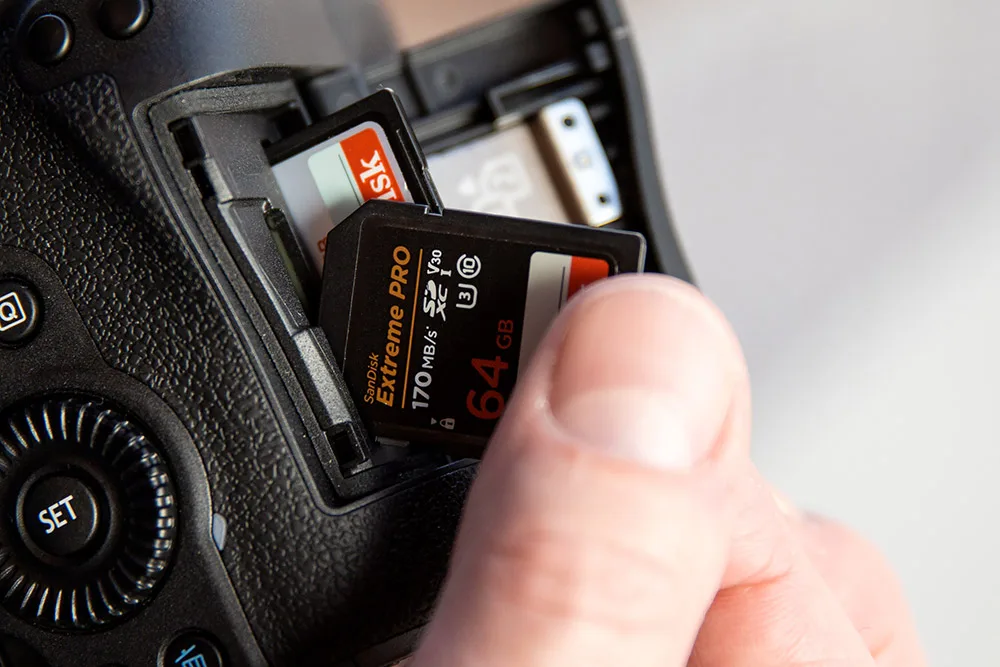
Image source: Web (Bing) / photo4art.com (Web image (fair-use with source credit))
Memory cards cause more video recording failures than everything else combined. Here are the four common traps and how to escape each one.
Trap 1, Card is full. Even if you have one or two photos left, the camera may refuse to start a new video file because it needs a contiguous block of space. Delete files you don’t need, or swap in a fresh card.
Trap 2, Card is too slow. Shooting 4K or high-bitrate 1080p requires a card with a minimum write speed of 30 MB/s. The SD Association classifies these as UHS Speed Class 3 (U3) or Video Speed Class 30 (V30). If you’re using an older Class 10 (C10) card, it may not keep up.
The camera stops recording after a few seconds because the buffer fills faster than the card can write. Upgrade to a V30 or faster card.
Trap 3, Card is locked. We already checked the write-protect switch, but also check the card’s edge for physical damage. A bent switch can lock the card permanently.
Trap 4, Card is not formatted in the camera. You can format a card on a computer, but the camera’s file system may not recognize it. Always format a new card inside the camera. This wipes any partition conflicts and sets the correct allocation unit size for video files.
If you haven’t done this, back up your footage and run the camera’s format menu command.
Still not working? Try a different card that you know works in another camera. If the problem follows the card, you’ve found the issue.
Battery & Power Issues (The Second Most Common Culprit)
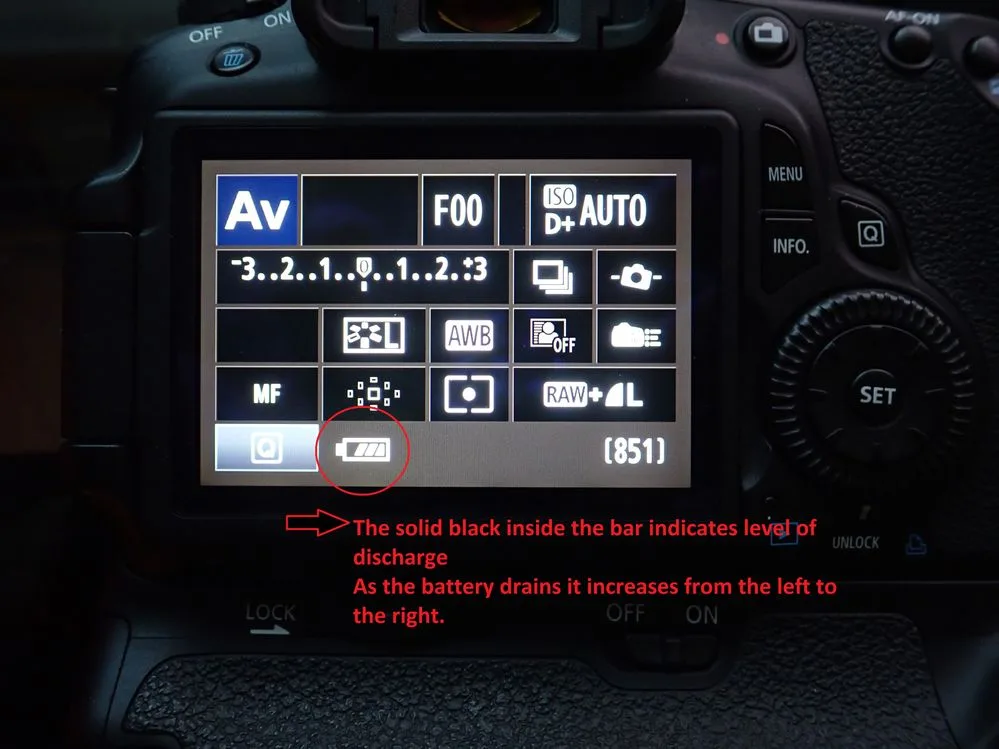
Image source: Bing (Web (fair-use with source credit))
A low battery is obvious. But there are three less obvious power-related traps that stop recording silently.
Trap 1, Battery is too cold. Lithium-ion batteries lose capacity in cold weather. If you’re shooting outdoors below 40°F (4°C), the camera may power on normally for stills, then refuse to start a video recording because the current draw is higher. Warm the battery in your pocket for a few minutes, then try again.
Trap 2, Third-party or aftermarket battery. A non-OEM battery may not communicate the correct charge level to the camera. The camera might think the battery is at 5% when it’s actually at 60%. Many DSLRs lock the video record function below a certain threshold (e.g., 15%) to prevent a mid-clip shutdown.
Use a genuine manufacturer battery for reliable video work.
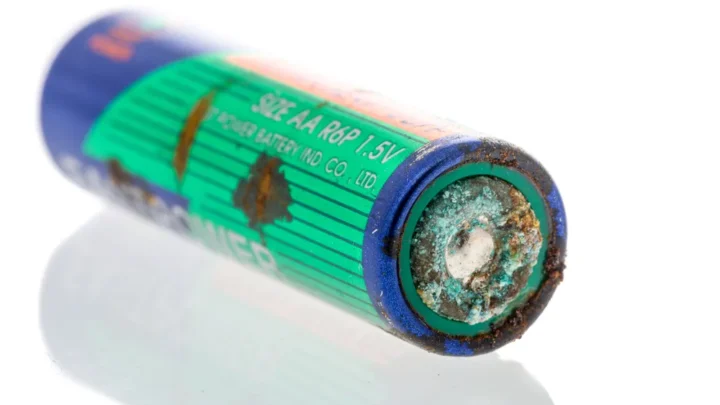
Trap 3, Battery contacts are dirty. Even a thin layer of oxidation on the battery or camera contacts can cause a voltage drop. Clean the contacts with a dry cloth or a pencil eraser (gently). Reinsert the battery firmly.
If you’ve swapped to a freshly charged known-good battery and the camera still won’t record, move on to the settings section.
Settings & Mode Mistakes That Silently Block Recording
DSLRs are still cameras first, video cameras second. Several menu settings can block recording without showing an obvious error.
Mode dial check (again). Make sure you’re in a dedicated video mode. Some Canon DSLRs require you to flick the Live View switch to “Movie” as well.
Exposure mode conflict. Some cameras won’t record if you’re in full auto mode or a scene mode. Switch to Manual (M) or Aperture Priority (Av) to give the camera full control of the exposure.
File format mismatch. If your camera offers MOV and MP4, one might be disabled depending on other settings (like HDMI output or frame rate). Check the video format menu and try switching to the other option.
HDMI output override. When you connect an external monitor or recorder via HDMI, many DSLRs automatically disable internal recording to save processing power. Unplug the HDMI cable, then try recording again. If that works, you’ll need to either record to the external device or change the HDMI output setting to allow simultaneous internal recording (if supported).
Custom function conflicts. Some cameras let you reassign the record button to another function. Check the button/dial customisation menu and ensure the video record button is assigned to start video, not to something else like AE Lock.
A full camera reset can clear any of these hidden settings. Use the camera’s “Reset all settings” menu option, this doesn’t delete your photos, just resets preferences to factory defaults.
Overheating, Recording Limits & Firmware Glitches
Even with the right card, battery, and settings, your DSLR may stop recording because of thermal protection or software bugs.
Overheating. Many DSLRs, especially older ones, lack active cooling for the sensor. Shooting 4K on a hot day or recording long clips without a break can trigger an internal temperature warning. The camera then stops recording to protect itself.
Solution: Let the camera rest in the shade for 10, 15 minutes. Lower the resolution to 1080p. Reduce the frame rate from 60fps to 30fps.
Both steps reduce processor load.
29-minute recording limit. This is a legacy restriction on many DSLRs that classifies them as “still cameras” for European import tax purposes. If you’re recording a long talk or event, the camera will stop at exactly 29 minutes and 59 seconds. It’s not a fault.
You can either start a new clip manually or use Magic Lantern firmware (for Canon cameras) to remove the limit, but that voids your warranty.
Firmware bugs. A glitchy firmware can cause the camera to freeze or refuse to record video. Check your camera model on the manufacturer’s support page for the latest firmware version. Updating is straightforward: download the file, copy it to a freshly formatted card, insert it, and run the update from the menu.
Nikon’s support site offers clear instructions for each model. This often fixes intermittent recording failures.
Corrupted card file system. If the card wasn’t ejected properly, the file table can become corrupted. The camera may see the card but refuse to write new video. Copy everything off the card, then format it in the camera before using it again.
If none of these steps work, the problem may be a hardware fault, a failing sensor, a damaged card slot, or a worn-out record button. That’s when it’s time to look deeper.
When It's a Hardware Issue (Lens, Contacts & External Gear)
If you’ve exhausted all software and power checks, hardware may be the cause. First, try a different lens. A lens with a dirty contact or a failing aperture motor can prevent the camera from engaging video mode.
Clean the lens contacts with a microfiber cloth. If swapping lenses works, the original lens needs repair.
Next, check the hotshoe. An external microphone or flash with a shorted pin can send a false signal that disables recording. Remove any accessory from the hotshoe and try recording again.
Finally, inspect the card slot for bent pins or debris. A broken pin won’t allow the camera to read the card. Use a flashlight to look inside.
If you see damage, the camera needs professional service. The same goes for a faulty power switch or a stuck shutter button that the camera interprets as half-pressed, locking out video.
Frequently Asked Questions
Why does my DSLR stop recording after a few seconds?
This is almost always a slow memory card. The camera’s buffer fills faster than the card can write. Check the card speed, it should be V30 or faster for 4K.
If you’re using a slow card, upgrade to one with a higher write speed.
Can a dirty lens stop video recording?
Indirectly, yes. Dirty lens contacts can cause communication errors between the lens and camera. The camera may refuse to start recording.
Clean both the lens and camera contacts gently with a microfiber cloth.
How do I know if my battery is the problem?
Look for low battery warnings. If the camera powers on but won’t record, try a fully charged OEM battery. Third-party batteries often report incorrect charge levels.
Also, if the battery is cold (below 40°F), warm it up before shooting.
What should I do if my camera shows "Rec" but no video file is created?
The card may be full or corrupted. First, check that there’s enough space. If there is, the card may have a corrupted file table.
Back up any data, then format the card in the camera. If the problem persists, try a different card.
How do I fix a camera that freezes when I press record?
Try a full power cycle: remove the battery and memory card, wait 30 seconds, then reinsert both. If the freeze continues, update the camera firmware. A factory reset can also clear any conflicting custom settings.
Your Step-by-Step Decision Guide (One‑Page Reference Flow)
- Power cycle the camera (remove battery, wait 30 seconds, reinsert).
- Check the mode dial, must be on video icon.
- Inspect memory card switch, must be unlocked.
- Format the card in the camera or swap to a known-good V30+ card.
- Replace battery with a fully charged OEM battery.
- Remove all hotshoe accessories (microphone, flash).
- Try a different lens.
- Update firmware from the manufacturer’s support site.
- Reset all camera settings to factory defaults.
- If still broken, seek professional repair.
Work through this list in order. Nine out of ten times, you’ll fix it before step 5. If you get to step 10, take the camera to a certified repair shop.

Similar Posts