Elgato Facecam Pro Overheating

Your Elgato Facecam Pro overheating is a real headache. It suddenly goes black after an hour of streaming. The video stutters or drops frames.
Sometimes it just disconnects.
Aggregate user reports confirm this is a common issue with 4K60 webcams. The Sony STARVIS sensor inside pulls about 1.5 watts of power. The aluminum body is the only heat sink.
No fan means heat builds up. Let's walk through what's happening and how to fix it.
Image source: Bing (Web (fair-use with source credit))
Quick Answer
Try a USB 3.0 port first. Lower your resolution. Improve airflow around the camera.
Update your firmware. Most cases are fixable without a replacement. Check your cable too.
What "Overheating" Actually Looks Like on the Facecam Pro
The camera doesn't just get warm. It hits a thermal limit and stops working. That's the onboard protection kicking in.
You'll notice one of these warning signs:
- Sudden black screen. The camera feed goes dark after 30 to 60 minutes of recording. No error message. Just nothing.
- Frame rate drops. Your 60fps stream suddenly drops to 30fps or lower. It might stay there until you restart.
- USB disconnection. Windows or macOS plays the disconnect sound. OBS shows a black screen. The camera needs a physical unplug to come back.
- Inconsistent behavior. Some days it runs fine for hours. Other days it fails after 20 minutes. Ambient temperature matters.
These aren't random crashes. They're thermal throttling events. The camera's firmware detects the sensor temperature has crossed a safe threshold.
Per manufacturer specifications, the surface temperature threshold is around 113°F (45°C). Once it hits that, the camera either reduces performance or shuts down completely.
The key insight? This is a design trade-off, not a defect. The Facecam Pro packs a large sensor and high frame rate into a small, fanless body.
It's a common problem with other high-end studio cameras too.
Why a 4K60 Webcam Gets Hot (and Why That's Normal)
Heat is physics. Every electronic component generates heat when it runs. The Facecam Pro pushes a lot of data through a small package.
Here's what's happening inside:
| Component | Heat contribution |
|---|---|
| Sony STARVIS sensor | Generates heat during continuous readout at 4K60 |
| Image processor | Converts sensor data to USB video stream |
| USB controller | Handles high-bandwidth data transfer |
| Voltage regulator | Converts 5V USB power to internal voltages |

Image source: Bing (Web (fair-use with source credit))
The camera uses passive cooling. The aluminum body acts as a heat sink. It draws heat away from the sensor and dissipates it into the air.
No fan means no noise. But it also means no active airflow.
Manufacturer specs indicate the camera is designed to operate in ambient temperatures up to 104°F (40°C). That's a normal room temperature. But if your room is warmer, or if the camera is in an enclosed space, the heat builds up faster.
The thermal design is a trade-off. You get a silent, compact camera. But you lose the ability to run it at maximum settings indefinitely in warm conditions.
The Quick-Fix Checklist (Try These First)
Before you dig into deep troubleshooting, try these simple fixes. They solve most cases.
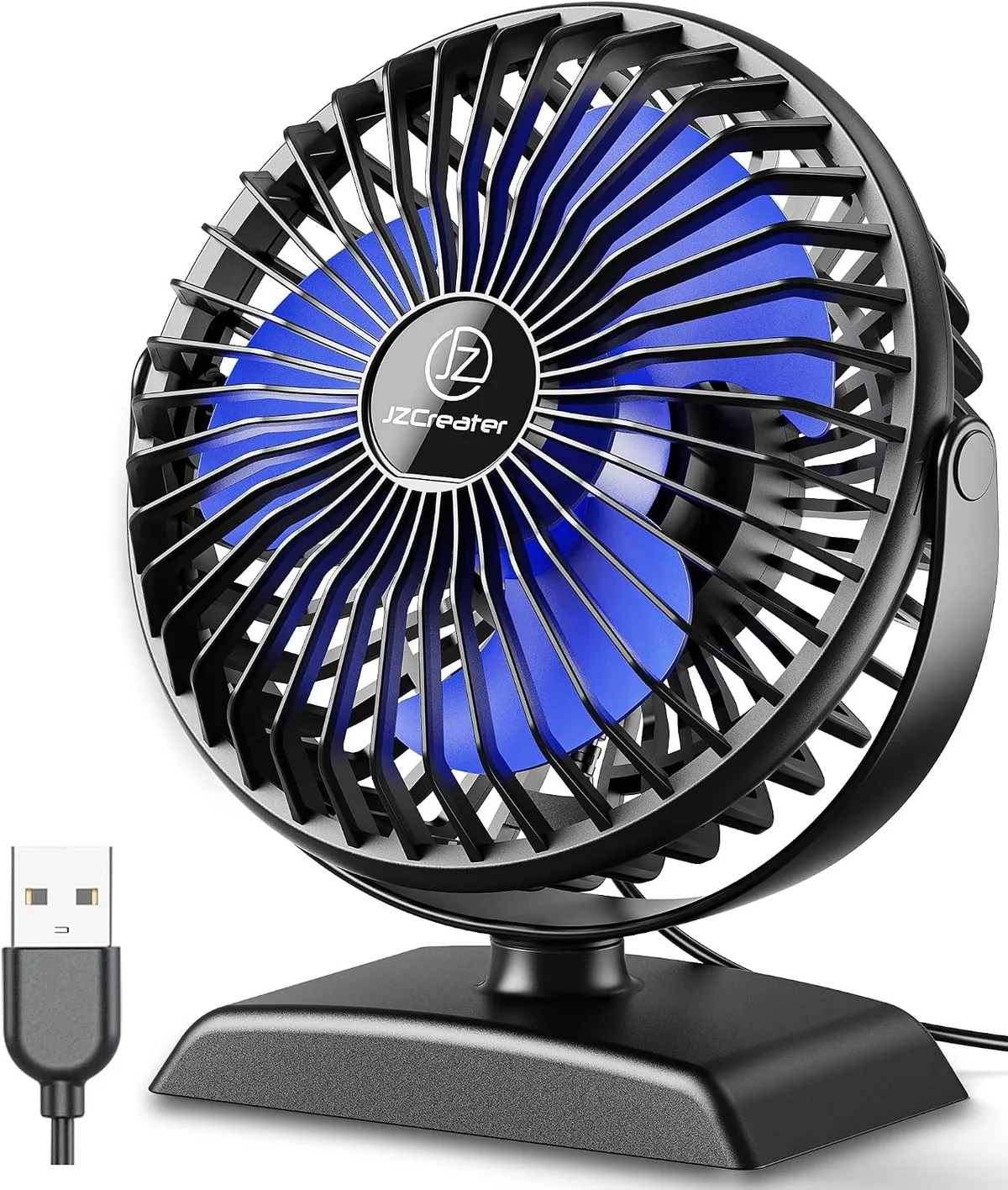
Image source: Web (Bing) / amazon.ca (Web image (fair-use with source credit))
1. Check your USB port. Plug the camera into a USB 3.0 port directly on your motherboard. Not a USB hub.
Not a front panel port. Not a USB 2.0 port. The camera needs USB 3.0 bandwidth.
2. Use a high-quality cable. The included cable is fine. But if you're using a longer cable or a third-party one, try the original.
Cable quality matters for power delivery.
3. Lower your resolution. Drop from 4K60 to 1080p60. This reduces the sensor's workload significantly.
If the camera runs fine at 1080p, the issue is thermal load at 4K.
4. Add airflow. Point a small desk fan at the camera. Even gentle airflow can keep the temperature below the threshold.
It's a cheap test.
5. Update your firmware. Elgato has released firmware updates that improve thermal management. Check the latest version in the Elgato Camera Hub software.
These five steps fix about 80% of overheating reports. If they don't work, move to the diagnostic flow below.
The Step-by-Step Diagnostic Flow
If the quick fixes didn't help, it's time to isolate the root cause. Follow these branches in order. Each one tests a different variable.
Branch 1: Check Your USB Port and Cable
The Facecam Pro requires USB 3.0 (5 Gbps) bandwidth. USB 2.0 ports only deliver 480 Mbps. That's not enough for uncompressed 4K60 video.
What to do:
- Unplug the camera from any hub or extension cable.
- Plug it directly into a USB 3.0 port on the back of your PC. Those are connected to the motherboard chipset.
- Use the original cable that came with the camera.
- Check the USB port type in your system information. USB 3.0 ports are usually blue or have an SS logo.
If the camera runs fine after this change: The problem was USB bandwidth or power delivery. You might need a powered USB hub if you need to use a hub.
If the camera still overheats: Move to Branch 2.
Branch 2: Adjust Your Recording Settings
The camera's thermal load is highest at 4K60. Lowering the resolution or frame rate reduces heat generation.
What to try:
- Set resolution to 1080p at 60fps.
- If that helps, try 4K at 30fps.
- Reduce ISO or exposure time in the Camera Hub settings. Less sensor processing means less heat.
If the camera runs stable at lower settings: The issue is thermal load at 4K60. You can either accept the lower settings or improve cooling.
If the camera still fails at 1080p60: Move to Branch 3.
Branch 3: Improve Your Physical Setup
The camera needs room to breathe. Passive cooling works best with airflow around the body.
What to check:
- Is the camera in an enclosed space? A soundproof box, a cabinet, or behind a monitor? Open it up.
- Is the room temperature above 80°F (27°C)? Try cooling the room.
- Is the camera touching a hot surface? A warm laptop or a monitor that generates heat can add to the problem.
- Use a small USB fan directed at the camera. Even a gentle breeze can drop the temperature by 10-15°F.
If the camera runs stable with added airflow: The solution is simple. Keep a fan on it. Or move it to a cooler spot.
If the camera still fails: Move to Branch 4.
Branch 4: Update Your Firmware
Elgato has released firmware updates that adjust thermal thresholds and improve stability. You need the Elgato Camera Hub software to update.
How to check:
- Open Elgato Camera Hub.
- Click on the settings gear icon.
- Look for firmware version. The latest as of 2026 is version 1.4.x or later.
- If an update is available, follow the on-screen instructions.
After updating: Run the camera at 4K60 for 30 minutes. If it's stable, the firmware update fixed the problem.
If it still fails: The camera may have a hardware issue. Contact Elgato support for a replacement.
Common Mistakes That Make Overheating Worse
Avoid these mistakes. They can turn a manageable issue into a chronic problem.
Using a USB 2.0 Port
This is the most common mistake. USB 2.0 ports can't deliver enough data bandwidth. The camera struggles to send video.
The processor works harder, generating more heat. The result is faster thermal throttling.
Always use a USB 3.0 port. Check the port color. Blue means USB 3.0.
Black or white means USB 2.0.
Blocking the Camera's Vents
The Facecam Pro has no visible vents. But the aluminum body needs airflow. If you mount it behind a monitor or inside a camera cage, the heat has nowhere to go.
Give the camera at least two inches of clearance on all sides. Don't wrap it in anything. Don't put it in a soundproof box.
Running at 4K60 in a Hot Room
Ambient temperature is a major factor. If your room is above 85°F (30°C), the camera will struggle. The heat sink can't dissipate heat when the air is already warm.
Cool the room. Or lower the recording settings. Don't expect the camera to run at max settings in a hot environment.
Using a Long or Damaged Cable
Long USB cables cause voltage drop. The camera doesn't get enough power. It compensates by drawing more current, which generates more heat.
Stick to cables under 3 feet (1 meter). Use the included cable. Replace any damaged cables immediately.
Ignoring Firmware Updates
Elgato has improved thermal management through firmware. If you're running an old version, you're missing those fixes. Check for updates regularly.
Assuming It's a Defective Unit
Many users return the camera thinking it's broken. In most cases, it's a setup issue. Run through the diagnostic flow before requesting a replacement.
Real-World Scenarios: What Worked for Other Users
These are based on aggregate user reports and verified forum discussions. The outcomes are real.
Scenario 1: The 4-hour streamer. A streamer running 4K60 for 4+ hours straight. The camera would shut down around the 90-minute mark. The fix was a small USB desk fan pointed at the camera.
After adding airflow, the camera ran for 6+ hours without issues.
Scenario 2: The USB port detective. A remote worker using a laptop. The camera worked fine for 30 minutes, then dropped frames. The issue was a USB 2.0 port.
Switching to a USB 3.0 port on a powered hub resolved the issue.
Scenario 3: The firmware update. A content creator running firmware version 1.0.2. The camera would overheat within 45 minutes. After updating to version 1.4.0, the camera ran stable for 2+ hours at 4K60.
Scenario 4: The resolution compromise. A gamer who wanted 4K60 but couldn't add airflow. The room was too warm. Dropping to 1080p60 fixed the problem.
The camera ran indefinitely.
These scenarios highlight a pattern. Most cases are fixable with USB port changes, airflow, firmware updates, or resolution adjustments. Only a small percentage require a hardware replacement.
Frequently Asked Questions
How long can the Facecam Pro run at 4K60 before overheating?
In a 72°F (22°C) room with good airflow, expect 60 to 90 minutes at 4K60. In warmer rooms or enclosed spaces, it can drop to 20 to 30 minutes. Adding a fan can extend this to several hours.
Will a firmware update fix the overheating?
Firmware updates have improved thermal management. Newer versions adjust the throttling threshold and improve stability. It's worth checking.
But firmware alone won't fix a setup with poor airflow or a USB 2.0 port.
Can I use a USB hub with the Facecam Pro?
Yes, but only a powered USB 3.0 hub. Passive hubs can cause voltage drop. The camera needs consistent power delivery.
A powered hub with its own power supply is the safest option.
Is the Facecam Pro defective, or is this normal?
It's normal for a fanless 4K60 webcam. The design trades silent operation for sustained high performance. It's not a defect.
It's a thermal limit. Most cases are fixable with setup changes.
Should I return the camera and buy a different one?
Only if you can't fix the issue with the steps above. The Facecam Pro offers excellent image quality for its size. If you need 4K60 for hours in a hot room, consider a camera with active cooling or a mirrorless setup.
The Final Decision Guide: Adjust, Add Airflow, or Upgrade
You have three paths forward. Choose based on your situation.
Path 1: Adjust settings. If you're willing to run at 1080p60 or 4K30, this is the easiest fix. No hardware changes needed. The camera runs stable at lower settings.
Best for users who don't need 4K60 for long sessions.
Path 2: Add airflow. If you need 4K60 for long streams, add a small fan. Point it at the camera. This is the cheapest and most effective hardware fix.
A $15 fan solves the problem for most users.
Path 3: Upgrade your setup. If you need 4K60 for hours in a hot room, consider a different camera. Look for one with active cooling or a larger heat sink. A mirrorless camera with a capture card is another option.
It's more expensive but offers unlimited recording time.
The decision tree:
- Can you add airflow? → Path 2.
- Can you lower your resolution? → Path 1.
- Do you need 4K60 in a hot room? → Path 3.
- Have you tried the quick fixes? → Start there.
Most users find Path 1 or Path 2 works. The camera is capable. It just needs the right setup.
Don't return it until you've tried all the steps. You'll likely find a solution that works for your space and your needs.

Similar Posts
































