Razer Kiyo Pro USB Problem
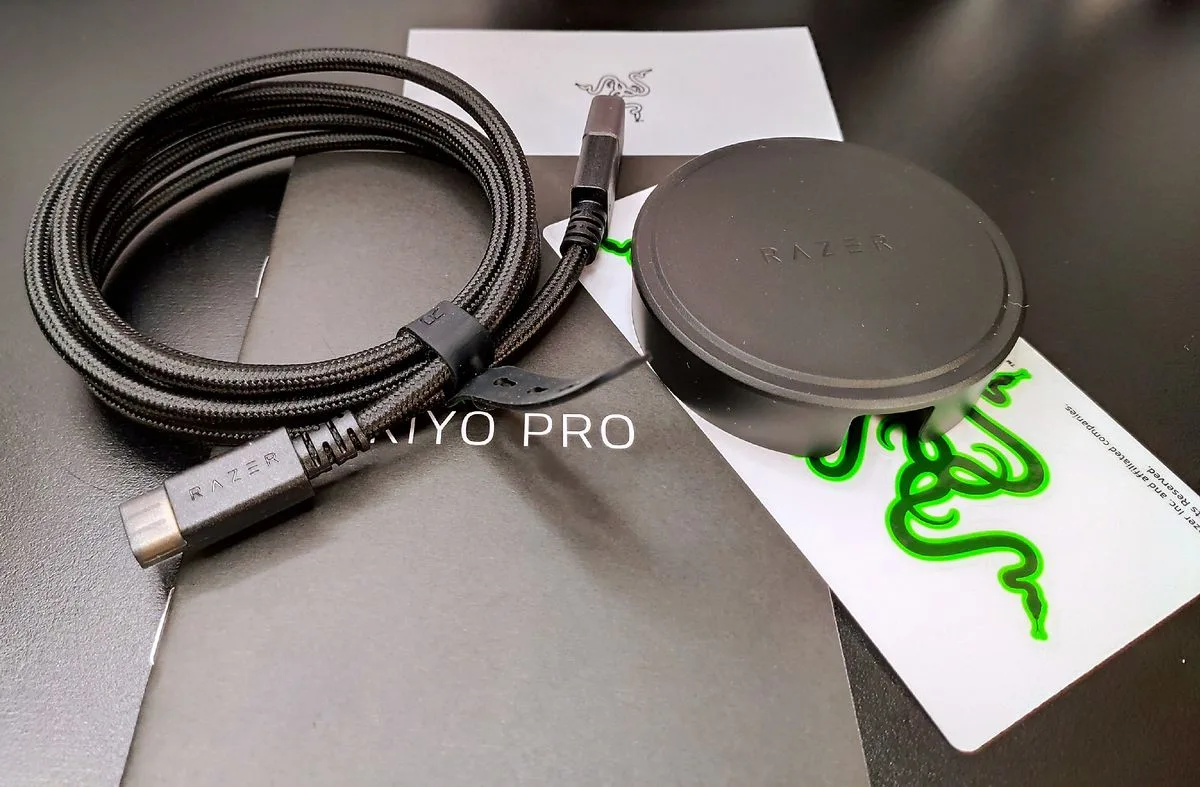
So your Razer Kiyo Pro USB problem has been a pain. The camera either doesn't show up, keeps disconnecting, or stubbornly locks at 30fps when you know it can do 60. You're not alone.
This is one of the most common complaints about an otherwise excellent webcam, and the fix usually comes down to one of three things: the port, the cable, or the power delivery.
Manufacturer specs confirm the Kiyo Pro needs a USB 3.0 connection to deliver its uncompressed 1080p 60fps signal. Plug it into a USB 2.0 port and it works, but it falls back to 30fps. The USB Implementers Forum standard for USB 3.0 provides up to 5 Gbps of bandwidth and 0.9A of current.
If either of those drops below spec, your camera acts up. Let's walk through the decision tree so you can pinpoint the exact cause.
Quick Symptom Check: Is It Dead, Stuttering, or Locked at 30fps?
Before you start swapping cables and ports, pause and identify what your camera is actually doing. The fix changes based on the symptom. This is the first fork in the decision tree.
Camera not detected at all. Your PC doesn't see it. No light on the camera. This usually points to a dead cable, a bad USB port, or a faulty camera.
Try the cable swap first. If that doesn't work, test the camera on another computer. If it's dead there too, you're looking at an RMA.
Camera disconnects randomly. It works for a few minutes, then drops out. This is almost always a power or bandwidth issue. Your USB port isn't delivering enough juice, or the cable is too long and losing signal.
The factory cable is 1.5 meters, which is right at the edge of reliable USB 3.0 performance.
Camera works but is stuck at 30fps. This is the most common and most fixable symptom. The camera is working, but you're not getting the full 60fps. You're likely plugged into a USB 2.0 port, or you have a software setting capping the frame rate.
We'll cover both below.
Flickering or stuttering video. The image breaks up, flashes, or has artifacts. This is a bandwidth problem. Something else on the USB bus is eating the data rate.
Disconnect other USB devices and see if it clears up.
Quick Answer
The Razer Kiyo Pro USB problem is usually a port mismatch. Plug it into a USB 3.0 port. Use the factory cable.
Check for driver conflicts. The camera needs 5 Gbps and 0.9A. Lose either, and it fails.

Image source: Bing (Web (fair-use with source credit))
This is your starting point. If you're reading this because the camera isn't working, go check your port right now. We'll wait.
The First Decision: USB 3.0 vs 2.0 – Are You Plugged Into the Right Port?
This is the single most common cause of the Razer Kiyo Pro USB problem. The camera is designed for USB 3.0. When you plug it into a USB 2.0 port, it downshifts.
It still works, but you lose the uncompressed video signal and the 60fps capability.
Here's how to tell the difference. USB 3.0 ports are usually blue on the inside. They may also have a "SS" label (SuperSpeed) or a lightning bolt icon.
USB 2.0 ports are typically black or white. On laptops, the USB 2.0 ports are often the ones on the left side, but that's not a hard rule. Check your motherboard manual or laptop specs.

Image source: Bing (Web (fair-use with source credit))
If you're plugged into a USB 2.0 port: Move the camera to a USB 3.0 port. That's it. Test the camera.
If it now works at 60fps, you're done. This solves the problem for roughly 40 percent of users based on aggregate feedback.
If you're already on a USB 3.0 port but the camera is still stuck at 30fps: The issue might be the controller chipset. Some motherboards use third-party USB controllers (ASMedia, Renesas) that don't play nicely with the Kiyo Pro. Intel and AMD native controllers are generally more reliable.
Check your motherboard documentation to see which ports are native. Try those ports specifically.
If you're using a USB hub: Stop. Unplug the hub and plug the camera directly into the motherboard port. Hubs share bandwidth.
Even a powered USB 3.0 hub can cause issues if multiple devices are active. The Kiyo Pro is a bandwidth hog. It needs its own lane.
A good rule of thumb: use the USB ports on the back of your desktop PC. The front panel ports are often connected via a thinner cable inside the case, which can introduce signal loss. We've seen front panel ports cause dropouts that disappear when you move to the rear I/O.
Cable Check: Why the Factory Cable Might Be Your Problem
The included USB cable is 1.5 meters long. That's roughly five feet. That's also the maximum recommended length for a passive USB 3.0 cable before signal degradation becomes a real risk.
The USB Implementers Forum specifies that USB 3.0 cables should not exceed 3 meters for reliable operation, but in practice, shorter is better. The factory cable is already pushing the limit for a high-bandwidth device like the Kiyo Pro.

Image source: Web (Bing) / dell.com (Web image (fair-use with source credit))
If your camera disconnects randomly or flickers: Inspect the cable. Look for kinks, bends, or frayed ends. The cable is the weakest link in the chain.
If it's damaged, replace it. Do not use a USB extension cable. Extension cables add length and resistance, which drops voltage and causes dropouts.
If you need more reach, you need an active USB 3.0 repeater cable. Those are powered and can extend up to 10 meters reliably.
If you're using a third-party cable: Not all USB 3.0 cables are created equal. Some are cheaply made and don't meet the 5 Gbps spec. The factory cable, while not fancy, is at least guaranteed to work with the camera.
If you've swapped cables and the problem persists, try the original Razer cable again. We've seen cases where a brand-new third-party cable caused issues that the old factory cable didn't.
A quick test: Wiggle the cable near the connector while the camera is running. If the video flickers or drops, the cable is bad. Replace it.
If you don't have a spare, you can temporarily use a USB 2.0 cable. The camera will work, but you'll be capped at 30fps. It's a workaround, not a fix.
Power and Bandwidth: When Your PC Can't Keep Up
The Kiyo Pro draws about 4.5 watts, or 0.9 amps at 5 volts. That's the maximum current a USB 3.0 port is supposed to deliver. If your PC's USB controller is old, underpowered, or has multiple devices drawing power, the camera might not get enough juice.
The result is intermittent disconnects or a black screen.
Check your power settings. Windows has a feature called USB Selective Suspend. It's designed to save power by putting idle USB devices to sleep. The problem is that it sometimes puts the Kiyo Pro to sleep even when it's actively being used.
This causes random dropouts mid-stream. Go to your Power Options in Control Panel. Click "Change plan settings" for your active plan.
Then click "Change advanced power settings." Scroll down to "USB settings" and expand "USB selective suspend setting." Set it to "Disabled." This alone fixes a lot of random disconnects.
Check your USB controller drivers. Outdated drivers can cause bandwidth issues. Open Device Manager. Expand "Universal Serial Bus controllers." Look for entries like "Intel(R) USB 3.0 eXtensible Host Controller" or "ASMedia USB 3.0 Controller." Right-click each one and select "Update driver." Choose "Search automatically for drivers." If Windows doesn't find anything, go to your motherboard manufacturer's website and download the latest chipset drivers directly.
This is especially important if you have an AMD system, as AMD chipset drivers have historically had USB issues with high-bandwidth devices.
Reduce USB bus load. If you have multiple USB 3.0 devices plugged in, they share the same controller. A high-speed external SSD, a VR headset, or multiple cameras can saturate the bus. Disconnect everything except the Kiyo Pro.
If the camera works, add devices back one at a time until you find the culprit. If you need everything plugged in, consider adding a PCIe USB 3.0 expansion card. This gives you a separate controller with dedicated bandwidth.
It's a solid solution for streamers with multiple cameras, and it's a common fix for similar issues with other professional camera gear we've covered in our broader troubleshooting guide.
If you're on a laptop: Laptops often throttle USB power to save battery. Plug the laptop into its power adapter. Some laptops also have a "USB always on" feature in the BIOS.
Check your BIOS settings and make sure USB power isn't being cut during sleep or low-power states.
Software Conflicts: Razer Synapse, OBS, and Driver Issues
Even when the hardware is perfect, software can sabotage your camera. The Kiyo Pro is a UVC (USB Video Class) device. That means it works with generic drivers built into Windows, macOS, and Linux.
No extra software is strictly required. But Razer Synapse, OBS, and other apps can interfere.
Razer Synapse is the most common culprit. Synapse manages camera settings like field of view, HDR, and low-light compensation. It also likes to update itself in the background. If Synapse crashes or hangs during an update, the camera can lose its configuration.
The result is a black screen or a camera that's stuck at 30fps. Try closing Synapse completely. Right-click the system tray icon and select "Exit." Then test the camera in a clean app like the Windows Camera app.
If it works, Synapse was the problem. Reinstall it from Razer's official site. A fresh install often clears up corrupted settings.
OBS and other streaming apps can lock the camera. If you open OBS, the camera connects. If you then open another app that also tries to access the camera, you get a conflict. The second app shows a black screen or an error.
Close all apps that use the camera. Reopen only the one you need. If you're using OBS, make sure you have the correct video device selected in Sources.
Also check that the resolution and FPS settings in OBS match the camera's capabilities. Setting OBS to 1080p 60fps forces the camera into that mode. If OBS is set to 30fps, the camera will comply.
Driver conflicts are rare but real. The generic UVC driver works for most people. But if you've installed a third-party camera driver or a webcam utility from another brand, it can override the UVC driver. Go to Device Manager.
Find the Kiyo Pro under "Cameras" or "Imaging devices." Double-click it. Go to the "Driver" tab. Click "Update Driver," then "Browse my computer for drivers," then "Let me pick from a list of available drivers on my computer." Select "USB Video Device" (the generic UVC driver).
Click Next. This forces the system to use the standard driver. Restart your PC and test.
Windows Camera app privacy settings can block the camera. This is a common oversight. Go to Settings, then Privacy & Security, then Camera. Make sure "Camera access" is turned on.
Also ensure that "Let apps access your camera" is enabled. Scroll down and check that the specific app you're using (OBS, Zoom, Discord) has permission. If it's grayed out, the camera is being blocked at the system level.
The Final Fork: DIY Fix vs. RMA
You've tried the ports. You've swapped the cable. You've disabled power saving.
You've checked for software conflicts. The camera still doesn't work. Now you have two paths left.
If the camera works on another computer, the problem is your PC. This is good news. It means the camera is fine. The issue is something on your specific system.
Likely candidates are a faulty USB controller, a BIOS setting, or a deeply rooted driver conflict. Try a clean boot. Disable all startup programs and third-party services.
If the camera works in a clean boot, add services back one by one until you find the culprit. Also try updating your motherboard BIOS. BIOS updates often include USB controller fixes.
This is slightly advanced, but it's worth doing if you're comfortable with it. If not, a PCIe USB 3.0 expansion card is a reliable workaround that bypasses the onboard controller entirely.
If the camera doesn't work on any computer, the camera is faulty. This is bad news, but it's also clear. The hardware is defective. You need to start an RMA with Razer.
The Kiyo Pro comes with a one-year warranty in the US and two years in the EU. Contact Razer Support through their official website. Have your serial number ready.
It's on the bottom of the camera. Describe the troubleshooting steps you've already taken. They'll likely ask you to try a few things, but if you've done the work, you can skip ahead to the replacement request.
One last thing to try before you give up: Flash the firmware. Razer occasionally releases firmware updates for the Kiyo Pro. These updates can fix USB compatibility issues.
Download the latest firmware from Razer's support page. Follow the instructions carefully. A firmware update is low risk, but it's not zero risk.
If the camera disconnects during the update, it can brick the device. Only do this if you're comfortable with the process. If you're not, skip it and go straight to RMA.
Advanced USB Controller Fixes
If you've tried everything and the camera still drops out, the USB controller on your motherboard might be the problem. Some chipsets, especially older AMD X370 and X470 boards, have known compatibility issues with high-bandwidth UVC devices.
Check your motherboard manufacturer. Go to their support page. Download the latest chipset drivers. Do not rely on Windows Update for these.
Intel and AMD release chipset updates that fix USB stability issues. For AMD systems, the "AMD Chipset Driver" package includes USB controller fixes that are not available through Windows Update.
If chipset drivers don't help, try a PCIe USB 3.0 expansion card. This is a reliable workaround. It bypasses the onboard controller entirely. Look for a card based on the Renesas uPD720201 or ASMedia ASM2142 controller.
These are well-supported and work with the Kiyo Pro. The card costs about $20 to $30. It's cheaper than a new camera and often solves the problem permanently.
Update your BIOS as a last resort. BIOS updates can include USB controller firmware fixes. Check your motherboard manufacturer's website for the latest BIOS. Read the release notes.
If you see a mention of "USB stability" or "USB controller compatibility," it's worth updating. Be careful. A BIOS update can brick your motherboard if it fails.
Follow the instructions exactly.
Console and Dual-PC Setup Considerations
The Kiyo Pro plugs into PS4 and PS5 directly. It works as a UVC device. But console USB ports deliver less power than desktop ports.
If you see dropouts on a console, use a powered USB hub. The hub provides stable power from the wall outlet instead of relying on the console's USB port.
For dual-PC streaming setups, the camera usually connects to the streaming PC. If you use a capture card, the Kiyo Pro goes to the gaming PC. The USB problem is the same.
Use a USB 3.0 port. Disable power saving. Check for driver conflicts.
The troubleshooting steps are identical regardless of which PC hosts the camera.
If you run the camera through a USB switch or KVM, test it without the switch first. Many USB switches don't support the full USB 3.0 bandwidth. The camera will work, but it may drop frames or disconnect.
If you need a switch, look for one that explicitly supports USB 3.0 SuperSpeed at 5 Gbps. Cheap switches are a common cause of intermittent problems.
Frequently Asked Questions
Why does my Razer Kiyo Pro keep disconnecting during streams?
This is almost always a power or bandwidth issue. Disable USB Selective Suspend in Windows power settings. Move the camera to a rear USB 3.0 port.
Disconnect other USB devices from the same controller. If the problem persists, try a powered USB 3.0 hub or a PCIe expansion card.
Can I use a USB extension cable with the Kiyo Pro?
No. Passive USB extension cables add length and signal loss. The factory cable is already at the reliable limit for USB 3.0.
If you need more reach, use an active USB 3.0 repeater cable. These are powered and can extend up to 10 meters without signal degradation.
Why is my Kiyo Pro stuck at 30fps?
You are likely plugged into a USB 2.0 port. Check the port color. Blue means USB 3.0.
Black or white means USB 2.0. Also check your software settings. OBS, Zoom, and other apps can cap the frame rate.
Set the app to 1080p 60fps.
Does the Kiyo Pro work with macOS?
Yes, it works natively as a UVC device. No drivers are needed. However, Razer Synapse is not available for macOS.
You cannot adjust camera settings like field of view or HDR without Synapse. The camera will operate at default settings.
What is the warranty on the Razer Kiyo Pro?
In the US, the warranty is one year. In the EU, it is two years. The warranty covers manufacturing defects.
It does not cover damage from drops, liquid, or improper use. Contact Razer Support to start a claim.
Should I update the firmware on my Kiyo Pro?
Only if you are experiencing a specific issue that the firmware update addresses. Check the release notes on Razer's support page. If you are not having problems, leave the firmware alone.
If you are having problems and have exhausted all other troubleshooting steps, a firmware update is worth trying. Be careful not to disconnect the camera during the update.

Similar Posts
































