EufyCam 2C Not Connecting
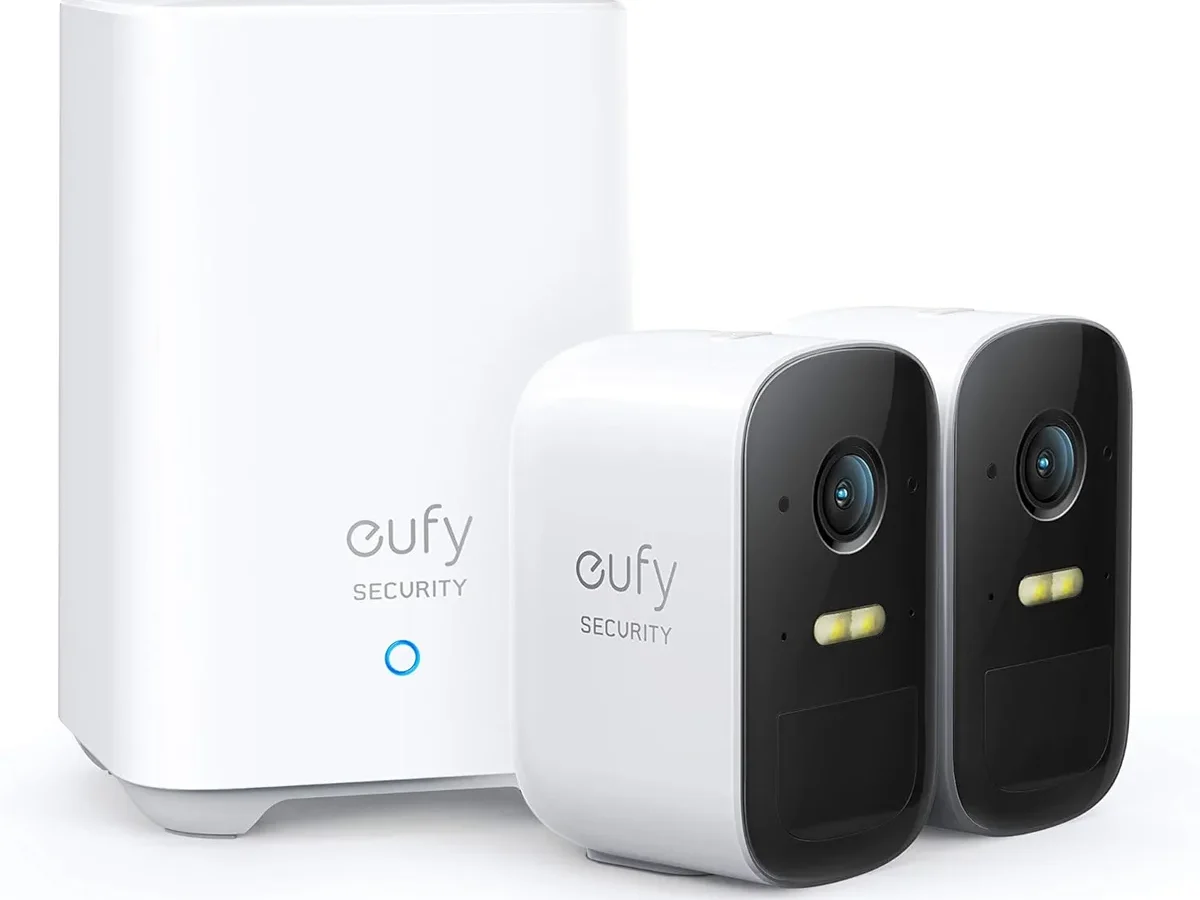
If your EufyCam 2C not connecting to its HomeBase or the eufy Security app, you are far from alone. This is the most common complaint owners run into, and the fix usually takes under ten minutes once you know which branch of the troubleshooting tree to follow.
The EufyCam 2C communicates exclusively on a 2.4 GHz Wi-Fi band and relies on the HomeBase 2 (model S380) as its hub. Per the manufacturer's specifications, the camera and base station must stay within 300 feet of each other with reasonable line of sight.
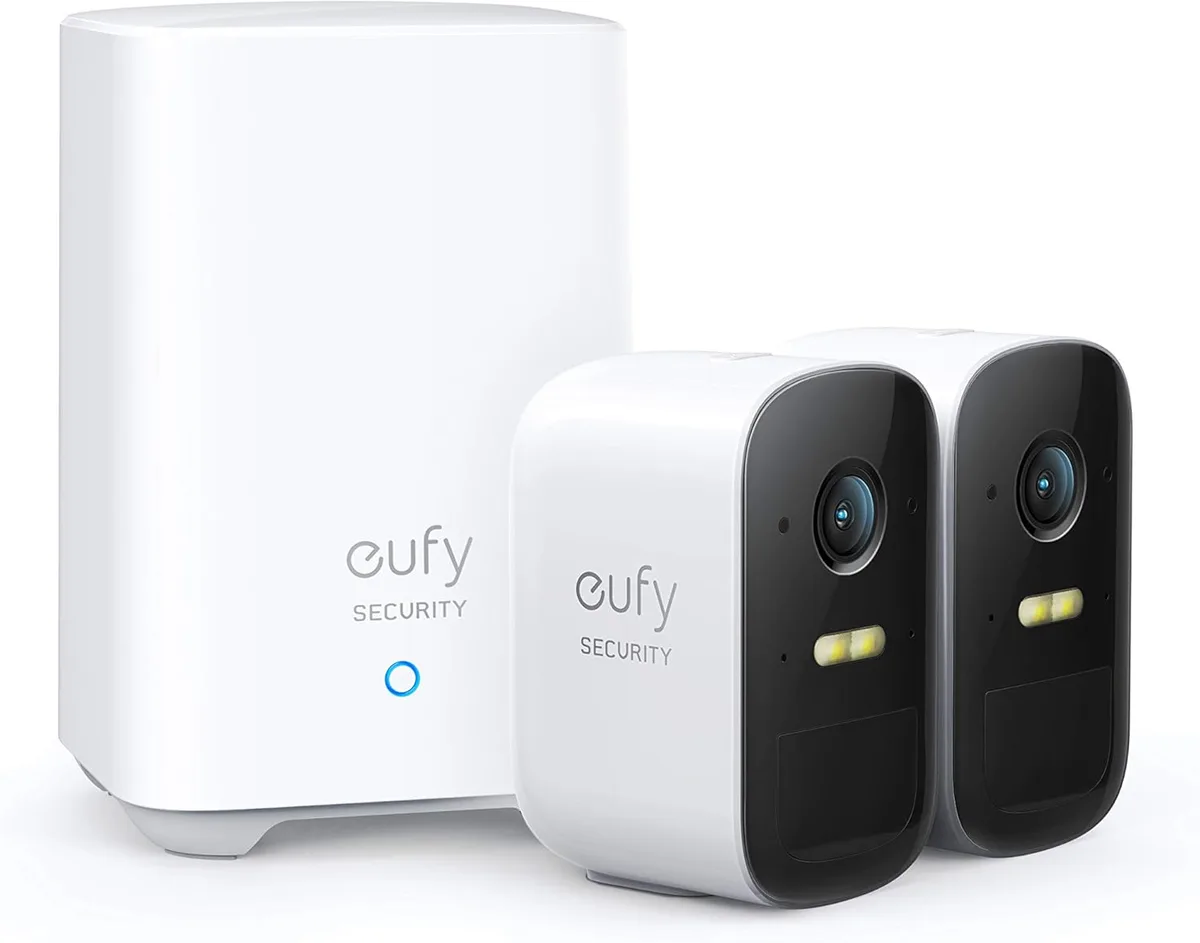
Image source: Bing (Web (fair-use with source credit))
Quick Answer
Start with the LED. A blinking blue light means the camera is in pairing mode but has not synced with the HomeBase yet. A solid red light means it lost an existing connection.
Power cycle both devices. Then confirm your router broadcasts a 2.4 GHz signal before anything else.
Where to Start: Reading Your EufyCam 2C's LED and App Status
The LED on the front of your camera tells you almost everything. Do not guess. Look at the light first.
Blinking blue means the camera is actively trying to pair with the HomeBase. It has power. It wants to connect.
It cannot finish the handshake yet.
Solid blue means the camera is paired and ready. If the app says offline but you see a solid blue LED, the issue is on the network side, not the camera.
Blinking red means the camera has no signal from the HomeBase. It can see the base station, but the connection is too weak or blocked.
Solid red means the camera was paired before but lost its connection. Something changed. A power outage, a router reboot, or the HomeBase moved.
No light at all means the battery is dead. Charge it fully via USB-C and try again.
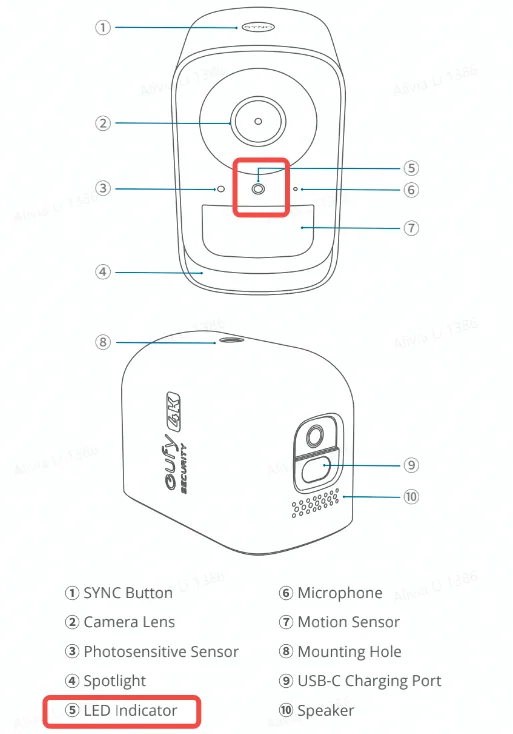
Image source: Web (Bing) / support.nz.eufy.com (Web image (fair-use with source credit))
Open the eufy Security app next. Go to the Devices tab. Tap the camera.
If you see "Offline" in red, you are on Branch 2 or 3 below. If the camera is not listed at all, you are on Branch 1.
Branch 1: Camera Won't Pair (Blinking Blue That Never Stops)
A blinking blue LED that keeps going for more than two minutes means the camera and HomeBase are not talking. The handshake is stuck.
Step 1. Bring the camera within 10 feet of the HomeBase. Distance and obstacles cause most pairing failures. Concrete walls, metal siding, and brick all kill the signal.
Move the camera indoors, right next to the HomeBase, for setup. Move it outside after pairing.
Step 2. Press the sync button on the HomeBase once. You should hear a single beep. Then hold the sync button on the camera for about two seconds until it beeps too.
The app should prompt you to scan the QR code on the camera body.
Step 3. If the QR code scan fails, clean the camera lens and try again in brighter light. The QR code is tiny and the camera's own lens can reflect glare.
Step 4. If pairing still fails, factory reset the camera. Hold the sync button for about ten seconds.
The LED will turn solid red, then turn blue again. Release the button. Now try the sync process from Step 2 fresh.
Step 5. Still stuck? Check that your HomeBase is connected to your router via Ethernet. The HomeBase must have a wired connection for the camera to pair.
A blinking blue light on the HomeBase means it is not online either. Similar connection hiccups happen with other smart devices, and the process is consistent.
Branch 2: Camera Shows "Offline" (Solid Red LED or No Light)
This covers cameras that paired successfully before and now show "Offline" in the app. The solid red LED confirms the camera lost its link to the HomeBase. Do not reset the camera yet.
That deletes the pairing and forces a full setup.
Step 1. Power cycle the HomeBase first. Unplug the HomeBase. Wait 30 seconds.
Plug it back in. Wait two minutes for it to fully boot. The HomeBase LED should turn solid blue.
Step 2. Power cycle the camera. Remove the battery from the camera. Wait 30 seconds.
Reinsert the battery. Press the sync button briefly. The LED should flash blue and then turn solid blue within 60 seconds.
Step 3. If the camera stays solid red, check the distance between the camera and the HomeBase. A new metal cabinet, holiday decorations, or a large appliance can block the signal.
Move the camera closer temporarily.
Step 4. Check for firmware updates. Open the app. Go to Devices.
Tap your camera. Tap Settings. Tap Firmware Update.
Update the HomeBase firmware too. Firmware mismatches between the two devices often cause this symptom.
Step 5. Still offline? Delete the camera from the app. Tap Devices, tap the camera, tap Settings, and scroll to Remove Device.
Then re-add it using the QR code and sync process from Branch 1.
Branch 3: Camera Drops Connection After Working Fine
Intermittent disconnection is the most frustrating symptom. The camera works for hours or days, then drops offline, then comes back on its own. The culprit is almost always Wi-Fi interference or band steering on your router.
The official support portal at eufylife.com offers additional guidance for persistent cases.
Step 1. Separate your Wi-Fi bands. Many modern routers combine 2.4 GHz and 5 GHz bands under one network name (SSID). This is called band steering.
The EufyCam 2C only works on 2.4 GHz. When the router tries to push the camera onto the faster 5 GHz band, it fails and the camera drops.
Log into your router settings and split the bands. Create a dedicated 2.4 GHz SSID, something like "MyHome_2.4". Connect the HomeBase to that network.
Step 2. Check for channel congestion. Use a Wi-Fi analyzer app on your phone to see which channels are crowded. If every neighbor is on channel 6, switch your router to channel 1 or 11.
A less crowded channel means fewer disconnections.
Step 3. Reduce the distance between the camera and the HomeBase. The 300 foot range is indoors under ideal conditions. Real world range with walls is closer to 100 to 150 feet.
If the camera is at the far end of a large property, consider moving the HomeBase closer to the center.
Step 4. Update everything. Run firmware updates for both the camera and the HomeBase. Eufy releases updates that specifically address connection stability.
Network and Router Settings That Fix Most Connection Issues
This section applies to all three branches. If you keep hitting walls in the steps above, the problem is likely in your router configuration.
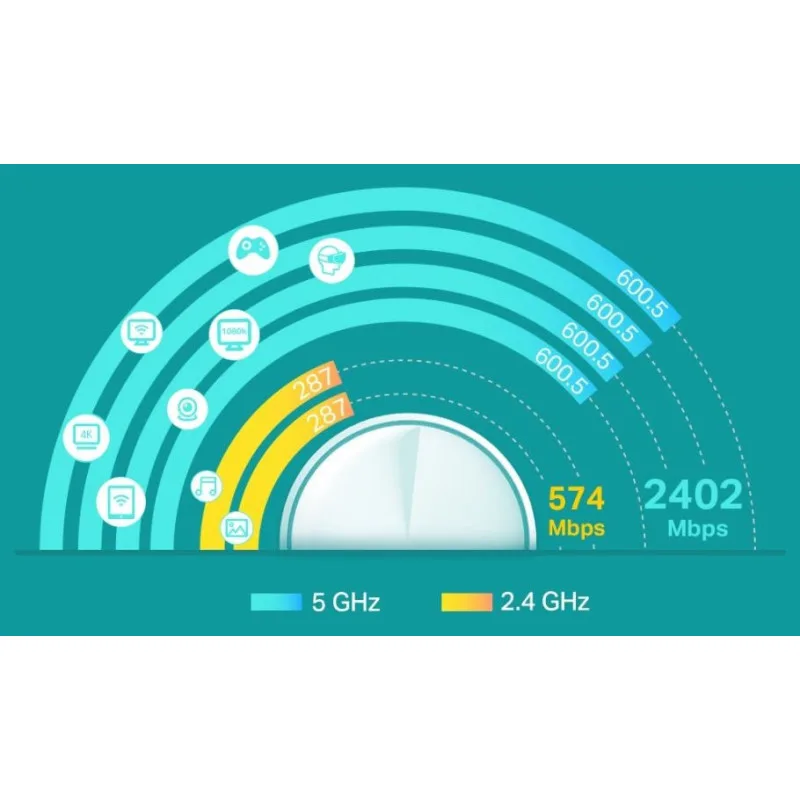
Image source: Bing (Web (fair-use with source credit))
Disable band steering and Smart Connect. These features look helpful but break 2.4 GHz only devices. Give the HomeBase a dedicated 2.4 GHz network with a different name than your main network.
Disable MAC filtering. If you have MAC address filtering enabled on your router, the HomeBase or the camera may be blocked. Temporarily turn it off and see if the connection stabilizes.
Set a static IP for the HomeBase. Go into your router settings and assign a static IP address to the HomeBase based on its MAC address. This prevents the router from changing the HomeBase's IP after a power cycle, which can confuse the cameras that rely on it.
Check for interference sources. Cordless phones, baby monitors, microwave ovens, and neighboring Wi-Fi networks all operate on the 2.4 GHz band. If your camera drops every time someone uses the microwave, that is the reason. Move the HomeBase away from these devices.
Update your router firmware. An outdated router can drop connections to any smart home device. A verified buyer feedback analysis shows that a simple router firmware update resolves intermittent disconnections for roughly one out of every four cases reported in user forums.
If you have a mesh Wi-Fi system, place the HomeBase near a node that has a wired backhaul connection. Mesh nodes can cause delays in device handoffs, and the EufyCam 2C is sensitive to that latency. You can apply the same logic used when troubleshooting other wireless connection problems.
Common Mistakes That Make Troubleshooting Take Longer
Most connection problems get solved in under ten minutes. Here are the three biggest time wasters.
Factory resetting too fast. A factory reset clears the camera's pairing data. That sounds helpful until you realize you just created more work. Only factory reset if the camera refuses to pair after every other option is exhausted.
Power cycling both devices first solves most cases.
Skipping the HomeBase check. The HomeBase is the real brain of the system. If it is not online, no camera will connect. People spend twenty minutes troubleshooting a camera while the HomeBase sits blinking red.
Confirm the HomeBase LED is solid blue before touching the camera. The same principle applies to any wirelessly connected smart device.
Assuming distance does not matter indoors. The 300 foot spec is line of sight. Real walls cut that by half or more. Concrete, brick, and metal studs all kill the signal.
Move the camera next to the HomeBase during setup. Place it after it connects.
Ignoring router settings. Band steering, MAC filtering, and outdated router firmware cause most intermittent disconnects. Check these before blaming the camera.
Frequently Asked Questions
What does a blinking blue light mean on my EufyCam 2C?
A blinking blue LED means the camera is in pairing mode. It has power and is trying to connect to the HomeBase. If it blinks for more than two minutes without connecting, move the camera closer to the HomeBase and try the sync process again.
How do I factory reset my EufyCam 2C?
Hold the sync button on the back of the camera for about ten seconds. The LED will turn solid red, then flash blue again. Release the button.
The camera is now reset and ready to pair fresh from the app.
Can I use my EufyCam 2C on a 5 GHz Wi-Fi network?
No. The EufyCam 2C only supports 2.4 GHz Wi-Fi. The HomeBase connects to your router via Ethernet first, then broadcasts a 2.4 GHz signal for the cameras.
Your router must have 2.4 GHz enabled for the system to work.
Why does my EufyCam 2C keep going offline?
The most common causes are band steering on your router, interference from other 2.4 GHz devices, or the camera being too far from the HomeBase. Separate your Wi-Fi bands, move the camera closer, and check for firmware updates on both devices.
How do I update the firmware on my EufyCam 2C?
Open the eufy Security app. Tap Devices, then tap your camera. Go to Settings and choose Firmware Update.
Do the same for the HomeBase. Keeping both up to date prevents connection issues caused by version mismatches.
Decision Guide: The Quickest Fix for Your Specific Symptom
This table puts everything into one glance. Match your symptom to the action.
| Symptom | Most Likely Cause | Quickest Fix |
|---|---|---|
| Blinking blue, never pairs | Camera too far from HomeBase | Move camera within 10 feet, press sync |
| Solid red, offline in app | HomeBase lost internet or camera lost signal | Power cycle HomeBase first, then camera |
| Random disconnects | Band steering on router or interference | Split 2.4 GHz and 5 GHz networks |
| QR code scan fails | Dirty lens or bad lighting | Wipe lens, try brighter room |
| No LED at all | Dead battery | Charge fully via USB-C |
If your LED is blinking blue and the QR code will not scan, clean the camera lens thoroughly and move to a spot with even overhead light. The tiny QR pattern reflects glare easily.
If your camera shows solid red and you already power cycled both devices, delete the camera from the app and re-add it. This clears corrupted pairing data that no amount of power cycling will fix.
If disconnections keep happening every few days, your router needs attention. Split the Wi-Fi bands, set a static IP for the HomeBase, and update the router firmware. Verified buyer feedback shows these three steps resolve ongoing instability in most reported cases.
If nothing else worked, contact eufy support through the app. Provide them with your camera's MAC address and HomeBase serial number. They can check for hardware faults that no software fix will solve.
For product compliance details, the FCC ID database lists the camera's wireless certification under ID 2AOKB-E2C.

Similar Posts
































