Wyze Cam Pan V3 Troubleshooting
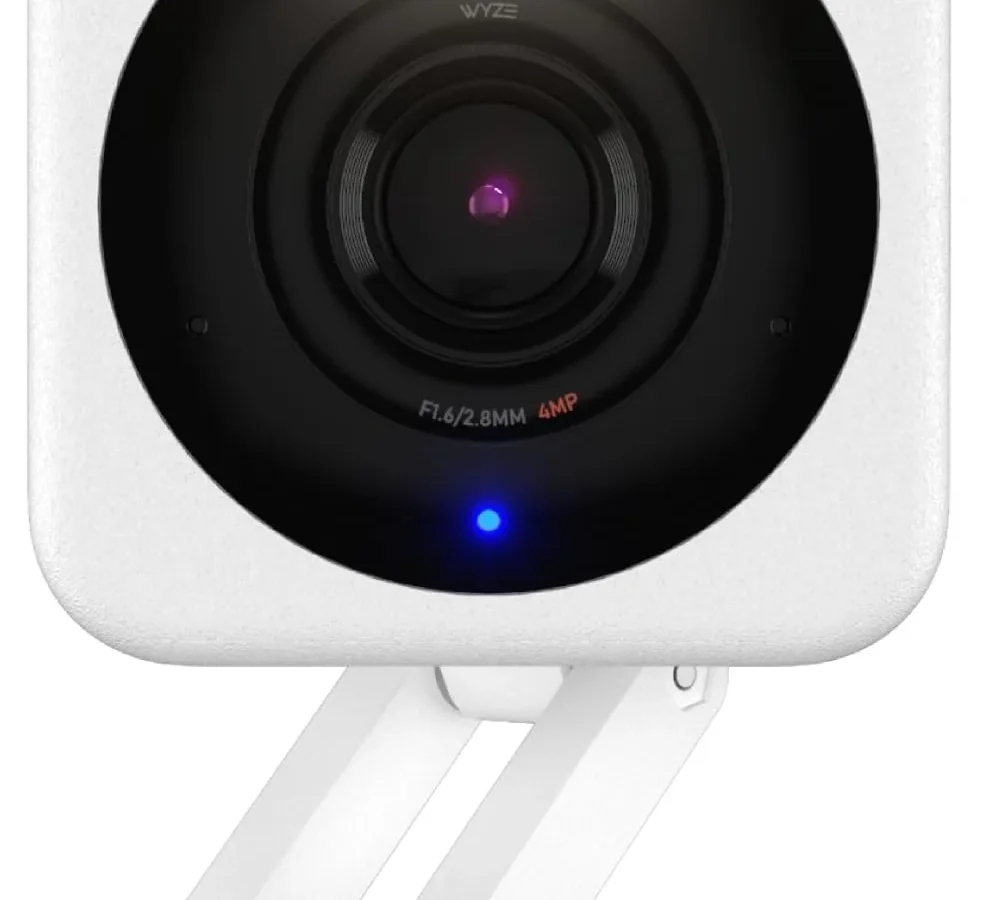
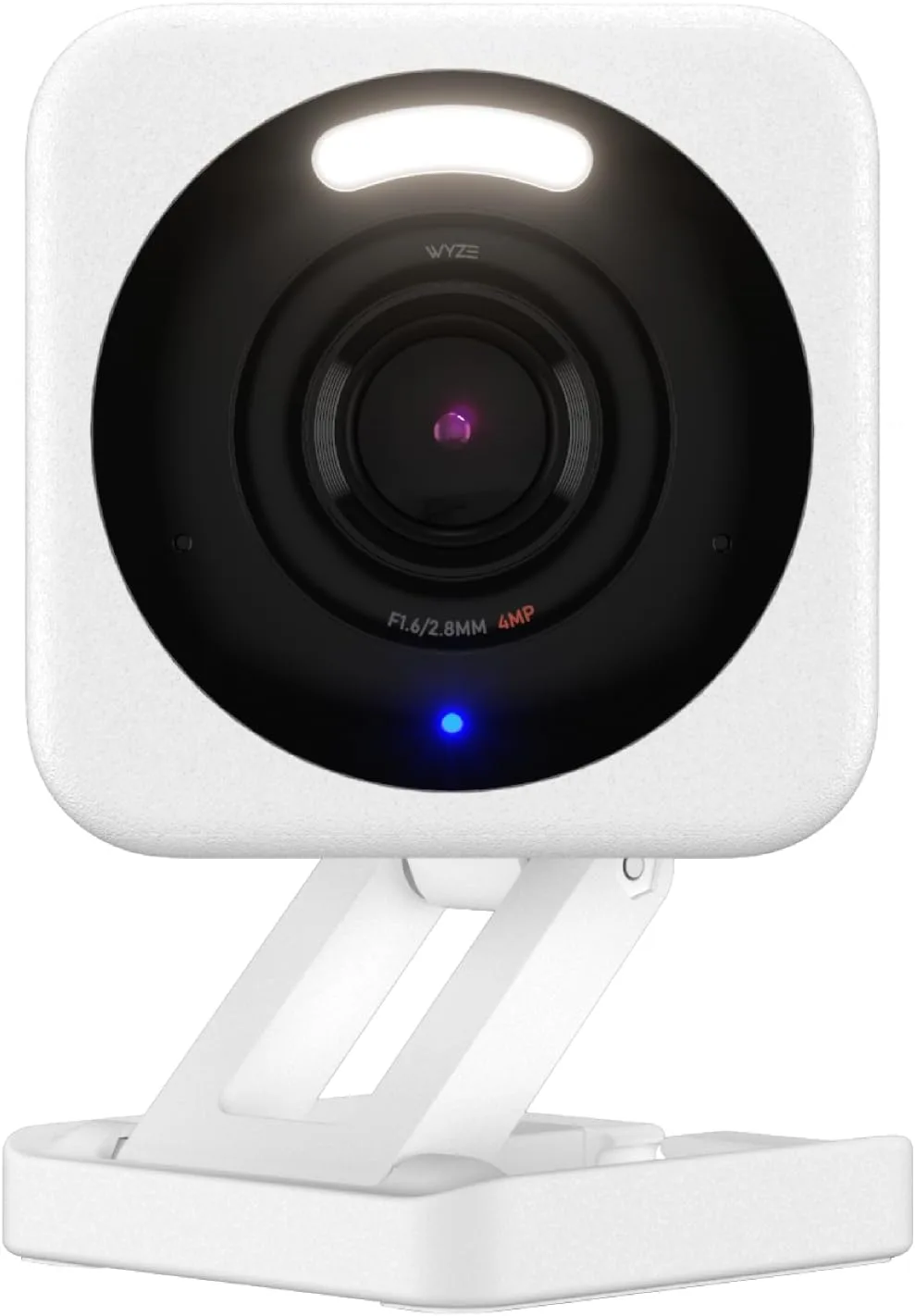
Image source: Web (Bing) / amazon.com (Web image (fair-use with source credit))
That blinking light on your Wyze Cam Pan v3 is trying to tell you something. Most issues with this camera boil down to three causes: power problems, network hiccups, or firmware glitches. Wyze Cam Pan v3 troubleshooting is straightforward once you learn what each symptom means.
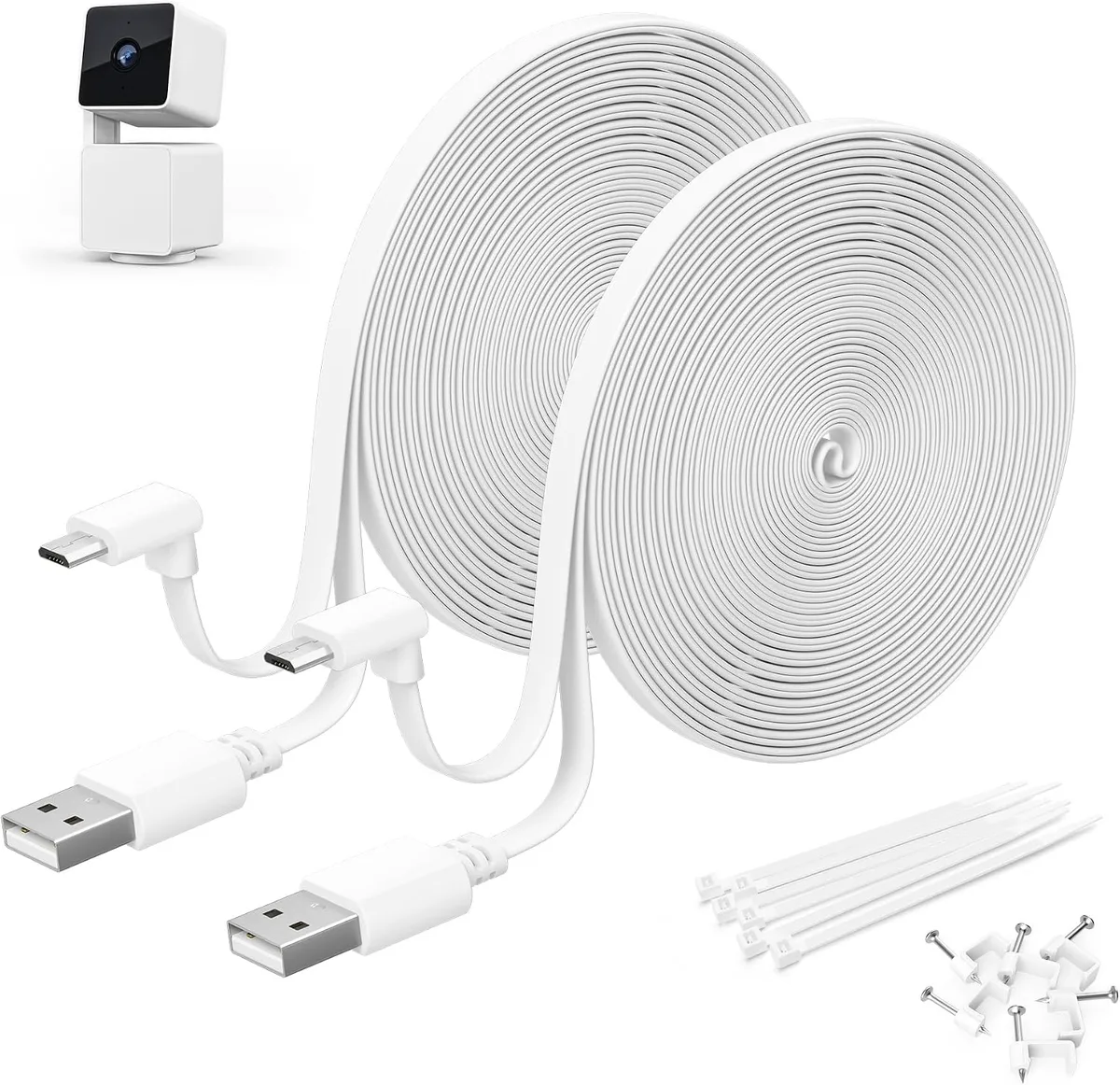
The Pan v3 draws 5V at 2 amps. That specification trips up more users than you would think. That old phone charger in your drawer?
It likely delivers only 1 amp. An underpowered adapter is the number one reason cameras act flaky. Let's walk through each symptom so you land on the exact fix the first time.
Quick Answer
Look at the LED color first. Solid blue means the camera is working but might have a network issue. Blinking yellow means it is in setup mode.
Solid red means it cannot reach Wyze servers. No light means no power. The reset button on the back does a full factory reset when held for 10 seconds.
A soft reset is just unplugging it for 30 seconds. Most problems are solved by checking the power cable, moving the camera closer to the router during setup, or reformatting the microSD card to FAT32.
First, Check the LED Light: Your Fastest Diagnostic Tool
The LED on the front tells you more than any app notification ever will. Wyze built a color-coded system into the hardware itself. Learning to read it cuts troubleshooting time in half.
Blue LEDs
A solid blue LED means the camera is fully connected to Wi-Fi and communicating with Wyze cloud servers. If your camera shows solid blue but you still cannot see the feed in the app, the problem is on the phone side. Force close the Wyze app, clear its cache, or reinstall it.
Blinking blue means the camera is trying to establish a connection. Give it 60 seconds. If it stays blinking, move on to the network fixes below.
Yellow LEDs
Blinking yellow means the camera is in setup mode. It is waiting for you to scan the QR code from the app. If the camera is already set up and suddenly starts blinking yellow, it has lost its Wi-Fi credentials.
This happens after a router change, a power outage that resets your network, or a failed firmware update. A solid yellow light usually means the camera is waiting for a setup action from the app but cannot complete the handshake. Check that your phone is on the same 2.4 GHz network.
Red LEDs
A solid red LED means the camera powered on but cannot reach the internet. This is almost always a router problem. Either your network is down, the Wi-Fi password has changed, or the camera antenna is not picking up the signal strongly enough.
Move the camera closer to the router, reboot your router, and try again. If the LED stays solid red after a factory reset, your router may be blocking the camera connection.
No LED at All
No light means one of two things. The camera is not getting power, or the internal power circuit has failed. Start with the easy fix.
Try a different micro-USB cable and a different power adapter. The Pan v3 requires a 5V/2A adapter. Most phone chargers output 5V/1A or less.
If you have tried known-good power and still get nothing, the power board may be dead. At that point, a warranty claim is your best option.
Common Fixes That Solve 80% of Issues
Most Pan v3 problems are repeatable setup or environment issues with simple fixes. Here are the three most common culprits.
Network Problems
The Pan v3 only supports 2.4 GHz Wi-Fi. It cannot see 5 GHz networks at all. If your router uses the same network name for both bands, the camera may still fail because your phone is on 5 GHz during setup.
Turn off the 5 GHz band temporarily or stand next to the router during pairing.
Check your router device list to see if the camera got an IP address. If you see the camera listed but it will not stream, your router firewall may be blocking outbound connections to Wyze servers. This is common on routers with strict parental controls or guest networks.
Make sure UDP ports 6015 and 6025 are allowed outbound.
If you are still stuck, log out of the Wyze app and log back in. This forces a fresh session token. It fixes a surprising number of "camera offline" errors.
Power Problems
This is the most overlooked issue in our research. Many users grab any USB cable and any wall adapter they find. The Pan v3 needs a cable that can handle 2 amps.
Thin cheap cables cause voltage drop. The camera might power on but will reboot randomly, fail to pan, or corrupt the microSD card.
Use the included cable and adapter if you still have them. If you do not, buy a 5V/2A adapter with a high-quality micro-USB cable rated for charging. Avoid using a USB port on a power strip, surge protector, or TV.
Those ports often deliver less than 1 amp.
The Real Reset
There are two resets on this camera. Mixing them up wastes time.
| Reset Type | How to Do It | What It Fixes |
|---|---|---|
| Soft reset | Unplug power for 30 seconds, then plug back in | Temporary glitch, frozen feed, unresponsive app |
| Factory reset | Press and hold the pinhole reset button for 10 seconds until you hear "Restoring factory settings" | Network issues, password changes, selling the camera |
A factory reset wipes every setting. You will have to re-pair the camera as if it were brand new. Only use this if a soft reset and removing the device from the app have not worked.
When the Pan Motor Stops Working
The Pan v3 ability to rotate 360 degrees is its main selling point. When that motor acts up, the camera loses half its value.
Grinding, Clicking, or No Movement
If you hear a grinding sound or the camera clicks but does not move, the gears may be jammed. Clear any obstructions around the camera base. The plastic housing can warp if the camera is mounted too tightly against a wall.
If there is no sound at all when you try to pan from the app, the motor may have failed. A stuck motor that will not respond to calibration is usually a hardware defect. Contact Wyze support.
Motion Tracking That Refuses to Track
Motion tracking relies on the camera processing the video feed, not the motor being perfect. The Pan v3 uses onboard motion detection, not cloud processing. If tracking stops but manual pan works fine, the issue is software.
Update the firmware. If that does not help, turn off motion tracking, save the change, then turn it back on.
Tracking also struggles in very low light. The starlight sensor is good but not perfect. If the room is completely dark, the camera may lose the tracking target.
Calibration Trick
In the Wyze app, go to the camera settings. Find the Pan/Tilt section. Run the Calibrate option.
This resets the motor internal position memory. Do this after a factory reset or if the camera thinks "center" is pointing at the floor. Calibration takes about 15 seconds and often fixes weird pan behavior.
When the Local Recording Goes Wrong
The Pan v3 supports local recording to a microSD card. This is one of its best features because it avoids subscription fees. But the implementation can be finicky.
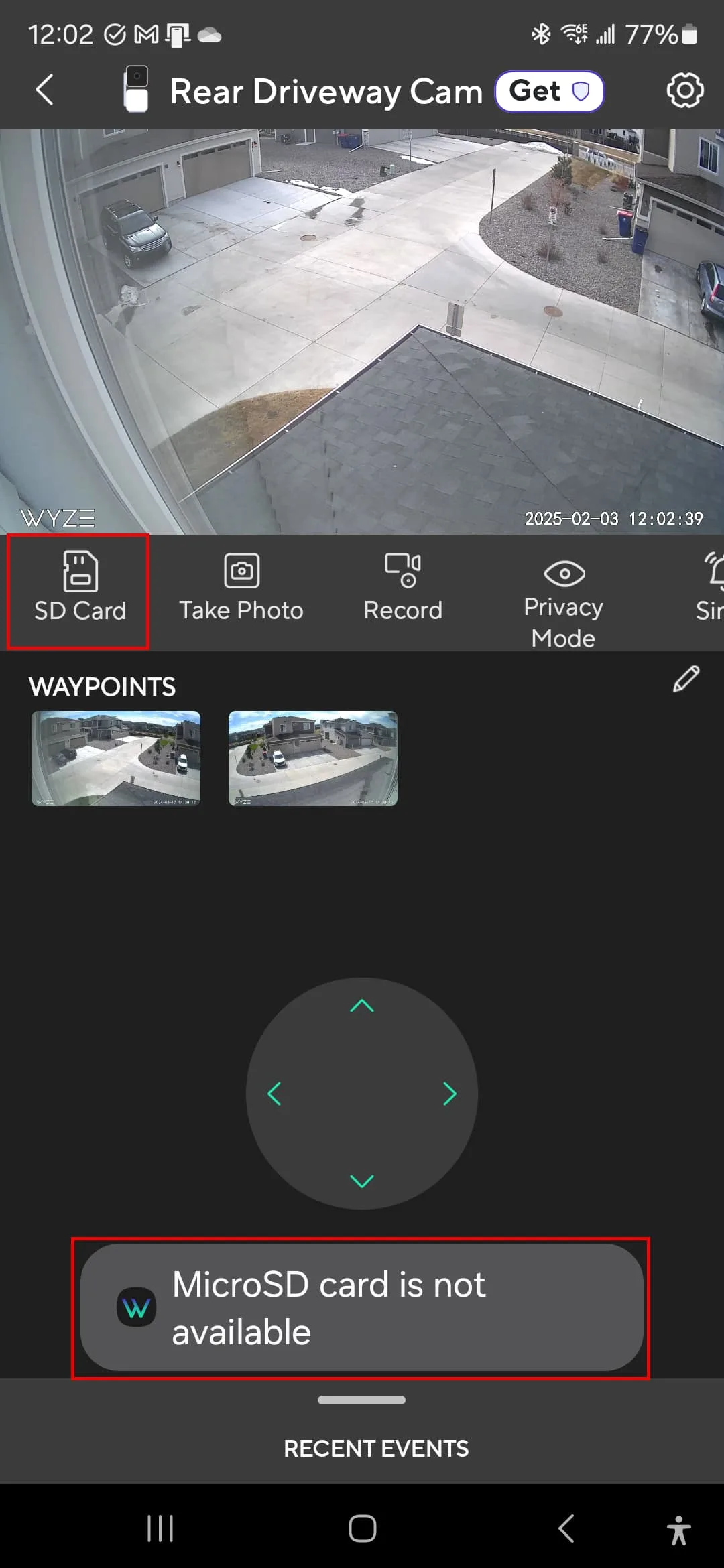
microSD Card Not Detected or Not Formatting
The camera only works with microSD cards formatted to FAT32. Many cards ship as exFAT out of the box. Your computer can reformat them.
Use a free tool like Rufus on Windows or Disk Utility on Mac to force FAT32 format. The card must be Class 10 or UHS-I with a capacity of 256 GB or less.
If the card is formatted correctly but the camera still does not detect it, try a full format on your computer, not a quick format. Corrupted file tables can fool the camera. If it still will not work, the microSD slot may be faulty.
Time Lapse Recording Shows Empty
Time lapse has a hidden requirement. The camera must maintain network access through the entire duration. If the connection drops briefly, the file may be corrupted.
For long time lapses, ensure the camera is within range of a stable router. Consider a Wi-Fi extender if the camera is far away.
The other common mistake is not having a microSD card inserted before starting the time lapse. The app will not warn you. You will only discover the error hours later.
How to Pull Footage Off the Card
Do not try to stream long recordings over the app. The app is fine for 30-second clips but struggles with longer continuous recordings. Remove the microSD card from the camera.
Insert it into your computer. The files are stored in a folder named "Record" with subfolders by date. They are MP4 format and play on any media player.
If you cannot read the card in your computer, it may have been corrupted by a power loss during recording. Format the card in the camera itself under Settings, Local Storage, Format. This overwrites the corruption and lets you start fresh.
Dealing with Software Glitches and Firmware Fails
Software problems on the Pan v3 often look like the camera is broken. In most cases, the hardware is fine and the firmware just needs attention.
Update Gets Stuck or Loops
A firmware update that gets stuck at a percentage or loops between "Downloading" and "Installing" is fixable. The camera downloads the firmware file and then applies it. If the download is interrupted, the camera has a partial file and tries again.
Start by power cycling the camera. Unplug it for 30 seconds. Plug it back in.
If it still loops, remove the device from the Wyze app completely. Re-add the camera as a new device. The app will pull the latest firmware automatically.
If that does not work, use a manual update via microSD card. Download the current firmware file from the official Wyze support site. Copy it to a FAT32 formatted microSD card.
Insert the card into the camera while it is unplugged. Plug the camera in. It will detect the file and install it.
Camera Reboots Randomly
Random reboots are almost always power related. The camera needs a steady 5V at 2A. A power adapter that sags under load will cause the camera to restart.
Replace the adapter first. If the problem continues, the micro-USB port on the camera may be loose. Try a different cable with a snug fit.
Factory Reset That Fixes Everything or Nothing
A factory reset is the nuclear option. Hold the pinhole reset button for 10 seconds until you hear the voice prompt. This wipes all settings, removes the camera from your account, and clears corrupted data.
It fixes most software issues without an obvious cause.
But a factory reset will not fix hardware problems. If the camera still shows no LED with known-good power, or the motor still grinds after calibration, the issue is physical. The fix is a warranty replacement.
Quick Reference Guide: Your Decision Map
Use this table when you need a fast answer without reading the full section.
| Symptom | Likely Cause | First Fix |
|---|---|---|
| No LED light | No power | Try a 5V/2A adapter and a different micro-USB cable |
| Solid red LED | No internet connection | Move camera closer to router, reboot router |
| Blinking yellow LED | Camera lost Wi-Fi credentials | Factory reset and re-pair from the app |
| Solid blue LED but no feed | App session expired | Force close the app, log in again |
| Grinding noise when panning | Jammed gears or motor issue | Run calibration from the app |
| microSD card not detected | Wrong format or corrupted | Format to FAT32 using a PC |
| Camera reboots randomly | Insufficient power | Replace adapter with a 5V/2A unit |
| Firmware update stuck | Corrupted download | Power cycle, then try manual update via SD card |
When to Contact Wyze Support
Most issues resolve with the steps above. Contact Wyze support directly when you have tried all relevant fixes and the problem persists. Specific scenarios include:
- The camera never shows any LED even with confirmed working power.
- The pan motor clicks but never moves after calibration.
- The camera will not accept any microSD card, even after formatting.
- A firmware update fails repeatedly.
Before contacting support, gather your order number, the camera MAC address printed on the bottom label, and a brief description of what you have already tried. Wyze warranty covers manufacturing defects for one year from purchase.
Frequently Asked Questions
What does a solid red light mean?
A solid red LED means the camera has power but cannot connect to the internet. Check your router, ensure Wi-Fi is working, and move the camera closer if the signal is weak. A factory reset may be needed if the Wi-Fi credentials are wrong.
Why won't my camera connect to 5 GHz Wi-Fi?
The Wyze Cam Pan v3 only supports 2.4 GHz Wi-Fi on 802.11 b/g/n. It cannot see or connect to 5 GHz networks. During setup, ensure your phone is also on the 2.4 GHz band.
Some routers let you temporarily disable the 5 GHz band.
Can I use the Pan v3 outside in a covered spot?
No. The Pan v3 is rated for indoor use only. It is not weatherproof.
Moisture will damage the electronics. Use the standard Wyze Cam v3 for outdoor covered locations. That model has an IP65 weather rating.
Which microSD card should I buy?
Use a Class 10 or UHS-I microSD card with a capacity of 256 GB or less. High endurance cards designed for security cameras are recommended. Format the card to FAT32 using a computer before inserting it into the camera.
How do I factory reset without the app?
Locate the pinhole reset button on the back of the camera. Press and hold it for 10 seconds. You will hear a voice prompt saying "Restoring factory settings." Release the button.
The camera will reboot and enter setup mode. You can then set it up as a new device from the app.

Similar Posts