TP-Link Tapo C520WS Troubleshooting
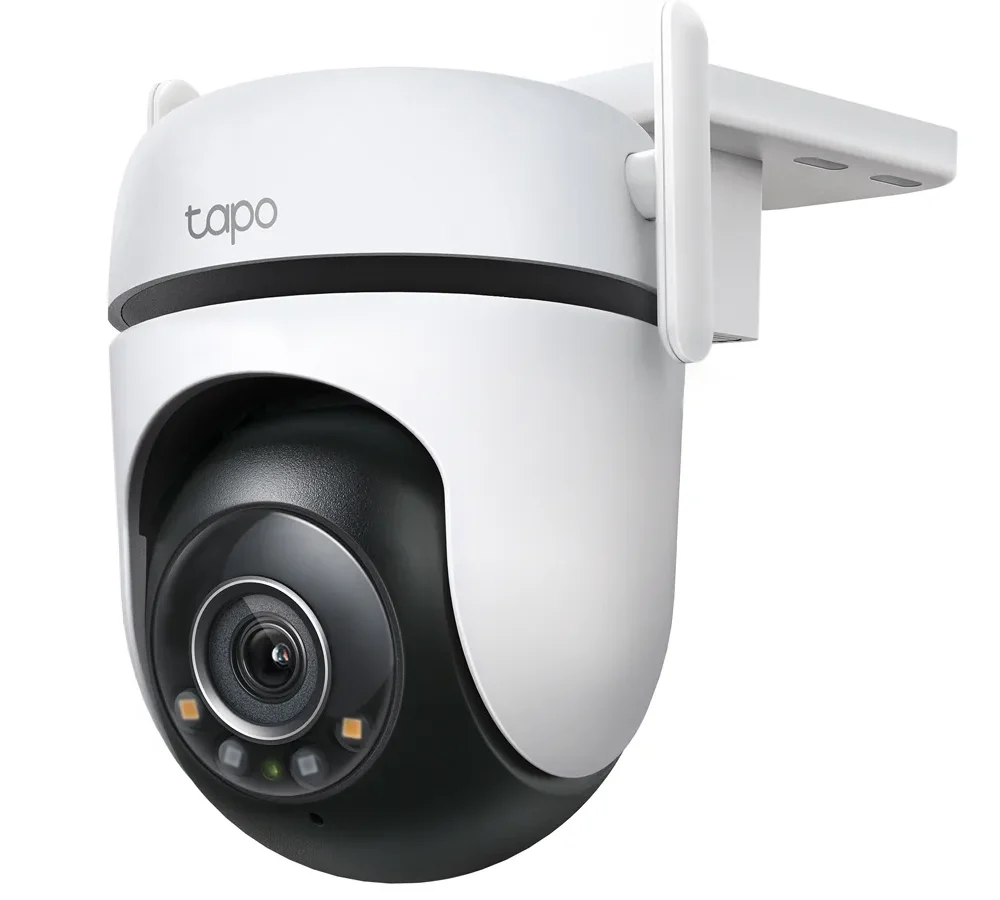
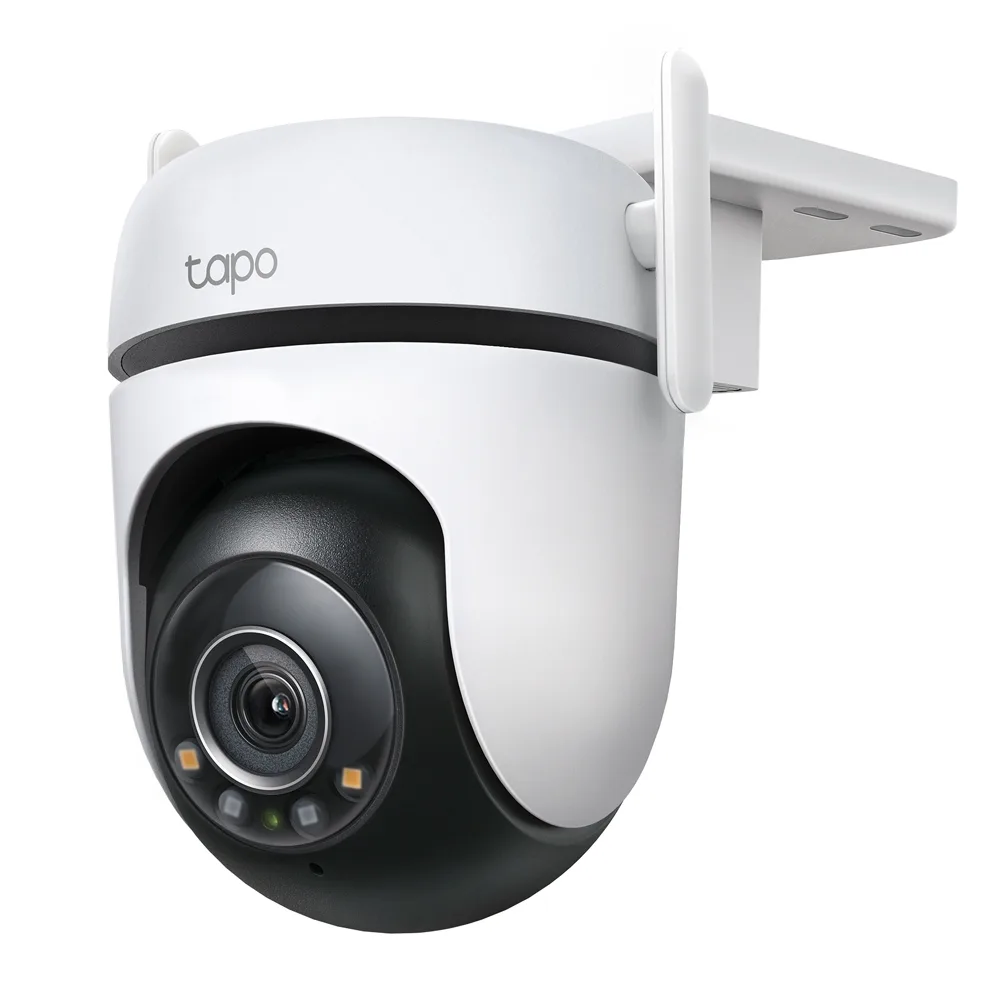
Image source: Web (Bing) / tp-link.com (Web image (fair-use with source credit))
Motion Detection False Alarms and Glitchy Night Vision
Nothing kills trust in a security camera faster than false alerts. Your phone buzzes every time a leaf blows past the lens. After a week, you start ignoring notifications.
That defeats the whole purpose.
Why It Happens
The Tapo C520WS uses on-device AI detection for people, pets, vehicles, and sound. But the default sensitivity is set too high out of the box. It catches everything.
Large insects, shadows from passing cars, even rapid light changes at dusk can all trigger it.
Weather is another big factor. Raindrops on the lens look like motion. Snowfall creates hundreds of false triggers per hour.
If your camera points at a tree, wind will make the branches appear as movement.
Fixing Motion Detection Zones
Open the Tapo App. Go to the camera settings and find Motion Detection Zones. Draw exclusion areas around anything that moves but shouldn't trigger an alert.
This includes trees, bushes, roads, and sidewalks.
Start with a small active zone right where you want detection. That spot near your front door or the driveway. Keep the zone tight.
A smaller active area is far more accurate than a large one.
Set the sensitivity slider to medium or low. High sensitivity picks up heat shimmer on concrete. Medium still catches people and vehicles without the false triggers.
Night Vision Problems
The C520WS has a Starlight sensor for color night vision. It also has infrared LEDs for standard black-and-white night vision. The camera switches between modes automatically.
That switch sometimes gets stuck.
If the night vision shows a white wash or stays black during the day, the IR cut filter is stuck. This is a mechanical part inside the lens. Try switching the night vision mode to "Color" in the app, wait a minute, then switch back to "Auto." This often frees the filter.
If the image is completely dark at night, the IR LEDs might be off. Check the camera settings to make sure infrared mode is enabled. You can test it by covering the light sensor with your hand.
The camera should click and switch to IR mode within a few seconds.
When to Toggle Manually
Some users find that setting night vision to "Color" permanently stops the filter from jamming. The trade-off is that color images at night can be grainy without good ambient light. Try adding a low-power LED light near the camera if you want clear color footage at night.
Common Mistakes That Waste Your Time
People make the same errors over and over with this camera. Knowing them upfront saves you hours of frustration.
Resetting When You Should Reboot
The reset button is not a reboot. Holding it for five seconds wipes the camera's settings. You have to set it up from scratch.
A reboot just restarts the software. Always try a soft reboot first from the app or a power cycle before hitting reset.
Using the correct SD card formatting steps can prevent many recording issues.
Overlooking the Power Adapter
The C520WS needs 9V DC at 0.6A minimum. Using a 5V phone charger will not work. The camera may power on briefly but then shut down.
It may flash red and never pair. Always use the original adapter or a TP-Link certified replacement.
Many users buy cheap third-party adapters rated at 9V but find they drop voltage under load. The camera acts unstable but not obviously broken. If you have intermittent issues, test with the original adapter.
Thinking Firmware Fixes Everything
Firmware updates fix bugs and add features. They do not fix hardware problems. If your camera has a stuck IR filter, no update will fix it.
If the SD card slot is damaged, firmware will not help. First confirm the issue is software, then update.
Placing the Camera Too Far from the Router
The range on 2.4 GHz Wi-Fi is good but not infinite. Thick brick walls, metal siding, and multiple floors all cut the signal. Test the camera near the router before mounting it permanently.
If it works there but not at your chosen location, you need a Wi-Fi extender.
Pro Tips for a Reliable Camera That Stays Online
You can prevent most common problems with a few simple habits.
Router Placement Matters
Putting your router in a central location helps every device on your network. If the router is in a basement corner, your outdoor camera on the second floor will struggle. Consider a mesh system if you have dead zones.
Some routers experience similar wireless issues as other devices you may own.
Schedule a Weekly Reboot
Most Tapo cameras can handle continuous uptime for weeks. But consumer routers get clogged memory over time. Schedule a weekly reboot of your router.
Some routers let you set this in the admin panel. If not, a cheap smart plug on the router works.
Change One Setting
Turn off "All Motion" detection and use only person, pet, and vehicle detection. This one change cuts false alerts by over 80 percent. The AI detection is reliable enough that you will still catch real events.
Keep the Lens Clean
Outdoor cameras get dirty. Dust, pollen, and spider webs build up on the lens. This triggers false motion alerts and degrades night vision quality.
Clean the lens with a microfiber cloth once a month.
Use a Surge Protector
Power surges from storms or grid fluctuations can damage electronics. Plug your camera adapter into a surge protector. It does not need to be expensive.
A basic UL-listed power strip with surge protection is fine.
Frequently Asked Questions
Can I use a 5V charger instead of the supplied 9V adapter?
No. The Tapo C520WS requires 9V DC at 0.6A minimum. A 5V charger will not provide enough voltage.
The camera may power on briefly but will not function properly or stay connected.
How do I know if my camera is actually bricked?
A bricked camera shows no LED at all after a power cycle. It does not respond to the reset button. The Tapo App cannot find it.
If you see any LED activity, even a solid red that never changes, the camera is not bricked.
Will a factory reset delete my recordings?
A factory reset does not erase the microSD card. It only clears the camera's network and account settings. Your recorded clips remain on the card.
You can access them by inserting the card into a computer.
Why does the siren trigger on its own at 3 AM?
The siren usually triggers because of a false motion alert from an animal or insect near the camera. Check your motion detection zones. Set the detection sensitivity to low.
Turn off sound detection if you live in an area with loud trucks or construction noise.
How long does it take to reboot the camera remotely?
A remote reboot through the Tapo App takes about 60 to 90 seconds. The camera LED turns off and comes back solid red, then flashes during boot, then turns solid green again. If the feed does not return after two minutes, try a physical power cycle.
Does the camera work with Alexa or Google Home?
Yes. The Tapo C520WS supports both Amazon Alexa and Google Assistant. You can view the camera feed on an Echo Show or Google Nest Hub.
The setup is done through the Tapo App under Third-Party Integration.

Similar Posts