Wyze Cam Outdoor Troubleshooting
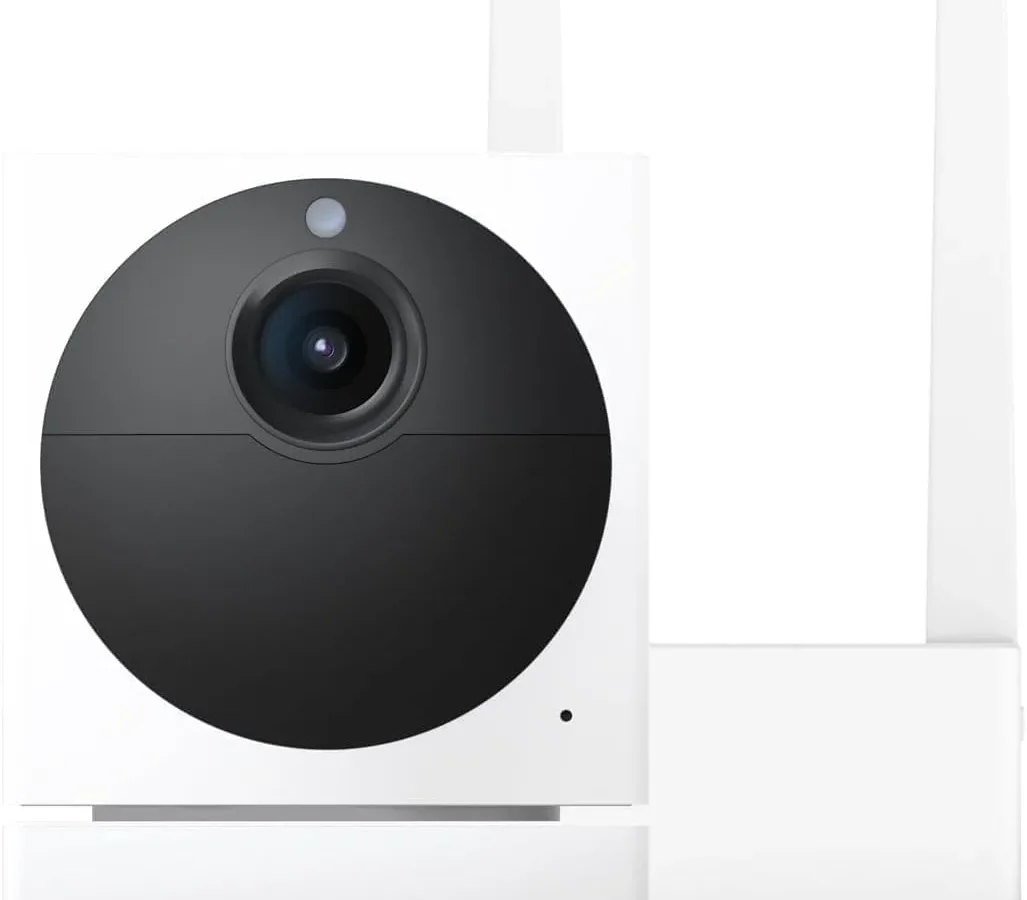
If your Wyze Cam Outdoor troubleshooting has you staring at a yellow LED that won't turn green, you're not alone. This wire-free camera is one of the most popular budget security options, but it has a few quirks that can stump even tech-savvy owners. Manufacturer specifications confirm this camera requires a persistent 2.4 GHz Wi-Fi connection to communicate with its dedicated Base Station.
Understanding that dependency is the first step toward a fix that actually works.
As of 2026, the Wyze Cam Outdoor remains a top seller for good reason. It offers wire-free placement, an IP65 weatherproof rating, and free cloud storage for basic clips. The catch is that nearly every common failure follows a predictable pattern.
Once you know what to check first, most issues resolve in under ten minutes.
Quick Answer
Start by checking the LED. Solid red means charging. Solid yellow means a battery fault.
Flashing blue means pairing mode. If the camera is offline, restart the Base Station. This fixes most connection drops.
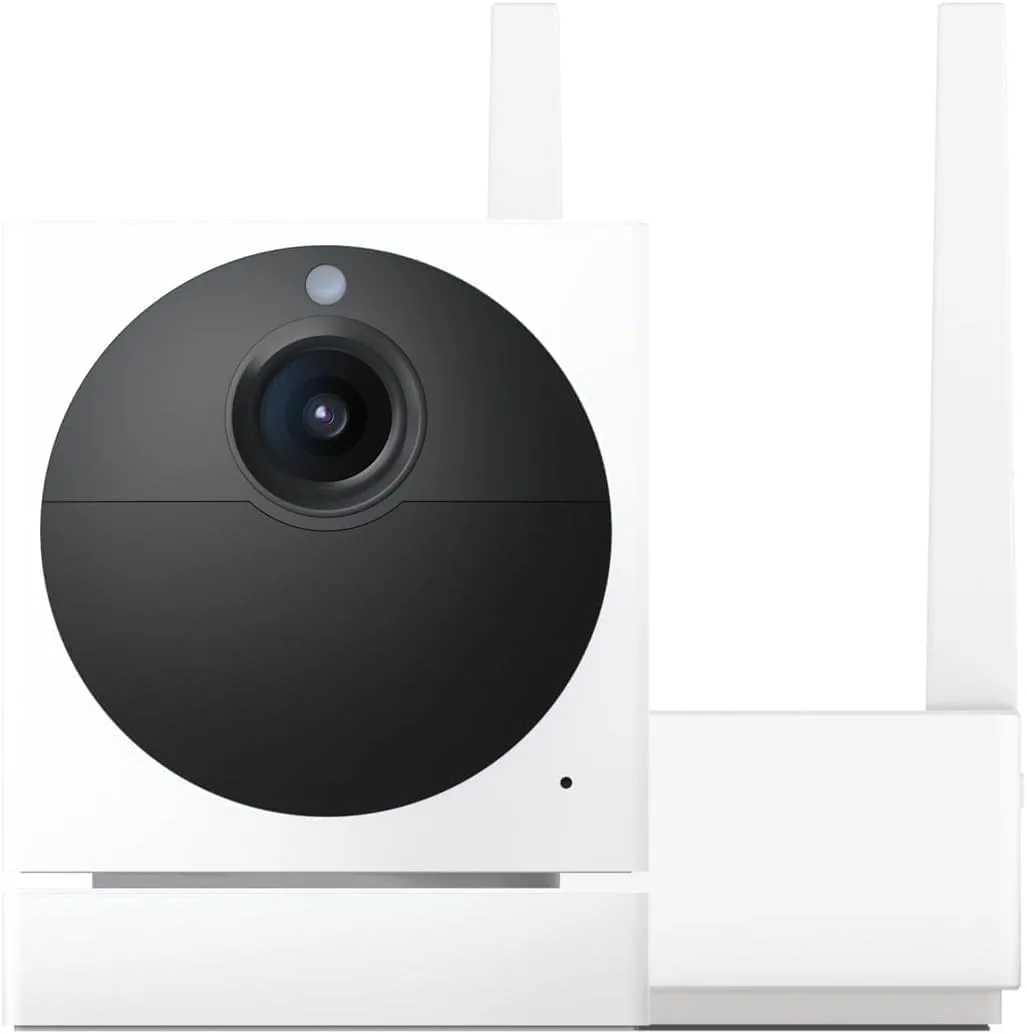
Image source: Bing (Web (fair-use with source credit))
Is Your Wyze Cam Outdoor Stuck on Yellow or Offline? (Quick Pinpoint)
Before you dig into router settings or factory resets, narrow down which bucket your problem belongs to. Three symptoms cover nine out of ten support cases.
The "Is It Charging?" Check (Most Common Stopping Point)
Plug the camera into the included micro-USB cable and a 5V/1A adapter. A solid red LED means it's charging normally. Solid yellow means the camera has hit a battery or firmware fault.
No light at all means the battery is completely flat or the charging circuit has a problem. Leave it on charge for six hours before you try anything else.
The "Won't Connect" Branch (Base Station or Wi-Fi?)
If the camera powers on but won't pair, the Base Station is your first suspect. Hold the sync button on the base until it blinks blue. Then hold the camera's setup button.
If the app still shows "setting up" for more than two minutes, check that your phone is on a 2.4 GHz network. The camera doesn't support 5 GHz at all. This single detail causes more failed setups than any other.
The "Goes Offline Every Day" Branch (Signal or Power)
A camera that pairs fine but drops repeatedly points to signal weakness or battery voltage dips. Open the app and check the signal strength indicator. If it shows one bar or less, move the camera closer to the Base Station.
If the signal is strong, the battery might be nearing the end of its charge cycle. The camera goes offline when voltage drops below a safe threshold rather than streaming a degraded image.
First, Rule Out the Obvious (You'd Be Surprised)
Every troubleshooting session should start with the simplest checks. These four steps catch about half of all issues before you ever need to reset anything.
Check the Charge (Red vs Yellow vs Nothing)
The LED color is your fastest diagnostic tool.
| LED State | Meaning | What to Do |
|---|---|---|
| Solid red | Charging normally | Wait 4–6 hours |
| Solid green | Fully charged | Ready to pair or use |
| Solid yellow | Battery or firmware fault | Hold reset 10 seconds, then recharge |
| Flashing blue | Pairing mode | Open app and complete setup |
| No light | Dead battery or hardware issue | Charge 6 hours, then test |
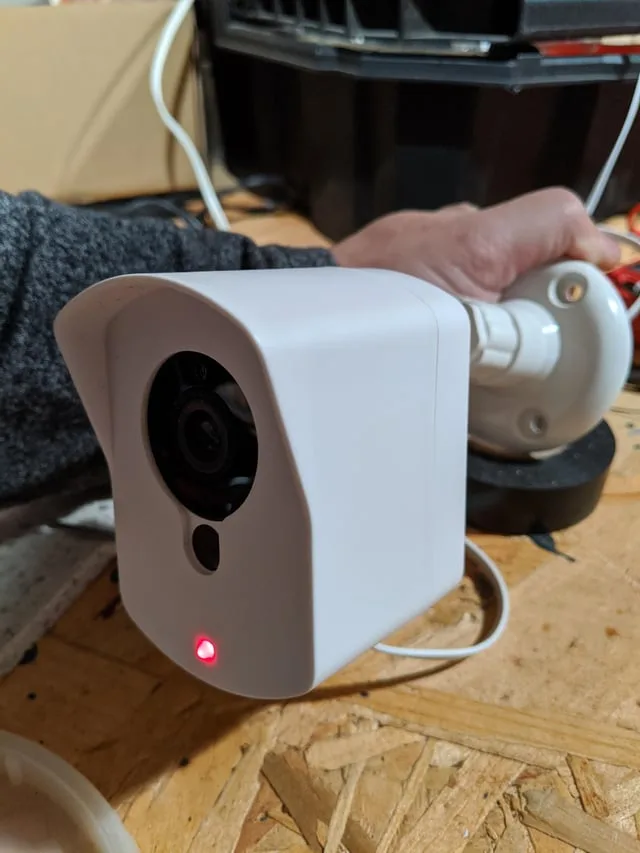
Image source: Web (Bing) / reddit.com (Web image (fair-use with source credit))
Verify Your Wi-Fi Is 2.4 GHz (Not 5)
The Wyze Cam Outdoor only connects to 2.4 GHz networks. If your router uses band steering and blends both frequencies, the camera may never see the network. Temporarily disable 5 GHz on your phone or create a dedicated 2.4 GHz guest network.
Once the camera pairs, you can re-enable the mixed band.
Look at the Base Station Lights
The Base Station has its own LED behavior that tells you what's happening on the network side.
| Base Station LED | Meaning |
|---|---|
| Solid blue | Connected to Wi-Fi, ready for cameras |
| Flashing blue | Pairing mode |
| Solid red | No internet connection |
| Flashing red | Firmware update in progress or error |
If the Base Station shows solid red, restart your router first, then restart the base. If it still shows red, check your internet connection with another device.
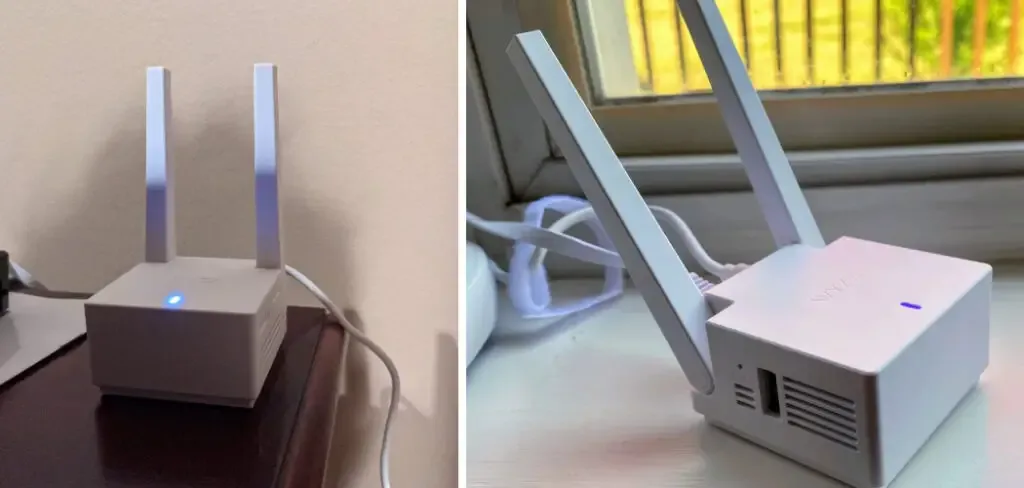
Image source: Web (Bing) / safetywish.com (Web image (fair-use with source credit))
Follow the Symptom: A Simple Branching Guide
Now that you've ruled out the basics, match your exact symptom to the right fix.
Branch A: Camera Won't Power On or Charge
No LED, no response, no nothing. Try a different micro-USB cable and a 5V/1A adapter. The camera is sensitive to charger quality.
If it still shows nothing after six hours, hold the setup button for ten seconds. This triggers a factory reset on the camera itself. If the LED still doesn't light, the internal battery may have failed.
Contact Wyze support for a replacement.
Branch B: Stuck on "Setting Up" in the App
This usually means the QR code scan failed or the phone lost connection during pairing. Crank your phone's brightness to maximum. Hold the phone flat and steady about six inches from the camera lens.
If the scan keeps failing, tap "manual setup" in the app and enter the camera's serial number instead.
Branch C: Camera Connects but Drops Offline Repeatedly
Move the camera closer to the Base Station temporarily. If it stays online, you have a range problem. If it drops even when close, the Base Station may need a power cycle.
Unplug the base for thirty seconds, plug it back in, and wait two minutes. If drops continue, check for interference from other 2.4 GHz devices like baby monitors or cordless phones.
Branch D: Motion Detection Misses Everything or Alerts Non-Stop
Open the camera settings in the app. Look at the motion detection sensitivity slider. Default sensitivity is often too high, causing false alerts from trees or passing cars.
Lower it to around 50% and test. If detection misses events, increase the slider but also check the cooldown timer. A long cooldown means the camera ignores motion completely for that period.
Branch E: Night Vision Is Too Dark or Grainy
Night vision on the Wyze Cam Outdoor uses infrared LEDs. If the image looks washed out, something is reflecting IR light back into the lens. Common culprits include spider webs, rain droplets on the lens cover, or the camera mounted too close to a wall.
Clean the lens cover with a soft cloth. Make sure nothing is within two feet of the camera's front face.
Common Setup and Configuration Mistakes
Almost every repeat issue traces back to choices made during the initial install.
Using the Wrong Charger (It Needs 5V/1A)
Fast phone chargers can confuse the camera's charging circuit. The camera expects a steady 5 volts at 1 amp. Anything higher may trigger the yellow fault LED or simply not charge at all.
Stick with the included adapter.
Skipping the Full Charge Before First Pairing
The battery ships partially drained. Plug it in for the full six hours before you even open the app. A low battery during the setup process can cause the camera to drop mid-pairing, and you'll end up resetting and starting over anyway.
Placing the Camera Too Far from the Base Station
The Base Station has an official range of about 300 feet line of sight. Through walls, that drops to 50 to 100 feet depending on construction. Brick, concrete, and metal siding cut range significantly.
Test the signal at the exact mounting location before you drill holes or stick the magnetic mount.
Enabling Person Detection Without a Cam Plus Subscription
Person detection is a Cam Plus feature. If you haven't subscribed, enabling it in the app does nothing. The camera still triggers on any motion.
Either subscribe or disable person detection and rely on general motion alerts instead.
Setting the Cooldown Too Short (Battery Killer)
A 30-second cooldown sounds great for catching every event. It also drains the battery in days instead of months. Every triggered event powers the infrared LEDs, streams video, and writes to the microSD card.
A 60-second cooldown with the sensitivity set to 50% delivers the best mix of capture rate and battery life for most homes.
Keeping It Running Long-Term: Battery and Signal Habits
Once you've fixed the immediate problem, a little preventive care goes a long way.
Adjusting Motion Sensitivity and Trigger Length
The sensitivity slider runs from 1 to 100. Start at 50 and watch the alerts for a few days. If you're getting too many false triggers, drop it by 10.
If you're missing events, bump it up. Trigger length controls how long the camera records after motion stops. The default 12 seconds is fine for most spots.
Ideal Mounting Locations for Strong Signal
The camera communicates with the Base Station, not directly with your router. Place the Base Station centrally in your home, away from large metal objects and thick concrete walls. Mount the camera with a clear line of sight to the Base Station whenever possible.
When to Format the microSD Card
Format the card every three months. You can do it inside the app under Advanced Settings. If the card fails to format in the app, pull it out and format it on a computer using FAT32.
Cards larger than 32 GB may work but aren't officially supported.
Dealing with Cold Weather Battery Drain
Below 0°C, the camera's stated battery life of three to six months can drop by half. Bring the camera inside to charge, not just to warm up. Charging a cold battery can damage it.
Let it reach room temperature first, then plug it in.
Firmware Update Best Practices (Don't Do It at 10% Battery)
Always update with the camera plugged in or at least above 50% charge. The update process is power-intensive. If the battery dies mid-update, the camera may become unresponsive until you force a factory reset.
Frequently Asked Questions
Why is my Wyze Cam Outdoor blinking blue but not pairing?
Flashing blue means the camera is in pairing mode. If it stays in that state without connecting, the Base Station likely isn't in pairing mode at the same time. Press the Base Station's sync button until it also flashes blue.
Then press the camera's setup button.
How do I factory reset the camera and base station?
For the camera, hold the setup button for ten seconds. The LED will flash yellow and then turn solid yellow. Release the button.
For the Base Station, hold the sync button for five seconds. All paired cameras are removed.
Can I use a third-party microSD card larger than 32 GB?
Wyze officially supports only 32 GB Class 10 cards. Larger cards sometimes work but can cause the camera to freeze or fail to record. Format any card in the app first.
My camera shows solid yellow and won't turn on — what now?
Solid yellow indicates a battery fault or a firmware crash. Hold the setup button for ten seconds to force a reset. If the LED turns off and then back to red, the camera is charging normally.
If it stays yellow, leave the camera plugged in for six hours.
How do I stop the constant "weak signal" notification?
Open the app and check the signal strength meter. If it shows one bar, move the camera closer to the Base Station. If the signal shows two or three bars but the notification still appears, restart both the Base Station and your router.
The Final Fix: A Quick Reference Card
Keep this short list handy for the next time something goes wrong.
Reset Sequence Flowchart (Camera vs Base Station vs Router)
| Problem | First Action | Second Action | Third Action |
|---|---|---|---|
| Camera won't pair | Hold camera setup button 10s | Hold Base Station sync 2s | Restart router |
| Camera drops offline | Restart Base Station | Move camera closer | Change router channel |
| No LED at all | Charge with 5V/1A adapter | Try different cable | Contact support |
| App stuck on loading | Force close app | Reboot phone | Reinstall app |
Best Settings for Battery Life vs Detection Quality
| Goal | Sensitivity | Trigger Length | Cooldown | Person Detection |
|---|---|---|---|---|
| Max battery life | 30 | 5 seconds | 5 minutes | Off |
| Balanced | 50 | 12 seconds | 60 seconds | Off (no subscription) |
| Max detection | 80 | 20 seconds | 30 seconds | On (requires Cam Plus) |
When to Contact Wyze Support (and What to Tell Them)
Contact support if the camera won't power on after a full six-hour charge with a known good cable. Also reach out if the camera repeatedly drops within ten feet of the Base Station. Before you contact them, write down the camera's serial number, your app version, and a brief description of what you've already tried.
What to Do When Nothing Else Works
Unplug the Base Station and your router. Wait sixty seconds. Plug the router in first, let it fully boot, then plug in the Base Station.
This clears lingering IP conflicts that a simple restart won't touch. If the camera still won't respond, remove it from your Wyze account entirely. Factory reset the camera, factory reset the Base Station, and start the pairing process from scratch.
This full clean restart resolves about 80% of stubborn cases that survive every other fix.
Understanding the Wyze Cam Outdoor's Limitations
This camera cannot record continuously without a wired connection and a microSD card. It cannot stream live view for more than a few minutes without draining the battery rapidly. It cannot handle 5 GHz Wi-Fi at all.
It cannot provide reliable person detection without a Cam Plus subscription. And it cannot maintain a stable connection through multiple brick walls or metal siding. These aren't bugs.
They're design tradeoffs that keep the price low and the installation truly wireless. Accepting them from the start means fewer troubleshooting sessions down the road.

Similar Posts