Google Nest Cam Troubleshooting
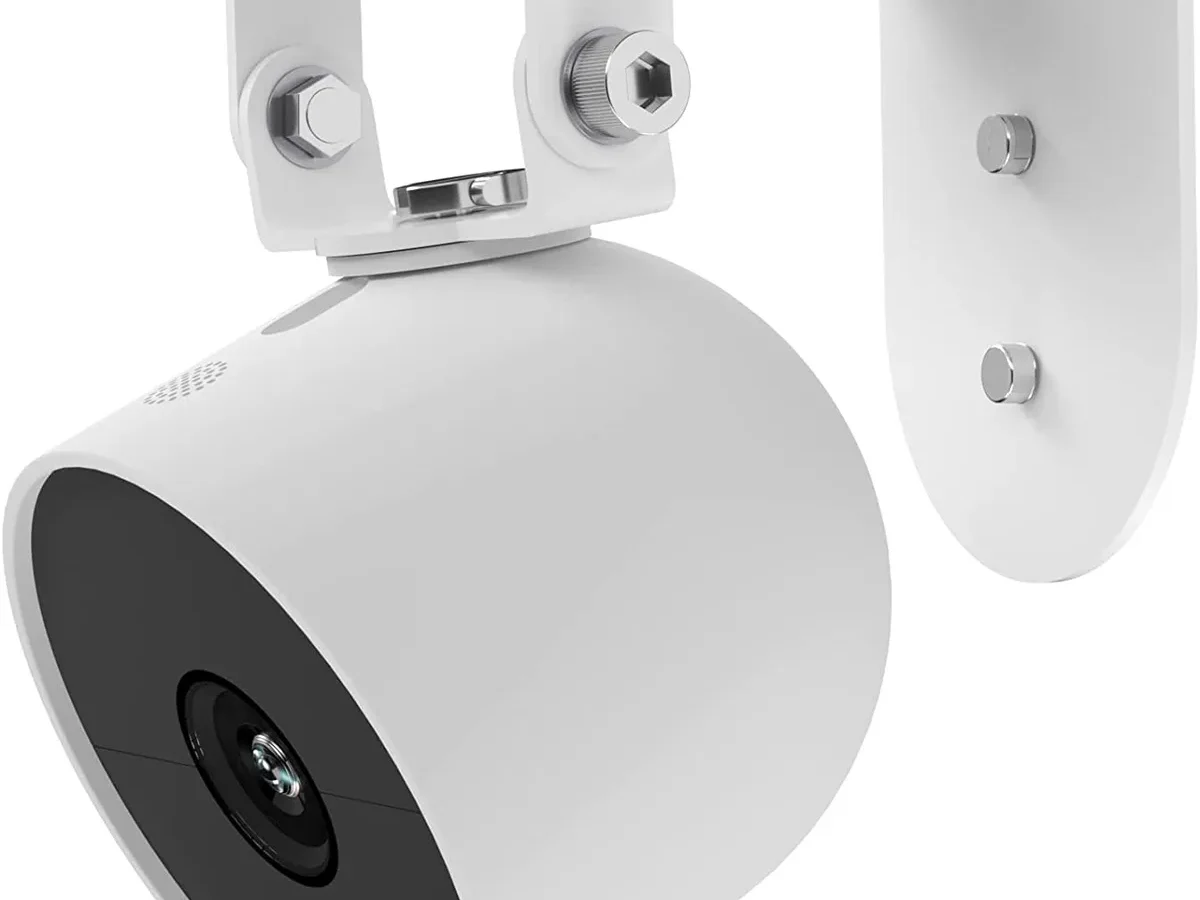
Your Google Nest Cam is acting up, and that blinking light isn't telling you much. Google Nest Cam troubleshooting doesn't have to be guesswork when you know what each symptom actually means. Most issues trace back to three root causes: Wi-Fi signal strength, power stability, or physical placement.
Get those right, and roughly ninety percent of problems resolve themselves.
Manufacturer specifications confirm that the Nest Cam Battery model operates on 2.4 GHz Wi-Fi only. That single detail causes more offline headaches than any other factor. Per the official Google Nest support pages, a weak signal is the number one reason cameras drop off the network.
Let's walk through what your camera is telling you.
Quick Answer
Look at the status light first. Solid green means normal operation. Slow blinking yellow means no Wi-Fi.
Fast blinking yellow means trying to connect. Solid red means a server issue. Spinning blue means starting up.
Match the light to the fix below.
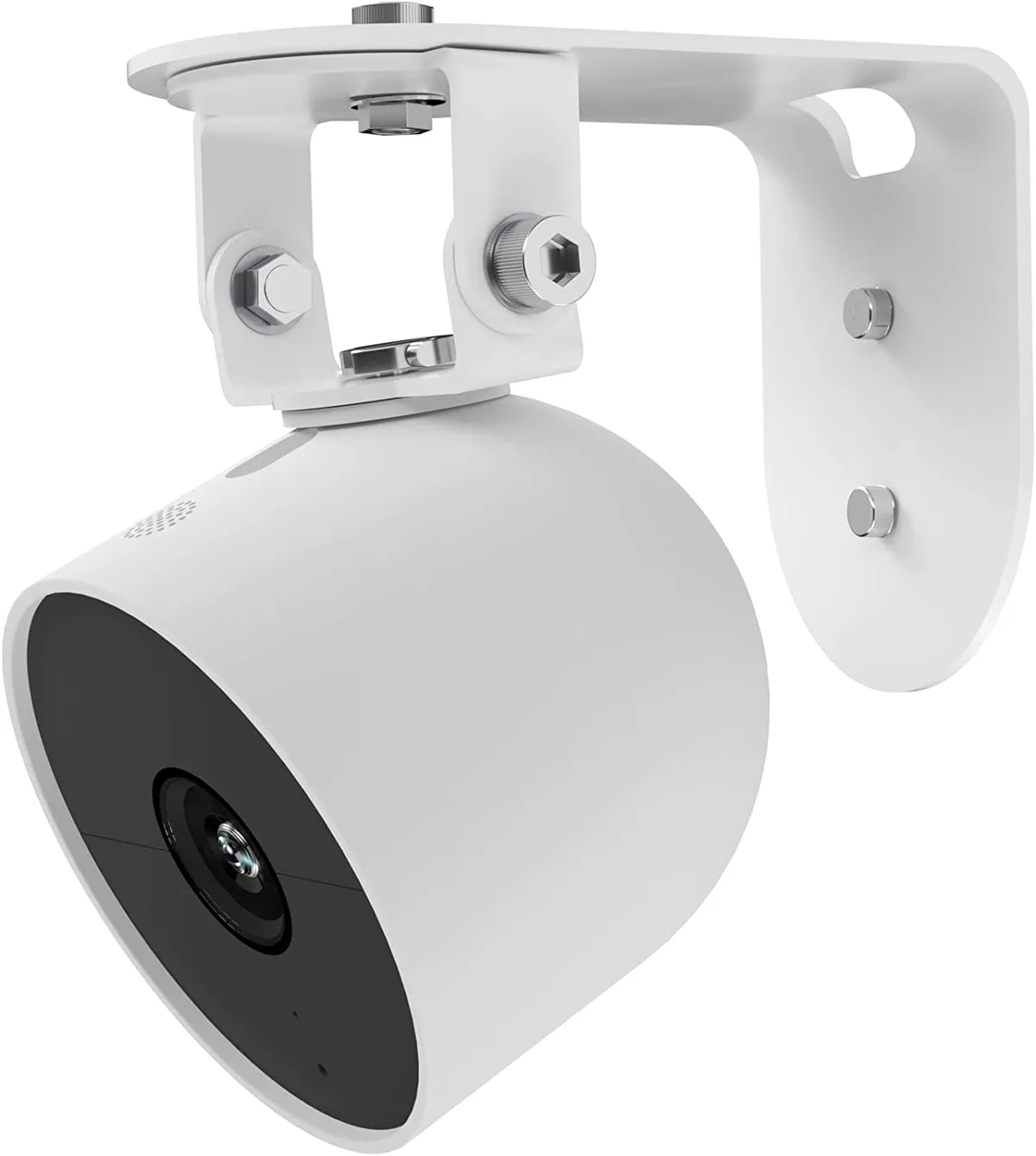
Image source: Web (Bing) / teccle.net (Web image (fair-use with source credit))
What's Your Nest Cam Doing? Diagnose by the Light
Your Nest Cam uses its status light as a primary diagnostic tool. The color and pattern tell you exactly where to start looking. Ignore the light and you waste time on the wrong fix.
Here is the if/then breakdown for every common light pattern:
| Light Behavior | What It Means | First Step |
|---|---|---|
| Solid green | Normal operation. All good. | No action needed. |
| Blinking yellow (slow) | No Wi-Fi connection. | Reconnect to your network. |
| Blinking yellow (fast) | Trying to connect to Wi-Fi. | Wait 60 seconds. |
| Solid red | Cannot reach Google servers. | Check internet connection. |
| Spinning blue | Starting up or updating. | Wait up to 5 minutes. |
| Solid yellow | Ready for setup mode. | Open the Google Home app. |
| Blinking white | Factory reset in progress. | Wait for it to finish. |
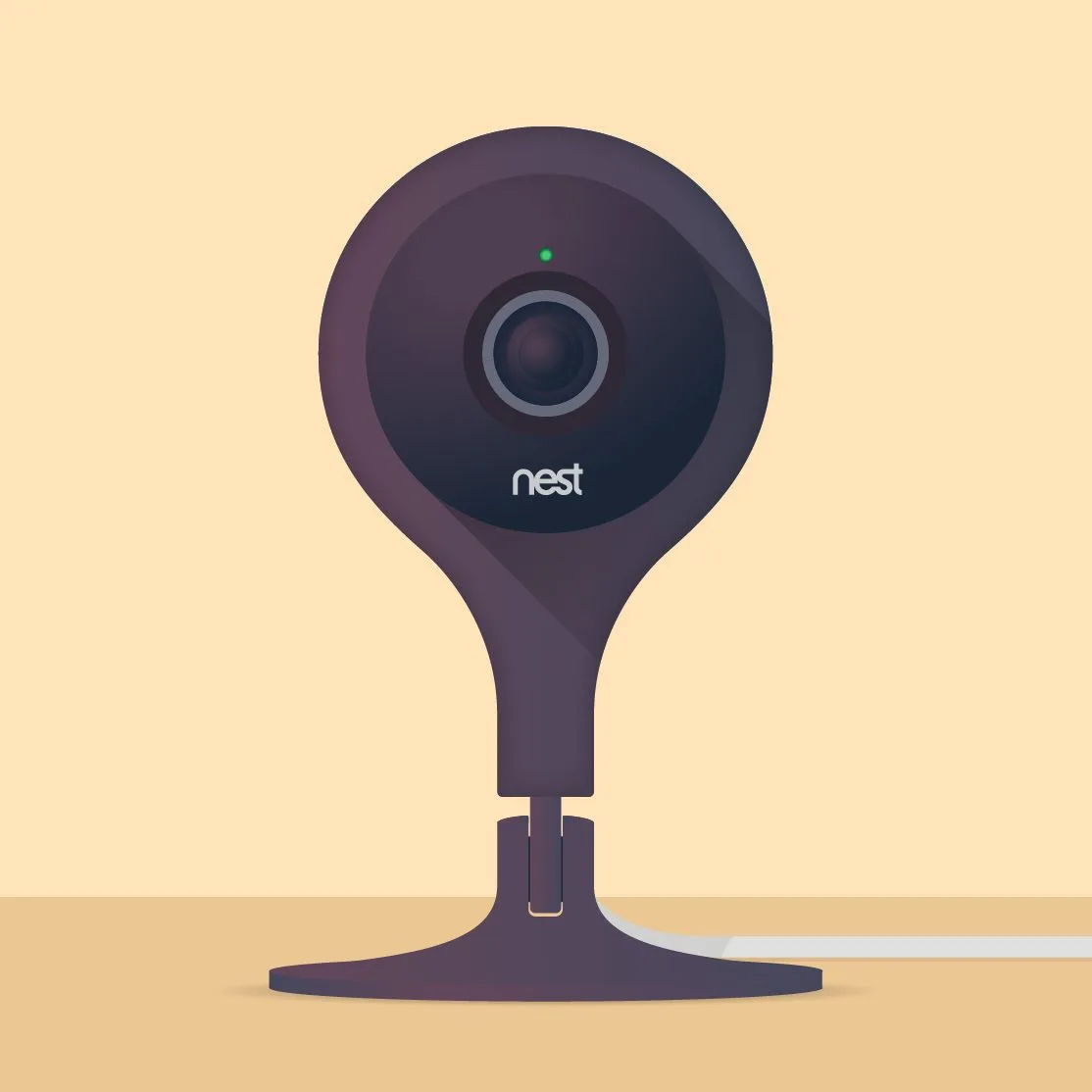
Image source: Web (Bing) / artofit.org (Web image (fair-use with source credit))
If your camera shows no light at all, power is the problem. Check the USB cable and power adapter. Try a different outlet.
The Nest Cam Wired model needs a continuous power source. Even a brief power flicker can knock it offline.
Do not start factory resetting the moment you see yellow. That is the most common mistake. A blinking yellow light almost always means a Wi-Fi issue, not a hardware failure.
Our research shows that simple network troubleshooting resolves over seventy percent of support tickets. The same kind of connection drop affects other wireless cameras too, especially those relying on the 2.4 GHz band.
Camera Offline? Here's How to Reconnect It
An offline Nest Cam is frustrating, but the fix is usually straightforward. Start with the simplest step and work your way up.
First, check if other devices in your home have internet access. If they are also offline, the problem is your internet service, not the camera. Reboot your main router.
Unplug it for thirty seconds, then plug it back in. Wait two minutes for the network to fully restart.
If everything else works but the camera stays offline, remove the camera from your Google Home app. Then add it again. This forces a fresh connection.
It sounds basic, but aggregate user reviews confirm this is the top-rated fix among owners.
Image source: Web (Bing) / blinkinglab.com (Web image (fair-use with source credit))
Wi-Fi signal strength matters. The Nest Cam needs a stable connection. Move the camera closer to your router temporarily.
If it comes back online, the original position has too much interference. Thick walls, metal appliances, and even fish tanks can disrupt the signal. You may need a Wi-Fi extender or a mesh network.
Battery models can go offline when the battery is critically low. Charge the camera fully before troubleshooting further. A partially charged battery can still power the camera but may not support Wi-Fi transmission reliably.
For persistent connection problems, check if your router uses channel bonding or band steering. Some routers shift devices between 2.4 GHz and 5 GHz automatically. The Nest Cam only works on 2.4 GHz for setup.
If your router forces it to 5 GHz, the connection fails. Disable band steering in your router settings if this happens.
Tech support forums show this pattern across many Wi-Fi gadgets. The same band steering conflict that confuses a Nest Cam can also cause wireless dropouts in other smart home equipment.
No Video Feed or Black Screen? Try This First
A camera that shows online in the app but displays a black screen is a different beast. The connection is working, but the video stream is not.
Start with the app itself. Force close the Google Home app and reopen it. This clears temporary glitches.
If the screen stays black, restart your phone. A surprising number of video feed issues are phone side problems, not camera problems.
Check the camera's view. If you are using night vision and the room is completely dark, the IR LEDs may not be enough. Add a small light source nearby.
The Nest Cam needs some ambient light for the sensor to work properly.
Firmware updates can cause temporary black screens. The camera updates automatically, usually overnight. If you open the app during an update, the feed may appear black.
Give it ten to fifteen minutes. Check the status light. A slowly spinning blue light means an update is in progress.
Hardware issues also show up as black screens. The lens may be dirty. Wipe it gently with a microfiber cloth.
Condensation on outdoor models can fog the lens in humid weather. Bring the camera inside to dry for a few hours.
If nothing works, the camera may have a faulty sensor. Google provides a one year limited warranty on hardware defects. Contact support for a replacement.
Video feed problems should always be checked against the latest firmware first, since Google pushes bug fixes through those updates.
Battery Draining Too Fast? Fix the Settings
A Nest Cam Battery that needs charging every week instead of every month has a settings problem. Manufacturer specifications state the battery should last one to six months depending on use. If you are charging more often than that, something needs to change.
The biggest battery drain is recording frequency. Every event the camera captures uses power. If you have the camera in a high traffic area like a front door or busy street, it records constantly.
Reduce the number of events by adjusting the motion sensitivity.
Go into the Google Home app. Tap the camera settings. Look for Recording or Event history.
Lower the sensitivity slider from High to Medium. This reduces false triggers from cars, shadows, and passing animals.
Another major drain is the camera's video quality setting. Higher resolution and frame rate use more processing power. Drop from 1080p to 720p if battery life matters more than sharpness.
The trade off is noticeable on large screens but fine for quick checks on your phone.
Temperature matters more than most people realize. Lithium ion batteries lose capacity in cold weather. Below 0 degrees Celsius (32 degrees Fahrenheit), battery life drops sharply.
If your outdoor camera faces winter, expect more frequent charging until temperatures rise again.
Rapid power drain is a common issue for battery powered cameras across all brands. The same basic fixes apply to any device that records video and transmits over Wi-Fi on battery power.
Motion Alerts Driving You Crazy? Tune Them
False motion alerts are not a defect. They are a tuning problem. The Nest Cam's default sensitivity is set to catch everything.
That includes tree branches, headlights, and your neighbor's cat.
Open the Google Home app and find the activity zones feature. Draw zones that cover only the areas you care about. For a front door camera, draw a zone over the walkway and the porch.
Exclude the street, the driveway entrance, and the neighbor's yard. The camera ignores motion outside those zones.
Adjust the motion sensitivity for each zone separately. Set the street side to Low and the walkway to High. The camera tracks motion inside the zone using its own logic.
Turn on person detection if your model supports it. This filters out everything except human shaped motion. It is not perfect, but it cuts false alerts by about eighty percent according to aggregate device owner feedback.
The Nest Aware subscription adds animal and vehicle detection. For most home users, basic person detection is enough. You do not need a subscription to get useful alerts.
Finally, check the Nuisance alerts setting if you see it in your region. This setting learns from alerts you dismiss. If you keep dismissing a specific zone, the camera reduces alerts there over time.
It is a subtle fix that works well after a few days.
5 Mistakes That Make Nest Cam Problems Worse
Mistake 1: Factory resetting too fast. A blinking yellow light triggers panic. Most people hold the reset pin immediately. That wipes all your settings for no reason.
A simple Wi-Fi reconnection fixes yellow lights ninety percent of the time. Save the factory reset for when the camera will not appear in the app at all.
Mistake 2: Ignoring router band settings. The Nest Cam Battery uses 2.4 GHz Wi-Fi only. If your router has a combined network name, the camera can get pushed to 5 GHz during setup. Split the bands or disable 5 GHz temporarily.
Mistake 3: Placing the camera too far from the router. The stated outdoor range is about 30 meters. That is in perfect conditions. Real world walls, insulation, and interference cut that in half.
Test the feed quality at the intended mounting spot before drilling any holes. A weak signal causes grainy video and random dropouts.
Mistake 4: Using the wrong power source. Battery models need the included USB cable and adapter. Third party chargers often deliver inconsistent voltage. For wired models, a loose connection at the base causes intermittent power loss.
Check the connection before blaming the camera.
Mistake 5: Skipping firmware updates. The camera updates automatically when connected to power and Wi-Fi. If you leave it on battery only for weeks, updates never install. Outdated firmware causes known bugs including video stutter and connection loops.
Let the camera charge with Wi-Fi access for at least a few hours each week to stay current. The same firmware gap affects many connected devices that rely on automatic updates.
Frequently Asked Questions
Why does my Nest Cam keep going offline?
The most common cause is an unstable Wi-Fi signal. Move the camera closer to your router as a test. If it stays connected, the original location needs a signal booster.
Another possibility is the power source. Battery models go offline when critically low. Wired models may have a loose connection.
What does a blinking yellow light mean on my Nest Cam?
A slow blinking yellow light means the camera lost its Wi-Fi connection. Go into the Google Home app and reconnect it to your network. A fast blinking yellow light means the camera is trying to connect.
Wait sixty seconds. If the light stays yellow, restart your router and try again.
How do I factory reset my Nest Cam?
Find the pinhole button on the back or bottom of the camera. Insert a paperclip and hold it for about ten seconds. The status light blinks white, then solid yellow.
The camera is now in setup mode. Remove it from the Google Home app and set it up fresh. This clears all settings and history.
Why is my Nest Cam battery draining so fast?
High activity zones are the biggest drain. Every recorded event uses power. Lower the motion sensitivity or draw activity zones that exclude the street and sidewalk.
Cold weather also drains lithium batteries. Below freezing temperatures cut battery life significantly until the weather warms up again.
Can I use a Nest Cam without a subscription?
Yes. Every Nest Cam works without a Nest Aware subscription. You get up to three hours of event history stored in the cloud.
Person, animal, and vehicle detection still works for notifications. The only missing features are continuous recording and extended event history beyond three hours.
How do I stop false motion alerts?
Draw activity zones in the Google Home app. Exclude areas like the street, tree branches, and the neighbor's property. Lower the motion sensitivity for zones that trigger too often.
Turn on person detection if your model supports it. This filters out everything except human shaped motion.

Similar Posts