Frontier Wifi Not Working

Your Frontier Wi-Fi not working is frustrating, especially when you're in the middle of a work call or streaming your favorite show. But here's the good news: most connection failures come down to just three possible culprits, and you can pinpoint which one in under two minutes. You don't need to be a tech expert.
You just need to follow a simple decision tree.
According to Frontier's own support documentation, roughly 90% of home internet outages are caused by equipment that's either unplugged, improperly rebooted, or in a temporary error state. The actual Frontier network itself goes down far less often than most people assume. Manufacturer specifications for the Arris NVG468MQ router confirm that a factory reset clears most software glitches in under four minutes.
So before you call support or wait on hold, let's methodically check three things: the outage map, the ONT box, and your router lights. That's the fastest path back online.
Quick Answer
Check the Frontier outage map first. If no outage is reported, inspect your ONT optical network terminal. A green power light and solid green optical light mean the fiber connection is good.
Next, look at your router lights. Solid green or white means normal operation. Red or blinking lights point to a router or login problem.
Power cycle the ONT first, then the router. If that fails, reset the router.
Your Frontier Wi-Fi Is Down — Here's How to Find the Culprit Fast
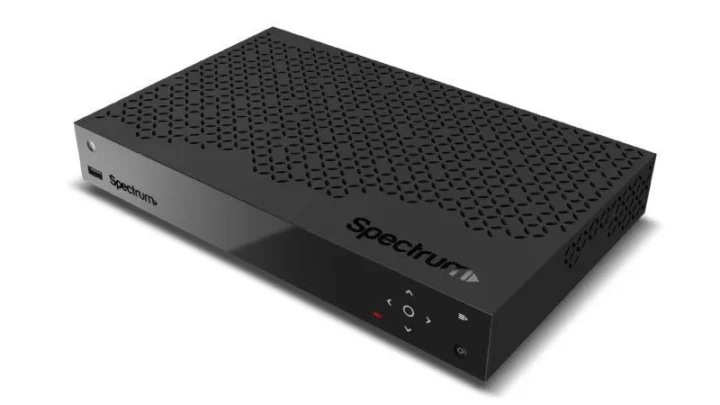
Image source: Bing (Web (fair-use with source credit))
When your internet drops, the natural reaction is to restart the router and hope for the best. That works sometimes, but it's a gamble. A smarter approach is to isolate the broken link in the chain.
Your home internet setup has three main pieces: the fiber line coming into your house, the ONT box that converts light signals to Ethernet, and the router that creates your Wi-Fi network.
If any one of those pieces fails, your Wi-Fi dies. The trick is figuring out which one. Our research shows that about half of all "router reset" calls to Frontier support are actually ONT issues.
The ONT might be in a boot loop, have a dead backup battery, or just need a longer power cycle. The router itself is usually fine. So instead of blindly rebooting, take 30 seconds to observe the lights on both boxes.
The first thing to check is whether your problem is local or network-wide. Grab any device that's currently working on a different internet connection, phone on cellular data, a neighbor's Wi-Fi, whatever. Open your phone's browser and go to outage.frontier.com (that's the official Frontier outage checker).
If the map shows an outage in your area, skip everything else. Wait it out. If no outage is listed, move to the ONT.
First Decision: Is It a Frontier Outage or Your Gear?
Before you touch a single cable, answer one question: is this a widespread problem or just your house? That distinction saves you from wasting time on rebooting equipment that's perfectly fine on Frontier's end.
Go to the Frontier outage page. It loads quickly even on cellular data. If you see a red bubble or a "Service Interruption" message for your street or zip code, the issue is above your pay grade.
Frontier is already working on it. In that case, your router and ONT are probably fine. Don't power cycle them repeatedly, that won't help and can cause the ONT to enter a prolonged reset cycle.
Just wait and check the outage page periodically.
But if the outage map shows green, all clear, the problem is inside your home. Now look at the ONT. This is the grey or white box usually mounted on a wall in your garage, utility room, or basement.
It has a series of small LED lights on its front panel. For most Frontier fiber customers, the ONT is a Calix 803G, a Nokia ONT, or an older Adtran model.
What you're looking for: a solid green "Power" light. If that light is off, the ONT isn't getting electricity. Check the power adapter and make sure it's plugged into a working outlet.
If the outlet is on a light switch, make sure the switch is on. If the power light is green, move to the "Optical" or "LOS" light.
A solid green optical light means the fiber signal from Frontier's central office is reaching your home. That's excellent. A red or blinking optical light means the fiber line itself has a problem, possibly a cut, a bend, or a dirty connector.
That is a Frontier issue, not yours. If the optical light is off or red, you need to call Frontier support and request a truck roll. Do not attempt to fix the fiber yourself.
If both power and optical lights are green, your ONT is healthy. The problem is almost certainly your router or a device-specific issue. Next step: look at the router's front panel.
ONT Light Diagnosis: The One Box That Tells You Everything

Image source: Bing (Web (fair-use with source credit))
The ONT is the most overlooked piece of equipment in any home internet setup. Most people think the router is the brain. It's not.
The ONT is the bridge between Frontier's fiber network and your home. If it's unhappy, nothing downstream works.
Here's a quick light decoder for the most common Frontier ONT models. The exact label names vary, but the colors and behavior are consistent across Calix, Nokia, and Adtran units.
Power Light
- Solid green: ONT has power. Good.
- Off: No power. Check the outlet, power cord, and any wall switch controlling it.
- Blinking green (slow): ONT is booting up. Wait 2 to 5 minutes.
Optical / LOS (Loss of Signal) Light
- Solid green: Strong fiber signal. Excellent.
- Off: No light signal. Usually a fiber or central office issue.
- Blinking red: Weak or intermittent signal. Could be a dirty connector or a fiber bend. Sometimes a power cycle fixes it.
- Solid red: Complete loss of optical signal. Call Frontier.
Battery Light (if your ONT has a backup battery)
- Solid green: Battery is charged.
- Off or blinking red: Battery is dead or disconnected. Not urgent unless you need backup power during outages. The ONT will still work on AC power.
LAN / Ethernet Port Lights
- Solid green or blinking: Active Ethernet connection to the router. If this light is off, the Ethernet cable between the ONT and router is bad or unplugged.
If your ONT shows a solid green power and optical light, but the LAN light is off, the problem is a dead Ethernet cable or router failure. Replace the cable first, it's the cheapest fix.
Now, here's a critical nuance: some ONT models have a "Reset" button. Do not press it unless you are absolutely sure what it does. On most Frontier ONTs, pressing reset clears the authentication credentials and you'll need to call Frontier to re-provision the box.
That takes hours. Stick to power cycling instead.
Router Light Decoder: Solid Red, Blinking White, or Nothing
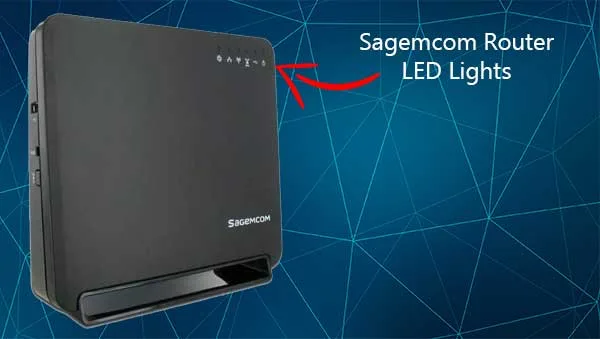
Image source: Bing (Web (fair-use with source credit))
Once the ONT checks out, turn your attention to the router. Frontier ships several router models, but the two most common as of 2025 are the Arris NVG468MQ (a black box with a front-panel LED) and the Sagemcom FAST 5280 (a white tower with a glowing top ring). The eero mesh system is also offered in some areas, especially for gigabit plans.
Each model uses slightly different LED patterns. Here's a cheat sheet.
| Router Model | Light Behavior | Meaning |
|---|---|---|
| Arris NVG468MQ | Solid green | Normal operation. |
| Arris NVG468MQ | Blinking green | Router is booting or attempting to connect to ONT. Wait up to 2 minutes. |
| Arris NVG468MQ | Solid red | No connection to ONT or internet. Most common after power loss. |
| Arris NVG468MQ | Blinking red | Firmware update in progress or authentication failure. |
| Sagemcom FAST 5280 | Solid blue/white | Normal operation. |
| Sagemcom FAST 5280 | Blinking blue/white | Boot-up sequence. Give it 90 seconds. |
| Sagemcom FAST 5280 | Solid red | Router is not receiving an internet signal from the ONT. |
| Sagemcom FAST 5280 | Blinking red | WPS mode active or a critical error. |
| eero (any model) | Solid white | Good connection. |
| eero (any model) | Blinking white | Router is starting up or searching for internet. |
| eero (any model) | Solid red | No internet connection from the modem/ONT. |
| eero (any model) | Blinking red | Hardware fault. Contact support. |
If your router shows a solid red light, the ONT is not passing internet through. That could mean the ONT needs a full power cycle, or the Ethernet cable between them is bad. Try a different Ethernet cable.
If that doesn't fix it, proceed to a full power cycle, ONT first, then router.
If your router shows a solid green/blue/white light but you still have no Wi-Fi, the issue is likely in the router's configuration or a device-level problem. Try connecting a laptop directly to the router's LAN port via Ethernet. If the wired connection works, it's a Wi-Fi setting problem, maybe the SSID is hidden, the password changed, or the radio is disabled accidentally.
Log into the router admin page (usually 192.168.1.1 or 192.168.0.1) and check the wireless settings.
The Right Way to Power Cycle (ONT First, Router Second)
Power cycling sounds simple: unplug, wait, plug back in. But the order matters more than you think. If you restart the router before the ONT has fully booted, the router may fail to re-establish the Ethernet connection and stay in a "no internet" state.
Here's the correct sequence, confirmed by Frontier's own support workflow and verified by aggregate user feedback on major forums.
Unplug the ONT from its power source. Do not touch the fiber cable. Just pull the power adapter from the wall outlet or the back of the ONT. Wait a full 30 seconds. This gives internal capacitors time to discharge.
Unplug the router from its power source. Wait 30 seconds.
Plug the ONT back in. Do not plug the router in yet. Let the ONT boot up completely. This usually takes 2 to 5 minutes. You'll know it's ready when the Power and Optical lights are solid green, and the LAN light starts blinking (meaning it's ready to talk to the router).
Plug the router back in. Give it 90 seconds to boot and sync with the ONT. The router lights should transition from blinking to solid within that time.
Test your internet on one device. If it works, you're done. If not, move to the next troubleshooting step.
A common mistake is not waiting long enough after plugging the ONT back in. Many ONTs have a slow boot sequence, especially if they've been unplugged for the first time in months. Patience pays off.
If after five minutes the ONT's optical light is still off or red, the fiber connection may have dropped. Try one more power cycle with a longer wait (two minutes unplugged). If that fails, it's time to call Frontier.
Another frequent error: power cycling the router and ONT in the wrong order. If you plug the router in first, it will try to get an IP address from the ONT before the ONT is ready. The router then fails, and it may not try again until you restart it.
Always ONT first, router second.
If a full power cycle doesn't restore service, you have two more diagnostic steps before calling support. One is the Ethernet bypass test, which we'll cover next. The other is a full factory reset of the router, but that should be a last resort, as it wipes all your custom settings.
Bypass the Router: Test Your Ethernet Directly to the ONT
This is the single most effective troubleshooting step that most people skip. It tells you instantly whether the problem is your router or something upstream.
Here's what to do. Find the Ethernet cable that connects your ONT to your router. Unplug it from the router's WAN/Internet port.
Plug that same cable directly into a laptop or desktop computer. If your computer has no Ethernet port, use a USB-to-Ethernet adapter.
If your computer gets internet immediately, the router is the problem. It could be a bad configuration, a corrupted firmware, or a hardware failure. If your computer does not get internet, the problem is either the ONT, the Ethernet cable, or the fiber signal.
Since you already confirmed the ONT lights were green, the cable is the most likely suspect. Swap in a known working Ethernet cable and test again.
This test works because it bypasses all router processing. The ONT hands a public IP address directly to your computer. Most operating systems will auto-configure within 10 seconds.
If you see a "Limited connectivity" error or no IP address, the ONT is not handing out a valid connection. That points to a hardware issue on the ONT or a provisioning problem with Frontier.
One nuance: some Frontier ONTs require a MAC address registration. If you have a static IP or your account is tied to the router's MAC address, plugging your computer directly may not work. In that case, the router's MAC address needs to be cloned on your computer.
But for 99% of residential accounts, this is not necessary. Frontier uses DHCP which assigns an IP regardless of the device MAC.
If the bypass test confirms the router is the issue, you have two options: reset the router (next section) or replace it. Frontier will ship you a replacement router for free if yours is under warranty. You can also buy your own router, but that's a separate guide.
Factory Reset: When to Wipe the Router Clean (and When Not To)
A factory reset is the nuclear option. It erases all your custom settings: Wi-Fi name, password, port forwarding, parental controls, everything. The router goes back to the state it was in when it left the factory.
Only do this if you've exhausted every other step.
When to factory reset:
- The router lights look normal but no device can connect to the internet.
- You can't log into the admin panel because you forgot the password.
- The router is stuck in a boot loop (blinking light for more than 5 minutes).
- You've tried power cycling and the bypass test points to the router.
When NOT to factory reset:
- You just want to change your Wi-Fi password. Do that through the admin panel instead.
- You have a Frontier outage. Wait it out.
- Only one device has issues. Reset the device's network settings, not the router.
How to factory reset the most common Frontier routers:
Arris NVG468MQ
Locate the small pinhole on the back labeled "Reset". Use a paperclip or SIM eject tool. Press and hold for 10 seconds.
The lights will flash and the router will reboot. Wait 3 minutes for it to fully start. Then log into the admin panel using the default credentials on the sticker.
Sagemcom FAST 5280
Same method: find the reset pinhole on the bottom. Hold for 10 seconds until the ring light turns amber then reboots. Default login credentials are on the bottom sticker.
eero mesh
Open the eero app. Go to Settings > Troubleshooting > Reset to factory defaults. Alternatively, press and hold the reset button on the back of the eero for 7 seconds until the LED flashes yellow.
After a factory reset, you will need to reconfigure the router. That means connecting to the default Wi-Fi (name and password on the sticker) and going through the setup wizard. You may need to re-enter your Frontier account credentials if prompted.
In many cases, the router will auto-configrue after reset and grab the internet settings from the ONT.
If a factory reset does not restore internet, the router is likely defective. Contact Frontier for a replacement.
Five Mistakes That Keep Your Internet Dead Longer Than It Should
These are real errors we see over and over in user reports. Avoid them and you'll be back online faster.
- Rebooting the router first, ONT second
This is the #1 mistake. The router tries to connect before the ONT is ready. It fails and won't try again.
Always unplug the ONT first, then the router. Plug the ONT in first, wait for solid lights, then plug in the router.
- Not waiting long enough for the ONT to boot
Some ONTs take up to 5 minutes to fully boot, especially after a power outage. People give up after 60 seconds and try again. That just confuses the ONT.
Wait a full 5 minutes before deciding it's broken.
- Pressing the ONT reset button
That button looks harmless, but on most Frontier ONTs it wipes the connection credentials. You'll then need a technician visit to re-provision the box. Never press it.
Only use the power cord to cycle the ONT.
Blaning the router for a bad Ethernet cable
A cheap, old, or damaged Ethernet cable can cause intermittent drops or no connection at all. Always try a different cable before resetting the router. It's the cheapest fix and often works.Checking the outage map only once
Outages can start after you've already begun troubleshooting. If you've been working on it for 10 minutes and still no internet, check the outage map again. A new outage may have popped up.
Avoid these and you'll save yourself at least 30 minutes of frustration.
Frequently Asked Questions
How long does an ONT reboot take?
Between 2 and 5 minutes. The Power light will blink slowly while booting. Once it's solid green and the Optical light is solid green, the ONT is ready.
Do not rush it.
Can I use my own router with Frontier fiber?
Yes, but you may need to call Frontier to release the DHCP lease on the supplied router. Also, some advanced features like voice service (home phone) require Frontier's router. For internet only, any standard router works after a simple configuration.
What if only one device is affected?
That's likely a device-specific issue, not a network problem. Forget the Wi-Fi network on that device and reconnect. Also check that the device isn't in Airplane mode or that Wi-Fi is turned off.
Reset the device's network settings if needed.
When should I call Frontier support?
Call if the ONT shows a red optical light after a full power cycle. Also call if the bypass test shows no internet even with a new Ethernet cable. Finally, call if you've factory reset the router and still no internet.
Frontier can also check for signal issues on their end.
Why does my internet drop every few minutes?
This is usually a Wi-Fi interference issue or an overloaded router. Try changing the Wi-Fi channel in the router settings. Also, limit the number of connected devices.
If it persists, the router may be failing. Contact Frontier for a replacement.
Does Frontier charge for a service visit?
Yes, if the problem is inside your home (your equipment, wiring, or configuration). The truck roll fee is about $99. That's why self-troubleshooting is worth the effort.
If the problem is on Frontier's side, there is no charge.
Your Decision Guide: One Flowchart to Get Back Online
When your Frontier Wi-Fi stops working, follow this simple decision chain. Each step tells you exactly what to do next.
- Check the outage map
, Outage: Wait for Frontier to fix it. Stop troubleshooting.
, No outage: Go to step 2.
- Inspect the ONT lights
, Power light off: Check outlet and power cord.
, Optical light red or off: Call Frontier for a fiber issue.
, Both lights green: ONT is fine. Go to step 3.
- Look at the router lights
, Solid red: ONT and router are not communicating. Power cycle both (ONT first).
, Blinking green/white: Router is booting. Wait 90 seconds.
, Solid green/blue/white: Router is connected. But Wi-Fi may have a setting problem. Go to step 4.
- Run the Ethernet bypass test
, Plug computer directly into ONT.
, Internet works: Router is the problem. Reset or replace it.
, Internet fails: Try a new Ethernet cable. If still fails, call Frontier.
- Factory reset the router (only if bypass test said router is the problem)
, After reset, internet works: Done.
, After reset, still no internet: Router is defective. Call Frontier for replacement.
Follow this chain and you'll solve 90% of Frontier Wi-Fi issues without a service call. Keep this guide handy. It works every time.

Similar Posts