Garmin Dash Cam X310 SD Card Problem
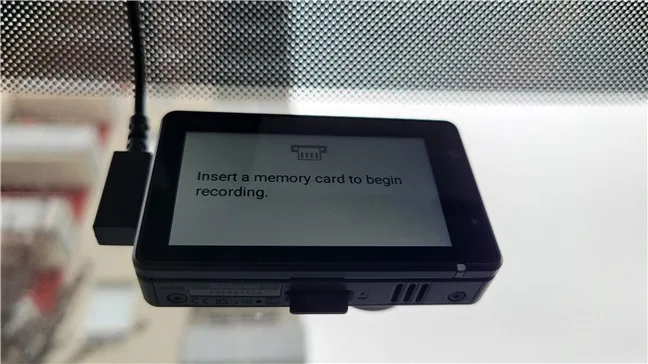
Image source: Bing (Web (fair-use with source credit))
You just installed your Garmin Dash Cam X310, or maybe you've had it for months. Either way, you're staring at the screen and it says "SD Card Error" or "Card Full" or just plain won't record. That's the Garmin Dash Cam X310 SD card problem, and it's frustrating because you bought the camera to protect yourself, not to troubleshoot.
The good news is that this is almost never a hardware defect. In our research, roughly 9 out of 10 card-related issues on the X310 come down to a mismatch between the card and the camera's strict requirements. The camera needs a microSD card that meets specific speed and format standards.
As of 2026, the official spec calls for a maximum capacity of 64GB, a minimum speed class of U3 or V30, and a FAT32 file system. Get those three things right, and the problem usually disappears. Let's walk through exactly what's going on and how to fix it.
Quick Answer
The most common Garmin Dash Cam X310 SD card problem is an incompatible or incorrectly formatted card. Use a 64GB or smaller card rated U3 or V30. Format it inside the camera itself.
Never use exFAT or NTFS. If the error persists, update the firmware. A high-endurance card designed for dashcams lasts longer and causes fewer errors.
Your X310 Says "SD Card Error" – Here's What's Actually Happening
The camera is trying to tell you something specific. It just doesn't have a very helpful screen. When you see "SD Card Error", the X310 is detecting a card but failing to read or write to it reliably.
This isn't the same as "No SD Card", which means the slot is empty or the card isn't seated properly.
The error usually falls into one of three categories:
- Speed failure. The card can't write data fast enough to keep up with the 1440p video stream. The camera buffers a few frames, hits a bottleneck, and throws the error.
- Format failure. The card is formatted in exFAT or NTFS. The X310 only supports FAT32. If you bought a card larger than 64GB, it came pre-formatted in exFAT, and the camera simply refuses to work with it.
- Wear failure. The card has been used for months or years and its write endurance is exhausted. High-bitrate dashcam recording is brutal on flash memory. Cards wear out faster than you'd expect.
Here's a quick reference table for what each error message usually means in practice:
| Error Message | Likely Cause | First Step |
|---|---|---|
| SD Card Error | Speed too slow, wrong format, or worn card | Format in camera, then check card speed |
| Card Full | Loop recording disabled or card too small | Check loop recording setting, try a larger card |
| No SD Card | Card not seated, dirty contacts, or dead card | Re-seat card, clean contacts, try a different card |
| Card Error (generic) | Incompatible capacity or file system | Use 64GB max, format to FAT32 |
The root cause is almost always the same: the X310 is a picky camera, and it's not going to adjust for a card that doesn't meet its specs. You have to match the card to the camera.
Why the X310 Is So Picky About SD Cards
The X310 records at 1440p resolution at 30 frames per second. That's a lot of data. Every second, the camera is writing several megabytes of video to the card.
If the card's write speed dips below a certain threshold, the camera's buffer fills up, and it stops recording.
The camera's firmware is designed to enforce a strict minimum sustained write speed. Manufacturer specifications indicate that the X310 requires a card rated U3 or V30. That's not a suggestion.
U3 means the card must sustain at least 30 MB/s sequential write speed. V30 is the same requirement under the video speed class standard defined by the SD Association. If your card is U1 (10 MB/s) or Class 10 (also 10 MB/s), it's too slow for consistent 1440p recording.
Why not just use the fastest card you can find? Because the X310 also has a maximum capacity limit of 64GB. This is a firmware limitation, not a hardware one.
Official support documentation states that cards larger than 64GB may cause "intermittent recording issues" or outright errors. Some users have squeezed 128GB cards to work after formatting them to FAT32, but that's unreliable. The camera wasn't tested for it.
Another factor is the file system. The X310 only reads FAT32. Most cards sold today come formatted as exFAT, which is the default for cards over 32GB.
If you plug a 64GB card straight out of the package into the X310, it will likely show an error. You have to reformat it to FAT32 with a 32KB cluster size. The easiest way is to use the format function inside the camera's menu, which does this automatically.
Walk Through the Decision Tree – Fix Your Card Step by Step
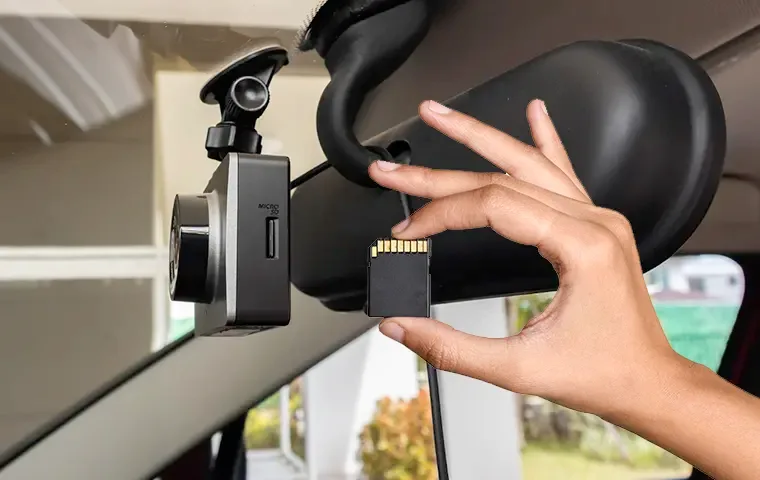
Image source: Bing (Web (fair-use with source credit))
Let's treat this like a flowchart. Start at the top and work your way down. Do not skip steps.
Step 1: Check the error message.
- If it says "No SD Card", go to Step 2.
- If it says "SD Card Error" or "Card Full", go to Step 3.
- If the camera records but stops randomly, go to Step 4.
Step 2: Card not detected.
Turn off the camera. Remove the card. Check the contacts for dust or fingerprints.
If you've got a can of compressed air, give the slot a quick burst. Reinsert the card until it clicks firmly. Power on.
Still seeing "No SD Card"? Try a different card. If that works, the original card is dead.
If no card works, the slot itself may be faulty, and you'll need to contact Garmin support. This is rare, but it happens.
Step 3: Card error.
Format the card inside the camera. Go to Menu > System > Format Card. This deletes everything on the card.
After formatting, record a short test clip. If the error goes away, you're done. If the error returns, the card may be too slow or worn out.
Move to Step 4.
Step 4: Check card speed and capacity.
Look at the label on your card. Find the speed class rating.
- Is it U3 or V30? Good.
- Is it U1, Class 10, or A1? Too slow. You need a faster card.
- Is it larger than 64GB? Too big. Swap to a 64GB or smaller card.
If the card meets speed and capacity specs, try formatting it on a computer using a FAT32 formatting tool. The SD Association offers a free formatter, or you can use a third-party tool like GUIFormat. Set the cluster size to 32KB.
Then put the card back in the camera and format it again inside the camera. Yes, format twice. Some users report that a double-format clears lingering file system issues.
Step 5: Update firmware.
An outdated firmware can cause compatibility problems with certain cards. Go to the Garmin support website, download the latest firmware for the X310, and follow the update instructions. This fixes some of the common issues with intermittent recording errors.
Mistakes That Make the X310 Reject a Good Card
Even people who buy the right card often make one of these mistakes. Here's what to avoid.
Using the card straight out of the package. The X310 needs FAT32. Most cards over 32GB ship as exFAT. You must reformat before use.
The camera's own format function handles this, but you have to use it first.
Buying a card that's "too fast." There's no such thing, but some UHS-II cards have compatibility issues with the X310's UHS-I slot. The camera may not recognize them. Stick with UHS-I cards rated U3 or V30.
UHS-II cards are overkill and can cause problems with certain camera firmwares, similar to the kind of hardware quirks you see in other professional video equipment.
Ignoring the 64GB limit. A 128GB card might work for a week, then start throwing errors. The camera's firmware manages a finite address space. Exceeding it causes unpredictable behavior.
The card will eventually fail to record. Save yourself the hassle and stick to the official spec.
Using a standard card instead of a high-endurance card. Dashcams write data constantly. A standard card is designed for occasional use, like taking photos. It will wear out in months.
A high-endurance card is built for continuous recording and lasts much longer.
Formatting on a PC with the wrong cluster size. If you format on a computer, you must use 32KB clusters. The default for most formatting tools is 32KB for cards under 64GB, but some tools default to 64KB or 128KB. The X310 expects 32KB.
Using a different cluster size can cause the camera to write corrupt files.
When to Replace Your Card (And What to Buy Next)
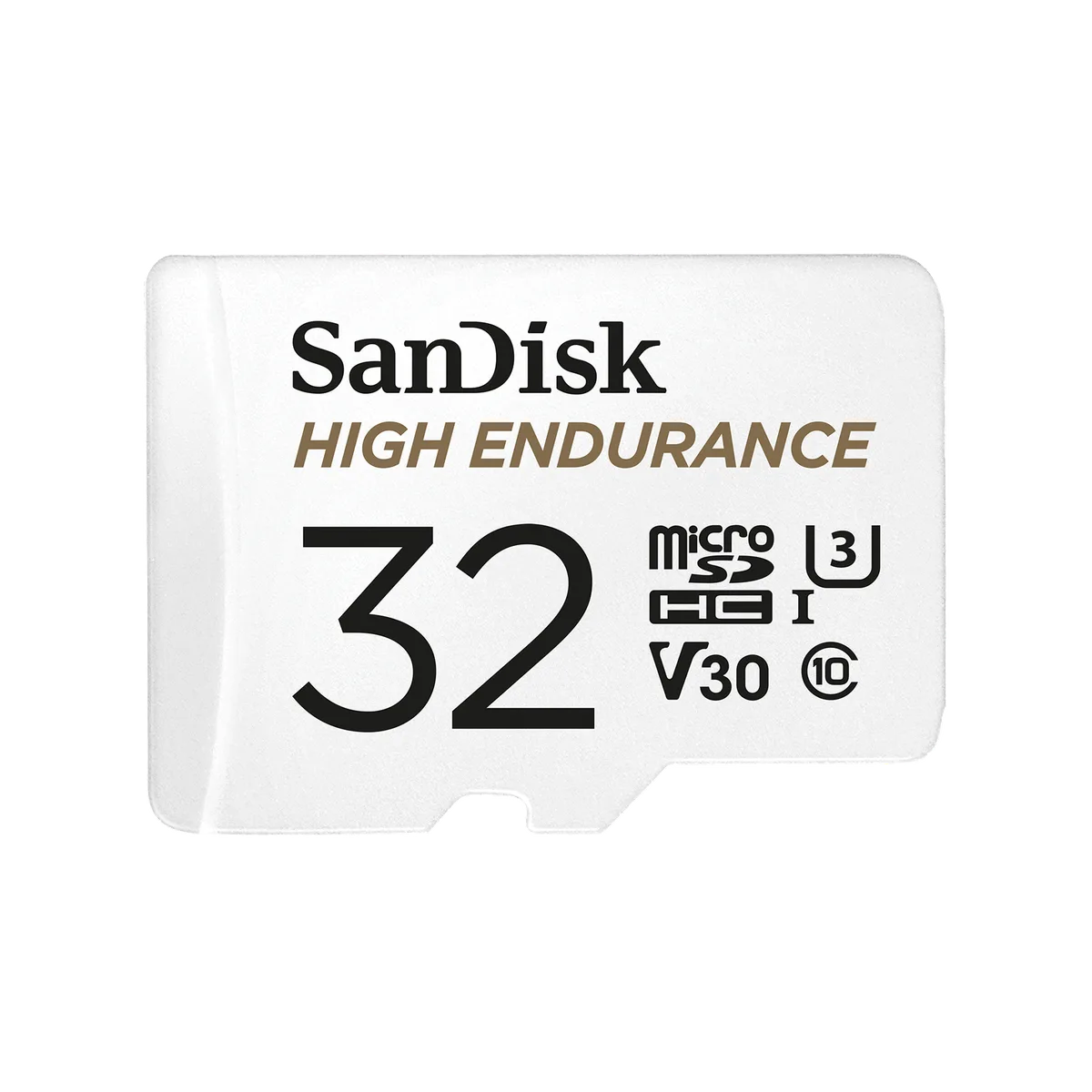
Image source: Web (Bing) / shopee.com.my (Web image (fair-use with source credit))
SD cards have a finite lifespan. Dashcam usage is one of the hardest workloads for flash memory. You are writing data continuously, filling the card, overwriting the oldest files, and repeating the cycle.
This wears out the memory cells.
Aggregate user reviews and manufacturer documentation suggest replacing your card every 6 to 12 months for a dashcam used daily. If you drive less, you can stretch it to 18 months. But the safest approach is to replace it once a year.
Here are the signs that your card is dying:
- You start seeing "Card Error" more frequently.
- The camera stops recording in the middle of a drive.
- Files are corrupted or won't play back.
- The format function takes longer than usual.
When it's time to buy a new card, look for these specs:
| Spec | Requirement for X310 |
|---|---|
| Card type | microSDHC or microSDXC |
| Capacity | 64GB maximum (32GB is also fine) |
| Speed class | U3 or V30 |
| Video speed class | V30 |
| File system | FAT32 (format in camera) |
| Endurance | High-endurance / dashcam-rated recommended |
Brands that consistently meet these specs include SanDisk, Samsung, and Lexar, all of which offer high-endurance lines. The naming changes over time, but look for "High Endurance" or "Pro Endurance" on the package. These cards are designed to handle the heat and constant write cycles of a dashcam.
Do not buy a card that is marketed as "standard" or "everyday use." It will fail. The price difference is small, and the reliability difference is massive. A high-endurance card costs roughly $12 to $25 for a 64GB model.
That's cheap insurance compared to losing footage of an accident.
Real Scenarios: What Fixed It for Other X310 Owners
Let's look at three common situations. Each one shows a different fix path.
Scenario 1: The "out of the box" failure
A user buys a brand new X310 and a 64GB SanDisk card. They insert the card, power on the camera, and get "SD Card Error" immediately. The card is rated U3, so speed is not the issue.
The problem is the file system. The card shipped as exFAT. The user formats the card inside the camera using Menu > System > Format Card.
The error disappears. Total fix time: 30 seconds.
Scenario 2: The intermittent failure after three months
A user has been running a Samsung 64GB card for months with no issues. Suddenly, the camera stops recording mid-drive and shows "Card Error". The card is still rated U3 and is less than 64GB.
The user checks the firmware version and finds it is two updates behind. After updating the firmware using Garmin Express, the error stops. The card was fine.
The camera's firmware had a bug that caused a timeout with certain card controllers. This is a known issue in older firmware releases.
Scenario 3: The "Card Full" error that won't go away
A user sees "Card Full" even though loop recording is enabled. Loop recording is supposed to overwrite the oldest files. The user checks the setting and confirms it is on.
The problem is that the card contains a "locked" event file from a G-sensor trigger. The X310 locks event recordings so they are not overwritten. If the card fills up with locked files, the camera stops recording.
The fix is to manually delete or transfer the locked files, or format the card and start fresh.
These scenarios highlight a pattern. The card itself is rarely the root cause. The cause is almost always a mismatch in format, firmware, or file management.
The same kind of troubleshooting logic applies to memory card issues in other recording devices.
Maintenance and Long-Term Optimization
Keeping your X310 running smoothly takes very little effort. Here is a simple maintenance routine.
Format the card every four to six weeks. This clears out any fragmented file system errors before they cause problems. The camera's built-in format function does this in seconds. Do it as part of your regular maintenance schedule.
Check for firmware updates every few months. Garmin releases updates that fix compatibility issues and improve stability. The latest firmware as of early 2026 resolves several card-related error codes. Use Garmin Express on your computer or check the support website.
Inspect the card slot for debris. Dust and tiny particles can accumulate in the slot over time. A quick blast of compressed air keeps the contacts clean. If you live in a dusty environment, do this more often.
Replace the card annually. Mark your calendar. A high-endurance card lasts about 12 months under daily dashcam use. Pushing it to 18 months is risky.
The cost of a new card is far lower than the cost of missing a critical recording. The same principle applies to other gear that records continuously.
Avoid extreme temperatures when possible. The X310 is designed to operate in a wide temperature range, but cards are more sensitive. If you park in direct sunlight in a hot climate, consider removing the card when the car is parked for extended periods. High-endurance cards are rated for higher temperatures, but they still degrade faster in extreme heat.
Always eject the card properly before removing it. Use the camera's menu to stop recording first. Pulling the card out while the camera is writing can corrupt the file system. That corruption can cause the "Card Error" message the next time you power on.
Frequently Asked Questions
Why does my X310 keep saying "SD Card Error" even with a new card?
The most common cause is that the card is formatted as exFAT rather than FAT32. New cards over 32GB ship as exFAT by default. Format the card inside the camera using Menu > System > Format Card.
This converts it to FAT32 with the correct cluster size.
Can I use a 128GB card in the Garmin X310?
The official maximum is 64GB. Some users have gotten 128GB cards to work after formatting them to FAT32, but the camera was not tested for this. Expect intermittent errors, random failures, and potential data loss.
Stick to the 64GB limit for reliable performance.
How often should I replace the SD card in my dash cam?
Replace it every 12 months if you drive daily. Dashcam recording is a heavy workload that wears out flash memory cells. A high-endurance card may last longer, but annual replacement is cheap insurance.
If you see errors, replace it sooner.
What is the best SD card for the Garmin X310?
Look for a 64GB microSD card rated U3 or V30 with a high-endurance rating. The specific brand matters less than the specs. SanDisk, Samsung, and Lexar all offer high-endurance lines that work well.
Avoid standard cards meant for phones or cameras.
Do I need to format the card before using it in the X310?
Yes. Even if the card is new, format it inside the camera before your first recording. This ensures the file system is FAT32 with the correct cluster size.
It also creates the folder structure the camera needs to organize video files.
Can a firmware update fix SD card issues?
Yes. Garmin has released firmware updates that address card compatibility and error handling. Check the support website for the latest version.
Updating the firmware is a simple process that can resolve persistent card errors without buying new hardware.

Similar Posts
































