GoPro HERO10 Black How to Update Firmware
You tap "Update" on the touchscreen, and then nothing happens. Or worse, the wheel spins for ten minutes and your GoPro HERO10 Black freezes completely. If you're searching for exactly how to update firmware without bricking your camera, you landed in the right spot.
The firmware file is roughly 200 MB, and the install takes between 5 and 12 minutes. Most updates fail because of a dead battery, a slow SD card, or a misseed preparation step. Here's how to avoid all three.
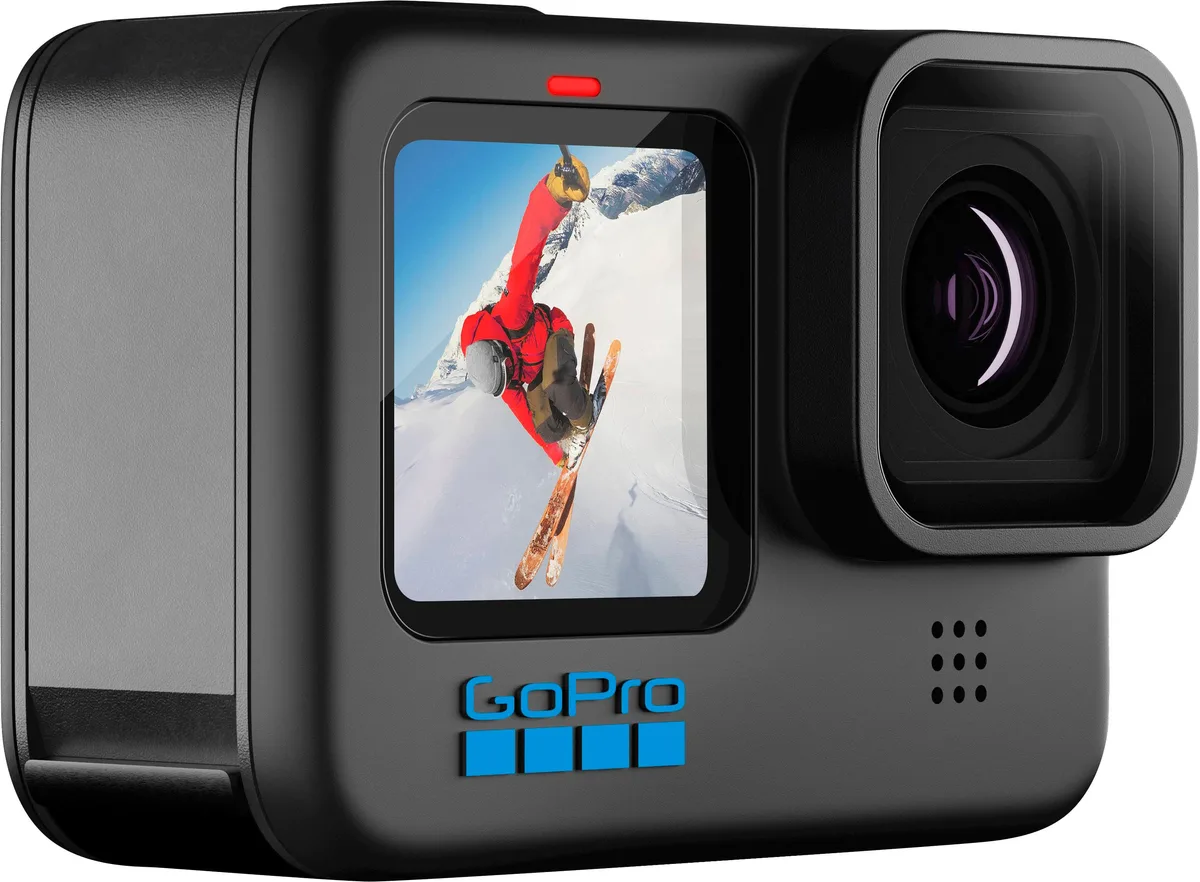
Image source: Web (Bing) / bestbuy.com (Web image (fair-use with source credit))
Quick Answer
Update your camera using the Quik app or a manual SD card method. Charge the battery above 50 percent. Format your SD card inside the camera first.
For the app method, connect via Bluetooth and tap "Download." For the manual method, place the UPDATE folder on the root of your card. Confirm by pressing the shutter button.
Why Updates Fail: The Real Reason Your GoPro Freezes Mid‑Update
The camera writes new code to its internal memory during a firmware flash. If power cuts or the transfer stops, the file corrupts. That is how you end up with a camera that refuses to boot.
Three causes dominate failure reports.
A low battery is the number one killer. The GP2 processor works hard during the install. If the battery indicator shows one bar, do not start.
A cheap or slow SD card is the second culprit. The manual method requires a card that can read and write data steadily. A UHS‑I U3 card is the baseline.
The third cause is impatience. You tap a button during the install. You close the app.
You switch apps. The camera interprets any of these as a signal to stop.
On screen, a solid progress bar means the update is running correctly. A frozen screen with a spinning icon usually means the process has halted. If you see that spinning icon for longer than 15 minutes, something is wrong.
If your camera has been freezing randomly before the update, address that first. We cover this specifically in our article on the GoPro HERO10 Black freezing problem. A flaky camera will not handle a firmware flash well.
Two Methods, One Goal: App Update vs. Manual SD Card Update
You can get new firmware onto the HERO10 Black in two ways. Both reach the same destination, but one is signifiantly more reliable depening on your situation.
| Feature | GoPro Quik App (Wireless) | Manual Method (SD Card via PC) |
|---|---|---|
| Convenience | High – works anywhere with Bluetooth/Wi‑Fi | Medium – requires a computer or tablet |
| Reliability | Medium – connection can drop mid-transfer | High – no wireless interference |
| Best Use Case | Quick patches, minor bug fixes | Major version jumps, bricked or glitchy cameras |
| Time to Complete | 15–30 minutes (download + transfer) | 10–15 minutes (download + file copy) |
| Need for Intrnet | Yes, on your phone | Yes, on your computer |
Use the Quik App when you are traveling and do not have a laptop handy. Use the manual method when you are at home and your camera is acting up.
Aggregate user feedback shows the manual method has a much lower failure rate. It cuts out the wireless handshake between your phone and the camera. One less thing to go wrong.
The official GoPro support page provides the latest firmware files for either method.
Before You Start: Battery, SD Card, and the Format You Can't Skip
Battery level. GoPro officially states you need at least 50 percent charge for the wireless method and 20 percent for the manual method. The safest bet is 80 percent or higher. A battery that reads 55 percent can drop below the threshold mid-write.
SD card formatting. You must format the card inside the camera. Go to Preferences > Format SD Card. This ensures the file system matches what the HERO10 expects (usually exFAT or FAT32).
A card formatted on a PC can cause a "No Media" error.
Card speed and compatibility. A card that is too slow can interrupt the manual update. GoPro recommends cards with a UHS Speed Class U3 or better. A V30 rating is even safer.
We see consistent issues in our guide on SD card problems across the GoPro lineup, and the GoPro HERO13 Black SD card problem has similar root causes.
If you have a card older than two years, buy a fresh one. It's cheap insurane against a bricked camera.
Method 1: Updating via the GoPro Quik App (Wireless)
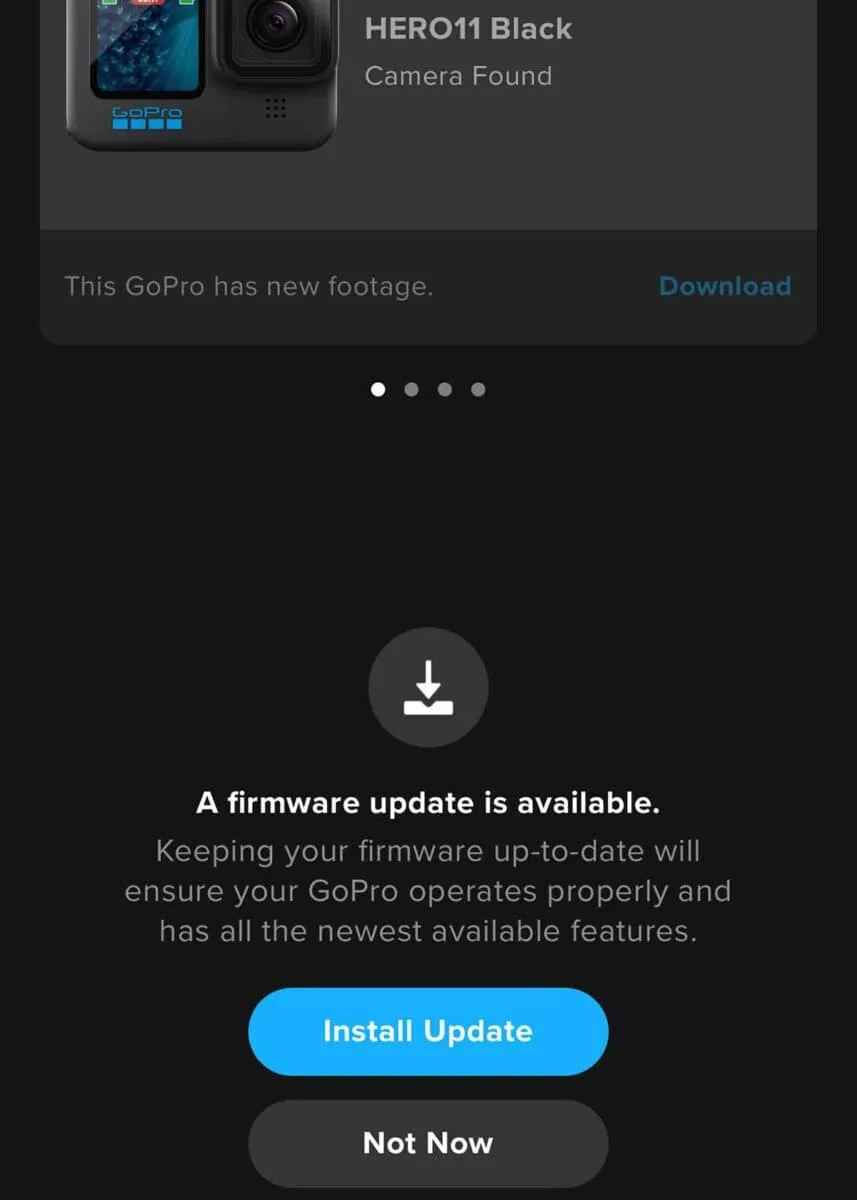
Image source: Web (Bing) / storytellertech.com (Web image (fair-use with source credit))
Step 1: Prepare your phone. Open the GoPro Quik app and make sure it is updated to the latest version. An old app version will not recognize the new firmware.
Step 2: Connect the camera. Turn on your HERO10. The app should prompt you to connect via Bluetooth and Wi‑Fi. Confirm the pairing on the camera's touchscreen.
Step 3: Chek for updates. The app will automatically scan your camera's firmware version. If an update is available, a prompt appears that says "Update Available" on both the phone and the camera screen.
Step 4: Start the download. Tap the prompt on your phone. The firmware file downloads to your phone first, then transfers wirelessly to the camera. This transfer step takes the longest.
Step 5: Wait without touching anything. Keep your phone within 3 feet of the camera. Do not switch apps. Do not anser a call.
Watch the camera screen for the progress bar.
Step 6: Confirm completion. The camera will restart automatically when the install finishes. Go to Preferences > About to verify the new version number matches the latest release.
If the app loses conection during the transfer, do not panic. Power cycle the camera and start again. The camera will still be on its old firmware unless the install reached the final write step.
Method 2: Manual Update Using a Computer and SD Card
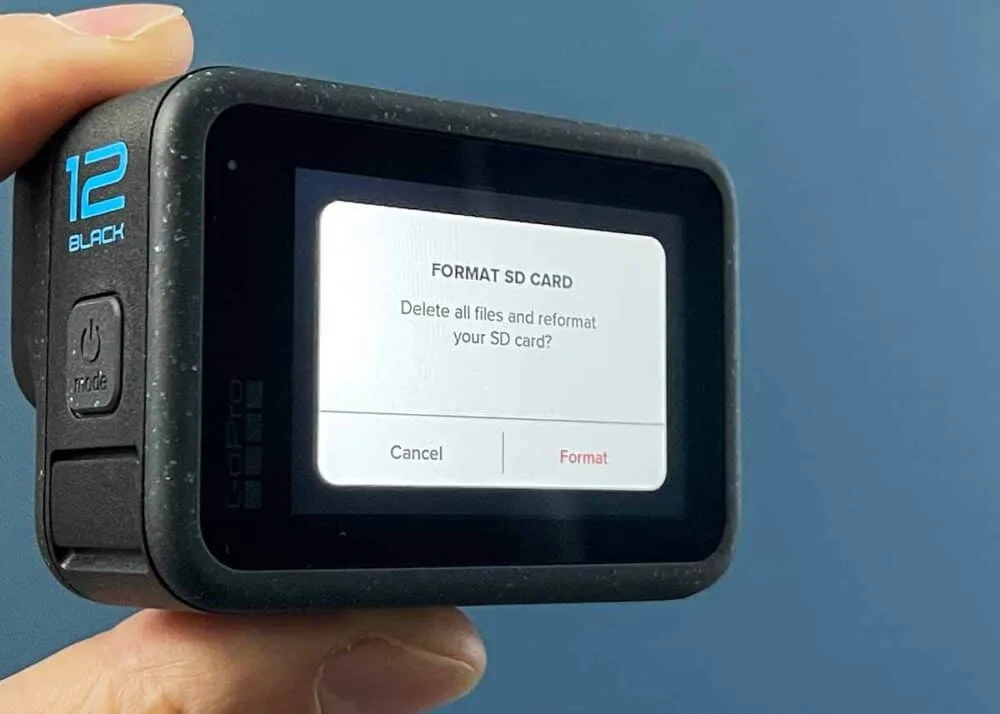
Image source: Web (Bing) / storytellertech.com (Web image (fair-use with source credit))
Step 1: Download the correct firmware. Go to the official GoPro support page and locate the HERO10 Black firmware. Make sure you download the HERO10 file, not the HERO9 or HERO11 file. The wrong file will not install and can cause errors.
Step 2: Extract the file. The download comes as a .zip file. Extract it. Inside you should see a folder named "UPDATE".
Do not rename this folder.
Step 3: Format your SD card. Insert the SD card into your computer or a card reader. Format it to exFAT or FAT32. Some users skip this step, and then the camera does not recognize the update file.
Step 4: Copy the folder to the root. Drag the "UPDATE" folder onto the SD card. It must go on the root level, the very top of the card directory. Do not put it inside a "DCIM" folder or any other folder.
Step 5: Insert the card and power on. Eject the card from your computer and insert it into your powered-off HERO10. Press the power button. The camera will boot up and detect the update file automatically.
Step 6: Confirm the update. A prompt appears on the screen asking if you want to update. Press the shutter button to confirm. The camera displays a progress bar.
Do not press any buttons during the install.
Step 7: Verify the version. After the camera restarts, go to Preferences > About. The version number should match the one you downloaded. If it does not, repeat the process and check that you copied the file to the root directory.
Visual Red Flags: What to Watch For on Screen (And How to Fix Them)
The camera screen tells you everything, but only if you know what to look for. Different symbols mean different problems.
| On-Screen Signal | What It Means | Action to Take |
|---|---|---|
| Spinning wheel for over 10 minutes | Update stalled or wireless connection lost | Force restart (hold Mode + Shutter 8 seconds). Start over with manual method. |
| "Update Failed" message | Corrupt file or interrupted write | Re-download firmware. Format SD card. Try manual method. |
| Battery icon flashing red | Power too low to complete install | Charge battery to 80% before retrying. |
| No image, blank screen after update | Failed boot possibly due to corrupt firmware | Remove battery and SD card. Wait 60 seconds. Reinsert. Force restart. |
| "No Media" or "SD Card Error" | Card not formatted properly or incompatible | Format card inside camera via Preferences > Format SD Card. |
The force restart is the most useful trick. Press and hold the Mode button and the Shutter button at the same time for 8 seconds. The camera shuts down fully.
Then power it back on normally.
If the screen stays black after a forced restart, try a different SD card. Some cards that work fine for filming fail during the high‑write‑demand of a firmware flash.
Another sign: if the front screen shows text in a language you did not choose, the update may have partially applied. Reset to factory defaults via Preferences > Reset > Reset Camera. Then run the manual update again.
Frequently Asked Questions About HERO10 Firmware Updates
Can I downgrade to an older firmware version?
No, the HERO10 Black does not officially support rollbacks. Once you update, you are on that version. A few advanced users have tried using GoPro Labs firmware, but that voids your warranty and can cause instability.
Stick with the latest official release.
How long does a firmware update take?
The Quik App method takes 15 to 30 minutes from download to completion. The manual method takes 10 to 15 minutes. The actual install on the camera (once the file is transferred) runs 5 to 12 minutes for either method.
Will an update erase my settings or footage?
No. Firmware updates do not delete your saved photos, videos, or preferences. A factory reset would wipe settings, but the update itself only overwrites the system code.
Your media stays on the SD card.
What if the update fails and my camera won’t turn on?
Remove the battery and the SD card. Wait one minute. Reinsert the battery only.
Connect the camera to a charger via USB‑C. Try the forced restart (Mode + Shutter for 8 seconds). If it boots, run the manual update immediately.
If it stays dead, contact GoPro support.
Do I need to update every time a new version comes out?
No, but it's smart to check every few months. Some updates fix critical bugs like GPS drift or shadow recovery. Others add new features like Horizon Leveling.
Staying current also improves accessory compatibility.
Can I use a third-party app to update the firmware?
No. Only the official GoPro Quilk app or the manual SD card method works. Third-party apps cannot write to the camera's internal firmware partition.
Attempting it can brick the device.
Final Pro Tips: How to Avoid Ever Needing a Factory Reset
A factory reset wipes all your custom settings, presets, and paired accessories. Here's how to keep your firmware updates clean so you never reach that point.
Use the manual method for major jumps. If you are skiping several firmware versions, do not rely on the app. Download the latest file directly. Copy it to a freshly formatted SD card.
This avoids corruption from partial wireless transfers.
Keep the Quik app updated on your phone. An old app version may not handshake correctly with the camera. Check your app store monthly for updates.
Do not update right before a shoot. Update at least 24 hours before you need the camera. Test it. Record a minute of video.
Chek that HyperSmooth and TimeWarp work. A small glitch found beforehand is better than a bricked camera on location.
Use a carry‑spare SD card. Keep a dedicated card for firmware updates. Use the same card every time. That way you always know it is formatted and reliable.
Do not use your primary filming card for updates.
If you ever run into an SD card issue after the update, our guide to the GoPro HERO13 Black SD card problem can help diagnose compatibility issues. For persistent freezing after an update, refer to our article on the GoPro HERO10 Black freezing problem for deeper troubleshooting steps.
Following these steps keeps the failure rate extremely low. A clean update takes less than 15 minutes. A botched update can cost you hours.
Spend the few extra minutes on preparation.

Similar Posts
































