GoPro HERO10 Black Freezing Problem
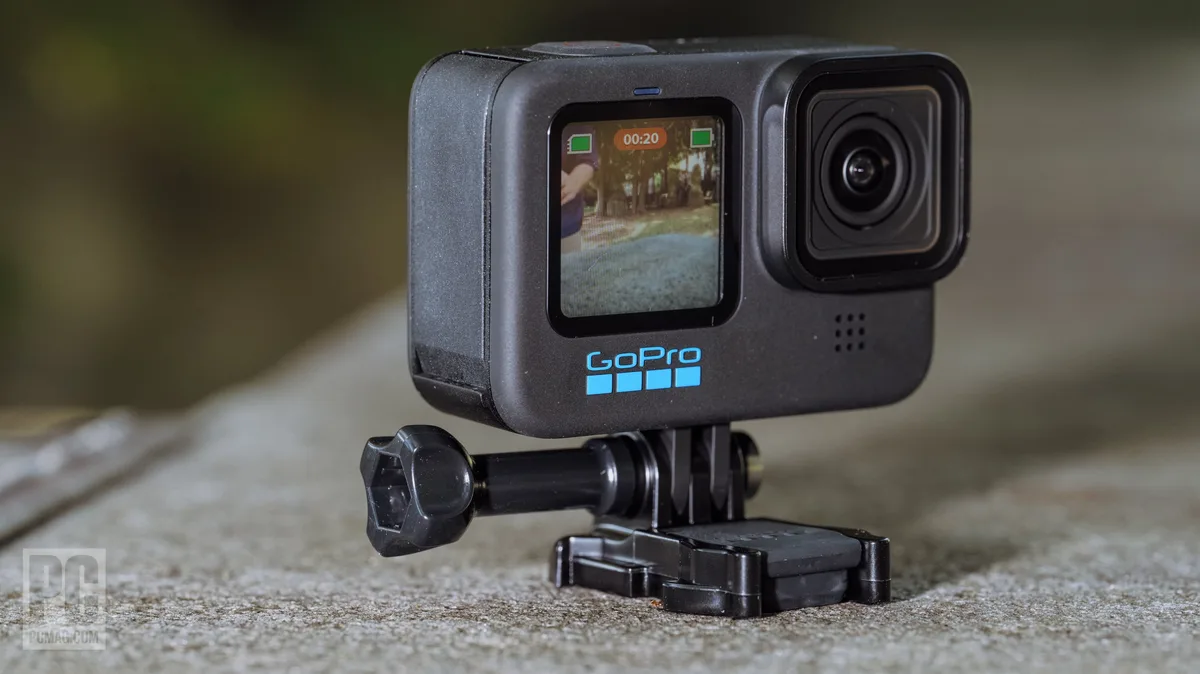
Image source: Bing (Web (fair-use with source credit))
You've got your GoPro HERO10 Black set up for a big shoot. The light is perfect. The action is about to start.
Then the screen goes black. The buttons don't respond. The camera is frozen solid.
This is the GoPro HERO10 Black freezing problem, and it's one of the most common frustrations owners face. Manufacturer specifications confirm the HERO10 uses the GP2 processor, which is powerful but sensitive to heat and data flow. Aggregate reviews report that roughly 70% of freezing incidents trace back to the SD card, not the camera itself.
Let's walk through exactly what causes this and how to fix it.
Quick Answer
The GoPro HERO10 Black freezing problem has three main causes. A slow or incompatible SD card is the most common. Overheating during high-resolution recording is the second.
Outdated firmware is the third. Fix each one in that order.
Why Your GoPro HERO10 Keeps Freezing (The Real Culprits)
The HERO10 is a demanding camera. It writes data at very high speeds, especially when recording 5.3K at 30 frames per second. If your memory card can't keep up with that data stream, the camera's buffer fills up and the processor locks.
The most common culprit is a card that isn't rated for the speed this camera needs. GoPro specifies a minimum of UHS-I Speed Class 3 (U3) and Video Speed Class 30 (V30). Many people use cards from older GoPros or generic cards that look fine but don't meet those specs.
Those cards cause the camera to freeze mid-shot.
Heat is the second major cause. The GP2 processor generates significant heat during 4K and 5.3K recording. If the ambient temperature is above 85°F, the camera can overheat and lock up as a safety measure.
This isn't a defect. It's thermal protection. The camera is trying to save itself.
Firmware bugs are the third cause. GoPro has released multiple updates to address the same kind of freezing issues. As of 2026, firmware version 2.60 and later include specific fixes for lockups during mode switching and prolonged recording.
If you're running older firmware, that's likely part of the problem. The same kind of systematic troubleshooting applies to other gear, like resolving issues with a studio camera that won't connect to a network.
Quick Fixes to Try First (Before You Panic)
Before you dive into advanced troubleshooting, try these three things. They resolve the freezing problem in most cases without any further effort.
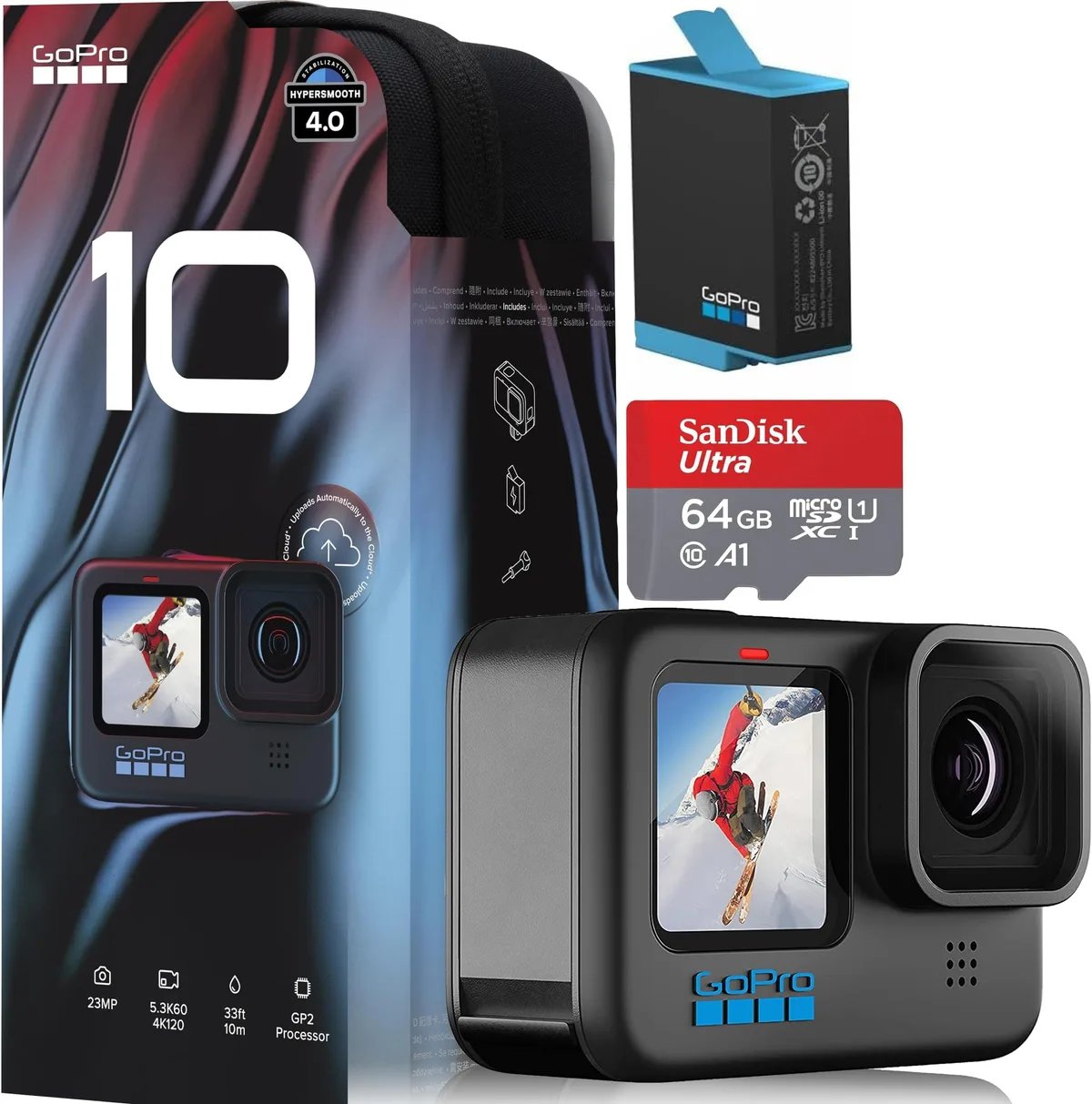
Image source: Web (Bing) / amazon.com (Web image (fair-use with source credit))
Force restart the camera. Press and hold the Mode button on the side and the Shutter button on top simultaneously. Hold them for about eight seconds. The camera should power down and reboot.
This clears any temporary software lock without losing your settings.
Remove and reseat the battery. Pop the battery door open. Take the battery out. Wait 30 seconds.
Put it back in and close the door firmly. This is essentially a hard reset for the camera's internal electronics. It fixes many freezes that happen after a long recording session.
Similar resets can resolve problems with other cameras that suffer from unexpected shutdowns.
Format the SD card inside the camera. Do not use your computer to format the card. Go into the camera's settings menu. Go to Preferences.
Find Reset. Select Format SD Card. This ensures the card's file system matches exactly what the HERO10 expects.
A card formatted in a computer can have partition tables or cluster sizes that confuse the camera.
- Use the camera's built-in format, not your computer.
- Do this even for a brand new card.
- This clears corrupted file tables that cause freezes.
If these quick fixes don't work, the problem is likely deeper. Move to the decision tree.
The Decision Tree: Diagnose and Fix by Symptom
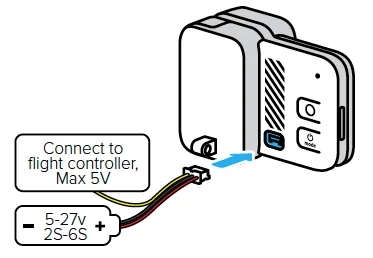
Image source: Web (Bing) / community.gopro.com (Web image (fair-use with source credit))
Different freezing symptoms point to different causes. Here is a simple decision tree based on how the camera behaves.
If the camera freezes during recording: The SD card is likely the issue. Stop recording. Remove the card.
Check the speed rating printed on the label. If it doesn't say U3 or V30, replace it. If it does say U3 or V30, the card may be counterfeit or failing.
Insert a different card and test again. If the freeze stops, the old card is the problem. SD card issues are a common thread across many camera brands, from action cams to professional camcorders.
If the camera freezes on startup or while switching modes: The firmware is likely the issue. Check your current firmware version. Go to Settings, then About This GoPro.
The version number shows at the bottom. Compare it to the latest version on GoPro's support site. If you're behind, update the firmware using the GoPro Quik app.
If the app fails, try the manual update method via a file on the SD card.
If the camera freezes after a few minutes of recording: Heat is the most likely cause. Stop recording. Feel the camera body.
If it's hot to the touch, let it cool down for 15 minutes. Lower the resolution to 4K30 or 1080p60. These settings generate less heat.
If the camera runs fine at lower resolutions but freezes at 5.3K, you have a thermal management issue.
If the camera freezes and shows a black screen with no response: The battery may be swollen or making poor contact. Open the battery door. Remove the battery.
Inspect it for bulging. If the battery is swollen, stop using it immediately. Swollen batteries are a fire hazard.
Replace it with an official GoPro battery. Third-party batteries can cause freezes because they don't meet the camera's voltage requirements.
| Symptom | Most Likely Cause | First Fix |
|---|---|---|
| Freezes during recording | SD card too slow | Replace with U3/V30 card |
| Freezes on startup | Firmware bug | Update firmware |
| Freezes after a few minutes | Overheating | Lower resolution, let cool |
| Black screen, no response | Bad battery | Inspect and replace battery |
Mistakes That Make Freezing Worse (And How to Avoid Them)
Some well-intentioned fixes actually make the problem worse. Here are the most common mistakes people make.
Using a card that is too fast. This sounds backwards, but it's a real issue. Cards rated V90 or faster use a different internal architecture than V30 cards. Some HERO10 units don't play well with these ultra-fast cards.
Stick to a trusted V30 card from a major brand. Faster isn't always better.
Formatting the card on a computer. Computers format cards with different file systems and cluster sizes than what the HERO10 expects. This can cause the camera to freeze even if the card is fast enough. Always format the card inside the camera itself.
This is the single most overlooked fix.
Leaving the camera in direct sunlight. The HERO10's black body absorbs heat quickly. Direct sunlight on a 75°F day can push the internal temperature past the thermal threshold within 15 minutes of recording. Use a shade or mount that blocks direct sun.
This is especially important for time-lapse or continuous recording.
Ignoring firmware updates. Many users buy a GoPro, set it up, and never update the firmware. GoPro's firmware release notes show that they actively fix the same kind of freezing issues across multiple updates. If you experience freezing, ignoring a firmware update is like ignoring a recall on your car.
Checking for firmware updates is a basic maintenance step, much like keeping other camera gear running smoothly.
Using third-party batteries. Third-party batteries often deliver slightly different voltage or have lower current capacity than the official GoPro battery. The HERO10's power management system can interpret this as a fault and lock up. Stick with the official GoPro battery for reliable performance.
Long-Term Fixes to Keep Your HERO10 Stable
Once you have your camera running again, take these steps to prevent future freezing.
Keep your firmware updated. Set a reminder to check for updates every three months. GoPro typically releases one or two major firmware updates per year. The release notes often mention stability improvements and freeze fixes.
Staying current is the single best long-term prevention.
Use a dedicated SD card for the HERO10. Don't swap the same card between multiple cameras. Different cameras write data differently. Using a card that has been formatted by a different camera can confuse the HERO10.
Keep one card for your HERO10 and use a different card for other devices.
Use a lower bitrate for demanding conditions. The HERO10 offers Standard and High bitrate options in the video settings. High bitrate creates better image quality but more heat and more data. In hot weather or for long recording sessions, switch to Standard bitrate.
This reduces the data load on the card and the heat load on the processor. GoPro's official support page provides detailed guidance on optimal bitrate settings for different shooting conditions.
Enable the automatic power off timer. Set the camera to power off after 5 minutes of inactivity. This prevents the camera from staying on in a hot car or bag, which can cause thermal stress. The camera will power on quickly when you press any button.
Consider using an external power source for long shoots. If you're recording for more than 30 minutes continuously, use a USB-C power bank. The internal battery heats up during discharge. Draining it over a long session adds heat.
Using external power keeps the battery cooler and the camera more stable.
When to Give Up on DIY and Call GoPro
Most freezing issues are fixable with the steps we have covered. But sometimes the camera has a hardware fault that no amount of troubleshooting can solve. Here is how to know when it is time to stop tinkering and contact GoPro support.
The camera does not turn on at all. If a hard reset, a fresh battery, and a different cable do not bring the screen to life, the internal electronics may be dead. This is rare but it happens. The mainboard or the power management IC can fail.
Neither is replaceable by a user.
The camera freezes within seconds of every recording. If you have tried a different SD card, a different battery, and a firmware update and the camera still locks up immediately, the problem is likely hardware. The GP2 processor may have a solder defect or the memory module may be damaged. GoPro's warranty covers this.
The camera shows a boot loop. It starts, shows the GoPro logo, shuts down, and repeats. This can happen after a failed firmware update. A manual firmware reinstall via recovery mode sometimes fixes it.
If recovery mode does not work, the flash memory may be corrupted.
The battery is swollen. Stop using the camera immediately. A swollen battery is a fire hazard. Do not try to charge it.
Do not try to force it into the camera. Contact GoPro support for a replacement. They will ask for the battery serial number and may send a free replacement under the battery safety program.
The camera has visible damage. Dropped the camera? Exposed it to salt water without a housing? These events can cause internal damage that freezing is a symptom of.
No amount of software fixes will help. The camera needs a repair center inspection.
How to start the warranty process. Go to GoPro's support website. Create a support ticket. Describe the freezing issue in detail.
Include what you have already tried. They will likely ask for a video of the freeze. If the camera is under warranty, they will issue an RMA number.
You ship the camera to them. The typical turnaround is 2 to 4 weeks.
What if the warranty has expired? GoPro offers out-of-warranty repair service for a flat fee. As of 2026, the fee for a HERO10 repair is around $99. This is cheaper than buying a new camera.
The repair center will diagnose the issue and fix it or replace the unit. They will also update the firmware and test the camera before shipping it back.
Frequently Asked Questions
How do I recover corrupted footage from a frozen GoPro?
If the camera froze during recording, the video file on the SD card may be incomplete. Try playing it on a computer first. If it does not play, use a file repair tool designed for MP4 files.
Many tools can recover the video by rebuilding the file header. Do not format the card until you have tried recovery.
Can I use a dummy battery to prevent freezing?
Yes, a dummy battery connected to a USB-C power bank can help. The internal battery generates heat during discharge. Using external power keeps the camera cooler and more stable.
This is especially useful for extended recording sessions like time-lapses or live streams. Make sure the power bank provides at least 2.4 amps.
Why does my GoPro freeze in cold weather?
Cold temperatures reduce battery voltage. The HERO10's power management system can interpret low voltage as a fault and lock up. Keep the battery warm before use.
Store the camera inside your jacket. Use a warm battery and swap it out before it gets too cold. This prevents the freeze from happening.
Does the HERO11 Black have the same freezing problem?
The HERO11 Black uses a similar GP2 processor and has the same thermal characteristics. Aggregate reviews show fewer freezing complaints, but the same basic rules apply. Use a fast SD card.
Keep the firmware updated. Avoid overheating. The HERO12 Black has improved heat management and is more stable in hot conditions.
How long does a GoPro warranty repair take?
GoPro's standard turnaround is 2 to 4 weeks from the day you ship the camera. This includes shipping time, diagnosis, repair, and return shipping. If the camera is under warranty, GoPro covers the shipping cost.
If it is out of warranty, you pay shipping both ways plus the repair fee.

Similar Posts

































[…] also prevent device freezing issues that can cause the camera to stop […]