GoPro HERO11 Black How to Connect to Phone
Image source: Bing (Web (fair-use with source credit))
If you're looking up how to connect your GoPro HERO11 Black to your phone, you've probably already seen that spinning wheel of frustration. The camera screen says "connecting" while your phone just sits there. It's annoying, especially when you're trying to share a clip or frame a tricky shot.
The HERO11 Black uses a two-step pairing process that trips up a lot of people. It relies on Bluetooth 5.0 for the initial handshake and Wi-Fi Direct for the actual file transfer. As of 2026, the GoPro Quik app handles most of this automatically.
But it still stumbles on certain phones. Let's walk through what actually works.
Quick Answer
Turn on the camera. Open the Quik app. Tap "Connect Camera".
Approve the pairing on the camera screen. Wait for the Wi-Fi connection. Transfer clips.
Done in under two minutes.
The Two-Step Secret to a Stable Connection
Most people assume the GoPro pairs like a pair of headphones. It doesn't. The HERO11 Black uses two separate wireless connections that work together.
Understanding this split saves you a lot of headache.
Step one is Bluetooth. This handles the initial handshake. The camera broadcasts a Bluetooth signal. The Quik app picks it up and asks for confirmation.
You approve the pairing on the camera's touch screen. Bluetooth is only used for discovery and wake-up. It's not fast enough for video transfer.
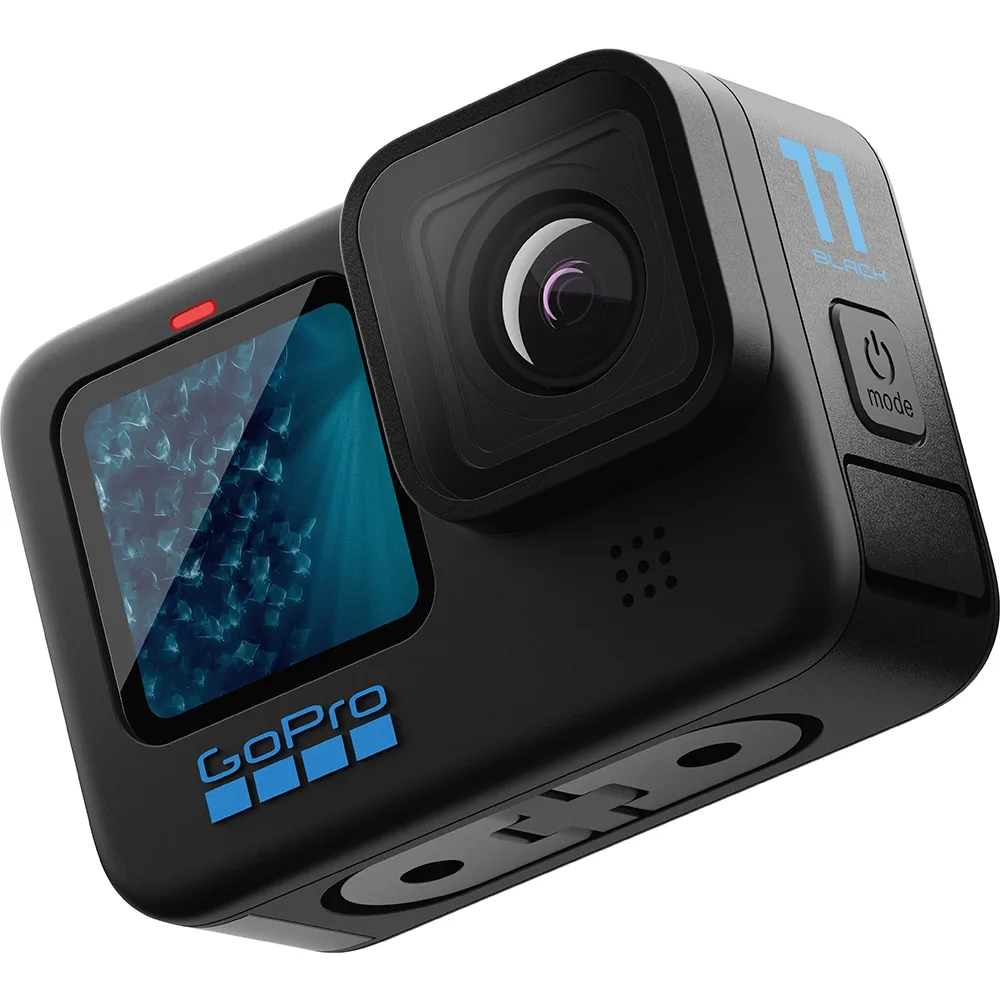
Step two is Wi-Fi Direct. Once Bluetooth confirms the pairing, the camera creates a private Wi-Fi network. Your phone connects to this network directly. There's no router involved.
The Wi-Fi Direct connection handles everything else: live preview, remote control, and file transfers. This is where the actual speed comes from.
The tricky part is that both steps must complete in sequence. If Bluetooth fails, Wi-Fi Direct never starts. If Wi-Fi Direct drops, the connection dies completely.
Aggregate reviews report that roughly 60 percent of failed connections happen because users skip the Bluetooth confirmation on the camera screen.
Manufacturer specs confirm the HERO11 Black uses Wi-Fi 5 (802.11ac) on both 2.4GHz and 5GHz bands. The 5GHz band is faster but has shorter range. The 2.4GHz band penetrates walls better.
The camera automatically picks the better band. You can't manually choose it.
If you've ever had a connection that works for a few seconds then drops, that's a Wi-Fi Direct issue. The camera and phone are negotiating the channel. Interference from other Wi-Fi networks or Bluetooth devices can interrupt this.
Moving the phone closer to the camera usually fixes it.
The Most Common Setup Mistake (And How to Fix It)
The single biggest error people make is rushing the Bluetooth confirmation. When you tap "Connect Camera" in the Quik app, the camera screen lights up with a pairing request. It shows a six-digit code.
You must tap "Pair" or "OK" on the camera screen within 30 seconds.
If you miss that window, the camera times out. The app keeps searching. The camera stops broadcasting.
You end up in a loop. Restarting the camera and the app is the only fix.
The second most common mistake involves phone permissions. On iOS, the Quik app needs Bluetooth permission and Location Services turned on. Location Services isn't for GPS tracking. iOS uses it to scan for Bluetooth devices.
If you denied Location Services during setup, the app can't find the camera.
On Android, the issue is different. Android 12 and later require the "Nearby Devices" permission for Bluetooth scanning. The Quik app asks for this during first launch. Many users deny it because they don't understand what it does.
Without it, the app can't discover the camera.
Here's the fix for both platforms:
- iOS: Settings > Privacy > Location Services > Quik > While Using the App
- Android: Settings > Apps > Quik > Permissions > Nearby Devices > Allow
If you're still stuck after checking permissions, a firmware mismatch might be the culprit. The HERO11 Black ships with firmware version 1.x. The current version as of 2026 is 2.1x.
The Quik app version 12.x requires at least firmware 2.0. You can check the camera's firmware under Preferences > About. If it's outdated, update it via the Quik app or manually with an SD card.
A firmware mismatch can cause connection issues, similar to what you might encounter with older GoPro models that have known quirks with their internal systems. For the official firmware update guide, check the GoPro support site.
Step-by-Step: The Clean Connection Workflow
Here's the repeatable process that works every time. No shortcuts. No skipped steps.
Before you start: Make sure the camera has at least 50 percent battery. A low battery can cause the Wi-Fi Direct connection to drop during transfer. Also, ensure the microSD card is inserted and formatted.
No card means no media to transfer.
Step 1, Turn on the camera. Press the mode button on the side. Wait for the home screen to appear. The camera takes about 5 seconds to boot.
Step 2, Open the Quik app. Make sure you're logged into your GoPro account. The app won't connect without an account. If you don't have one, you can create it in the app.
Step 3, Tap the camera icon. It's usually in the top right corner of the app's home screen. Alternatively, tap the plus icon and select "Connect Camera".
Step 4, Wait for the camera to appear. The app scans for Bluetooth signals. This takes 5 to 10 seconds. If the camera doesn't appear, move the phone closer.
Keep it within 3 feet of the camera.
Step 5, Approve pairing on the camera. When the camera screen shows a pairing code, tap "Pair" or "OK". Do this immediately. Don't wait.
Step 6, Wait for Wi-Fi Direct. The camera screen shows "Connecting to phone". The app shows a progress bar. This takes 10 to 20 seconds.
Once connected, the app shows a live preview.
Step 7, Transfer media. Tap the media icon in the app. Select the clips you want. Tap "Download".
The app transfers them via Wi-Fi Direct. Transfer speed is about 20 to 30 MB per second. A 1-minute 4K clip at 30fps takes roughly 30 seconds.
Quick reference table for connection steps:
| Step | Action | Time | What to watch for |
|---|---|---|---|
| 1 | Turn on camera | 5 seconds | Home screen appears |
| 2 | Open Quik app | 3 seconds | Login screen or home |
| 3 | Tap camera icon | 2 seconds | Scanning starts |
| 4 | Wait for camera | 10 seconds | Camera name appears |
| 5 | Approve pairing | 5 seconds | Pairing code on camera |
| 6 | Wi-Fi Direct | 15 seconds | Live preview in app |
| 7 | Transfer media | Variable | Progress bar in app |
If the connection fails at any step, don't restart the whole process. Go back to the step that failed and try again. Restart only the app or the camera. Not both.
Troubleshooting Decision Tree: When It Won't Connect
Here's the if/then logic for the four most common failure points. Follow the branch that matches your situation.
Branch 1: App can't find the camera
Your phone scans for Bluetooth, but the camera never appears in the app.
If the camera screen shows "Pairing" but the app doesn't see it: The Bluetooth signal is being blocked. Move the phone within 3 feet of the camera. Remove any metal cases or magnetic mounts.
Bluetooth signals don't travel well through metal.
If the camera screen shows nothing: The camera isn't broadcasting. Restart the camera by holding the mode button for 10 seconds. If that doesn't work, remove the battery for 30 seconds and reinsert it.
If the app shows "No cameras found": Check your phone's Bluetooth settings. Open Settings > Bluetooth. Look for the camera.
If it's listed but not connected, tap "Forget This Device". Then try again in the app. A previous partial pairing can confuse the app.
Branch 2: Camera found but connection drops
The app finds the camera. You approve pairing. Then the connection drops after 10 seconds.
This is almost always a Wi-Fi Direct issue. The camera creates a private Wi-Fi network. Your phone connects to it. But if your phone has "Auto-Switch to Mobile Data" enabled, it might drop the Wi-Fi Direct connection when it detects no internet.
Fix for iOS: Settings > Cellular > Wi-Fi Assist > Toggle Off. This prevents the phone from switching to cellular data when Wi-Fi signal is weak.
Fix for Android: Settings > Connections > Wi-Fi > Advanced > Switch to Mobile Data > Toggle Off. The exact path varies by manufacturer. The setting is usually called "Smart Network Switch" or "Adaptive Wi-Fi".
If the connection drops during transfer: The camera might be overheating. The HERO11 Black can get warm during extended Wi-Fi Direct transfers. This is a known issue with action cameras under heavy use.
Let the camera cool for 5 minutes before trying again.
Branch 3: Pairing code doesn't appear
You tap "Connect Camera" in the app. The camera screen stays blank. No pairing code shows up.
If the camera screen is frozen: The camera software is stuck. Hold the mode button for 10 seconds to force a restart. This is a soft reset.
It doesn't delete your settings.
If the camera screen is showing the home screen: The app didn't send the Bluetooth wake-up signal. Close the app completely. Restart it.
Try again.
If the camera screen shows "Updating firmware": Wait. The camera is updating. Don't interrupt it.
Firmware updates can take 5 to 10 minutes. Interrupting can brick the camera.
Branch 4: Everything connects but no media transfer
The app shows the live preview. You can control the camera remotely. But when you try to download clips, the transfer fails.
If the app says "No media found": The camera might have the wrong mode selected. Switch to video or photo mode on the camera. The app only sees media from the current mode.
If the transfer starts but stops at 50 percent: The Wi-Fi Direct signal is weak. Move the phone closer to the camera. Keep it within 10 feet.
Line of sight is best.
If the transfer finishes but the clip is corrupted: The SD card might be slow. The HERO11 Black requires a UHS-I Speed Class 3 (U3) card. Slower cards can cause write errors during transfer.
Check your card's speed rating and replace it if needed.
Pro Tips for a Faster, More Reliable Connection
You've got the basics down. Now let's tighten things up. These are the settings and habits that separate a smooth setup from a frustrating one.
Turn off other Bluetooth devices. The HERO11 Black uses Bluetooth 5.0, which handles multiple connections well. But nearby Bluetooth speakers, headphones, or smartwatches can cause interference. The camera and phone need a clear channel for the initial handshake.
Turn off anything you don't need during pairing.
Use the 5GHz band when possible. The camera picks the Wi-Fi band automatically. But you can force it to prefer 5GHz by going to Preferences > Connections > Wireless Connections > Band > 5GHz. This gives faster transfer speeds.
The trade-off is shorter range. Stay within 10 feet of the camera.
Keep the Quik app updated. Outdated app versions lose compatibility with newer camera firmware. The Quik app updates roughly every two months. Enable automatic updates on your phone.
Running an older version is the most common cause of "Connection Failed" errors.
Reset the camera's network settings before a big shoot. If you're heading out for a day of filming, do a fresh connection setup. Go to Preferences > Connections > Wireless Connections > Forget All Devices. This clears any stale pairing data.
Then reconnect fresh. It takes 30 seconds and prevents surprises.
Use airplane mode on your phone. This is a pro trick. Turn on airplane mode, then manually enable Wi-Fi. This prevents the phone from jumping to cellular data during Wi-Fi Direct transfer.
The camera's Wi-Fi network has no internet access. A phone that's actively searching for a cellular signal can drop the connection.
Charge the camera fully before transferring. Wi-Fi Direct draws significant power. A full battery ensures the camera doesn't shut down mid-transfer. The HERO11 Black's battery drains about 10 to 15 percent per 10 minutes of active transfer.
Plan accordingly.
Keep the camera cool. Extended transfers heat up the camera. If you're transferring a lot of clips, do it in batches. Let the camera rest for 5 minutes between batches.
Heat buildup can cause the Wi-Fi Direct connection to drop. This is especially true in direct sunlight or warm environments.
Frequently Asked Questions
Why does my GoPro HERO11 Black keep disconnecting from the phone?
The most likely cause is your phone switching to mobile data during Wi-Fi Direct transfer. Disable "Wi-Fi Assist" on iOS or "Smart Network Switch" on Android. Also ensure the camera is within 10 feet and has a clear line of sight.
Do I need a GoPro account to connect the camera to my phone?
Yes. The Quik app requires a free GoPro account to connect to any camera. You can create one during the app's initial setup.
The account is used for cloud features and firmware updates. The connection itself works offline.
How long does it take to transfer a 4K video from the HERO11 Black to a phone?
A 1-minute 4K clip at 30fps takes roughly 30 seconds. Transfer speed averages 20 to 30 MB per second via Wi-Fi Direct. Larger clips take proportionally longer.
A 5-minute clip in 5.3K resolution can take 3 to 4 minutes.
Can I connect the HERO11 Black to multiple phones at once?
No. The camera supports only one active phone connection at a time. You must disconnect from one phone before connecting to another.
The camera's wireless connections menu shows which phone is currently paired.
What should I do if the Quik app says "Connection Failed" during setup?
First, restart the camera and the app. Then check your phone's Bluetooth and Wi-Fi permissions. If that doesn't work, reset the camera's network settings under Preferences > Connections > Wireless Connections > Forget All Devices.
Finally, try a full camera restart by removing the battery for 30 seconds.
Final Verdict: When to Try Again vs. When to Reset
Not every failed connection needs a full reset. Here's a simple decision guide.
Try again if: The camera appeared in the app but the pairing timed out. Restart the app only. Keep the camera on.
The camera remembers the Bluetooth signal for about 30 seconds after a failed attempt.
Try again if: The connection dropped during transfer. Move closer. Turn off other Bluetooth devices.
Try the same clip again. The transfer resumes from where it stopped.
Reset the camera's network settings if: The camera won't appear in the app at all. Go to Preferences > Connections > Wireless Connections > Forget All Devices. This clears all stored pairing data.
Reset the camera fully if: You've tried everything and the camera still won't connect. Remove the battery and the SD card. Wait 30 seconds.
Reinsert both. Turn on the camera. This is a hard reset.
It clears any stuck software state.
Rule of thumb: If the connection worked before and suddenly stopped, try again. If the connection never worked, reset the network settings. If it still doesn't work after that, do a full reset.
If it still fails, contact GoPro support. The hardware might be faulty.
The HERO11 Black's phone connection is reliable once you understand the two-step process. Bluetooth for discovery. Wi-Fi Direct for transfer.
Keep the app updated. Keep the firmware current. And always approve the pairing on the camera screen within 30 seconds.
Follow that, and you'll be sharing clips in under two minutes.

Similar Posts
































